

Jul 25, 2025Posted by Kevin Miller to Create Blu-ray
Today, YouTube is one of the highly popular platforms for streaming video content. Watching online content is convenient, but many want to keep their favorite YouTube videos for offline viewing. It is common in situations with limited internet access or for sharing on a physical medium. It is where burning YouTube to Blu-ray becomes incredibly valuable. Blu-ray discs offer high-capacity storage and HD playback. These features make it ideal for compiling YouTube content into a long-lasting and high-quality format. This post is created to guide you through the process of burning YouTube videos to physical discs in a complete, easy-to-follow way. From downloading the video to converting and burning it, we've got you covered. We will guide you through each step to help you complete the job efficiently and achieve professional results.

- Preparation Before Burning YouTube to Blu-ray
- Step 1. Download YouTube Videos
- Step 2. Burn YouTube Videos to Blu-ray with Blu-ray Master DVD Creator
- Troubleshooting of Burning YouTube to Blu-ray
Preparation Before Burning YouTube to Blu-ray
Before burning YouTube videos, proper preparation ensures a smooth process, high-quality output, and playback compatibility. Below are some of the important steps you should take before starting the burning process:
Download YouTube Videos in High Quality
The most important step is to download your YouTube videos in the highest possible quality. The preferable resolutions are HD (720p), Full HD (1080p), or 4K, if available. Blu-ray supports high-resolution playback, so using low-quality or pixelated videos will result in poor quality. Ensure that the source video is free from compression, blurry visuals, or audio sync issues.
Choose the Correct Blu-ray Disc Type
Not all Blu-ray discs are the same, so selecting the right type of disc is essential. Blu-ray comes in various types: BD-R (recordable), BD-RE (rewritable), single-layer (25GB), and dual-layer (50GB). Ensure the disc size is large enough to accommodate the total content. Matching the disc capacity with your content size ensures the best playback quality without compression loss.
What is Blu-ray? Get all your questions answered here.
Compatible Blu-ray Burner
Before you begin burning, ensure your computer is equipped with a Blu-ray burner. It must also be recognized by your operating system and support the disc type you plan to use. Using compatible hardware helps prevent errors during the burning process, such as failed writes, unreadable discs, or playback issues later on.
Step 1. Download YouTube Videos
SaveFrom.net is a free web-based video downloader that supports multiple video platforms. This tool requires no software installation, as it operates fully online to download YouTube videos. In addition to YouTube, you can also download videos from certain social media platforms. Some of these are YouTube Shorts, Facebook, Twitter, and Instagram.
Step 1.On the YouTube homepage, open the video you want to download and burn to a Blu-ray disc. Navigate to the address bar of your browser and copy the URL. Once copied, switch to SaveFrom.net in a new tab and paste the copied URL.
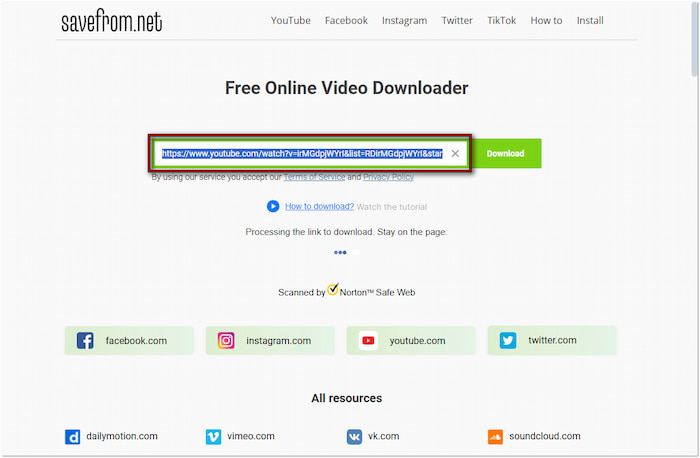
Step 2.Once the video information is displayed, click the pulldown menu next to the Download button. Select your preferred profile and resolution, then click Download to prepare the video for download. A new tab will open with ad redirects; close it and return to the main page. Finally, click the Download Now button to initiate the video file download.
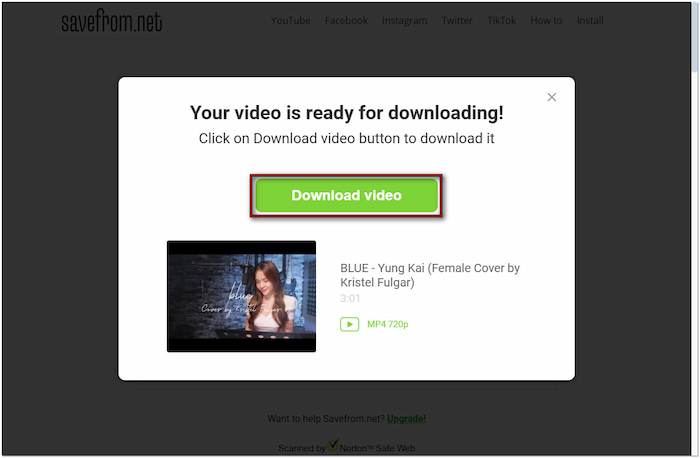
SaveFrom.net offers a quick way to download YouTube videos in MP4 format. However, each time you click Download, it will redirect you to an unrelated advertisement page. You should close the ad tabs and then retry it until the downloads proceed successfully.
Step 2. Burn YouTube Videos to Blu-ray with Blu-ray Master DVD Creator
Blu-ray Master picked DVD Creator is a multifunctional disc authoring and burning software for Windows and Mac. Though its name suggests otherwise, it can also burn media stream formats to Blu-ray discs. It includes a Blu-ray burning mode, which allows you to convert YouTube to Blu-ray. With it, you can load multiple downloaded YouTube videos and burn them simultaneously. It supports YouTube videos in various formats, including MP4, MKV, MOV, AVI, and WebM. Additionally, it comes with 20 pre-designed disc menu templates with customization options to enhance the appearance of your Blu-ray navigation interface.
Step 1.Get started by downloading the Blu-ray Master DVD Creator for free. Install the YouTube-to-Blu-ray burner on your system and complete the installation process. Once finished, insert the blank Blu-ray disc on your computer's external Blu-ray drive.
Free Download
For Windows
Secure Download
Free Download
for macOS
Secure Download
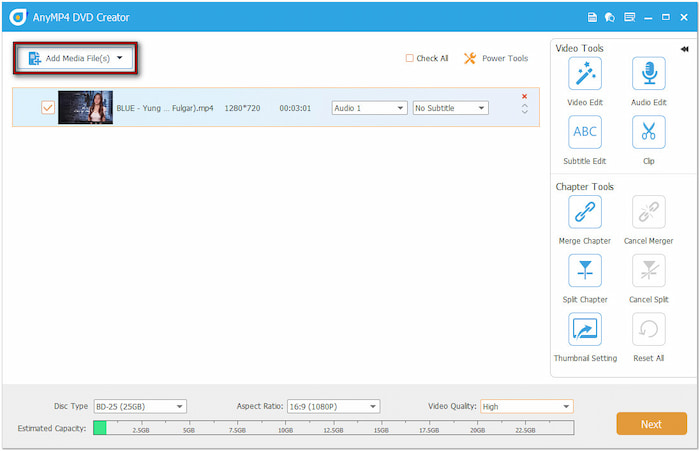
Step 2.Upon startup, click the Blu-ray Disc button to set it as your output type. Click the Add Media File(s) button to load the YouTube video file you've previously downloaded. Once added, specify your BD disc type, set the ratio, and choose a video quality. Click Next to proceed.
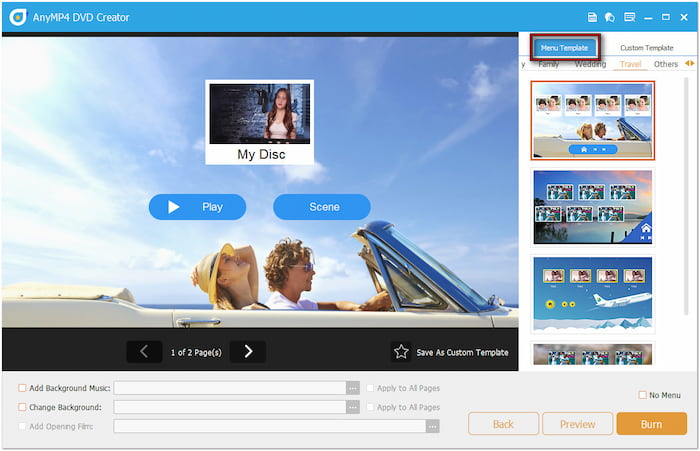
Step 3.When creating a disc menu, select a template that matches your video theme. Optionally, add background music, upload an image, or insert an introductory video to customize the menu. If you prefer a clean disc with no menu, select No Menu and click Burn to proceed.
Step 4.In the Burning Settings window, click the Folder Path selector to specify a BDMV folder directory. Check Burn to Disc, choose your Blu-ray drive, and configure other settings. After setting up everything, click Start to create a physical copy of the YouTube video.

With this 4K Blu-ray burner, you can easily transform your YouTube videos into Blu-ray discs. In addition to its main functionality, Blu-ray Master DVD Creator includes Power Tool. This feature offers several tools that enable you to edit video, audio, subtitles, and chapters.
Troubleshooting of Burning YouTube to Blu-ray
Burning Process Fails or Freezes Midway
The most common issue you may encounter is when the burning process fails or stalls midway. It can be due to insufficient system memory or a faulty physical disc. To fix this, close all unnecessary programs before starting the burn. Additionally, use a reliable brand-name BD-R disc to reduce the risk of failed burns.
Disc Not Recognized by Blu-ray Player
After burning, you may find that the Blu-ray disc won't play in a Blu-ray player. It usually stems from an incorrect disc format or an incompatible video structure. Always ensure that the software is set to burn a proper Blu-ray disc format rather than just storing video files in Blu-ray folders.
Blu-ray Burner Not Detected by Software
If the software doesn't recognize your Blu-ray drive, the problem could be due to outdated drivers or using a DVD-only writer instead of a Blu-ray burner. Confirm that your drive is indeed a Blu-ray writer (BD-R/BD-RE supported) and not just a DVD drive. Then, go to your operating system's Device Manager and ensure that the optical drive is listed and functioning properly.
Conclusion
Burning YouTube to Blu-ray is a best practice for enjoying your favorite online content offline. With the right tools and preparation, the process becomes simple and efficient, even for beginners. Blu-ray Master DVD Creator is a reliable software that simplifies, customizes, and streamlines the entire process. Download it today to start creating Blu-ray discs from your YouTube videos with ease.
More from Blu-ray Master
