

Jun 10, 2026Posted by Kevin Miller to Create Blu-ray
As high-definition video becomes increasingly mainstream, more users are choosing to burn a Blu-ray disc. Whether preserving home movies or creating playable physical discs, Blu-ray stands out as an ideal choice due to its high capacity, superior picture quality, and excellent compatibility. However, efficiently burning Blu-ray discs without compromising image quality remains a challenge for many users. This article will guide you through the core processes and tool selection for Blu-ray burning, helping you complete your burning tasks successfully.

Table of Contents
- Part 1. Why People Like to Burn a Blu-ray
- Part 2. Best Way to Burn a Blu-ray Without Losing the Quality
- Part 3. Burn a Blu-ray with Nero Burning ROM
- Part 4. Burn a Blu-ray with ImgBurn
- Part 5. Burn a Blu-ray with VideoByte DVD Creator
- Part 6. Burn a Blu-ray with Wondershare DVD Creator
- Part 7. FAQs about Burning Blu-rays
Part 1. Why People Like to Burn a Blu-ray
As technology proliferates in a wide variety of ways, some technologies that existed even before are also improving. For example, a simple Compact Disc (CD) became much higher-quality, known as the great Blu-ray Disc. For that reason, many people still love to burn their media files, especially videos, to a Blu-ray disc. Indeed, we cannot deny that Blu-ray still benefits most of us nowadays. Here are some reasons why we said so:
Because of solid coating technology, it is extremely scratch-resistant. It possesses good scratch protection and will increase its lifespan. The coating on Blu-ray discs is substantially more rigid than that on CDs or DVDs. Different manufacturers employ different names and proprietary processes to do this, but a tougher coating equals better protection.
The expected lifespan is longer than that of a CD or DVD. For that, we can now expect secure and protected media files from generation to generation. Indeed, Blu-ray discs are better for preserving moments by burning your files. In line with that, collectors will have a great deal to gain from this medium, especially media practitioners working for media companies.
People still love to burn Blu-ray discs because of their greater clarity, more colorful images, and better video quality, especially with 4K Blu-ray movies. This statement is our way of emphasizing how high the quality of Blu-ray can be.
Part 2. Best Way to Burn a Blu-ray Without Losing the Quality
Best Used For: Designed for simple Blu-ray creation using customizable menus and beginner-friendly controls.
Let us start with the best program for converting videos to Blu-ray: it seems to be Blu-ray Master Blu-ray Creator. It is a good program designed to create Blu-rays from various video files, including MP4, FLV, VOB, AVI, 3GP, MKV, and more. Furthermore, this software offers various features to help you convert your videos to Blu-ray format and enable high-quality playback on compatible devices, especially on Blu-ray players.
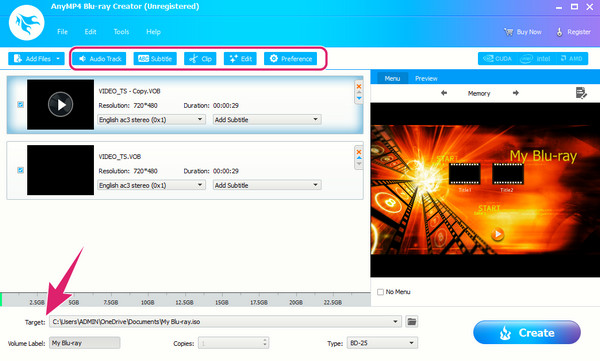
What is more amazing about this software is its customization options, which you can quickly see on its main interface. These options include the subtitle editor, where you can edit the subtitle's language, position, delay, etc., before you create a Blu-ray disc. You can add your desired audio track and edit the video by cropping it, applying effects, and adding a watermark.
Key Features:
- • It allows you to convert or burn a great range of formats to a Blu-ray.
- • Burning navigation settings that include burning speed, number of copies, and target Blu-ray format.
- • It provides you with pre-designed menu templates and additional customization options.
- • Infused with video editing tools, such as a trimmer, cropper, watermark creator, and effects editor.
- • Preview and snapshot tools to enjoy.
Free Download
For Windows
Secure Download
Preparations before Burning the Blu-ray
This part will tackle two crucial details to prevent troubles in making the burning process successful. We all need to know which discs are compatible and how to ensure a Blu-ray drive can read them.Then, if your computer does not have a Blu-ray drive and you plan to buy an external Blu-ray drive, you need to learn how to install and set up your device properly. To learn how, make sure to read our quick guide below:
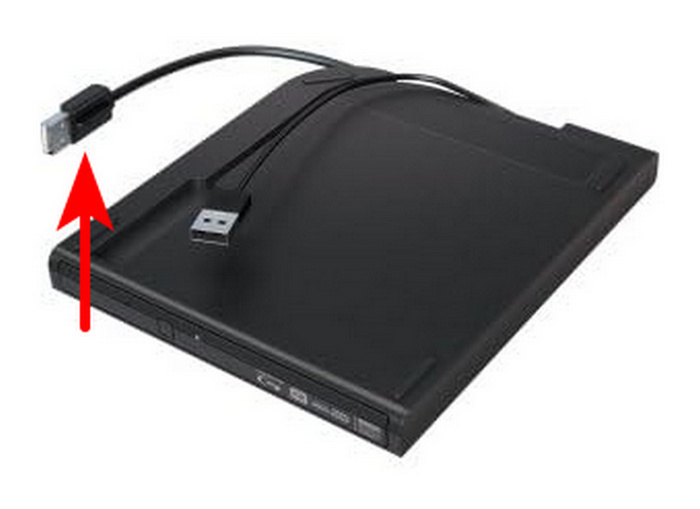
Step 1. Check the connection type of the external Blu-ray driver you purchased. Based on modern standards, it should be USB 2.0, USB 3.0, or USB Type-C.
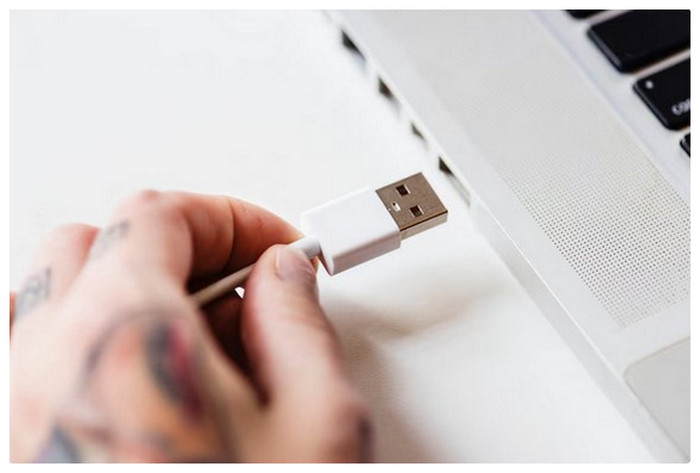
Step 2. Once you have checked the connection type of your external driver, connect it to the corresponding port on your computer. On modern hardware, these ports are usually USB Type-A (USB 2.0 or 3.0) or the modern and faster USB Type-C.
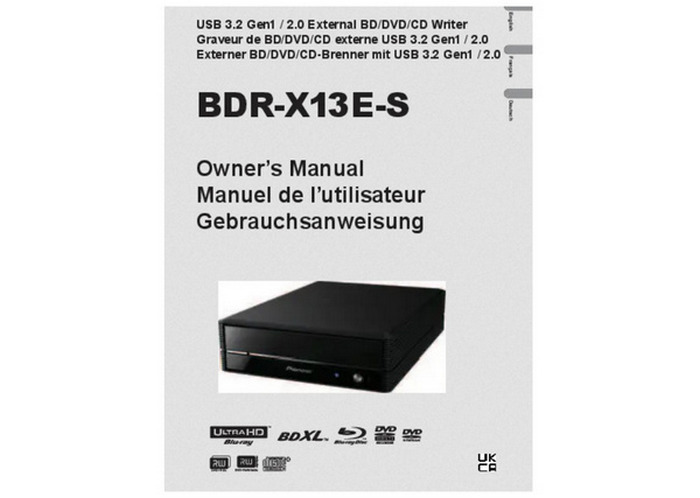
Step 3. With your external driver now connected to your computer, read the instructions that came with your driver to learn how to set it up on your computer.
Tips
Insufficient USB power may cause burning failures. Fortunately, this can be solved using a dual-headed USB cable or a powered hub. Since external DVD drivers use the computer where they are connected to as the source.
How to Burn a Blu-ray Efficiently
Once you set up the drive, you can follow the steps here to burn the Blu-ray with AnyMP4 Blu-ray Creator.
Step 1. Fire up the software after the rapid download and installation process. Then click the Add Files button to launch or upload the videos you want to burn. Yes, you can add multiple videos if you want.
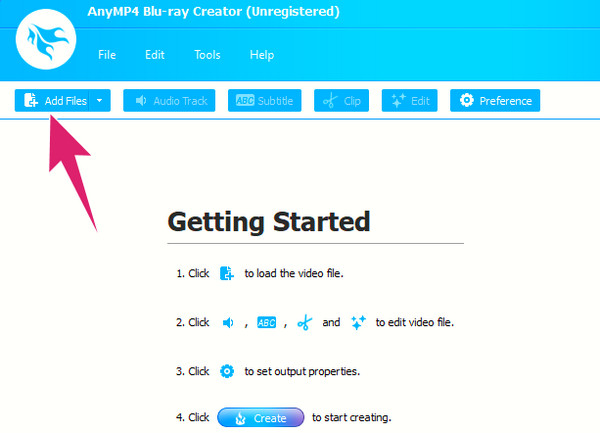
Step 2. When the importation is done, navigate to the Target menu option and set your destination folder. Also, you have the liberty to access and navigate the editing options in the ribbon section.
Step 3. As quick as that, you can now hit the Create button to start the burning process. Please note that you can also create a Blu-ray ISO from a folder using this tool and follow the same process.
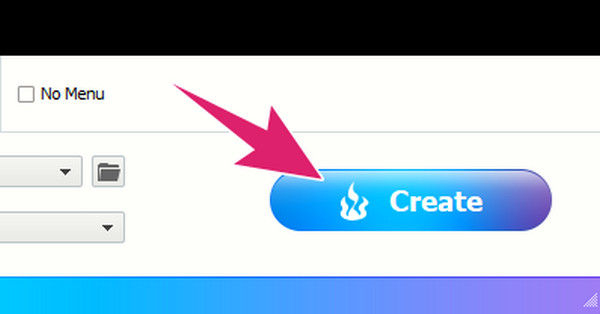
The simple steps are now complete. Using this Blu-ray Creator to burn Blu-ray discs is highly efficient. After importing multiple HD videos, I easily set the output path and customized the menu, completing the entire BD-R disc burn in 20 minutes. More importantly, the burned files feature crisp image quality and smooth playback. The overall experience is exceptionally user-friendly, making it ideal for users needing to quickly archive files or create finished discs.
Pros
- Beginner-friendly interface with a simple Blu-ray burning process.
- Supports Blu-ray discs, folders, and ISO image creation.
- Includes menu templates and basic editing tools.
Cons
- Closed-source commercial software with trial limitations
- For advanced enthusiasts, the built-in encoder lacks fine-grained control for very high-bitrate sources.
Part 3. Burn a Blu-ray with Nero Burning ROM
Best Used For: Optimized for professional Blu-ray burning, archival storage, and advanced disc settings.
Nero Burning ROM is a well-known disc authoring program developed by the German software company Nero AG. Nero Burning ROM, a versatile Blu-ray software, is designed for creating, copying, and burning various optical discs. It supports various disc formats, including Blu-rays, DVDs, and CDs. Furthermore, this software lets you make data discs, video DVDs, and audio CDs, and create Blu-ray discs with a menu. Aside from that, it also offers advanced features, such as disc spanning, which lets you split large files across multiple discs. It also offers precise control over UDF 2.5/2.6, a major advantage for Blu-ray authoring.
Key Features:
- • Burn Blu-ray from MOV, MP4, MKV, AVI, etc.
- • Copy, label, span, and verify disc content.
- • Advanced editing tools such as splitter, designer, and printer are presented.
How to Use Nero Burning ROM
Step 1. Download and install the burning tool on your computer. Then, insert your blank Blu-ray disc into your disc drive.
Step 2. Next, launch the software and choose the burning type you want to use, such as BCMV-Video. Then, set your desired parameters, such as the writing speed and number of copies.
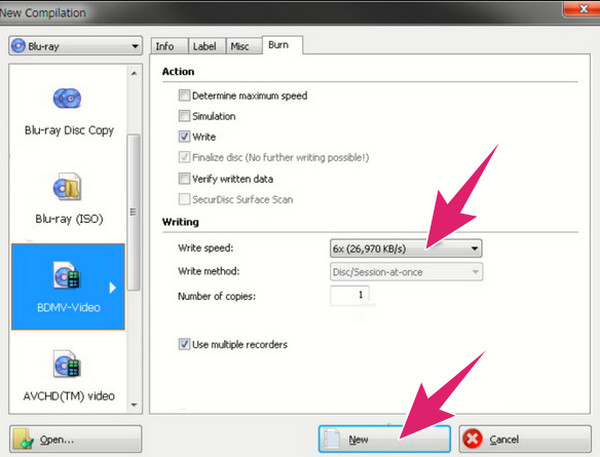
Step 3. Then go to the Window tab and choose Horizontal (Compilation Bottom) as your burning mode. After that, you can import the videos you want to burn and click the Burn button to start the process.
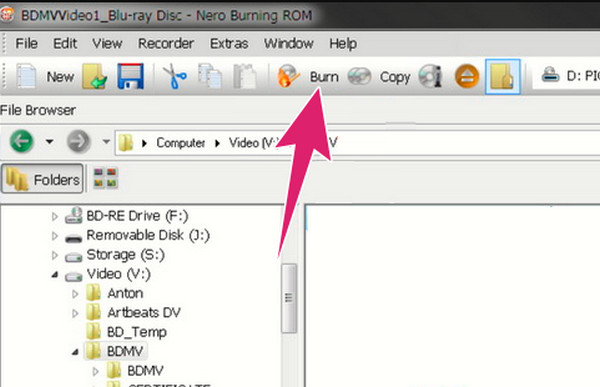
Nero Burning ROM delivers stable performance for Blu-ray disc authoring, supporting multiple video formats, including MP4, MKV, AVI, and MOV. Its menu design offers some flexibility for customization, which is suitable for users who require structured content. Moreover, the Compilation Bottom mode provides a more intuitive way to manage multiple files. However, its interface appears dated and may be less user-friendly for beginners. Additionally, the software launches slowly and consumes significant system resources, making it best suited for higher-specification computers. Overall, Nero is better suited to experienced users seeking high-quality output, while beginners may need to put in more effort.
Pros
- Reliable for Blu-ray burning and long-term disc archiving.
- Offers advanced burning, encryption, and disc verification features.
Cons
- Expensive subscription model.
- Steep learning curve for beginners.
Tips
Nero is reputable, but its modern version is now bloated and subscription-based. Use the software with caution since bloatware is rarely beneficial.
Part 4. Burn a Blu-ray with ImgBurn
Best Used For: Designed for lightweight Blu-ray ISO burning with precise control and verification features.
ImgBurn should be your top choice if you are looking for a tool optimized for all Windows versions. Similar to the previous option in this list, this program is also reliable Blu-ray-burning software due to its low system requirements and its dedicated design for creating Blu-rays, DVDs, and CDs. It is also free to use, which is a strong consideration if you are looking for a cost-effective option.
Key Features:
- • Exclusively designed as a Blu-ray, DVD, and CD burning tool.
- • It can read extracted ISO images.
- • Beginner-friendly interface design.
How to Convert MKV to Blu-ray
Step 1. Load the Blu-ray disc you want to burn. Open ImgBurn and select the Write files/folders to disc option.
Step 2. Look for the file or ISO image you want to write to the Blu-ray. Then select the Folder icon to set the destination to the Blu-ray disc you have loaded.
Step 3. With the destination set to the loaded Blu-ray, click the Write icon to start the Blu-ray burning process.
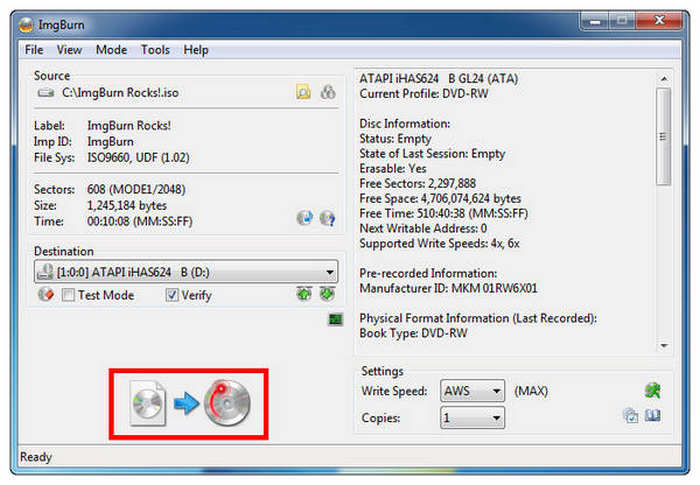
ImgBurn was highly optimized for both DVD and Blu-ray processing. This made the software an excellent choice for users who are not used to doing this process. It is relatively easy to use, and its interface design is intuitive.
Pros
- Widely regarded as the best free tool for advanced users.
- Offers extremely precise UDF 2.50/2.60 and layer-break control.
- Ideal for burning pre-authored BDMV folders or ISO images.
Cons
- Very technical interface and no updates for years.
- No video transcoding or menu creation features.
Part 5. Burn a Blu-ray with VideoByte DVD Creator
Best Used For: Optimized for quick video conversion into Blu-ray discs with menus and editing tools.
Video DVDByte Creator is another method for burning videos to Blu-ray discs, ideal for users seeking a quick burning solution. It features a clean interface, supports importing multiple video formats (MP4, MKV, AVI, MOV, etc.), and automatically detects optical drives and blank discs. While its advanced functionality is not as extensive as professional software, it remains a practical choice for basic Blu-ray authoring needs.
Key Features:
- • Supports Blu-ray and DVD discs with automatic disc type recognition.
- • Features a simple navigation menu for enhancing playback.
- • Users can preview videos and menu effects before burning.
- • Supports common video formats including MP4, MKV, AVI, MOV, and 3GP.
Step 1. Download and install Video DVDByte Creator. Please open it and see the Blu-ray Disc icon.
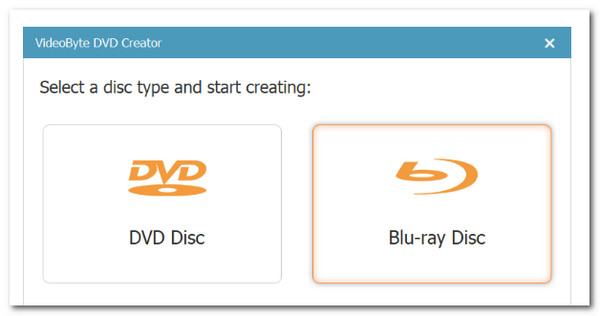
Step 2. Now, insert a Blu-ray drive (if your computer does not have one) as we insert a blank disc.
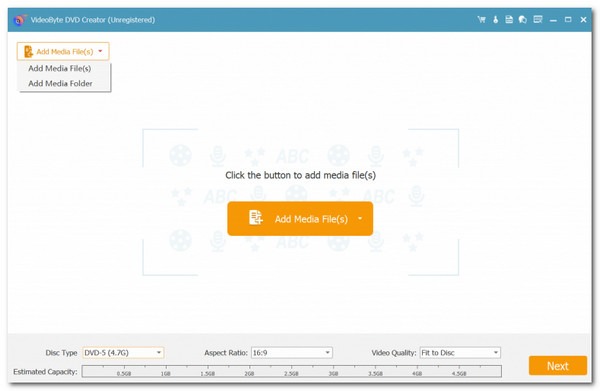
Step 3. Click the Add Files button and select the media files you want to burn.
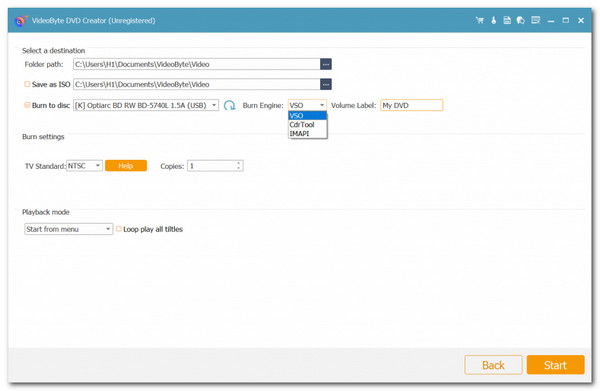
Step 4. We can start burning the disc by selecting a burning engine and clicking the Start button.
In general, Video DVDByte Creator is better suited for users seeking a quick operation. It prioritizes a streamlined burning process and broad format compatibility over complex menu design or advanced video processing. For those who want to complete the Blu-ray burning task as quickly as possible, it offers a lightweight yet efficient solution. But it may lack some customization features.
Pros
- Converts videos into Blu-ray discs with minimal setup.
- Supports HD and 4K video input formats.
- Includes menu templates, support for subtitles, and basic video editing.
Cons
- Higher pricing.
- Slower rendering for large 4K UHD files compared to hardware-accelerated competitors.
Part 6. Burn a Blu-ray with Wondershare DVD Creator
Best Used For: All-in-one Blu-ray burning with built-in video editing and stylish templates.
Wondershare DVD Creator is a comprehensive video-burning tool that supports Blu-ray and DVD output, ideal for users who wish to edit videos and design menus before burning. It not only supports multiple video formats but also comes with built-in tools for video enhancement, subtitle addition, and menu templates, satisfying the needs of home users and content creators alike.
Key Features:
- • You can edit, add subtitles, adjust brightness, and more before burning.
- • Offers multiple menu styles with customizable backgrounds and buttons.
- • High-format compatibility: it supports mainstream formats such as MP4, MKV, AVI, MOV, WMV, and more.
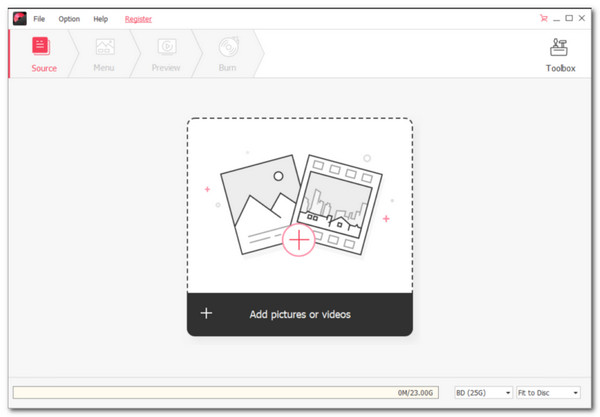
Step 1. Install and launch the program, then choose Create a Blu-ray Disc. From there, please Add Videos/Pictures. We can add the files we want to burn on a Blu-ray disc.
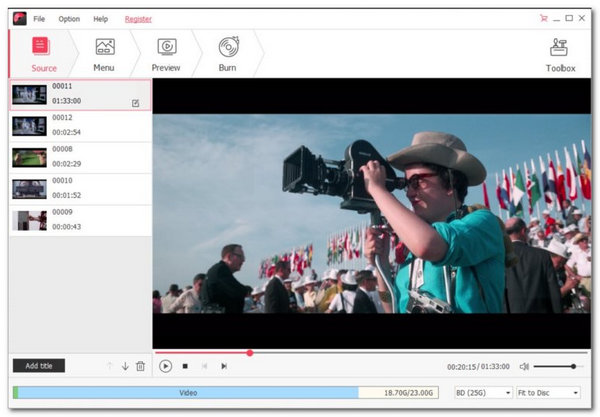
Step 2. Next, this is an optional step if you want to enhance the video before burning.
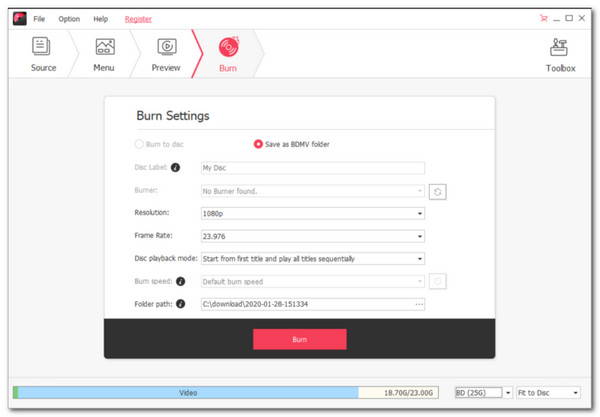
Step 3. Then, insert the disc into the drive. You may now modify the information, click the Burn button, and finish the process.
The steps above are complete for burning Blu-ray discs using Wondershare DVD Creator. It features an abundance of menu templates and practical video editing tools. I adjusted the brightness and added subtitles before burning, resulting in a smooth overall experience and stable burning without errors. However, there are some limitations. For instance, menu customization options are somewhat limited, as you cannot freely adjust button positions or background music. Additionally, the software launches relatively slowly and occasionally experiences brief lag when importing large files.
Pros
- Easy-to-use interface suitable for beginners and casual users.
- Supports many video formats and built-in video editing tools.
- Offers stylish Blu-ray menu templates and slideshow creation.
Cons
- Feature-heavy but less specialized for Blu-ray.
- Compresses audio tracks more aggressively, not ideal for DTS-HD/TrueHD enthusiasts.
Part 7. FAQs about Burning Blu-rays
-
Can I burn 4K to Blu-ray?
Yes, you can. Most Blu-ray discs today can hold 4K video. However, there are still some things to consider when doing so, such as Blu-ray compatibility, capacity, and support for 4K encoding.
-
Can I rewrite the Blu-ray I burned?
It depends on the kind of disc you use. If you use a BD-RE Blu-ray disc, you can erase and rewrite the burned content. On the other hand, if you are using a BD-R, you can write only once.
-
Can I use any Blu-ray player to burn Blu-rays?
No. Because not all Blu-ray players have the capability to burn. This is true of older Blu-ray players, which have limited features or even focus solely on Blu-ray playback. Thus, if you want to use a player to burn Blu-rays, you must first check its capabilities.
-
How many hours does it take to burn a 1-hour movie to Blu-ray?
The process of burning a Blu-ray will require a couple of times. It varies depending on the file's length. Therefore, if you are burning a 1-hour movie, it must take at least 50 minutes to complete the burning process.
-
What is the difference between DVD and Blu-ray?
Compared with DVDs, Blu-ray optical disks can store high-quality data. In DVD, a red laser with a wavelength of 650 nm is used to retrieve data, whereas Blu-ray utilizes a blue-violet laser with a wavelength of 405 nm. That brings Blu-ray to the top.
-
What is the most recommended type of Blu-ray Disc?
We came across several queries online that were usually phrased along the lines of "Blu-ray disc as the finest." Ultra HD Blu-ray discs answer this question by delivering high-resolution video and audio.
-
What is the best software to burn a 4K Blu-ray that works reliably on a Sony player?
Blu-ray Master DVD Creator and Wondershare DVD Creator are two of the most reliable tools for creating Blu-rays compatible with Sony players. They are equipped with proper Blu-ray formatting, stable burning, and customizable settings. To improve playback success, make sure to use BD-R discs and use the correct file structure.
-
Do I need a special drive to burn Blu-ray discs, or can a DVD drive do it?
You need a dedicated Blu-ray burner drive to burn Blu-ray discs. It is uncommon for DVD drives to also support Blu-ray media. Fortunately, external USB Blu-ray burners are now common and reliable.
-
Why won't my burned Blu-ray disc play in my home theater system?
The disc may have been burned in an incompatible format, or the process itself may not have been finalized correctly. Unsupported codecs and poor-quality blank discs may also cause these playback issues. Also, double-check whether your Blu-ray player supports the disc you used to burn.
Conclusion
This article introduces five methods for burning a Blu-ray disc, ranging from comprehensive professional software to lightweight free tools, each with its own use cases and pros and cons. If you want to quickly and efficiently create playable Blu-ray discs without sacrificing quality, Blu-ray Master's Blu-ray Creator is the most recommended choice. It supports multiple video formats and offers practical features like menu design, subtitle addition, and video enhancement. It suits both beginners and advanced users. Download it now and start your high-definition burning journey!
More from Blu-ray Master
