

Aug 29, 2025Posted by Selena Thomas to Convert Video, Create DVD
MOD videos are the standard format used by the JVC and Panasonic camera recorders. Sadly, since this format is not mainstream like the MP4, they are not playable in some video software like the Windows Media Player.
On the brighter side, you may desire to share your recorded memories in high school with your friends and create a copy for them. To amend this, looking for a MOD to DVD converter is your action to take. So, we have reviewed the programs that can do wonders, and here is our takeaway.
- Top 1. Blu-ray Master DVD Creator
- Top 2. iDealshare VideoGo
- Top 3. Movavi Video Converter
- Top 4. FFmpeg
- Part 5. How to Burn MOD to DVD
- Part 6. FAQs on Converting MOD to DVD
Top 1. Blu-ray Master DVD Creator
Windows 7/8/10/11, Mac OS X 10.9 or above
MOD, MP4, MKV, AVI, FLV, etc.
Yes
Yes
Yes
High
Fast
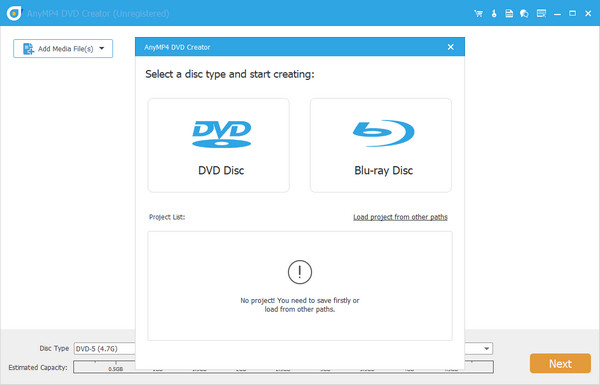
Blu-ray Master DVD Creator is a top-grade MOD to DVD converter and also supports various video formats. One more thing, this desktop tool is known for is its fast burning speed due to the GPU acceleration. Lastly, it offers you unquantifiable templates for customizing your DVD menu.
From here, you can edit, enhance the audio quality, add a subtitle for your video before burning them. Additionally, you can split, merge, and set a thumbnail for your DVD file in the same feature.
Pros
- Compatible in Mac and Windows OS.
- Contains Power Tools for chapter menu and video editing.
- Fast burning speed.
- It contains tons of templates.
- User-friendly interface.
Cons
- The free trial has limited features.
Users Review
- Some people think this software is easy to convert MOD files to DVD.
- Some users commend its ease of use and rich cutomiation features.
- Some people complained the limited functions of the free trial version.
Top 2. iDealshare VideoGo
Windows 11/10/8, Mac OS X 10.4 and later
MOD, AVCHD, MTS, MKV, MP4, MOV, and more
Yes
Yes
No
Low
Medium
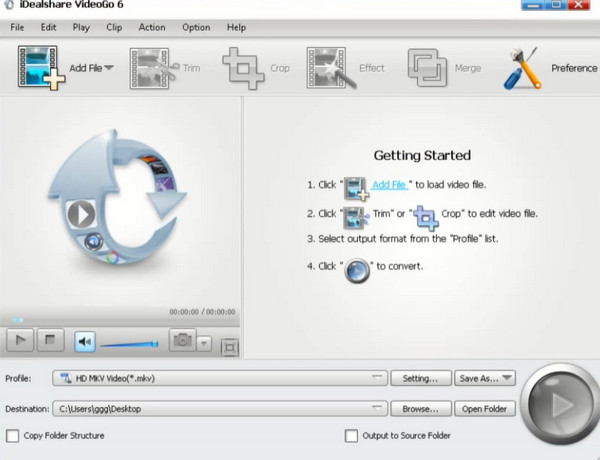
Like DVD Creator, iDealshare VideoGo is also a converter with a built-in video editor. Speaking of video editors, this tool stands out because you can de-shake and denoise your MOD file before authoring it. It supports 80 popular input video formats and 35 output formats. One more thing, this desktop tool is compatible not only with Windows but also with Mac platforms.
Pros
- It contains a comprehensive built-in video editor.
- Supports multiple file conversion.
Cons
- 5 minutes video length is only supported in the free trial.
Users Review
- Many people praise its ease of use and wide format support.
- Some users are not satisfied with its limited advanced features.
- It can only convert MOD to DVD VOB files.
- Some users complain that it can’t burn a slideshow to DVD on Mac/Windows.
Top 3. Movavi Video Converter
Windows 10/11, Mac OS X 10.13 or higher
MOD, MP4, MKV, WMV, AVI, and others
Yes
Yes
No
High
Fast
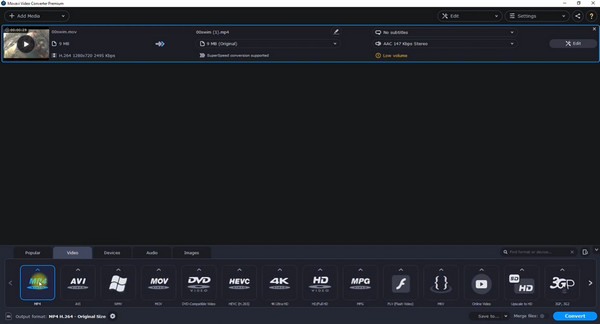
One of the perks of having Movavi is your satisfying experience with its modern-looking interface. This MOD to DVD converter is a paid software with a 7-day free trial. Besides that, you can use this program without annoying ads popping up on your screen. What is more, you can convert your files up to 4k resolution, ensuring a lossless quality when watching on your device or portable players. When it comes to video editing activity, Movavi offers a separate program for that.
Pros
- Excellent user-interface.
- No ads showing up.
- Compatible for Windows and Mac platforms.
Cons
- The software is a bit expensive.
Users Review
- Many people appreciate this MOD to DVD converter's ability to handle a wide range of formats, including MOD.
- The free trial version would add watermarks to the DVD.
- Some people point out that the software lacks the menu creation features.
Top 4. FFmpeg
Windows 11/10, macOS 15 and before
MP4, MKV, AVI, MOV, FLV, WebM, MPEG-TS, ASF, and others
Yes
Yes
No
High
Medium
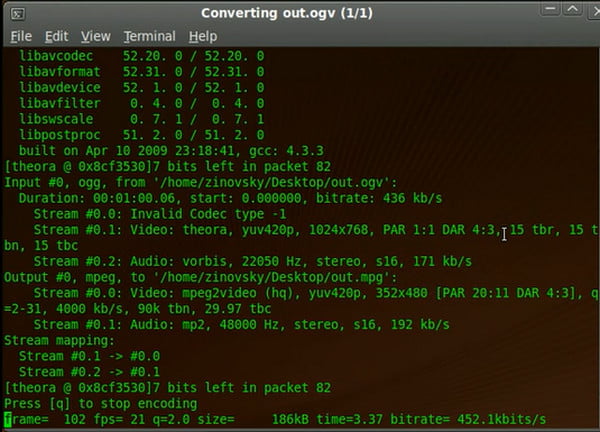
FFmpeg is not like the other MOD to DVD converters that use a graphical user interface. To give a little background, this is a command-line program that is primarily designed to trim, extract, convert video and audio files. Although FFmpeg looks intimidating to use, it is one hundred percent safe and free.
Pros
- Cross-platform program.
- Free of charge.
Cons
- Not beginner-friendly.
Users Review
- The vast majority of users think this free MOD to DVD converter is difficult to use for burning DVDs.
- It was praised as the ultimate tool for those with the technical know-how.
- Many professionals praise its high-quality output.
Part 5. How to Burn MOD to DVD
Now that you learned the best MOD to DVD converters, we will move on to DVD burning using DVD Creator. Refer to the steps below, and you will surely achieve it very successfully.
Before proceeding to DVD burning, ensure that you transfer your MOD files from your camera recorder to the computer.
Step 1Install the MOD to DVD Burner
Install DVD Creator by clicking the Free Download buttons below. Choose which button matches your operating system. After that, run the program and follow the setup wizard.
Free Download
For Windows
Secure Download
Free Download
for macOS
Secure Download
Step 2Import the MOD Video File
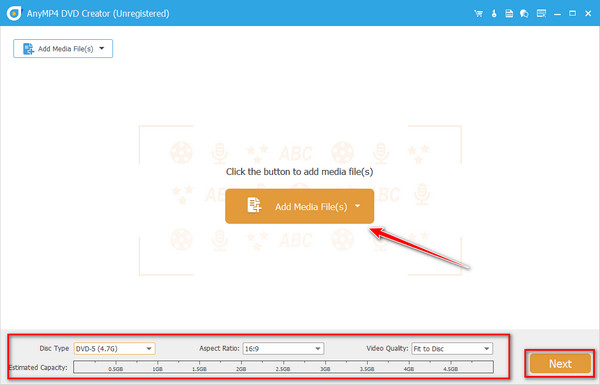
By the time the program launches, choose DVD Disc instead of Blu-ray. Next, select the Add Media Files and import the MOD videos you transferred from your camera recorder. Along the bottom of the interface, choose your Disc Type (DVD 5= 4.7GB or DVD 9=8.5 GB), the Aspect Ratio, (16:9 or 4:3), and the Video Quality (from Low to High).
Step 3Edit Video (Optional)
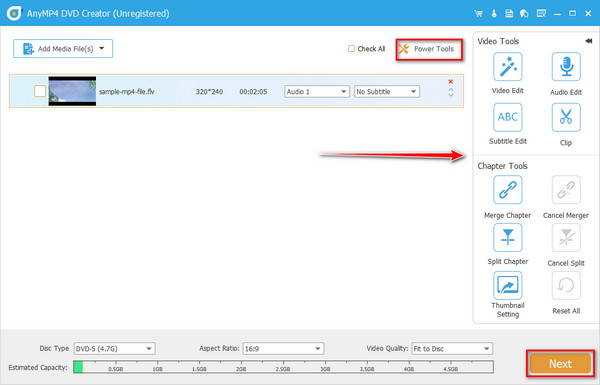
After that, you can enhance your MOD videos by hitting the Power Tools. Check on the Video Tools to edit your videos, enhance the audio, add subtitles, or cut clips. On the other hand, you can merge, split, cancel, set a thumbnail for your chapter menu on the Chapter Tools.
Step 4Customize DVD Menu (Optional)
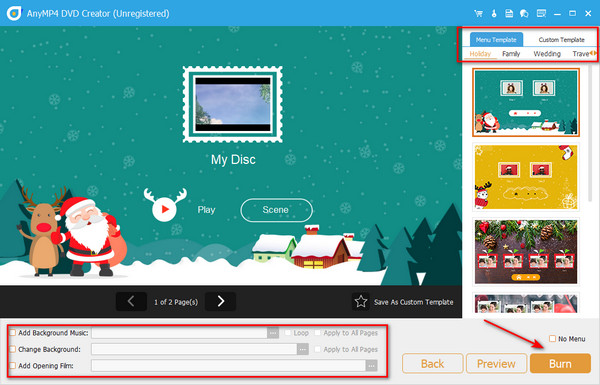
Of course, those recorded scenes on your camera may pose a sentimental value, and creating a DVD menu will make it more unique. If then, on the left part of the interface, there are a plethora of templates that you can use. On the other hand, you can upload your personal photo and audio track and treat them as your background. When done, hit the Burn button.
Step 5Start DVD Burning
For the last part, tick the Burn to Disc button and start to mount your physical disc on your optical disc drive. Choose your TV Standard (PAL or NTSC) on the Burn Settings. When all is ready, hit Start and wait for the final output.
Part 6. FAQs on Converting MOD to DVD
-
How can I play MOD on my PC?
In many cases, you will not have a hard time playing MOD videos because of their compatibility. If you happen to have difficulty in playing them, try to install VLC Media Player.
-
Are MOD and MPEG the same?
No. MOD and MPEG are entirely different video formats. But you can consider that when a media player supports MPEG-2 files, MOD is surely playable.
-
Can I convert MOD to DVD using an online program?
Definitely, yes! If you want to convert your MOD videos online, you can try Zamzar. This offline program offers tons of preset video output, including DVD. However, Zamzar can only have a maximum of 50MB file per conversion and may not be able to process your large videos.
Wrapping up
Now, you have learned the 4 top-rated MOD to DVD converters for you to burn DVDs with ease. With the provided information, you can get a general understanding of their features, pros, and cons. In conclusion, Blu-ray Master DVD Creator provides the richest features and fast burning speed. FFmpeg is more suitable for professionals to customize DVD burning. Go and have a try!
More from Blu-ray Master
