

Aug 07, 2026Posted by Brittany Garcia to Create DVD
In the age of digital storage, the vulnerability of these online systems will always be a threat to potential hackers. On top of that, streaming platforms delete licensed content, and device storage can easily pile up. As such, converting digital videos into a permanent physical medium is one of the best solutions. In this article, we will highlight eight of the most reliable DVD burner software you can use to store content on physical discs. These programs are all designed for modern use, helping fix archaic problems such as pixelated quality and frequent crashes. This guide will help you select the right tool based on your technical skills and projects.
Table of Contents
- Part 1. Behind the Scenes: Our Rigorous 'Coaster-Free' Testing Methodology
- Part 2. Category A: The 'Pro-Tier' Creators (All-in-One Authoring & Customisation)
- Part 3. Category B: The 'Pure Burner & Power-User' Tools (Low-Level Control)
- Part 4. Category C: The 'Freeware & Open-Source' Solutions (Budget-Conscious)
- Part 5. Deep Dive of DVD Burning
- Part 6. FAQs About the Best DVD Burners
Part 1. Behind the Scenes: Our Rigorous 'Coaster-Free' Testing Methodology
Hardware Baseline
- Windows 11 and macOS Tahoe
- 16GB RAM
- Intel Core i7 and M5 Chip
- External USB 3.0 DVD Drive
- Blank DVD-R and DVD+R DL discs.
Input Material
- High-bitrate 4K H.264
- Saved in MP4 Format for Android and iOS
- 1080p MKV with external SRT/ASS subtitle files.
Evaluation Pillars
Burning Success Rate
The first factor we assessed was whether the program could achieve a good burning success rate. Out of the five consecutive DVDs we burned with each tool, we tested all the hardware by noting how many failed and whether the programs had underrun errors.
Transcoding Efficiency
During DVD burning, we also tested how fast and smoothly each tool converted modern codecs into compliant MPEG-2 and VOC structures on the blank DVDs we burned.
Menu Quality & Playability
Finally, once the DVD-burning process was complete. We also played the physical media and assessed whether its main menu and playability were good. We assess how the templates look, whether they are customizable, and if they are compatible with older standalone home players.
For a quick comparison of the DVD burner programs we have featured, please refer to our table below.
| DVD Burner Tool | System Compatibility | Ease of Use | Input Formats | Output DVD Formats | Burning Speed | DVD Menu Support |
| Blu-ray Master DVD Creator | Windows, macOS | Beginner-friendly | MP4, AVI, MKV, MOV, WMV, FLV, MPEG, 500+ formats. | DVD-Video (DVD-5/DVD-9), ISO, DVD Folder | Very Fast | Excellent |
| Wondershare DVD Creator | Windows, macOS | Beginner-friendly | MP4, AVI, MKV, MOV, JPG, PNG. | DVD-Video (DVD-5/DVD-9), ISO, DVD Folder | Fast | Excellent |
| Tipard DVD Creator | Windows, macOS | Beginner-friendly | MP4, AVI, MKV, MOV, WMV. | DVD-Video (DVD-5/DVD-9), ISO, DVD Folder | Fast | Excellent |
| ImgBurn | Windows | Complex | ISO, BIN, IMG. | DVD Folder, ISO | Very Fast | None |
| Nero Burning ROM | Windows | Complex | ISO | DVD-Video, Data DVD, ISO, Bootable Disc | Very Fast | Limited |
| WinX DVD Author | Windows | Intermediate | AVI, MP4, MKV, VOB, FLV, MOV, MPEG | DVD-Video | Moderate | Limited |
| DVDStyler | Windows, macOS | Complex | MP4, AVI, MKV, MOV, MPEG | DVD-Video (DVD-5/DVD-9), ISO | Moderate | Limited |
| AnyBurn | Windows | Intermediate | Files, folders, ISO, BIN/CUE, NRG, IMG, MDF | Data DVD, ISO, burns existing DVD-Video folders/images | Very Fast | None |
To help our readers decide which program to choose, we have grouped the software we reviewed into specific categories. We divided them into professional options, pure DVD burning programs, and open-source solutions.
Part 2. Category A: The 'Pro-Tier' Creators (All-in-One Authoring & Customisation)
We will start our review by covering the first category: professional-tier DVD burners. These options are recommended for users who prefer stunning and interactive menus. The DVDs produced by these programs are also optimized flawlessly for television viewing.
1. Blu-ray Master DVD Creator (The Overall Best for Seamless Authoring)
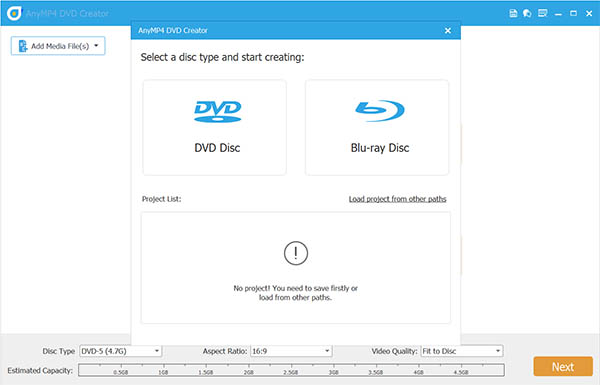
The first program we will feature is considered the gold standard for modern DVD burning in 2026, offering an intuitive interface and highly professional output options. This is none other than the Blu-ray Master DVD Creator.
Among the options in this article, this software offers the most impressive codec versatility, as it handles modern HEVC/4K inputs without demanding manual pre-conversion. This also directly enhances its workflow efficiency.
Moving forward to the quality of the program’s menu template and media output, it showcases high-resolution dynamic templates optimised for formal events, travelling content, and other modern videos. When it comes to audio quality, the tool also has robust support for multi-track audio and advanced subtitle management settings.
Due to these practical features, Blu-ray Master DVD Creator has superb dual capability to burn both standard DVDs and ultra-high-speed Blu-ray discs within the same interface.
To learn more about the program, you may download it using the link below. You may also discover its key strengths and limitations as a DVD burner program.
Free Download
For Windows
Secure Download
Free Download
for macOS
Secure Download
Pros
- Supports 500+ video formats for DVD burning.
- Beginner-friendly interface with a smooth workflow.
- It can produce DVDs, ISO files, and DVD folders.
- Equipped with numerous DVD templates.
- Offers basic video editing features (trim, crop, watermark, filters).
Cons
- Its free version has slightly limited features.
- Encoding takes time when writing larger files.
What Users Say
Among beginner-friendly DVD-burning tools, Blu-ray Master’s offering is one of the most intuitive on the market. Most of its users compliment its superb interface design and intuitive workflow.
2. Wondershare DVD Creator (The Visual Aesthetic Choice)
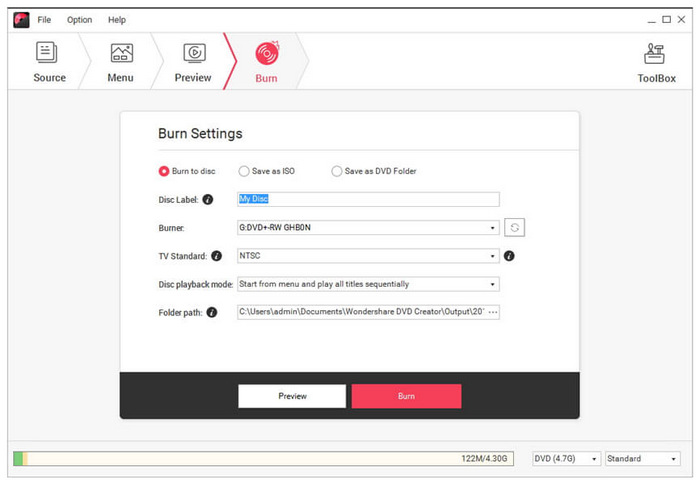
Moving forward to professional DVD burners, we have Wondershare DVD Creator. This program is one of the options on this list with a sleek, modern user interface. In addition to being designed for DVD creation, it includes a built-in photo slideshow maker, which is a welcome addition.
Unfortunately, the software consumes significant system resources, especially during heavy rendering tasks. The menu navigation creator in the software also skips legacy DVD hardware, making it incompatible with traditional players.
Pros
- Modern drag-and-drop interface design.
- Extensive support for video, photo, and audio media files.
- Built-in video editor and slideshow creator.
Cons
- More expensive price tag.
- Its trial version has very limited features.
- Consumes a lot of computer resources when writing DVDs.
What Users Say
Users of Wondershare DVD Creator primarily compliment the program’s sleek-looking design. If you prefer a modern option and will use the DVD for modern usage, it is a solid choice.
3. Tipard DVD Creator (The Cross-Platform Speed Demon)
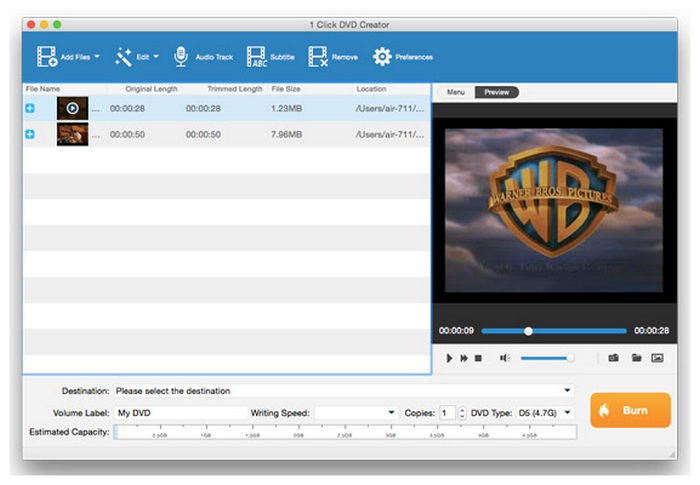
If you have access to both Windows and macOS devices, Tipard DVD Creator is an ideal choice. This software has identical features across its versions for both operating systems. These features include GPU acceleration, making the program one of the fastest in this article.
When you plan to use Tipard to create DVDs, note that its trial version has a massive watermark on the DVD produced, right in the center. This practicality leads users to purchase the program’s premium version.
Pros
- Beginner-friendly setup wizard made for amateurs.
- Supports virtually all digital video formats.
- Produces DVDs, ISO files, and DVD folders.
Cons
- Is paid software and does not offer a free version.
- Limited menu customization options.
- No advanced DVD authoring features.
What Users Say
Tipard is mostly used by people who burn DVDs for work and personal use. This was made possible by the software’s identical features on different operating systems.
Part 3. Category B: The 'Pure Burner & Power-User' Tools (Low-Level Control)
On to the next category: we have the pure-burners programs, which are designed to write VIDEO_TS folders and ISO images that have already been ripped from the physical DVD. These programs are designed to retain 100% data integrity.
4. ImgBurn (The Nostalgic King of Raw Data Precision)
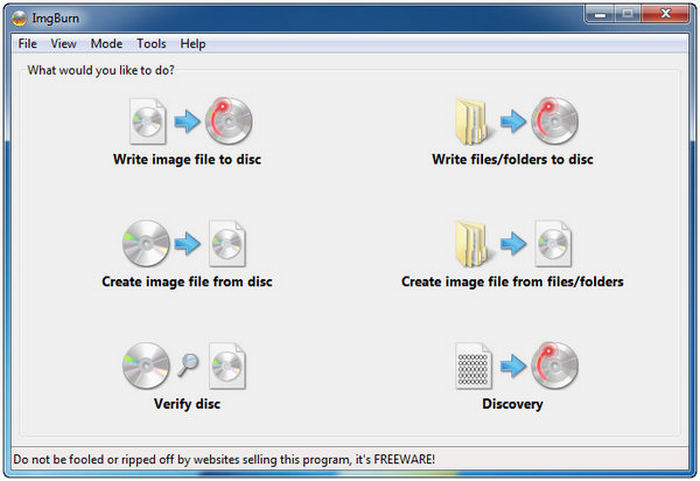
For users who prefer to write raw data to DVDs, ImgBurn is the most straightforward solution. This completely free DVD-burning tool provides low-level control over the layers of data you write. This essentially makes you burn the exact data written from where the DVD data was ripped.
However, it has a strong downside. ImgBurn looks like it was designed in the Windows XP era and came straight out of it. Its interface is dated, it has a steep learning curve, and it cannot convert a standard MP4 without first authoring the video externally.
Pros
- Reliable freeware program.
- Extremely fast and lightweight installation size.
- Precise DVD burning settings.
Cons
- No DVD menu template options.
- No video encoding features.
- Outdated-looking interface.
What Users Say
Although ImgBurn is slightly technical, it gets the job done if you know how to use it. This makes the tool a solid choice for users who are already experienced with digital video burning.
5. Nero Burning ROM (The Enterprise-Grade Secure Vault)
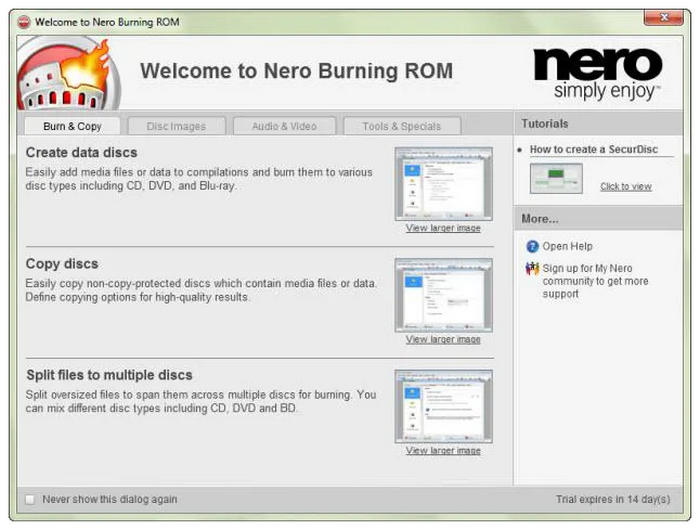
If you prefer industrial-grade burning features, Nero Burning ROM is a solid solution. It has a reliable burning system featuring SecurDisc 4.0, which offers 256-bit encryption, digital signatures, and data redundancy features for scratched discs.
Unfortunately, all these advanced features are usually impractical for casual DVD burning. These additional plug-ins will only serve as bloatware for users who cannot fully utilise them.
Pros
- Professional-grade DVD burning program.
- Efficient DVD burning performance.
- Offers advanced disc management and security features.
Cons
- Expensive pricing plans.
- Complex interface design is not suitable for beginners.
- Limited DVD creation capabilities.
What Users Say
Nero Burning ROM is not advisable for casual users. It is made for advanced enterprise-level functions and should only be used as such.
Part 4. Category C: The 'Freeware & Open-Source' Solutions (Budget-Conscious)
Finally, the last category we will discuss is freeware and open-source solutions. All free DVD-burning software is designed to be functional without costing a penny.
6. WinX DVD Author (The Gold Standard Free Video-to-VOB Compiler)
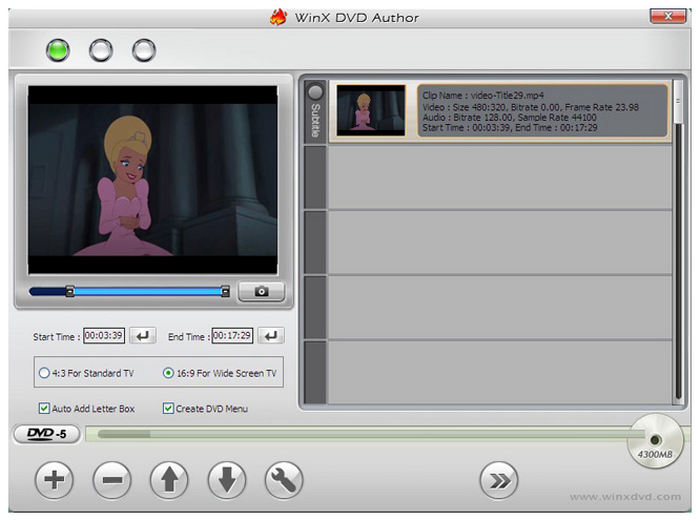
WinX DVD Author is a rare free utility that converts raw MP4/MKV into strictly standard-compliant DVD video structures without colour-crushing or visual artefacts. This makes the program a good option for writing modern videos on DVD.
However, you have to deal with its outdated interface styling, which lacks modern controls for adapting to different aspect ratios.
Pros
- Free for the basic DVD burning function.
- Supports common digital videos (MP4, MKV, and more).
- Designed for creating a basic DVD menu.
Cons
- Only available on Windows computers.
- Dated-looking interface.
- Slower encoding performance compared to modern tools.
What Users Say
For basic DVD burning, WinX DVD Author should be enough. All you have to do is deal with its slower encoding performance.
7. DVDStyler (The Open-Source Creative Canvas)
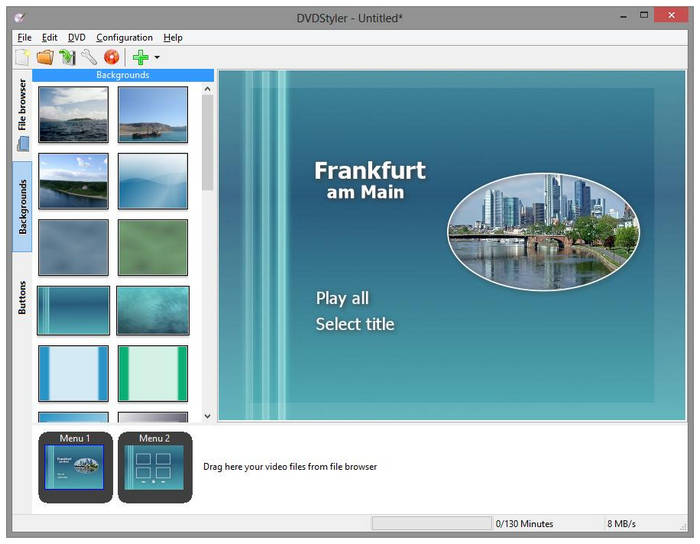
DVDStyler is a 100% open-source and cross-platform program available for Windows, Mac, and Linux that features a completely freeform menu layout canvas where any element or audio stream can be dragged and mapped. This gives its user absolute control over their DVD media. This makes it the most customizable of the best free DVD-burning software.
However, it occasionally experiences stability issues and often crashes when handling high-fidelity and non-standard audio streams.
Pros
- Free and open-source program.
- Customizable DVD menu.
- Suitable for creating a professional-looking DVD.
Cons
- Steep learning curve,
- Less polished interface.
- Has compatibility issues when handling uncommon video formats.
What Users Say
Fans of open-source programs usually prefer DVDStyler because it offers full customisation options, which open-source practitioners highly value.
8. AnyBurn (The Lightweight Multi-Tool)
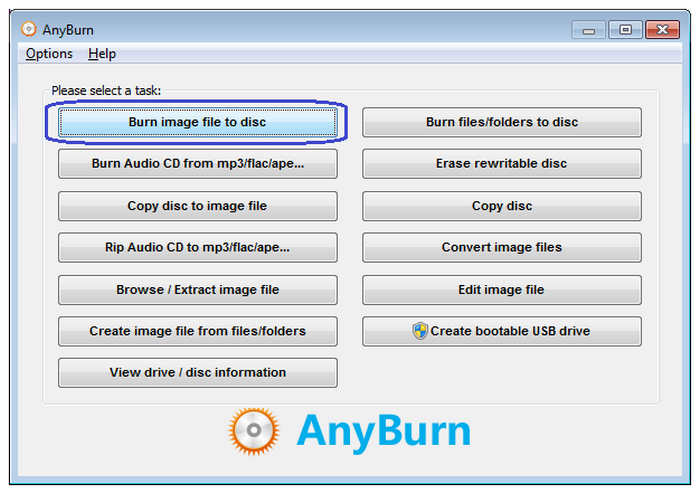
AnyBurn is perhaps the lightest free DVD burner multi-tool in this article. This program has an extremely compact file size and opens instantly. It serves perfectly as an audio CD burner, ISO extractor, and sector copier.
However, it is only functional for copying data and images. It cannot build custom video discs.
Pros
- Free and lightweight program.
- Fast-burning performance.
- Low system requirements.
Cons
- No DVD menu creation.
- No video editing features.
- Not designed for advanced DVD authoring.
What Users Say
AnyBurn is a solid option for users who want extremely lightweight software. Although it has no editing features, it gets the job done if all you need to do is burn data.
Part 5. Deep Dive of DVD Burning
The Resolution Lie
If you observe that your 4K smartphone video looks off when played on DVD, you may have encountered the physical limits of NTSC/PAL. These video standards are designed for analog video, making them unsuitable for modern 4K video. Fortunately, this can be fixed by Blu-ray Master’s superior pixel interpolation, which preserves clarity.
DVD-5 vs. DVD-9 Decision Matrix
These DVD types are defined by their storage size. DVD-5 is limited to 4.7GB, while DVD-9 is 8.5GB. These are also known as Single-Layer and Dual-Layer. However, modern smart software automatically recalculates bitrates to fit the disc target.
The 'Playability' Paradox
If you are having trouble playing a burned DVD on an old DVD player, but it plays normally on computer-based DVD players such as DVD. The file may be a data disc, making it playable on computers. However, traditional players require a Video DVD containing a VIDEO_TS architecture.
Part 6. FAQs About the Best DVD Burners
-
Can I burn an MP4 video directly to a DVD and play it on any home DVD player?
Not all the time. DVD player can only play content authored in DVD-Video format. Simply copying an MP4 file onto a data DVD will only make it an external storage.
-
What is the optimal burning speed to prevent disc compilation errors or skipped frames?
The 4X-8X range is safe and helps prevent errors. Maximising the speed of your selected software could cause errors in your program. A slower burn rate will improve your DVD's stability.
-
Do these DVD burner tools support the latest Windows 11 ARM64 architecture or Mac M-series (M1/M2/M3) chips?
Yes, they are. Modern DVD burners for Windows are designed for x64 systems and run well on Windows 11. This also applies to Apple Silicon Macs equipped with M1, M2, and M3 chips.
-
Why does my burning progress often freeze or get stuck at 75% or 99%?
This is common when your software is finalising the disc. This is usually where the data are being verified. Simply wait for the process to finish and do not interrupt it.
-
Is it legal to use these software tools to make backup copies of my commercially purchased Hollywood movie DVDs?
DVD rippers themselves are legal. However, the legality of copying commercial DVDs varies by jurisdiction under different copyright laws. In many regions, bypassing DVD copy protection (such as CSS) may be restricted even if you own the disc.
Conclusion
Now that we have reviewed some of the best DVD burners, we hope this article has provided you with the best choice for creating a time-capsule backup in case your cloud storage fails. When handled correctly, stored discs with a handwritten label will still sit safely on a shelf, ready to read 20 years from now. To help our readers choose the best option based on specific aspects, we recommend Blu-ray Master DVD Creator for its features, including the best visual menu, modern format handling, and a future-proof Blu-ray writing option.
