

Sep 18, 2026Posted by Kevin Miller to Create DVD
Quick Summary:
When choosing the best tool to create ISO copies of DVDs, your top considerations are ImgBurn, Blu-ray Master DVD Creator, AnyBurn, and PowerISO. With these options in mind, the next thing you have to do is to identify your preference.
Freeware Option for Direct ISO Creation: ImgBurn
Premium Authoring Suite: Blu-ray Master DVD Creator
Lightweight Solution: AnyBurn
Heavy Duty ISO Content Editing: PowerISO
With the rise of digital files and cloud storage, a common assumption today is that physical media is dead. Unknown to its doubters, physical media is evolving to be integrated with cloud and local server arrays. This is where ISO files are used as a digital twin of hard data, movies, and bootable operating systems. As such, we will review 4 of the most reliable ISO creator software. The programs we will review in this article are all selected to avoid complex tools and sketchy programs that produce corrupted ISOs. These programs will be graded based on specific use cases, including their installation size, authoring capabilities, metadata editing, and other advanced factors.

- Part 1. Inside the Lab: Our 4-Tier Testing Protocol
- Top 1. ImgBurn: The Advanced Freeware Purist
- Top 2. Blu-ray Master DVD Creator: The Premium Media Authoring Suite
- Top 3. AnyBurn: The Lightweight Speed Champion
- Top 4. PowerISO: The Heavy-Duty Image Editor
- Part 6. How to Create ISO Files in Detail
- Part 7. What People Urgently Need to Know
- Part 8. FAQs About ISO Creators
Part 1. Inside the Lab: Our 4-Tier Testing Protocol
For objective testing results, we made sure that the software we reviewed was tested on a modern Windows computer running Windows 11, with 16GB of RAM, and an Intel i7 processor. To maximize hardware performance, only the DVD-to-ISO converter software under review ran during the review process.
We also conducted four stress test procedures to discover the maximum capabilities of each program based on their data integrity, resource footprint, interface design, and error handling.
Data Integrity Check
To assess the quality of data written on created ISO images, we ran the image files in a multimedia player that supports opening digital ISOs. Then, we analyzed whether the ISO content perfectly matches the written data byte-for-byte.
Resource Footprint
Since ISO creation is resource-intensive, we assessed the CPU and RAM usage spikes during heavy compression tasks. This is important for understanding the program’s general performance when running heavy tasks.
UI Friction Test
Moving forward, we also assessed the software’s accessibility based on how easy it is to use for complete beginners. We tested this by timing how long it takes for first-time users to locate the create ISO function from the main menu of the software.
Sector Error Handling
Since DVDs are dated physical media, slight scratches and other physical issues are inevitable. As such, we also tested how the program performs when handling scratched optical DVD sources.
Top 1. ImgBurn: The Advanced Freeware Purist
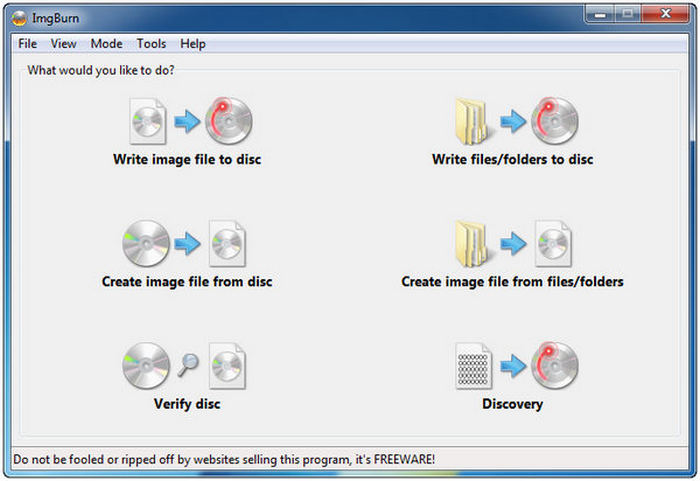
The first method we will discuss is the most reliable option in terms of raw power, granularity, and being a freeware option: ImgBurn. Considered one of the best Blu-ray ISO creator programs for editing ISO files, this program runs well for users who are looking for a good free option. Although its interface is quite dated, the program still gets the job done.
Unfortunately, it might not be the best tool for beginners since it is intimidating and the interface is text-heavy. It is primarily built for function; the beauty and design are low priority. Some of its notable functions are its granular controls, giving it an unmatched ability to adjust section layouts, file system types, and layer breaks. It is best for users who want absolute control for microscopic disc settings.
All these features make the tool a clean and safe solution for making ISO images from official mirrors without unnecessary bloatware. However, an official copy of the program is no longer available. Most copies of ImgBurn come with bloatware and adware from third-party sites.
Main Features:
- Creates ISO images of DVDs, Blu-ray, and CDs.
- Verifies ISO data before burning to keep file integrity.
- Can be used to create bootable DVDs.
- Supports burning ISO images to DVD.
- Advanced settings and control for writing speed.
Pros
- Freeware program. No premium plans or subscriptions.
- Fast ISO image creation process.
- Equipped with advanced configuration options for experienced users.
Cons
- Outdated-looking interface.
- It is not actively developed. No longer receives updates.
- Prone to bundleware when downloading its installation setup.
Top 2. Blu-ray Master DVD Creator: The Premium Media Authoring Suite
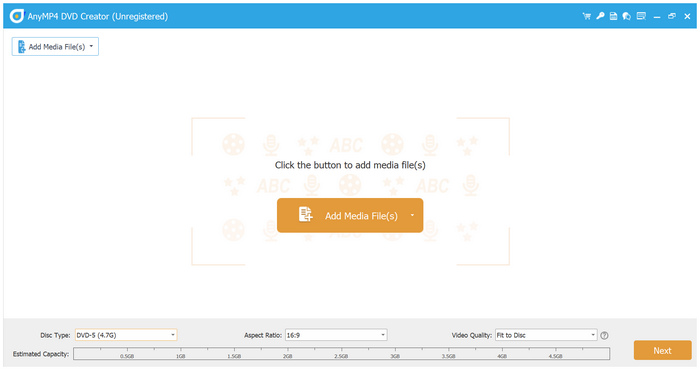
Next is Blu-ray Master DVD Creator, the perfect program to bridge between cold data archiving and creative media presentation. Among the options on this list, this tool is the only one that supports and prioritizes writing data or creating ISO images primarily for viewing experience.
Equipped with practical video editing tools such as crop, trim, and video effects, this made the software an excellent choice for handling massive Blu-ray and DVD data and creating ISO copies from them.
Once the program has extracted the data from a DVD, raw and unorganized MP4/MKV video folders can be reorganized into a professional, structured ISO complete with a DVD menu made from templates and custom designs.
These factors make the software an excellent choice for creating playable ISO images that can be written directly into video DVDs. Another solid bonus is the program’s access to GPU resources to drastically cut down rendering and compilation times for heavy media files.
With its design primarily made for creating playable ISO files, Blu-ray Master DVD Creator is one of the best go-to choices for videographers, family footage archives, and anyone who wants to play their ISO images natively on theater software.
To experience one of the best software programs to edit ISO files, download the program using the link below.
Free Download
For Windows
Secure Download
Free Download
for macOS
Secure Download
Main Features:
- It can be used to create an ISO image from DVD content and digital media.
- It includes basic editing tools: video crop, trim, watermark, and video effects.
- Built-in DVD templates and customizable menu.
Pros
- Beginner-friendly and modern-looking interface design.
- Supports writing both digital and DVD media into an ISO archive.
- Hardware-accelerated to provide efficient and fast ISO creation or burning.
Cons
- Designed more as a DVD authoring tool.
- Full functions and features are locked behind their paid versions.
Top 3. AnyBurn: The Lightweight Speed Champion
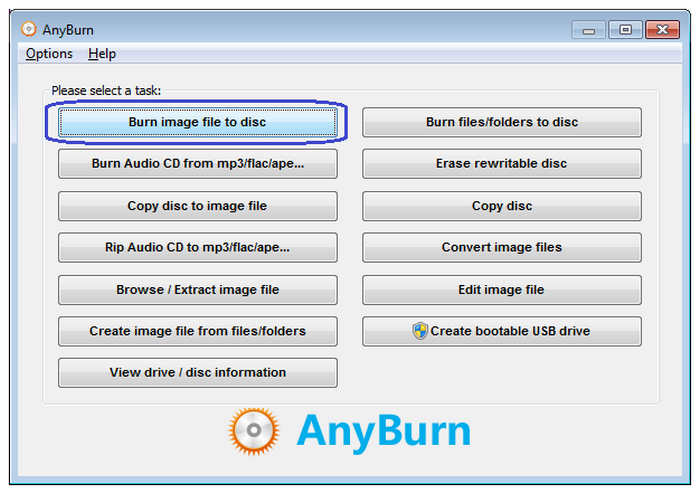
The third program we will discuss will be AnyBurn. The most reliable minimalist option for users who want a quick get-in-and-get-out ISO creation process. This software makes for a great tool for users who prioritize speed, making it one of the most reliable lightweight ISO software we reviewed.
AnyBurn is the most lightweight option among our featured programs. Its installer file size is virtually non-existent, making it have zero impact on system resources. Moreover, its interface design is also straightforward, and its task-based menu has clear buttons like Create ISO File and Burn Image to Disc.
For users looking for versatility, it can also be used to create bootable flash drives by writing ISO images to them, making it a direct solution to how to make a bootable ISO file. All of these factors make AnyBurn an ideal daily utility tool for casual users despite its complex menus.
Main Features:
- Designed to create ISO archives from CD, DVD, and Blu-ray.
- It can be used to burn ISO images to discs.
- Supports writing bootable ISO to USB drives.
Pros
- Extremely lightweight installation size.
- Simple and intuitive interface design.
- Free for personal use and basic ISO creation.
Cons
- Limited video editing features compared to premium options.
- Basic-looking interface design.
- Only available for Windows computers.
Top 4. PowerISO: The Heavy-Duty Image Editor
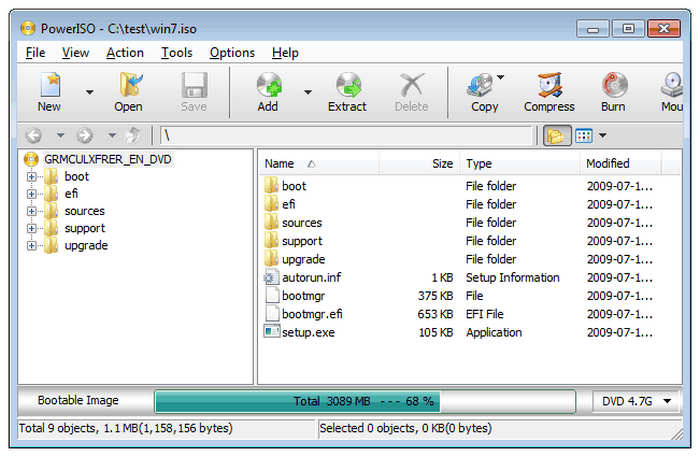
Finally, the last option in this list is the program made for professionals and a corporate veteran tool for virtual mounting, deep-level editing, and format adjustments. This will be none other than PowerISO.
The software works great if you are looking for direct editing power. It can be used to open a massive pre-existing ISO and edit the files written in the archive, all without the need to unpack and recompile the whole image.
In addition to creating ISOs, it also has a virtual driver feature that allows digital mounting of created or downloaded ISO images. With all these features in mind, PowerISO is best used for IT managers and power users looking to handle complex, multi-format image files daily.
However, before accessing these options, you still have to deal with its complex interface design and subscribe to their paid licenses to access the more advanced settings.
Main Features:
- Supports creating ISO from DVD folders and discs.
- It can be used to mount digital ISO as virtual drives.
- Writes ISO data to USB drives.
Pros
- Exclusively designed to create or write ISO images.
- Equipped with a virtual driver to check ISO images directly.
- Its features are inclined for both beginners and advanced users.
Cons
- It has file size limitations when only using the free version.
- Complex interface design.
- A paid license is required to access more advanced options.
Part 6. How to Create ISO Files in Detail
In this tutorial, we used a digital video first to access the Blu-ray Master DVD Creator burn tool. If you are going to use it as a DVD-to-ISO program, the steps are identical.
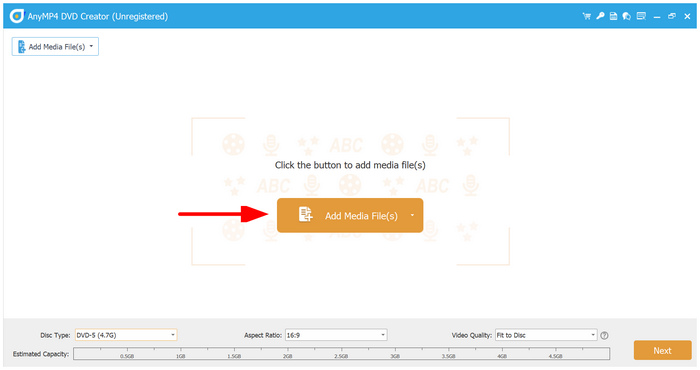
Step 1.Select Add Media Files and choose the loaded DVD as the source. Then, select Next.
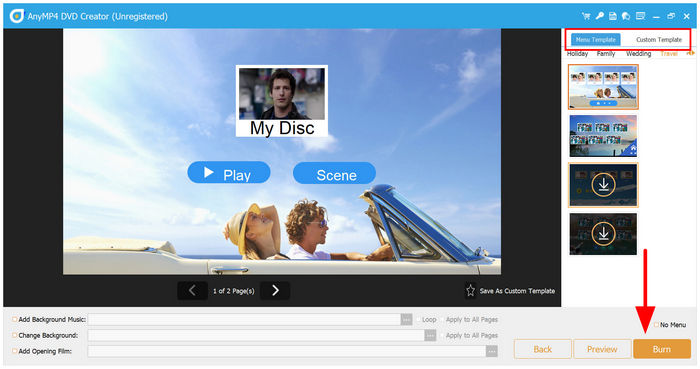
Step 2.In the Menu Template section, choose to either add a DVD menu or a customizable template. Otherwise, click on Burn to proceed.
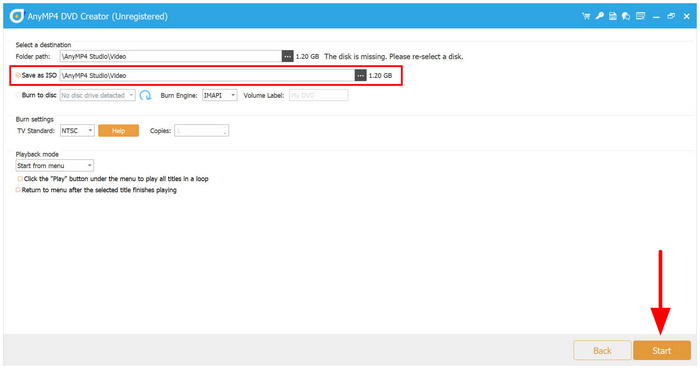
Step 3.In the Burn menu, make sure to check the Save as ISO option to burn your DVD data as an ISO image. Select Start to begin the ISO creation process.
Among the options on this list, Blu-ray Master DVD Creator is the safest ISO creator to download without malware.
Part 7. What People Urgently Need to Know
The “Data vs. Video” Trap
When writing on DVDs, you have to learn the difference between data and video. As their name suggests, DVDs are limited to their intended purpose. As such, dragging video files into a standard data ISO won’t make them playable on a DVD player. You need proper video authoring tools like Blu-ray Master DVD Creator to create playable DVDs.
Bootable vs. Storage ISOs
Similar to data and video, bootable and storage ISOs are also different. When creating a bootable device, you have to use the right DVD type. In this case, DVD-R or DVD+R are the best tools for creating bootable DVDs. On the other hand, DVD-RW is the best for storage.
The Death of Optical Drives
However, if you still prefer the accessibility of digital files, you can still save digital ISOs on your computer. This also works as an additional backup alongside your DVD written with data.
Part 8. FAQs About ISO Creators
-
What is the difference between an ISO file and a compressed ZIP folder?
An ISO file is a digital copy of a DVD. These files can be burned to blank DVDs or written to a virtual drive on your computer. Meanwhile, ZIP is a common compressed file that can be extracted and opened.
-
Can I natively create an ISO file using Windows 11 without downloading third-party software?
No, you cannot. There are no built-in tools for ISO creation on Windows 11. You have to use third-party options such as ImgBurn and Blu-ray Master DVD Creator.
-
Is it legal to use an ISO creator to back up commercial DVD or Blu-ray movies?
No, it is not. Bypassing commercial DVDs is illegal. However, you can do this for personal DVDs.
-
Why do some ISO creators report “Sector Errors” during compilation, and how can I fix it?
This error occurs if your software cannot read the DVD data. It is usually caused by a physical issue on the DVD such as scratches. To avoid such issues, make sure to clean your DVD with a dry microfiber cloth before loading it into your computer.
-
How do I convert an existing ISO file back into a standard USB bootable installer?
The simplest way is to write the ISO file to a USB using a USB creation tool. This is the most accessible solution for this problem. Fortunately, there are numerous options you can use, such as Rufus, Windows Media Creation Tool, and more.
Conclusion
Now that some of the best ISO creator programs are discussed, all you have to do is learn which program suits you best based on your needs. To help our readers decide, ImgBurn is best for technical users, Blu-ray Master is best if you prefer video and movie quality preservation, AnyBurn is best for bloat-free and fast creation, and PowerISO is best for professional-grade and advanced ISO data editing. Among the options on this list, Blu-ray Master DVD Creator is our most recommended solution since it perfectly balances quality and functionality.
Free Download
For Windows
Secure Download
Free Download
for macOS
Secure Download
