

Aug 27, 2026Posted by Kevin Miller to Create DVD
Quick Selection Guide
- Need zero-cost, fully custom interactive menus: DVDStyler (True Open-Source).
- Need exact sector/ISO control for raw data & backup: ImgBurn (Technical Purist).
- Need fast, modern 4K/HD to DVD conversion without burning failed coasters: Blu-ray Master DVD Creator (Hardware-accelerated / Scalable Solution).
- Need a quick, bloat-free daily burner for Windows: CDBurnerXP or AnyBurn.
These situations have become increasingly common today: streaming services may quietly delete movies, modify licensing agreements, and increase cloud storage fees. The modern concept of "digital ownership" more closely resembles a temporary lease. For this very reason, physical media is making a comeback—it remains the best way to truly own, preserve, and archive your favorite videos offline.
However, finding a reliable tool is tough. The internet is full of 'free software traps'—abandoned programs that freeze mid-burn, ruin blank DVD-5/DVD-9 discs, or install sneaky adware on your computer.
In this article, we put today's top free and premium DVD burning software through real hardware tests on Windows 11 and macOS Sequoia. Here is our zero-fluff breakdown of the best free DVD burning software that actually works.

Table of Contents
Part 1. Data Transparency: How We Test (The Lab Environment)
To deliver you reliable and accurate test results, we conducted rigorous tests on the 7 tools. Here is the detailed test process.
The Setup
Here is the detailed equipment we used to test these DVD-burning tools.
- Hardware: Modern bare-metal test benches running clean installations of Windows 11 Home (23H2) and macOS Sequoia (15.x).
- Optical Drives: External USB 3.0 LG, Pioneer, and ASUS optical burners capable of reading/writing multi-layer media, including M-Disc (long-term archival media) and BDXL (100GB/128GB) discs.
- Test Media: Standard single-layer DVD-5 (4.7GB), dual-layer DVD-9 (8.5GB), and triple-layer Blu-ray/M-Disc media.
Our Actual Testing Process
We plugged external USB 3.0 optical drives into clean test machines running Windows 11 Home and macOS Sequoia. For each software, we ran three standardized tests:
1. Direct Encoding Test: We imported modern video files (1080p MP4 and 4K MKV) to see if the software could encode them into standard DVD video formats without crashing.
2. Burn Verification Test: We burned these videos onto standard single-layer DVD-5, dual-layer DVD-9, and archival M-Disc media at maximum write speeds, checking for buffer underrun errors or system freeze at 99%.
3. Playback Compatibility Test: We popped the finished physical discs directly into an old 2010 Sony DVD player connected to an HDTV to verify if the menus worked and if audio stayed perfectly in sync. We also checked every installer for hidden third-party adware.
Part 2. 4 Best Free DVD Burning Software
| Software | Ease of Use | System Compatibility | Menu Template Aesthetics | Supported Input Formats | Output DVD Formats |
| ImgBurn | Low (Clunky UI) | Windows 11/10/8/7 | None (Data/ISO Only) | ISO, CUE, BIN, NRG, File Folders | DVD-Video (from VIDEO_TS), Data DVD, ISO |
| DVDStyler | Medium | Windows, macOS, Linux | High (Fully Customizable) | MP4, MKV, AVI, MOV, WMV, OGG, MP3 | DVD-Video Discs, ISO Images, DVD Folders |
| CDBurnerXP | High | Windows 10/8/7/XP | None | MP3, WAV, FLAC, ISO, Data Files | Data DVD, Audio CD, ISO Images |
| AnyBurn | High (Lightweight) | Windows 11/10/8/7/XP | None | ISO, BIN, DAA, MP4, MP3, FLAC | Data DVD, Bootable Drive, ISO Copy |
Tool 1: ImgBurn - The Technical Purist's Choice
- License: Freeware
- Best For: Low-level system purists and optical disc archivists
- Optical Drive Support: DVD-R/RW, DVD+R/RW, DVD-RAM, BD-R/RE, M-Disc, BDXL
- Standard / Resolution: Pure bitstream passthrough (NTSC 720x480 / PAL 720x576 supported via pre-built VIDEO_TS)
- Hardware Acceleration: No
Test Result: In our test, ImgBurn remains unmatched in bit-level verification and precise layer-break management for dual-layer (DVD-9) burning, virtually eliminating physical sector errors. However, it cannot transcode raw video files and requires careful navigation of the installer to skip bundled software.
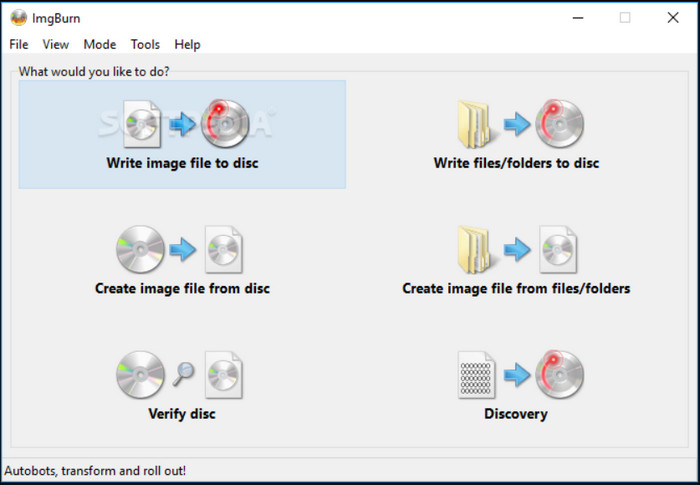
If you want to burn DVDs and like having total control over how it's done, ImgBurn is pretty much the gold standard.
It's an old-school, lightweight tool that just works. Instead of fancy, bloated features, it focuses on doing one thing really well: making exact, error-free copies of your discs. Whether you're burning an ISO file, a movie folder you already have saved, or backing up important stuff to long-lasting M-Discs, it gets the job done right.
It might look a bit retro, but if you want your physical backups to actually work without burning a bad disc, this is the tool to use.
Pros
- It requires very little storage space, uses minimal system resources, and costs nothing.
- This tool supports almost every disc image format, including ISO, DVD, and CCD.
- It offers granular control over burning speeds, drive settings, buffer size, and layer break points for dual-layer (DVD+R DL) burning.
- It offers various burning modes for you to choose from.
Cons
- It is only available for Windows computers.
- It hasn't been updated for more than 10 years.
- Its official installer historically bundled third-party adware/PUPs
Tips
Safety & Adware Warning: Even when downloading the program from the official website, it may still contain bundled third-party installation components (e.g., OpenCandy). It is recommended to always use a custom installation method to uncheck the "Optional toolbar" option, or to download a clean binary file from a verified community mirror.
Tool 2: DVDStyler - The Creative Open-Source Author
- License: Open-Source
- Best For: Creative users who want to design customized, interactive, Hollywood-style interactive video menus for free.
- Drive Support: Standard DVD-R/RW, DVD+R/RW, Dual Layer DVD-9
- Standard / Resolution: NTSC (720x480 @ 29.97fps) & PAL (720x576 @ 25fps) MPEG-2 Encoding
- Hardware Acceleration: Basic multi-core CPU thread utilization via FFmpeg backend
Test Result: When testing this tool, we attempted to create an interactive custom menu and convert MP4 files into playable DVD format. Its encoding process relies entirely on the CPU; therefore, when building complex menus, rendering speed noticeably slows.
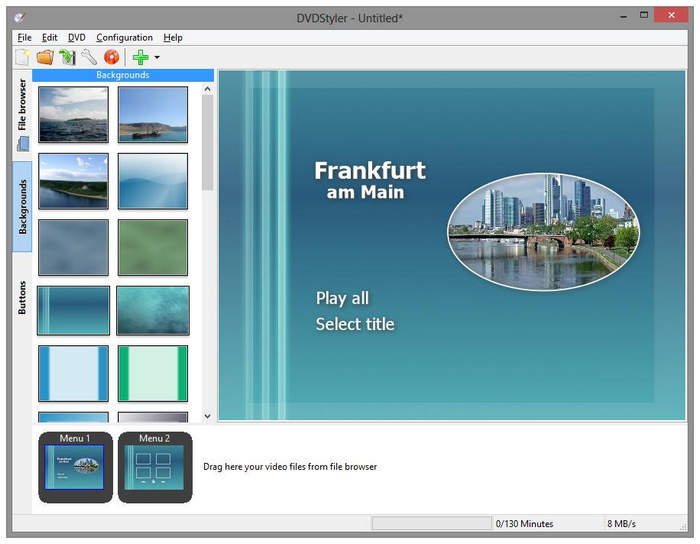
DVDStyler is a classic DVD authoring software that is truly free and open-source. It provides total layout freedom. You can place custom text, set up multi-page chapter select screens, and map custom button actions across any canvas. Powered by the reliable FFmpeg engine behind the scenes, it allows you to input MP4 or MKV videos and automatically converts them into compliant MPEG-2 streams for standard home players. Moreover, just like its name, you get complete creative freedom to drag and drop custom buttons, design chapter select screens, and add background audio. It is ideal for independent creators or family archivists who want to turn home videos into polished physical gifts without paying for a commercial license.
Pros
- It has a flexible WYSIWYG (What You See Is What You Get) visual editor for you to customize the menu.
- It supports a wide range of video formats, including MP4, MKV, MOV, AVI, and others.
- It is compatible with Windows, macOS, and Linux.
Cons
- It takes a long time to convert and render videos, especially for long video files on older hardware.
- Its interface is outdated.
Tool 3: CDBurnerXP - The Handoff-Free Daily Utility
- License: Freeware
- Best for: Office administrators and casual Windows users needing quick media burning
- Optical Drive Support: CD, DVD, Blu-Ray, M-Disc
- Standard / Resolution: Data/ISO File Systems (UDF filesystem, ISO 9660)
- Hardware Acceleration: System-level write speed controls
Test Result: During testing, this tool can quickly burn audio CDs and create data backup DVDs without causing system bloat. When an original MP4 file is input, it cannot play on standalone TV DVD players because these devices lack video transcoding capabilities.
CDBurnerXP is one of the best free DVD burning software programs with a clear interface. Although its name includes 'XP,' this software runs smoothly on modern operating systems. It can easily handle common disk-related tasks such as burning ISO images to DVDs. The interface design is clean, avoiding menu confusion while eliminating hidden trial fees. Whether you only need to burn files to a disc for secure offline storage, or require a system backup that can boot normally, CDBurnerXP remains a practical tool.
Pros
- It is free with no hidden subscriptions.
- Its interface is clear and intuitive, which is friendly for beginners.
- It has a useful feature that automatically splits large amounts of data across multiple discs if it exceeds the capacity of a single DVD.
Cons
- It is unable to process raw video files and burn them to DVD.
- It is not supported on macOS and Linux systems.
- You need to install Microsoft .NET Framework to ensure the tool runs properly.
Tool 4: AnyBurn - The Lightweight Swiss-Army Knife
- License: Freeware
- Best for: System technicians needing portable, lightweight media utilities
- Optical Drive Support: All standard CD/DVD/Blu-ray external and internal burners
- Standard / Resolution: Universal ISO 9660, UDF filesystems
- Hardware Acceleration: Native low-level execution pipeline
Test Result: We are very impressed by its performance. It can perform ISO creation and sector copying at extremely high speeds while maintaining a very low memory footprint. This tool is well-suited for data backup; however, it cannot convert or format the original video files to be compatible with TV sets or home media players.
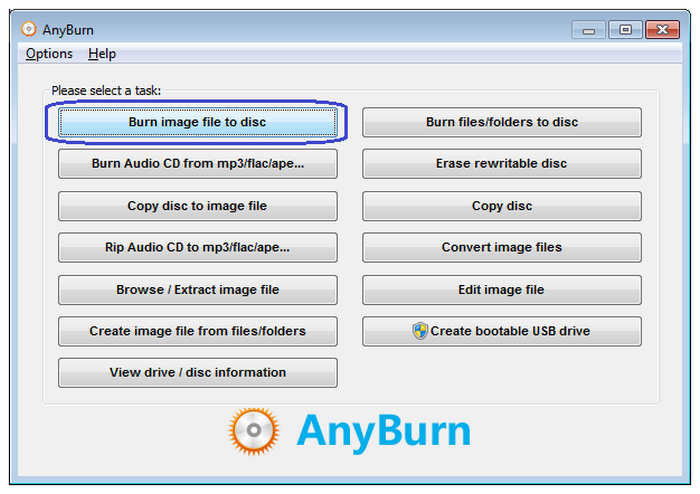
AnyBurn is an ultra-lightweight, high-speed utility tool. It is specifically designed for quickly completing media operations and performing emergency system recovery. The software occupies almost no hard disk space, boots instantly, and can even be run directly from a portable USB flash drive without requiring any installation. While it cannot help you design interactive video menus for movie nights, it excels at tasks such as sector-by-sector copying of physical optical discs, converting disk mirror formats, and building bootable media environments. It is an ideal choice for IT enthusiasts and budget-conscious hardware users who need a simple, purely functional tool for burning original discs and backing up files.
Pros
- It is free without hidden fees or adware.
- It uses minimal CPU and memory resources, making it run smoothly on older computers.
- This powerful DVD creator can burn videos to ISO/image files for DVDs and Blu-ray discs.
Cons
- It lacks advanced video editing tools compared to other modern DVD burning tools.
- Its UI uses a very traditional, utility-style Windows layout.
Part 3. The Premium DVD Burning Software(When Freeware Falls Short)
Although the software tools mentioned above offer fast, free methods for burning DVDs, they typically lack advanced features to improve DVD quality. Modern high-end DVD burners address these issues by providing GPU hardware acceleration, built-in timeline editors, and automated downscaling engines.
| Software | Price | System Compatibility | Ease of Use | Burning Speed | 4K Downscaling | Input Formats | Output DVD Formats |
| Blu-ray Master DVD Creator | Commercial | Windows, macOS | Very High | 50x Faster (GPU Accelerated) | Yes (Lossless Downscaling) | MP4, MKV, MOV, AVI, HEVC, FLV, AV1, 4K/HD | DVD Disc (DVD-5/9), ISO Image, DVD Folder, Blu-ray Disc/Folder |
| VideoByte DVD Creator | Commercial | Windows, macOS | High | Fast (GPU Accelerated) | Yes | MP4, MOV, MKV, AVI | DVD-Video, Blu-ray, ISO |
| DVDFab DVD Creator | Commercial | Windows, macOS | Medium | Fast | Yes | Modern HD/4K Codecs | DVD-Video, ISO, Folder |
Tool 1: Blu-ray Master DVD Creator - The Best Comprehensive & Scalable Solution
- Best for: Home users, videographers, and archivists who need fast, error-free conversions
- Optical Drive Support: External/Internal USB 3.0/Type-C drives, DVD-5, DVD-9, BD-R, BD-RE, M-Disc
- Standard / Resolution: Auto-converts 4K/1080p to NTSC (720x480) or PAL (720x576) standard definitions
- Hardware Acceleration: Full NVIDIA NVENC, AMD AMF, Intel QuickSync Video Support
Test Result: This tool showed the fastest render times in our lab tests using GPU acceleration. It smoothly downscaled 4K videos to DVD format with sharp menus and perfect TV player audio synchronization.
Blu-ray Master DVD Creator bridges the gap between professional authoring features and effortless daily operation. It allows you to input MP4, MKV, MOV, and many other video formats and burn them onto a DVD. You can use it to burn DVD-5, DVD-9, DVD-R, DVD+R, DVD-RW, DVD+RW, etc. If you need, you can use the various editing tools to adjust and optimize videos. With the various delicate menu templates, you can select a desired menu. Moreover, you can even customize a menu yourself by adding background music, images, and custom titles. With modern GPU acceleration (NVIDIA, AMD, Intel), the burning speed is up to 50 times faster compared to other common tools.
Pros
- It provides a simple workflow for beginners to easily burn DVDs.
- Compared to the above free tools, it supports multiple input and output formats.
- It allows you to import external subtitle files (.srt, .sub, etc.) and adjust/sync alternate audio tracks.
Cons
- You need to buy it to enjoy the full features.
- The free trial version would add watermarks to the output.
Now, click the download buttons to save it on your computer and see how to use it.
Free Download
For Windows
Secure Download
Free Download
for macOS
Secure Download
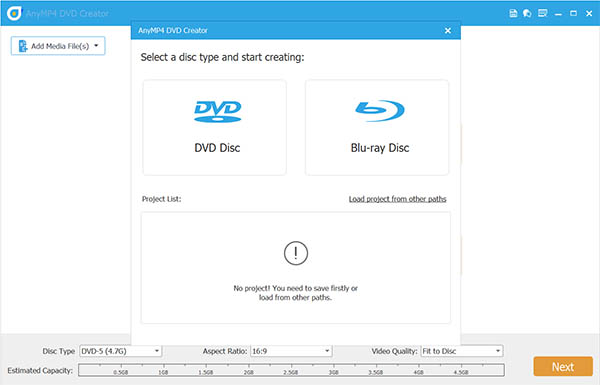
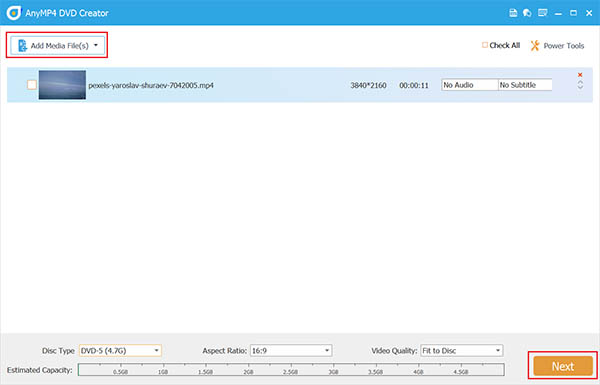
Step 1. Insert the blank DVD into your computer using a built-in driver or an external one. Open DVD Creator and select the DVD Disc option.
Step 2. Click on Add Media Files and select the video from your computer that you want to burn into the blank DVD.
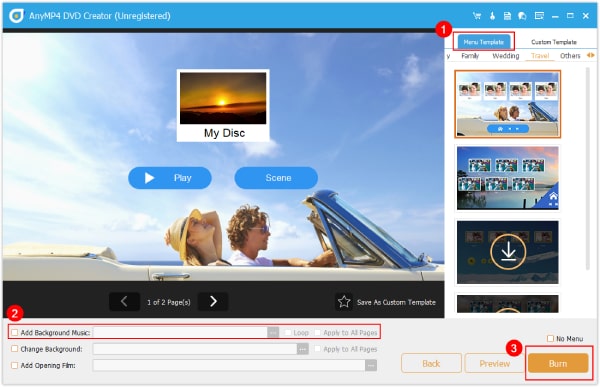
Step 3. Once the video has been added, you can now select among the available templates for the DVD menu. You can also add customized background music to the video. Otherwise, click on Burn to start writing the video into the DVD.
By following this simple process, you can now produce your DVD or Blu-ray discs at home using downloaded digital videos or personal footage stored on your computer. However, keep in mind that burned DVDs cannot be sold or used for monetary value since it may result in legal consequences.
Tool 2: VideoByte DVD Creator - Fast & Lossless Specialized Competitor
- Best for: Users managing high-volume burning workflows where speed is critical
- Optical Drive Support: DVD-5, DVD-9, BD-25, BD-50
- Standard / Resolution: NTSC/PAL switching with manual bitrate allocation
- Hardware Acceleration: NVIDIA NVENC, AMD AMF, and Intel QSV; optimized for multi-core CPUs and Apple Silicon hardware
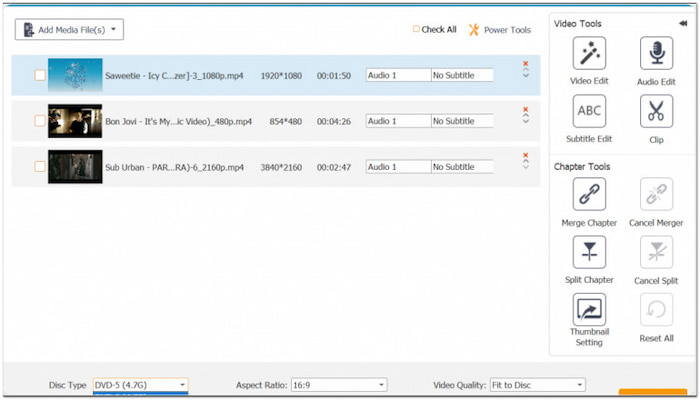
Test Result: During testing, the software provided a stable encoding workflow in both Mac and Windows environments, with excellent GPU utilization. Its built-in template selection feature is acceptable, although its custom adjustment options are relatively limited.
VideoByte DVD Creator focuses primarily on execution speed, ease of use, and stable, reliable encoding performance. This software is specifically designed for users who need to quickly process large volumes of digital video files without requiring complex menu configurations. It can smoothly perform format conversion in the background, ensuring that the discs you burn will play stably on home television players. If you seek a focused, high-speed practical tool—where you can concentrate entirely on rapidly creating CDs without dealing with cumbersome multimedia metadata—VideoByte provides stable and efficient workflows for modern Windows and Mac systems.
Pros
- This solid DVD creator supports more than 300 input formats, including MP4, MKV, WMV, AVI, etc.
- It performs fast rendering times utilizing hardware acceleration.
- It provides basic editing tools for you to make slight adjustments.
Cons
- The functions are limited in the free version.
- The free version would place a large watermark on output videos.
Tool 3: DVDFab DVD Creator - The Professional Archival Titan
- Best for: Advanced users needing precise metadata syncing, multiple audio channels, and precise chapter mapping
- Optical Drive Support: DVD/BD optical drives with raw sector controls
- Standard / Resolution: NTSC (720x480) & PAL (720x576); downscales 4K/1080p source videos to standard DVD SD resolution
- Hardware Acceleration: Multi-GPU support featuring NVIDIA CUDA/NVENC, AMD AMF, and Intel Quick Sync Video (QSV)
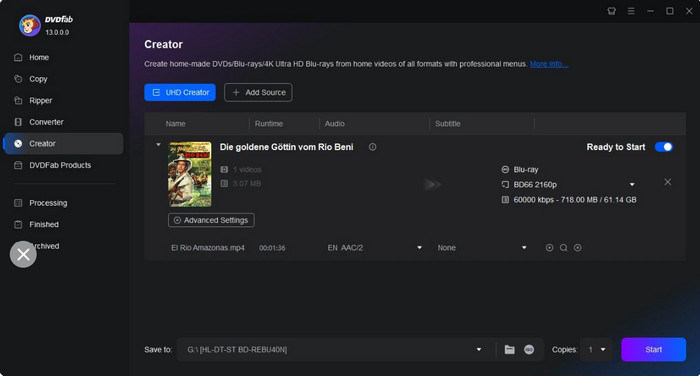
Test Result: It could automatically pull cast info and movie posters into disc menus. Highly stable output, though the dense menu options require time to master.
DVDFab DVD Creator is built for serious home theater enthusiasts and cinephiles who demand advanced audio and metadata features. Its standout capability is syncing with online movie databases to automatically build disc menus complete with original poster art, cast lists, and plot summaries. It also offers deep control over multi-channel audio tracks, including Dolby Digital and DTS audio passthrough. While it carries a premium price tag and a steeper learning curve, DVDFab delivers studio-grade media creation for users building an authentic physical movie library at home.
Pros
- It leverages GPU acceleration to facilitate the DVD burning process.
- This powerful tool can connect to online database to download poster art, cast lists, and summaries for recognized movies/shows.
- It allows you to customize menu backgrounds, fonts, and widget placements.
- It supports multi-channel audio tracks (Dolby Digital, DTS).
Cons
- The free version is limited with watermarks.
- It would prompt you to buy other DVDFab tools.
Part 4. The Unspoken Hurdles: What Readers Actually Need to Know
1 The 'Data Disc' vs. 'Video DVD' Mistake
The most common point of confusion for users is copying an .mp4 video directly onto a disc as a Data DVD. While this disc will play fine on a modern PC, it will fail to play on traditional standalone home DVD players.
To create a playable home video disc, your software must recode the video to MPEG-2 and use the UDF (Universal Disk Format) file system to compile it into a standardized VIDEO_TS directory structure.
2 Why Brand-Name Media Matters
Not all blank discs offer the same longevity. Low-cost, generic blank discs rely on cheap, unstable organic dyes that deteriorate rapidly over time or fail write-verification checks halfway through a burn session.
- Archival Recommendation: For home movies or important data backups, choose premium media utilizing inorganic layer construction, such as Verbatim DataLifeValue/M-Disc or Falcon Media.
3 The Region Code & TV Standard Trap (NTSC vs. PAL)
If you send a burned DVD to family or clients overseas, selecting the wrong TV standard can cause playback errors.
- NTSC Standard: Used primarily in North America, Japan, and parts of South America (Standard Resolution: 720x480 at 29.97 fps).
- PAL Standard: Used primarily in Europe, Australia, and parts of Asia (Standard Resolution: 720x576 at 25 fps).
Pro-Tip: Most modern software (including Blu-ray Master DVD Creator and DVDStyler) allows you to manually toggle the video standard before encoding. Select the standard matching your destination audience's region to prevent 'Format Not Supported' errors on standard TV monitors.
Part 5. FAQs about Best Free DVD Burning Software
-
Is downloading free DVD burning software safe on Windows 11?
Choose reputable software and download free versions from its official website or from open-source hosting platforms such as GitHub or SourceForge. Avoid using third-party download aggregation websites, as they may bundle adware or potentially unwanted programs.
-
Why do my burned DVDs play on my computer but not on my TV's DVD player?
This issue occurs when video files are written to a disc in 'Data DVD' format rather than as a 'Compiled Video DVD'. Independent home players require a standard VIDEO_TS directory containing the encoded VOB, IFO, and BUP files.
-
Can I burn modern 4K smartphone videos onto a standard DVD-5 disc?
Yes, you can. Many modern tools like Blu-ray Master DVD Creator support 4K MP4 or MOV file input. Then, DVD burning tools can downscale the resolution to standard definition (720x480/720x576) and compress the file stream to fit on a 4.7GB DVD-5 disc.
-
What is a 'Buffer Underrun Error,' and how do premium software choices prevent it?
A buffer underrun error occurs when the system's CPU/RAM fails to feed data to the optical drive burner at a consistent speed, interrupting the laser write process and ruining the blank disc. Premium tools use hardware acceleration pipelines and write-buffer safeguards to maintain a steady stream of data to the drive.
-
Do Windows 11 or macOS Sequoia have built-in tools to burn video DVDs?
No. Although both Windows 11 (via 'File Explorer') and macOS Sequoia (via 'Finder') come with built-in tools for burning basic data CDs or ISO images, neither operating system includes a built-in video DVD authoring tool with menu creation capabilities (Windows DVD Maker has been discontinued since Windows 7).
-
Can free DVD burners also write to Blu-ray or M-Discs for long-term storage?
Some free software applications, such as ImgBurn and CDBurnerXP, can write data files or ISO images to Blu-ray and M-Disc media. However, if you need to create interactive video Blu-ray or DVD structures with menus, you will need to use dedicated authoring tools, such as DVDStyler (for generating basic DVD menus) or Blu-ray Master DVD Creator (for producing full HD/4K Blu-ray and DVD discs).
-
What is the difference between burning a Data DVD and a Video DVD?
A Data DVD acts like a USB flash drive that can store raw files that can be opened on a computer or smart device. A Video DVD converts your videos into a specific format with menus and chapters so it can play on standard home DVD players.
Conclusion
In this article, we share with you the 4 best free DVD burning software and 4 premium tools for better DVD effects. There is no single 'best' tool for every user - the ideal choice depends on your specific technical needs, workflow, and budget.
If you want complete control over interactive menu designs without spending money, invest time in learning DVDStyler. If you already have pre-compiled VIDEO_TS folders or .iso images and want strict sector-level burning control, rely on ImgBurn. If you want to convert modern 4K/HD video files quickly without manual command-line encoding, zero out failed disc burns, and create modern HD menus, use Blu-ray Master DVD Creator.
