

Jun 24, 2026Posted by Kevin Miller to Create DVD
Quick Selection Guide:
Best Overall & Most Reliable: Blu-ray Master DVD Creator
Best Free iDVD Alternative: Burn (for Mac)
Best Built-in Tool (No Download Required): macOS Finder
Best Pro-Level Authoring: Roxio Toast Titanium
Still have a stack of blank DVDs lying around? Or maybe you need to burn a memorable wedding video or create a secure physical archive. Nowadays, finding a reliable DVD burner for Mac that actually works can be surprisingly tricky — especially since continuous macOS updates and the transition to Apple Silicon break software compatibility every few years.
It is worth noting that modern MacBooks and iMacs no longer come with built-in optical drives. Before diving into the software, you will first need an external DVD drive (ideally with a USB-C connection or a proper adapter). To save your time and money, our team has rigorously tested dozens of options on the latest macOS. Here is our definitive hands-on review of the 6 best DVD burners for Mac, including both powerful premium tools and completely free iDVD alternatives.
- How We Test and Verdict
- Top 1. Blu-ray Master DVD Creator
- Top 2. DVDFab DVD Creator
- Top 3. Roxio Toast Titanium
- Top 4. Finder
- Top 5. Burn
- Top 6. Express Burn
- Bonus: How to Burn a DVD
- FAQs About Mac DVD Burners
How We Test and Verdict
How we test
We deployed a standardized testing rig to evaluate software performance across both legacy intel Macs and modern Apple Silicon architectures:
- Test Machine A (Modern Apple Silicon): 14-inch MacBook Pro (2024, M3 Pro chip, 18GB Unified Memory, macOS Sequoia 15.x).
- Test Machine B (Legacy Intel): 27-inch iMac (Intel Core i5, 16GB RAM, macOS Monterey 12.x).
- Hardware Optical Drive: ASUS ZenDrive U9M (External USB-C, Slim 8x DVD Writer) and an Apple USB SuperDrive (connected via a USB-A to USB-C adapter).
- Physical Media Used: Verbatim DVD-R (4.7GB, Single Layer, 16x rated) and Verbatim DVD+R DL (8.5GB, Dual Layer, 8x rated).
Every DVD burner reviewed in this article was subjected to the same standardized asset package and graded out of 100 based on six core metrics:
- Transcoding & Burning Speed (20%): We recorded the exact time required to convert and burn a standardized 2-hour, 4.3GB video project to a physical Verbatim DVD-R disc at a locked 8x write speed. Speed benchmarks measure both CPU/GPU utilization and hardware acceleration support (like Apple VideoToolbox).
- Apple Silicon Compatibility (15%): We monitored whether the app runs natively on M1/M2/M3 chips or requires Rosetta 2 translation, checking background CPU load and memory leaks during long rendering cycles.
- Menu & Audio-Video Sync Fidelity (15%): We customized preset menus (changing titles, backgrounds, and button positions) to check for rendering glitches. Post-burn, the discs were verified on a Sony BDP-S6700 hardware Blu-ray/DVD player to check menu navigation responsiveness and strictly measure lip-sync/audio-video alignment.
- Data vs. Video Versatility (15%): We tested the software's capability to create both ISO mirror images, standard UDF/ISO-9660 Data DVDs (for file backup), and DVD-Video compliant discs (MPEG-2 format with VOB structures for standalone TV players).
- UI/UX & Value for Money (15%): We evaluated the learning curve for absolute beginners, checking for annoying bundled bloatware (especially in free tools) and assessing if the premium pricing is justified compared to open-source alternatives.
Our Selection Standards
Compatibility: Figure out the DVD burner software's macOS compatibility to help people know whether they can use it to create DVDs.
Ease of use: A good DVD burner software should provide a user-friendly experience. Its interface should be clear, and the steps are easy to learn, even for beginners.
Input Formats: To burn DVDs with the DVD burning software, it is essential to be able to support multiple video formats input, so that people can effectively burn their videos to DVDs.
Burning speed: It is crucial for a DVD authoring program for Mac to have an excellent DVD burning speed, which can save people's time.
Price: The price of DVD burning software for Mac is also an important factor to consider. Whether the price is reasonable and economical?
Other settings: Besides the basic DVD burning features, a good DVD burner should provide additional features, like video editing tools, menu templates, etc.
Best Picks
As mentioned above, we test almost all the DVD burner software on the market. Here are the 7 best DVD burners for Mac we picked based on considerable testing.
| 6 Best DVD Burners for Mac | |||||
| Compatibility | Input Formats | Output DVD Type | Burning Speed(A DVD Disc of 2h) | Price | |
| Blu-ray Master DVD Creator | Mac OS X 10.9 or above. | MP4, MOV, MKV, and others. | DVD-5, DVD-9. | 32 mins | Free trial version and two premium versions that start from $12.45. |
| DVDFab DVD Creator | MacOS 10.10 – 14.x. | AVI, MP4, MKV, M2TS, FLV, etc. | DVD-5, DVD-9. | 39 mins | Free trial version and two premium versions that start from $46.99. |
| Roxio Toast Titanium | Mac OS 10.13 and later. | AAC, AIFF, MP3, AVCHD, MOV, VOB, and others. | DVD-5, DVD-9. | 63 mins | 2 premium versions that start from $49.99. |
| Finder | Mac OS 10.12 and beyond. | MP4, MOV, MP3, AVI, WAV, and others. | Data DVDs. | 87 mins | Free |
| Burn | Mac OS X 10.9 and later. | MP4, MP3, MKV, and some other common video formats. | Data DVDs and video DVDs. | 77 mins | Free |
| Express Burn | MacOS 10.5 or above. | AVI, MPG, VOB, WMV, MP4, and others. | DVD-R, DVD-RW, DVD-5, DVD-9. | 75 mins | Free version and different plus editions that start from $19.99. |
Top 1. Blu-ray Master DVD Creator
Mac OS X 10.9 or above.
Create DVDs with good quality in several clicks.
Editing tools and menu templates.
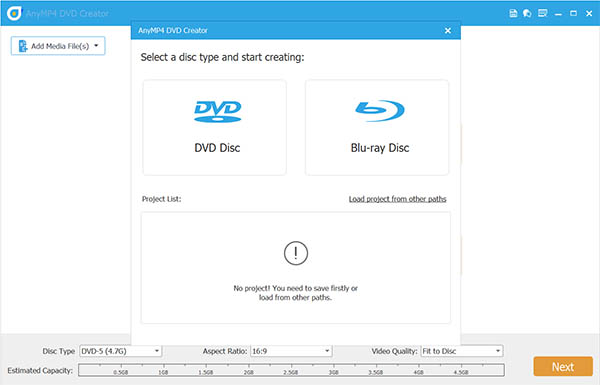
To begin with, the number one DVD burner for Mac is Blu-ray Master DVD Creator, which can match all our pick standards. It has an intuitive interface. To create DVDs, it lets you import MP4, MKV, MOV, FLV, and over 500 other formats and burn them to physical discs. Before starting the burning process, you can choose the Powerful Tools to access the editing tools and edit and clip video and audio. Moreover, it offers multiple DVD menu templates, such as Family, Wedding, and other topics. You can watch the visual effects of each template through the Preview function. It is compatible with macOS X 10.9 or above, including macOS 15 Sequoia.
Free Download
For Windows
Secure Download
Free Download
for macOS
Secure Download
Pros
- Input more than one video into the software and burn them together.
- Set Disc Type, Aspect Ratio, and Video Quality.
- Choose the audio track and subtitle you want to burn.
- Provide NTSC and PAL TV standards.
- Support adding external subtitles to the video.
Cons
- The free trial version provides limited functions.
Top 2. DVDFab DVD Creator
MacOS 10.10 – 14.x.
Create DVDs with easy steps.
Menu templates.
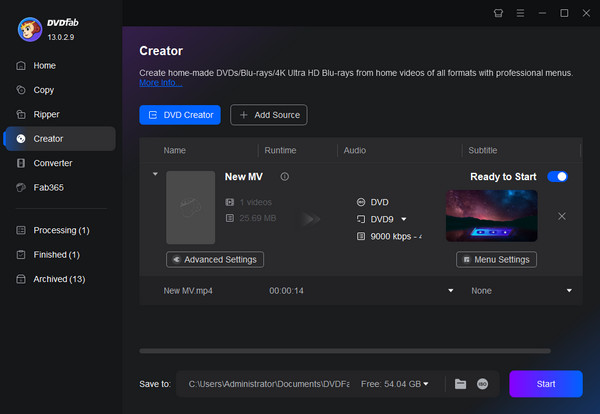
DVDFab DVD Creatoris one of the top DVD burning software programs for Mac users. You can create DVDs from MP4, AVI, FLV, M2TS, and other formats. Besides burning video files to DVD discs, you can burn them to DVD folders and ISO files as well, which can serve as a digital backup. It provides menu templates that you can apply to make your DVD more delicate.
Pros
- It has a clear and intuitive interface.
- It supports multiple DVD output types, like DVD-R, DVD-RW, etc.
- Manually set the TV Standard and Aspect Ratio.
Cons
- It takes a relatively long time to load video files.
- The price of the premium version is expensive.
Top 3. Roxio Toast Titanium
Mac OS 10.13 and later.
People who want to use a professional DVD burner to create DVDs.
Menu templates.
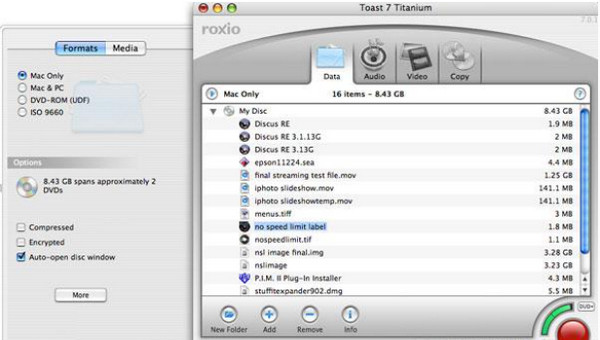
The next DVD burner for Mac os that we want to recommend is Roxio Toast Titanium, which can burn a much wider array of video formats to DVDs. AAC, AIFF, MP3, AVCHD, MOV, VOB, and many other digital formats can be loaded into the software. It enables you to produce DVDs with unique menus and chapters that appear professional. This makes it possible to create interactive DVD experiences, going beyond mere file burning.
Pros
- It provides professional DVD burning.
- It supports a wide range of video, audio, and image formats.
- It outputs high-quality DVDs.
Cons
- It is a little complex for some beginners.
- It might use more system resources because of its sophisticated capabilities.
Top 4. Finder
Mac OS 10.13 and beyond.
People who don’t want to download new software.
No.
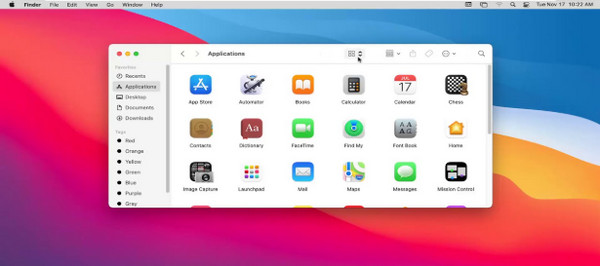
Finder is the built-in tool of Mac computers, and it can be praised as one of the easiest ways to burn videos to DVD discs without installing third-party software. It excels at burning files and folders to a disc for storage and backup. It supports loading video, audio, image, and even document files, which is comprehensive enough to meet your basic data needs. However, one thing you should note is that Finder can only create Data DVDs (which act like USB flash drives for computers), meaning it cannot burn standard, playable Video DVDs. If your goal is to create a movie disc that can play on a standard home DVD player, Finder will not work, as it lacks the authoring tools to generate DVD-Video structures (such as VIDEO_TS folders). For that, a dedicated tool like Blu-ray Master is required.
Pros
- It functions flawlessly with macOS because it is embedded within the operating system.
- Its functions are easy to learn, especially for beginners.
- It can burn DVDs without data loss.
Cons
- It lacks customization settings to burn DVDs.
- It is limited to outputting data DVDs.
Top 5. Burn
Mac OS X 10.9 and later.
Create DVDs for free.
No.
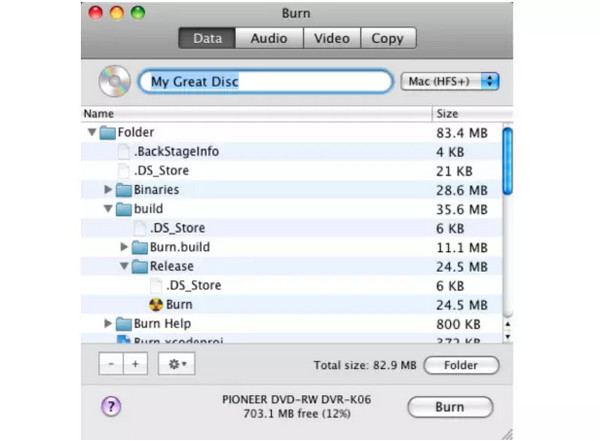
Burn is a free and open-source DVD authoring software designed for Mac devices. It has earned popularity for its extreme lightweight nature and ease of use. It can convert MP4, MP3, MOV, and many common digital formats to DVD discs. It mainly focuses on the basic DVD-burning process, so it doesn't offer advanced features to further edit your DVD projects. In other words, it is highly suitable for beginners and people who don't need complex settings. It is reported and reflected that Burn is an older tool that has not received major updates in years. While it works well on older macOS versions, it frequently causes unexpected crashes or system permission errors on modern versions like macOS Sequoia. If you are running the latest Mac hardware, a more frequently updated alternative may be necessary.
Pros
- It is a free tool.
- It can burn data CDs and DVDs, audio CDs, and video DVDs.
- It is simple and easy to use.
- It uses fewer system resources and is lightweight.
Cons
- It lacks advanced settings to customize the DVDs.
- As a free tool, it provides infrequent updates.
Top 6. Express Burn
MacOS 10.5 or above.
Rich output DVD types.
Create a menu or use provided menu templates.
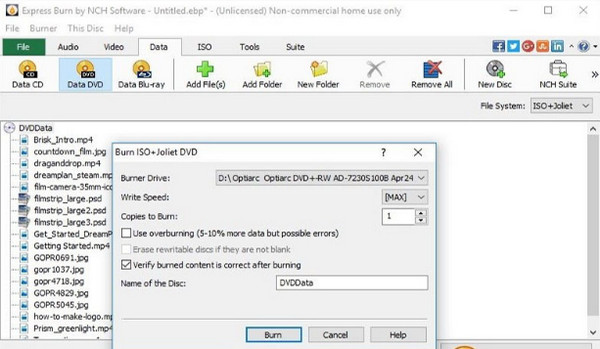
Express Burn is an outstanding free DVD burning software that is capable of burning various types of DVDs. You can load MP4, AVI, and many other formats into the software and burn them to a DVD disc. Besides, you are allowed to upload files, documents, and other data, and burn them to data DVDs. Moreover, it provides customization features, like DVD menus and chapter points, which can improve your DVD output experience.
Pros
- It performs fast burning speed to save time
- It supports a wide range of input digital formats.
- It can burn ISO files to DVDs.
Cons
- Its UI is outdated, and the free version’s features are limited.
- The free version is heavily restricted and frequently pushes aggressive pop-ups to purchase the Plus edition.
Bonus: Bonus: How to Burn a DVD
In this part, we will take the Blu-ray Master DVD Creator as an example to show you how to burn DVDs on a Mac.
Step 1.Download and install Blu-ray Master DVD Creator on your Mac computer. Then, click the software's icon to launch the software. Choose the DVD Disc option in the pop-up window.
Note: Don't forget to insert a blank DVD disc into the disc drive.
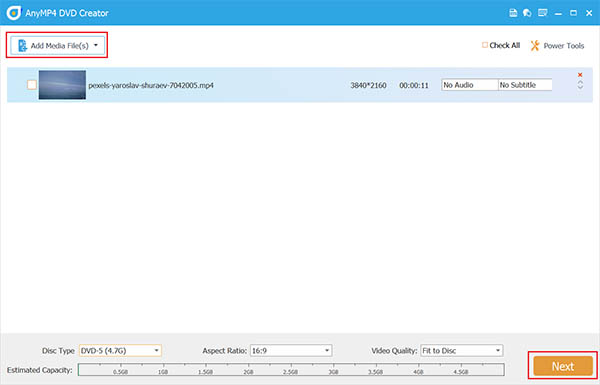
Step 2.In the main interface, click the Add Media File(s) option to add the video files you want to burn to the DVD disc. It supports you to load more than one video file of different video formats at once. Then, choose Next.
Note: At the bottom of the interface, you can set DVD Type, Aspect Ratio, and Video Quality.
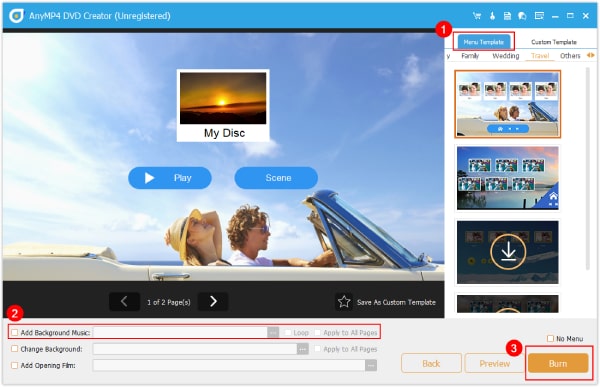
Step 3.Choose a preferred menu template from the provided menu modes. If you want, you can also customize the menu template. Choose the Burn button to go ahead.
Note: You can also add background music, change background, and add opening film by editing the relevant settings.
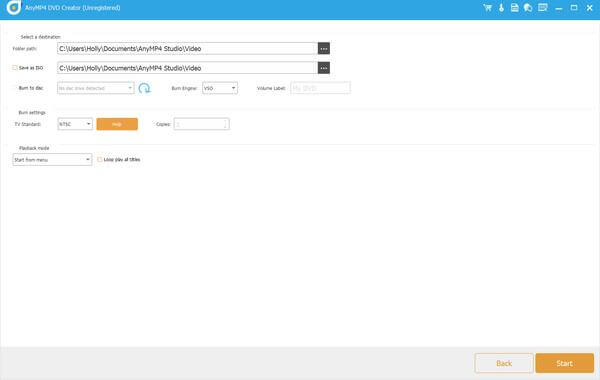
Step 4.Set the destination of the DVD file, and you can check Save as ISO to export the DVD ISO file as well. Choose the TV Standard as NTSC, and click the Start button to begin the DVD burning process.
Note: You can click the Back choice to go back to the previous procedures and change them.
FAQs About Mac DVD Burners
-
Is DVD burning still relevant in 2026?
Yes, especially for long-term data archiving, physical media backups, and gifts. DVDs are cheap, durable, and don't rely on cloud servers. (Based on our testing and industry data.)
-
Can I burn a DVD on Mac without extra software?
Yes, macOS Finder can burn data DVDs directly. However, to create video DVDs with menus, chapters, or custom formatting, you need dedicated DVD burning software like the ones listed above.
-
What is the best free DVD burner for Mac?
Burn is our top pick for free DVD burning software on Mac. It's lightweight, supports both data and video DVDs, and requires no payment. Express Burn's free version is also a solid alternative.
-
How long does it take to burn a full DVD on Mac?
It depends on the software and hardware. In our tests, burning a 4.7GB DVD took as little as 32 minutes (Blu-ray Master) and as much as 87 minutes (Finder). The DVD burner speed (write speed) and video file size also affect the time.
-
Q5: Can Mac DVD burners also burn Blu-ray discs?
Most DVD-only software cannot burn Blu-ray discs. Roxio Toast Titanium is one of the few that support Blu-ray burning. If you need Blu-ray capability, look for tools explicitly labeled as Blu-ray compatible.
Conclusion
In all, you have known the 6 best DVD burners for Mac. We give detailed information on each, including compatibility, many parameters, pros, and cons, which can help you choose a proper DVD authoring tool. Among them, Blu-ray Master DVD Creator stands out for its good output quality and rich additional features. Finder is a free software that provides easy steps. In short, they all perform well in the DVD burning process. Pick one from them to try!
