

Jul 03, 2026Posted by Kevin Miller to Play DVD
| Most Recommended Mac DVD Players | Best Used For: |
| Blu-ray Master Free Mac Blu-ray Player | The best solution if you plan on watching both DVD and Blu-ray physical media. Easy to use and offers a reliable free version. |
| VLC Media Player | Good enough for basic DVD playbacks. However, it is more reliable when used for digital videos. |
| IINA | Suitable for users who prefer using media players with a modern interface design. Blends well with the sleek design of Mac computers. |
With Apple officially removing its native DVD Player app from Mac computers, people need to find alternative DVD player software to watch their DVD collections. While streaming dominates, many collectors still cherish DVDs for their nostalgic value, rare bonus features, and out-of-print titles unavailable online.
Since standard DVDs are limited to 480p, finding software with smart upscaling for high-resolution Retina displays and compatibility with Apple Silicon (M1–M4) is essential. We tested and selected the 6 best free Mac DVD players hands-on, based on their UI, resource usage, and region-bypass capabilities, to help you revive your vintage collection.

Table of Contents
Disclaimer:
Some software featured below is developed by our parent team, but our reviews remain objective based on real-world utility.
Part 1. How We Tested These Mac DVD Players
To ensure our recommendations are both practical and objective, our test team conducted rigorous hands-on benchmarking. We do not rely on marketing copy; we test the software in real-world scenarios.
- Test Hardware: MacBook Pro M3 (16GB RAM), MacBook Air M2 (8GB RAM), and an older Intel iMac (to ensure backward compatibility for legacy users). All tests were performed using an external Apple USB SuperDrive and a plug-and-play third-party USB-C drive.
- Tested Formats: Commercial retail DVDs (CSS-encrypted), homemade DVD-Rs, decrypted DVD folders (VIDEO_TS), and uncompressed .ISO disc images.
- Evaluation Criteria: We measured playback stability, audio/video synchronization, customizable subtitle rendering, CPU/memory overhead, and battery drain during a continuous 2-hour movie playback.
- Update Cadence: Last fully tested and verified in June 2026 on macOS Sequoia.
To help you review the intuitive test results and choose the right tool, the table below summarizes our findings based on key performance metrics that matter most to Mac users, particularly Apple Silicon compatibility and region code handling.
| Product Name | Price | M-Series Native | Region-Bypass | ISO/Folder Support | DTS / Dolby Sound | Best For | Rating |
| Blu-ray Master Free Mac Blu-ray Player | Free / Pro | Yes | Yes (Excellent) | Yes | Yes (5.1/7.1 passthrough) | All-in-one disc playback (DVD & Blu-ray) | |
| VLC Media Player | 100% Free | Yes | Yes (Built-in) | Yes | Yes | Open-source reliability & commercial discs | |
| IINA | 100% Free | Yes (Native) | No (Requires rip) | Yes (Excellent) | Yes | Modern UI & local digital DVD backups | |
| Elmedia Player | Free / Paid | Yes | Limited | Yes | Yes (Pro version) | Advanced multi-format digital video playback | |
| Infuse | Free / Paid | Yes (Native) | No | Yes | Yes (Licensed) | Media library organization & digital ISOs | |
| 5KPlayer | Free (Ad-supported) | Yes | Yes (Strong) | Yes | Yes (Dolby/DTS) | Bypassing tough DVD copy-protections |
Part 2. Top 6 Best Free Mac DVD Player Software
Top 1. Blu-ray Master Free Mac Blu-ray Player
Anyone who wants to play DVDs, Blu-rays, or 1080p HD videos in popular formats with high quality.
4K, 8K
DVDs, Blu-rays, and various digital formats.
Low
A robust subtitle feature to add external subtitle files.
You can play DVD/Blu-ray discs and movies with copy protection via Blu-ray Master Free Mac Blu-ray Player in 100% image quality. The Mac DVD player software adopts the most advanced kernel and the newest playing technologies. You can play any DVD with selectable chapters, titles, audio tracks, and subtitles.
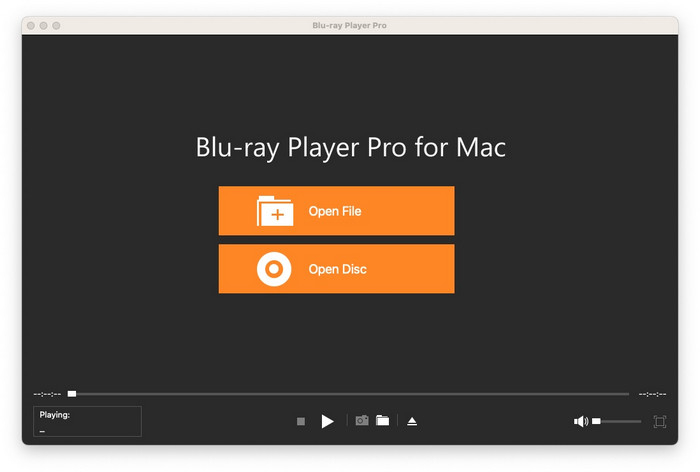
Besides, you can adjust visual effects and take screenshots while watching DVD movies on Mac. The user interface is clean and intuitive. Thus, both beginners and experts can load and play DVDs on Mac with an entirely new home entertainment experience.
Tested Environment: M3 MacBook Air, macOS Sequoia, Apple USB SuperDrive.
Test Finding: The software can immediately recognize our CSS-encrypted region-2 disc without lagging. It achieved flawless 5.1 Dolby audio passthrough while keeping CPU usage under 5%, proving highly optimized for Apple Silicon.
Free Download
For Windows
Secure Download
Free Download
for macOS
Secure Download
Pros
- Adjust audio, video, and subtitle tracks.
- Wide format compatibility.
- Capture a snapshot when watching DVDs.
Cons
- Lack of an advanced kernel compared with the Blu-ray Player Pro.
- The advanced features like 4K/8K video quality are available for premium versions.
Top 2. VLC Media Player
Users who want to play DVDs or other audio and video files on various platforms.
4K, 8K
DVDs, Blu-rays, and many video and audio formats.
Middle
Basic subtitle function to add external subtitles.
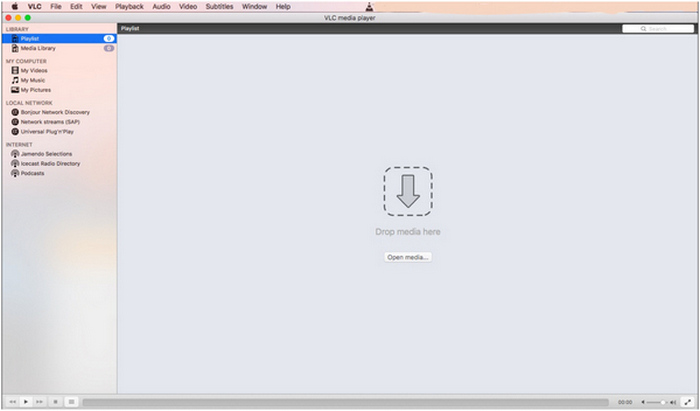
VLC Media Player is a free DVD player for Mac, Windows, and other platforms. You can play not only DVDs but also CDs, VCDs, and general video and audio files with VLC. The Mac DVD player freeware is capable of playing encrypted DVDs. However, when you play a DVD with VLC on Mac, you may encounter VLC not working on DVDs and other related issues.
Tested Environment: M3 MacBook Air, macOS Sequoia, Apple USB SuperDrive.
Test Finding: VLC successfully bypassed commercial region codes using its built-in libdvdcss. However, we noticed minor frame-dropping when quickly skipping chapters on older scratched physical discs.
Pros
- Open-source and free DVD player.
- Support plugins with its extensive features.
- Compatible with multiple platforms.
Cons
- Less stable in DVD playback.
Top 3. IINA
Watching digital video playback daily. Also supports digital DVD, such as folders and ISOs.
4K, 8K
DVDs, Blu-rays, and various digital formats.
Low
Online subtitle searching, syncing, font style, and color adjustments.
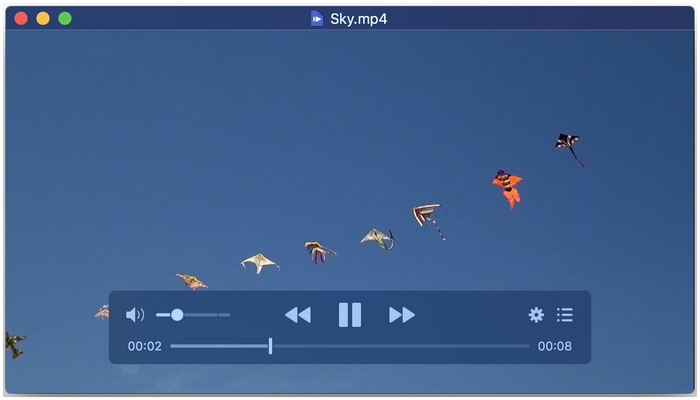
If you want a media player with a seamless interface design that looks clean and modern, IINA should be your top option. Developed exclusively for macOS, this software is very impressive in terms of performance and UI design, making it one of the best free DVD players for Mac. However, it is limited when used as a DVD player since it can only handle DVD folders and ISO files.
Tested Environment: M3 MacBook Air, macOS Sequoia, Apple USB SuperDrive.
Test Finding: While it failed to load the physical DVD disc directly from the SuperDrive, it played the uncompressed .ISO backup file flawlessly. It also offered the most beautiful native macOS UI and the lowest battery drain.
Pros
- Exclusively designed for macOS computers.
- Free and open-source.
- Customizable subtitle settings.
Cons
- Limited DVD support.
- Its stability is subpar when watching long movies.
Top 4. Elmedia Player
Watching videos saved in advanced formats such as MKV, AVI, and others.
1080p, 4K
Limited DVD playback support on the free version. MP4, AVI, MKV, FLV, WMV, MOV, and other digital formats are supported.
Middle
Automatic subtitle download with customizable subtitle texts.
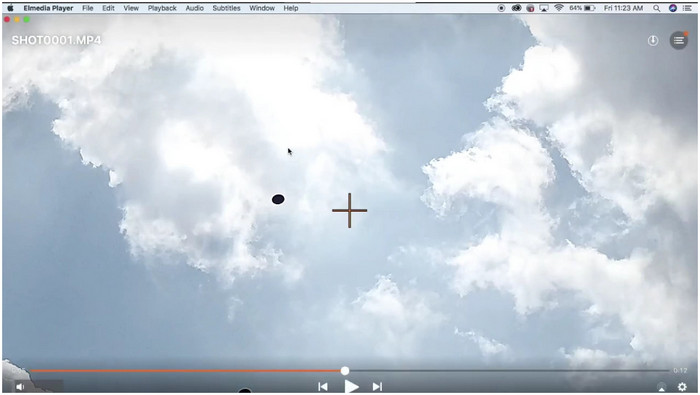
When looking for a solution to maximize video format compatibility, Elmedia Player is another safe choice. Among the options on this list, this program can be used to read most video and audio formats. However, it also suffers from its basic DVD playback. This tool is primarily designed for digital videos first, despite being functional as a free-to-download DVD player software for Mac.
Tested Environment: M3 MacBook Air, macOS Sequoia, Apple USB SuperDrive.
Test Finding: It is excellent at scaling the standard 480p DVD resolution onto the Retina display with its built-in video tuner. But navigating the original physical DVD interactive menus felt slightly sluggish on the free version.
Pros
- Versatile digital format support.
- Customizable subtitle menu.
- Beginner-friendly UI design.
Cons
- Advanced features are locked behind their pro version.
- The features in the free version may only be considered basic.
Top 5. Infuse
Organizing digital videos for an improved viewing experience.
1080p, 4K
DVDs, DVD folders, ISOs, and various digital formats.
Middle
Supports adding local subtitle files as well as downloading from online libraries.
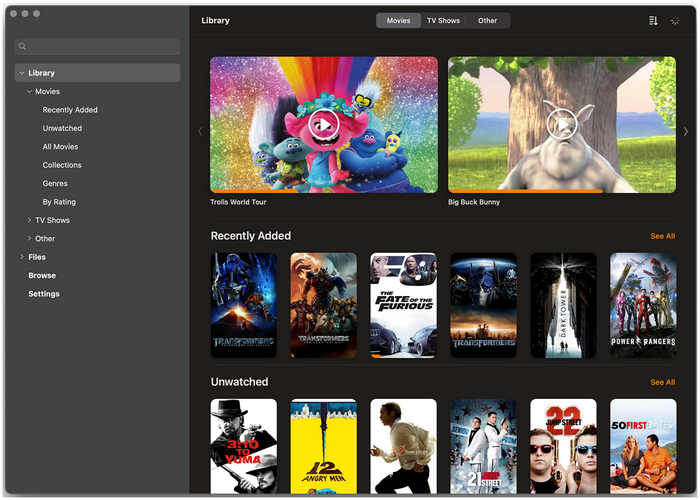
When playing DVDs is only your secondary goal, Infuse may be a good option for you, especially if you are concerned about organizing the videos in your library. Designed exclusively to organize video files, this program is the best solution for ensuring that your videos will not be scattered around your device. However, beware when using it as a free DVD player software for Mac since its menu navigation is limited.
Tested Environment: M3 MacBook Air, macOS Sequoia, Apple USB SuperDrive.
Test Finding: It didn't support the external hardware optical drive at all, but it organized our local network VIDEO_TS folders into a gorgeous Netflix-style library with automatic metadata and subtitle fetching.
Pros
- Well-designed UI.
- Impressive format and subtitle customization support.
Cons
- Its free version has very limited features.
- Limited DVD menu navigation.
Top 6. 5KPlayer
Bypassing tough commercial DVD copy-protections (Disney, Sony, etc.).
1080p, 4K Upscaling
Multi-region DVDs, ISO images, VIDEO_TS folders, and 4K/8K digital videos.
Moderate to High (due to hardware acceleration processing)
Supports embedded subtitles and external .SRT/.ASS files.
If you have a large collection of commercial DVDs from different regions or studios notorious for strict copy-protection (such as Disney, Sony, or Paramount), 5KPlayer is a powerhouse alternative. While many free players stumble or freeze when encountering CSS, Sony ArccOS, or Disney X-project DRM, 5KPlayer features a robust built-in decryption kernel that reads and bypasses these restrictions on the fly. It also utilizes advanced hardware acceleration to ensure smooth playback on high-resolution Retina displays, making it an excellent choice for breathing new life into old, heavily encrypted studio discs.
Tested Environment: M3 MacBook Air, macOS Sequoia, Apple USB SuperDrive.
Test Finding: It crushed tough Disney X-Project DRM protections that made other players crash. The playback was smooth due to a solid hardware boost, though the app made the MacBook Air run slightly warmer than VLC did.
Pros
- It can easily handle DVDs with region codes and copy protections.
- It utilizes the DXVA2, Intel, and NVIDIA/AMD hardware boost to reduce CPU load during high-definition rendering.
- AirPlay wireless streaming is its unique feature to mirror your DVD video directly to an Apple TV or compatible big screen.
Cons
- The free version comes with embedded advertisements and occasional pop-up prompts.
- Compared to the sleek, modern aesthetic of IINA, the user interface feels slightly dated and heavy.
Part 3. How to Watch DVDs on MacBook Pro
Now that we have reviewed six of the best free DVD player software for Mac, let us now move forward to the tutorial on how to use such programs to watch DVD media directly on your MacBook Pro computer. We will provide a tutorial using the most reliable DVD player among our recommendations, with Blu-ray Master Free Mac Blu-ray Player. To learn how to use it, make sure to read our detailed guide below:
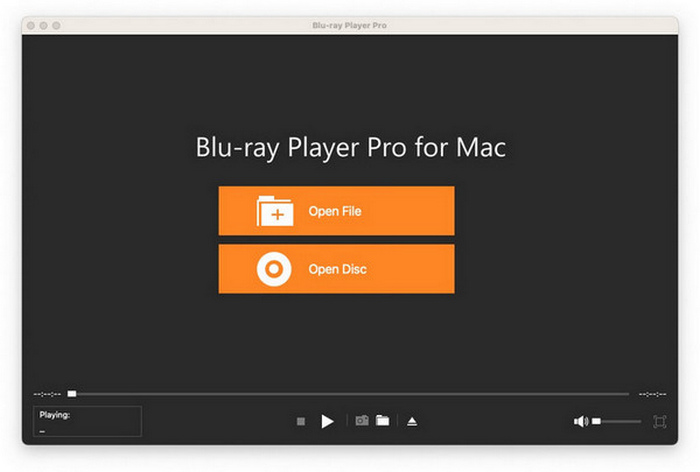
Step 1. Launch the Mac DVD player
Download and install the free DVD player for Mac. Launch the program to get its main interface. Then insert your DVD into the DVD drive.
Free Download
For Windows
Secure Download
Free Download
for macOS
Secure Download
Step 2. Play DVD on Mac
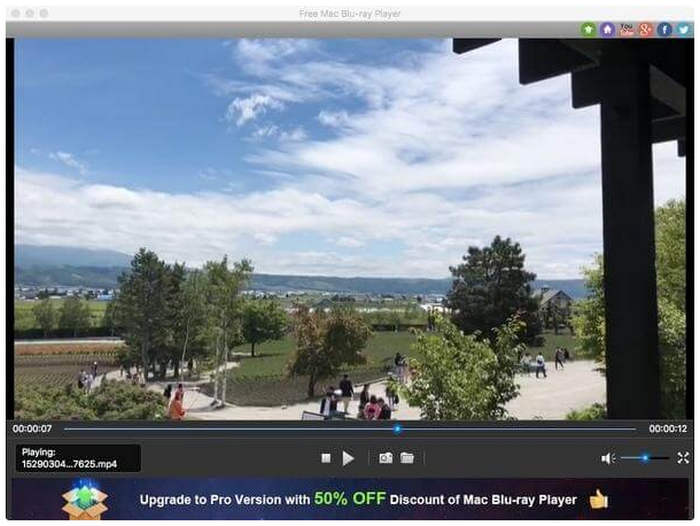
Click the “Open Disc” option. Select the name of your inserted DVD. Click “OK” to confirm and move on. The program will start to play DVD movies on Mac instantly.
Step 3. Adjust visual and audio effects
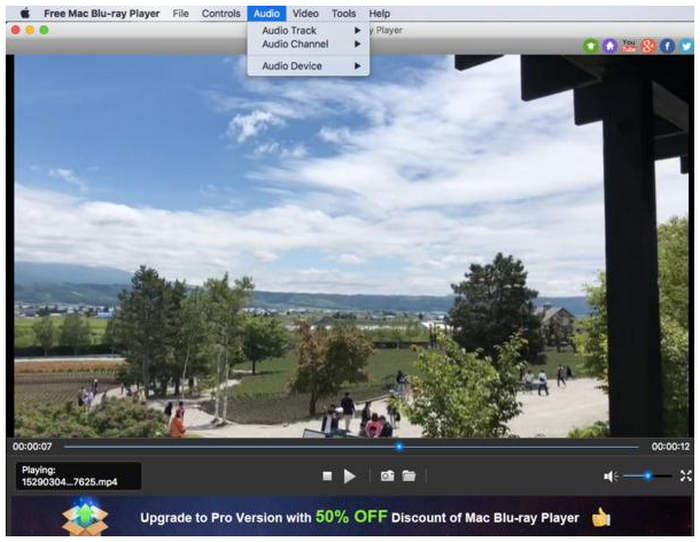
Unfold the “Control” list on the top toolbar of the Mac DVD player freeware. You can choose your favorite DVD title and chapter freely. Moreover, you can play, stop, forward, backward, volume up and down DVD video with one click.
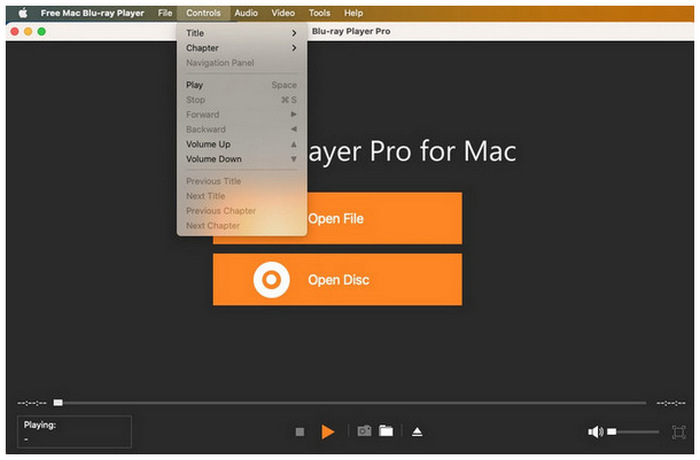
Furthermore, you can customize audio track, audio channel, audio device, video track, subtitle track, and screen size from the “Audio” or “Video” drop-down menus.
Step 4. Take a snapshot of a DVD movie
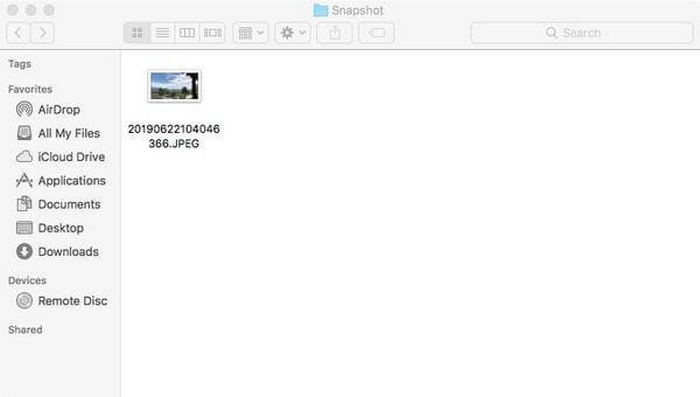
Click the camera-like “Screenshot” icon near the bottom to capture the DVD video image. You can click the folder icon beside to access the screenshot directly.
Part 4. Troubleshooting DVD Playback on Mac
When playing DVDs on a Mac, you may encounter various problems that discourage you from continuing to watch DVDs. This part will list some common problems and provide troubleshooting.
DVD not recognized or detected: First, if you use an external optical drive, you need to make sure your connection is stable. Then, use a clean, lint-free cloth to gently remove the dust and fingerprints on the disc surface.
DVD ejects automatically: Check your DVD region code and the optical drive’s region code. If they don’t match, you cannot watch it. When inserting foreign DVDs into an Apple USB SuperDrive, it triggers a region code prompt, which lets you change the region code 5 times before the hardware is permanently locked. To safely remove this restriction for free, a good way is to use VLC Media Player, which leverages its built-in libdvdcss library to decrypt and play multi-region discs at the software level without altering the drive's hardware counter. Alternatively, you can rip the DVD into a lossless, region-free digital .ISO or .MKV file using free tools like HandBrake or MakeMKV, enabling seamless playback on modern Mac players.
Playback errors: Some common playback errors include stuttering, freezing, no sound, etc. You can adjust the audio output settings of your Mac DVD player software. Moreover, you can update macOS to the latest version and try another DVD player software for Mac. In addition, you can optimize the hardware acceleration to improve DVD playback.
Subtitle problems: There are situations in which subtitles don’t display, are out of sync, and other problems. To begin with, you need to ensure subtitles are enabled in the DVD player controls or menus. Then, edit subtitle options to adjust the language, font, size, color, and other relevant settings.
Part 5. FAQs of Playing DVD on Windows and Mac
-
Does the latest MacBook Pro M3 still support external DVD players?
Yes, it can. The MacBook Pro M3 is equipped with USB-A and USB-C ports. This makes it capable of supporting modern plug-and-play DVD drivers.
-
What is the best VLC alternative for playing DVDs on macOS Sequoia?
If you want to look for an alternative to VLC on your Sequoia Mac computer, Elmedia and IINA are good picks. Elmedia is the better option for rich features. Meanwhile, IINA is the more modern tool.
-
How do I fix the 'DVD region code error' on my Mac for free?
You cannot fix it by default on a Mac. However, you can use DVD ripper tools to convert these media into digital videos. Converting DVD media to digital will remove region codes.
-
Is the Apple DVD Player app still available in 2026, or has it been removed?
No, it is not. Apple will discontinue support for the app in 2026. You can no longer download it.
-
Which free Mac DVD player uses the least CPU and battery?
IINA is the most notable DVD player that consumes the least computer resources. Its sleek design may be a contributing reason for it. However, if you are not going to play DVDs, QuickTime Player also consumes a small amount of resources.
-
What is the best free VLC alternative to play encrypted DVDs on macOS Sequoia?
To play encrypted DVDs on Mac without limits, 5KPlayer stands out for its excellent decryption capabilities that handle most DVD copy protections.
-
Can the IINA player play physical DVD discs on an M3 MacBook Pro, or only ISO files?
It fails to play physical, encrypted DVD discs directly from an external drive because it lacks native DVD decryption architecture. It can play uncompressed ISO files.
-
How do I bypass the 5-time region code limit on Apple USB SuperDrive for free?
You can use a DVD-ripping tool like VLC to convert DVD movies to digital file formats for easy, unlimited DVD playback.
-
Why won't VLC play my Disney DVD on Mac, and how can I fix it without paying?
Because it cannot bypass the complex structural copy protections(like X-Project DRM) on Disney DVDs.
Conclusion
With the best free DVD players for Mac now discussed, we hope that you will now be able to watch physical media on your Mac computer. All you need to do now is choose the best option for you and then buy a plug-and-play external driver. Among the options on this list, we highly recommend using Blu-ray Master Free Mac Blu-ray Player, which you can download using the link below.
More from Blu-ray Master
Best DVD Player
Easily play Blu-rays, DVDs, and various video/audio formats with rich playback features.
100% Secure. No virus
