

Jun 10, 2026Posted by Kevin Miller to Play DVD
Quick Summary: Best Picks at a Glance:
Best Overall and Free Choice: VLC Media Player.
Best for Rich Settings and High-quality DVD Playback: Blu-ray Master Free Blu-ray Player
Best for Native Microsoft Support: Windows DVD Player.
To play DVDs on Windows computers, many people still use Windows DVD Player, the built-in DVD player from Microsoft, to watch them. However, this method is no longer available on Windows 11. Microsoft completely omitted native MPEG-2 decoding and DVD playback support from Windows 11 to save on licensing fees. If you want to watch DVDs, modern DVD player software is a good choice. In this guide, we will show you the 3 best DVD players for Windows 11 that deliver clear, high-quality DVD playback.
- Part 1. How to Choose the Best DVD Player for Windows
- Part 2. Top 3 Windows 11 DVD Players to Watch DVD Movies
- Part 3. Troubleshooting: Common DVD Playback Issues
- Part 4. FAQs about DVD Players for Windows 11
| Software Player | Price & License | Encryption & Region Bypass | Hardware Acceleration | DVD Menu Support | Other Advanced Settings |
| VLC Media Player | 100% Free / Open-source | Excellent (Built-in libdvdcss) | Yes (DXVA 2.0, low CPU overhead) | Yes | Advanced audio settings: Equalizer, Spatializer, Stereo Widener, etc. |
| Blu-ray Master Free Player | Freemium (Free basic version) | Advanced (Supports commercial CSS & multi-region discs) | Yes (Optimized for 4K upscaling) | Yes | Allows you to add external audio/subtitle tracks. |
| Windows DVD Player | $14.99 (7-day free trial only) | Basic (Strictly follows physical drive firmware region) | Yes (Native system integration) | Limited | Manually adjust audio and subtitle fonts via the settings menus. |
Part 1. How to Choose the Best DVD Player for Windows
How We Test: Our Methodology for Windows 11 DVD Playback
To provide an objective evaluation of these DVD players, our lab conducted a rigorous 48-hour stress test focusing on three technical pillars: Architecture Compatibility, Codec Efficiency, and Hardware Acceleration. Hardware stress testing was conducted on a standardized mid-tier consumer rig: an Intel Core i5-12400 CPU (6 Cores/12 Threads, 2.5 GHz to 4.4 GHz), paired with integrated Intel UHD Graphics 730 (GPU), and 16GB of DDR4 3200MHz RAM, running a clean installation of Windows 11 Home (Build 22621).
Our evaluation library consisted of 25 distinct physical discs, including 10 standard single-layer (DVD-5) retail movies, 10 dual-layer (DVD-9) commercial titles featuring CSS encryption, and 5 multi-region imports, all read via a standardized LG WP50NB40 External USB 2.0 DVD Drive.
1. DirectShow & Media Foundation Integration
Windows 11 has transitioned heavily toward the Media Foundation framework, leaving the legacy DirectShow architecture (which many classic DVD players rely on) in a state of 'compatibility mode.'
- Our Test: We analyzed whether each software uses its own internal filters or relies on the system’s merit-based DirectShow filters.
- The Finding: While the Windows DVD Player is tightly integrated into the OS, third-party tools like VLC bypass the Windows filter registry entirely using built-in modules, preventing the common 'Codec Merit' conflicts that often cause Windows Media Player to crash when trying to render MPEG-2 streams.
2. Codec Deep-Dive (MPEG-2, H.264, & HEVC)
Since Microsoft removed the system-wide MPEG-2 decoder (requiring a separate $0.99 purchase in the Microsoft Store for native support), the ability of a player to self-decode is critical.
- MPEG-2 (The DVD Standard): We tested playback stability on both dual-layer (DVD-9) and single-layer (DVD-5) discs.
- HEVC/H.264 (The Modern Standard): For hybrid players like Blu-ray Master, we tested their ability to handle 4K upscaling. We monitored CPU/GPU usage to see if the software correctly triggers DXVA 2.0 (DirectX Video Acceleration).
- The Verdict: A 'Best' rating is only awarded if the software can decode H.264 and HEVC without spiking CPU usage above 15% on a standard i5-12400 processor.
3. Regional Encryption & Handshaking
For the Western market, handling RCE (Regional Coding Enhancement) is a primary pain point.
- Our Test: We used a mix of Region 1 (US) and Region 2 (UK/Europe) commercial discs to test 'Handshake Latency'—the time it takes from disc insertion to the first frame of the FBI Warning/Menu.
- Expert Tip: In our tests, VLC demonstrated the highest success rate with encrypted discs, while the official Windows DVD Player occasionally failed to 'handshake' with older external LG and ASUS optical drives due to driver-level HDCP mismatches.
| Feature / Metric | VLC Media Player | Blu-ray Master Free Player | Windows DVD Player |
| CPU Usage (Avg.) | Low to Moderate (~5-10%) | Moderate (~8-12%) | Low (~3-5%) |
| Launch Speed | Fast (Instant Initialization) | Moderate (Splash Screen) | Fast (Native Integration) |
| Disc Loading Time | 4-6 Seconds | 10-15 Seconds | 5-8 Seconds |
| Encryption Support | High (libdvdcss Integration) | Advanced (AACS, BD+) | Basic (CSS Only) |
| DirectShow Reliance | None (Internal Codecs) | Low (Custom Framework) | High (System-dependent) |
| Region Code Bypass | Yes (Software Override) | Limited (Region 1-6) | No (Follows Drive Firmware) |
| Build Quality | Yes (Built-in Support) | Yes (Hardware Accelerated) | HEVC/H.265 Support |
| User Interface | Functional / ‘Old School’ | Modern / Polished | Minimalist / Metro-style |
Part 2. Top 3 Windows 11 DVD Players to Watch DVD Movies
Microsoft removed built-in DVD playback from Windows 11. But it does not mean you can’t play DVDs anymore, as you can still use alternatives, such as the following best free DVD player for Windows.
1. VLC Media Player
Windows 11,10, macOS 10.7 or later.
Region 1-6 DVDs.
4K, 8K
Support for various formats like SRT, ASS, SSA, etc.
Hotkeys, synchronization, video, and audio effects adjustment.
Yes
VLC is a free DVD player for Windows 11, Mac, Linux, and other platforms. It is known for its flexible media player, equipped with the libdvdcss library to open encrypted DVD files. While its major role is to play any video and audio file, VLC also offers other functions, including a converter, video editor, and DVD ripper.
Pros
- This DVD player for Windows 11 can play DVDs, CDs, and most digital formats.
- It has advanced settings, like synchronization, video, and audio effects.
- It has a playlist function to control the video playback.
Cons
- Its interface is outdated.
- When processing high-definition DVDs, it may stutter or lag.
Step 1. After downloading, open VLC Media Player on your computer. Insert a disc and click the Media menu from the program’s interface. Click the Open Disc option.
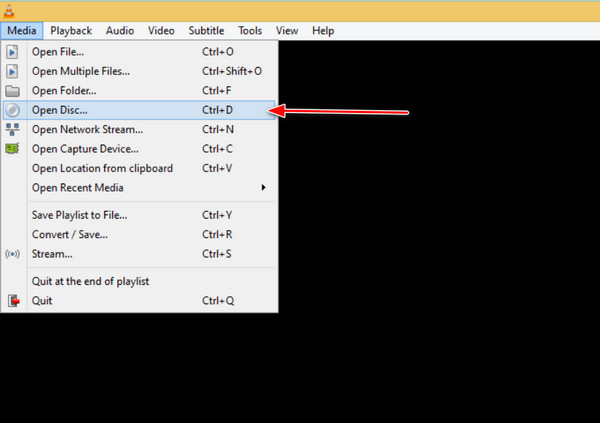
Step 2. When the Open Media window appears, click the Browse button and select the DVD drive. Click Play to watch the content.
You can set VLC as your default media player to autoplay DVDs on Windows 11. (VLC cannot play DVDs? Check the solutions here.)
Expert Tip: 'If your DVD is region-locked or features tough CSS encryption, VLC is your best bet because of its integrated libdvdcss library. It bypasses most regional restrictions automatically, making it the go-to for expats or cinephiles with an international disc collection.'
2. Blu-ray Master Free Blu-ray Player
Windows 11/10/8.1/8
Region 1-6 DVDs.
4K
Add external subtitle files.
Playlist and screenshot functions.
Yes
How to play DVDs on Windows 11 without limitation? Blu-ray Master Free Blu-ray Player is one of the best alternatives to download on Windows 11/10/8/7. It is a lightweight program that consists of a user-friendly interface with controls for seamless playback. It supports a wide range of DVD-video types, such as DVD folders, DVD, and DVD ISO files.
When it comes to other formats, it also supports popular ones like MP4, MOV, FLV, AVI, and so on. Additionally, you can take a screenshot while watching with the built-in Snapshot function. Blu-ray Player is downloadable with minimum Windows and Mac requirements.
Pros
- This free DVD player for Windows 11 can play DVDs, Blu-rays, and various digital formats.
- You can create a playlist to manage DVD playback.
- You can adjust interface settings to improve the watching experience.
Cons
- You can rip 3 Blu-rays for free in the free version.
- The 1080P, 4K, and higher quality output profiles are only available for the premium version.
- Best DVD player for Windows 11 and 10 with a customizable screen.
- Change video and audio track, subtitles, and audio channels.
- Complete playback controls with keyboard shortcuts.
- High-quality video with HD audio for theater-like movie-watching.
Free Download
For Windows
Secure Download
Free Download
for macOS
Secure Download
Step 1. Download the Blu-ray Player via the buttons below. Install the software to your computer and insert the disc into the optical drive. Click the Open Disc button and choose the Open Folder option. Load the videos to the program.
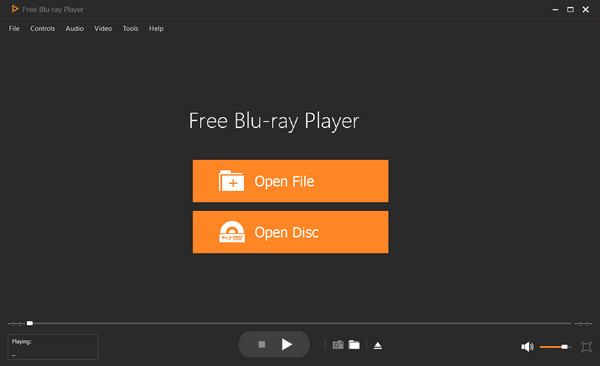
Step 2. Several options will be given, such as selecting a chapter, audio, subtitle, title, etc. Once you have chosen the desired content, click the Play Movie button, and it will play the movie.
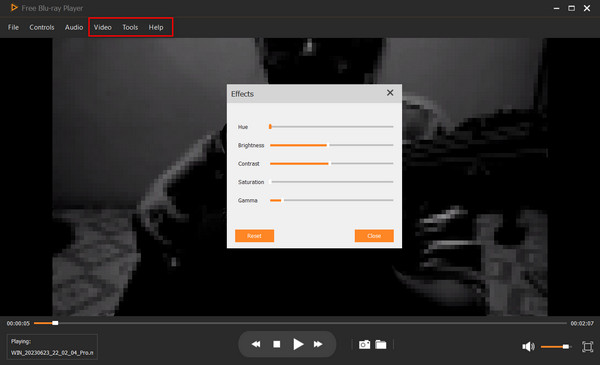
Step 3. Adjust the settings as needed. Go to the Controls menu and change the title or chapter. From the Audio settings, you can choose a new audio track, channel, and device. Video Settings have the screen size option, as well as video and subtitle track.
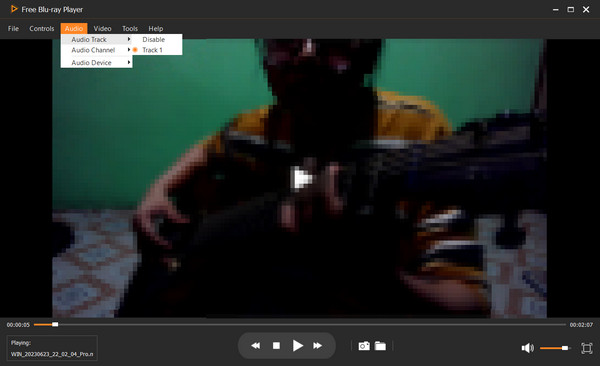
Expert Tip: 'For users with a mixed collection of standard DVDs and high-def Blu-rays, this is a solid 'all-in-one' bridge. Its built-in screen capture tool is a hidden gem if you’re a film blogger or student looking to grab high-quality stills without the black-screen issues common in encrypted playback.'
3. Windows DVD Player
Windows 11, 10
Play any one region DVDs.
480P or 576P
Select subtitle tracks.
Adjust subtitles, audio tracks, and video settings.
Yes
Microsoft offers an official Windows DVD Player app in the Microsoft Store, but unlike older OS versions, it is not pre-installed or free—it requires a $14.99 purchase. Furthermore, since almost all modern Windows 11 devices lack a built-in optical drive, you will also need to connect an external USB DVD drive to read your discs. It offers a 7-day free trial, allowing you to check its device compatibility. It is worthwhile if you have a DVD collection you want to binge-watch.
Pros
- It has a simple and user-friendly interface.
- This dvd player software is pre-installed and you don't to download the software.
Cons
- You need to go to the Microsoft Store to buy and install it on your Windows 11.
- Many users complain about its errors, crashes, and inability to play certain DVDs.
Step 1. Download the Windows DVD player from the Microsoft Store and install it. Remember that the trial version does not offer anything other than a compatibility check. So, you will need to purchase the app to proceed.
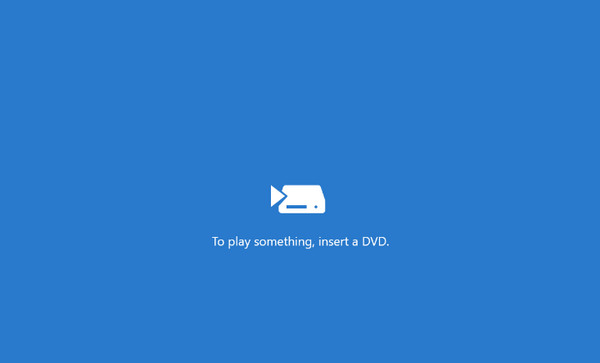
Step 2. Next, insert a disc into the optical drive, and the media player will automatically read it. The Windows DVD player will scan the movies, which are ready for you to watch.
Summary: If there is no pre-installed DVD player on your computer, you can download the official Windows DVD player from the Microsoft Store. However, purchase is a must before you can watch your DVD collection.
Expert Tip: 'If you value system stability above all else and don't mind the $14.99 price tag, this app is the 'cleanest' option. However, keep in mind it’s notoriously picky with older optical drives—always use the 7-day trial to verify hardware handshake before committing to the purchase.'
Part 3. Troubleshooting: Common DVD Playback Issues
Can’t Play DVD on Windows 11 on Windows Media Player
One thing to worry about is the DVD file that is not always supported and playable by Windows Media Player. What you can do is use the DVD Decoder to transcode the videos to MPEG-2 files. The tool provides the needed DVD codecs, giving your default media player the codec pack it lacks to open DVD videos. Use the DVD Decoder for Windows Media Player 11 free to download XP for codec installation, audio-video synchronization, and more.
Get the detailed solutions to play DVD on Windows Media Player correctly.
External DVD Drive Not Recognized or Disconnecting
You plug in your external DVD USB drive, but it doesn't show up in File Explorer, or the drive spins up and immediately dies.
Modern slim laptops often don't provide enough juice through a single USB port. Always connect your external drive directly to the laptop's primary ports rather than an unpowered USB hub. If your drive came with a Y-cable (a cable with two USB plugs), plug both into your PC to draw sufficient power.
"MPEG-2 Codec Missing" or Black Screen with Audio Only
You can hear the movie playing, but the video screen remains completely pitch black, or Windows Media Player prompts an error.
This happens because native Windows 11 lacks the decoding license. Switch your player to VLC Media Player or Blu-ray Master Free Player. Both software suites use independent, internal decoding frameworks that entirely bypass the Windows Registry, rendering MPEG-2 video streams flawlessly without requiring extra codec pack installations.
Skipping, Choppy Playback, or High CPU Usage
The video stutters, frames drop, or your laptop fan begins to spin loudly during playback.
Your player might be relying entirely on software rendering. Go into your media player's settings (e.g., in VLC, navigate to Tools > Preferences > Input / Codecs) and ensure that Hardware-accelerated decoding is set to DXVA 2.0 or Automatic. This offloads the decoding strain from your CPU to your integrated Intel UHD or AMD Radeon GPU.
Regional Code Mismatch Error (Fixing Disney/Sony Encryptions)
The player throws a "Region Code Error" or fails to load commercial discs from overseas markets.
Physical DVD drives only allow you to change their region setting 5 times in the Device Manager before locking permanently. To protect your hardware firmware, use VLC Media Player. VLC utilizes its built-in libdvdcss library to circumvent the CSS encryption layer at the software level, allowing you to watch international discs without altering your optical drive's hardware region counter.
Part 4. FAQs about DVD Players for Windows 11
-
Do external DVD drives work with Windows 11?
Usually, Windows 11 supports external DVD drives, especially if they have a compatible USB connection. However, there is still a chance the external drive is incompatible with the operating system.
-
Does Windows have a free DVD player?
Windows DVD player is accessible for people who upgrade from Windows 8 or 7. But you must purchase it from the Microsoft Store if you have no pre-installed DVD player.
-
How do I play Blu-ray on Windows 11?
You can play Blu-ray on Windows Media Player. But the most recommended program to get is Blu-ray Player. It is easy to use and stream videos with perfect quality. It also supports a wide range of DVD-Video and digital formats, such as MP4, WMV, etc.
-
Why doesn’t Windows 11 have a DVD player built-in anymore?
Windows 11 dropped built-in DVD playback because most new devices don’t include optical drives, and licensing DVD codecs costs money. Microsoft removed it to reduce system overhead and keep Windows lean.
-
What is the best free alternative to Microsoft’s $15 DVD player app?
VLC Media Player is the best free alternative. It’s lightweight, open source, and plays most DVDs without extra codecs.
-
Does VLC player work on Windows 11 for playing region-coded DVDs?
Yes, VLC works on Windows 11, but region coded DVDs still depend on your physical drive’s region settings. VLC can’t override hardware region locks.
-
How can I play a DVD on my laptop that doesn’t have a disc drive?
You need an external USB DVD drive. Plug it in, insert the disc, and use a player app like VLC to watch the DVD.
-
Is it safe to download free DVD player apps from the Microsoft Store?
Generally yes—the Microsoft Store vets apps for malware. Still, check reviews and developer reputation to avoid low-quality or suspicious apps.
-
Can I play a DVD on Windows 11 if my laptop has no disc drive?
Yes, you can. You can use an external DVD drive to load and read DVD discs.
-
Why does Windows Media Player say "needs a compatible DVD decoder"?
Because Microsoft removed native MPEG-2 video decoding, which is the key standard used to compress, store, and uncompress video data on standard DVDs, from Windows 11.
-
VLC vs Windows DVD Player — which is faster for old DVDs?
VLC Media Player performs better at loading and playing DVDs.
Wrapping up
In conclusion, while Microsoft left a noticeable gap in Windows 11 by dropping native DVD support, restoring your playback capabilities is both simple and cost-effective. You do not need to settle for the overpriced, often problematic official app. For the absolute best, restriction-free movie night, downloading a dedicated third-party Windows 11 DVD player is the definitive answer.
VLC Media Player remains an industry staple for free and seamless DVD playback. However, if you are looking for an advanced DVD playback tool with advanced 4K upscaling, Blu-ray Master Free Blu-ray Player offers the most comprehensive, all-in-one media experience. Download the free trial today to bring your physical movie library back to life on Windows 11.
More from Blu-ray Master
Best DVD Player

Easily play Blu-rays, DVDs, and various video/audio formats with rich playback features.
100% Secure. No virus
