

Jul 15, 2026Posted by Kevin Miller to Play DVD
| Method | Difficulty | Requirements | Best For |
| External Drive + VLC App | Easy | USB Plug & Play Drive + VLC (Android/Linux) | Quick watching |
| DVD to Digital (MP4) | Medium | Windows/Mac PC + Ripper Software | Long-term ChromeOS library |
| Linux VLC Beta | Hard | Enable Linux Dev Environment | Advanced Tech Users |
Accessing physical DVD media may not have the mainstream appeal it once had; however, it is still one of the best options you can use to watch high-quality home releases of movies and TV shows, much better than streaming apps. In this article, we will provide a detailed guide on how to use DVD players on Chromebooks using three methods you can use. We will also discuss each method’s best uses, strengths, and limitations.
- Part 1. Can I Play DVDs on a Chromebook
- Method 1: Using an External DVD Drive (The Direct Way)
- Method 2: Convert DVD to Digital (The Best Long-term Solution)
- Method 3: Playing via Linux (Beta) for Advanced Users
- Part 5. FAQs About Chromebook DVD Player
Part 1. Can I Play DVDs on a Chromebook
Yes, you can play DVDs on a Chromebook, laptop, or desktop computer! However, you need an external DVD player for your Chromebook that must be connected to it. Then, download a multimedia tool that can support playing DVD media. Alternatively, you can also use free DVD ripper tools to convert it into a digital video. This will make playing DVD videos way more convenient and accessible on your Chromebook laptop.
Method 1: Using an External DVD Drive (The Direct Way)
Best For: Watching physical DVD media via an external DVD player.
The first option you can use to play DVD media on a Chromebook is through using an external DVD player. Before choosing one, make sure to use an option with a plug-and-play system to make connecting to modern laptops easier.
When using an external DVD drive, you will use your computer as the screen by playing it in a DVD player app for your Chromebook or laptop that supports DVD files. To learn how to use this method, make sure to read our three-step guide below:
Step 1. Find a plug-and-play external DVD driver with support for laptop connection. For modern laptop devices, standard USB-A or USB-C ports are usually the most supported.
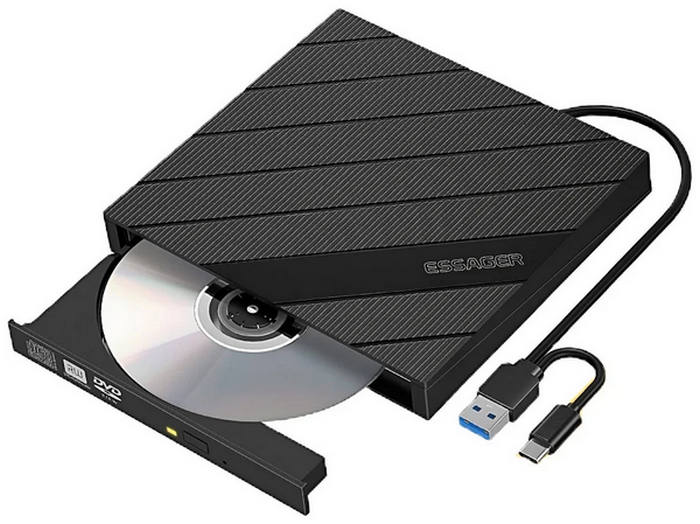
Step 2. Next, connect the external DVD player to your laptop device. If you are using a plug-and-play option, you can directly access the loaded DVD in it. Otherwise, follow the installation guide on your external player.
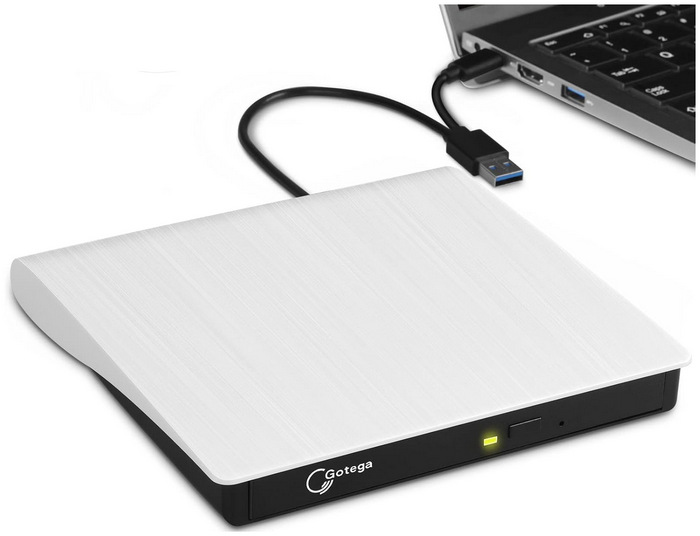
Step 3. With your external drive connected, you need the right software to decode the DVD data.
Important Update: The old VLC for ChromeOS app in the Chrome Web Store and the VOCC app have been officially discontinued and no longer work. Do not waste time looking for them.
Instead, use the following verified method to play your DVD:
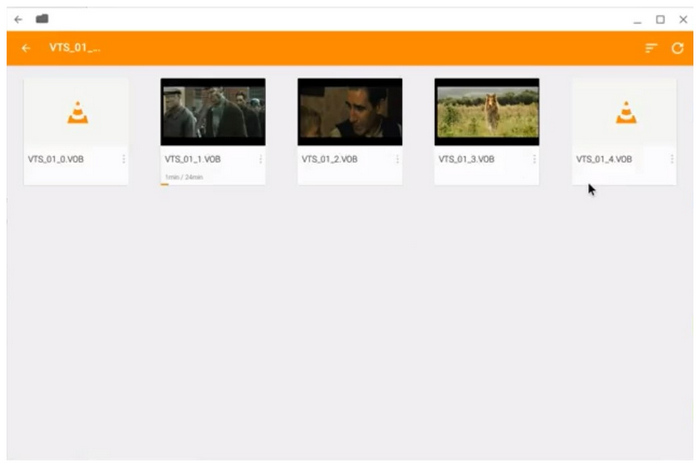
- Open the Google Play Store on your Chromebook, search for VLC for Android, and install it. Once installed, open the app, permit it to access your USB devices, and select your DVD drive to start playback.
Pros
- It can be used to directly play DVDs on modern computers.
- Easy to set up since you only need to download the DVD player software.
- The most direct solution, since it works like traditional DVD players.
Cons
- You need to buy an external driver.
- You may choose an incorrect external drive without a plug-and-play system.
- Require a multimedia player that can support DVD media.
Bonusly, we want to show you a crucial hardware buying guide to help you avoid the 'ChromeOS Trap':
Not all external DVD drives are created equal. Many traditional drives require proprietary Windows or macOS drivers (.exe or .pkg installation files) to decode and read discs. Since you cannot install these files on ChromeOS, a random drive might leave you with a 'Format Not Supported' error.
To ensure a seamless plug-and-play experience on your Chromebook, look for drives that explicitly list Linux or ChromeOS compatibility on the box. Based on our real-world testing, here are the top-recommended, budget-friendly models that work flawlessly with Chromebooks:
- LG Electronics 8X USB 2.0 Ultra Slim Portable DVD Writer (Model: SP80NB80): A cult favorite in the Chromebook community. It draws very little power, meaning it won’t drain your laptop battery instantly, and it works completely driver-free.
- ASUS ZenDrive U9M (Ultra-slim Portable DVD Burner): If your modern Chromebook only has USB-C ports, this is your best bet. It comes bundled with both USB-C and USB-A cables, saving you from buying annoying dongles.
- Dell DW316 External USB Slim DVD R/W Optical Drive: Another solid, heavy-duty option that operates perfectly via ChromeOS's native file manager without extra setup.
Tips
Quick Tip for USB-C Chromebook Users: Many older external drives require more power than a standard USB-C port outputs. If your drive spins but won't read, connect it through a powered USB hub rather than plugging it directly into the laptop.
Method 2: Convert DVD to Digital (The Best Long-term Solution)
Best For: Converting DVD media into digital video for maximum accessibility.
Although using an external DVD drive offers a direct solution, you may bypass the need for such hardware and a Chromebook DVD player software if you convert your DVD media into a digital format. To use this solution, you can use Blu-ray Master Free Blu-ray Ripper to rip DVD media and convert them to digital videos.
As its name suggests, this program can directly rip the physical media on your DVD and Blu-ray discs and convert them to 500+ media formats based on your preference. This will eliminate the need to use an external driver or DVD player tool. By converting DVD videos digitally, their accessibility will also be enhanced tenfold. You can now easily share the file, watch it on any device, and play it without relying on bulky drivers.
To learn the best features that make Blu-ray Master Free Blu-ray Ripper stand out, please read its main features below, and make sure to also read our guide on how to use it.
Key Features:
- • Rip and convert any type of DVD to more than 500 formats.
- • Support outputting video quality up to 8K resolution.
- • An ultrafast ripping process with a 70 times faster conversion process.
- • A lot of editing options to use before and after the ripping and conversion process.
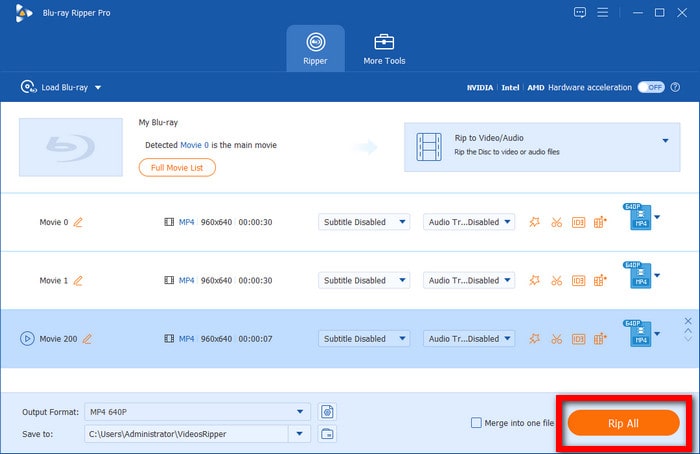
Step 1. Insert your DVD into your computer, then download and install the amazing DVD ripper. Launch it and click the Load Disc icon to import the disc.
Free Download
For Windows
Secure Download
Free Download
for macOS
Secure Download
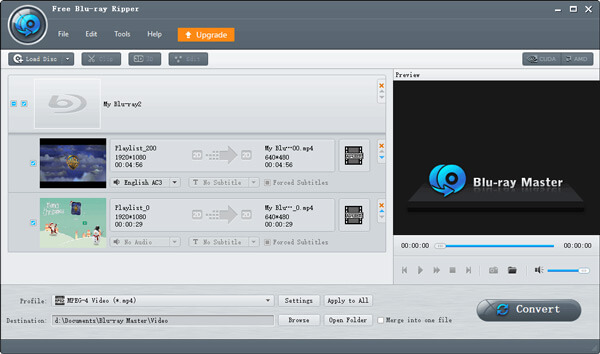
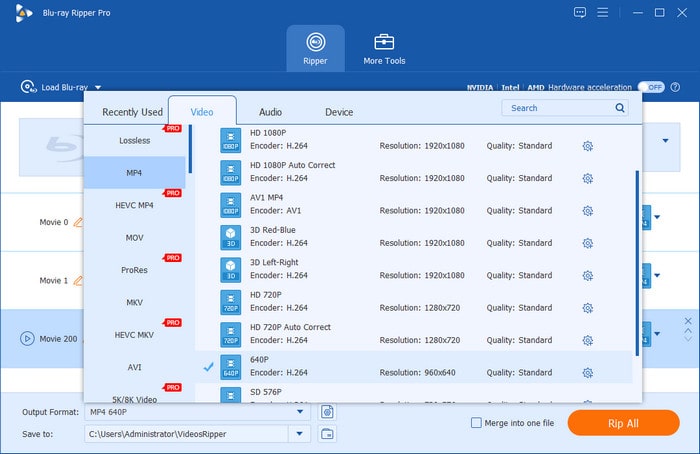
Step 2. After loading, click the Output Format option to select the format you want to save your ripped DVD video in. You can choose your preferred video format, encoder, or quality.
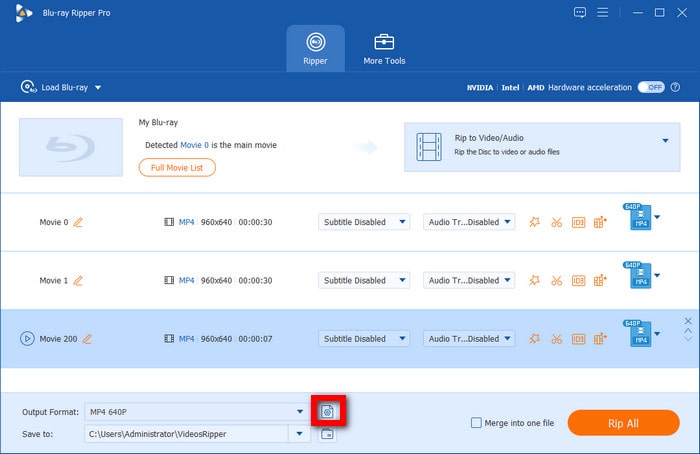
Step 3. Afterward, you can select the video conversion Settings button once the DVD movie has been loaded.
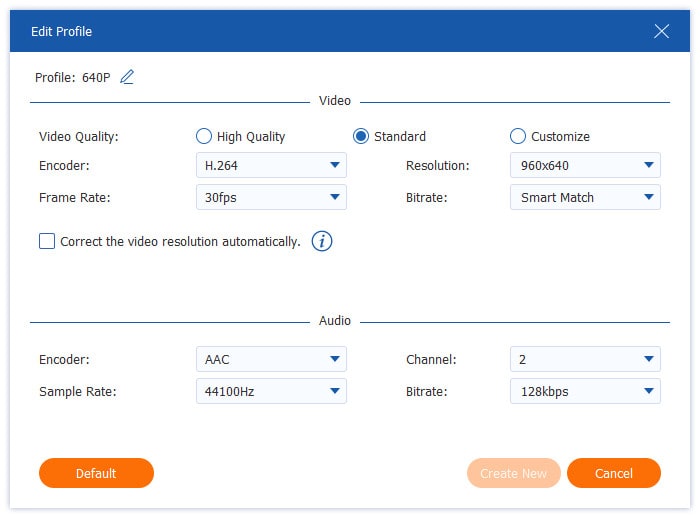
In the video settings, you can change how the ripped video will be saved digitally by editing its Video Quality, Encoder, Frame Rate, Resolution, Bitrate, and other audio parameters.
Step 4. Finally, hit the Rip All button to begin the DVD ripping process. Then, check the newly ripped movies in your designated folder.
Step 5. Connect the USB to the Chromebook laptop and open the folder to watch DVD videos on it. You can play DVDs on a Chromebook successfully.
Pros
- Its free version is reliable enough for basic ripping.
- Beginner-friendly interface design.
- Supports ripping to widely supported formats such as MP4, MKV, and more.
- Offers batch conversion services.
- Equipped with essential editing tools.
Cons
- Its free version can only convert to MP4 and MKV.
- It has some ad presence.
- Its editing tools are limited.
Method 3: Playing via Linux (Beta) for Advanced Users
Best For: Advanced users who want to use the full-featured, desktop-grade version of VLC with complete DVD menu and chapter support.
Modern Chromebooks feature a built-in Linux Development Environment. By enabling this, you can bypass the limitations of ChromeOS and install the authentic desktop version of VLC Media Player. Here is how to set it up and play your DVDs step-by-step:
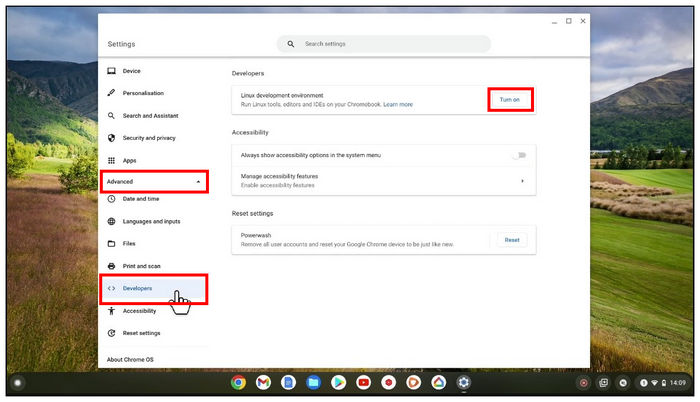
Step 1. Go to your Chromebook's Settings > Advanced > Developers. Next to the Linux Development Environment, click Turn On. Follow the on-screen prompts to set your username and disk size, then click Install.
Step 2. Once the Linux Terminal (a black command-line window) pops up, type the following command and hit Enter to ensure everything is up to date: sudo apt update && sudo apt upgrade –y.
Step 3. Now, type the official installation command for VLC and press Enter: sudo apt install vlc –y.
ChromeOS will automatically download and install the genuine desktop version of VLC. You can now find the VLC icon inside the 'Linux Apps' folder in your Chromebook's app drawer.
Step 4. Before opening VLC, open the ChromeOS Files app. Right-click your external DVD drive on the left sidebar, and select 'Share with Linux'.
Note: This is a crucial step! If you skip this, the Linux version of VLC won't be able to 'see' your physical USB drive.
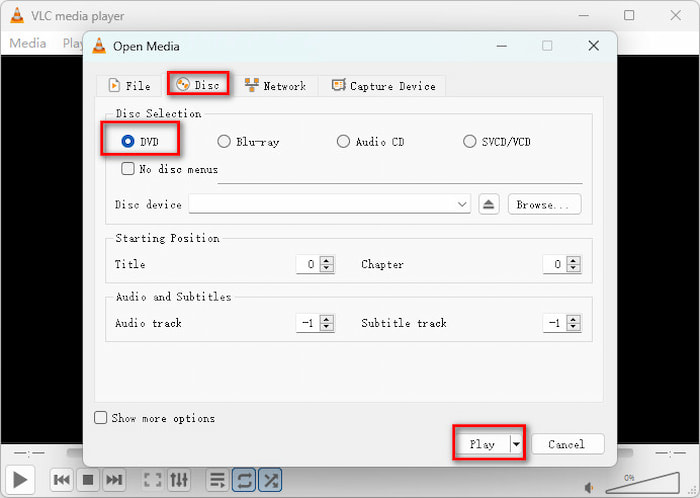
Step 5. Launch VLC from your app drawer, click on Media > Open Disc, ensure 'DVD' is selected, and click Play. You will now enjoy the full movie with working menus, subtitles, and audio tracks!
Pros
- Easy to enable.
- Opens access to advanced open-source tools.
- You can access advanced code editors directly on a Chromebook.
Cons
- Only useful for advanced users.
- Heavy Linux-based software is harder to process in portable Chromebooks.
- Chromebook’s smaller storage limits the Linux software you can access.
Part 5. FAQs About Chromebook DVD Player
-
Can I plug a regular DVD player into a Chromebook?
No, you cannot. Chromebook will only be able to process DVD players with a plug-and-play portable DVD player. These are usually connected via a modern USB-A and USB-C system.
-
Does VLC for Android work for DVDs on Chromebooks?
Yes. You can install VLC from the Google Play Store on modern Chromebooks that support Android apps.
-
Why is my external DVD drive not showing up?
This may indicate that your DVD driver is not plug-and-play. This issue usually can be resolved by installing the right driver for the external hardware you are using. To avoid such issues, make sure to search for plug-and-play drivers before buying them.
-
What are Chromebooks?
Chromebooks are laptop and tablet devices running on Google’s ChromeOS. They are designed to be affordable, secure, and fast for simple computer-related work. These devices are fully integrated with the Google ecosystem, and a great example of how it works is that these computers use Google Drive as their main storage.
-
Can I convert DVD media digitally on Chromebooks?
No, you cannot. Chromebooks do not have any built-in format converter tools equipped in them. You need to do the DVD ripping and format conversion process on a separate computer, preferably a Windows desktop.
-
Can I just plug a USB DVD drive into my Chromebook and watch a movie?
No, it's not an easy thing. You can download a media player from Google Play to watch movies. Or, you can enable the Linux environment.
-
What is the best free DVD player app available on ChromeOS right now?
The best free app right now is VLC for Android, which you can download directly from the Google Play Store on your Chromebook.
-
Does VLC media player work on Chromebooks for playing physical DVDs?
Yes. There are VLC for Android and VLC for Linux versions that show the different features.
Conclusion
Now that we have discussed three of the best options to access DVD players on Chromebooks, we hope that this article has provided you with enough information to help you choose which among them best suits your needs. To avoid the setup requirements of playing DVDs via media players, you can use a DVD ripper tool to directly convert physical media into digital files. Blu-ray Master Free Blu-ray Ripper is one of your best choices, and you can download it using the link below.
Free Download
For Windows
Secure Download
Free Download
for macOS
Secure Download
More from Blu-ray Master
Best DVD Player
Easily play Blu-rays, DVDs, and various video/audio formats with rich playback features.
100% Secure. No virus
