

Aug 03, 2026Posted by Kevin Miller to Play DVD
When you dig out that long-stored DVD disc from the bottom of your drawer, you discover that your sleek ultrabook lacked a DVD drive altogether. Moreover, modern operating systems like Windows 10/11 or macOS no longer support native DVD playback. This undoubtedly significantly compromises the user experience. But don't rush to digitize all your movie collections! Physical storage media still hold considerable value. With a low-cost external drive and suitable free software, you can easily overcome these hardware and software challenges. This guide details how to play DVDs on Windows 10/11 and Mac computers with modern DVD player software.
Table of Contents
- Behind the Scenes: How We Tested
- Hardware Preparation for DVD Playback on Windows 10/11 and Mac
- Method 1: The All-in-One Powerhouse – Blu-ray Master Free Blu-ray Player
- Method 2: The Open-Source Classic – VLC Media Player
- Method 3: The Modern Aesthetic Choice – 5KPlayer
- Troubleshooting & Insider Pro-Tips
- FAQs about DVD Playback
Behind the Scenes: How We Tested
We used three different laptops: a Dell XPS 13 running Windows 10, a Lenovo ThinkPad on the latest Windows 11 build, and an M2 MacBook Air running macOS Sonoma. Since none of them has built-in optical drives, we hooked them up using a standard USB-C adapter to a basic external drive.
We tested over ten different software options over a couple of weeks. We evaluated them from four main things:
- Decoding stability: Can it play scratched or encrypted discs?
- Playback smoothness: Does the picture drop frames during action scenes?
- UI cleanliness: Is it full of annoying ads or pop-ups?
- System resources: Will it turn your laptop into a jet engine and melt your battery?
| Software Player | System Requirement | Ease of Use | Best For | Advanced Settings |
| Blu-ray Master Free Blu-ray Player | Windows 11/10/8/7, macOS 10.9+ | Super Easy (Plug & Play) | Great Visuals & Commercial Discs | Aspect ratio tweaking, audio track/subtitle sync, quick screenshot button |
| VLC Media Player | Windows, Mac, Linux | A bit menu-heavy | Cross-Platform & Region Bypass | Tons of codec options, deinterlacing filters, audio equalizer |
| 5KPlayer | Windows 11/10/8, macOS 10.9+ | Pretty Good (Sleek UI) | AirPlay/DLNA & Hardware Acceleration | GPU acceleration toggles, video rotation, streaming server setup |
Hardware Preparation for DVD Playback on Windows 10/11 and Mac
Before messing around with any software, you gotta solve the physical problem: laptops these days are way too thin to fit a built-in optical drive. Luckily, fixing this is pretty cheap and painless.
To play DVDs on a laptop without a DVD drive, you just need to pick up an external DVD drive for a laptop. They are generally compact, and you can plug straight into your laptop's USB 3.0 or USB-C port with a single cable. They draw power right from the laptop, so you don't need to hunt for an extra wall outlet.
Hardware Buying & Quick Setup Checklist
- Cost: You can grab a decent external DVD drive from brands like LG, ASUS, or Pioneer for about $15 to $25 on Amazon or at Best Buy.
- Plugs & Ports: If your laptop only has small USB-C or Thunderbolt ports, grab a drive that includes a native USB-C cable, or just keep a cheap USB-A to USB-C adapter handy.
- Plug-and-Play: You don’t need to manually install drivers anymore. Neither Windows 10/11 nor Mac requires driver downloads—just plug the drive in, and your laptop should recognize it in a few seconds.
Method 1: The All-in-One Powerhouse – Blu-ray Master Free Blu-ray Player
Playing DVDs on Windows 10/11 and macOS is simple. So, if you are a PC or Mac user, we have a trustworthy offline program you can use. To effectively play a DVD, use the Blu-ray Master Free Blu-ray Player. With advanced decryption ability, it can play DVDs with region codes and copy protections, giving you the playback freedom. Also, the software allows you to change the audio track, channel, video track, subtitle, and other parameters. This way, you can watch the DVD based on your desired output.
Moreover, besides DVDs, it also can play various video formats. It includes MP4, MT2, M2TS, FLV, MKV, MXF, TRP, WMV, RMVB, and more. In terms of the interface, it is user-friendly and easy to operate. You can make adjustments easily, and it even lets you choose your preferred screen mode. Lastly, if you have a favorite scene from the film and you want to capture it, you can just click the Snapshot button from the lower interface. With that, you can watch videos while capturing the best scene you like. Follow the simple method below to discover how to play DVDs on Windows 10/11 and Mac.
Step 1. Download and install the Free Blu-ray Player on your Windows or Mac, and get it installed immediately. You can get the installer by hitting the Download buttons below.
Free Download
For Windows
Secure Download
Free Download
for macOS
Secure Download
Step 2. Launch the software and click the Open Disc option to load the DVD from your computer. But take note that before going through this process, ensure that the DVD is already connected to your computer.

Step 3. After you open the DVD, you can enjoy watching the movie you have. You can also use the interface buttons to control the movie while watching.
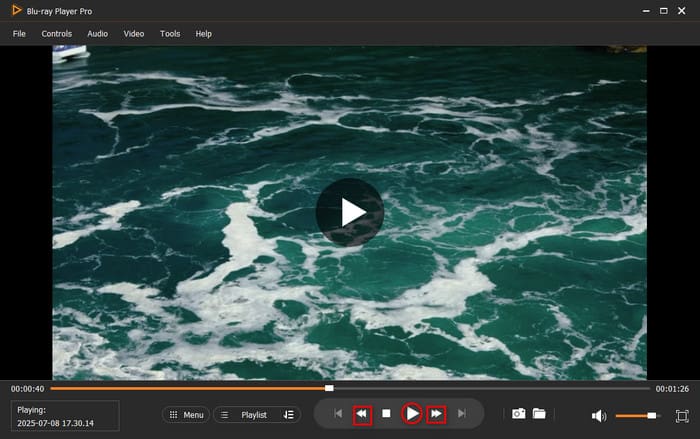
With this free Blu-ray player, you can enjoy Blu-ray movies on your Windows and Mac computers. In our testing, this tool is good for simply watching movies. As a free tool, they have ads and occasionally struggles with heavily protected discs or menu navigation.
Method 2: The Open-Source Classic – VLC Media Player
VLC is one of the best media players that is praised by many people. It can also play DVD discs, folders, and ISO files. Since it comes packed with its own internal codec library, you won't need to hunt down shady third-party decoders. The best part? VLC DVD player uses smart software decryption (libdvdcss) to quietly bypass annoying DVD region locks, letting you watch discs from almost anywhere without risking your drive's firmware.
Step 1. Download and install VLC from its official website. If you already have it, it would be better. Then, open it on your Windows or Mac.
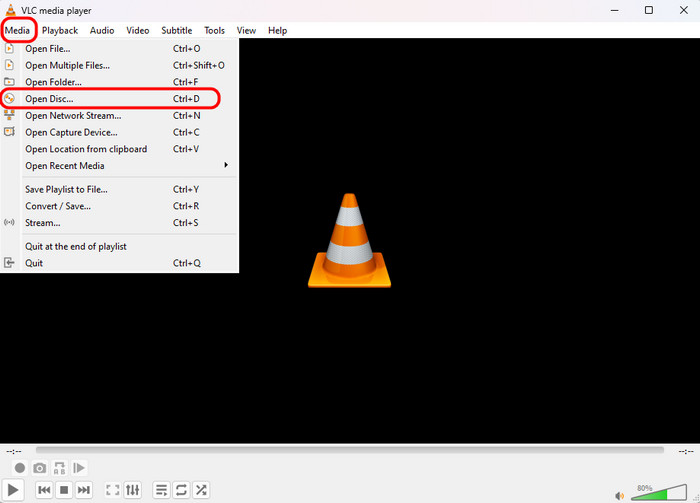
Step 2. Choose Media from the top bar and then select the Open Disc option.
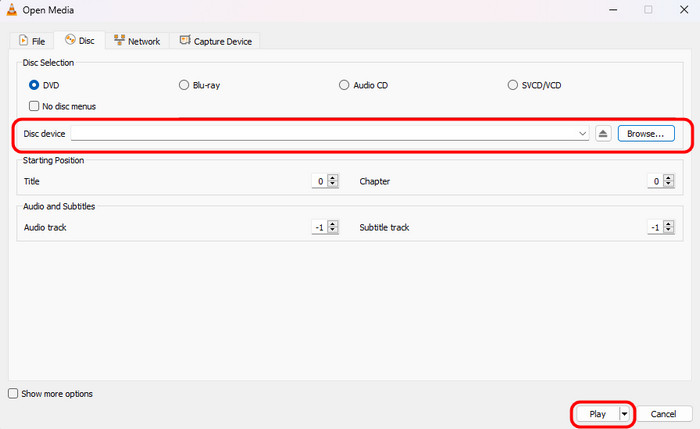
Step 3. In the pop-up window, locate the Disc section and click Browse to load the DVD disc you inserted. Then, click Play to watch it.
Step 4. Enjoy your DVD movies, and you can explore the various settings to optimize your viewing experience.
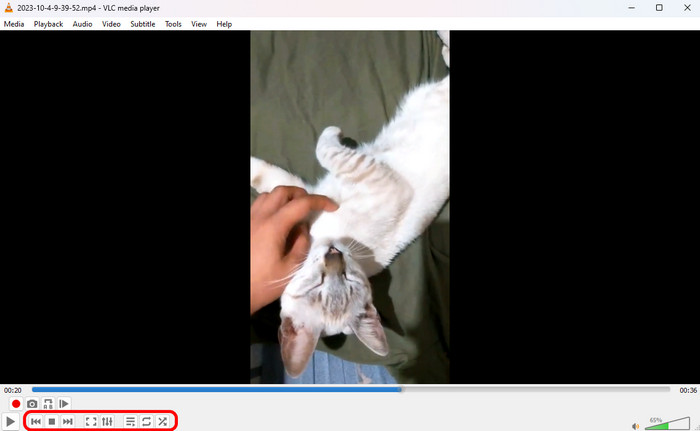
This free tool is always the first choice for most people. It is free, open-source, and easy to use. To handle copy-protected DVDs, you need to install libdvdcss on it. There are times when the program crashes for some reason. Also, it can’t play damaged videos from the DVD. The interface is not user-friendly, making it hard to operate.
Method 3: The Modern Aesthetic Choice – 5KPlayer
If you want something sleek on Windows 10/11 or Mac, 5KPlayer is a fantastic choice. It is a versatile, free media player that is designed to deliver a seamless DVD playback experience on Windows 10/11 and Mac. With its powerful decoding ability, it can play any DVD discs, folders, and ISO files effortlessly. It can bypass the DVD region codes to play your region 1-6 DVDs. Moreover, it supports multi-track audio, customizable subtitles, and Dolby/DTS surround sound, giving you the cinema-level experience.
So, how to use it to watch DVDs? Here are the detailed steps.
Step 1. Download and install 5KPlayer from its official website. Then, open it on your computer.
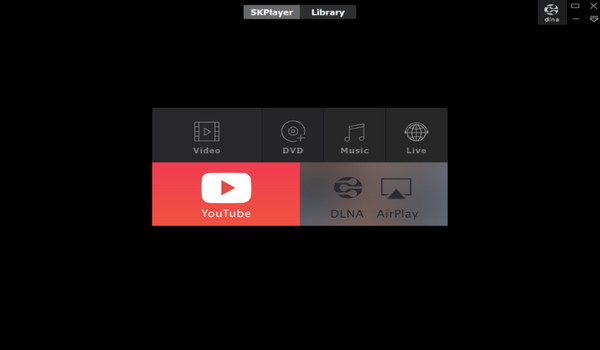
Step 2. In its main interface, click the DVD option to load and play the inserted DVD disc.

Step 3. Bonusly, you can choose the Library section to enjoy videos from different platforms.
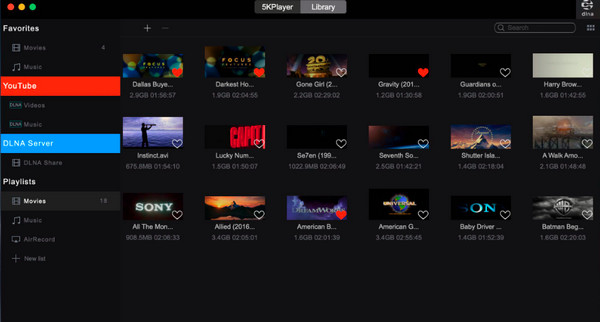
5KPlayer offers a smooth and seamless DVD viewing experience. It allows you to play any DVD no worrying the DVD region codes and various copy protections. However, it has occasional built-in ads and advanced custom settings are limited. In all, it is a lightweight choice for everyday media playback.
Troubleshooting & Insider Pro-Tips
Watch Out for the Region Code Trap
If you pop in a movie bought overseas and your player gives you a 'Playback Error' or 'Region Mismatch', you've bumped into regional locking (Regions 1 through 6). Drives enforce this using firmware (RPC-2), which usually only lets you change regions 5 times total before locking up permanently.
Important Warning: While software like VLC can bypass region locks inside the software using internal tools, changing the hardware drive region directly in Windows Device Manager or Mac Settings will permanently lock the drive after the 5th swap. Try to rely on software decoding instead of changing the drive settings directly!
The Ultimate Future-Proof Move: Digitization
If you travel a lot and hate the idea of hauling an external DVD drive for laptop around in your backpack, think about digitizing your favorite discs into MP4 or MKV video files. Using a free DVD ripper lets you store your movie library right on your laptop's internal storage, giving you instant offline playback on flights or trips without needing any extra hardware hanging off your USB port.
FAQs about DVD Playback
-
Why won’t my DVD play automatically when I insert it into my laptop?
Modern Windows 10/11 and macOS have turned off default AutoPlay for security reasons. You can manually play your inserted DVDs using VLC, Blu-ray Master Free Blu-ray Player, and other advanced DVD player software.
-
Do I really need to pay for the official Windows DVD Player app in the Microsoft Store?
No. The functions of Windows DVD Player are basic. There are multiple DVD player software in the market, and you can review them and pick a proper tool, such as VLC.
-
Can a standard laptop external DVD drive read and play Blu-ray discs?
No. Standard DVD drives use red lasers and cannot read the fine physical tracks on Blu-ray or 4K discs. Playing Blu-ray discs requires a dedicated external Blu-ray drive equipped with a blue laser. However, Blu-ray drives can still read regular DVD discs without issue.
-
Why does my player software trigger a 'Wrong Region' or 'Regional Lock' error?
DVDs have region codes to control when movies launch in different countries. You need to buy a player that matches your DVD region code to play DVDs. Otherwise, you can try region-free DVD players, such as DVDFab PlayerFab, Blu-ray Master Free Blu-ray Player, and others.
-
Will watching a movie from a DVD drive drain my laptop battery faster than streaming?
Yeah, usually. Spinning a physical disc requires the USB port to power an actual electric motor inside the drive and keep a laser running.
Conclusion
In this article, we share 3 easy and powerful ways for you to play DVDs on Windows 10/11 and Mac. Blu-ray Master Free Blu-ray Player is free and provides flexible playback settings. VLC offers a simple workflow to watch DVDs. 5KPlayer supports AirPlay/DLNA wireless streaming. Choose one of them to enjoy the seamless DVD playback experience!
More Reading
Play DVD Movies
Easily play Blu-rays, DVDs, and various video/audio formats with rich playback features.
100% Secure. No virus
