

Jul 25, 2025Posted by Kevin Miller to Create Blu-ray
H.264 is one of the most widely used video compression formats today. It is known for delivering high-quality video at efficient file sizes. If you're capturing home videos, chances are your files are encoded in H.264. However, to share them in a physical format, burning H.264 to Blu-ray becomes a smart choice. This post will teach you the best practices for creating Blu-ray discs from H.264 videos. You'll learn about two popular Blu-ray authoring tools, their strengths, and how to choose the right method for your needs.

- Part 1. H.264 Introduction
- Part 2. Burn H.264 to Blu-ray with Blu-ray Master DVD Creator
- Part 3. Burn H.264 to Blu-ray with DVDFab Blu-ray Creator
- Part 4. Which Way is the Best
Part 1. H.264 Introduction
H.264, also known as Advanced Video Coding, is a video compression standard. It is designed to provide high-quality video at lower bitrates compared to MPEG-2. It achieves this through advanced encoding techniques, including motion compensation, variable block-size prediction, and in-loop deblocking filters. It supports various resolutions, like 1080p (Full HD) and even 4K, while maintaining efficient file sizes. It is compatible with various formats, including MP4, MKV, M2TS, and MOV.
Part 2. Burn H.264 to Blu-ray with Blu-ray Master DVD Creator
DVD Creator is an all-around disc authoring software for Windows and Mac OS. Though its name might suggest DVD-only functionality, it can also output Blu-ray formats. It includes a Blu-ray burning mode, allowing you to convert and burn media stream formats. It accepts various formats encoded in H.264 codec, including MP4, MKV, MOV, and 3GP. You can load multiple H.264 files, set the disc type, specify the aspect ratio, and adjust video quality. Additionally, it provides 20 customizable menu templates that can be enhanced with music, images, and introductory videos.
Here's how to burn H.264 to Blu-ray:
Step 1.Get the free download of Blu-ray Master DVD Creator. Install the Blu-ray authoring software and allow the installation process to complete. During installation, insert a blank Blu-ray disc into your Blu-ray drive. Once the installation is finished, open the software.
Free Download
For Windows
Secure Download
Free Download
for macOS
Secure Download
Step 2.Upon launching, select the Blu-ray Disc option as your disc type. Click the Add Media File(s) button to bring the H.264 video(s) into the software. If you have multiple video files saved in a single directory, use Add Media Folder instead.
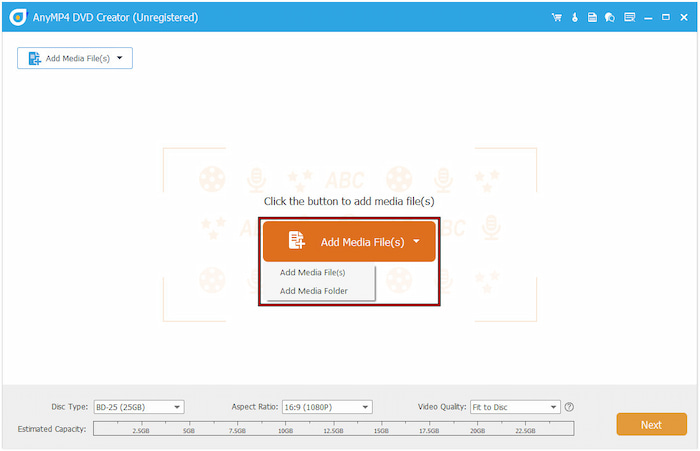
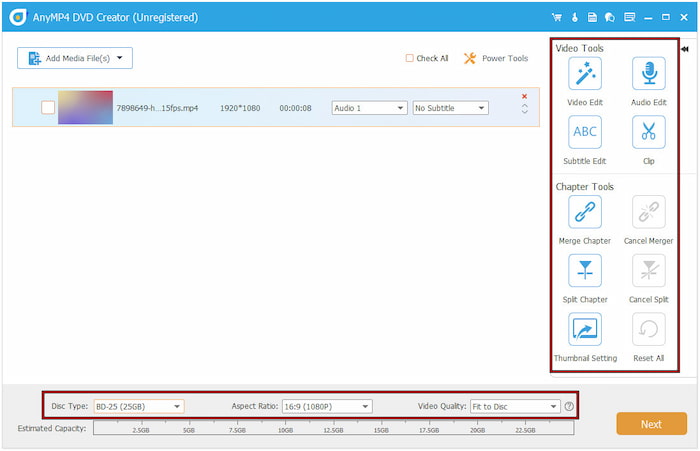
Once the file(s) are added, set the disc type according to your file size. Choose BD-25 if the video file size is less than 25GB; otherwise, select BD-50. Optionally, use the Power Tools to access Video Tools and Chapter Tools for basic editing. Afterward, click Next to proceed.
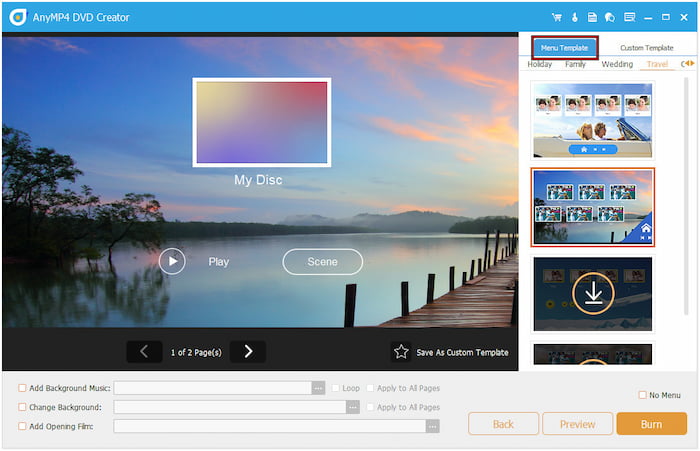
Step 3.In the disc menu window, select one of the 20 available menu templates. You can also create your own by adding background music, uploading custom background images, or inserting an introductory clip. When you are satisfied, click the Burn button to complete the final step.
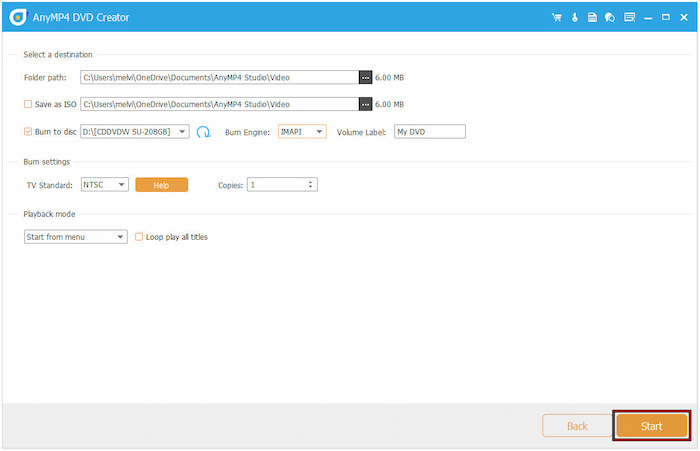
Step 4.In the Burning Settings window, check Burn to Disc and select your Blu-ray drive. To create a copy as an ISO, select 'Save as ISO' and specify the output destination. Once everything is set, click Start to burn the H.264 file to a physical Blu-ray disc.
Blu-ray Master DVD Creator offers a reliable method for burning H.264 videos to high-quality Blu-ray discs. In addition to its burning functionality, it includes a built-in editor with essential tools. It allows you to enhance your content by applying effects, adding audio tracks, and inserting subtitles, among other features.Now that you've learned how to create Blu-ray from H.264, are you ready for something different? Why not take the next step and discover how to convert DVDs into H.264
Part 3. Burn H.264 to Blu-ray with DVDFab Blu-ray Creator
DVDFab Blu-ray Creator is a module of the DVDFab suite that allows you to create Blu-rays. With it, you can import H.264 video files and burn them directly on a blank disc or save them as a BDMV folder or ISO image file. It also allows you to create your Blu-ray menu navigation with stylish templates and other customization options.
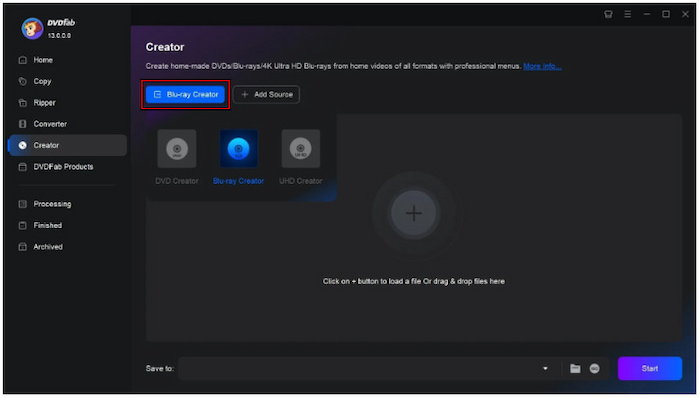
Step 1.Prepare the blank Blu-ray disc and place it on your Blu-ray drive. In DVDFab, select the Creator module and switch to Blu-ray Creator mode. Then, click + Add Source to import the H.264 video into the software.
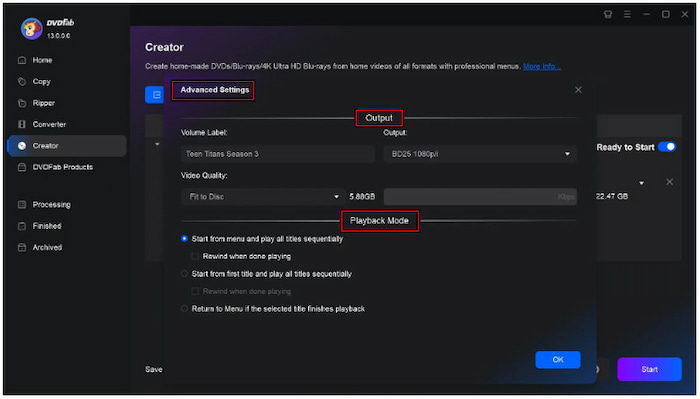
Step 2.Click the Advanced Settings button to set output format, video quality, and playback mode. Optionally, move to the Menu Settings tab to create a disc menu navigation. You can also customize the menu with background art, thumbnails, music, text, etc.
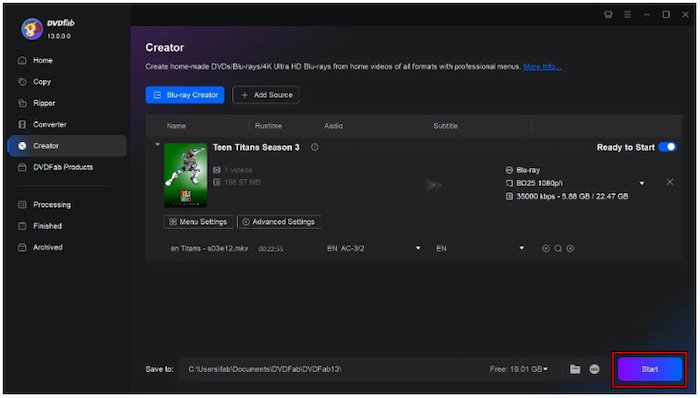
Step 3.Once you have completed the settings configuration and menu creation, you can now burn it to Blu-ray. Click the Start button in the lower-right navigation to begin the burning process. If you don't have a Blu-ray disc, you can save H.264 videos as an ISO or BDMV folder.
DVDFab Blu-ray Creator makes it easy to convert H.264 videos into physical discs. However, the software can only output Blu-rays in 1080p resolution. This means you need a specialized 4K Blu-ray burner
Part 4. Which Way is the Best
Choosing the right software when burning H.264 to Blu-ray can significantly impact the outcome. With multiple Blu-ray authoring tools available, it's important to consider several factors. This comparison will help you decide which way is best for your Blu-ray burning projects.
| Blu-ray Master Blu-ray Creator | Versus | DVDFab Blu-ray Creator |
| Windows and Mac | Compatibility | Windows and Mac |
| Free, with an option for upgrade | Price | Paid |
| H.264 videos in formats like MP4, MKV, MOV, M2TS, etc. | Input | MP4, MKV, MOV, 3GP, etc. |
| Blu-ray discs (BD-25 and BD-50), DVDs (DVD-5 and DVD-9), BDMV folder, VIDEO_TS folder, and ISO image file | Output | Blu-ray discs (BD-25 and BD-50), BDMV folder, and ISO image file |
| Fast | Burning Speed | Relies on computer drive speed |
 | Built-in Editor | |
| 20 disc menu template | Menu Template | Limited |
| Basic | Usability | Easy |
| High-quality Blu-ray output from any video, including H.264, with fast processing. | Best For | Creating high-quality Blu-rays with up to 1080p resolution. |
Conclusion
Burning your H.264 to Blu-ray is an excellent way to preserve high-definition content. With the right tool, the process can be fast, easy, and fully customizable to meet your project's specific needs. Among the available options, Blu-ray Master DVD Creator stands out as a notable choice. It provides a reliable solution with powerful features to create Blu-ray discs from H.264 videos.
More from Blu-ray Master
