

Oct 13, 2026Posted by Kevin Miller to Rip DVD
DVDs are rapidly becoming a thing of the past. With modern laptops, Smart TVs, and mobile devices dropping optical disc drive support, playing your physical DVD collection has become a real hassle. Converting your DVDs to H.264 (AVC)—typically saved in an MP4 or MKV format—is the gold standard for digitizing your movies. It gives you 100% universal compatibility across virtually every screen and home media server like Plex.
In this guide, we will introduce you to the most reliable methods to transcode your DVDs to H.264 without losing quality.

- Understanding the Essentials: Why Convert DVD to H.264
- Method 1. The Gold Standard for Open-Source Users - HandBrake
- Method 2. Handling Protected Commercial Discs Seamlessly - Blu-ray Master Free DVD Ripper
- Method 3. The Quick & No-Install Solution - VLC Media Player
- FAQs About DVD to H.264
Tested on Windows 11 & macOS Sequoia using a physical DVD drive and 3 encrypted movie discs.
| Program | Price | Key Features | Best For | Pros | Cons |
| HandBrake | 100% Free & Open-Source | Advanced x264 encoder settings, batch encoding, custom RF quality sliders, Decomb/Deinterlace filters | Tech-savvy users looking for the best balance of output quality and file size | Completely free with no ads/watermarks; deep control over video parameters; excellent cross-platform support | Steeper learning curve; cannot bypass commercial DVD copy protection natively without libdvdcss |
| Blu-ray Master Free DVD Ripper | Free / Freemium | Pre-configured H.264 profiles, clean beginner interface, basic editing tools (crop/trim), fast disc loading | Beginners who want a simple, one-click solution without messing with technical settings | Very easy to navigate; quick setup process; supports outputting to various popular digital formats | Free version may have feature limits or watermarks; lacks granular encoding controls for advanced tweaking |
| VLC Media Player | 100% Free & Open-Source | Built-in media converter, basic H.264/MP4 presets, universal playback engine | Users who need a quick conversion without installing any extra third-party software | Already installed on most PCs/Macs; 100% free with zero restrictions or ads | Slow conversion speeds; non-intuitive conversion menu; limited video editing and quality tuning features |
Understanding the Essentials: Why Convert DVD to H.264
There are several reasons why you need to convert DVDs to H.264. So, to learn some of them, we suggest you read the information below. With that, you will be given an idea of why it is important to convert DVDs to H.264 nowadays.
Increased Compatibility
As we are aware, DVDs nowadays are becoming unpopular. Also, almost all of the devices don’t support DVDs anymore. The most effective way to have a DVD playback is to purchase a DVD player. However, purchasing a player is costly. With that, the best method to do this is to convert the DVD to H.264. This way, you can play videos on any platform you like.
Reduce File Size
H.264 provides great compression efficiency compared with DVD. It means that you can decrease the file size of the content while maintaining the original quality. Also, converting can help you save storage space and share the video file easily.
Preservation Purposes
You also need to convert DVDs since they can deteriorate someday due to dust, scratches, and physical damage. So, if you want to preserve your content, the best way is to convert it and digitize it. Also, H.264 is a common format. It is possible to find compatible platforms compared with DVDs.
H.264 vs. H.265 (HEVC): Why H.264 is the Smarter Choice for DVDs
While H.265 (HEVC) is great for shrinking massive 4K files, H.264 remains the best choice for digitizing standard DVDs. Because DVDs only carry 480p or 576p standard-definition resolutions, H.265 offers almost no noticeable file size savings compared to H.264, but it takes much longer to process. On top of that, H.264 gives you 100% universal playback across older smart TVs, game consoles, phones, and media servers like Plex without annoying stuttering or missing codec errors. Simply put, H.264 delivers the perfect balance of fast conversion speeds, tiny file sizes, and seamless device compatibility for all your DVD rips.
Method 1. The Gold Standard for Open-Source Users – HandBrake
HandBrake is widely recognized as the most popular free and open-source video transcoder in the world. Contrary to the common misconception that HandBrake is too complicated and only suitable for video professionals, its intuitive built-in presets make it extremely approachable for beginners, while still giving advanced users full control over video encoding parameters. It operates seamlessly across Windows, macOS, and Linux.
To handle copy-protected DVDs, you need to install libdvdcss first.
- On Windows: Download the libdvdcss.dll file and place it directly into your HandBrake installation folder (usually C:Program FilesHandBrake).
- On macOS: Open Homebrew in Terminal and run 'brew install libdvdcss' to install libdvdcss. Once installed, HandBrake will automatically detect and bypass CSS copy protection, allowing you to convert encrypted commercial discs to H.264 MP4 for free.
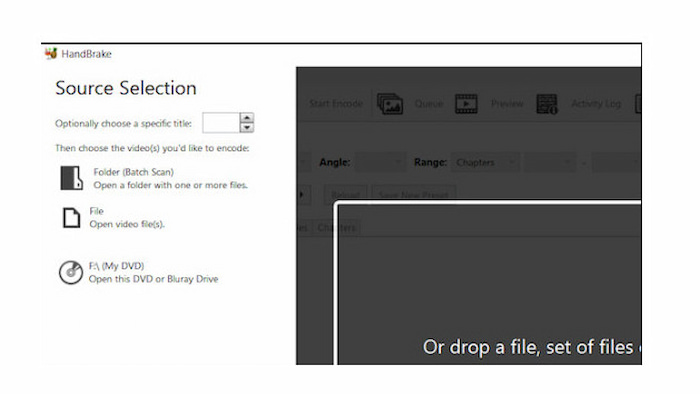
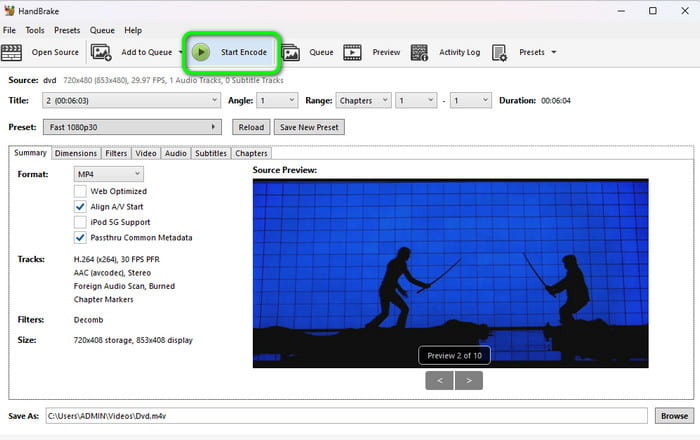
Step 1.Insert your DVD into your computer's optical drive and launch HandBrake. Under Source Selection on the left sidebar, select your DVD drive to let HandBrake scan the titles.
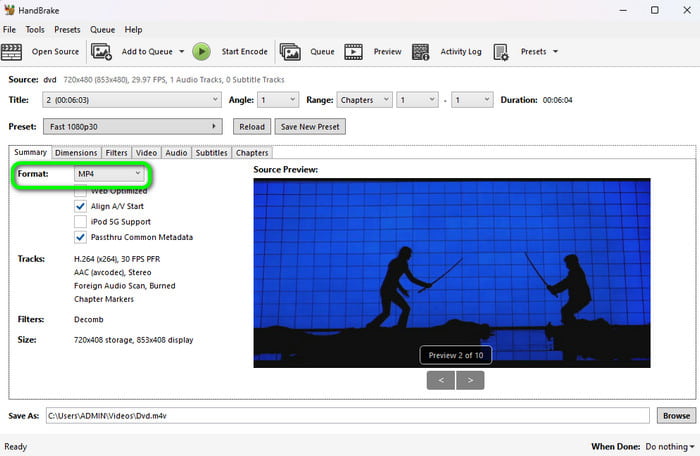
Step 2.Go to the Summary tab and select your preferred container format: MP4 or MKV.
- If you want to play video on multiple devices, MP4 is the option.
- If you want to maintain the multiple audio tracks of DVD, choose MKV.
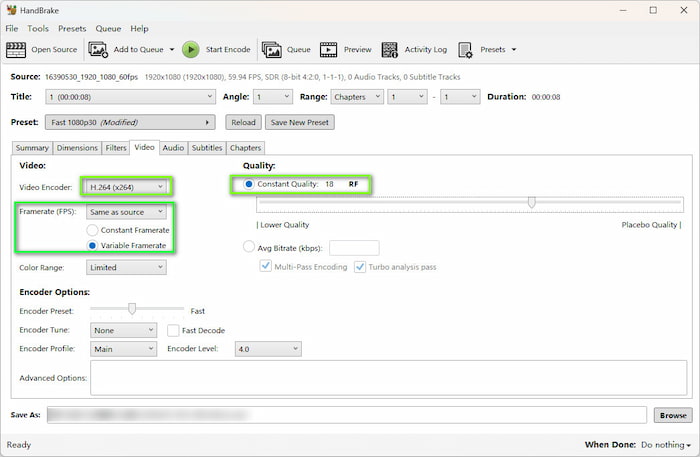
Step 3.Switch to the Video tab. Set the Video Codec to H.264 (x264). Under Quality, choose Constant Quality and adjust the slider to RF 18 to 20 (RF 18 delivers visually lossless quality for standard-definition DVD video). Set the Framerate to Same as Source with Peak Framerate enabled.
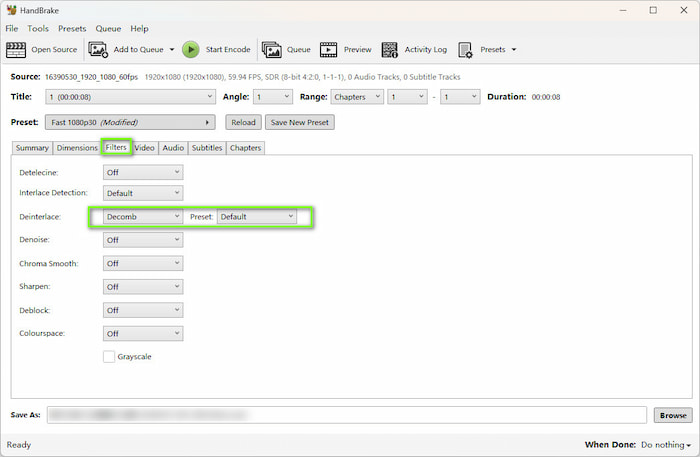
Step 4.Navigate to the Filters tab, find Decomb (or Deinterlace), and set it to Default to remove interlacing lines.
Step 5.At the bottom right, click Browse to select your destination output folder and name your file. Click the Start Encode button at the top toolbar to begin converting your DVD to H.264.
What Users Say:
'HandBrake is my absolute first option for ripping my home DVD collection. The RF 18 setting gives me crisp H.264 quality without huge file sizes. It takes a little tweaking to set up the Decomb filter for interlaced DVDs, but once you save your preset, batch converting a whole season of a TV show is completely seamless.'
Method 2. Handling Protected Commercial Discs Seamlessly - Blu-ray Master Free DVD Ripper
Blu-ray Master Free DVD Ripper is a free and easy-to-use DVD ripping tool that is available for Windows and Mac. Using this offline program, you can effectively turn your DVD to H.264. With the simplified workflow, even beginners can use it to rip DVDs in just a few seconds. What’s more, it supports various DVD types, such as DVD-5, DVD-ROM, DVD-9, and more. Moreover, besides H.264, the software also supports various file formats, which include MP4, MOV, MKV, FLV, WMV, and more.
If you want to handle commercial DVDs, it has decryption ability to process CSS, region codes, and other copy protections. With GPU acceleration, the ripping process would be fast and smooth.
Now, let's see the detailed steps.
Step 1.Download and install Blu-ray Master Free DVD Ripper via the buttons below. Launch the software. Insert the DVD disc you want to convert into the optical drive.
Free Download
For Windows
Secure Download
Free Download
for macOS
Secure Download
Step 2.Choose Load DVD > Load DVD Disc to scan and import the DVD. Choose the Main Title mode, and the DVD main title will be shown.
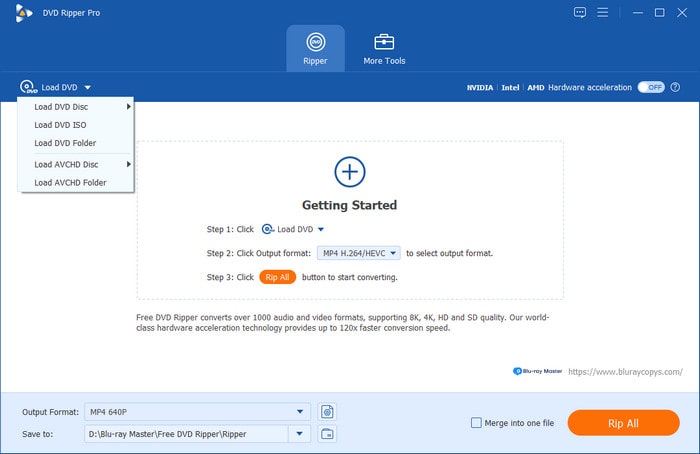
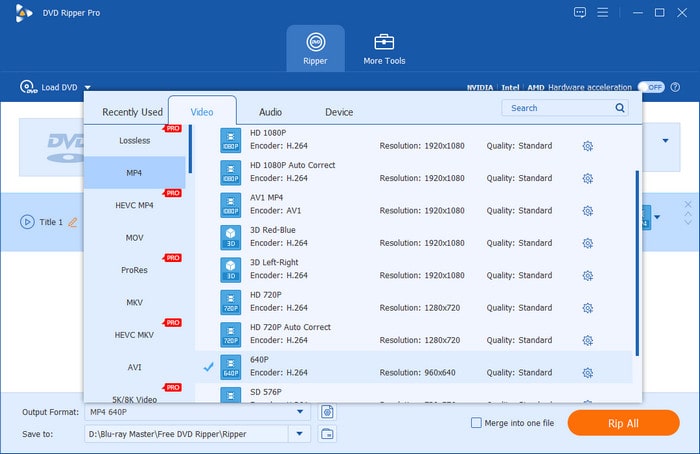
Step 3.Open the Output Format drop-down list and choose an H.264 profile. Here, we choose the H.264 MP4 option.
Tips
You can also click the gear button to manually adjust the resolution, encoder, bitrate, and other parameters.
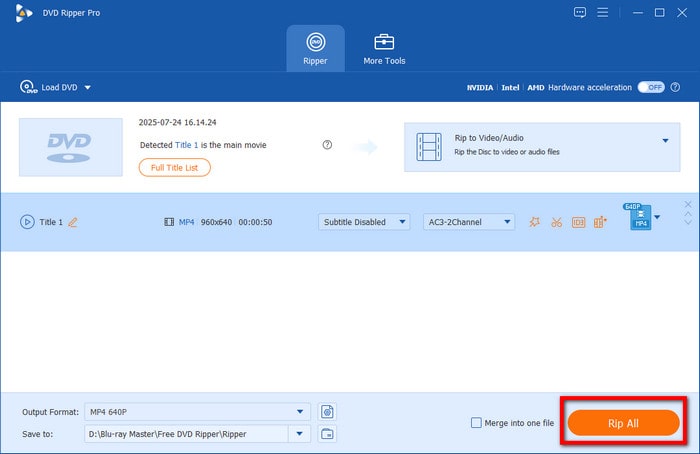
Step 4.Last but not least, set a destination folder for the output file and click Rip All to start the conversion.
Note
You can manually select the audio track and subtitle you want to maintain.
What Users Say:
'The interface is very clean and beginner-friendly compared to HandBrake. I was able to load my disc and select the H.264 MP4 preset in just two clicks. It's a solid choice if you want a hassle-free conversion without messing around with complex encoding parameters.'
Method 3. The Quick & No-Install Solution - VLC Media Player
VLC is a popular media player, as well as a good DVD conversion tool. With its unique Convert/Save feature, you can easily convert DVDs to H.264 MP4, MKV, and other suitable formats. Compared to specialized DVD rippers, it provides a hassle-free experience for digitizing home DVDs or non-protected discs into standard H.264 MP4 format. It supports DVD conversion on Windows, Mac, and Linux with no ads and watermarks. If you have installed it on your computer, it is an easy choice.
Here are the steps that use VLC to convert DVDs to H.264.
Step 1.If you don’t have VLC yet, download and install it from its official website. Then, insert a DVD into the optical drive and open VLC.
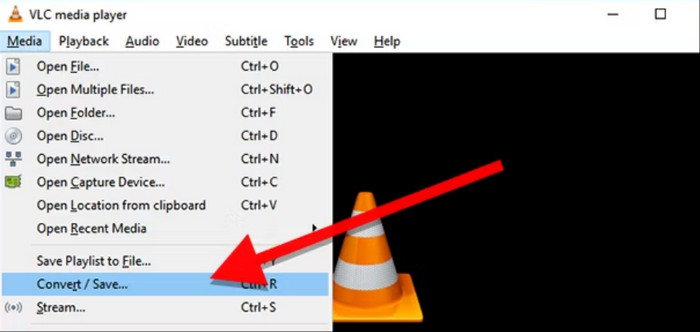
Step 2.In the main interface, choose Media from the top menu bar and select the Convert/Save option.
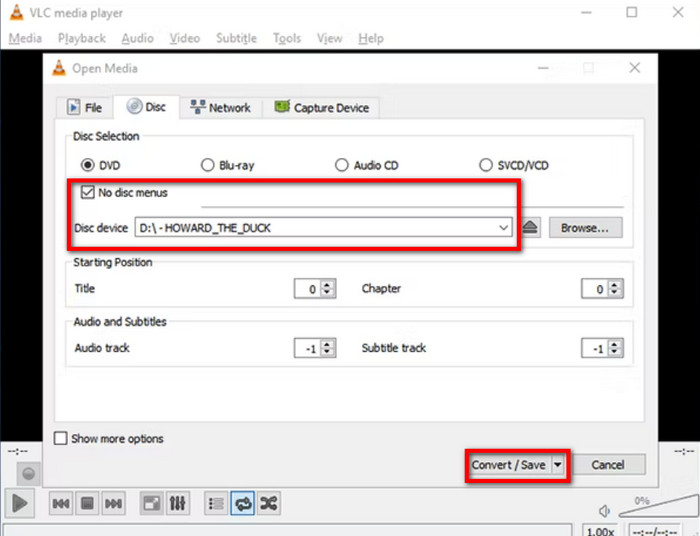
Step 3.In the pop-up window, choose the Disc section and click Browse to load the inserted DVD. Click Convert/Save to proceed.
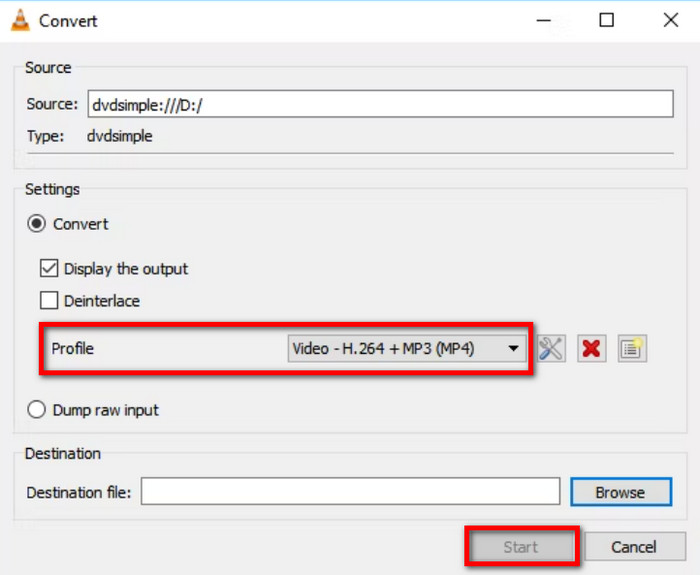
Step 4.Lastly, choose MP4 as the output format. Set a download folder by clicking the Browse button, and click the bottom Start button to begin the DVD to H.264 conversion.
What Users Say:
'I didn't want to install any new software just to convert a couple of unencrypted family DVDs to MP4, so VLC was a lifesaver. The conversion process is straightforward if you already know where the menu option is. It's not as fast as dedicated rippers, but for a quick free solution on Windows 11, it works great.'
FAQs About DVD to H.264
-
What are the best HandBrake settings to convert a DVD to H.264 without losing quality?
Choose MP4 or MKV as the output format and set Constant Quality to RF 18 to 20.
-
Is it legal to rip my own purchased DVDs to H.264 for personal use in the US?
In the US (DMCA), bypassing DRM is illegal even for personal backup, whereas the UK/EU allow fair use copying under specific conditions.
-
How do I rip a copy-protected commercial DVD to H.264 MP4 for free?
You can use HandBrake paired with the libdvdcss library to decrypt common DVD copy protections to rip DVDs to H.264.
-
Is H.264 or H.265 better when digitizing old standard-definition DVDs?
H.264 is better for DVD ripping, which has good playback compatibility.
-
Why does my converted H.264 DVD video look pixelated or have horizontal lines (interlacing)?
DVD stores video in interlaced scan format, which consists of alternating odd and even fields. If the deinterlacing filter is not enabled during conversion, jagged horizontal lines may appear in moving scenes. If the bitrate or Constant Quality (RF) setting is set too low, pixelation may occur.
-
Can VLC Media Player convert a DVD to H.264 on Windows 11?
Yes. VLC's Convert/Save feature lets you easily convert a DVD to H.264 on Windows 11.
-
How to fix HandBrake 'No valid source or titles found' when reading a DVD?
This situation usually means that the DVD is copy-protected. You can install libdvdcss on HandBrake or use other DVD ripping tools with decryption ability to process it.
Conclusion
To convert the DVDs to H.264, you have now learned 3 easy methods in this article. DVD to H.264 conversion allows for smooth DVD video playback on various devices. If you prefer converting your files using a free converter with a hassle-free method, use Blu-ray Master Free DVD Ripper. HandBrake with libdvdcss enables you to fully control video quality, deinterlacing filters, and advanced audio settings. VLC is ideal for people who want an easy, no-installation way. You can choose one of them according to your needs.
More from Blu-ray Master
Rip DVDs to Digital
