

Jul 17, 2026Posted by Kevin Miller to Rip DVD
Quick Picks:
Best Free Overall: Blu-ray Master Free DVD Ripper
Best for Protected DVDs: WinX DVD Ripper
Best for Mac: MacX DVD Ripper
Best for Tech-Savvy Users: HandBrake
Are you a DVD lover? If you store lots of DVDs, it will take you too much space. Besides, DVDs will inevitably be scratched and damaged if they are not placed well enough. One of the solutions to fix the problem is ripping your DVDs to MP4, which can be fully compatible with virtually all devices. So, how do you rip DVDs to the MP4 video format? In this article, we tested 5 easy ways for you to rip DVDs to MP4, and you can choose whichever way you like.

- We Tested These DVD to MP4 Converters
- Method 1. HandBrake: The Ultimate Open-Source Standard for Lossless DVD Transcoding
- Method 2. Blu-ray Master Free Blu-ray Ripper: The Best All-in-One Tool with Hardware Acceleration
- Method 3. VLC Media Player: Digitize DVDs Using the Player You Already Have
- Method 4. WinX DVD Ripper: Best for Bypassing Tough DVD Copy Protections & DRM
- Method 5. MacX DVD Ripper: The No.1 Choice for Quick DVD to MP4 Ripping on macOS
- FAQs about DVD to MP4
How How We Tested These DVD to MP4 Converters
To provide you with the most honest, reliable, and hands-on recommendations, we didn't just copy and paste specs from the software websites. We ran these tools through a series of real-world benchmarks in our lab.
Our Testing Baseline:
- Test Hardware:
o Windows 11 PC: Intel Core i7-13700K processor, 16GB DDR5 RAM, NVIDIA RTX 4060 Ti GPU (for testing hardware acceleration).
o Mac Platform: MacBook Pro powered by the Apple M3 chip with 16GB of Unified Memory. - Test Media: A standard 4.7GB single-sided, single-layer (DVD-5) commercial movie disc featuring typical Content Scramble System (CSS) and region code encryption.
- Methodology: We converted the exact same core chapter of this DVD on both machines, targeting MP4 (H.264 codec, auto-optimised resolution) across all 5 programs.
- Evaluation Metrics: We graded each tool based on ripping speed (timed to the minute), output image quality (analysed for compression artefacts), format compatibility (preset variety), ease of use (user interface friendliness), and copy protection support (the ability to natively bypass DRM without third-party plugins).
Real-World Testing & Comparison Table
| Product Name | Tested Ripping Speed(4.7GB DVD to MP4) | Output Quality(Image Quality) | Format Support(Presets) | Ease of Use(UI/UX) | Copy Protection Support(DRM Decryption) | Best For |
| HandBrake | ~18 mins (CPU-only encoding) | Outstanding (Highly tweakable) | MP4, MKV, WebM | Slightly geeky/complex | No native support (requires libdvdcss) | Tech-savvy users who want granular control over technical video settings. |
| Blu-ray Master Free DVD Ripper | ~12 mins (GPU Accelerated) | Excellent (Lossless look) | 200+ Presets | Very Intuitive | Bypasses common DRM | Windows users wanting a great balance of speed and simplicity for free. |
| VLC Media Player | ~25 mins (No dedicated encoder) | Decent (Occasional audio lag) | Standard Formats | Clunky/Multi-step | No native support (unencrypted only) | Casual users who want a quick digital backup without installing new software. |
| WinX DVD Ripper | ~8 mins (Level-3 Hardware Accel.) | Excellent (Original aspect ratio) | 350+ Presets | Clean Layout | Industry-leading decryption | Windows users with massive libraries of heavily protected commercial DVDs. |
| MacX DVD Ripper | ~9 mins (Apple Silicon optimized) | Excellent (High color accuracy) | 350+ Presets | Smooth & native feel | Industry-leading decryption | Mac users looking for a fast, battery-efficient, drag-and-drop ripping experience. |
Method 1. HandBrake: The Ultimate Open-Source Standard for Lossless DVD Transcoding
Need a free, heavyweight champion for your DVD-to-MP4 backups? HandBrake is the internet's favorite open-source transcoder. While it looks a bit geeky with all those buttons, it gives you complete, professional control over your video quality, frame rates, and subtitles. It won't cost you a penny, but keep in mind it needs a little extra help (like installing libdvdcss) to bypass copy protections on commercial store-bought discs. It's the ultimate tool for tech-savvy users who want flawless, customized MP4 files.
Step 1.Download HandBrake for free and install it. Then launch this program on your personal computer.
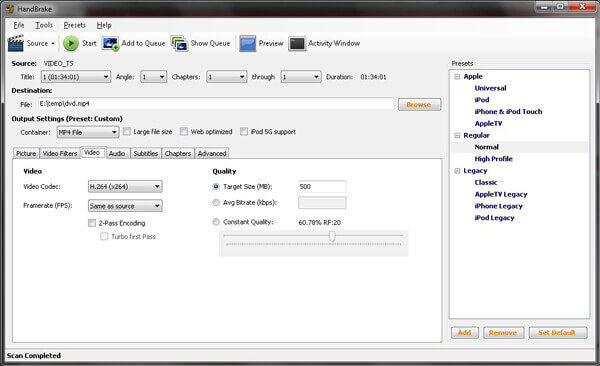
Step 2.When HandBrake's friendly interface shows up, click the "Source" button on the top left corner and choose the DVD you want to rip to MP4.
Note: If you want to rip commercial DVDs, you need to install libdvdcss on HandBrake for decryption. Mac users need to install the libdvdcss library; Windows users simply copy the libdvdcss.dll file to the HandBrake installation directory. Additionally, since most DVDs use interlaced scanning format, be sure to go to the 'Filters' tab and set 'Interlace Removal' to 'Uninterlace' to avoid annoying horizontal stripes in the final MP4 video.
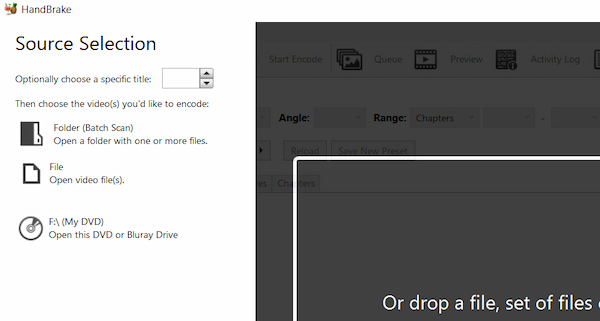
Step 3.Select a destination folder to save the converted file and then click the "Output Settings" and choose MP4 format in the dropdown list.
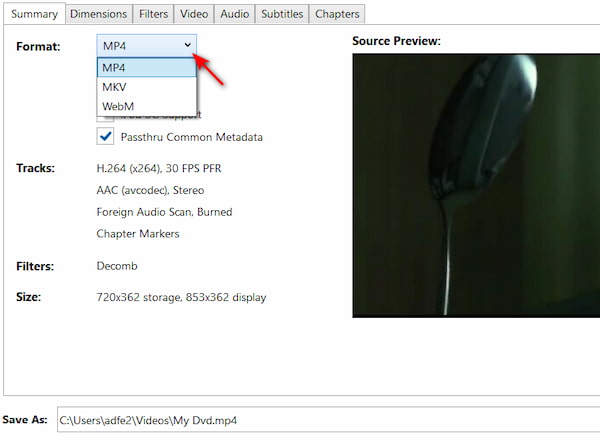
Note: You can choose output formats in the Summary > Format drop-down options. It provides MP4, MKV, and WebM formats.
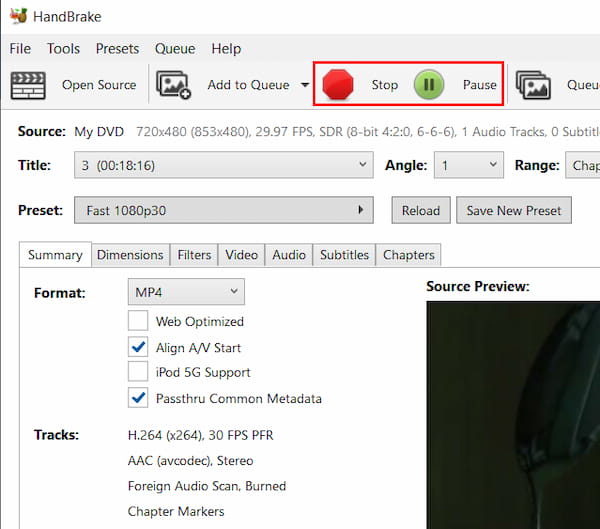
Step 4.After finishing all the above settings, the final thing you need to do is simply click on the "Start" button and the ripping process will begin.
Pros
- Totally free and open-source program
- Supports batch DVD conversion
- User-friendly interface
Cons
- No support for protected content
- Limited output formats
- Not good for long DVD video ripping
Method 2. Blu-ray Master Free Blu-ray Ripper: The Best All-in-One Tool with Hardware Acceleration
Blu-ray Master Free DVD Ripper is totally free and quite easy to use free DVD ripping software. It has the ability to rip any DVD disc/folder/IFO files to popular videos like MP4, AVI, MOV, MKV, M4V, WMV, FLV, MPEG, and more. With this Free DVD Ripper tool , you can adjust display effect by changing brightness, contrast, saturation and hue. Enable watermark by adding text or picture. After converting, you can enjoy your ripped DVD videos free on digital devices like iPhone, iPad, iPod, Samsung, HTC, LG, Huawei, and other digital device.
Free Download
For Windows
Secure Download
Free Download
for macOS
Secure Download
- Support ripping DVD to more than 200+ video/audio formats.
- Support converting DVD to 1080p HD/4K/8K image quality.
- Support hardware acceleration to finish converting at a super-faster speed.
- Support ripping and copying DVD in a 1:1 ratio.
Now, follow us to see how to rip dvd to MP4.
Step 1. Download and Launch the program
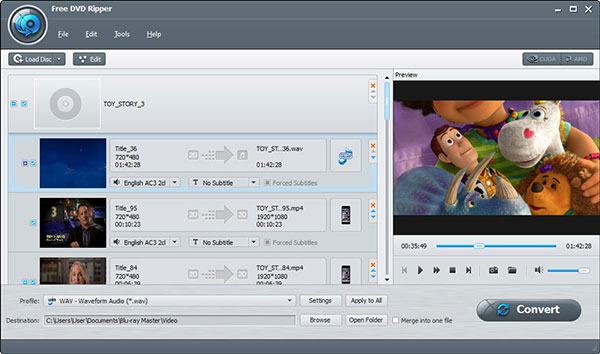
Firstly, insert DVD disc to the DVD drive, download and install the program, and then launch the program. Click the Load DVD > Load DVD Disc buttons to load the DVD disc or folder you want to rip to the main interface.
Step 2. Edit DVD with multiple editing features
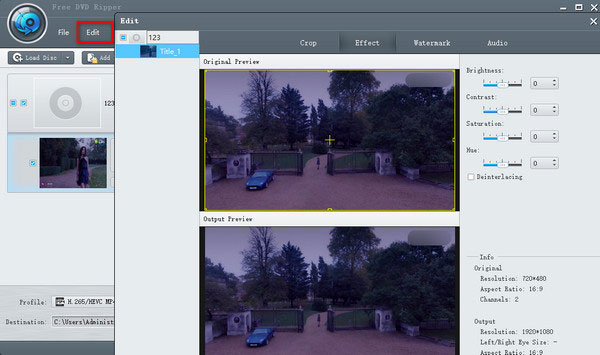
Click the "Edit" button to open the Edit window, you can crop the video frame, and adjust video effects by changing video brightness, saturation, hue, and contrast. Or you can add a text/image watermark to the video.
Step 3. Set an output video format of DVD
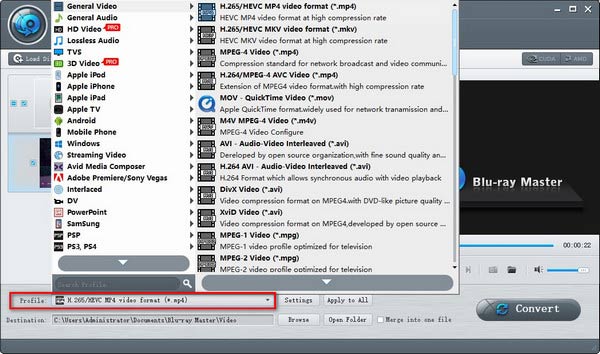
When you set up all your video editing for the converted file, selecting an output format is the next step. Click the Output Format button to open its drop-down list, and you can set the digital file format for the ripped DVD video as MP4. Or you can set it based on your playback device like Apple device, Android device, Samsung device, etc.
Step 4. Start to convert DVD to video
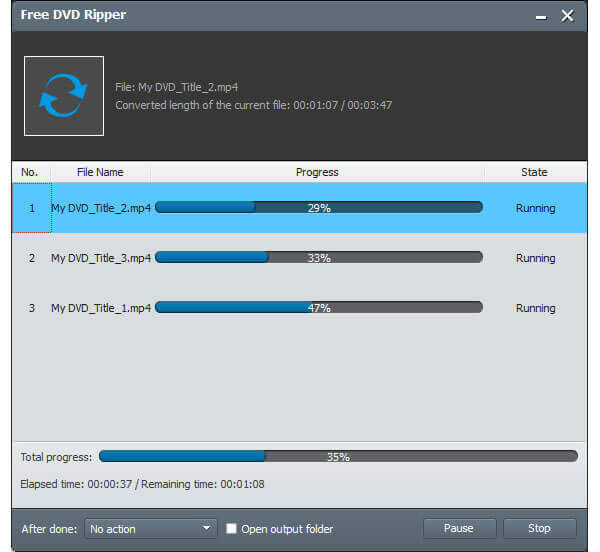
The last step you need to do is click the Rip All button to rip the DVD to your selected video format. The ripping process will be completed within a few minutes.
Note: If you want a fast ripping speed, enable the GPU acceleration to promote the ripping speed. This tool supports NVIDIA CUDA, AMD, and Intel Quick Sync.
Method 3. VLC Media Player: Digitize DVDs Using the Player You Already Have
Why download new software when the world's most popular media player can already do the job? That’s right—VLC isn’t just for watching videos; it has a hidden superpower that rips DVDs directly to MP4. It is 100% free, safe, and likely already sitting on your computer. The interface for converting is a bit old-school and takes a few extra clicks to set up, but for a quick, hassle-free digital backup without installing sketchy third-party apps, VLC is your reliable, no-nonsense shortcut.
Step 1.If you don't have VLC, download it then and launch it on your computer. Then load the DVD you want to convert.
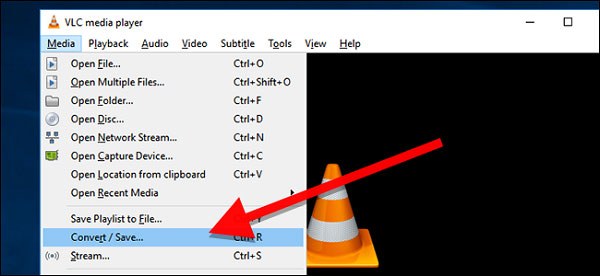
Step 2.Click "Media" and click "Convert/Save" in the dropdown list. Then the "Open Media" window will show up, and now you should click "Disc".
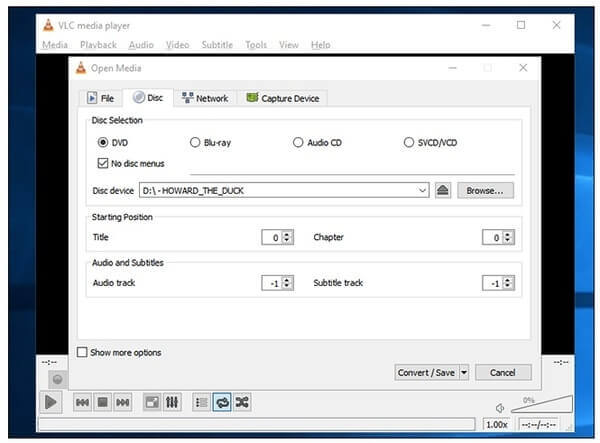
Step 3.Check the "DVD" box and choose the right DVD drive in the "Disc Device" box. You can also tweak other settings here. Next, click on the "Convert/Save" button.
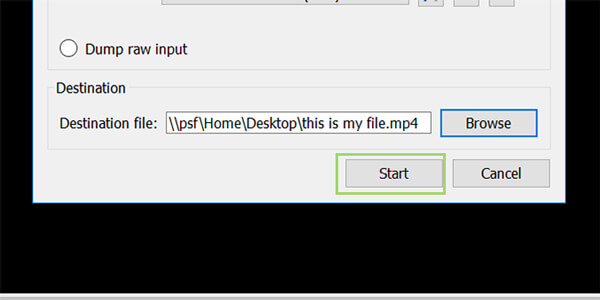
Step 4.Choose a type of codec and container you want to use or just keep the default. Then click "Browse" to make a name which end up with .MP4 and choose the destination for your file.
Note: Occasionally, VLC converted files show the situation of audio out of sync. To avoid this, click the Wrench (Edit selected profile) icon next to 'Video - H.264 + MP3 (MP4)', go to the Audio codec tab, check Keep original audio track, and make sure the sample rate is matched.

Step 5.Finally, click on the "Start" button to start ripping DVD to MP4. When the ripping process is completed, click "Stop" to finish it.
Pros
- Totally free and open-source program
- Comprehensive functionalities
- Supports 3D DVD ripping
Cons
- Complicated DVD ripping process
- Quality loss of DVD ripping
- Limited output formats
Method 4. WinX DVD Ripper: Best for Bypassing Tough DVD Copy Protections & DRM
WinX DVD Ripper is a good DVD ripper that can convert DVDs to digital with high video quality. It can rip DVD discs, folders, and ISO files to MP4, AVI, WMV, and more. Moreover, with powerful DVD copy protection removal, it can easily handle all DVDs. WinX DVD Ripper is a good option for you. Let’s see how to rip DVDs to MP4 with WinX DVD Ripper.
Step 1.Download and install WinX DVD Ripper for free and launch this program on your personal computer.
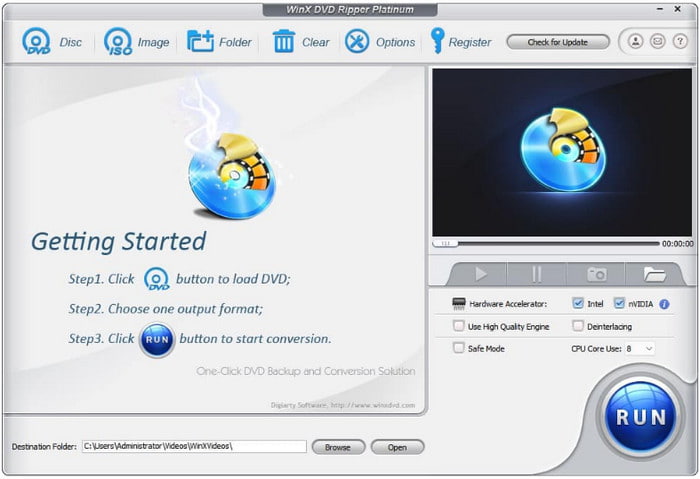
Step 2.When you see the interface of WinX DVD Ripper, click "DVD Disc" icon and select the DVD you want to rip to MP4.Then click "OK".
Note: This tool is powerful to decrypt and rip 99-title Disney, Paramount, and Warner Bros DVDs. Remember to check the Safe Mode option that forces the software to scan the disc sector-by-sector and accurately locate the real movie title.
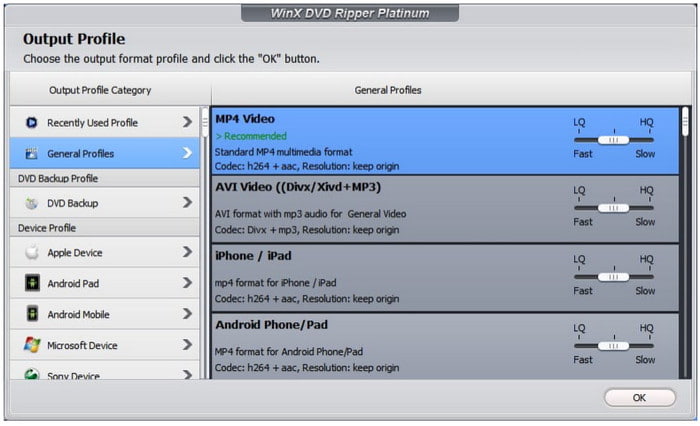
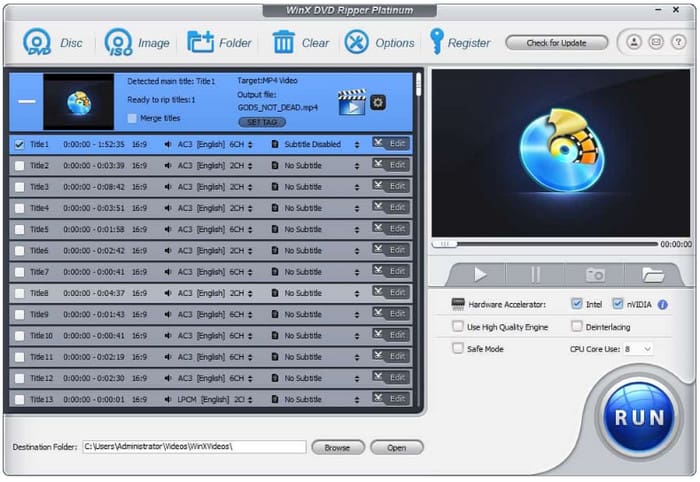
Step 3.After a while, the main DVD title will be checked automatically and the Output Profile window will appear, too. Choose "MP4 Video" under "General Profiles" category.
Step 4.Click "Browse" at the bottom to choose the destination folder for your converted video and finally click "Run" to rip DVD to MP4.
Pros
- Support hardware acceleration
- Support ripping DVD to mobile phones and gaming consoles
- Removes DRM
Cons
- No Blu-ray ripping
- Limited functions in free trial
Method 5. MacX DVD Ripper: The No.1 Choice for Quick DVD to MP4 Ripping on macOS
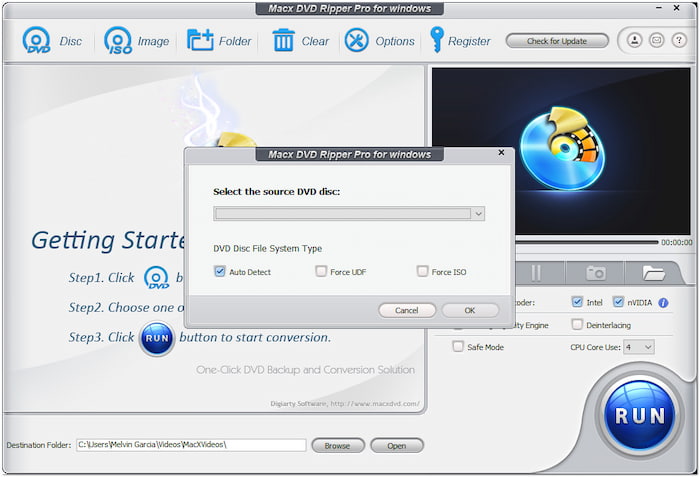
Mac users, this MacX DVD Ripper is built just for you. Ripping DVDs on macOS can be a headache, but MacX DVD Ripper makes it incredibly smooth. It is specifically optimized for Apple hardware, meaning it won’t turn your MacBook into a roaring jet engine while converting. It easily bypasses tough DVD encryption and spits out highly compatible MP4 videos in minutes. If you want a fast, drag-and-drop Mac experience that respects your battery life and macOS aesthetics, this is your go-to software.
Step 1.Launch the program and then insert your DVD.
Note: If you are running MacX DVD Ripper on a modern Apple Silicon Mac, ensure you have downloaded the latest ARM-optimized version of the software rather than running the legacy Intel version via Rosetta 2. This will ensure your Mac's Media Engine is fully utilized, reducing CPU temperature and keeping the ripping speed under 5 minutes per movie.
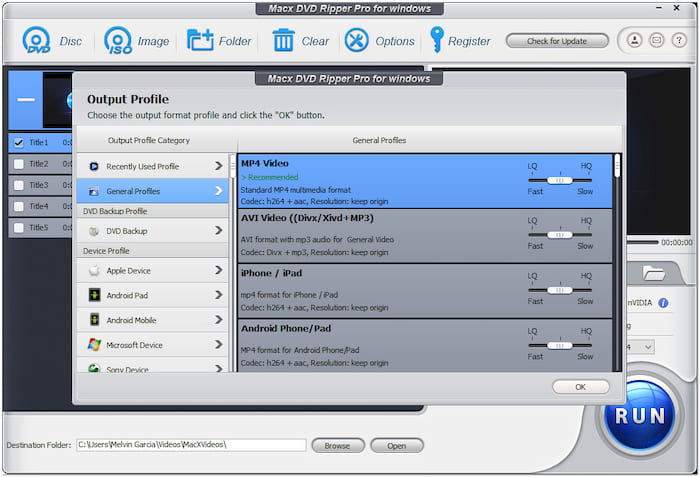
Step 2.Then, select MP4 as the output format from "General Profiles".
Note: It provides many MP4 profiles of different parameters, and you can choose according to your needs.
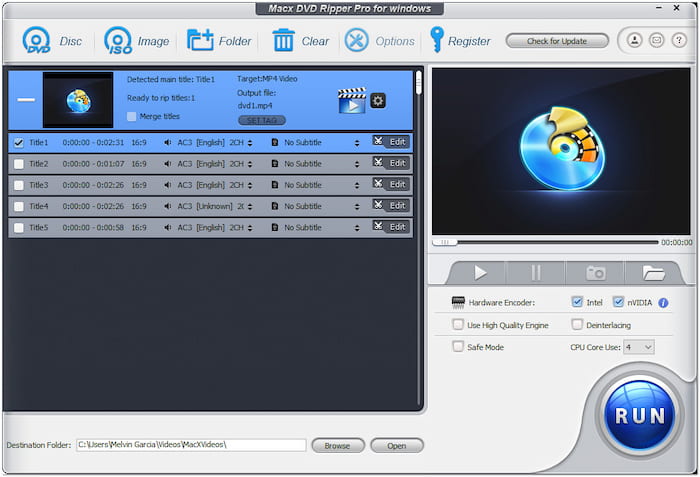
Step 3.Choose the destination folder for saving the converted file by clicking the "Browse"
Step 4.Click the RUN button for DVD to MP4 ripping.
Pros
- Nice customer service
- Immediate response
- Easy subtitle inclusion process
Cons
- Long DVD ripping time
- 3D function is unstable
FAQs about DVD to MP4
-
Should I rip standard DVD to MP4 at 1080p?
What resolution you should use will depend on your DVD. Remember though that video DVDs offer a maximum resolution of 720 × 576. There's no conversion that will provide you with a 1080p video from a DVD. Just go with the native resolution and don't scale the video. It will hurt your quality, because you're re-encoding an already-encoded video when you're ripping it.
-
Can iTunes convert DVD to MP4?
No. While iTunes does not have an import DVD option, you can use DVD ripper to rip a DVD to the iTunes supported format, like MP4, AVI, and more.
-
Can Nero convert DVD to MP4
Yes. Nero is a popular software suite of DVD authoring tools. While most of the Nero applications are devoted to publishing media onto DVD, Nero Recode was developed to extract media from DVDs. The program can read discs and digitally encode them into video.
-
What is the best free DVD ripper for Windows 11 that actually bypasses copy protection?
MakeMKV is the best choice. But it can only output MKV files and the file sizes are large.
-
How can I rip my Disney/Sony DVDs to MP4 without getting a scrambled or corrupted file?
You need to use a professional DVD ripping tool that is able to handle these advanced copy protections, like DVDFab DVD Ripper, WinX DVD Ripper, and others.
-
Is it possible to convert DVD to MP4 losslessly using HandBrake, or will I lose quality?
Strictly speaking, no. During the ripping process, HandBrake would re-encode the DVD videos, resulting in the inevitable video quality loss.
-
Which is better for digitalizing my old DVD library: MP4 (H.264) or MKV (HEVC)?
MP4 (H.264) offers maximum compatibility, playing flawlessly on virtually any device, older smart TV, or browser without hassle.
MKV (HEVC/H.265) is best for high-quality archiving, cutting file sizes in half while perfectly preserving multiple audio tracks, subtitles, and surround sound.
Conclusion
To sum up, it’s easy to rip DVDs to MP4. All you need is a comprehensive and powerful DVD to MP4 converter. We selected the 5 best free DVD to MP4 rippers in this article for you and gave detailed steps. These ways differ in output quality, decryption ability, format compatibility, etc. The one, Blu-ray Master Free DVD Ripper, you can’t miss for the fast ripping speed and complete functionalities, which can help you better enjoy your converted DVDs. Just download it and have a try!
More from Blu-ray Master
Rip DVDs to Digital
Fast and free ripping software to decrypt all DVDs to digital easily on your computer.
100% Secure. No virus
