

Aug 27, 2026Posted by Kevin Miller to Rip DVD
Quick Verdict on MakeMKV:
Overall Rating: 4.5 / 5
Best For: Physical media collectors and home theater enthusiasts looking for a 1:1, lossless way to back up DVDs, Blu-rays, and 4K UHD discs on Windows, Mac, or Linux.
If you want to digitize your DVD or Blu-ray collection without sacrificing video quality, MakeMKV is usually the first tool people recommend. It’s been a favorite among physical media collectors for years, but how does it hold up in 2026? We put MakeMKV to the test on Windows 11 and macOS to see if it’s still worth your time, how it handles modern copy protections, and where it falls short. Read this MakeMKV review to learn all the details.

Table of Contents
Part 1. MakeMKV Review: First Verdict
MakeMKV is a free DVD-ripping software that will enable you to convert your movies to MKV, as its name suggests. In other words, this tool is also called a transcoder that transforms the clips, even the encrypted ones from discs, into a set of video files in MKV format without any changes in quality. Another good feature that you can use of this tool is its ability to stream decrypted clips to your favorite media player device without the need for an intermediate conversion. When it comes to its user display, MakeMKV has an easy-to-use interface that doesn't require any technical configuration aside from the output directory setting.
Furthermore, we cannot limit MakeMKV to Blu-rays, for it also works with ISO files that you can save on your desktop or Mac. However, as one of the popular disadvantages of this DVD ripper, you need to be prepared.
Key features of MakeMKV:
- It can read encrypted Blu-rays using the latest versions of BD+ and AACS.
- Workable on DVDs, Blu-rays, ISO, and folders.
- It comes with a one-click converting procedure.
- Keep movie chapter pieces of information and preserve the tracks of videos and audio.
Part 2. How to Use MakeMKV
You can definitely use MakeMKV for free, as it offers a 30-day free trial period. However, with this freeware, expect to have some limitations to the point that you can't even use its premium tools unless you pay its due price for more. Meanwhile, below are the guidelines you need to follow to assist you in using this DVD ripper for the first time.
Step 1.Install the MakeMKV on Mac, Windows, or Linux computer and launch it once it is ready.
Step 2.You may insert the disc into your computer's disc drive upon launching. Then, click the File menu on the tool's main interface, followed by the Open Disc tab, to choose your target disc.
Step 3.Once the disc is initialized, go to its content and tick the ones you want to rip. Then, go to the Output Folder, set your preferred file destination, and hit the Make MKV button to start the ripping process.
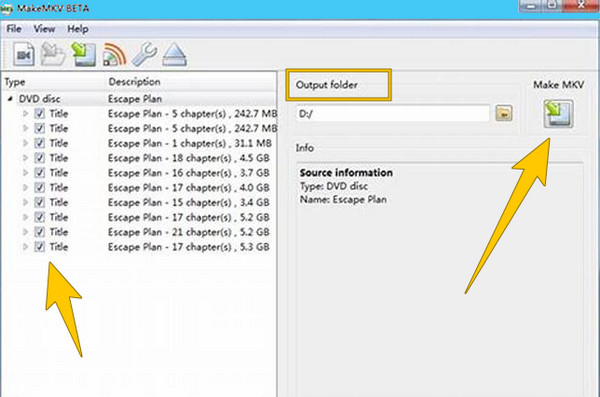
The steps are intuitive and easy. One problem is that the output MKV files are large, and many people have complained about this. So, you can use HandBrake to compress and convert MKV to MP4.
Part 3. MakeMKV Detailed Review
Hands-On Testing & Performance
To evaluate MakeMKV’s real-world performance, we conducted a hands-on ripping test using a standard commercial Blu-ray disc. Here are the specific hardware setup and benchmark results:
- Test System: Windows 11 Pro (64-bit)
- Optical Drive: Pioneer BDR-212DBK (SATA)
- Test Disc: 40 GB Dual-Layer Blu-ray Disc
- Ripping Duration: 18 minutes
- Average CPU Usage: 12% (Intel Core i7)
- Output File Size: 38.8 GB (Lossless MKV)
Performance Takeaway: During the test process, MakeMKV ran smoothly with no system lag or crashing. Without the complex re-encoding process, it can directly extract video and audio streams, maintaining a low CPU usage at around 12%. The ripping speed was primarily bottlenecked by the physical read speed of the optical drive rather than system performance, making it an efficient choice for background processing on modern systems.
System Compatibility
MakeMKV is available for Windows, macOS, and Linux, making it one of the most popular choices for converting DVDs/ Blu-rays to MKV. Users report smooth performance across all systems, including Windows 10/11 and macOS Mojave and later. It doesn’t require high-end hardware, but faster drives and CPUs improve ripping speed.
Safety and Stability
MakeMKV is generally considered safe and stable, with no bundled malware or adware. However, some antivirus programs have flagged recent versions as potential threats, likely false positives due to how the software interacts with protected discs. Users on forums confirm that the tool is reliable and rarely crashes during use.
Ripping Discs
MakeMKV does a great job ripping both DVDs and Blu-rays, even if they’re locked to certain regions or have encryption. It can get around most copy protection systems. People like that it can extract all things from a disc, including menus, different audio tracks, and subtitles.
Decryption Capabilities
One of the biggest advantages of MakeMKV is its ability to handle various DVD and Blu-ray copy protections. In detail, it can handle AACS, BD+, DRM, CSS, and others. Without complex settings, you can use it to decrypt and 1:1 copy the DVD/Blu-ray information to the MKV format. Moreover, it gets updated fairly regularly to stay ahead of newer AACS versions, which keeps it useful for recent disc releases.
If you want to process 4K UHD Blu-ray discs, MakeMKV integrates directly with LibreDrive-compatible firmware, allowing the software to read the raw data from the disc without the drive's built-in hardware restrictions getting in the way.
Output Format and Quality
MakeMKV only saves videos in the MKV format, keeping the original video and sound without shrinking or changing them. This means the copied files are very clear and almost identical to what’s on the disc. But since it doesn’t offer other formats like MP4 or AVI, users who want different file types will need to use another program to convert them.
Ripping Speed
The ripping speed of MakeMKV mostly depends on the kind of disc and the drive you’re using. Some users get better results by updating their drive’s software or using unlocked drives. Since MakeMKV doesn’t shrink or compress the files, it doesn’t put much strain on your computer’s processor.
Price
MakeMKV is available at no charge while it’s in beta, a phase that’s been going on for years, and you can get the newest version and use a free beta key that’s refreshed monthly in the MakeMKV forum. If you prefer a permanent option, you can buy a lifetime license for about $60 to avoid the monthly activation.
Part 4. Final Verdict to MakeMKV
MakeMKV is a good pick if you want an easy, dependable way to copy DVDs and Blu‑rays to digital files without losing quality on Windows, macOS, or Linux. It can handle locked or encrypted discs and keeps the original video, audio, menus, and subtitles. You can use it for free in its long-running beta or buy a one-time lifetime key for about $60. Some people complain that it only saves files as MKV and has no built-in editing or file-size reduction tools. The ripping speed can be slowed by your optical drive (especially with Blu-rays). Sometimes sets off antivirus warnings, so you will need other programs if you want different formats, trimming, or burning.
In all, it is a good ripping tool that is worth a try.
Part 5. MakeMKV Best Alternative
As mentioned previously, the freeware version of MakMKV has limitations. On the other hand, it is also evident that even with its premium version, you can only produce ripped files in MKV format. Thus, if you want a much better ripper and converter that you can use on your computer, then you should take the time to know the best MakeMKV alternative below.
Blu-ray Master Free DVD Ripper is a powerful tool for handling DVD conversion tasks. This software supports various DVD types, like DVD-R, DVD-RW, etc., aiming to help you solve the DVD backup problem without limitations. After uploading the DVDs into the software, you will see a large number video and audio profiles of different parameters, like 4K MP4, HD MKV, and others, which allows you to choose according to your needs. You can also choose your desired output quality, such as HD, 4K, 5K, and even 8K! Furthermore, this free alternative to MakeMKV provides editing functions that help you customize your output display and other content excellently, including but not limited to effects, filters, watermarks, subtitles, and others. With the high-end decryption technology, the software can easily handle DVD region codes and other DVD copy protection, providing you with the freedom to enjoy DVD videos on any device.
- Convert your movies to any of the 500 plus different formats it supports.
- Advanced technologies that support you, like AI, GPU, and hardware acceleration.
- High to the lossless output quality of ripping and conversion.
- Manually select titles and subtitles you want to retain.
Free Download
For Windows
Secure Download
Free Download
for macOS
Secure Download
Step 1.Install this MakeMKV alternative freely on your computer. To do so, click the Download buttons that you see above.
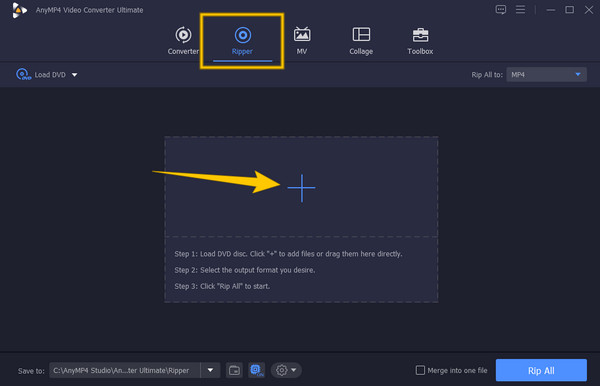
Step 2.Run the software once installed and immediately go to the Ripper menu. You may now load the disc that you want to rip. Then, hit the Plus icon on the software's main interface and select the disc you loaded.
Step 3.Once the DVD files are loaded, select an output format you want to use. Then hit the Rip All button.
| MakeMKV | VS | Blu-ray Master DVD Ripper |
| Windows, Mac, and Linux | System Compatibility | Windows and Mac |
| Ease of Use | ||
| MKV | Output Formats | MP4, MKV, MOV, AVI, and others |
 | Customization Features |  |
| Decryption Ability | |
Free Download
For Windows
Secure Download
Free Download
for macOS
Secure Download
Part 6. FAQs about MakeMKV and Its Alternative
-
MakeMKV vs. HandBrake, which is better?
It depends on your priorities. If you want a tool that can preserve the original quality of your video, MakeMKV is the better option. On the other hand, if you want a tool that directly handles unencrypted discs and converts them to MP4 and WEbM aside from MKV, then HandBrake should be your choice.
-
Can I make a track with the MakeMKV alternative?
Yes. Many alternatives to MakeMKV allow you to create tracks, often with more flexibility in format than MakeMKV's default MKV output, like HandBrake, Blu-ray Master, DVDFab, etc.
-
Can I play the ripped DVDs on my mobile phone?
Yes. Ripped videos are the common video files that can be played on most common media platforms.
-
Is MakeMKV better than HandBrake?
No, they serve different primary purposes: MakeMKV is better for lossless ripping, while HandBrake is better for transcoding/compressing. Many users use both.
-
Is MakeMKV still free to use in 2026, and where can I find the latest official beta key?
Yes. You can regularly go to the MakeMKV official forum to get the registration key to use it for free.
-
Is MakeMKV safe to download, or does it contain malware/viruses?
Yes. It is clean and safe as long as you download it from its official website.
-
How can I rip 4K UHD Blu-ray discs using MakeMKV without getting errors?
You need a 4K UHD-friendly optical drive flashed with LibreDrive-compatible firmware, an active internet connection so MakeMKV can download the latest decryption key hashes, and a clean, scratch-free disc.
-
Why are MakeMKV output files so huge, and how do I compress MKV to MP4 without losing quality?
MakeMKV can fully maintain all DVD/Blu-ray information, so generally the output MKV files are large. You can use HandBrake to compress and convert MKV files to MP4.
-
Can MakeMKV preserve all audio tracks, subtitles, and Dolby Atmos/Vision metadata?
Yes. MakeMKV excels in its ability to 1:1 copy the DVD/Blu-ray information, including audio tracks, subtitles, and Dolby Atmos/Vision metadata.
Conclusion
This article post contains an honest opinion about MakeMKV. In addition, for the benefit of the doubt, we have included the best alternative you can have if the subject software cannot provide you with what you need or expect. Indeed, this Blu-ray Master Free DVD Ripper is something that is not only recommended by our team but by the other analysts who have hands-on experience with it. And now, you have all the chance to try it yourself, and give us your thoughts about it.
More from Blu-ray Master
Various DVD Ripper Review
Fast and free ripping software to decrypt all DVDs to digital easily on your computer.
100% Secure. No virus
