

Oct 16, 2026Posted by Kevin Miller to Rip DVD
Quick Answer:
To rip video from a DVD on Windows or Mac without quality loss:
- Best for Encrypted DVDs: Use Blu-ray Master Free DVD Ripper for a 1-click automatic decryption and conversion to MP4/MKV.
- Best for Standard/Unprotected DVDs: Use HandBrake for deep resolution and encoding parameter customization.
- Best for Quick Playback & Conversion: Use VLC Media Player directly without installing additional software.
For lossy or lossless output, MP4 is the most recommended format for universal playback, while MKV preserves the full original audio tracks and subtitles.
Modern laptops and PCs haven't included built-in disc drives for years, yet many of us still have shelves full of classic movie DVDs, home recordings, and holiday family videos. As optical discs physically degrade over time, digitizing your collection onto a local hard drive, SSD, or home NAS (like Synology or Plex) is the only way to preserve those memories forever.
Ripping videos from your DVDs to MP4 or MKV isn't as complicated as it sounds. In this guide, we'll walk you through 3 reliable and free methods to extract high-quality videos from both homemade and protected DVDs on Windows and Mac—without losing original picture or audio quality.

Table of Contents
Legal & Ethical Use
While DMCA laws are strict, ripping a DVD you legally own for personal backup (such as storing it on your Plex server) is generally considered a gray area. We recommend checking your local digital copyright regulations before proceeding.
| DVD Ripper | Compatibility | Output Format | Copy Protection / Encryption Support | Ripping Speed | Quality Loss / Output Fidelity | Best Suited For |
| Blu-ray Master Free DVD Ripper | Windows and Mac | MP4, MKV, MOV, FLV, and more than 200 video/audio formats | Built-in Support (CSS, Region Codes, Disney 99-Titles) | Fast (Supports GPU Hardware Acceleration) | Lossless Option | Beginners looking for a 1-click solution for commercial & home DVDs. |
| HandBrake | Windows and Mac | MP4, MKV, MOV, and WebM | Requires Third-Party Plugin (Needs libdvdcss installed manually) | Moderate to Fast (Depends on preset & hardware encoder) | Visually Lossless | Advanced users who want granular control over resolution, subtitles & codecs. |
| VLC Media Player | Windows and Mac | MP4, MOV, MKV, AVI, etc. | Basic | Slow to Moderate (Real-time or simple stream dump) | Potential Minor Loss | Quick playback and basic extraction of unprotected home DVDs. |
Part 1. Best Free Method to Rip Video from DVD
Wondering how to pull videos from any DVD type on Windows or Mac? Now you can do it with Blu-ray Master Free DVD Ripper. It is a one-click solution for ripping videos from DVD-ROM, DVD-5, DVD-9, and other formats with original quality. You can find almost all video and audio output formats, including MP4, MP3, AAC, FLV, MKV, and more. What’s more, it has built-in presets that allow you to export the extracted videos with device compatibility, new resolution, and frame rate. The free version offers basic standard resolution profiles; advanced 4K/HD presets may require the Pro upgrade.
On the other hand, it includes basic editing functions that let you cut, trim, merge, and apply filters to your video. It is truly the best method for ripping videos, with amazing offers and no hidden charges!
Main Features
- • Rip discs, DVD ISO files, folders, and encrypted DVDs.
- • Highly compatible with more than 200 output formats and codecs.
- • Insert additional elements such as audio tracks, subtitles, and more.
- • 100% free and secure, with no potential for viruses.
Tip:
When digitizing physical discs, you’ll often encounter various technical terms related to copy protection and decryption.
- CSS (Content Scramble System): The standard encryption built into commercial DVDs to prevent direct digital copying.
- Disney 99-Titles: A copy protection method that uses 99 fake video tracks to confuse ripping software and hide the real movie.
- AACS (Advanced Access Content System): The advanced encryption scheme used exclusively for Blu-ray and 4K UHD discs, not standard DVDs.
- libdvdcss: A free, open-source library that enables tools like HandBrake and VLC to bypass CSS encryption on DVDs.
Now, are you ready to follow us to see how to rip a DVD?
Step 1. Get the Free DVD Ripper on your PC by clicking the Free Download button.
Free Download
For Windows
Secure Download
Free Download
for macOS
Secure Download
Once it is installed, launch the software and insert the disc into the optical drive. Click the Load Disc button and choose either DVD Navigator Mode or DVD Parser Mode from the pop-up menu. Wait for a few seconds until the loading is complete.
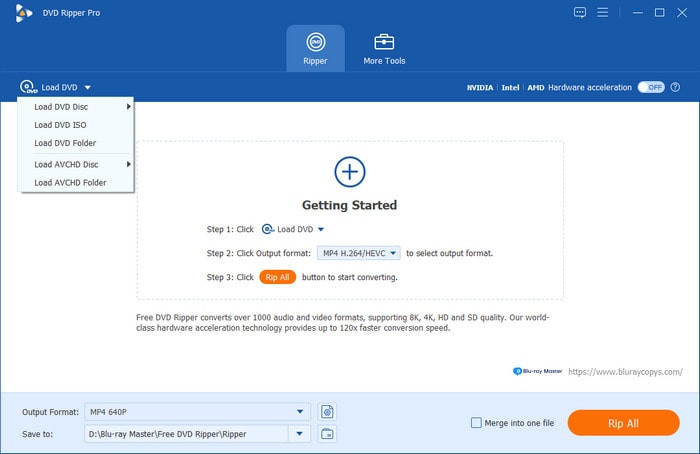
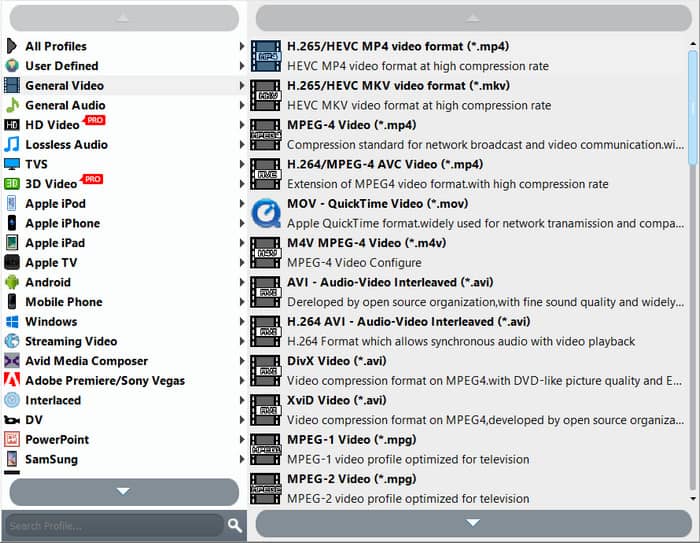
Step 2. When all the videos you want to rip from the DVD are on the interface, go to the Output Format menu and choose a preset. You can choose a preset that is highly compatible with phones or TVs.
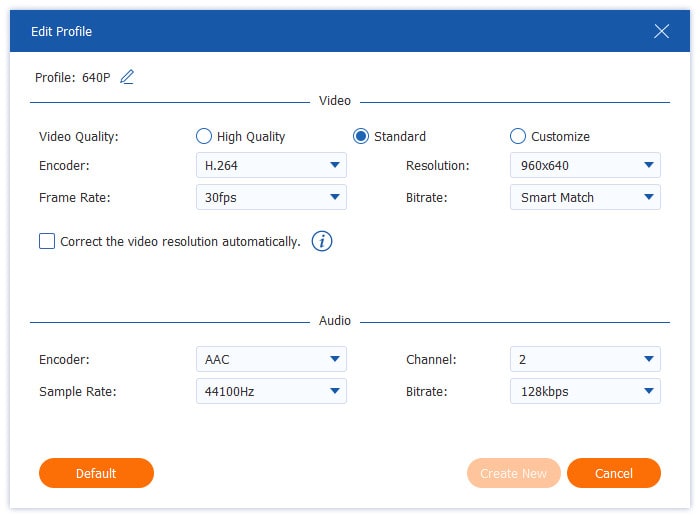
You can also create a new profile by clicking the gear menu. The profile settings will allow you to select the desired encoder, resolution, FPS, aspect ratio, and audio settings. Click the OK button to apply.
Step 3. After preparing everything, click the Browse button next to Destination and select a folder on your device to save the extracted videos. Then, click the Rip All button to extract the movie from the DVD. With the speed, ripping will only take a few moments.
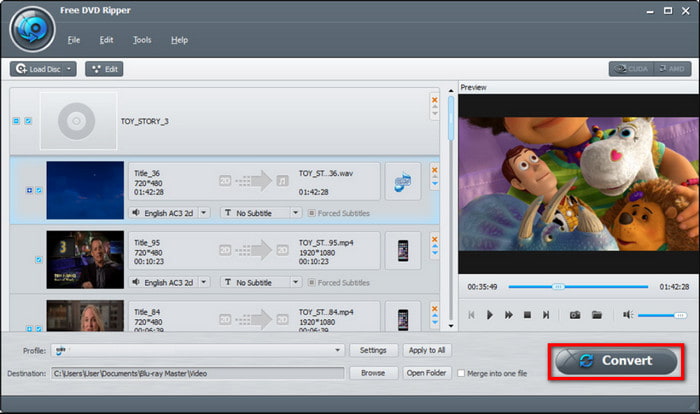
For a free ripping program, Free DVD Ripper is genuinely generous with the provided features, supported formats, and output quality. It is also suitable for new encrypted DVDs, offering amazing results with its ripping technology.
Based on user reviews of Blu-ray Master Free DVD Ripper, the program’s strong DRM-bypass system makes it highly optimized for extracting DVD content for modern personal use. One example is using offline streaming services.
Troubleshooting Tips
Are you experiencing audio sync or muted audio issues in your video preview? Make sure to double-check the audio track you have selected before proceeding with the DVD ripping process.
Part 2. How to Rip Video from DVD with HandBrake
HandBrake is a free video transcoder for Windows, Mac, and Linux. It rips video from DVDs and converts the ripped files to MP4, MOV, MKV, and WebM. Its versatility is also gaining popularity, as HandBrake provides a video metadata editor for modifying video metadata and advanced output customization for quality control.
Although HandBrake is free to use, it cannot handle copy-protected DVDs by default; you need to install the libdvdcss plug-in first to enable it to read and extract data from DVDs to create a digital copy.
Pros
- Extract chapters, subtitles, and movies from DVDs.
- Configure the output resolution, bitrate, and audio codec.
Cons
- The output quality is inconsistent.
Here’s the detailed guide on ripping a DVD to a computer using HandBrake.
Step 1.To handle commercial DVDs, you need to install libdvdcss. How to do it?
For Windows users:
- Download the 64-bit version of libdvdcss-2.dll from the official open-source mirrors like VideoLAN.
- Rename the file to libdvdcss.dll, then copy and paste it to the main HandBrake installation folder (by default: C:Program FilesHandBrake). Reopen HandBrake, and it will automatically detect and decrypt DVDs.
For Mac users:
- Open Terminal and enter the following command to install libdvdcss: brew install libdvdcss.
- Restart HandBrake. macOS will now allow HandBrake to bypass CSS encryption natively.
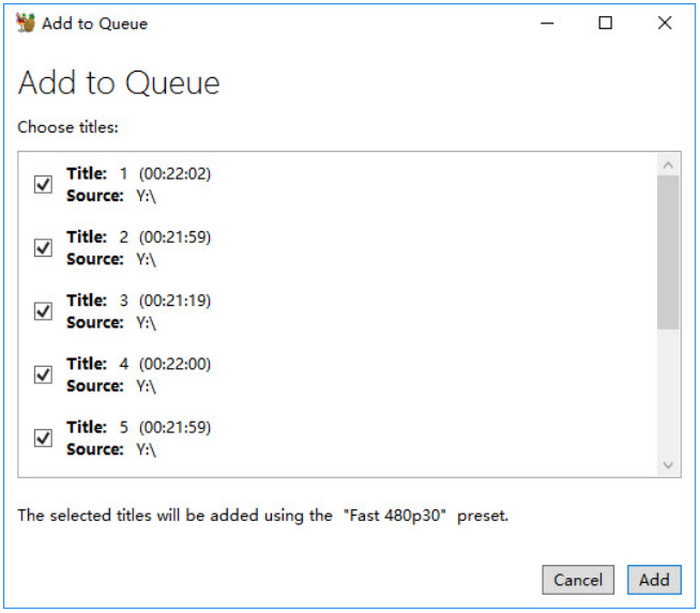
Step 2. Open HandBrake on your computer and load the DVD into the drive. Click the Source button and choose the DVD option from the dropdown menu. Select the title you want to extract.
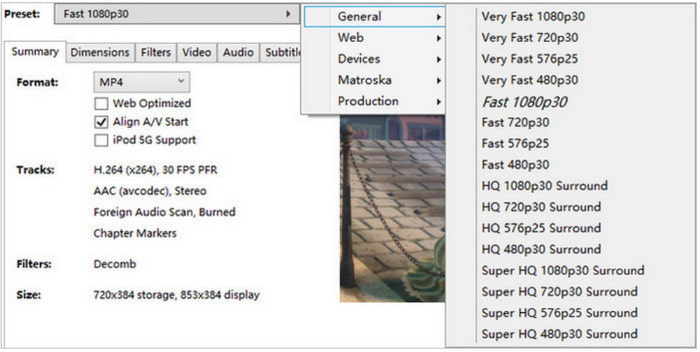
Step 3. Customize the output settings by changing the format, encoder, resolution, frame rate, etc. Then, click the Browse button and select the designated folder from your device. Click the Start Encode button to begin ripping the video.
Knowing that HandBrake is a free way to extract videos from DVDs, it makes DVD extraction convenient at any time. However, do not ignore its downsides. You may waste your time processing DVDs and end up with a low-quality result.
Although it is free and reliable, most user reviews of HandBrake focus on its advanced interface, making it unsuitable for beginners. However, you only need to explore HandBrake to get familiar with it, since it is not built for advanced users, but rather for those with intermediate skills.
Troubleshooting Tips
By default, HandBrake won’t be able to read encrypted DVDs, regardless of the copy protection implemented. To fix this issue, you have to learn how to download and install libdvdcss. Download it from the VideoLan website, then paste it into the HandBrake location.
Part 3. How to Rip Video from DVD with VLC
If you know VLC, it is a versatile multimedia player that streams almost all kinds of media types. However, it also offers a simple way to rip videos from DVDs, converting the extracted files to AVI, MKV, MP4, and others. Although it is only basic, it provides a good set of customization options, so you can still change the resolution, audio codec, and bit rate.
Pros
- User-friendly ripping process.
- Decent processing speed.
Cons
- Too limited in supported output formats.
- It is not suitable for professional DVD ripping.
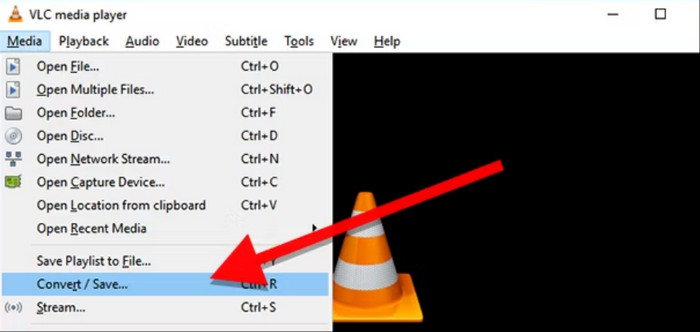
Step 1. Launch VLC Media Player on your PC and insert the DVD you want to rip. Then, go to the software's Media menu and choose the Convert/Save option.
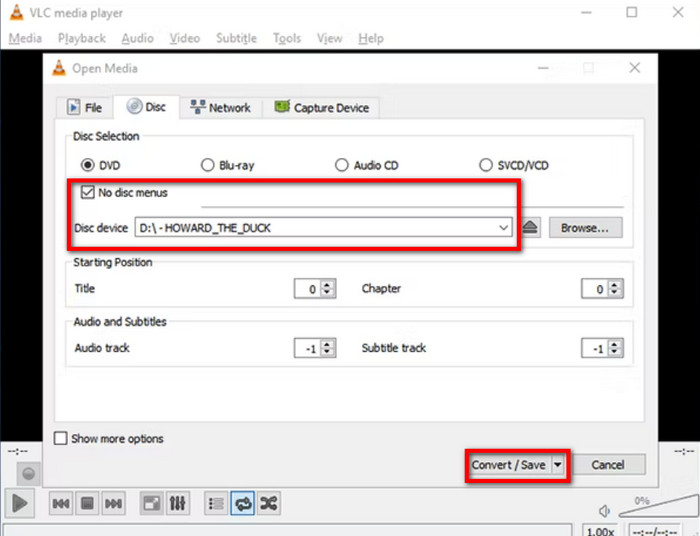
Step 2. Once the dialog box opens, go to the Disc tab and choose the disc's name from the Disc Device menu. Tick the No disc menus checkbox to avoid ripping only the title screen. Proceed to pick the chapters and titles you want to extract. Click the Convert/Save button to continue.
Step 3. Navigate to the Profile menu and select an output format. Then, set a destination folder and click the Start button. Once you've done this, you can use VLC to play the movie ripped from the DVD.
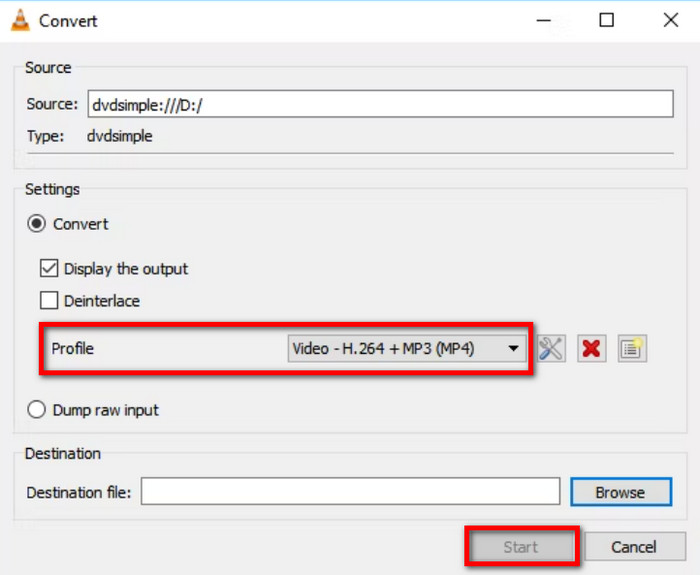
VLC is helpful for streaming and ripping DVDs. It may be basic, but it is still convenient for homemade DVDs. Unfortunately, it has too many limitations that can lead to poor results or an unproductive ripping procedure.
When it comes to media players, VLC is well-known and quite trusted. However, using it as a DVD ripper works well only in emergencies. This is the common insight of its users who have discovered how to use the software for basic DVD ripping.
How to Fix Muted Audio or Audio Sync Issues in VLC
A common issue when ripping DVDs with VLC is that the exported MP4 file plays fine, but has no sound at all or suffers from severe audio delay. To prevent or fix this:
1. To Fix Muted Audio (Missing Audio Track): In the Convert / Save window, after selecting your profile, click the Wrench/Edit Icon next to the profile dropdown. Go to the Audio codec tab, make sure the Audio checkbox is checked, and manually select MP3 or AAC from the Codec dropdown. Under Bitrate, set it to at least 128 kb/s or 192 kb/s instead of leaving it at the default.
2. To Fix Audio Out-of-Sync or Glitches: In VLC’s top menu, choose Tools > Preferences > Input / Codecs. Under the Codecs section, change Hardware-accelerated decoding from Automatic to Disable. Also, make sure to check the No disc menus box under the Disc tab before ripping to avoid capturing corrupted menu audio tracks.
Part 4. Tips and Troubleshooting
1. How to Fix Pixelated, Distorted, or Blocky Video (Glitches/Artifacts)
- The Cause: This usually occurs when the ripper encounters bad sectors on a dirty disc, or when software decoding fails to handle copy protection correctly.
- The Fix:
1. Gently clean the optical disc with a soft microfiber cloth (wipe from the center out to the edge).
2. Switch the decoding engine in your software or enable GPU Hardware Acceleration (NVIDIA NVENC / Intel QSV) to handle video rendering.
3. If using HandBrake or VLC on an encrypted disc, ensure libdvdcss is installed properly, or switch to a tool with native decryption support.
2. How to Fix Audio/Video Desync (Audio Delay or Sound 2 Seconds Behind)
- The Cause: Commercial DVDs often use Variable Frame Rates (VFR) or complex audio stream interleaving, which can cause the audio track to drift away from the video during transcoding.
- The Fix:
1. Force Constant Frame Rate (CFR): HandBrake under the Video tab, set the Frame Rate (FPS) option to Constant Framerate instead of Variable.
2. Disable Hardware Decoding in VLC: If using VLC, go to Tools > Preferences > Input / Codecs and set Hardware-accelerated decoding to Disable.
3. Check Audio Codec Compatibility: Set the output audio encoding format to standard AAC or MP3 with a sampling rate of 48 kHz.
3. How to Fix Ripping Process Freezing or Sticking at 50% / 99%
- The Cause: The software has hit a "bad sector" intentionally created by Disney 99-title DRM, or the physical drive cannot read a scratched region on the disc.
- The Fix:
1. Check if the disc has physical scratches. If so, try lowering the drive's reading speed.
2. If the disc is clean, it is likely a DRM fake track issue. Ensure your software is reading the correct main title (the track with the actual full movie length, usually 90–120 minutes) rather than a dummy track.
4. Pro Tip: Enable Hardware Acceleration to Boost Ripping Speed by 5x–10x
Converting or extracting an entire 90-minute DVD can be highly resource-intensive on the CPU and time-consuming – using pure software decoding (dependent solely on the CPU) may take more than half an hour. If you wish to significantly accelerate the processing speed without compromising video quality, be sure to enable hardware acceleration in the DVD extractor's settings. Depending on your hardware configuration, you may consider the following specific techniques:
- NVIDIA NVENC / CUDA: This is excellent for users with Intel/AMD CPUs paired with NVIDIA GTX/RTX graphics cards. It offloads encoding tasks directly to dedicated GPU cores.
- Intel QuickSync Video (QSV): Ideal for Windows laptops and desktops running Intel Core processors with integrated graphics.
- AMD AMF / VCE: Designed for PCs running AMD Radeon graphics cards.
- Apple Silicon VideoToolbox (M1/M2/M3/M4): Essential for modern Mac users, delivering lightning-fast H.264/HEVC encoding while using very little battery power.
The Real-World Impact: By toggling on hardware acceleration, a standard DVD ripping task that usually takes 45 minutes on CPU can be reduced to just 3 to 8 minutes—all while keeping your computer running cool and quiet.
Part 5. FAQs about Ripping Video from DVD
-
Can you rip a DVD with Windows Media Player?
Windows Media Player does not natively support ripping DVDs. Its main purpose is to stream supported video files on your computer, such as WMV and MP4. However, it has limited support for ripping audio CDs on any Windows OS version before Windows 10.
-
How to convert DVDs to MP4 for free?
Blu-ray Master Free DVD Ripper is the best way to extract and convert DVDs to MP4. It is highly capable of processing any DVD type with promising output results. Other alternatives you can try include HandBrake and VLC, both available on Windows, Mac, and Linux.
-
How long does it take to convert a DVD to MP4?
Converting or ripping a DVD to MP4 depends on several factors. The conversion process may take longer depending on the DVD length you rip, the software used, the computer's capabilities, and the output quality. Depending on these factors, the approximate time can range from 30 minutes to hours.
-
What is the best free way to rip a copy-protected DVD in 2026?
All the programs featured on this list are good, free options for ripping copy-protected DVDs. However, Blu-ray Master Free DVD Ripper is the best among them since it natively bypasses DRM systems. Both HandBrake and VLC need a plug-in to read protected DVDs.
-
Can HandBrake rip encrypted commercial DVDs?
No, it cannot natively. HandBrake requires a specific plug-in to open encrypted DVDs. The plug-in required for DVD protection bypass is libdvdcss.
-
Why is my DVD ripping taking so long, and how can I speed it up?
The speed of DVD ripping is affected by various factors. The most notable being the size of the DVD media and your hardware. The speed of your DVD ripper tool also matters.
-
Which format should I choose when ripping DVDs: MKV or MP4?
Both are good options. MKV if you want higher-quality video, but at a larger file size. MP4 if you want maximum compatibility and a more compact file size, at the expense of quality.
Wrapping up
You have learned how to rip movies from DVDs using free solutions on Windows and Mac. VLC and HandBrake are well-known, free, open-source tools for extracting video from DVDs. But since they do not perform well in terms of output quality or processing time, you can consider using Blu-ray Master Free DVD Ripper to rip your DVDs. It has all the basic features you need for editing and delivers reliable results for DVD-to-digital conversion. It is available for free, so click the Free Download button to try it now.
More from Blu-ray Master
Rip DVDs to Digital
Fast and free ripping software to decrypt all DVDs to digital easily on your computer.
100% Secure. No virus
