

Oct 09, 2026Posted by Kevin Miller to Rip DVD
Quick Summary:
Discover the best DVD ripper tools to add subtitles to digitally ripped DVDs and improve their accessibility. We reviewed and provided a detailed tutorial on three different methods for adding subtitles during DVD ripping.
To learn the strengths of each tool, read our quick summary on each program’s niche:
Hardcoding Subtitles to Videos: Blu-ray Master Free DVD Ripper
Integrating Softsubs to DVD Videos: HandBrake
Adding Subtitles While Watching DVD Media: VLC Media Player
Although not essential, adding subtitles to DVD content, such as movies and television shows, is important for watching foreign media and for understanding hard-to-follow dialogue tracks. As such, learning how to embed external SRT subtitles is an essential setting for DVD rippers to make digitized DVD media more accessible. In this article, we will review and highlight three methods for adding subtitles to DVDs when digitizing physical media. We will provide a detailed tutorial for each program to help our readers learn the basics of using such options.

- Part 1. Understanding DVD Subtitle Architecture and Challenges
- Method 1. The Ultimate Solution – Ripping and Embedding Subtitles with Blu-ray Master Free DVD Ripper
- Method 2. HandBraking Your Way to Hardcoded Subtitles
- Method 3. VLC Media Player On-the-Fly Subtitle Merging
- Part 5. Comparison Matrix of the Three Methods
- Part 6. FAQs About Adding Subtitles to DVDs
Part 1. Understanding DVD Subtitle Architecture and Challenges
Why Direct Subtitle Editing on Physical Discs is Impossible
Unfortunately, official DVDs offer limited subtitle editing options because the DVD’s built-in settings constrain them. This makes adding optional subtitles to DVDs very limited, since advanced options such as language changes, subtitle syncing, and other advanced editing are absent. As such, direct subtitle editing in physical DVDs themselves is truly impossible.
The Role of DVD Ripping in Modern Subtitle Integration
To bypass the limitations of built-in DVD subtitle editing, a good solution is to rip the DVD content to digital media. Using this option, it will be possible to add more accurate SRT subtitle files, and advanced options such as different languages and syncing controls will also be available. Fortunately, it’s possible to add external SRT subtitles to DVD video directly in most DVD ripper programs.
Method 1. The Ultimate Solution – Ripping and Embedding Subtitles with Blu-ray Master Free DVD Ripper
The first method we will present for adding subtitles to ripped DVD data will be Blu-ray Master Free DVD Ripper. When ripping DVDs in the program, the software includes a dedicated subtitle editing menu that lets you embed an external subtitle file during ripping.
As such, adding more accurate SRT subtitles can be done in the program with a few clicks, making it the most accessible option among the methods presented in this article. This makes the program a solid choice for adding subtitles to DVD ISO or digitally ripped media.
Furthermore, the program is equipped with a powerful hardware acceleration system to ensure your software runs efficiently while ripping DVDs. To learn how to use the program, make sure to read our tutorial below.
Do not forget to download it as well to follow our provided guide easily.
Free Download
For Windows
Secure Download
Free Download
for macOS
Secure Download
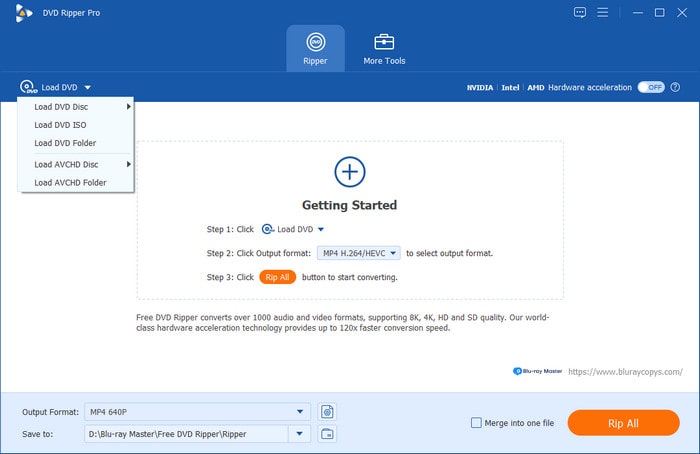
Step 1:Open Blu-ray Master Free DVD Ripper and select Load DVD > Load DVD Disc. Then select Full Title List in the pop-up menu that will appear to have the program access the entire DVD content.
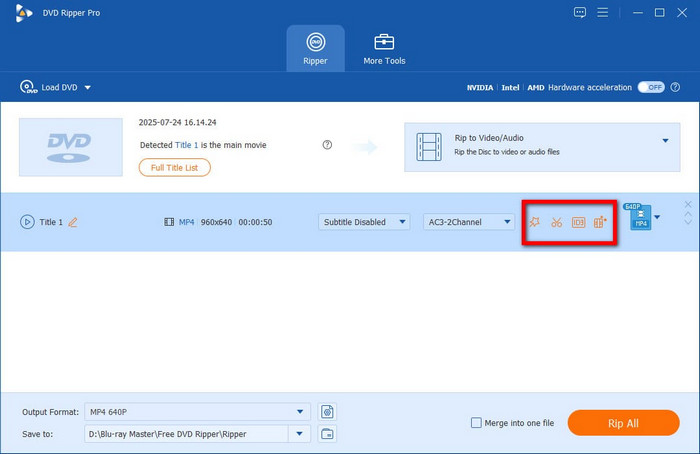
Step 2:Once the DVD media has been loaded, select the Edit button in the video to access the subtitle settings.
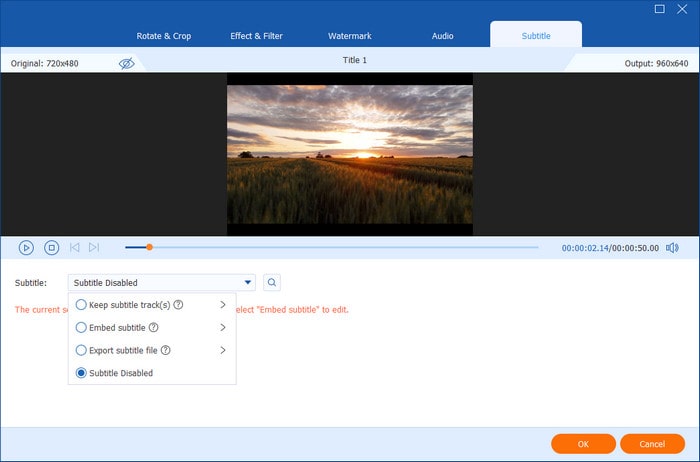
In the menu that will open, go to the Subtitles tab. Then, select the Subtitle option and click on the Embed Subtitle option. Import the SRT subtitle file you want to add to your DVD media, then click OK to confirm.
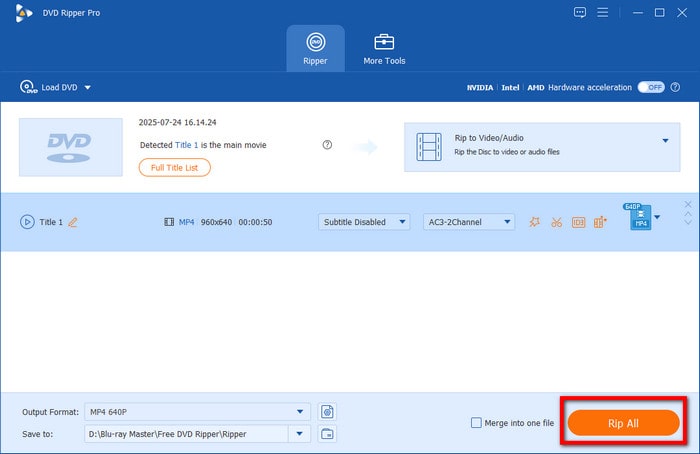
Step 3:After adding the subtitle, you will be redirected back to the Ripper menu. Click on Rip All to begin ripping the DVD content now with the subtitle added.
Now that you have learned the basics of adding subtitles to a DVD, we hope this article has provided you with useful tips for adding subtitles easily to digital videos when ripping physical DVD media.
Tips
Ensure your external .srt file matches the exact frame rate and naming convention of the primary video track before initiating the rip to avoid audio-sync drifting.
Method 2. HandBraking Your Way to Hardcoded Subtitles
Since the previous method added subtitles to a DVD via SRT embedding, the next option we will highlight is software that adds or embeds subtitles to a DVD rip without quality loss. This will be none other than HandBrake, which adds subtitle files as soft subs or hardcodes them into the video before ripping.
Available in the program’s dedicated Subtitle tab, an option to Import Subtitles may be selected to add an external SRT file to the DVD media loaded in HandBrake. Once added, an option to burn the subtitle code into the video itself can be enabled to hardcode the subtitle into your video.
Unfortunately, HandBrake has a severe limitation regarding protection bypass. By default, the software cannot open copy-protected DVDs without a third-party plug-in. This makes the software suitable only for personal DVDs or for users with intermediate knowledge of plug-in installation.
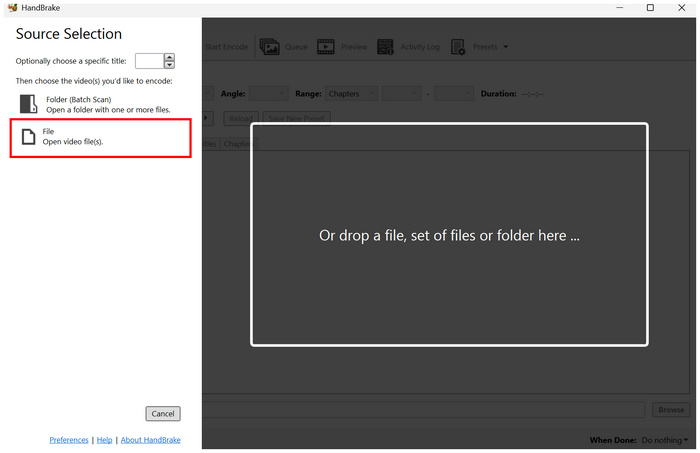
Step 1:Open HandBrake and select File to open the DVD you loaded on your computer.
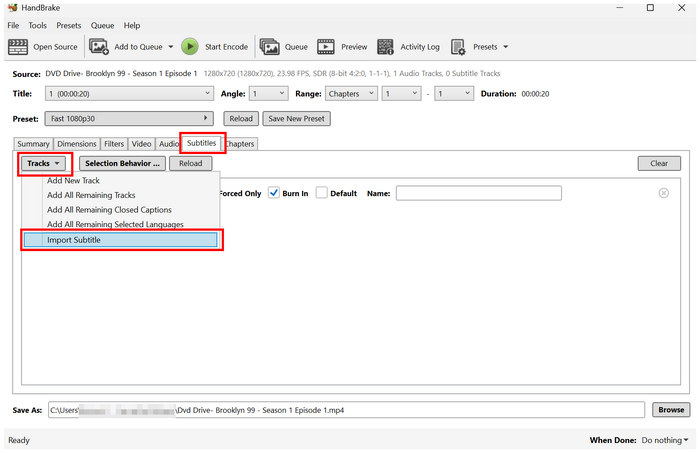
Step 2:In HandBrake’s main menu, go to the Subtitle tab. Then, select Tracks and choose Import Subtitle. Navigate through your files to add the subtitle file you want to hardcode.
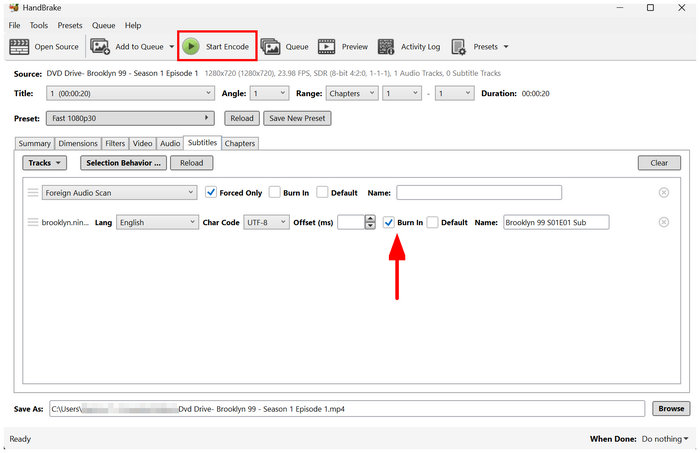
Step 3:With the Subtitle file now added, select the Burn In checkbox to write the subtitle directly to the video. Do not check the box if you wish only to add the SRT as a soft sub. Once these are set, select Start Encode to begin ripping the DVD media with the added SRT hardcoded.
If you want to add external subtitles when ripping DVD to MP4, HandBrake may be one of the best free DVD rippers that support subtitles. However, since it has poor protection bypass, the program is not advisable for commercial DVDs.
Tips
Always run a short-range preview (e.g., 30 seconds) before committing to a full-length transcode to verify subtitle font rendering and placement.
Method 3. VLC Media Player On-the-Fly Subtitle Merging
With two of the previous options adding subtitles to DVDs via embedding, soft subs, and hardcoding, the third method we will discuss is VLC Media Player, which adds subtitles to the media player itself rather than to the video.
If you do not want to permanently embed your DVD media, adding subtitles to the media player is your next best option. Fortunately, VLC has advanced features for adding external subtitles to videos it plays, whether from local files or online servers.
When looking for a way to bypass DVD copy protection and add custom subtitles, VLC Media Player is your best bet. However, it suffers from the same problem as HandBrake, since it cannot open encrypted DVDs. To learn how to add subtitles in the program, read our three-step guide below.
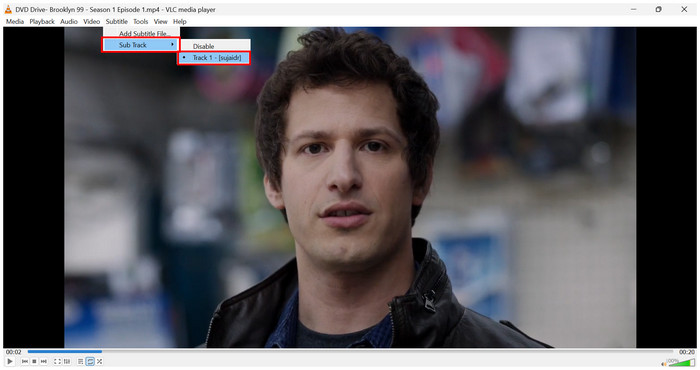
Step 1:Open VLC Media Player and select Subtitle and Add Subtitle File. Navigate to your files to find the SRT file to add to the video.
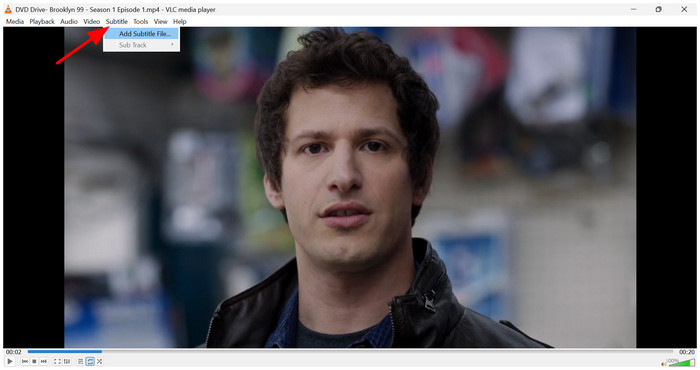
Once the SRT file is added, hover over Sub Track and click the added subtitle.
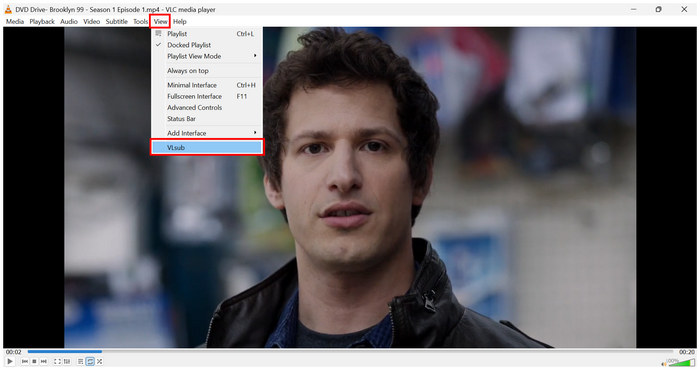
Step 2:If you do not have a subtitle file for your DVD media, select View, then click VLsub.
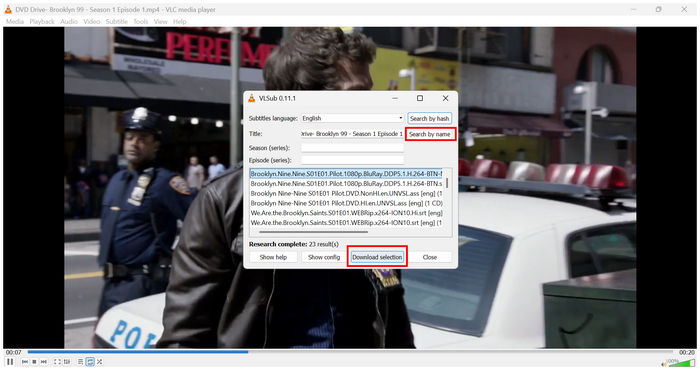
Step 3:In the VLsub settings, type the title of your DVD in the Title section. Then click on Search by Name. VLC will scan the internet for compatible SRT files. Select one, then click Download Selection to add the selected subtitle to your media.
If you want to play DVDs on your computer and only want subtitles during playback, VLC should be enough—the option to add subtitles while watching is a good, flexible choice.
Tips
Clean your optical disc surface with a microfiber cloth before scanning to prevent read errors caused by surface scratches.
Part 5. Comparison Matrix of the Three Methods
For a direct comparison of the programs, we have provided a short table below that shows how each program performs in terms of adding subtitles, accessibility, and overall performance.
We also disclosed how each program was tested to provide an overview of the full capabilities of each DVD ripper software.
| DVD Ripper Tool | Subtitle Embedding | Ease of Use | Performance and Speed |
| Blu-ray Master Free DVD Ripper | Hardsub | Easy | Fast |
| HandBrake | Softsub Hardsub | Intermediate | Average |
| VLC Media Player | Does Not Embed Subtitles | Easy | Fast |
How We Tested and Reviewed the Tools
- The DVD rippers are tested on a modern Windows laptop to assess how each tool performs on modern hardware.
- The device used for testing runs on an AMD Ryzen 5 iGPU with 16GB of RAM.
- Only the software under test is running during performance assessment.
- The quality of ripped DVD media was tested side by side.
- The subtitle sync was also reviewed throughout the movie to ensure it was synced correctly.
Part 6. FAQs About Adding Subtitles to DVDs
-
Can I add custom foreign-language SRT files to a commercial, encrypted DVD?
No, you cannot. Subtitles in commercial DVDs cannot be adjusted. You have to rip the DVD content using DVD decoders first to customize these files.
-
How do I fix out-of-sync subtitles after ripping a DVD?
If you hardcoded the subtitles, they cannot be adjusted. However, if you are using soft sub, you may edit the subtitle settings in the ripper tool. You may also use external subtitles via your multimedia player such as VLC.
-
Does burning subtitles into a video degrade the original 1:1 image quality?
Yes, it will. Hardcoding subtitles to videos via burning will reduce their quality. However, it can be minimized based on your DVD ripper.
-
What is the difference between soft subtitles and hardcoded subtitles in DVD rips?
Soft subtitles may be edited and turned off on your videos. Hardcoded subtitles are burned directly to the DVD video. Good examples are Blu-ray Master Free DVD Ripper and HandBrake.
-
Why won’t my standalone media player recognize the embedded subtitles?
Your media player may not have a subtitle feature. To avoid such an error, use more advanced video players. A good option is VLC Media Player.
Conclusion
Now that we have provided the best software for adding subtitles to DVD, we hope you will find it easier to select the method that best suits your needs. For directly embedding subtitles into the video, use the beginner-friendly Blu-ray Master Free DVD Ripper. If you want an option to code or add soft subs, use HandBrake. However, for adding subtitles during watch sessions, VLC Media Player may be enough.
More from Blu-ray Master
Rip DVDs to Digital
Fast and free ripping software to decrypt all DVDs to digital easily on your computer.
100% Secure. No virus
