

Oct 09, 2026Posted by Kevin Miller to Rip DVD
Quick Summary:
There are three methods ideal for recovering DVD data, each suited to different niches.
To learn the strengths of each DVD ripper tool, we have provided their main strengths:
Easy to Use and Balanced Ripping: Blu-ray Master Free DVD Ripper
Advanced DVD Ripping Customization: MakeMKV
DVD Transcoder Program: HandBrake
Since the rise of digital media, preserving data stored on physical DVDs has been a staple for most users. Unfortunately, even these storage solutions are not immune to structural issues, as the risk of scratches and other damage remains. However, data preservation is another problem that must be addressed when ripping DVDs. In this article, we will discuss the best DVD ripping tools for ripping subtitles from DVDs, ensuring your movies are enjoyable with accurate subtitle tracks. We will review and provide a quick tutorial on three methods that preserve the original subtitle streams, maintain video quality, and address audio/video sync issues.

- Part 1. Why Extracting DVD Subtitles Requires Specialized Tools
- Method 1: The Ultimate All-in-One Solution – Blu-ray Master Free DVD Ripper
- Method 2: Open-Source Customization – Using MakeMKV for Passthrough Subtitles
- Method 3: Post-Processing Transcoder – HandBrake for Hardcoded or Soft Subtitles
- Part 5. FAQs About Ripping Subtitles on DVDs
Part 1. Why Extracting DVD Subtitles Requires Specialized Tools
Understanding DVD Subtitle Formats (VOB/PGS vs. Text-based SRT)
Among DVD subtitle formats, two popular formats are commonly used: image-based overlays (VOB, PGS) and text-based subtitles (SRT). Due to their differences, overlay subtitles are embedded in media files, which limits editing options. On the other hand, text-based subtitles are customizable in terms of syncing, font style, and in some cases, language.
The Challenge of Commercial Copy Protection and Region Locks
Although DVD ripping is simple and basic at its core, you still need to deal with commercial copy protection and region code restrictions. As such, this was also taken into consideration when learning how to rip subtitles from DVD. All of the DVD decoder methods we have featured below can bypass basic and advanced DVD copy protections built-in or via plug-in.
Method 1: The Ultimate All-in-One Solution – Blu-ray Master Free DVD Ripper
Overview and Core Advantages (Hardware Acceleration, 1:1 Lossless Output)
The first method we will discuss is Blu-ray Master Free DVD Ripper, the most balanced all-in-one solution for beginner-friendly DVD ripping. It is performance-based, with features such as hardware acceleration and lossless-ripped video outputs.
Although its features are quite advanced for DVD ripping, its interface was designed to be as accessible as possible and optimized for beginners. The buttons and settings for using the program effectively are all well-labeled, making them easy to use.
When used as a DVD subtitle ripper, Blu-ray Master also offers multiple subtitle editing options if the loaded DVD has them. This makes the tool a solid option for ripping DVD content for digital consumption.
To learn how to use the program for simultaneously ripping DVDs and subtitles, make sure to read our tutorial below. Do not forget to download it as well to make it easier to follow our tutorial.
Free Download
For Windows
Secure Download
Free Download
for macOS
Secure Download
Step-by-Step Guide: How to Rip Subtitles and Video Simultaneously
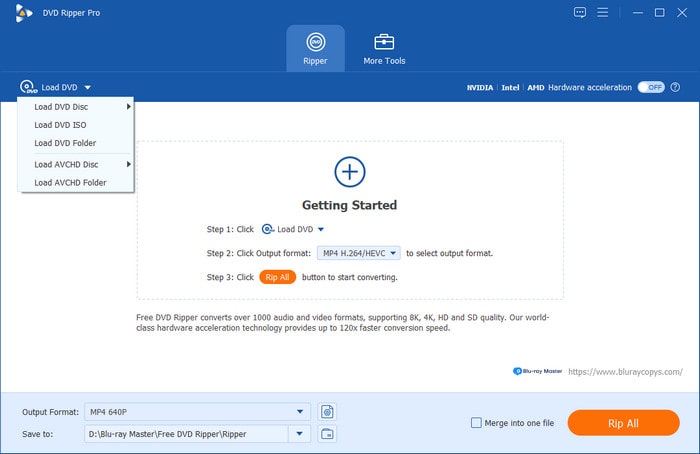
Step 1.Open Blu-ray Master Free DVD Ripper, then select Load DVD > Load DVD Disc to open the loaded DVD media on your computer.
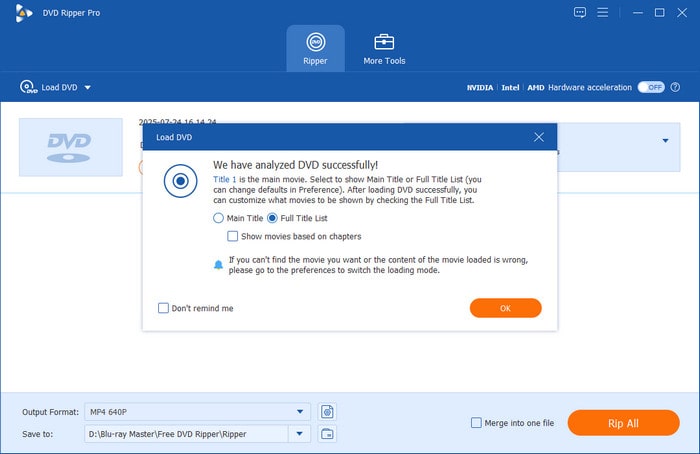
To extract subtitle data from the DVD, select the Full Title List option to capture all the written data on the disc.
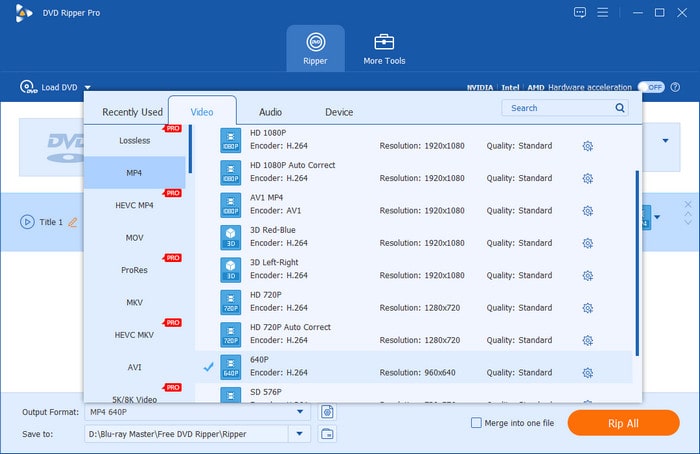
Step 2.With the DVD data loaded, select Output Format and choose the format you want to convert your DVD to. Some safe options are MP4 or MKV.
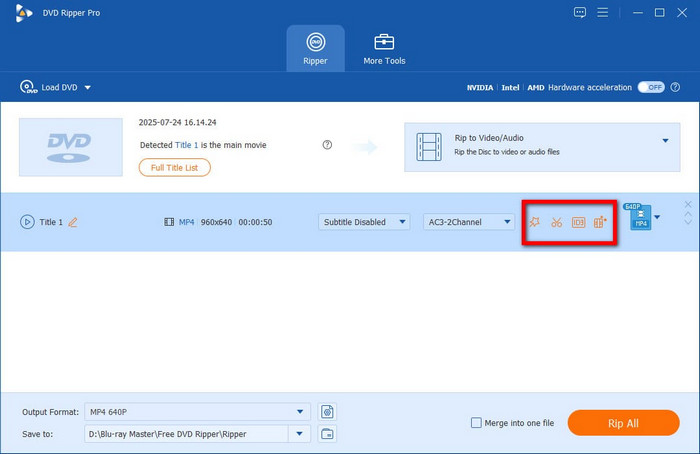
Back in the main menu, select the Edit button for the loaded DVD media.
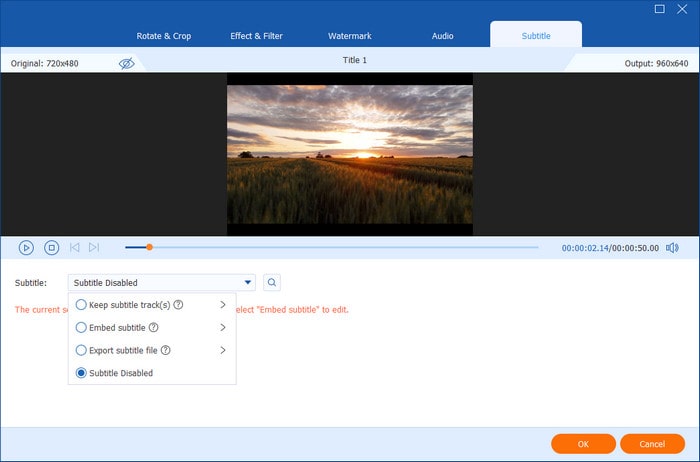
Step 3.In the Edit tab, go to Subtitle. Then select Subtitle, and choose Export Subtitle to create a VOB file with subtitles once your video is ripped. Select OK to confirm.
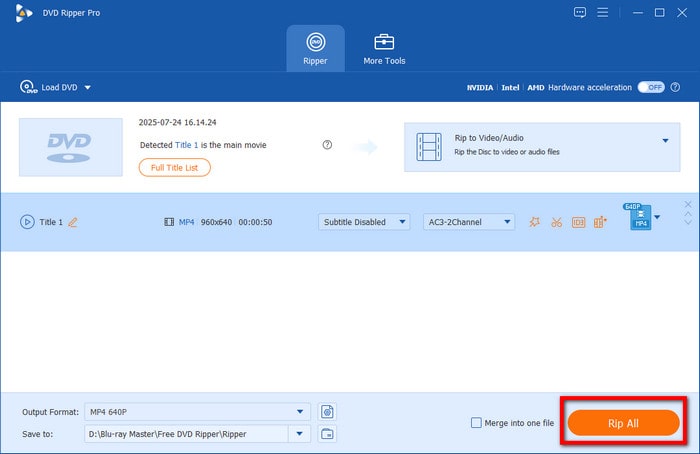
With both the Output Format and Subtitle settings now adjusted, you can now click on Rip All in the main menu to begin producing a digital video copy of your DVD and a VOB subtitle file.
Among the options on this list, we highly recommend Blu-ray Master Free DVD Ripper as the easiest way to learn how to rip forced subtitles from a DVD.
Tips
Ensure a stable power supply for external USB optical drives during long batch-ripping sessions to prevent read errors caused by voltage drops.
Method 2: Open-Source Customization – Using MakeMKV for Passthrough Subtitles
Overview and Ideal Use Case (Lossless Subtitle Stream Preservation)
Moving on to the next option, we have MakeMKV, another program you can use to learn how to rip subtitles from DVDs on macOS and Windows. Designed as a dedicated DVD and Blu-ray converter tool, this software makes for a solid choice if you want to ensure your digital format conversion is lossless and preserves stream quality.
Similar to the previous option, MakeMKV can also preserve DVD subtitles, since the MKV format is an excellent container format that keeps advanced subtitle data intact.
Unfortunately, while MakeMKV excels at 1:1 lossless extraction and handling complex structures, it produces large files and lacks direct transcoding options for mobile-friendly formats like MP4/H.264 without a secondary conversion.
Step-by-Step Guide to Extracting PGS Subtitles into MKV Containers
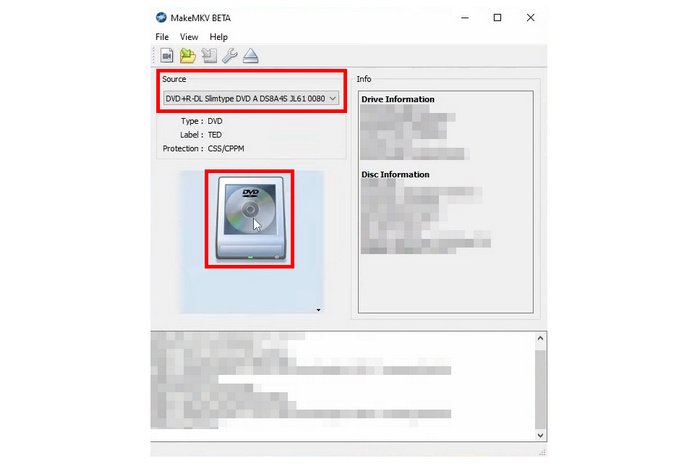
Step 1.Open MakeMKV, then select Source and choose the loaded DVD. Next, select the DVD icon to start reading the loaded DVD.
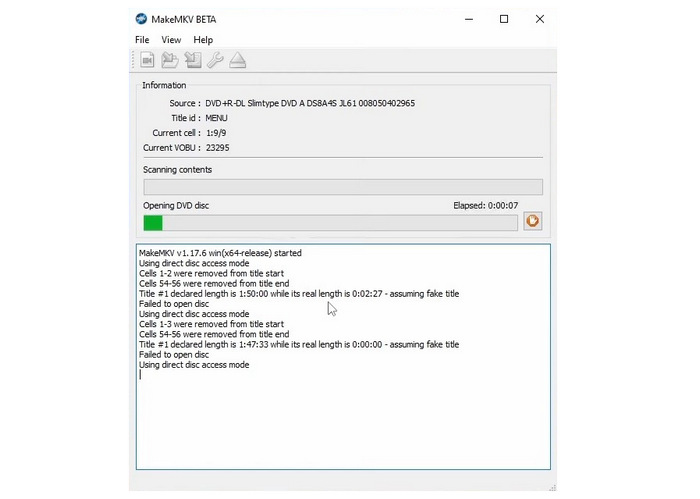
Step 2.Wait for MakeMKV to read the DVD content.
Step 3.After the DVD content is read, the program will display the list of content it has read. To convert the entire DVD to MKV, click the MakeMKV icon.
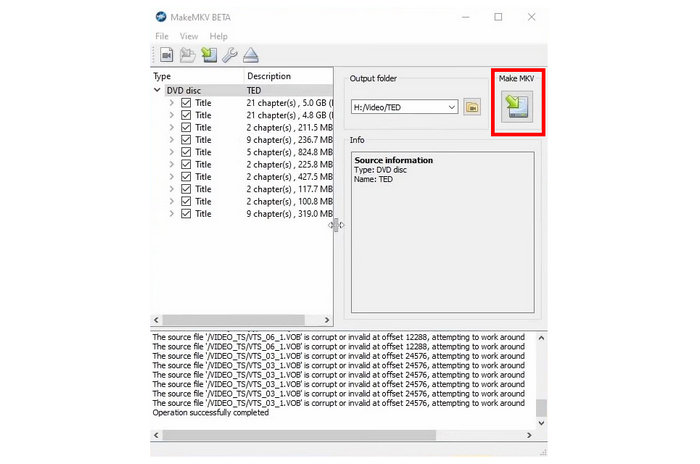
Due to the program’s limitations in producing raw MKV files, the problem with MakeMKV lies in the size of its files and its suboptimal compatibility stemming from its unconventional codec. It also cannot be used for users who want to learn how to rip subtitles from DVD to an SRT file. As such, the program is better used as a secondary ripper alongside HandBrake, which is the third method in our article.
Method 3: Post-Processing Transcoder – HandBrake for Hardcoded or Soft Subtitles
Overview and Ideal Use Case (Embedding or Burning Subtitles into Video)
Finally, the third method we will discuss for learning how to rip subtitles from a DVD on Mac or Windows is HandBrake. Similar to MakeMKV, this program is a DVD encoder for converting DVD media to digital video.
In addition to extracting subtitles, the tool can also be used to burn external subtitle files, such as SRT, to the video it processes. This makes the software the best choice for writing hardsubs, ensuring your video is easily accessible with subtitles.
Unfortunately, HandBrake has a major limitation when it comes to reading copy-protected DVDs. This makes the program severely limited if you plan to produce a digital backup of commercial DVDs with a heavy copy-protection system.
Step-by-Step Guide: Scanning and Selecting Subtitle Tracks in HandBrake
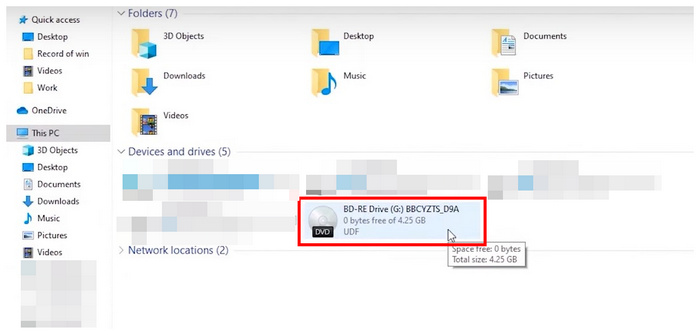
Step 1.Load the DVD into your computer using a built-in disc drive or third-party DVD hardware. Check your computer’s file manager to ensure the DVD has been loaded.
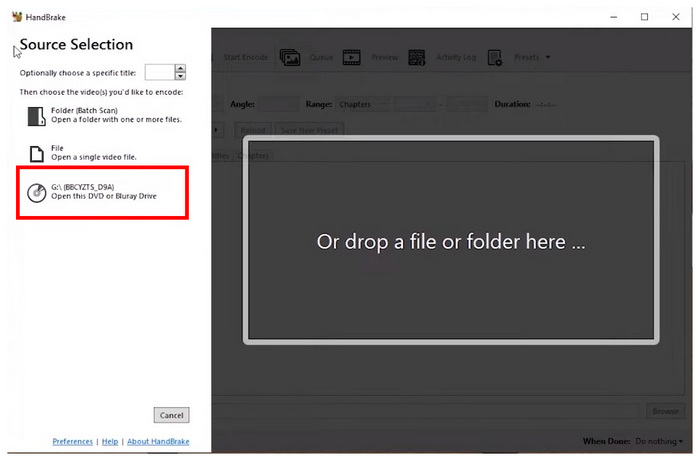
Step 2.Open HandBrake, then select the loaded DVD in the program’s opening menu to set it as the source. HandBrake will now read the loaded device.
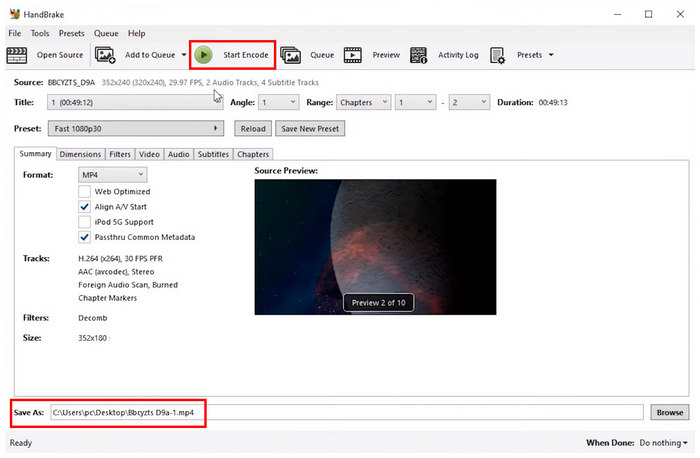
Step 3.Once HandBrake has read the loaded DVD, you can adjust the settings in HandBrake’s menu. Otherwise, click on Start Encode to begin the DVD decrypting process. Note that the encoded file’s location may be adjusted using the Save As location path on the lower part of the menu.
If you plan to use HandBrake to rip DVD content and subtitles, you can still use the tool by installing the libdvdcss codec, which is required to bypass the standard CSS protection.
Part 5. FAQs About Ripping Subtitles on DVDs
-
Can I extract subtitles from a DVD as an independent SRT file?
No, it will be complex. Subtitles on DVDs are overlay-based media files. As such, DVD subtitles are written in VOB format, unlike SRT, which is text-based.
-
How do I handle forced subtitles for foreign language scenes during a DVD rip?
Make sure the DVD ripper you use preserves the subtitle data. Good examples are Blu-ray Master Free DVD Ripper and MakeMKV. Both options can preserve raw subtitle data.
-
Why are the ripped DVD subtitles out of sync with the video playback?
There might be an issue during the ripping process. To ensure that the subtitles are set properly, use a DVD ripper with a dedicated subtitle editor. Blu-ray Master Free DVD Ripper is a good example.
-
Is it possible to rip subtitles from a region-locked DVD without changing my computer’s drive region?
Yes, there are. There are DVD ripper tools that can bypass region codes via built-in protection-bypass features. Among the programs presented in this article, both Blu-ray Master Free DVD Ripper and MakeMKV breach DVD copy protection.
-
What is the difference between embedding soft subtitles and burning hard subtitles into the video?
Soft subtitles give their users more customizability. Meanwhile, hard subtitles are more straightforward to use. Simply choose whether you want to customize or use direct subtitles.
Conclusion
With the best methods for ripping subtitles from DVD media now discussed, we hope this article has provided our readers with the important information they need to capture subtitles. Although these subtitles are not saved in SRT format, the overlay-based option in VOB should be enough for general entertainment needs. To learn the best program for ripping subtitles, we recommend using Blu-ray Master Free DVD Ripper.
Free Download
For Windows
Secure Download
Free Download
for macOS
Secure Download
More from Blu-ray Master
Rip DVDs to Digital
Fast and free ripping software to decrypt all DVDs to digital easily on your computer.
100% Secure. No virus
