

Sep 23, 2026Posted by Kevin Miller to Rip DVD
Quick Summary
Each program has its own strengths and particular niche.
To determine the best option for ripping DVDs with subtitles, we have outlined the key strengths of each DVD ripping tool.
Streamlined Subtitle Retention: Blu-ray Master Free DVD Ripper
High-Speed DVD Decryption: DVDFab DVD Ripper
Lossless DVD Backup: MakeMKV
Among physical media stored on DVDs, physical degradation and aging are constant threats. As such, the immediate solution to this problem is to address these common pain points through digital archiving. However, this problem persists because archiving may not preserve important data on the DVD, such as subtitles. In this article, we will provide the best DVD ripping tools that you can use to learn how to rip a DVD with subtitles. These programs are selected because each has a reliable workflow that guarantees 1:1 lossless quality while preserving all subtitle data.

Table of Contents
- Part 1. The Core Challenge of Preserving Subtitle Tracks During Optical Ripping
- Method 1: Streamlined Subtitle Extraction Using Blu-ray Master Free DVD Ripper
- Method 2: High-Speed Commercial Disc Decryption with DVDFab DVD Ripper
- Method 3: Lossless 1:1 Backup and Track Preservation Using MakeMKV
- Part 5. Comparative Evaluation: Performance, Speed, and Limitations
- Part 6. FAQs About Ripping DVDs with Subtitles
Part 1. The Core Challenge of Preserving Subtitle Tracks During Optical Ripping
Softsubs vs. Hardsubs: Choosing Your Final Output Format
Depending on the DVD media, the type of subtitles can vary. These are usually differentiated into softsubs and hardsubs. To learn what subtitle to add to your DVD, learn the difference between the two options.
First, softsubs are the subtitles that are not written in the video itself. Instead, they can be added to the video via your DVD player’s settings, making softsubs highly customizable with multiple languages, sync settings, and more. On the other hand, hardsubs are subtitles burned directly into the video. They are not customizable as they are embedded within the video.
If you prefer customizability, softsubs are the better option. It is also the better choice to rip DVDs with multiple audio tracks and subtitles. However, if you want to maximize your video’s watch quality, hardsubs should be your pick.
Avoiding Synchronization Drift and Missing Language Streams
Since DVD ripping directly interacts with the data written on the physical media, learning how to rip DVD movies with subtitles may not be as straightforward as ripping a DVD without subtitles.
To avoid synchronization issues, make sure that your softsub DVD has the correct subtitle settings. This will ensure that the video, audio, and subtitles are in sync. To ensure this is the case, use a DVD ripper that extracts a 1:1 copy.
Method 1. Streamlined Subtitle Extraction Using Blu-ray Master Free DVD Ripper
The first method we will discuss will be the most beginner-friendly DVD ripper tool: Blu-ray Master Free DVD Ripper. Among the options on this list, this program is both the easiest and the one that can handle 1:1 ripping easily.
As such, the program is an ideal option for a beginner seeking an intuitive interface, stable encryption features, and fast ripping speed due to its hardware-accelerated processing feature, making it a solid choice for personal backup tasks.
However, the program has a minor issue: it lacks multilingual batch MKV tag customization for deep, professional stream-editing options.
To learn more about the software, download it using the link below. Make sure also to read our tutorial for an easier time learning to use the tool.
Free Download
For Windows
Secure Download
Free Download
for macOS
Secure Download
Main Features:
- Supports ripping the DVD’s Full Title List for a 1:1 copy.
- Has advanced settings to let users configure subtitle tracks for DVD ripping.
- Preserves subtitles once the DVD media are converted to digital videos.
- Supports adding third-party subtitle tracks if your DVD has none.
- Beginner-friendly and easy to use.
Once you have prepared your external DVD driver and connected it to your computer, you can now follow our three-step guide to use Blu-ray Master Free DVD Ripper to rip DVDs with all their subtitles intact.
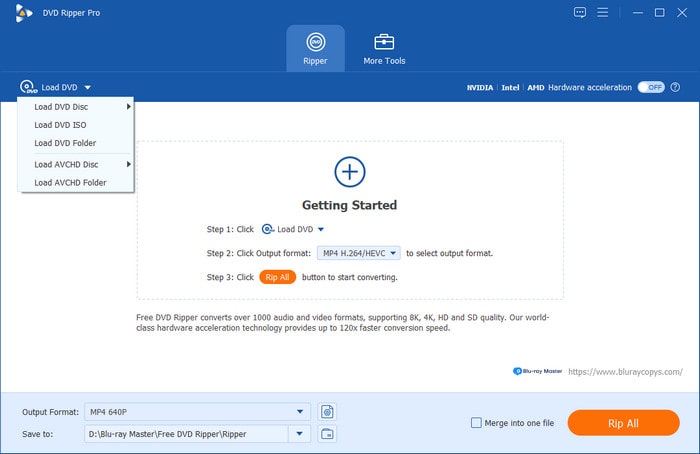
Step 1.Open Blu-ray Master Free DVD Ripper and click on Load DVD, then select Load DVD Disc to open the DVD media in the software.
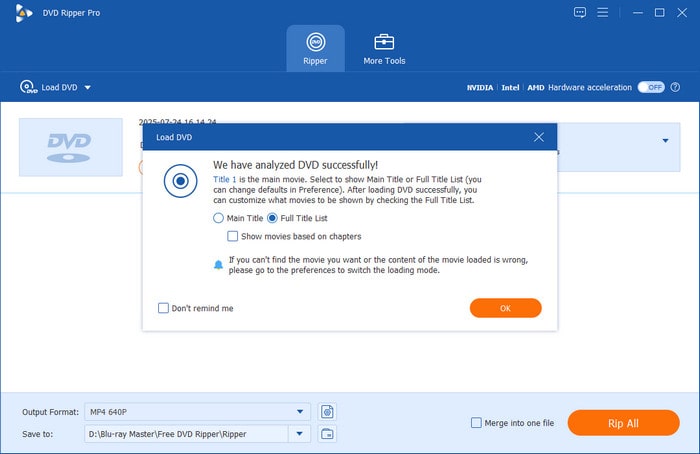
In the menu that pops up, select the Full Title List option to rip the entire DVD content.
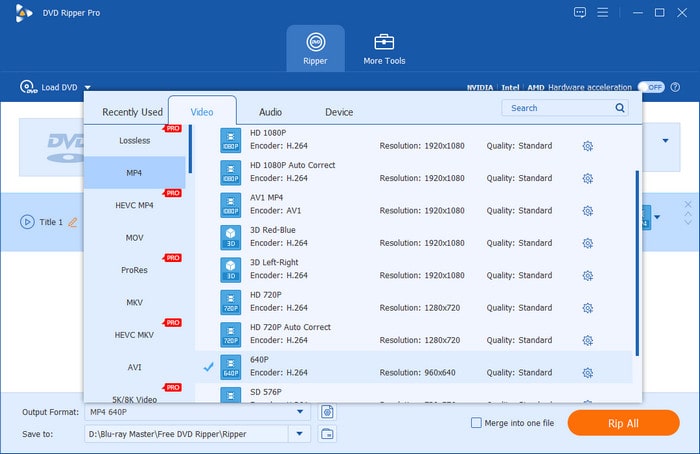
Step 2.Next, select Output Format and choose the video format you want to convert your DVD media to. MP4 or MKV are good options.
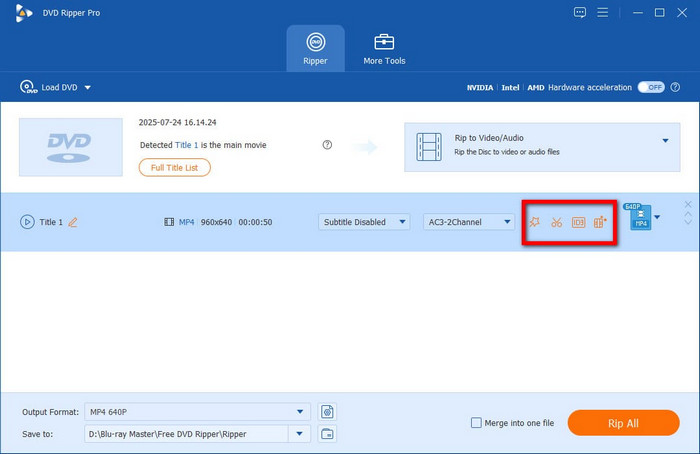
Once the format is set, select the Edit button for the video.
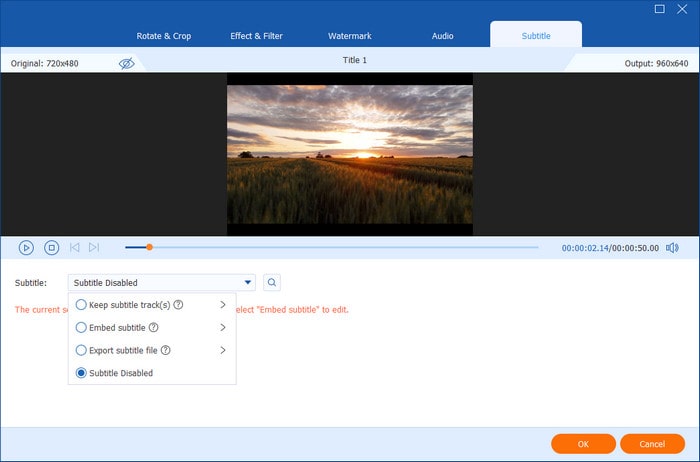
Step 3.In the Edit settings, select Subtitle. Then choose either Keep Subtitle Track, Embed Subtitle, or Export Subtitle, depending on how you want to add the data. Select OK to confirm.
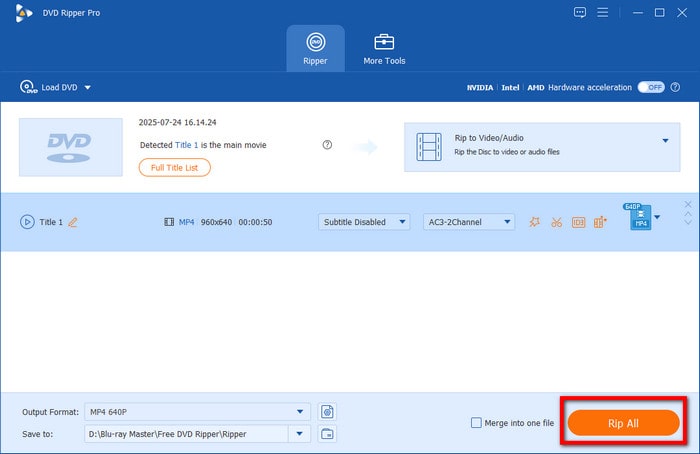
With the DVD format and subtitle option now set, click Rip All to begin converting the protected DVD content with subtitles.
With the program’s versatile subtitle options, we highly recommend using Blu-ray Master Free DVD Ripper whether you are ripping DVDs or embedding SRT subtitle files in videos.
Method 2. High-Speed Commercial Disc Decryption with DVDFab DVD Ripper
Moving forward to the next method, we have DVDFab DVD Ripper, one of the most popular choices for high-speed commercial disc decryption. In addition to its performance, the tool is a great choice for bypassing complex copy protections.
It has commercial-grade ripping performance due to advanced GPU acceleration. This makes the tool a reliable option for handling heavily encrypted studio discs. However, you have to pay DVDFab’s high subscription fees to access its practical features. This may be overkill if you only want to use DVD-ripping services.
Main Features:
- Supports adding multiple subtitle tracks.
- Offers the option to add hard subs to videos.
- Provides subtitle selection and advanced customization options.
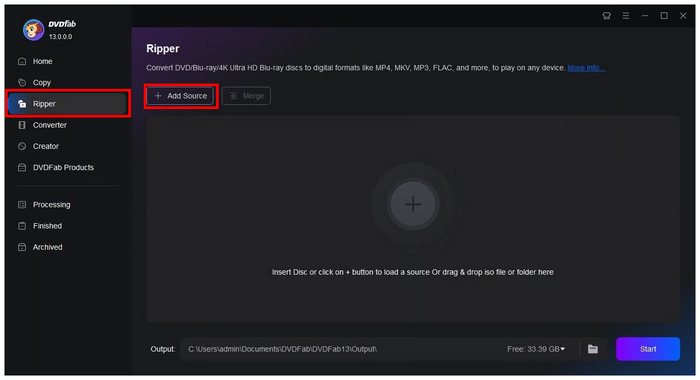
Step 1.Open DVDFab DVD Ripper and go to the Ripper section. Then, select Add Source to import the loaded DVD into the program.
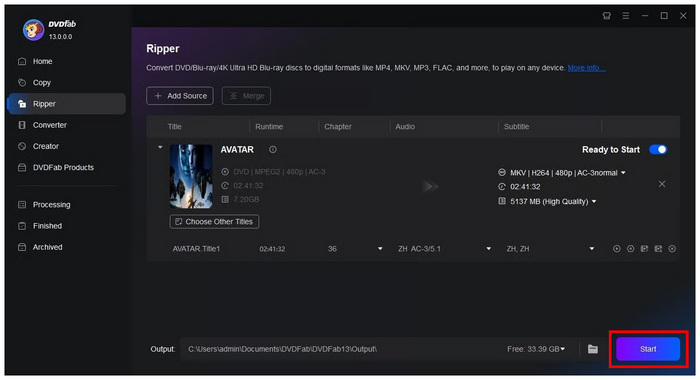
Step 2.Once the DVD is loaded, you can adjust the ripping parameters, including chapters, audio, and subtitles. By default, the software can preserve DVD subtitle data. Select Start once the settings are adjusted.
Step 3.Finally, wait for the DVD ripping process to finish.
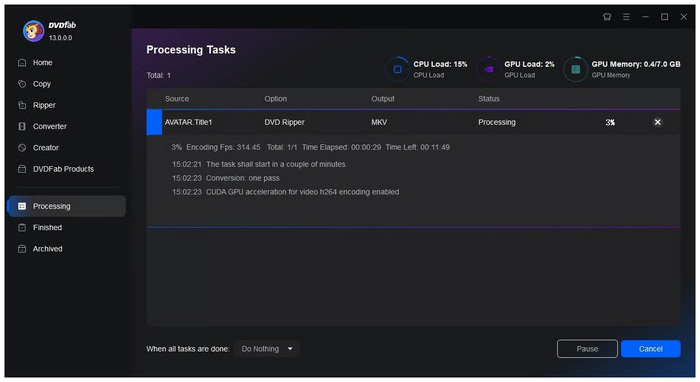
For advanced ripping, we highly recommend using DVDFab DVD Ripper if you can afford the premium monthly subscription.
Method 3. Lossless 1:1 Backup and Track Preservation Using MakeMKV
When looking for a DVD ripper to MKV with subtitles, MakeMKV is our recommended option. Among the options on this list, this tool is the one that can handle ripping the DVD as pure raw data. As such, it is an ideal solution for 1:1 lossless backups that preserve every bit of data written to your physical DVD media, including the original subtitles.
Unfortunately, the software does not compress the DVD content as the program does. This makes the tool less than ideal for users with limited storage space. It can also convert videos only to MKV format, making them incompatible with mobile devices.
Main Features:
- Preserves DVD data after converting videos to MKV.
- Retains multiple subtitle tracks in the MKV container.
- Keeps the DVD metadata information rather than hard-burning subtitles.
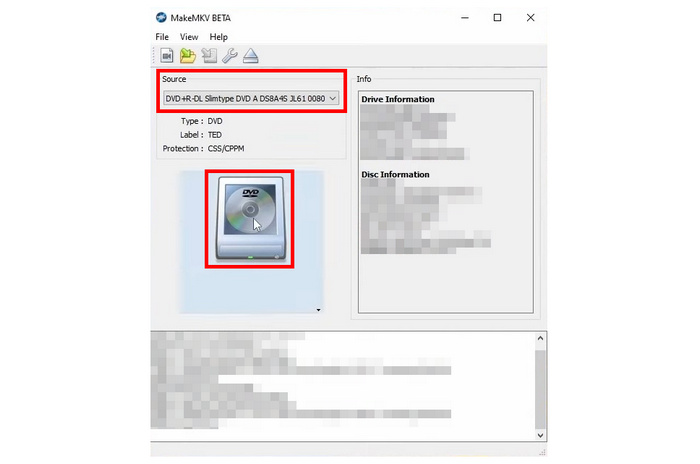
Step 1.Open MakeMKV and select the Source section to choose the loaded DVD. Then, select the DVD icon to start reading the loaded disc.
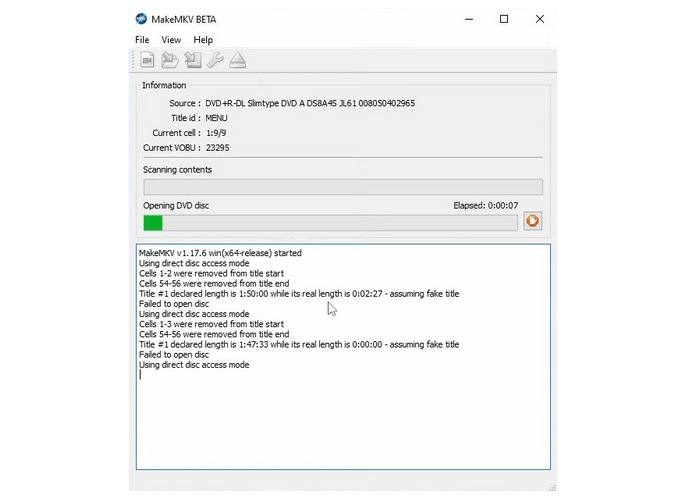
Step 2.Wait for the DVD reading process to finish, as MakeMKV must read the DVD’s content first.
Step 3.Once MakeMKV has read your DVD content, the program will display the list of content it has read from the DVD. To convert the entire DVD to MKV, click the MakeMKV icon.
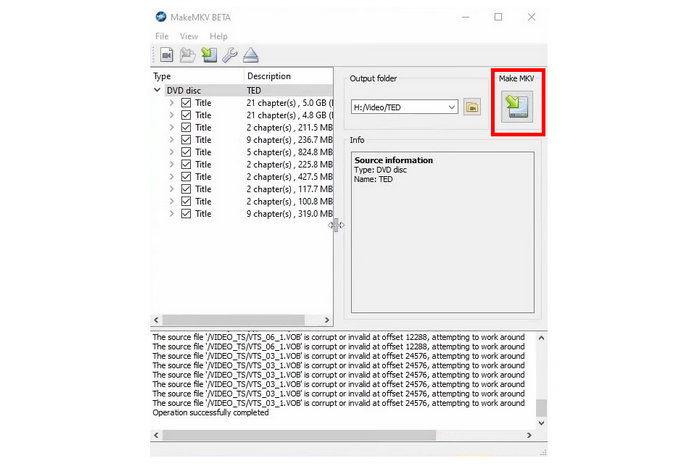
If you want raw DVD data, MakeMKV is the best solution. However, keep in mind that MKV is less compatible than MP4. Fortunately, the software can preserve subtitles cleanly.
Part 5. Comparative Evaluation: Performance, Speed, and Limitations
To provide an idea of the programs’ baseline performance, we have included a brief table that may serve as a reference for comparing how some of the best DVD decoder programs perform against others as DVD-ripping tools with subtitle preservation.
| DVD Rippers | Performance | Speed | Limitations |
| Blu-ray Master Free DVD Ripper | Excellent | Fast (Hardware Accelerated) | Subpar metadata tag customization for converted videos. |
| DVDFab DVD Ripper | Excellent | Fast (GPU Accelerated) | Expensive subscription pricing and might be overkill for generic ripping. |
| MakeMKV | Average | Standard | Ripped video files are extremely large and raw. |
If you are looking for our review of HandBrake for ripping DVDs with subtitles, the tool’s subpar performance at bypassing copy protection is why the DVD encoder was not selected. It is also the reason we did not provide a guide on how to rip a DVD with subtitles in VLC, since it lacks encryption features.
Part 6. FAQs About Ripping DVDs with Subtitles
-
How can I rip a DVD to keep only the forced subtitles without displaying the entire dialogue track?
Use a DVD ripper with advanced subtitle settings. Good options are dedicated tools like Blu-ray Master Free DVD Ripper and DVDFab DVD Ripper. Among them, Blu-ray Master’s option is easier to use, which gives it an edge.
-
What is the fundamental difference between softsubs and hardsubs when converting a DVD?
Softsubs are not embedded in the video and are customizable. Hardsubs are written directly in the video file itself. Use softsubs for customization, and use hardsubs for direct subtitles.
-
Why are my extracted subtitle tracks out of sync with the video after the ripping process is complete?
It may be an issue in the DVD ripper tool. To avoid such issues, use a dedicated DVD ripper with subtitle editing. Good examples are Blu-ray Master Free DVD Ripper and DVDFab DVD Ripper.
-
Can free DVD ripper software successfully bypass modern commercial copy protections?
Yes, there are DVD-ripping freeware programs with strong protection-bypass capabilities. Good examples are MakeMKV and Blu-ray Master Free DVD Ripper.
-
Which output file container is best for preserving multiple subtitle languages and chapter markers?
MKV and MP4 are good options. MKV is better since it is a container format. However, if you want greater compatibility, use MP4 with hard subs.
Conclusion
With the best methods to rip DVDs with intact subtitles now discussed, we hope this article has provided you with the information you need to make your DVD-watching experience smooth and seamless. Among the options on this list, we highly recommend using Blu-ray Master Free DVD Ripper for all-around usage and ease of use.
