

Jul 24, 2026Posted by Kevin Miller to Rip DVD
Quick Answer:
- Everyday Users: Blu-ray Master Free DVD Ripper (One-click, safe, zero-cost conversion).
- Power Users & Tweakers: MakeMKV + HandBrake combo (Complete control over bitrates and chapters).
Converting your old DVDs to MP4 is the definitive answer to physical media obsolescence. MP4 files offer universal compatibility across the entire Apple ecosystem, letting you effortlessly sync your movies to an iPhone, stream them via Apple TV, or back them up to an external hard drive. While some claim that "DVD ripping is dead or too complicated on Apple Silicon," the reality is simply that the Mac ecosystem has changed. Old, unoptimized software will choke on modern macOS versions, but many new, advanced tools emerge. This guide provides a step-by-step guide for you to rip DVDs to MP4 on Mac computers.

- The Core Dilemma: What Apple Users Must Know Before Ripping
- Method 1: The Best Zero-Cost Option for Everyday Users — Blu-ray Master Free DVD Ripper
- Method 2: The Tech-Savvy, Open-Source Staple — MakeMKV and HandBrake
- FAQs of DVD to MP4 Conversion on Mac
The Core Dilemma: What Apple Users Must Know Before Ripping
The Apple Silicon Factor
Modern Macs powered by M-series chips (M1, M2, M3) handle video processing differently than older Intel Macs. If you use outdated software, your Mac will rely on Rosetta 2 translation, which causes inefficient CPU spikes, overheating, and agonizing 5-hour encode times. To convert DVD to MP4 on Mac efficiently, you must use software optimized for ARM architecture to leverage Apple’s built-in hardware acceleration.
The Legality & Encryption Reality Check
Almost all commercial movie DVDs are protected by CSS (Content Scramble System) encryption. If you try to copy the files directly off the disc in Finder, you will get corrupted data. To back up your personal purchases, you need a Mac DVD ripper, a free or premium utility that can bypass this copy protection on the fly. Legally, creating a personal digital archive of a disc you own for private use is widely accepted as fair use, provided you do not distribute the files.
Why Choose MP4
The MP4 format is widely regarded as the most compatible format across various devices, including those running macOS and iOS. It strikes an optimal balance between H.264 or H.265 video codecs and the AAC audio format. This achieves an ideal image-quality-to-file-size ratio: your videos deliver clear visuals on Retina displays while maintaining a compact file size that conserves valuable SSD storage space.
Method 1: The Best Zero-Cost Option for Everyday Users — Blu-ray Master Free DVD Ripper
Blu-ray Master Free DVD Ripper is an efficient software to copy DVDs to MP4 files. It is highly compatible with macOS 10.12 and later versions. It supports DVDs from Region 1 to 6, including commercial and home-made discs. It provides various MP4 profiles with different preset qualities, making finding the perfect match to your playback preferences easy. The software includes a built-in Preview window, which lets you see the video before conversion. Also, you can manually check and select specific DVD titles to rip.
Step 1. Get a free download of Blu-ray Master Free DVD Ripper for Mac. Install and open it on your Mac. Insert the DVD disc into the external DVD drive and open the software.
Free Download
For Windows
Secure Download
Free Download
for macOS
Secure Download
Step 2. Click Load DVD > Load DVD Disc to import the DVD to the software.
You can also select Load DVD Folder to import the VIDEO_TS folder or Load DVD ISO to add ISO files. Afterwards, choose a DVD loading mode in the pop-up window: Main Title or Full Title List.
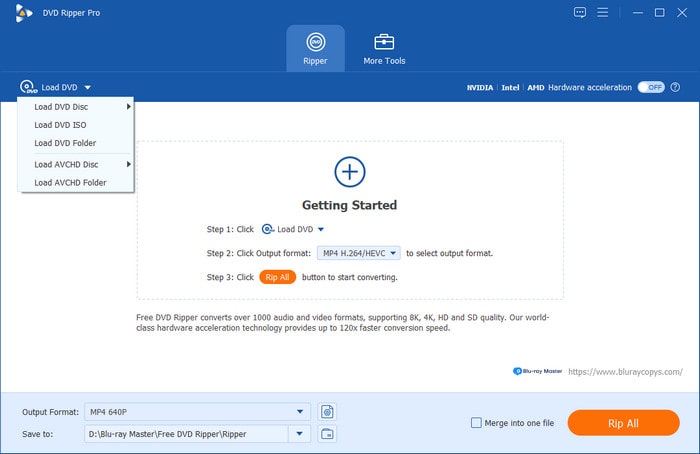
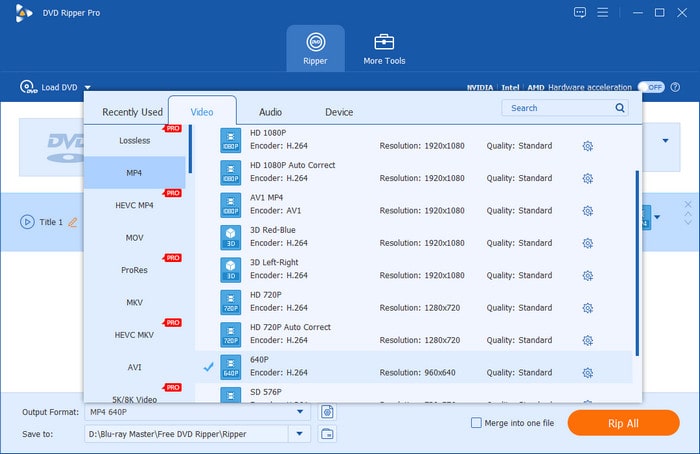
Step 3. Once the DVD loads, check the titles, audio tracks, and subtitles you want to convert. Navigate to the Output Format section and select the Video area for format selection. Choose MP4, Same as Source option as the output profile.
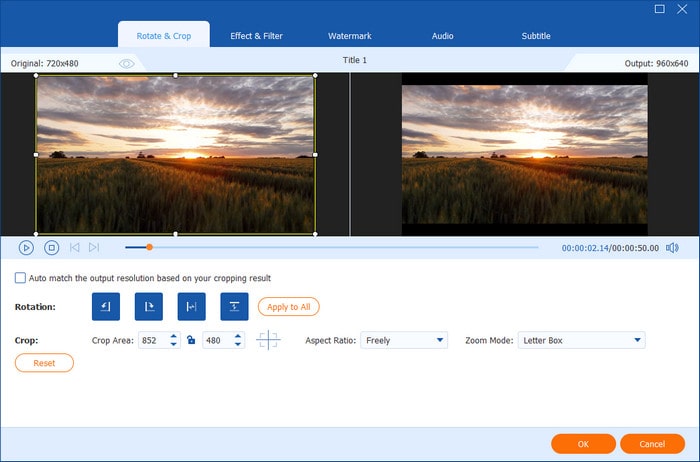
If you need to, you can use the provided editing settings to adjust the video effects.
Step 4. Lastly, set a destination folder via the bottom folder icon. Once the destination path is set, click Rip All to start the conversion process. The software will then extract the DVD content and convert it to MP4.
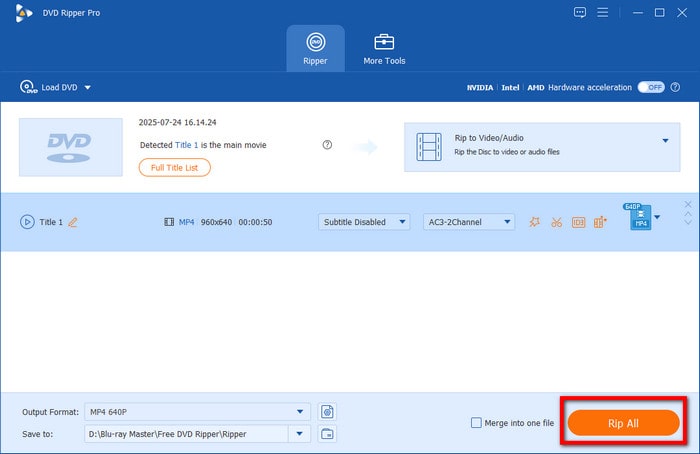
Using Blu-ray Master Free DVD Ripper, you can easily convert DVDs to MP4 on Mac. In addition, it lets you configure profile settings to ensure you’ll get high-quality MP4 exports. This software is free to use and perfect for creating a digital copy of DVDs.
Method 2: The Tech-Savvy, Open-Source Staple — MakeMKV and HandBrake
For tech-savvy Mac users, the tag-team of MakeMKV and HandBrake is the gold standard for digitizing DVDs. MakeMKV can read your physical DVDs and bypass the copy protection like CSS and DVD region codes to rip your DVDs to the MKV format. Without re-encoding the DVD, it remuxes the original DVD data directly from the disc to MKV, preserving 100% of the native quality.
After that, you can use HandBrake to convert the ripped MKV files to MP4. HandBrake is a well-known video converter tool. It can take the massive, uncompressed MKV file generated by MakeMKV and transcode it into a highly compatible, tightly compressed MP4 file.
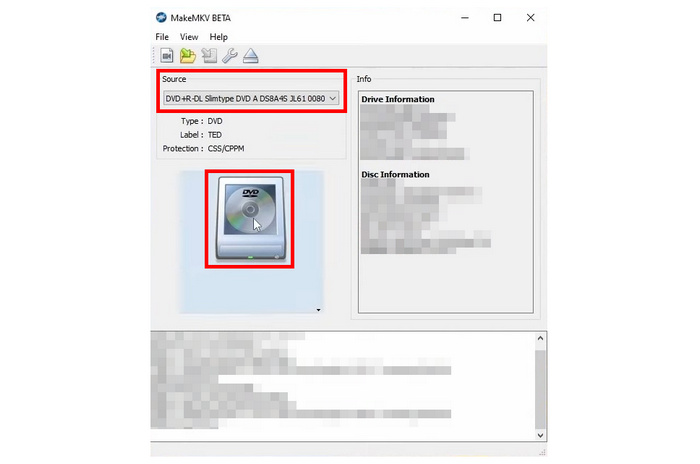
Step 1. Download and install MakeMKV and HandBrake on your Mac computer. Open MakeMKV and load the inserted DVD disc from the Source section.
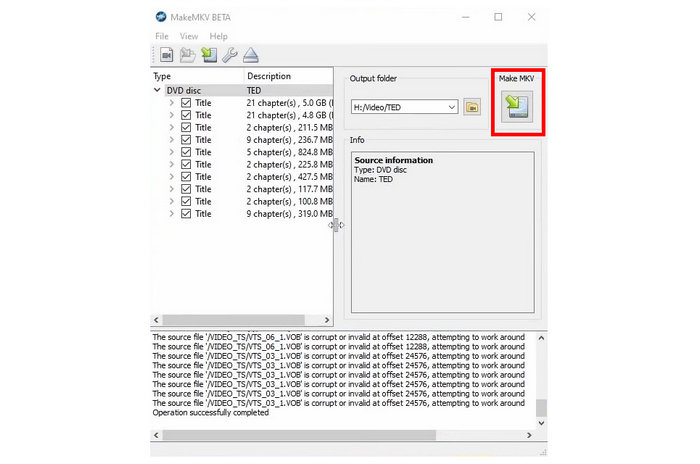
Step 2. It will automatically scan and list the full information of the DVD. Select the titles, audio tracks, and subtitles you want to retain. Then, click the right Make MKV button to start the decryption process. Note: You can set a preferred destination folder via the Output folder option.
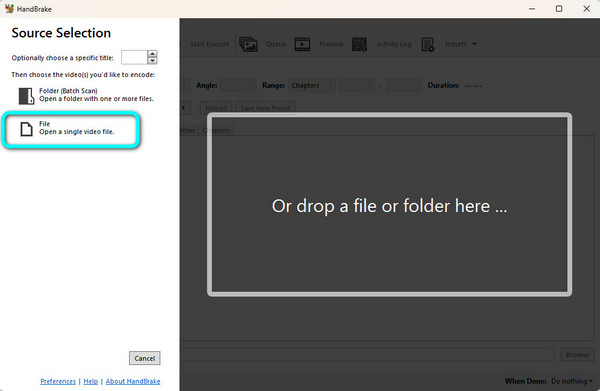
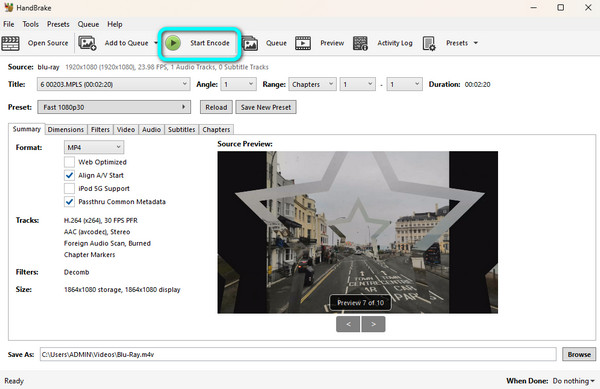
Step 3. After the ripping is done, open HandBrake and click the Open Source > File option to load the ripped MKV file.
Step 4. Under the Summary section, choose Format as MP4. Then, you can explore other settings to adjust the video effects.
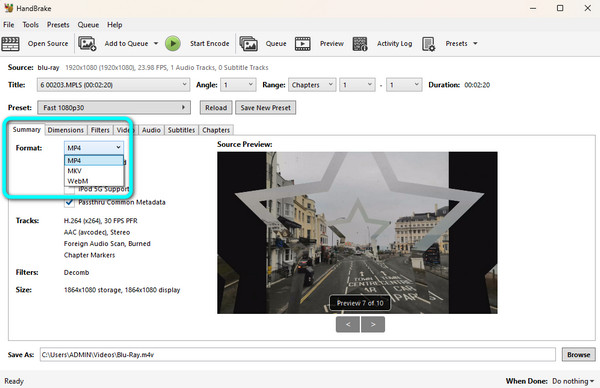
Step 5. Lastly, go to the bottom Save as area to set a download folder. Finally, click the Start Encode button in the top menu to start converting MKV to MP4.
With these two tools, you can easily get MP4 files from DVDs for free. To get the MakeMKV activation keys, you can go to the MakeMKV forum regularly. You should also note that you need to prepare enough storage space in advance to place the large MKV files. You can also use HandBrake with libdvdcss to rip copy-protected DVDs directly to MP4.
FAQs of DVD to MP4 Conversion on Mac
-
Why won't my Mac read the DVD when I plug in an external Apple USB SuperDrive?
You need to use a USB-C to USB adapter to plug in the older SuperDrive.
-
Is it legal to convert my personal commercial DVDs to MP4 on macOS?
If you rip DVDs for personal use, it is ok. Never sell, share, or upload the ripped MP4 files, and your personal backups remain safe.
-
Why is the converted MP4 video looking pixelated, and how do I fix the aspect ratio (4:3 vs 16:9) on Mac?
Standard DVDs have a native resolution of only 480p (720x480 pixels). If you stretch that to a 4K Mac screen, it will look slightly pixelated. To fix distorted, stretched faces, ensure your conversion tool is set to Keep Aspect Ratio.
-
Can I convert a DVD to MP4 without an optical drive if I only have the DVD folder (VIDEO_TS) or an ISO file?
Yes. Many DVD ripping tools can rip DVD folders or ISO files to MP4 without an optical drive.
Conclusion
Mastering how to convert DVDs to MP4 on Mac is not just about modern playback convenience. It is also a practical solution to preserve, share, and enjoy DVDs across all devices. Ripping your DVDs to MP4 ensures your collection stays safe and accessible. In this post, we’ve explored 2 easy methods to achieve this on macOS. Blu-ray Master Free DVD Ripper provides easy operation and lossless output quality. The combination of MakeMKV and HandBrake allows you to decrypt and convert DVDs to MP4 for free. Choose one proper way based on your ripping needs.
More from Blu-ray Master
Rip DVDs to Digital
Fast and free ripping software to decrypt all DVDs to digital easily on your computer.
100% Secure. No virus
