

Aug 27, 2026Posted by Kevin Miller to Copy DVD
Quick Selection Guide
To copy DVDs to a Mac, there are three ways for you to choose:
- Disk Utility is good for casual users to back up homemade DVDs.
- Blu-ray Master DVD Copy for Mac provides 3 modes to copy copy-protected DVDs to DVD and ISO.
- MakeMKV is a digital backup way to 1:1 copy DVD information.
Although Apple discontinued its built-in optical drive many years ago, copying DVDs to a Mac remains the best way to preserve old family videos or protect rare discs from physical damage. Whether you are saving data to an internal SSD, a home NAS, or an external hard drive, please note that modern Mac computers equipped with Apple Silicon chips (M1/M2/M3/M4) feature only Thunderbolt/USB-C ports; therefore, you will need to use an appropriate USB-C adapter to connect a compatible external USB DVD drive directly to your Mac, ensuring a stable power supply during data transfer. In this article, we will introduce 3 practical methods to copy DVDs to Mac without a difficult workflow.
Table of Contents
- What You Need Before Copying DVDs on Mac
- Method 1: How to Copy Homemade/Unprotected DVDs Using Disk Utility (Free & Built-in)
- Method 2: How to Clone or Backup DVDs with Blu-ray Master DVD Copy
- Method 3: The Easiest Way to Copy Any DVD using MakeMKV (Lossless Quality)
- Troubleshooting & Pro Tips for Mac Users
- FAQs about DVD Copy on Mac
Tips
Legal Disclaimer: DVD copying software should only be used to create personal backups of non-copyrighted or legally owned content where permitted by local laws. Users are solely responsible for complying with all applicable copyright regulations, such as the DMCA, in their respective jurisdictions.
| Tool Name | Decryption Ability | Copy Speed | Output Formats | Price | Ease of Use |
| Disk Utility | None (Fails on encrypted commercial DVDs) | Fast (Bit-for-bit disc imaging) | DMG, ISO (CD/DVD Master format) | 100% Free (Built into macOS) | Easy (Native Apple interface) |
| Blu-ray Master DVD Copy for Mac | Bypasses standard DVD copy protections | Fast (Direct disc-to-disc or ISO structure copy) | DVD ISO, DVD Folder, Blank Disc | Paid (Free trial available) | Very Easy (Simple 3-mode GUI) |
| MakeMKV | Excellent (Bypasses CSS, region codes, and DRM) | Fast (Extracts raw streams without re-encoding) | Lossless MKV | Free (Free while in beta) | Easy (One-click optical disc scanning) |
What You Need Before Copying DVDs on Mac
Hardware & Software Requirements
- An External DVD Drive: Since modern Apple Silicon Macs (M1/M2/M3/M4) no longer have built-in optical drives, you'll need an external USB DVD drive. Ensure you have a reliable USB-C adapter or direct cable to prevent power disconnects during the transfer.
- Sufficient Storage Space: Generally, a single DVD-5 holds up to 4.7 GB, while a dual-layer DVD-9 holds up to 8.5 GB. Verify that your internal SSD or external drive has enough free space before starting.
- The Right Software: You will need a reliable DVD copier or ripper designed for macOS to handle disk reading, decryption, or compression depending on your output goals.
Best Video Formats for Mac, iPhone, and Apple TV
Selecting the right output format depends on whether you prioritize device compatibility, editing capabilities, or total file quality.
| Format | Best For | Key Advantage |
| MP4 (H.264) | Universal Playback | Maximum compatibility across Mac, iPhone, iPad, and Apple TV with minimal storage use. |
| MKV | Quality & Multi-Track Preservation | Keeps 1:1 original video quality, full menu structures, and multiple audio/subtitle tracks. |
| MOV | Apple Native & Video Editing | Integrates seamlessly with QuickTime, iMovie, and Final Cut Pro for editing projects. |
Method 1: How to Copy Homemade/Unprotected DVDs Using Disk Utility (Free & Built-in)
Best for: Copy unprotected DVDs without downloading the extra tool.
MacOS's Disk Utility is a robust built-in utility primarily used for disk and volume management, including partitioning, formatting, and repairing storage devices. Although it contains many disk management features, its ability to 'copy DVD' is better defined as making a disk image from a DVD.
Disk Utility only works on unprotected or homemade DVDs (such as personal home movies). It cannot bypass Digital Rights Management (DRM) or Encryption (CSS) on commercial movie DVDs. If you attempt to copy a store-bought movie DVD using Disk Utility, the process will fail or produce an unreadable error.
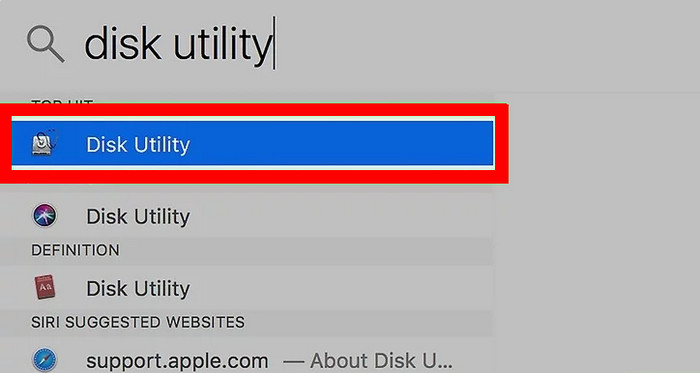
Step 1.Insert a DVD disc into your external optical drive. Then, open Applications and click Disk Utility to launch it.
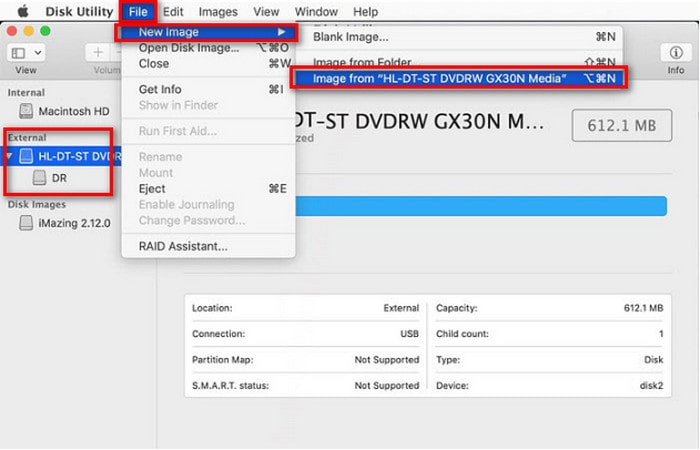
Step 2.Select your DVD under the External section in the left sidebar. Next, click File > New Image > Image from [DVD name] to open a new window.
Step 3.Further, configure the image settings in the new window, including name, location, format, and encryption. After that, click Save to start the copy process, and you can eject your DVD.
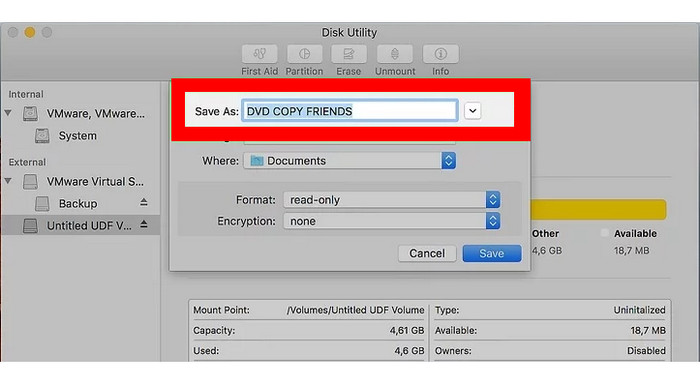
For many casual users, Disk Utility offers an easy and free way to copy homemade DVDs. With this built-in feature, you can convert unprotected or homemade DVDs into digital DMG or ISO images without installing third-party software. The steps are intuitive; follow them to do this.
Method 2: How to Clone or Backup DVDs with Blu-ray Master DVD Copy
Best for: Copy encrypted DVDs in easy steps.
Blu-ray Master DVD Copy for Mac offers a straightforward, user-friendly way to create complete disc backups without needing complex command-line setups. It allows you to extract DVDs directly to ISO images, local folders, or blank discs using three distinct modes: Full Copy, Main Movie, or Customize. Ideal for managing storage, it automatically handles compression from dual-layer DVD-9 to single-layer DVD-5 discs while letting you adjust output volumes and batch copy settings in just a few simple steps.
Step 1.Click the Download button below to download and install the Blu-ray Master DVD Copy on your Mac. Then, open the software.
Free Download
For Windows
Secure Download
Free Download
for macOS
Secure Download
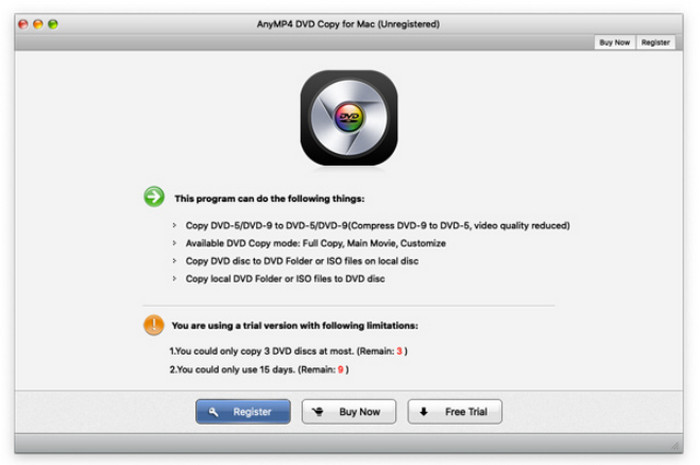
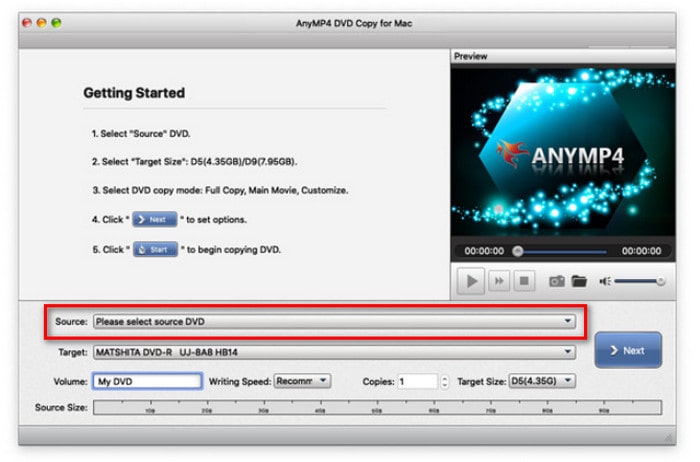
Step 2. Insert the DVD disc into your drive. Then, click the Source button at the bottom part of the interface to upload the DVD you need to copy.
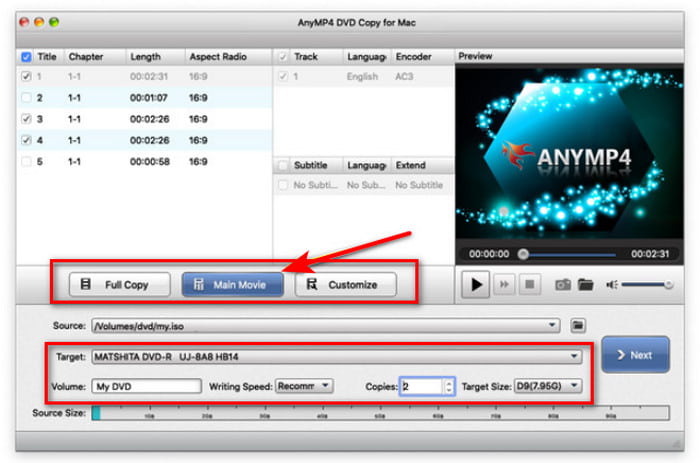
Step 3.Now select your desired mode for copying, and at the same time, set the options for the audio, subtitle, and output destination.
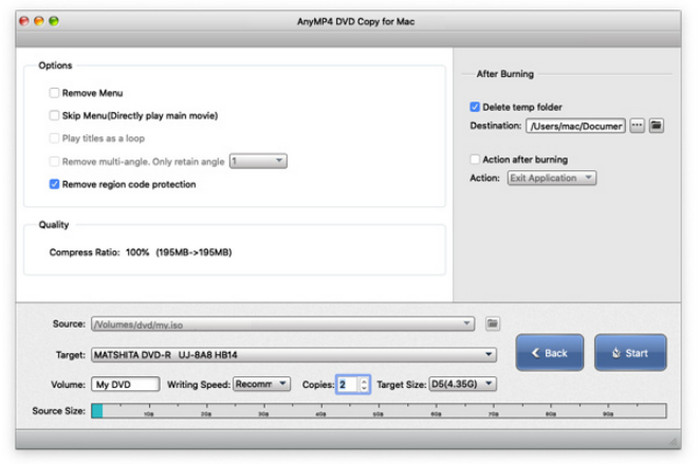
Step 4.When you finish the settings, you may click the Next button to proceed. Then, optimize copy settings and choose Start to begin the copy process.
Tips
In our test, it took about 12 minutes to copy a 4.7 GB DVD to an M2 MacBook Air.
Blu-ray Master DVD Copy for Mac is ideal for backing up encrypted DVDs. It can handle DVD region codes and most DVD copy protections like CSS. It provides 3 copy modes, and you can choose based on your own situation. Though some people think its UI is outdated, it provides good DVD copy performance.
Method 3: The Easiest Way to Copy Any DVD using MakeMKV (Lossless Quality)
Best for: Free 1:1 lossless backing up of copy-protected commercial DVDs.
One last tool we want to recommend is the ultimate DVD ripping tool, MakeMKV. It is a widely popular, free-in-beta utility that can rip DVDs to MKV losslessly. It can easily bypass DVD copy protections without altering or re-encoding the original video data. With this feature, it is able to extract the raw video stream and 1:1 copy the DVD information, including titles, audio tracks, and subtitles. If you want to back up DVDs in the digital way, MakeMKV is your choice.
Step 1.Go to the MakeMKV official website, download and install it on your Mac.
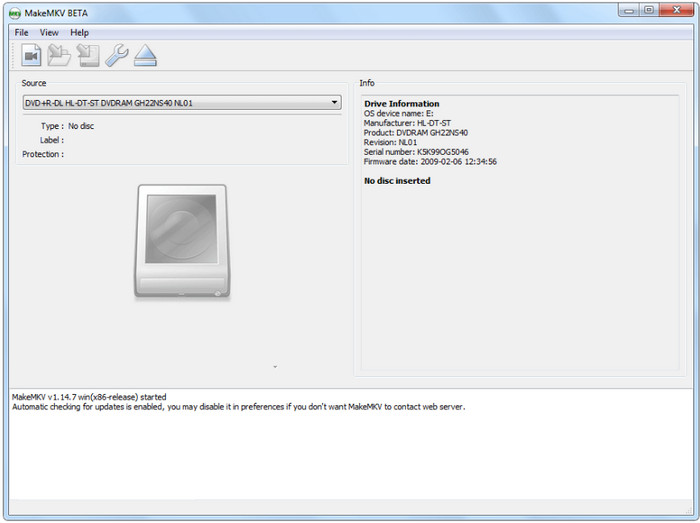
Step 2.Insert the DVD you want to copy into the optical drive. Launch the software, and it will automatically load the DVD in the Source section.
Tips
It can automatically bypass DVD region codes and copy protections to scan and load the inserted DVD.
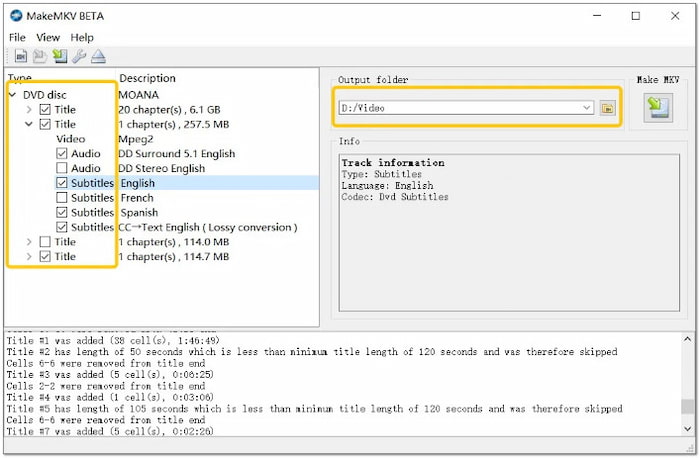
Step 3.It will list the full information about the DVD. Check and select the titles, audio tracks, and subtitles you want to maintain.
Then, choose a destination from the Output folder, and click the Make MKV button to start the DVD to MKV conversion.
Wait patiently, and you will get your MKV files. MakeMKV is undoubtedly the best choice for creating lossless, exact 1:1 digital copies of commercial DVDs on Mac. Because MakeMKV 1:1 copies the DVD's original information, the output MKV files will be large, which can be considered the only minor drawback of this tool. You can use HandBrake to compress and convert MKV files to MP4 or MOV, which are more compatible.
Troubleshooting & Pro Tips for Mac Users
There are many problems during the DVD copying process, and you can check this troubleshooting guide.
A. My Mac Isn't Recognizing the DVD
This typically indicates a loose cable, a malfunctioning port, a filthy or defective disk, or macOS settings that are blocking the display of an external drive. Checking connections, experimenting with ports, and modifying Finder settings are all part of basic troubleshooting.
B. Copy Protection Errors
The majority of commercial DVDs are protected by CSS and other Digital Rights Management (DRM) software. In many jurisdictions, it is often illegal to circumvent these precautions, even when it comes to personal backups. You can use modern DVD copying tools with DVD decryption ability to back up your DVD collections.
C. Slow Copying Speed
A slow DVD drive, a scratched or filthy disc, or the processor-intensive process of re-encoding the video (as in HandBrake, for example) could be the cause of this. It can be beneficial to use a quicker drive or less taxing program or settings.
D. Output Quality Issues
Incorrect software settings (such as an excessively low bitrate or resolution), improper de-interlacing of the video, or a low-quality original DVD are the most common causes of poor quality after copying. The trick is adjusting your copying software's settings.
E. 'Disc Full' Errors When Burning
This typically happens when the content you're trying to burn exceeds the capacity of the blank DVD (e.g., trying to burn a DVD-9 image onto a DVD-5 disc). Ensure the output size fits the blank disc, or use dual-layer blanks if necessary. Also, burning at slower speeds can increase success rates.
FAQs about DVD Copy on Mac
-
How do I copy a copy-protected DVD to my Mac for free without paying for software?
MakeMKV is absolutely the first choice for free copying DVD movies to Mac computer. It has the powerful decryption ability to handle copy-protected DVDs.
-
Why doesn't Disk Utility work when I try to copy a movie DVD on Mac?
It can only work on homemade or unprotected DVDs. If your DVD is copy-protected, choose MakeMKV and other advanced DVD decryption tools.
-
What is the best external DVD drive to use with a MacBook Pro M2/M3?
It depends on your situation. It requires a USB-A to USB-C adapter to use the Apple USB SuperDrive. LG AP60NB60 and GP65NB60 are affordable and are well-suited for most people. ASUS ZenDrive SDRW-08U9M-U includes native USB-C cabling.
-
Is MakeMKV or HandBrake better for backing up DVDs to Mac?
MakeMKV has robust DVD decryption ability, but always outputs large MKV files. For HandBrake, it requires complex setups to process encrypted DVDs. The best solution is to use MakeMKV to decrypt and HandBrake to compress and convert MKV to MP4.
-
Will copying a DVD degrade the video quality, and how do I keep 1:1 quality?
It is hard to say. Advanced lossless tools like MakeMKV can extract the raw video stream and maintain the original quality. You can also save the output as ISO images to keep 1:1 quality.
Conclusion
In this guide, we share the 3 easy ways to copy DVDs to Mac computers. These ways give you the freedom to back up your DVD collections. Among them, Disk Utility allows for an easy process to copy homemade DVDs. Blu-ray Master DVD Copy for Mac provides 3 different modes to copy encrypted DVDs to DVD or ISO. MakeMKV is a digital way that you can back up DVDs to MKV files. Choose one of the proper ways, and you can comment on us to share your user experience.
More from Blu-ray Master
