

Sep 03, 2026Posted by Kevin Miller to Copy DVD
A physical copy of a DVD is a great way to store data like videos, audio, documents, and others. However, it also has disadvantages, including potential scratches that will prevent you from accessing the content. On top of that, portable players are uncommon these days, so it is better to store data digitally. If you are unfamiliar with how to copy DVDs to your computer, this article is for you.

Table of Contents
- Why Do You Need to Copy the DVD to a Computer
- Method 1. Copy a DVD to a Computer with Free DVD Copy
- Method 2. Backup a DVD to a Computer with HandBrake
- Method 3. Duplicate a DVD to a Computer with VLC Media Player
- Method 4. Save a DVD to Computer with MakeMKV
- Method 5. Copy a DVD to Computer without Software
- FAQs
| Platform | Ease of Use | Best For | Output Formats | Handles Encrypted DVDs | Processing Speed | Quality Retention | |
| Blu‑ray Master DVD Copy | Windows 11/10/8, Mac OS X 10.9 or later | 5/5 | Easy, high‑quality copying process. | DVD/folder/ISO |  | Fast | Lossless |
| HandBrake | Windows 11/10, macOS 10.14 or later | 4/5 | Advanced transcoding, broad format support. | MP4, MKV, WebM |  | Moderate | Good |
| VLC | Windows 11/10, macOS 10.7.5 or later | 4/5 | Basic ripping, media playback. | MP4, MKV, AVI, etc. | | Low | Low |
| MakeMKV | Windows 11/10 | 4.5/5 | Lossless MKV backup, retains disc details. | MKV | | Fast | Good |
| Built‑in | Built‑in | 5/5 | Simple copy for unencrypted/homemade DVDs. | VIDEO_TS | | Low | Low |
Why Do You Need to Copy the DVD to a Computer
Copying DVDs to your computer gives you many advantages. Here are several reasons why you will need it:
- The content inside a DVD can be damaged through physical scratches and aging. So, storing the data digitally is a great alternative, as it helps you archive without risk.
- The data is accessible without requiring a DVD player. It can be accessed not only on a computer but also with various devices, such as phones and tablets.
- It allows you to edit and customize the data from the DVD, add subtitles and video effects, and configure the output settings.
- Instead of creating another physical copy of the DVD to send to your friends or family, it is best to send it digitally via online platforms.
- You can convert DVD formats to common ones, like MP4, MOV, or MKV, making the videos compatible with programs and devices.
Method 1. Copy a DVD to Computer with Free DVD Copy
Copying and backing up your DVDs can be done quickly with Blu-ray Master DVD Copy. It is a desktop software that focuses on 1:1 copying DVDs to DVD, folder, and ISO image. With advanced decryption technology, it can bypass DVD region codes to back up any region DVDs and DVDs with DVD copy protection. It provides Full Copy, Main Movie, and Custom three copy modes, which can meet your different copy needs.
Moreover, it can compress your original DVD+R, DVD-R, DVD+RW, DVD-14, DVD-18, etc., in a single layer or dual layer to high-quality DVD-9 and DVD-5 discs, which can free up your computer space. For technical users who prefer to watch DVDs at their original quality, you can also access advanced settings of bitrate, frame rate, and de-interlacing options when copying DVD data using this tool.
However, its biggest advantage is that the program can handle advanced and modern copy protections such as Disney X-Project, Sony ARccOS, and other latest encryption schemes. These are useful for users who prefer opening DVDs on modern devices such as PCs running Windows 11 or Mac desktops running macOS Sequoia.
- Easy and intuitive interface.
- Advanced quality maintenance technology to preserve the original quality.
- Support DVD-9, DVD-5, ISO, and other types of DVDs.
- Fast and reliable processing speed, copying DVDs to the computer in no time.
Free Download
For Windows
Secure Download
Free Download
for macOS
Secure Download
Now, follow us to see the detailed steps of backing up DVDs to PC.
Step 1. Download and install Blu-ray Master DVD Copy on your computer. Double-click the software icon to open it.
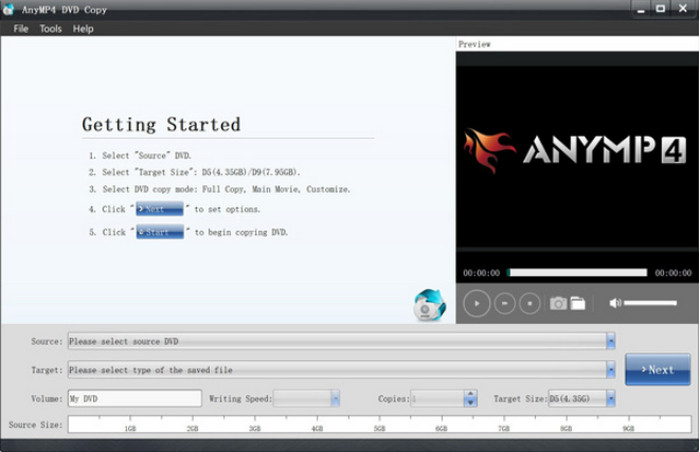
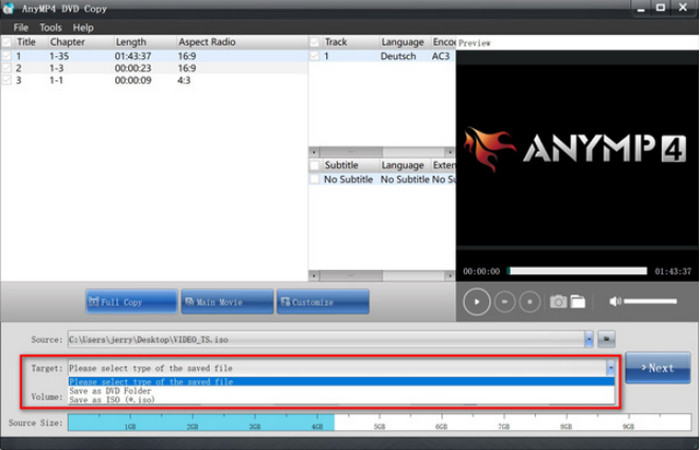
Step 2. Insert a DVD into your computer. The software can automatically load your DVD information. Then, go to the Source drop-down options to save the DVD as a disc, folder, or ISO.
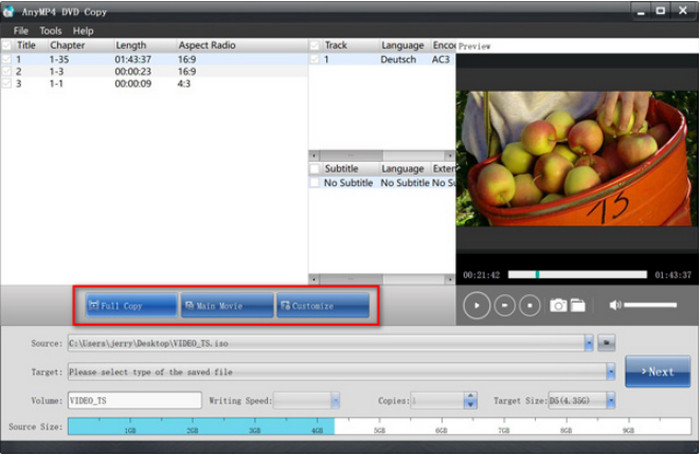
Step 3. Choose a desired copy mode from Full Copy, Main Movie, and Customize. Finally, click Next to enter the copy interface and select Start to begin the backup process.
Tips
If you are not sure about the copy-protection of the DVD you want to copy, you can use Blu-ray Master DVD Copy as the safest pick since it can handle both dated and modern encryptions.
Method 2. Backup a DVD to a Computer with HandBrake
HandBrake excels in transcoding digital files. Of course, it is also a great alternative for copying DVDs to a computer, especially as it is available for free on Windows, Mac, and Linux. Not only that, but it also supports a wide range of inputs and outputs, allowing you to convert different types of DVDs to MKV, MP4, VOB, AVI, and more.
For users who are going to copy modern DVD releases, HandBrake has a significant edge, since the program can handle 4K Blu-ray videos with no issues. This is supported by the program’s quality-based compression settings, thanks to its Constant Quality Rate Factor.
Step 1. You will need to download and install libdvdcss for HandBrake. To do this, go to http://download.videolan.org/pub/videolan/libdvdcss/ and download libdvdcss, which is appropriate for your device’s operating system.
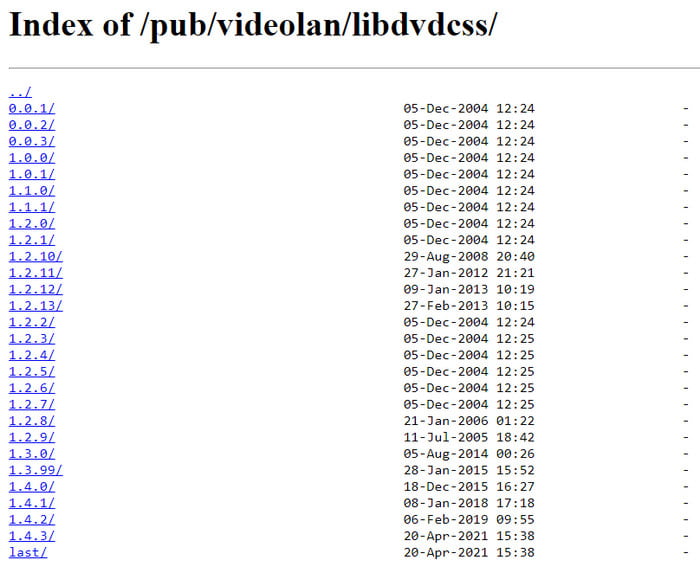
Step 2. To finish, you only need to move the downloaded libdvdcss to HandBrake’s install directory. Then, open HandBrake and insert the disc into the drive. When a sidebar appears, choose the DVD drive. It will take a while for the software to read the disc.
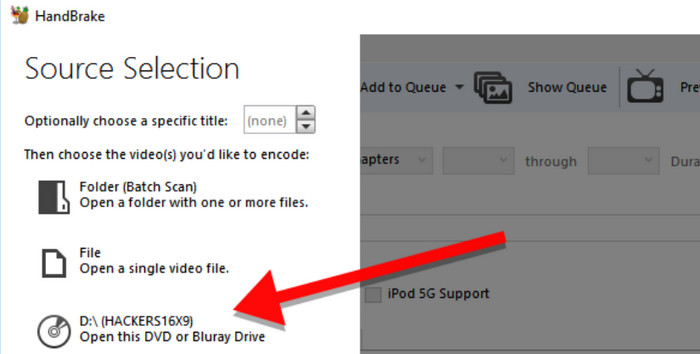
Step 3. Once done, open the Title menu and choose the title you want to copy. Then, you can choose a preset with a new output quality, device compatibility, etc. After that, decide on a destination folder and hit the Start Encode button to process.
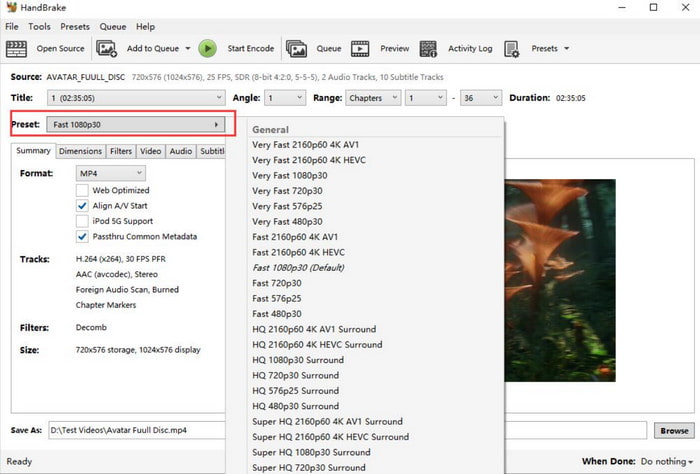
HandBrake is popular because of its generous features for DVD copying on computers. It is also free and accessible on many platforms, transcoding various DVD types without format hindrances. On the other hand, it can be difficult to navigate and too resource-intensive.
Pros
- It provides rich presets for DVD conversion.
- It has many customization settings, like filters, subtitles, and others.
Cons
- Its design is a little outdated.
- It cannot handle DVD copy protection by itself.
Tips
HandBrake is one of the most reliable options for intermediate and advanced users. Its rich features are optimized to ensure that your DVD will be copied digitally without any problem.
Method 3. Duplicate a DVD to a Computer with VLC Media Player
For another free option, VLC Media Player can be used for copying DVDs to your computer. Although it specializes in streaming videos, it also offers basic DVD-ripping functions. However, note that VLC does not have the proper equipment for DVD ripping, so the quality is not guaranteed to be stable. As such, we don’t recommend using VLC as your primary option since the program is prone to errors.
You can still try it on your computer with the steps below:
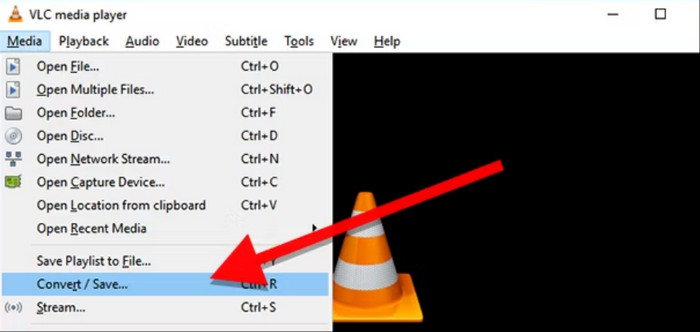
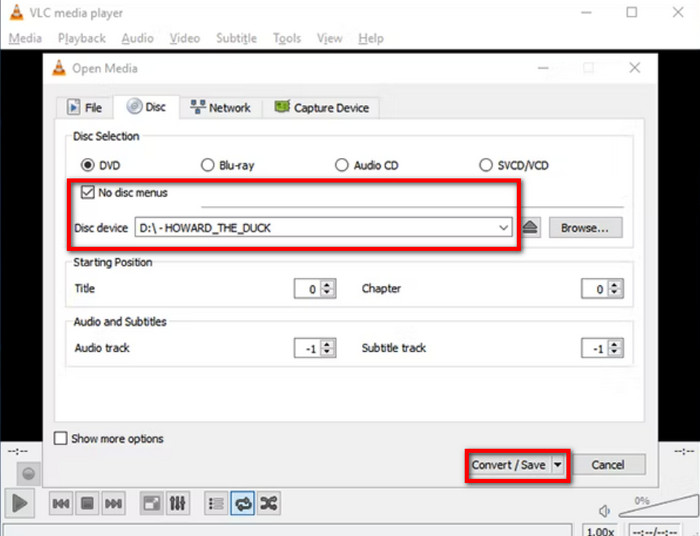
Step 1. Launch VLC and insert the disc into the drive. Go to the Media tab and choose the Convert/Save option. In the pop-up window, go to the Disc tab to ensure VLC reads the disc correctly.
Step 2. Tick the No disc menus checkbox since VLC will only rip the menus and leave the titles. Then, proceed to set the starting position to select the titles or chapters. After that, click the Convert/Save button to copy DVDs to your computer.
Naturally, VLC can provide streaming services, even for DVDs. It is also a great alternative for basic video editing, but unfortunately, it is not a professional DVD copier. Moreover, the processing time is longer than with a dedicated DVD ripper, which is a drawback.
Pros
- It is a free and open-source tool.
- It allows you to select the starting chapter to rip DVDs.
Cons
- It is not a professional DVD copy tool.
- It cannot copy DVDs with DVD copy protection.
Tips
VLC Media Player is better used as your multimedia player for the DVD content. Only use the tool if you have no other options left.
Method 4. Save a DVD to Computer with MakeMKV
If you need to copy and convert DVDs, MakeMKV is a good option to consider. Its beta version is free, and it guarantees to preserve all the disc details, such as the chapters, audio tracks, etc. Furthermore, you only need one piece of software to copy DVDs to your computer, with no additional extensions.
Among DVD enthusiast communities, MakeMKV is one of the most trusted options since it can produce lossless copies of the DVD it is processing. If you prefer quality and storage space is not an issue for you, this option may be a solid choice.
Step 1. Install MakeMKV on the computer and insert the disc. Open the File menu and select the Open Disc option to choose the titles or chapters you want to copy digitally.
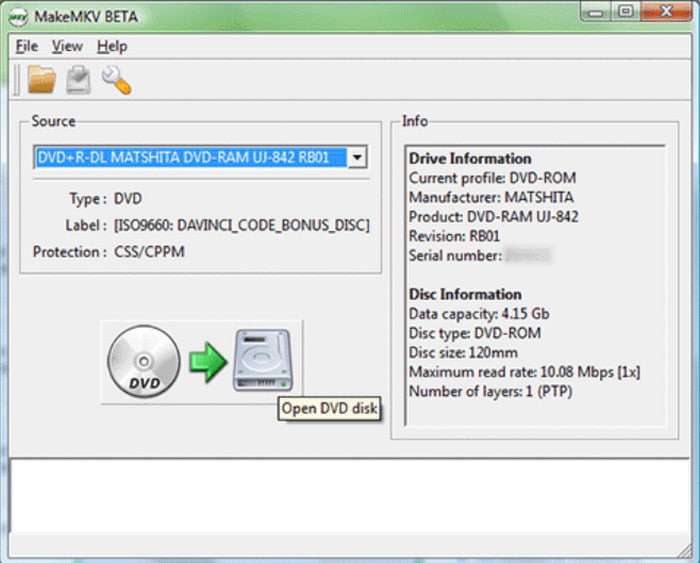
Step 2. You can begin the process by clicking the Make MKV button. It will take a while to process, so it is advisable to keep an eye on it.
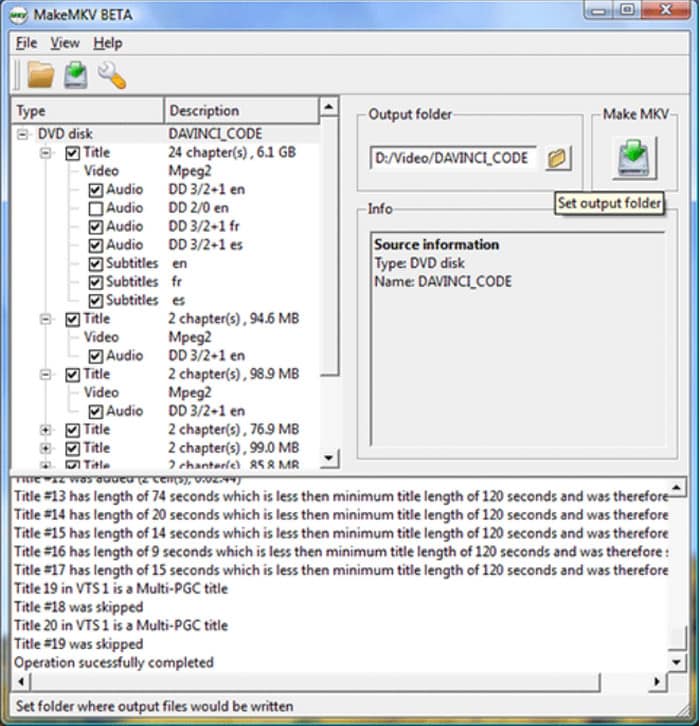
MakeMKV boasts its one-click conversion for DVD and Blu-ray ripping. However, the beta version can only convert MKV. Moreover, it does not offer other essential tools to edit output or cut unwanted parts.
Pros
- It can remove DVD copy protection to back them up.
- It has a fast ripping speed to back up your DVD collection.
- It is free and has a simple interface.
Cons
- It is free and has a simple interface.
- It lacks advanced DVD ripping features.
Tips
When using MakeMKV, make sure your storage space can handle the size of the raw DVD media the software will copy. MakeMKV copies the raw form of videos, but the video file itself will be huge.
Method 5. Copy a DVD to Computer without Software
There is a built-in DVD copier on Windows and Mac, and you can use it on your computer without additional extensions. However, it has too many disadvantages compared to dedicated DVD copying software, such as converting DVD files to a single common format that is only playable in the native media player; it will not work for encrypted DVDs, and more. With that said, you can still try it on your device with the following steps:
If you plan to use this method for commercial DVDs, we do not suggest it. Using the File Manager alone won’t be able to decrypt the video files, which will cause direct copying to fail. You cannot treat DVDs with movie content the same way you use flash drives or external storage.
Step 1. Insert the disc into the drive and wait until it is fully recognized. Then, go to File Explorer on Windows or Finder on Mac. Go to your device's file management application.
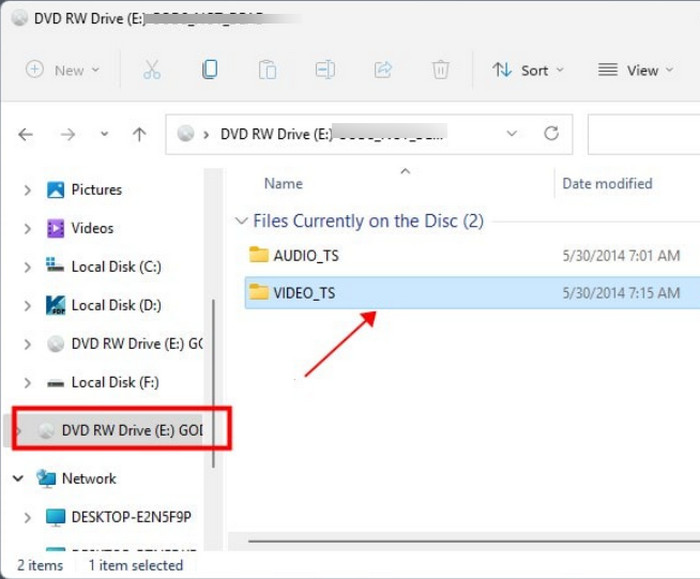
Step 2. When you see the DVD drive, open it and choose all the folders or files you want to copy. Right-click on the selected files and click the Copy button. Create a new folder where all copied DVDs should be exported.
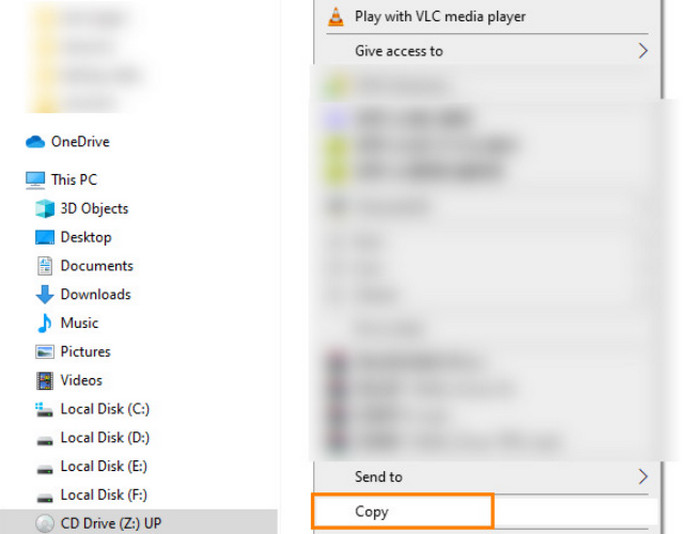
Thankfully, there is a built-in way of copying DVDs on Windows and Mac computers, and it is easy enough to transfer files to your computer. But remember that this method is very limited to homemade DVDs and will convert the videos to common formats supported by the respective operating systems.
Pros
- You can copy DVDs without any extra software.
Cons
- You cannot handle copy-protected DVDs in this way.
Tips
Direct copying of DVD content won’t be able to get the DVD video to your computer digitally. This is not advisable as a way to copy DVDs to a computer.
FAQs
-
Can you copy DVDs to a hard drive?
Yes, you can rip or back up DVDs to a hard drive. You can do this using special software that supports ripping or copying data from discs to hard drives.
-
Is it legal to copy a DVD to my computer?
If you find a way to decrypt DVDs, it is legal to copy them as long as you don’t share the content with others. But it is still illegal under some regional laws. Alternatively, you can try a region-free DVD player to access the content without copying the disc.
-
Does Walmart copy DVDs?
Yes. Walmart can copy or transfer homemade DVDs to a computer account. However, the store does not copy commercial DVDs; instead, it sells them officially.
-
What is the best way to copy a protected DVD to my laptop in 2026?
You can use multimedia tools and DVD copying software. Some good examples are Blu-ray Master DVD Copy and MakeMKV. For beginner users, we recommend Blu-ray Master’s program.
-
Can I use HandBrake to rip a Disney DVD, or do I need a plugin?
No, you cannot. HandBrake cannot directly rip protected DVDs such as Disney DVDs. You need to install the libdvdcss plug-in to make it capable of bypassing protections.
-
How to convert a DVD to MP4 without losing 1:1 original quality?
You have to use lossless video-copying software. Among the options on this list, the most reliable for 1:1 copying is MakeMKV. However, you have to be aware that digitized videos using this program are extremely large.
-
Is it legal to copy my old DVD collection to a Plex server in the US?
Using the Plex server for sharing a DVD collection is a grey area. Under most laws, sharing DVD media is not illegal per se. However, breaching commercial copy protection is illegal. To avoid such issues, make sure to only copy DVDs for personal backup purposes and do not use them commercially.
-
Which free software can bypass DVD region codes on Windows 11?
MakeMKV can bypass these codes by default. For premium options, Blu-ray Master DVD Copy is another good option. Both of these tools can get the job done.
Wrapping up
Now, you have different solutions to copy DVDs to a Mac or Windows computer without too much hassle. But given that free ripping tools have disadvantages, we urge you to try Blu-ray Free DVD Ripper to ensure high-quality ripping and results built on trust, speed, and usability. Click the Free Download button to make it effortless to rip DVDs to MP4, MOV, and other formats!
More from Blu-ray Master
