

Aug 27, 2026Posted by Kevin Miller to Copy DVD
Quick Summary
To make it easier to learn how to copy DVDs on Windows, we have provided three methods, each designed for users seeking different solutions. As such, the featured programs are designed for different users:
- Free and Built-in Solution: Windows File Explorer
- Best for Lossless Quality Copy: HandBrake
- Made for Copying Commercial DVDs: Blu-ray Master DVD Copy
Preserving physical media through digitization has been a staple solution for users who want to create backup copies or improve the accessibility of their files. This is perfectly applicable for DVDs since they are commonly used for family videos and movie collections. As such, learning how to copy a DVD on Windows is vital for enhancing how you handle or store your DVD data. Unfortunately, Windows has no built-in DVD-ripping tool to make ripping or copying accessible. As such, we will provide three of the easiest freeware options for copying DVDs on Windows 10 and 11 desktops.

Table of Contents
- Part 1. Understanding DVD Copying: “Copying” vs. “Ripping”
- Method 1. How to Copy Data DVDs via Windows File Explorer (Free & Built-in)
- Method 2. How to Copy Video DVDs to MP4/MKV using HandBrake (Best for Digital Playback)
- Method 3. How to Copy Commercial DVDs using Blu-ray Master DVD Copy
- Part 5. FAQs About Copying DVDs on Windows
| DVD Copy Tools on Windows | Ease of Use | Best Used For | Advanced Settings |
| Windows File Explorer | Easy | Creating offline backups of personal files, photos, and other data. | None |
| HandBrake | Intermediate | Ripping the content of the DVD as a digital video. |
|
| Blu-ray Master DVD Copy | Easy | Creating a 1:1 copy of the DVD as an ISO or DVD folder, which can be saved digitally or burned to a blank disc. |
|
Part 1. Part 1. Understanding DVD Copying: "Copying" vs. "Ripping"
Before proceeding to the methods for copying a DVD on Windows 11, let us first discuss the difference between DVD copying and ripping, as they are closely related and often confused.
Simply put, DVD copying is the act of creating a digital clone of a DVD's data, typically saved as an ISO image or a VIDEO_TS folder. When you are using a DVD data disc, you can also copy and paste data directly onto it, much like a USB drive, and use the disc as offline storage.
On the other hand, DVD ripping is the act of converting DVD content into a digital file. This is often used for DVD movies, which can be converted to digital video. If you are using a writable DVD, you can use a burning tool to write digital data to it.
Method 1. How to Copy Data DVDs via Windows File Explorer (Free & Built-in)
The first method we will highlight in this article is the most straightforward solution using the Windows File Explorer as DVD copy software. In addition to being a free, built-in option, this software works much like a USB drive inserted into a computer. All you need to do is copy the file from your computer, go to the loaded data DVD, and paste it.
Unfortunately, this option does not work if you want to make readable DVDs on players. The data DVD you will use will serve more as physical offline storage, much like USB drives. This is best used for backing up personal files outside your computer.
Pros
- Direct copy and paste process.
- Built-in to Windows computers. No installation needed.
- Can also be used to copy and paste data written on unprotected DVDs.
Cons
- Transferred data cannot be accessed in DVD players, even on DVD-Video discs.
- It cannot decrypt protected DVDs.
- No DVD menu and burning option.
Step 1.Load the DVD into your computer and navigate to the This PC section in File Explorer to check whether the disc has been loaded. You may double-click on the DVD to select its content.

Step 2.Locate the data you want to copy to the DVD, then right-click it. Then, select Copy.

Step 3.Go back to the loaded DVD, right-click, and select Paste.

Although this option is not the easiest method, it is also the most limited. As such, you can only use it for very limited purposes.
Method 2. How to Copy Video DVDs to MP4/MKV using HandBrake (Best for Digital Playback)
Moving forward to the next method, we have the HandBrake DVD ripper. Although primarily designed as an encoding tool, this software also functions as a DVD ripper, making it more practical than a copier for creating a digital copy of your DVD content.
As such, HandBrake is highly advisable for users who want to save movies to their mobile devices or share them in Plex and other streaming media servers. It also helps that this open-source DVD copier and ripper can directly convert DVDs to MP4, MKV, or WebM video.
Pros
- Free and open-source solution.
- Works great for ripping DVDs into MP4 or MKV format.
- Built-in compression and video quality controls.
Cons
- Works more like a DVD transcoder and burning tool than a DVD copier.
- It cannot copy the entire DVD structure, such as menus, chapters, and videos.
- It cannot encrypt protected DVDs by default. Requires the llibdvdcss plug-in.
Step 1.Load the DVD into your device, then open HandBrake and select File. Then, select the loaded DVD Drive as the source and click Open.

Step 2.Once the DVD content has been loaded into HandBrake. Select Preset to choose the settings for how your video will be saved. Then, select Format to choose the file type for your video.

Step 3.With both the Preset and Format now set to your liking, click on Start Encode to begin ripping the DVD media to a digital video.

Tips
HandBrake cannot rip copy-protected commercial DVDs natively without standard workarounds. Fortunately, you can do so by simply adding the libdvdcss plug-in.
Method 3. How to Copy Commercial DVDs using Blu-ray Master DVD Copy
Finally, the third method in this article is the only program on this list designed exclusively for DVD copying: Blu-ray Master DVD Copy. As the software's name suggests, this tool can duplicate DVD content to an ISO file or DVD folder, which can then be written to another blank disc.
Since it is designed to create a perfect digital copy of the loaded discs, the program works as an excellent DVD cloning software. It makes the tool perfect for creating a digital backup, transferring raw data from DVDs used as offline storage, or producing an exact DVD copy via burning cloned ISO images.
Moreover, it has superb decryption capabilities, which makes it perfectly reliable for handling commercial DVD releases. Then the copied DVD data can be produced as efficiently as possible, thanks to a hardware acceleration system that ensures high-speed burning and copying without data loss or crashes.
To enhance its accessibility, the program also has a user-friendly interface. Made possible by its clean layout, intuitive controls, and well-labeled buttons that make it easy for beginners to back up their physical media in just a few clicks.
Pros
- Designed specifically for DVD copying and cloning.
- Preserves the entire DVD structure including navigation menu, chapters, and videos.
- Made for users looking to create an exact digital DVD backup.
Cons
- Some advanced features require the paid version.
- Not recommended for direct video conversion.
Step 1.Download Blu-ray Master DVD Copy on your computer.
Free Download
For Windows
Secure Download
Free Download
for macOS
Secure Download
Then load the DVD you want to clone onto your computer via an external or built-in drive.
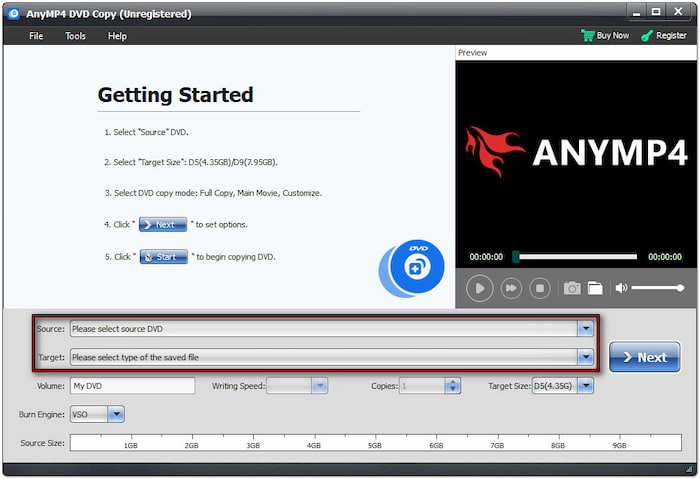
Step 2.Click on the Source pull-down menu and select the DVD loaded on your computer. Then, select Target to set where the DVD copy output will be saved.
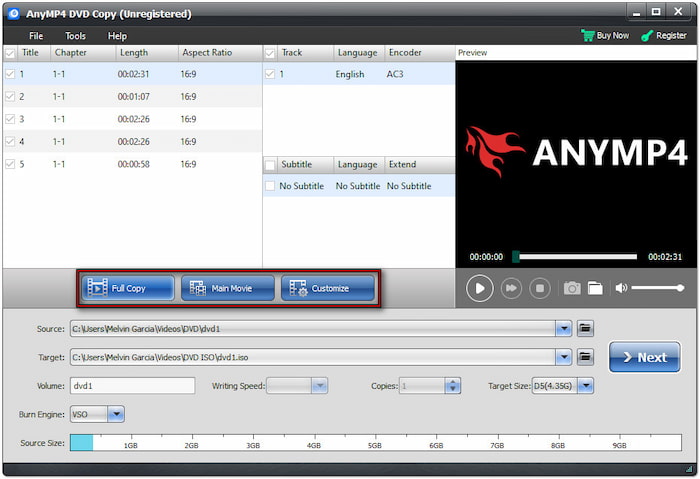
Then, select how you want to copy the DVD in your program. You can choose among Full Copy, Main Movie, or Customise to copy the DVD content.
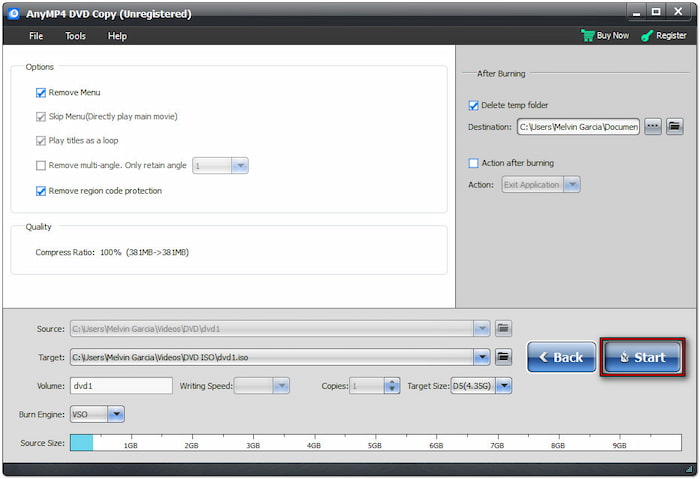
Step 3.After loading the DVD content into the program and setting the copy mode, click on Start to begin copying the DVD data.
Tips
If you only have one DVD drive, you can save the DVD as an ISO file first, then swap the original disc for a blank disc to burn the copy. You can use Blu-ray Master's program both as a data recovery tool and as DVD burning software.
Part 5. FAQs About Copying DVDs on Windows
-
Why won't my Windows computer read the DVD?
The first step is to check your DVD drivers. Check for updates and ensure that it is connected properly. To ensure data preservation, also check your DVD for scratches.
-
Is it legal to copy a DVD on Windows?
Yes, it is. Copying DVDs for personal backups is legal. However, bypassing DRM of commercial DVDs and distributing them is a form of piracy.
-
Can Windows Media Player copy DVDs?
If you want to learn how to copy a DVD in Windows Media Player, you can do so as long as you are ripping audio. Windows Media Player cannot rip video content. If you want to recover videos, it is advisable to use DVD ripping tools such as Blu-ray Master Blu-ray Ripper.
-
When should I use data copying or DVD burning?
You should use data copying to create offline backups as a DVD as the storage medium. Meanwhile, burning is advisable for users who want to create playable DVDs. They have their own niches.
-
Can I play a data DVD on a DVD player?
No, you cannot. Data DVDs are not playable at all. They are used for offline storage, much like external drives or USB drives.
Conclusion
With the three most popular methods for copying DVDs on Windows now discussed, we hope you can select the program that best suits your needs, since choosing a single absolute solution is not possible. As such, we recommend using the basic File Explorer to copy data, HandBrake to rip videos for mobile viewing, and Blu-ray Master DVD Copy to 1:1 clone the entire DVD image. To help other readers seeking a good DVD copy tool, please leave a comment and share which programs worked best for you.
More from Blu-ray Master
