

Aug 07, 2026Posted by Kevin Miller to Copy DVD
Are the shelves of dusty DVD cases and movie collection beside your TV starting to pique your interest, and do you know that these DVDs could degrade over time when they are not accessed? Fear not, since you can extract the video files from a DVD using modern ripping software for a digital rescue mission. This will also make watching DVD media on a tablet or phone easier since format incompatibility and hardware limits won’t be a problem anymore. This guide will walk you through three different methods for a hassle-free route to digitise your DVD collection, with each tool catering to both tech novices and advanced users.

Table of Contents
The Core Knowledge: What to Know Before Pressing "Start"
Why You Can’t Just “Copy and Paste”
If you think that extracting DVD media can be done by simply copy-and-pasting a file written inside the disc, you are mistaken, since there is no video file present in this format. Instead, the only data written on these DVD structures is TS folders, which contain IFO, VOB, and BUP files that are not video files.
To save these files in video format, you have to use DVD-ripping tools to write your DVD media as a digital video. This is where the three methods in this article come into play.
The Legality Check
Before proceeding to the review of our DVD ripping methods, let us first tackle the legalities of extracting videos from a DVD. With that in mind, make sure to only use the converted DVD video as your personal digital backup; these media files are covered by copyright protection, and this is the limit of their fair use. If you distribute them for monetary reasons, it will be a form of piracy.
Way 1. The Seamless Balance — Blu-ray Master Free DVD Ripper
The first method we will discuss is the DVD ripper software designed for producing high-quality results, super-fast processing, and a beginner-friendly interface: Blu-ray Master Free DVD Ripper, available for both Windows and macOS desktops.
Among the options on this list, Blu-ray Master’s software offers a seamless balance among its features. It is equipped with a clean UI, output optimisation settings, and the ability to convert DVDs into highly compatible digital video formats such as MP4 and AVI, all while maintaining the DVD's original video quality.
On top of these practical features, the program can also bypass copyright protections such as DVD region codes and CSS. Both basic and advanced video editing options are also accessible in the software, including options to be used as a video trimmer, cropper, output formats, video encoders, resolutions, and bitrate.
To learn how to use Blu-ray Master Free DVD Ripper, make sure to read our three-step guide below and download the software for an easier time learning how to use it.
Free Download
For Windows
Secure Download
Free Download
for macOS
Secure Download
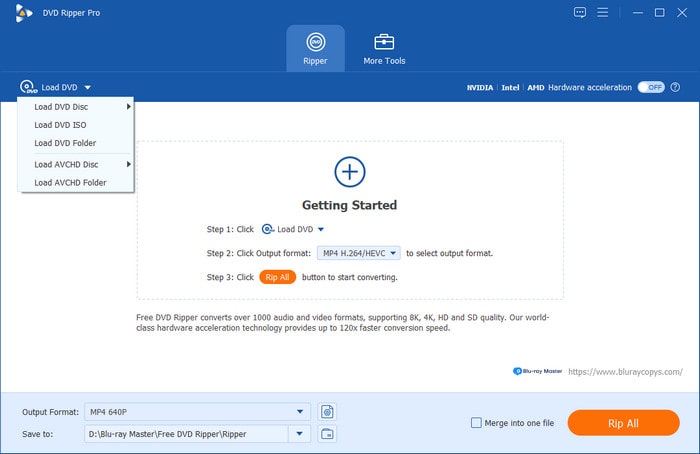
Step 1.Load the DVD media you want to convert digitally to your external drive. Then, open Blu-ray Master Free DVD Ripper and select Load DVD Disc.
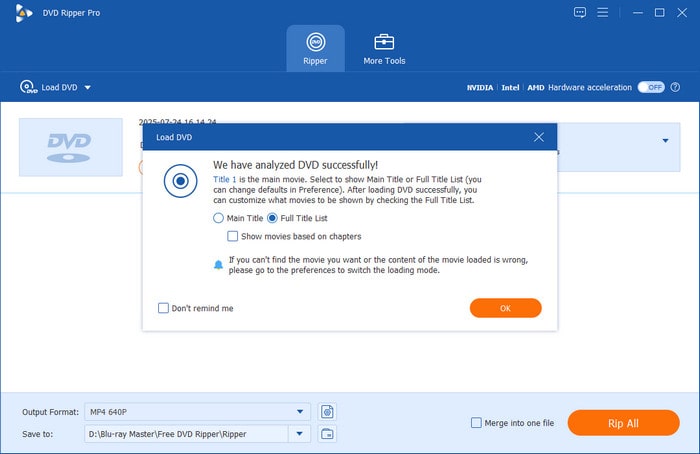
In the Load DVD menu, select either Main Title or Full Title List based on what portion of the DVD media you want to convert.
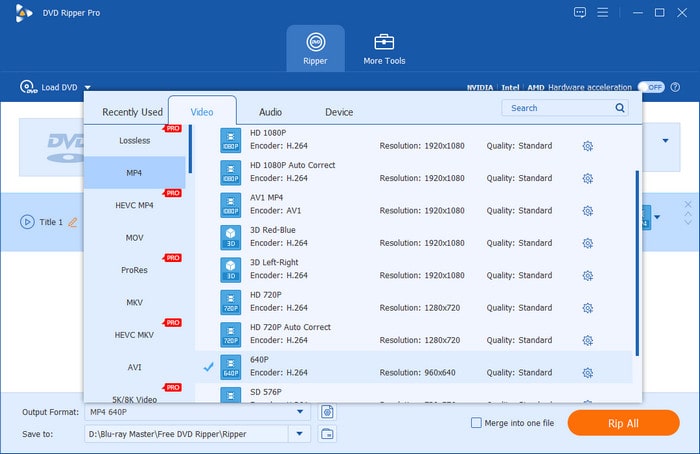
Step 2.Next, select Output Format and choose Video, then select the format you want to use. We recommend using MP4. Then select the conversion profile you want to use.
Step 3.Now that you have set the video format, select Rip All to begin converting your DVD media to digital video.
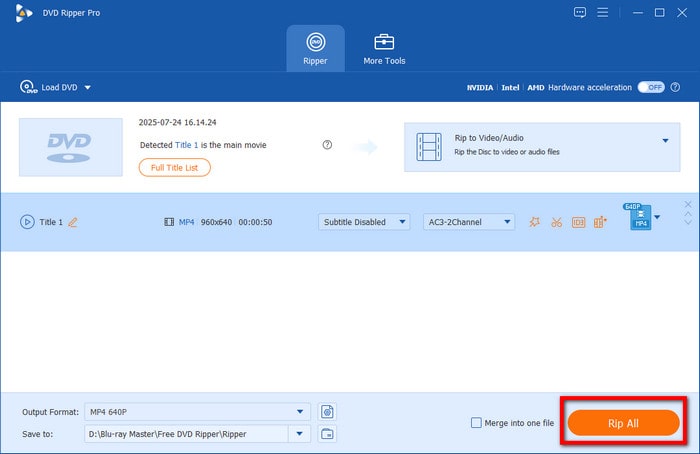
Once your DVD media has been converted, you can now watch its content on any modern device since MP4 and other video formats are playable across all operating systems.
Way 2. The Open-Source Powerhouse — HandBrake
If you are looking for an open-source solution equipped with more advanced video adjustment features, you can use HandBrake to rip DVDs. Since it is a freeware program, it is a great option for experienced editors looking to adjust bitrates, video resolutions, and quality.
On top of its free price tag, the software is also safe freeware and comes with robust preset libraries for encoding and compression.
To learn how to extract video from a DVD using HandBrake, make sure to read our guide below.
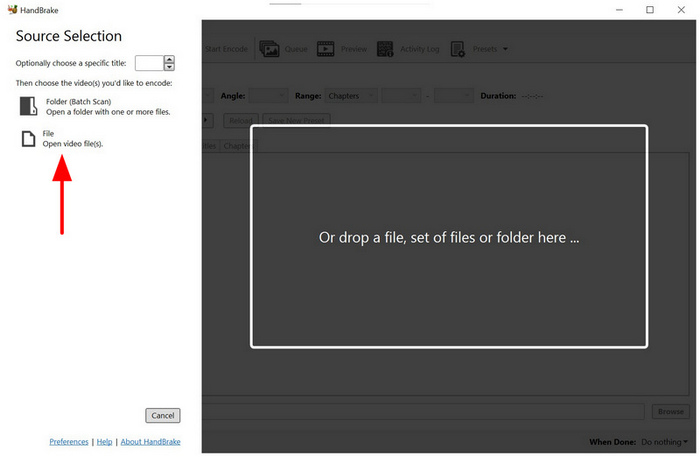
Step 1.Open HandBrake and select File to open the extracted MKV from the Blu-ray media.
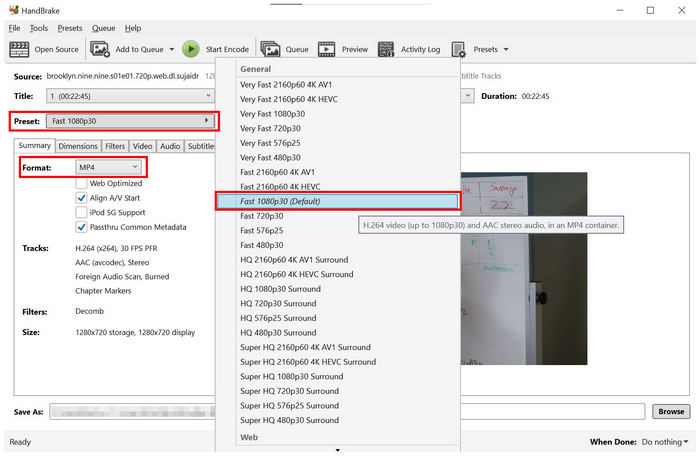
Step 2.In HandBrake, select the conversion Preset to make it easier to set your video quality. Then, select Format: MP4 for maximum compatibility.
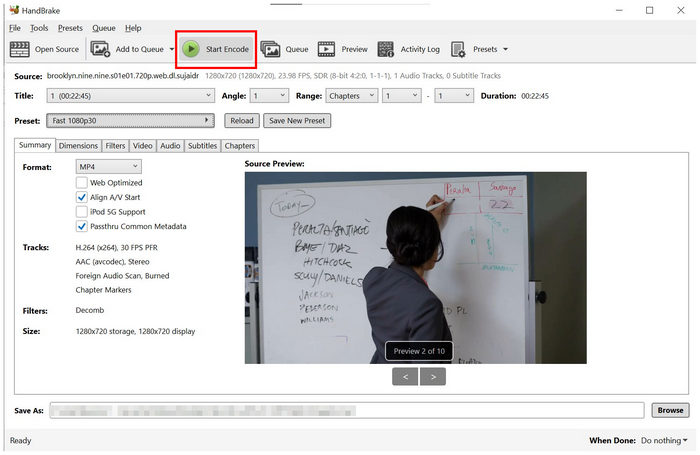
Step 3.With the format now set and the adjustments applied, select Start Encode to begin converting the extracted MKV media to MP4.
Since HandBrake is designed exclusively as a DVD encoder, it is a solid choice for users looking for an open-source solution with advanced video settings.
Way 3. The Raw Archiver — MakeMKV
Since extracted DVD videos have superb quality, using a raw archiver is the best option if you want a 1:1 digital clone of the DVD media. In this case, MakeMKV should be the program you should use.
Compared to Blu-ray Master and HandBrake, MakeMKV does not re-encode or compress the DVD media processed in it. The software simply strips the disc restrictions and wraps the raw footage in a lossless MKV container. Like MP4, MKV is a digital video format.
To learn how to use MakeMKV, you may refer to our three-step guide.
Step 1.Load the DVD on your external drive and then open MakeMKV. Then, select the DVD as the source.
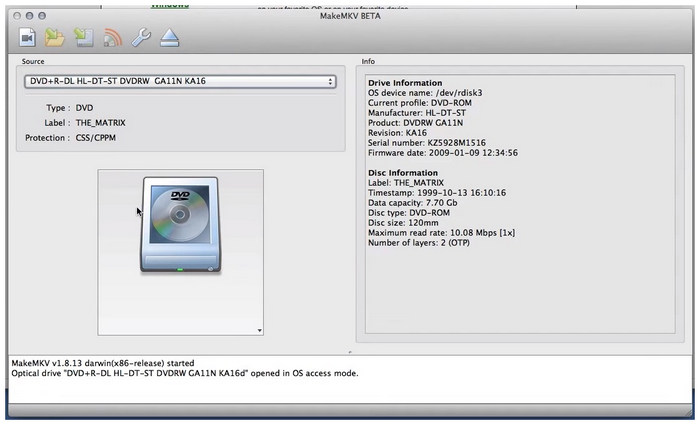
Step 2.Once the DVD has been loaded, wait for the program to scan its content.
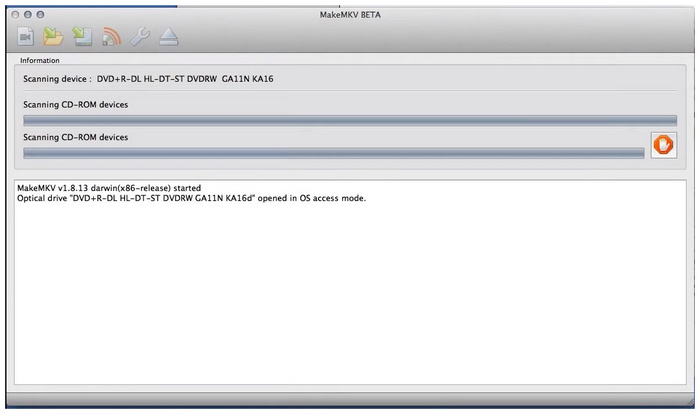
Step 3.With the DVD now scanned, select the DVD titles you want to convert into a digital MKV video. Select the MakeMKV button to begin digitising the DVD content.
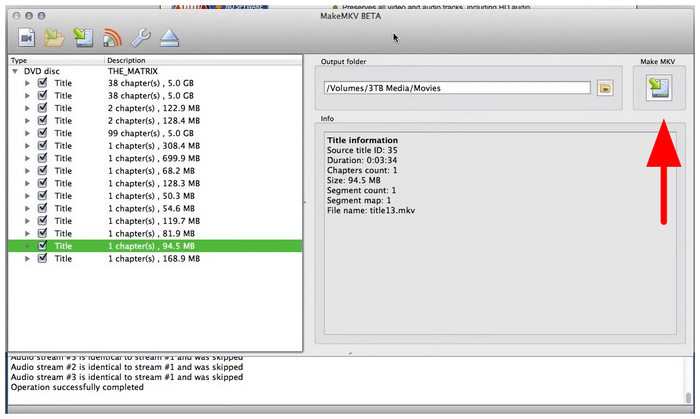
Among the options on this list, MakeMKV is a good option if you want to learn whether you can extract video timestamps from a DVD. Since DVDs can be separated via titles, these timestamps can be set.
Comparison Matrix: Which Way Should You Take
During our testing and review, we used the three DVD extracting methods on modern Windows 11 and macOS Tahoe laptops. Both testing devices run on 16GB of RAM and use Intel Core i7 and Intel Core M5 chips, respectively.
When using our proposed methods, we ensured that each software application was the only one running on the computer to ensure it fully used the computer’s resources during the DVD-to-H.265 or H.264 digital video conversion.
Now that we have discussed how the tools have been reviewed, let us move forward to our comparison matrix featuring the three software programs. As such, the programs have been reviewed based on their best uses, ripping efficiency, output file size, and learning curve.
| Feature / Metric | Blu-ray Master Free DVD Ripper | HandBrake | MakeMKV |
| Best For | Balanced, user-friendly conversion | Advanced tweaking & compression | 1:1 Lossless archiving |
| Ripping Speed | Fast | Moderate (CPU-intensive) | Fast |
| Output File Size | Highly Optimised (Small/Medium) | Adjustable (Small/Medium) | Large (Raw size) |
| Learning Curve | Extremely Easy | Moderate | Easy |
FAQs About Extracting a Video File from a DVD
-
Why is my computer or external drive not recognising the DVD at all?
If your computer cannot access the DVD, make sure to check if your external drive is connected properly. Also, double-check if your driver has additional setup requirements that you may have missed.
-
Will extracting the video damage the physical DVD or cause wear and tear on my optical drive?
No, it will not. Getting the video on your DVD will not affect it physically. Only the data written in the program will be processed for conversion to digital video.
-
Why does my extracted video look blurry or pixelated on a modern 4K monitor, and can I upscale it?
Your video’s resolution may now be scaled properly. Unfortunately, only a limited number of multimedia programs can upscale to 4K quality. Good examples include HandBrake and Blu-ray Master Free DVD Ripper.
-
How do I extract specific chapters or bonus features instead of ripping the entire movie?
You have to use dedicated DVD rippers. Among these methods, Blu-ray Master Free DVD Ripper and MakeMKV are good. Both of these options allow selecting specific titles for conversion only.
-
What should I do if the DVD software throws an error regarding regional lockouts (Region 1, 2, 3, etc.)?
You have to use a DVD ripper that can bypass region codes. Among these methods, Blu-ray Master Free DVD Ripper and MakeMKV can do so. HandBrake requires an additional plug-in to support bypassing region codes.
Conclusion
Now that we have discussed the options to extract the video from your DVD media, you can transfer these extracted videos from the DVD to a secure hard drive, streaming platform, or easily share them with your family for their personal use on the cloud. Since physical discs are ticking time bombs of data decay, using DVD ripping tools to digitise them is the perfect solution for preservation. In this case, Blu-ray Master Free DVD Ripper should be your first step towards preserving media history.
More from Blu-ray Master
