

Jul 22, 2026Posted by Kevin Miller to Rip DVD
Quick Summary:
To convert a DVD to an ISO image file, use Blu-ray Master DVD Copy for commercial encrypted DVDs on Windows/Mac. For free unencrypted discs, use ImgBurn (Windows) or Disk Utility (Mac).
An ISO image file is a pack of DVD data including video or software data files and disc structure. It is a convenient way to back up, share and manage your DVD collection, but you have to strongcreate an ISO image from your DVDstrong first.
This is a complicated technical task for average people and tech savvy. The good news is that you can convert your DVDs to ISO files using the built-in or third-party tools quickly. This article tells you 5 methods to achieve converting DVDs to ISO files on PC, macOS and Linux.
- Part 1. Why Convert DVDs to ISO
- Part 2. How to Convert DVDs to ISO on PC
- Part 3. How to Create ISO from DVD on Mac
- Part 4. How to Convert DVD to ISO on Linux
- Part 5. FAQs of Converting DVD to ISO
Disclaimer:
Ripping copy-protected DVDs for commercial purposes violates copyright laws (e.g., DMCA). Please ensure you only back up discs for personal playback.
To ensure the accuracy and reliability of our test results, we conducted benchmark tests on various tools across Windows 11 (Intel i7-13700K processor) and macOS Sonoma (Apple M2 Pro chip) systems. Test media uses a custom-made unencrypted DVD-R disc (4.37 GB) and a dual-layer commercial movie DVD: one is 7.5 GB with CSS encryption, and the other is Region Code 1 and Disney Digital Rights Management. During speed and stability tests, the Blu-ray Master DVD Copy software successfully created a 1:1 ISO backup of the encrypted 7.5 GB disc in just 6 minutes, achieving a 100% success rate. In contrast, free standalone tools like ImgBurn require an average of 8–9 minutes to process unencrypted media and are completely incompatible with commercial DVDs due to the absence of built-in decryption engines. These results demonstrate that while built-in or free tools suffice for personal home video backup needs, professional tools equipped with active decryption engines remain essential.
| Tool | Platform | Ease of Use | Best for | Decryption Ability | Output Quality |
| Blu-ray Master DVD Copy | Windows and Mac | Copying DVDs to ISO files, including protected discs |  | High | |
| ImgBurn | Windows | Creating ISO images for free |  | Moderate | |
| Disk Utility | Mac | Easy operation to create ISO files on Mac | | Good | |
| Brasero | Linux | Creating ISO images on Linux | | Good |
Part 1. Why Convert DVDs to ISO
Why do many people want to convert DVDs to ISO files Generally, there are mainly 4 reasons
- Full Backup of the Disc ISO files preserve everything on the DVD, making them ideal for complete, long-term backups.
- Easier Access You can play ISO files instantly without needing a physical disc or drive.
- Protection from Damage ISO backups protect your content from scratches, wear, or loss of the original DVD.
- Enables Editing and Conversion ISO format makes it easier to extract, edit, or convert DVD content into modern video formats.
Since over 99% of commercial movie DVDs are protected by encryption systems (such as CSS or region codes), converting these discs into ISO image files requires software equipped with a dedicated decryption engine. This article introduces tools capable of decryption, as well as standard programs like ImgBurn and Mac's built-in Disk Utility (which only handle unencrypted or custom-made DVDs).
Important Hardware Tip: Using External USB DVD Drives
- Almost all modern laptops (MacBooks, ultrabooks) lack built-in optical drives, so many users rely on external USB DVD drives. To avoid read errors or power-drop disconnects during the ISO extraction process, here are some essential tips.
- Power Supply: Insert the external DVD drive directly into the computer’s main USB port or a powered USB hub. Do not use an unpowered USB splitter, as the optical drive requires a stable power supply for continuous data reading.
- Mac USB-C Adapters: On Apple Silicon Macs (M1/M2/M3), ensure you use a reliable USB-C to USB-A adapter that supports high-speed data transfer to prevent read time-outs.
- Drive Region Settings: New external drives may require you to set the optical drive region code (typically limited to 5 changes) upon first use before reading commercial discs.
Part 2. How to Convert DVDs to ISO on PC
Convert DVD to ISO with Blu-ray Master DVD Copy [Easiest Way]
DVD Copy is reviewed as the easiest way to create ISO from DVD. Being equipped with excellent clone technology, it allows you to back up DVDs, folders, and ISO image files. Meanwhile, it can also support you in converting DVD to ISO image files. To summarize, no matter whether you want to back up DVDs, or convert DVDs to other formats, this tool is an excellent solution.
- Copy and back up entire DVD to hard drive in the form of ISO image.
- Provides three modes of DVD creating, Full Copy, Main Movie, and Customize.
- Preview your DVD with the built-in media player.
- Rely on hardware acceleration to speed up the process.
- Write ISO image files to blank DVDs at any time.
All in all, it is the easiest way to convert your DVD collection to ISO image files on PC or Mac.
Step 1.Download and install the tool
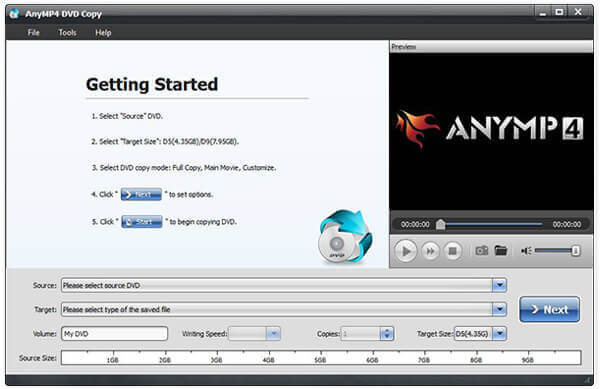
When you want to convert your movie DVD to an ISO file, install the best DVD-to-ISO converter on your PC. It is compatible with Windows 11/10/8. There is another version for Mac. Next, insert the disc into your DVD drive and launch the software.
Step 2.Select the right mode
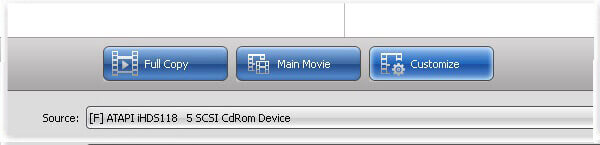
Expand the spanSourcespan drop-down and select your DVD, and the video data files will be added to the media library. Go to the middle area and select a proper mode. The spanFull Copyspan mode is able to convert entire DVD to ISO. The spanMain Moviespan mode will only include the DVD movie in ISO file. When it comes to spanCustomizespan, you can select any files for ISO.
Note: With its powerful CSS decryption, it can 1:1 losslessly copy DVD to ISO.
Step 3.Create ISO from DVD
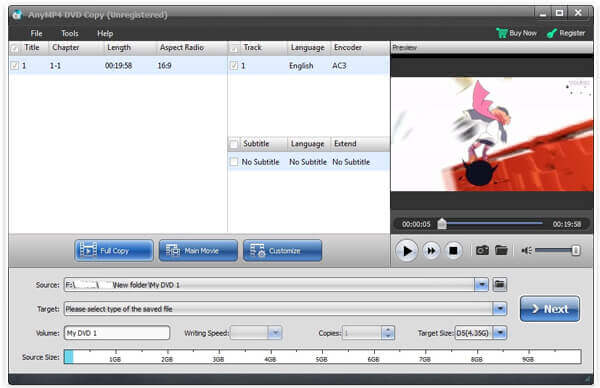
Next, click the Target drop-down, set the destination to save the ISO files and drop a filename. After settings, click the spanNextspan button to start creating ISO from your DVD. According to our research, it only takes a few minutes to finish the process.
Believe you have been deeply attracted by the ability to convert DVD to ISO files of DVD Player, and to be honest, this feature is only the tip of the iceberg of all of its excellent features. You can keep exploring more features and you will not regret to meet this potent tool.
Convert DVD to ISO via ImgBurn
ImgBurn is another open-source tool for DVD to ISO conversion. It is available to Windows 10/8/7/XP/Vista and earlier for free, but it will include DVD protection into the ISO image file.
Step 1.Start the free DVD to ISO converter and insert your optical disc into DVD drive.
Step 2.Select Create image file from disc in the setup interface to open the next window.
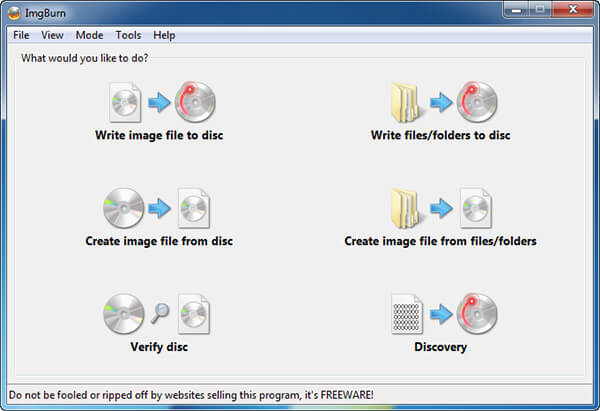
Step 3.If your disc does not appear in the Source area, set it manually. Then click the folder icon in the Destination area, and select the output location and drop the filename.
Note: You can use it with DeFab/AnyDVD to decrypt DVD.
Step 4.Finally, click the DVD to ISO button at the bottom left side to trigger the ISO creating process. Be patient since it spends a moment to complete the process.
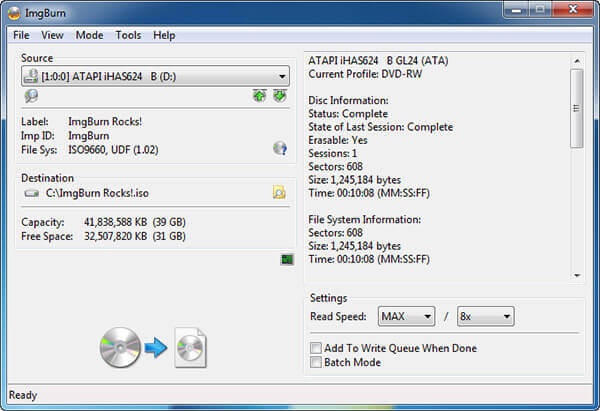
Note: Unlike CDBurnerXP, there are some custom options in ImgBurn. For instance, you can adjust the read speed or activate the batch mode to convert multiple DVDs. For beginners, we suggest you to keep the settings with default values.
Part 3. How to Create ISO from DVD on Mac
Although you cannot find the ISO creating functionality on PC, Apple has introduced it into macOS. Moreover, Linux allows you to convert your DVD to ISO image with command line and some pre-installed tools.
Apple packs a lot of utilities in Mac including the Disk Utility app. This Mac DVD ripper can help you convert unencrypted DVDs to ISO image files on Mac without installing anything.
Critical Limitations for Mac Users (Disk Utility & macOS APFS):
Copy Protection Bottleneck: Mac’s Disk Utility cannot bypass CSS (Content Scramble System) or region code protections. Attempting to rip a commercial movie DVD will result in a ‘Disk Read Error’ or an unmountable image file.
APFS & Legacy Format Compatibility: Modern macOS versions default to APFS (Apple File System). When using Disk Utility, ensure your output format is set to DVD/CD Master in advance. Disk Utility will output a .cdr extension, which is formatted in HFS+/ISO 9660. To make it universally readable on Windows or media players, you need to manually rename the file extension to .iso or convert it via Terminal.
Step 1.First of all, put the DVD into your optical drive and run Disk Utility app from the Applications folder.
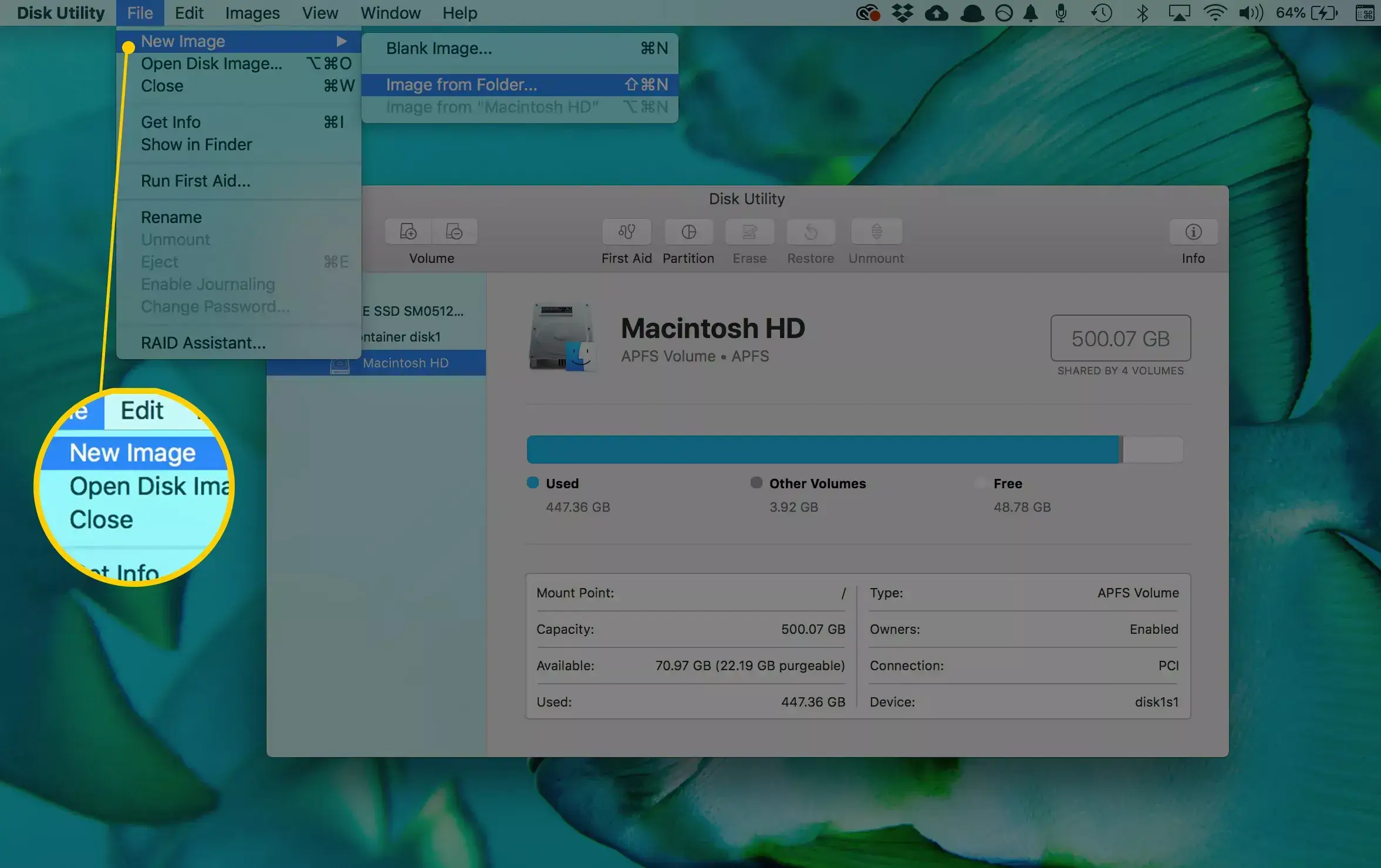
Step 2.Click File > New Image > Image from [device] on the top of the window to move on.
Step 3.On the pop-up dialog, write down a filename in Save As box, and set a specific folder to store the ISO file in Where option. Unfold the Image Format drop and choose disk image. Make sure to set none in the Encryption field. Hit the Save button to begin converting DVD to ISO on Mac.
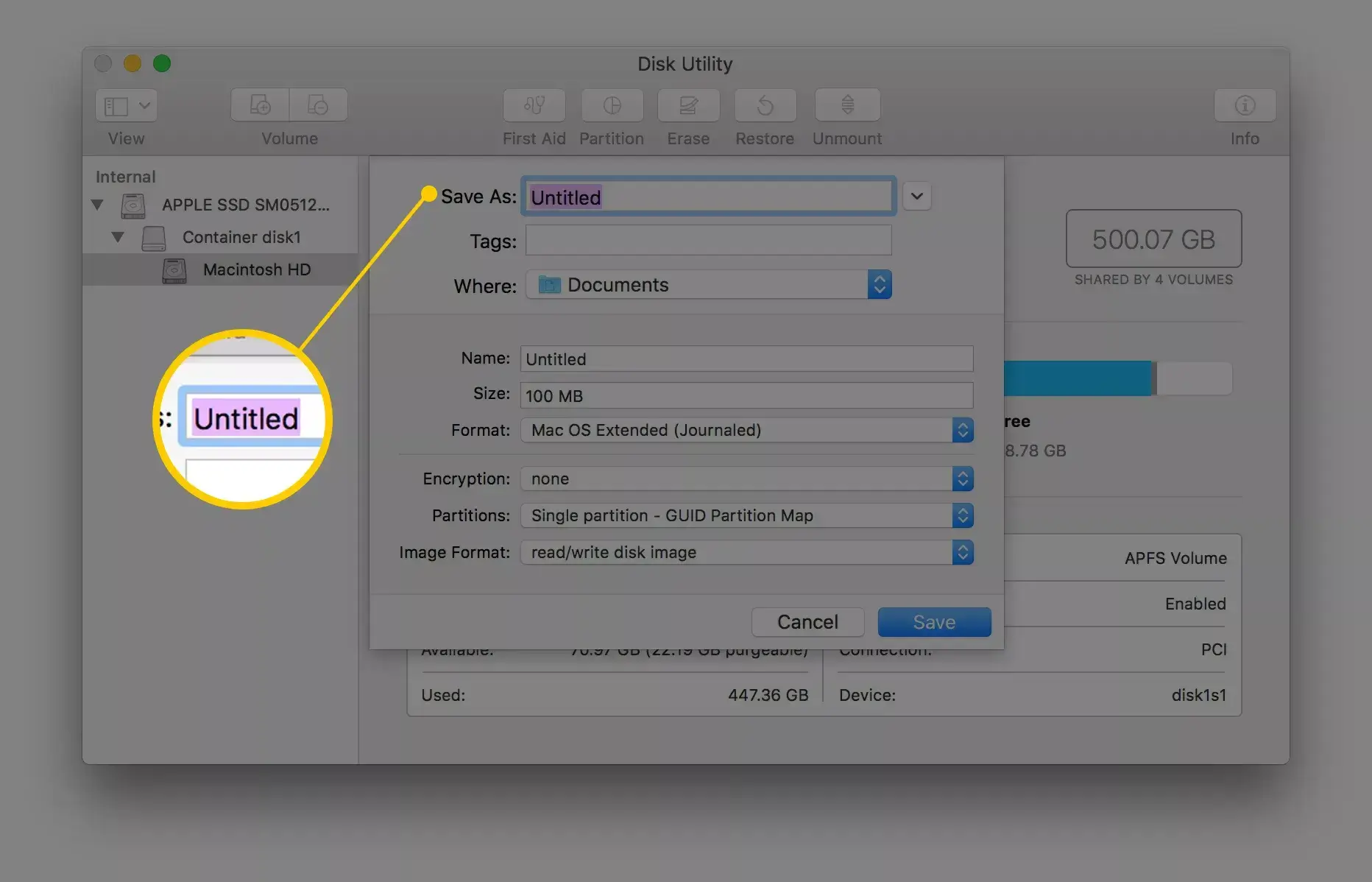
Note: Firstly, Disk Utility will create a CDR image file by default. You can directly mount it or burn it to your disc on Mac. If you want to produce an ISO image, rename the file extension or use a third-party file converter.
Furthermore, you can execute hdiutil convert /home/username/original.cdr -format UDTO -o /home/username/destination.iso in Terminal to convert DVD to ISO directly.
Although the above method to convert DVD to ISO image with the command line does not require the installation of other programs, however, it is a little bit difficult for the computer novice. If you want to find a specific converter or ripper to address this problem, just keep reading.
Part 4. How to Convert DVD to ISO on Linux
Linux is not only a high customizable operating system, but also includes some useful tools. The Brasero disc-burning utility, for example, is able to create ISO from DVD.
Step 1.Run the Brasero Disc Burner app and select Disc Copy to open the Copy CD/DVD dialog.
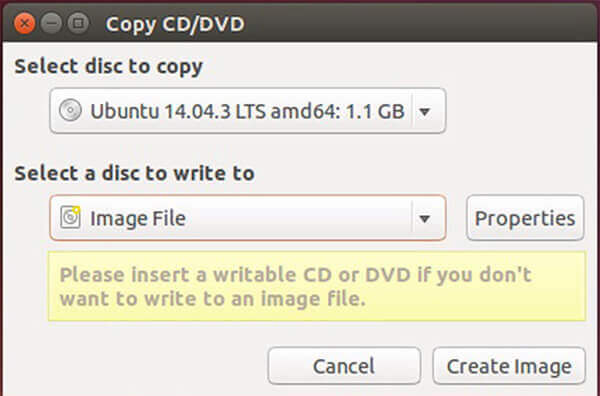
Step 2.Insert the DVD into your computer and select it from the drop-down list under Select disc to copy. Then choose Image File from the Select a disc to write to option.
Step 3.Once click the Create Image button, DVD to ISO conversion will initiate.
Note: Similar to Mac, you can extract ISO from DVD with program language, but the command is sudo dd if=/dev/cdrom of=/home/username/image.iso.
If Brasero fails or feels limited on your Linux distribution, K3b is widely considered the most stable and feature-rich disc-burning utility for Linux (especially on KDE Plasma environments).
Step 1. Install K3b via your terminal with this command: sudo apt install k3b (Ubuntu/Debian) or sudo dnf install k3b (Fedora).
Step 2. Open K3b, insert your DVD, and right-click on the DVD drive in the lower pane.
Step 3. Select Copy Medium..., check the box for Only create image, specify your destination folder, and click Start.
Note: Like Brasero, K3b requires the libdvdcss2 package installed on your Linux system to read encrypted commercial DVDs.
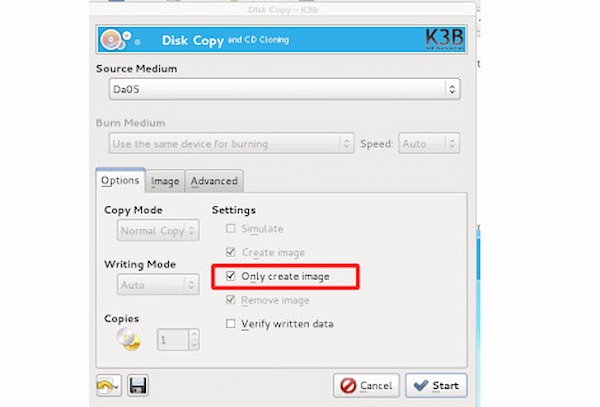
Both these two methods provide you solutions to converting DVD to ISO image with commands and useful tools. It can address the problems you have encountered but without extending more features of DVD conversion. If you want to enjoy more functions, you can find a more professional tool.
Part 5. FAQs of Converting DVD to ISO
-
What is a DVD ISO file?
An ISO file is the computer file that extracts the copy of an existing file system. It can contain the entire contents of the physical DVD drive, including the file system itself. When using the ISO file, users can decide whether to mount the ISO image or use it to burn an optical disc. For playing the DVD ISO file, you should mount the image, and Windows 10 has the built-in image which can play the ISO file directly.
-
How do I convert files to ISO?
For converting the files into ISO file, you should make sure you have inserted the DVD disc into your computer, and then get DVD Copy on your computer. After that, select the copy mode and start to convert DVD to ISO file on your computer, you can also convert Blu-ray movies to ISO file.
-
Can I burn ISO to DVD?
Yes, you can. Not only converting DVD to ISO, but can you also burn ISO to DVD with the professional software. Whether you download the software from Microsoft Store, or search them online, you can also find the software to help you create ISO to DVD. The details are here.
-
Can I use Mac's Disk Utility to create an ISO from a commercial movie DVD?
No. It cannot handle the copy protections of commercial DVDs.
-
Why does ImgBurn give an I/O error when I try to copy my movie DVD to ISO?
It is usually due to disc copy protection, a dirty or scratched disc, or a failing optical drive.
-
Does HandBrake allow me to save a DVD directly as an ISO image file?
No. HandBrake is a video transcoder that can save DVDs to MP4, MKV, and other formats.
-
What is the best software to make a 1:1 lossless ISO backup of my optical discs?
Many tools can create true 1:1, bit-for-bit, lossless backups of encrypted discs, such as DVDFab DVD Copy and MakeMKV.
Conclusion
Based on our sharing above, you should master at least 5 ways to convert DVD to ISO on Windows, Mac, and Linux. Sometimes, you just need to copy your movie or software disc into an ISO image file for sharing or other purposes. DVD Copy is the most cost-effective option. Anyone can master it in a few seconds and keep all your data on DVD to your hard drive. If you have other suggestions, please write them down in the comment area below this post, and we will reply to them later.
More from Blu-ray Master
ISO Information

Fast and free ripping software to decrypt all DVDs to digital easily on your computer.
100% Secure. No virus
