

Sep 03, 2026Posted by Kevin Miller to Rip DVD
Quick Summary:
DVD region codes lock discs to specific geographic zones. These are embedded on both DVD players and the DVD discs. We have provided the most common region codes in this summary below:
- • Region 1 – Canada, USA, and US Territories
- • Region 2 – Middle East, South Africa, Japan, Europe, Egypt
- • Region 3 – Hong Kong, East Asia, and Southeast Asia.
- • Region 4 – New Zealand, Australia, Central America, Pacific Islands, South America, Mexico, and the Caribbean.
- • Region 5 – Africa, North Korea, Eastern Europe, Mongolia, and the Indian subcontinent.
- • Region 6 – China.
To make DVDs more accessible, we also provided tips on how to change or bypass region-code restrictions.
You just bought a DVD from Amazon UK. You live in the US. Your player spits it out. Welcome to the DVD region code system — a 20-year-old artificial barrier that's easier to bypass than you think. It is indeed frustrating to see how your disc and player don’t align. For this reason, we cannot blame you for being here and for wanting the best solutions to change or bypass DVD region codes using your dedicated player. So, let’s cut to the chase and move to the content parts below.

Table of Contents
- Part 1. How We Tested These DVD Region Solutions
- Part 2. Quick Comparison — Change vs Bypass Methods at a Glance
- Part 3. What Are DVD Region Codes
- Method 1 — Change Region Code via DVD Player Settings
- Method 2 — Bypass Region Codes by Ripping (Recommended)
- Method 3 — Region-Free Firmware for Advanced Users
- Part 7. When to Change vs When to Bypass
- Part 8. FAQs About DVD Region Codes
Part 1. How We Tested These DVD Region Solutions
To provide objective results from the methods we used for DVD region-code bypass, we ensured the test computers were running optimally while processing the DVD. Moreover, we only used a pair of incompatible DVD and player for testing: a Region 1-coded DVD from the USA and a Region 3-coded DVD player in Southeast Asia.
To learn more about the computers we used for testing, we listed the specs of each piece of hardware below:
- Windows 11 and macOS Sequoia
- Intel i7 and Apple Silicon M5 Chip
- Both running in 16GB of RAM
Part 2. Quick Comparison — Change vs Bypass Methods at a Glance
Since DVD Region code is a common problem for opening protected DVDs, there are also common options to bypass this copy-protection measure. As such, you can use software to either change the region code or bypass the codes altogether.
With that in mind, we have provided a quick comparison of changing or bypassing region-code systems. We hope that these details will help you learn which code-bypassing system best suits your needs.
| Change/Remove Region Code | Bypass Region Code | |
| What It Does | Makes the DVD player compatible with the DVD region code. | Ignores the region code altogether. |
| How To Use It | Edit the firmware or the DVD player settings. | Rip the DVD data or edit your DVD player’s firmware. |
| Limitations to Use It | DVD drives have region-code changing limits. Usually limited to only 5 changes. | No limitation. Ripping the DVD can be done only once, and playing a DVD on a region-free player has no limit. |
| Best Used For | Users with region-locked DVDs from only one region. | Optimal for users playing DVDs from different region codes. |
| Risks | DVD code changing is limited. May not work if you used the region-code changing limit. | Compatibility and playback issues occur on region-free players from time to time. |
Part 3. What Are DVD Region Codes
Why Region Codes Exist (and Why They're Frustrating)
The DVD region system is implemented for DVDs and even Blu-rays to control their distribution and playback worldwide. This means that region-encoded DVDs are restricted from playing with DVD players due to their specific geographical region. For example, you cannot play a region-coded DVD 1 with a DVD player that comes with another region, unless you have a region-free DVD player.
Another purpose of a DVD region code is to protect the copyrights and release schedules of movie makers all over the world. So yes, it is to protect distributors and DVD owners from encroachment. However, this is highly inconvenient if you ordered a DVD overseas and tried to watch it in your country in a different zone. DVDs gifted from relatives abroad will also be challenging to open if you are using a DVD player from a different region code.
The 6 DVD Regions Explained
Region codes are geographic zones worldwide and also represent the DVD's language. Overall, there are 8 DVD regions, but only 6 are commonly used; regions 7 and 8 are used for special cases other than region marking. In some cases, if you find a Region 0 DVD, it means the DVD is region-free. In other words, the DVD has no region code implied. Meanwhile, here is the list of the regions outlined in the chart below.
| DVD Region Number | Included Countries in the Region |
| Region 1 | Canada and the U.S.A and its territories. |
| Region 2 | Middle East, South Africa, Japan, and Europe, along with Egypt. |
| Region 3 | Hong Kong, East Asia, and Southeast Asia. |
| Region 4 | New Zealand, Australia, Central America, Pacific Islands, South America, Mexico, and the Caribbean. |
| Region 5 | Africa, North Korea, Eastern Europe, Mongolia, and the Indian subcontinent. |
| Region 6 | China. |
| Region 7 | Reserved for special cases. |
| Region 8 | Reserved for special international venues like cruise ships and airplanes. |
Method 1 — Change Region Code via DVD Player Settings
How to Change Region on a Desktop DVD Player
To change the region code using your player, turn it on and remove the disc. Now press the Start button and select Control Panel > System > Maintenance > Device Manager. Once you have pressed all of them, get your remote, press the number 314159, and wait until the FF or CODE shows on your TV screen. When shown, input your desired new code and click the Pause button, then turn off the player. And that’s how to change the region code on a DVD player. If you encounter other issues when changing the player's region code, check the following article for more relevant solutions.
Region-Free DVD Players — No Switching Needed
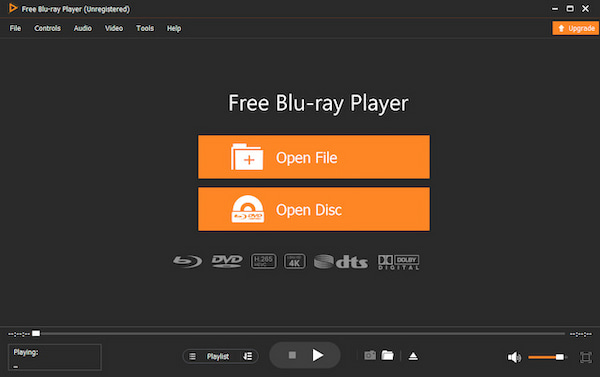
One of the best ways to play and enjoy all the DVDs is to use a region-free player. For this, you need a reliable multi-region DVD player, like Blu-ray Master Free Blu-ray Player. The most important feature of this player is that it is region-free and can play region 1 to region 6 DVDs. It is an amazing program that can play back any DVD, regardless of its type, ISO, or folder. This region-free DVD player can load the disc and play it automatically, with helpful playback controls and an elegant interface. In addition, it lets you configure audio and video effects while watching for an excellent playback experience on Windows and Mac.
Key Features
- Play DVDs and Blu-rays without code limitations.
- Enjoy even movies with up to 4K quality.
- Hardware acceleration technology.
- Smooth playback and transitions to files.
Free Download
For Windows
Secure Download
Free Download
for macOS
Secure Download
Step 1.Download this region-free DVD player to your computer by clicking the Download button above.
Step 2.Launch the software and click the Open Disc button to load the DVD you have inserted into your drive.
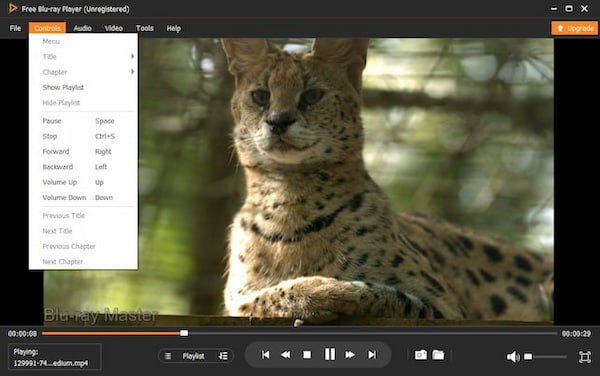
Step 3.As easy as that, you can now enjoy watching the DVD you uploaded. Use the playback buttons shown at the center-bottom part of the interface.
Method 2 — Bypass Region Codes by Ripping (Recommended)
Using Blu-ray Master Free DVD Ripper (Detailed Steps)
Since changing the DVD region codes can only be done five times, you will need to know about this solution just in case you exceed the changing limit. Here, you can remove the DVD code by ripping it. That being said, it would be best to know about this Free DVD Ripper by Blu-ray Master. It is a ripping software that can bypass DVD region codes to convert DVDs to various video and audio formats, including MP4, MKV, AVI, WMV, MOV, and 200 more. Thus, it is a good solution for ripping DVDs with incorrect region codes. Additionally, this program supports various output profiles that you can optimize for different devices, such as tablets, smartphones, gaming consoles, and other media players. Here are the steps to bypass DVD region codes through ripping.
Key Features
- Advanced acceleration technology that rips DVDs rapidly.
- Supports ripping DVDs to 3D videos.
- Editing features and functions are present.
- Rip and convert your DVDs in batches.
Free Download
For Windows
Secure Download
Free Download
for macOS
Secure Download
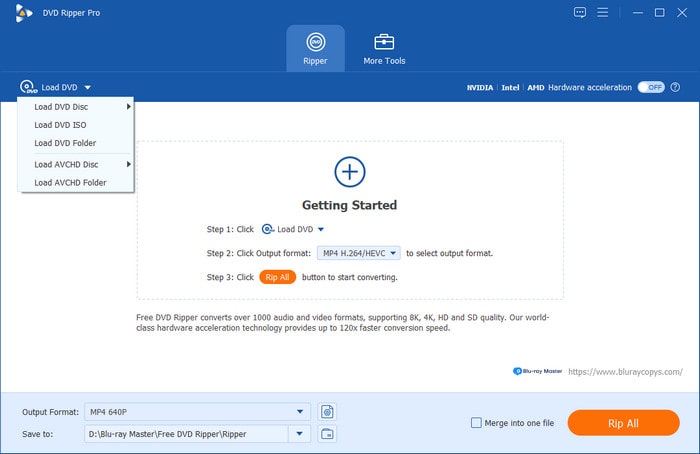
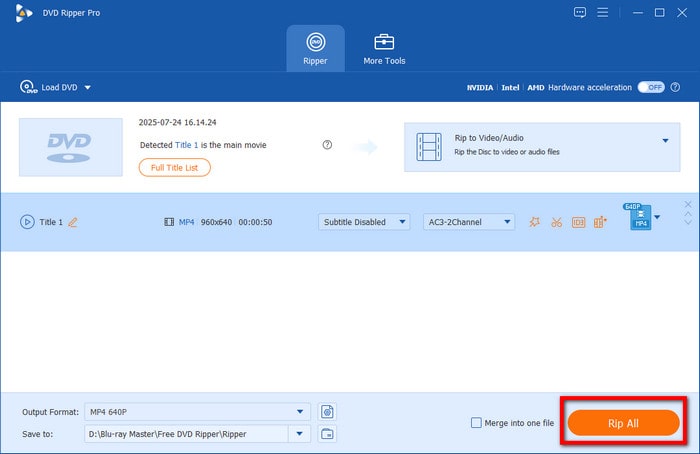
Step 1.Insert the DVD into your disc drive and launch the software. Click the Load DVD Disc button and upload the DVD.
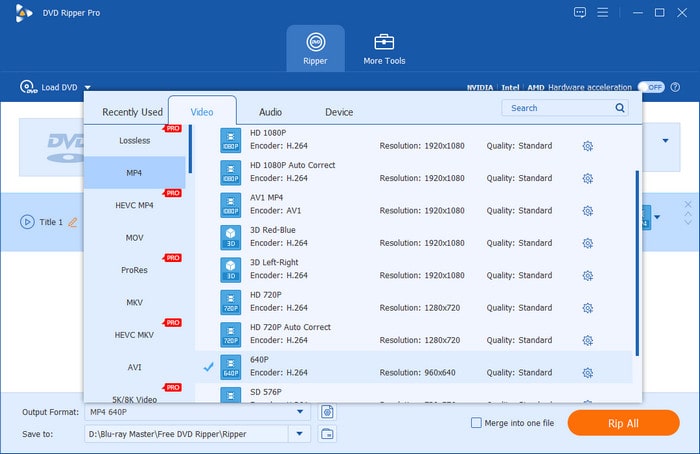
Step 2.Once the DVD files are loaded, click Output Format, then select the format button to choose your desired file type from the pop-up window.
Step 3.Click the folder icon to set where the ripped DVD will be saved, then select the Rip All tab to start ripping.
Using HandBrake + libdvdcss (Tech-Savvy Alternative)
For tech-savvy users looking for an open-source tool to bypass DVD regions, look no further than the HandBrake video encoder. Although initially developed as a video encoder, this program also includes the features needed to function as a DVD ripper.
However, if you are looking to rip DVDs with copyright protection or region-code restrictions, you have to learn how to install the libdvdcss plug-in to bypass the copy-protection mechanisms added to your DVD.
The tutorial below explains how to rip a video from a DVD using HandBrake on a Mac.
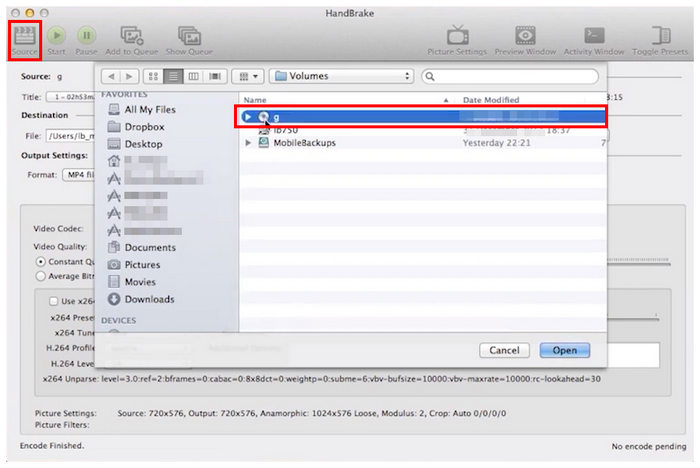
Step 1.Load the DVD into your computer, then open HandBrake. Click Source in HandBrake and locate the DVD Drive in the menu. Wait for your DVD to be processed.
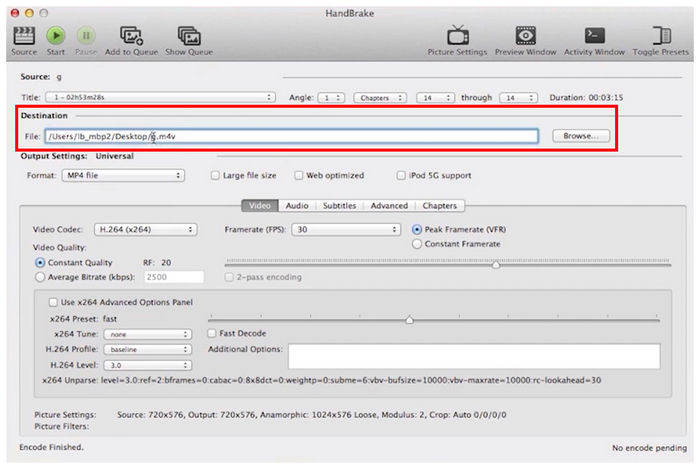
Step 2.Before beginning the DVD decoding process, set the destination where your encoded DVD file will be saved.
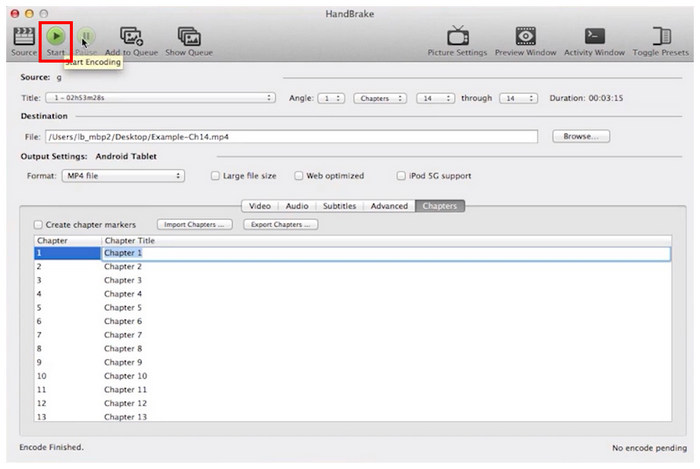
Step 3.Finally, choose the DVD content from your media by choosing among the Chapter settings. Once it's set, you can click Start Encode to begin the DVD ripping process.
If installing an additional plug-in is a little sacrifice for the reliability of open-source tools, feel free to use HandBrake.
Method 3 — Region-Free Firmware for Advanced Users
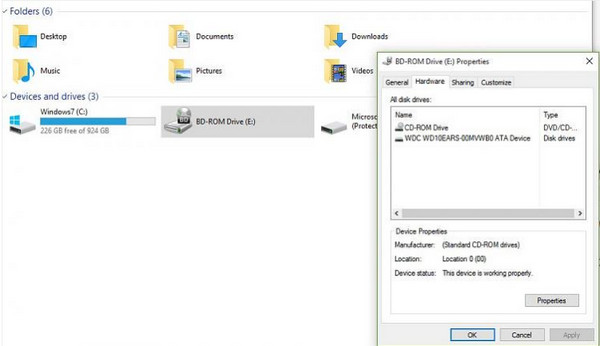
Aside from your DVD player, your DVD drive may also be locked with region codes. Suppose you have a region-1 DVD; you can follow the steps here to adjust your DVD drive firmware to make it more compatible with DVDs from different regions.
Step 1.Launch Explorer and look for your DVD drive in Devices and Drives.
Step 2.Click your drive, then select Properties. Go to the Hardware tab, click your DVD drive, and click the Properties button at the bottom.
Step 3.Click the DVD Region tab menu in the next window, and then choose your desired region from the DVD regions list. Then click the OK button.
Part 7. When to Change vs When to Bypass
With the programs about DVD regions now discussed, we hope that you have learned the concept of DVD regions. As such, all you have to do is to learn which method among DVD code changing or bypassing is best used in specific scenarios.
Simply put, deciding whether to change or bypass region codes depends on how often you will access DVDs with region-code restrictions. If you are regularly opening DVDs with different codes, use a DVD player that can bypass this system. For one-time adjustments, changing the region code is the better choice.
Part 8. FAQs About DVD Region Codes
-
Are DVD players region locked?
Most stand-alone DVD players are region-locked for digital rights management.
-
Are external DVD drives region-free?
Most external drives are region-locked. But some are region-free.
-
Are most DVD players multi-region?
No. DVD players are designed to play only their designated region.
-
Are PC DVD drives region-free?
No. Built-in PC drives are not region-free.
-
Are PS3 and PS4 region-free DVDs?
No. PS3 and PS4 are locked to DVD regions.
-
Do Blu-ray players play Region 2 DVDs?
Only those Blu-rays with a Region 2 code can play Region 2 DVDs. This is because Blu-ray players are also locked to regions.
Conclusionss
This article talks about the DVD region codes and the corresponding countries they cater to. Now that you know the region codes, playing your DVDs will be much more efficient and help you avoid playback errors due to incompatibility. When choosing which DVD region-code bypass you have to use, make sure to assess the situation based on what DVD you are going to bypass. If you only have one or two foreign DVDs, use a software player. If you collect international discs, invest in a region-free hardware player. For permanent access, rip your DVDs with free software such as HandBrake or Blu-ray Master Free DVD Ripper, which you can download using the link below.
More from Blu-ray Master
DVD Tips
Fast and free ripping software to decrypt all DVDs to digital easily on your computer.
100% Secure. No virus
