

Aug 27, 2026Posted by Kevin Miller to Rip DVD
Quick Summary
Standard DVD Resolution (NTSC): 720 × 480 pixels and 29.97 fps (Standard Definition / 480p)
Standard DVD Resolution (PAL): 720 × 576 pixels and 25 fps (Standard Definition / 576p)
Display Aspect Ratio (DAR): 4:3 (Standard) or 16:9 (Anamorphic Widescreen via rectangular pixels)
Video Codec & Container: MPEG-2 format packed in VOB files
Upscaling Truth: DVDs do not support native 720p, 1080p, or 4K. Upscaling stretches the 480p/576p frame to fit modern screens, but cannot add true original detail.
Standard DVD resolution is locked at 720×480 pixels for NTSC (480p) and 720×576 pixels for PAL (576p), a standard definition (SD) format unchanged since the late 1990s.
If you pop one of those old physical discs into a modern 65-inch 4K Smart TV, the result is often disappointing: a soft, pixelated image with visible compression blur. That's because your 4K display has to stretch roughly 345,000 pixels across a screen designed for over 8.2 million. This guide breaks down exact DVD resolution specs, explains how aspect ratios work behind the scenes, and walks through realistic ways to digitize and improve your disc collection for modern screens.

- Part 1. What is DVD Resolution
- Part 2. What is The Maximum DVD Resolution for SD and HD
- Part 3. Blu-ray VS DVD Resolution VS 4K
- Part 4. How to Change DVD Resolution
- Part 5. FAQs about DVD Resolution
Part 1. What is DVD Resolution
DVD resolution is about the number of pixels displayed on your screen. This expressed the width and height of the visual. When DVD was released in 1997, the video resolution was 720 × 480 or 480i. It is the standard resolution format for older DVDs and CDs, but right now, there are more resolutions supported in DVDs, depending on the distribution. For example, NTSC DVD resolution is commonly 720×480 or 480p. On the other hand, the PAL DVD resolution is 720x576 or 576i/576p.

Why 720×480 Displays in 16:9 (Non-Square Pixels & PAR)
If you do the math, 720 : 480 equals a 3:2 ratio. So how does a standard DVD fill a 16:9 widescreen TV without leaving huge black bars?
It is about Pixel Aspect Ratio (PAR):
- Square Pixels (Modern Displays): Modern computer monitors and 4K TVs use perfectly square pixels (PAR 1:1).
- Non-Square Pixels (DVD Standard): DVDs use rectangular pixels. Instead of changing the physical pixel count, the video frame is horizontally compressed ('squeezed') onto the disc during encoding.
When played on a widescreen setup, the player stretches these rectangular pixels horizontally. This process—known as Anamorphic Widescreen—allows a standard 720 x 480 frame to display at a full 16:9 aspect ratio (854 x 480 display resolution) without losing vertical image quality.
480i vs. 480p: Fix Horizontal Lines with Deinterlacing
Most older DVDs store video as 480i (Interlaced), displaying odd and even lines in alternating fields. While this worked fine on old CRT TVs, modern computer monitors display video progressively (480p).
When you play a 480i disc on a PC, fast-moving scenes often show ugly horizontal jagged lines—a visual defect known as combing.
To fix this during playback or digitization:
- In Media Players (VLC): Enable the built-in Deinterlace feature (Video > Deinterlace > On) and choose a filter like Yadif.
- During DVD Ripping: Deinterlace/Decomb filter can merge the interlaced fields into full progressive frames, delivering smooth, line-free video on modern displays. Select a DVD ripping tool that applies this technology.
Part 2. What is The Maximum DVD Resolution for SD and HD
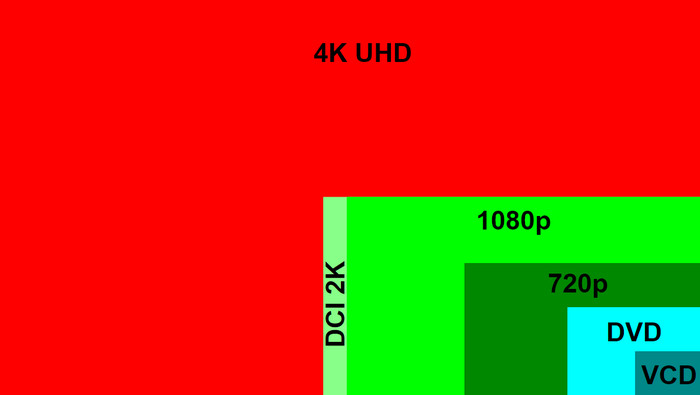
As we go further, the new resolutions you will find on the modern DVD resolution are based on SD and HD. For SD, the video resolution only maximizes at 480p (NTSC) and 576p (PAL).
Meanwhile, HD has two types of video resolution: HD DVD with a maximum resolution of 1080 pixels and Blu-ray with full HD 1080p resolution. While these are given, the resolution still varies depending on the aspect ratio of both SD and HD, but they are mostly common with 4:3 and 16:9 ratios.
Additionally, let's address some frequently asked questions to help you gain a deeper understanding of DVD resolution.
What affects DVD video quality besides resolution?
There are multiple factors to affect the decide the quality of the DVDs. In short, we can know:
• Bitrate: A Higher bitrate means better quality.
• Compression: Good encoding avoids blur or artifacts.
• Source: The original video’s sharpness, lighting, and color accuracy directly impact the final output.
• Frame Rate: It decides the smooth motion of DVD images.
• Aspect Ratio: Proper fit avoids distortion.
Why does DVD resolution look blurry on modern TVs?
DVD resolutions are usually 480p or 576p. Modern TVs generally feature 4K (Ultra HD) resolution, which is amazingly four times sharper than Full HD, not to mention regular DVDs. DVDs look blurry on modern TVs because they have low resolution, get stretched to fit big screens, and use older compression that shows flaws more clearly.
Is there a difference between DVD resolution and playback resolution?
Yes, there is. DVD Resolution is the fixed resolution encoded on the disc, typically 720×480 (NTSC) or 720×576 (PAL). It cannot be changed. However, playback resolution is how the DVD appears on your screen. Modern players or TVs upscale the DVD to match the screen’s resolution (like 1080p or 4K), which can make it look larger but not necessarily sharper.
What’s the best way to improve DVD quality?
The best way is to rip and upscale DVDs to common digital formats like MP4 (H.264/HEVC), allowing better playback on modern devices with enhanced resolution and compression.
Part 3. Blu-ray VS DVD Resolution VS 4K
| Blu-ray | DVD | 4K | |
| Video Quality | Better | Good (quality can be reduced when played on a larger screen) | Excellent |
| Storage | 25GB to 50GB | 4.7GB to 8.7GB | 66GB to 100GB |
| Compatibility | It requires a Blu-ray player or a compatible drive to play videos | Widely compatible with computers, media players, and gaming consoles | High-end computers and smart TVs |
| Special Features | Support multiple audio tracks, subtitles, extra content, interactive menus, and internet connectivity | Multiple languages supported, menu navigation, and more compatible devices | HDR that enhances the contrast and color of the image |
As mentioned, DVD resolution indicates the number of pixels on the screen, but DVD is not the only one with this. The creation of Blu-ray allowed movie enthusiasts and filmmakers to go further than the standard resolutions, and it eventually made way for 4K. In this section, we will differentiate DVD, Blu-ray, and 4K in terms of resolution, quality, capacity, and so on.
DVD
Regarding resolution, DVD has the standard resolution of 480i for NTSC and 576p for PAL. While it has a decent video quality, the two DVD resolutions lack clarity compared to modern resolutions. Its capacity can only hold 4.7GB of data for a single-layer disc, but it can maximize up to 8.8GB for a dual-layer disc. For the compression, DVD uses MPEG-2 compression, which can lead to quality loss compared to new codecs.
Blu-ray
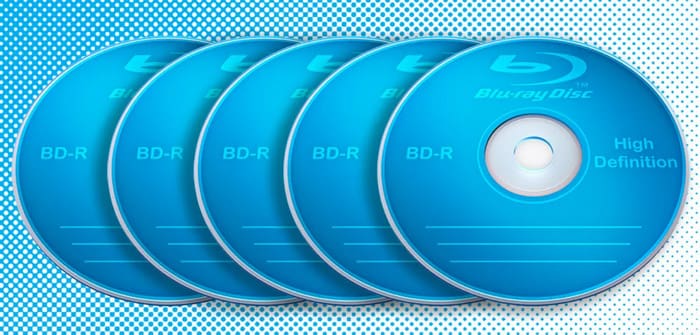
Blu-ray can have up to 1080p resolution and is regarded as Full HD. It was introduced when Blu-ray was developed, so it is impossible to have a DVD resolution of 1080p. On the other hand, Blu-ray improves the clarity of the visual compared to DVD, providing a capacity of up to 25GB of data for single-layer discs and 50GB of data for dual-layer discs. It uses MPEG-4 AVC or H.264 as codecs, so the compression only builds smaller file sizes while maintaining the sharpness and quality of the video.
Check the differences between DVD and Blu-ray here.
4K
As of today, 4K is the highest resolution that is usually attainable for consumers. It is also known as 4K Ultra HD, and it can display up to 3840×2160 pixels on the screen. This is four times the number of pixels provided by Full HD, which is 1920×1080 pixels. As mentioned, 4K is the highest attainable resolution, that is because you can use it for home viewing with the quality of outstanding clarity, vibrant colors, and enhanced contrast. When we talk about its capacity, it reaches up to 100GB of data, allowing you to upscale everything, including audio formats like Dolby Atmos and DTS X. The compression technology relies on HEVC or H.265 since this is the most advanced codec with the superior compression algorithm.
Part 4. How to Change DVD Resolution
Can you upscale a standard 480p/576p DVD to 720p, 1080p, or 4K? Yes, but setting realistic expectations is essential.
Traditional video converters use standard interpolation algorithms (like Bicubic or Bilinear scaling). These methods simply stretch existing pixels to fill a larger frame—they do not magically invent missing image details. If you force a raw 480p file into a 4K resolution output via simple re-encoding, the file size will explode, but the visual quality will remain soft or look even blurrier.
To get the best possible playback on modern screens, here is the three-tiered approach used by media enthusiasts:
1. Digitize & Preserve (The Base Requirement)
Before worrying about upscaling, convert your physical discs into universal digital files (like MP4 or MKV) while preserving the original resolution (480p/576p), proper aspect ratio (16:9 anamorphic), and deinterlacing filters.
With the help of Blu-ray Master Free DVD Ripper, you can rip and convert the videos from your discs. The desktop tool has advanced technology that can output MKV, MP4, MOV, and many other video types. You can also change the output settings, including the resolution, format, codecs, and so on. More than this, this tool offers device presets to convert videos to iPhone, Apple TV, and other devices, so you can watch high-res videos on a compatible screen.
Click the download buttons to install it on your computer and see the detailed steps.
Free Download
For Windows
Secure Download
Free Download
for macOS
Secure Download
Step 1.Load Your Disc
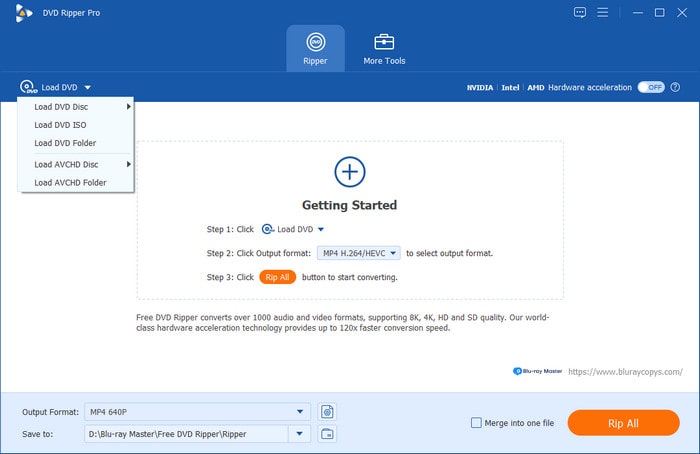
Insert your DVD. Launch Blu-ray Master Free DVD Ripper, and click Load DVD > Load DVD Disc in the Ripper section.
Step 2.Select Output Format
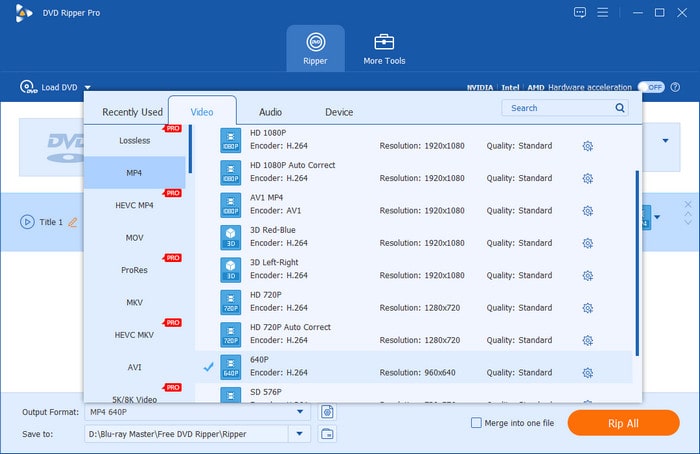
Under the Output Format list, choose MP4, Same as source, as the output profile. Keep the original resolution settings to maintain maximum source clarity without unnecessary pixel stretching.
Step 3.Rip DVD to Digital
Set your destination folder and click Rip All to start.
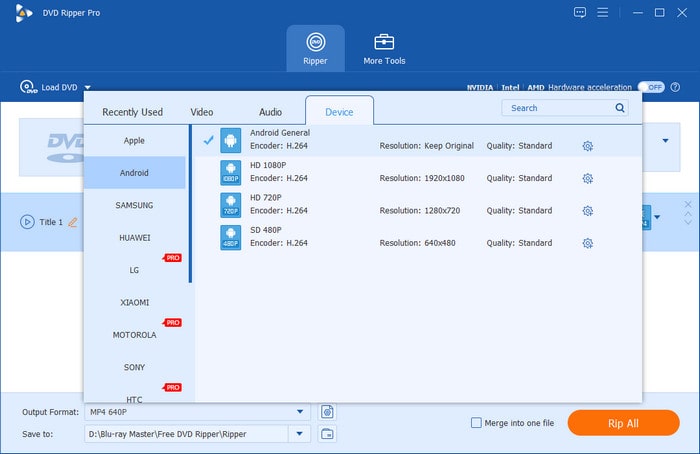
You now have a clean, modern digital file ready for play on phones, tablets, or home media servers.
2. Hardware Upscaling (Best for Home TV Playback)
If you watch your digitized files or original DVDs on a modern 4K Smart TV or via a 4K Blu-ray player, let the hardware do the work. Modern TVs feature dedicated image processing chips that perform real-time hardware upscaling. They smooth out edges and apply dynamic sharpness filters far better than standard video conversion software.
3. AI Video Enhancement (For True HD/4K Restoration)
Finally, to restore lost details, sharpen or soften edges, or truly elevate 480p video to HD or 4K quality, you can use AI video enhancement (super-resolution) tools such as Topaz Video AI or VideoProc Converter AI. These AI models analyse each video frame individually and generate artificial details based on pre-trained patterns.
Part 5. FAQs about DVD Resolution
-
What is widescreen DVD resolution?
It is a DVD video that displays either 4:3 or 16:9 widescreen in aspect ratio. These types of aspect ratios are commonly used for NTSC and PAL formats.
-
What is DVD resolution in pixels?
You can easily distinguish the DVD resolution 576p with 720×576 pixels and the DVD resolution 480p with 720×480.
-
What is DVD resolution output?
The output depends on whether the DVD’s resolution format is NTSC or PAL. DVD resolution can be 480p or 576p, and these are commonly the standard resolutions.
-
Is DVD resolution considered HD?
No, DVD resolution is not considered HD. Standard DVDs typically use a resolution of 720×480 pixels (NTSC) or 720×576 pixels (PAL), which belongs to the Standard Definition (SD) category.
-
What’s the difference between DVD and Blu-ray resolution?
Blu-rays have higher resolution than DVDs. DVD resolutions are commonly 480p or 576p, while Blu-rays are typically 1920×1080 (Full HD), with support for 4K on Ultra HD Blu-rays.
-
Is standard DVD resolution considered 480p or 720p?
Standard DVD resolution is 480p, specifically 480i or 480p for NTSC regions at 720×480 pixels, and 576i/576p for PAL regions at 720×576 pixels.
-
Why do my old DVDs look so blurry and pixelated on a 65-inch 4K TV?
A standard DVD has about 345,000 pixels, while a 4K TV displays over 8.2 million pixels. Your TV has to stretch those low-resolution pixels across a massive screen—expanding the image by roughly 24 times—which spreads out the detail, softens sharp edges, and highlights original compression artifacts.
-
What is the difference between NTSC and PAL DVD resolutions?
NTSC was used primarily in North America and Japan, which has a standard resolution of 720×480 pixels at ~30 frames per second. PAL was used in Europe, Australia, and parts of Asia, which offers a higher vertical resolution of 720×576 pixels, but runs at a slightly slower frame rate of 25 frames per second.
-
Can I actually upscale a 480p DVD to 4K without losing quality?
No. Traditional image super-resolution techniques merely use stretching to make images appear enlarged. While modern AI-enhanced tools can generate artificial details to make video footage appear sharper, they cannot achieve a true ‘lossless’ conversion from 480p to native 4K resolution.
-
Why is a 720×480 DVD able to play in 16:9 widescreen format?
It uses a technique called Anamorphic Widescreen with rectangular (non-square) pixels. Instead of changing the pixel count, the 720×480 video frame is horizontally squeezed onto the disc during encoding and then stretched back out to a 16:9 aspect ratio during playback by your TV or media player.
Conclusion
After discussing DVD resolution, you have learned that it has 480p and 576p as standard resolutions. We also compared DVDs to resolutions like Blu-ray and 4K to distinguish which can deliver the best video streaming. Although 576p is insufficient, Blu-ray Master Free DVD Ripper can rip and convert DVD resolution to 720p, 1080p, and even 4K. Click the Download button to rip your DVD collections and enjoy a high-res video playback.
More from Blu-ray Master
DVD Tips

Fast and free ripping software to decrypt all DVDs to digital easily on your computer.
100% Secure. No virus
