

Jul 31, 2026Posted by Kevin Miller to Rip DVD
Quick Summary:
To rip DVD chapters individually, HandBrake offers the easiest and free way for you. Here are the detailed steps:
• Step 1. Insert a DVD disc into the optical drive. Open HandBrake and choose to load the DVD.
• Step 2. Set the chapter range you want to convert, and select MP4 as the output format.
• Step 3. Set a destination folder and start conversion.
If you only need a single episode from a DVD, ripping an individual chapter is possible. Instead of converting the entire disc, you can extract specific titles to keep only the part you actually need. This approach is helpful when working with large DVDs containing multiple titles or episodes. This post will teach you three best practices to rip DVD chapters individually without cost. This way, you can backup particular scenes without dealing with an entire file. You don’t have to waste much time ripping a whole DVD.

- Understanding DVD Titles vs. Chapters: Why Structure Matters
- Way 1. Rip DVD Chapters Individually with Blu-ray Master Free DVD Ripper
- Way 2. Rip DVD Chapters Individually with MakeMKV
- Way 3. Rip DVD Chapters Individually with HandBrake
- FAQs About Ripping DVD Chapters Individually
Understanding DVD Titles vs. Chapters: Why Structure Matters
Before ripping, it’s crucial to understand how DVDs structure their video files. DVDs organize content using Titles and Chapters:
- Titles (Episodes / Main Movies): A Title is a primary video stream. On TV show DVDs, each episode is usually saved as a standalone Title. Selecting a Title in your ripper typically extracts one complete episode.
- Chapters (Scenes / Segments): A Chapter is a subdivision within a Title. On movie DVDs, the entire film is stored under one long Title (e.g., Title 1), which is then divided into 15 to 30 Chapters for scene navigation.
Quick Rule of Thumb:
- If you are ripping a TV Series DVD, you usually want to select individual Titles to get separate episodes.
- If you are ripping a Movie or Concert DVD, you want to select specific Chapters within a single Title to extract specific scenes or tracks.
Way 1. Rip DVD Chapters Individually with Blu-ray Master Free DVD Ripper
Blu-ray Master Free DVD Ripper is a reliable DVD-ripping software that can rip DVD chapters individually. It is compatible with Windows 11/10/8/7 and macOS 10.12 or above. It lets you manually select specific titles or chapters you want to rip. Best of all, it can efficiently handle homemade, copy-protected, and DVDs from different regions. It offers over 500+ output formats with support for customizing profile settings, like resolution, bitrate, encoder, etc. Additionally, it includes built-in tools for editing and enhancing video before the conversion. Once chapters are selected, you can easily set an output directory to save ripped files.
Here’s how to rip individual episodes from DVD:
Step 1. First, download and install the Blu-ray Master Free DVD Ripper on your computer. Once completed, insert the disc into the optical drive and run the software.
Free Download
For Windows
Secure Download
Free Download
for macOS
Secure Download
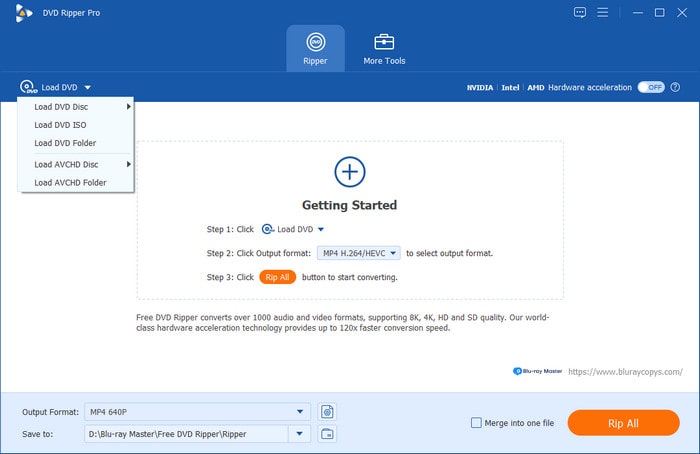
Step 2. Click the Load DVD > Load DVD Disc button in the upper-left section to import the DVD. You can also load a VIDEO_TS folder or ISO file by clicking the other two options. In the pop-up window, choose the appropriate DVD loading mode: Main Title or Full Title List.
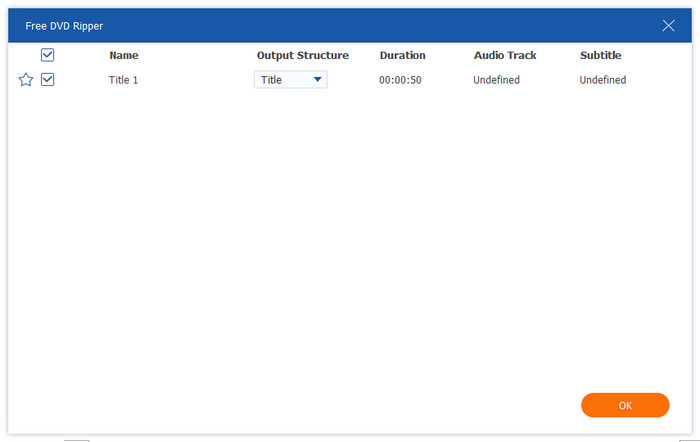
The full information about the DVD is listed in the interface. Select and check the titles you want to rip individually.
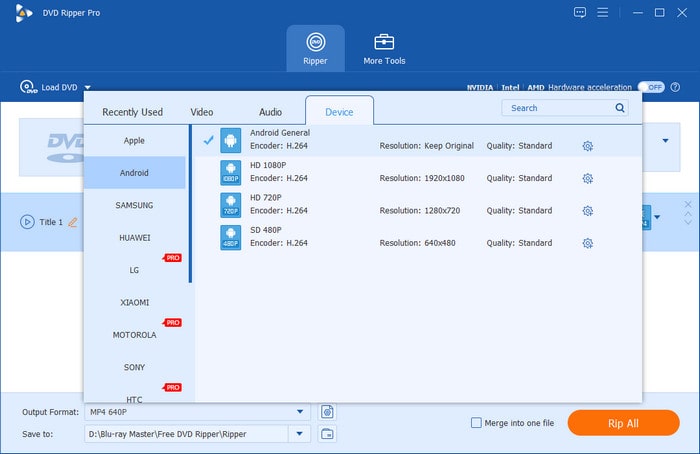
Step 3. Next, click Output Format to open its drop-down list. Among the various output profiles, select the MP4, HD1080P option as the output profile. If you have special needs for the file, you can also click the gear icon to edit the encoder, bitrate, and other parameters of the output file.
Bonusly, you can choose the Edit, Cut, and other icons to manually adjust the video and audio effects.
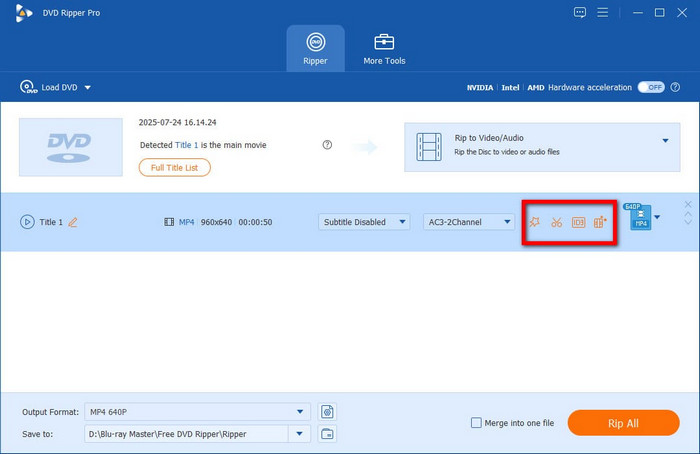
Step 4. After all things done, click the bottom Rip All button to rip several DVD chapters individually.
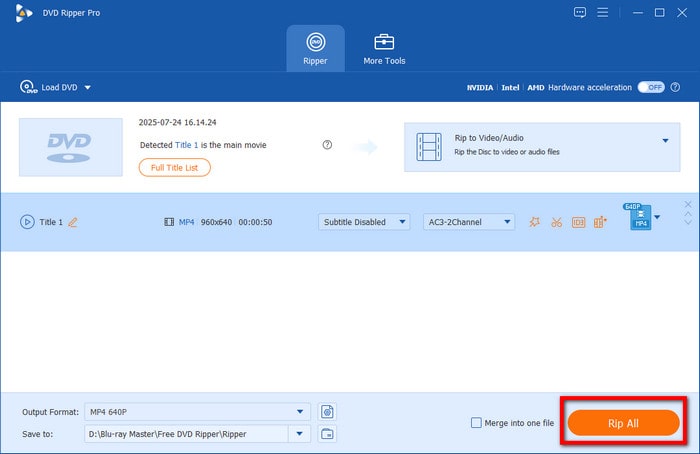
Blu-ray Master Free DVD Ripper provides the most straightforward solution for ripping chapters individually. It lets me manually select individual chapters and choose an appropriate output format. I appreciated the built-in editing tools for touch-ups before conversion.
Way 2. Rip DVD Chapters Individually with MakeMKV
MakeMKV is a free tool (Beta version) for extracting DVD content and ripping chapters individually. It can bypass any copy-protection encrypted to the DVD and turn it into MKV files. You must activate the software if you need access to all features without limitations. You can convert the chapter with 1:1 quality retention in the upgraded version. After conversion, use MKVToolNix to further split the converted MKV files because it can only output files in whole titles.
Here’s how to rip individual episodes from DVD:
Step 1.Grab your DVD and place it on the computer’s disc drive. Open MakeMKV and allow it to detect your disc and scan the content. Once the scanning is finished, all chapters will be displayed on the disc. Select the specific title you want to rip individually by putting a checkmark.

Step 2.If your selected title contains multiple audio tracks and subtitles, double-click it to expand more items. You will see a list of the numerous audio and subtitle tracks. Choose which track to rip; it can be a specific or all of them.

Step 3.Click the Folder button under the Output Folder section to designate the exported file’s destination. Now, click the Make MKV button to start the individual DVD ripping. It may take 30 minutes or more to complete the DVD-ripping process.

MakeMKV excels in handling encrypted and region-locked DVDs. It maintains chapter markers automatically during ripping and delivers high-quality MKVs without compression. This was perfect for retaining the video’s original quality. But here’s the deal: it only outputs MKV formats.
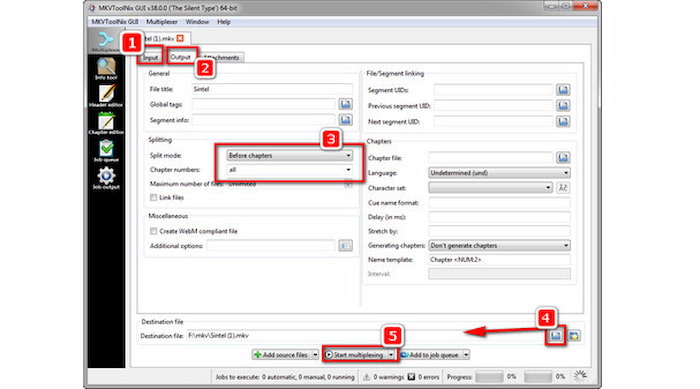
Step 4. Then, you need to use MKVToolNix to quickly split the MKV file.
- Download, install, and open MKVToolNix on your computer. Then, drag your .mkv file into the input.
- Go to the Output tab and set Split mode to Before chapters.
- Enter all under Chapter numbers.
- Click Start multiplexing to begin the split process.
MakeMKV excels in handling encrypted and region-locked DVDs. It maintains chapter markers automatically during ripping and delivers high-quality MKVs without compression. This was perfect for retaining the video’s original quality. But here’s the deal: it only outputs MKV formats.
Way 3. Rip DVD Chapters Individually with HandBrake
HandBrake is a video transcoding software that goes beyond basic video conversion. This free and open-source software can also rip single DVD chapters and titles. It allows you to convert a specific chapter into MP4, MKV, or WebM format. It also includes extensive presets for different devices and resolutions with advanced encoding options.
Here’s how to rip DVD chapters individually:

Step 1.Insert the non-copy-protected DVD into the disc drive and ensure it is readable. Launch HandBrake on your operating system and choose the File option as your source selection. Select the DVD source and wait while it scans all available titles.
Step 2.Navigate to the Title field and select your main video track. Switch the Range dropdown from Seconds/Frames to Chapters. Specify the exact chapter range you want to extract, like Chapter 1 to 1.
Note: To handle copy-protected DVDs, install libdvdcss to HandBrake.
Step 3.Next to the Save As field, click Browse to set the destination path for the exported file. Once all settings are ready, click the Start Encode button to initiate ripping the selected chapter. Meanwhile, if you add multiple items to the queue, it will process them in sequence.
This best open-source DVD ripper impressed me with precise chapter selection, comprehensive settings, and device presets. I could quickly extract single chapters from homemade DVDs and customize the profile settings. However, HandBrake cannot rip copy-protected DVDs.
FAQs About Ripping DVD Chapters Individually
-
Can MakeMKV automatically split a DVD by chapters into separate MKV files?
No, it cannot. It only extracts entire Titles (which contain all chapters merged together).
-
What is the easiest free way to extract single chapters from a movie DVD on Mac?
HandBrake is your absolute choice to free extract single DVD chapter on Mac.
-
How to split a single large VOB file into individual chapter videos without re-encoding?
To split a VOB file without re-encoding (lossless and instant), use LosslessCut or Avidemux.
-
Why does HandBrake combine all DVD chapters into one MP4 file, and how can I fix it?
The default export setting of HandBrake is to output a whole file. You can set the Range as Chapter 1 to 1 to convert a single file.
-
Is there a free tool to rip copy-protected DVD chapters individually on Windows 11?
Yes. Blu-ray Master Free DVD Ripper has powerful decryption ability to handle DVD region codes and copy protections. You can also install libdvdcss on HandBrake to process the commercial DVDs.
Conclusion
You now have three solutions to rip DVD chapters individually! Ripping DVD chapters each offers a more efficient way to manage your content. This practice helps you save time, storage, and effort by giving you exactly what you need. Among the three DVD-ripping tools we explored, Blu-ray Master Free DVD Ripper truly shines. It is free, easy to use, and packed with features, making it the best option.
More from Blu-ray Master
Rip DVDs to Digital

Fast and free ripping software to decrypt all DVDs to digital easily on your computer.
100% Secure. No virus
