

Aug 07, 2026Posted by Kevin Miller to Rip Blu-ray
Opening Blu-ray releases on computers can be challenging because built-in DVD drives have been removed from modern hardware. This made owning a physical Blu-ray collection seem not worth it since you won’t be able to watch their content on tablets, smartphones, or laptops. Fortunately, Blu-ray ripping can unlock Blu-rays you've already paid for once you convert them to MP4, making it ideal for a mobile-first lifestyle. In this article, we will highlight three Blu-ray ripper options that you can use to convert Blu-ray to MP4 to make physical media more accessible digitally. We will also provide solutions for common issues during physical-to-digital conversion, such as massive file sizes, confusing codecs, and quality loss.

Table of Contents
- Behind the Scenes: Our Testing & Evaluation Manifesto
- The Essentials: Crucial Pre-Rip Checklist
- Method 1: The Best All-Rounder for Clean, Fast Conversions
- Method 2: The Power-User Path for Total Control
- Method 3: The Premium Speed Demon
- The Verdict for Blu-ray Ripping
- FAQs About Ripping Blu-ray to MP4 Format
Behind the Scenes: Our Testing & Evaluation Manifesto
To provide transparency for our readers, let us first discuss the core metrics and testing environment we have used when assessing the performance of the Blu-ray rippers we have featured for converting Blu-ray ISO to MP4.
The Core Metrics
Decryption Capabilities
Since modern Blu-ray releases are usually equipped with strong copy protection, the first metric we used to select the best Blu-ray rippers is their decryption capabilities. We use modern AACS and BD+ encryption options to assess whether these programs can handle Blu-rays.
Conversion Efficiency
With the presence of modern GPUs and hardware, we also tested whether the Blu-ray ripper tools can leverage modern GPU acceleration systems and whether they do affect the conversion efficiency and speed.
Quality Preservation
After conversion, we also assessed the quality of the converted video and how it compares to the original Blu-ray quality. Quality preservation is one of the most important factors when converting physical media to digital format.
User Experience (UX)
Finally, the last metric we used was the overall user experience with the program. This involves whether the software's design is for beginners or experienced users. This will provide an objective impression of whether the software is a good fit for your skill level.
The Testing Environment
We tested the Blu-ray rippers on a Windows 11 laptop and a macOS Tahoe 26 MacBook. Both computers run on 16GB RAM and are equipped with an Intel Core i7 and an M5 chip, respectively. To open the Blu-ray media we have tested, we used a modern USB-C external DVD driver to ensure that the physical media runs as efficiently as possible.
The Essentials: Crucial Pre-Rip Checklist
Now that we have discussed how we tested each Blu-ray ripper, let us move forward to the essential checklist that you must complete to avoid technical gaps that may cause beginners to abandon ripping Blu-ray ISO to MP4.
Hardware Reality Check
You have to secure a dedicated Blu-ray driver and not a standard DVD drive. You have to install this hardware to play Blu-ray media on your computer, whether you are using an external drive or a built-in drive.
Storage Warning
Make sure to allocate sufficient storage space, as Blu-ray rips are extremely large. Raw remux copies are usually 30 - 50 GB in size. When compressing these media to MP4, the file size can still be as large as 3-8 GB.
MP4 Codec Split
Since MP4 uses two common codecs, H.264 and H.265/HEVC, you have to learn their main uses. For optimal compatibility with older devices, use H.264. If you want to save storage space and are using modern media players, H.265/HEVC may be better.
Method 1: The Best All-Rounder for Clean, Fast Conversions
The first method we will highlight is the best all-rounder solution for efficient Blu-ray content ripping: Blu-ray Master Free Blu-ray Ripper. As its name suggests, this program is designed exclusively to serve as a Blu-ray ripping tool, making it a solid go-to solution for everyday users who want a balance of simplicity, speed, and price.
Compatible with both Windows and macOS systems, Blu-ray Master’s ripping solution is equipped with advanced features to bypass copy protection of modern Blu-ray releases. Moreover, the software can convert Blu-ray media to 500+ digital formats, including popular video formats such as MP4.
In addition to physical Blu-rays, content saved in a Blu-ray folder or as an ISO file can also be converted to digital video. When converting videos, specific output profiles are also available in the software for specific devices such as iPhone, Android, and iPad, in addition to the general MP4 container.
Finally, basic editing tools such as trimming, cropping, and filter adjustments can also be added for Blu-ray media to be converted digitally.
To learn how to use Blu-ray Master Free Blu-ray Ripper, make sure to read our three-step guide below and download the program for an easier time following our tutorial.
Free Download
For Windows
Secure Download
Free Download
for macOS
Secure Download
Step 1. Insert the Blu-ray media you want to convert to MP4 into your external drive. Open Blu-ray Master Free Blu-ray Ripper and select Load Blu-ray Disc.
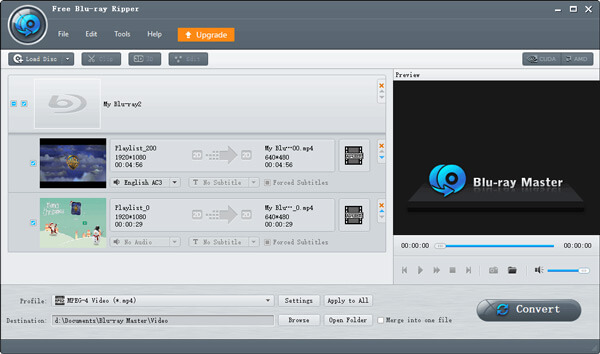
In the Load Blu-ray menu that will open, select either Main Title or Full Title List based on what content you want to convert to MP4.
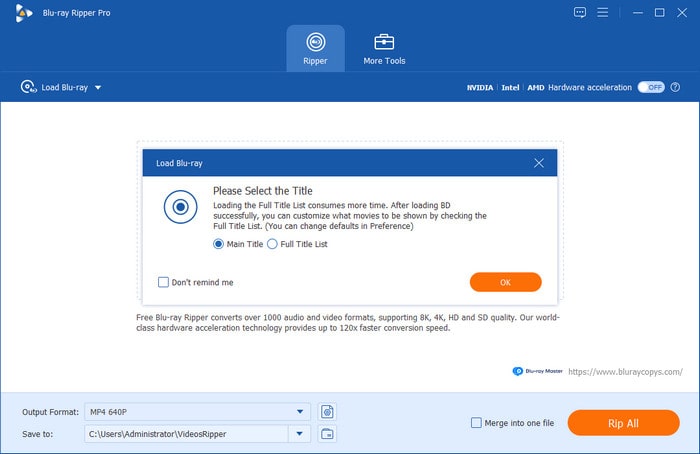
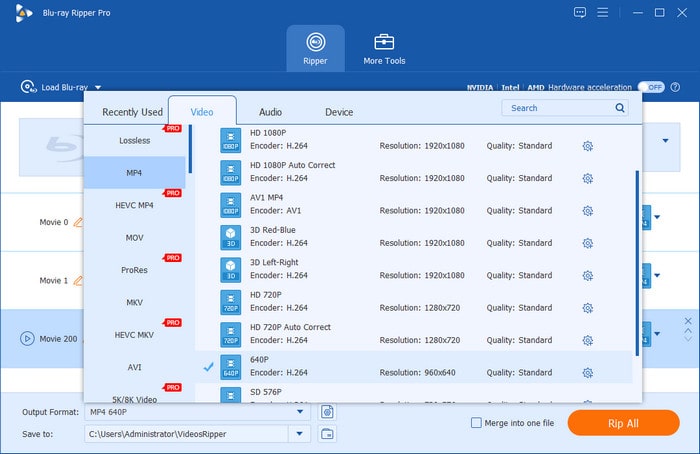
Step 2. Next, select Output Format and choose MP4. Then select the conversion profile you want to use.
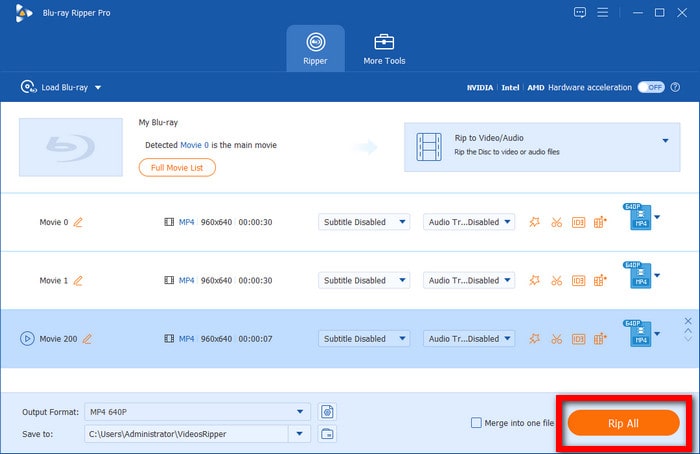
Step 3. With the Output Format now set to MP4, select Rip All to begin converting your Blu-ray media to MP4.
If you want software designed for ease of use that can apply basic editing adjustments, Blu-ray Master Free Blu-ray Ripper should be your top option. This makes the software one of the best solutions to ensure that your Blu-ray media can be digitized easily.
Method 2: The Power-User Path for Total Control
Moving forward to the second option, we will highlight the best option for total control when converting Blu-ray to MP4 with HandBrake. Among the options on this list, HandBrake is the ultimate open-source playground for tech enthusiasts who want to micromanage bitrates, frame rates, and audio tracks.
As such, this option is the best for advanced users who want to ensure that their Blu-ray to MP4 conversion will have high customizability for advanced settings such as bitrates, frame rates, and audio tracks. This gives the program complete control over advanced video encoding settings and makes it an excellent solution for batch ripping.
Unfortunately, HandBrake cannot natively decrypt commercial Blu-rays, as it requires a third-party option to extract the Blu-ray with MakeMKV and the software itself to convert it to MP4.
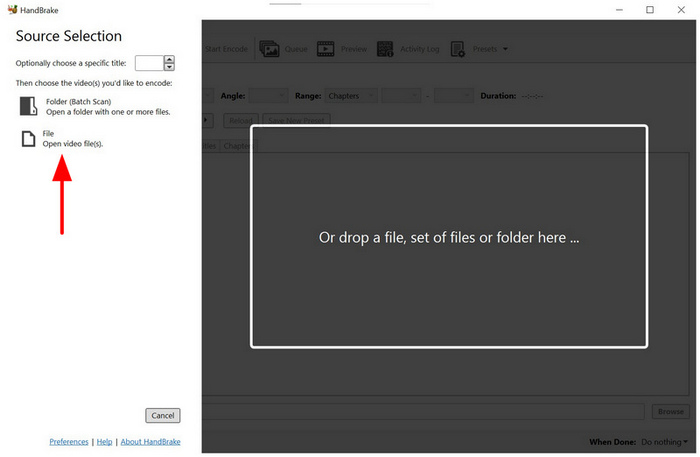
Step 1. Open HandBrake and select File to open the extracted MKV from the Blu-ray media.
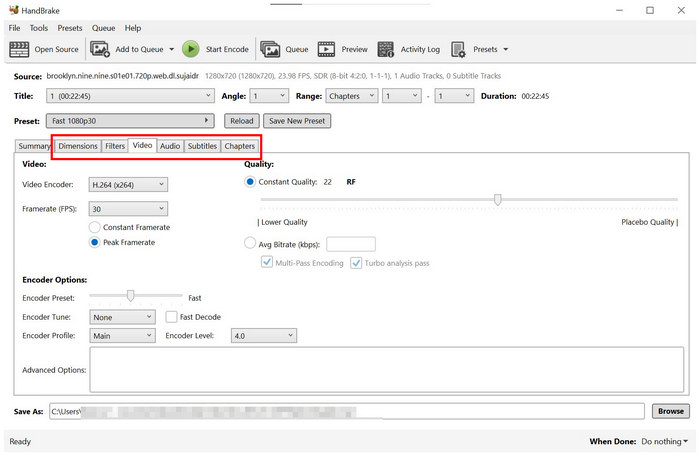
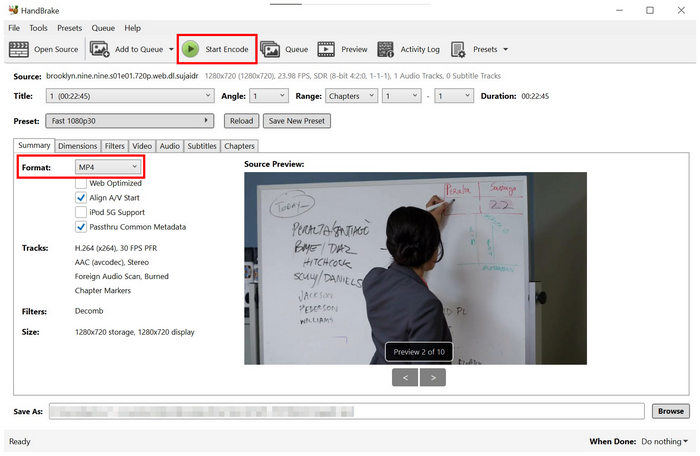
Step 2. In HandBrake, select Format and choose the MP4 option. If you wish to apply advanced editing, go to Dimensions, Filters, Videos, and other settings available in the program.
Step 3. With the format now set and the adjustments applied, select Start Encode to begin converting the extracted MKV media to MP4.
Since both HandBrake and MakeMKV are freeware, these two options are good solutions if you want to convert Blu-ray to MP4 for free.
Method 3: The Premium Speed Demon
Finally, the third method we will highlight is the premium solution designed for speed and efficiency when handling Blu-ray to MP4 on Mac or Windows with DVDFab Blu-ray Ripper. This no-compromise solution is best used for people with massive collections who value raw conversion speed.
On top of its efficiency, DVDFab also excels at 1:1 video and audio quality retention, making it a good option for users who are sensitive to the quality of their Blu-ray media. Moreover, it handles complex multi-angle discs and regional codes flawlessly, making it a good choice for converting protected Blu-rays.
To learn how to use the software, make sure to read our guide below.
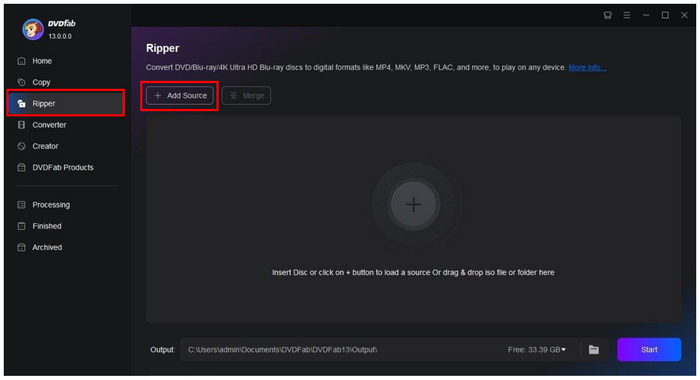
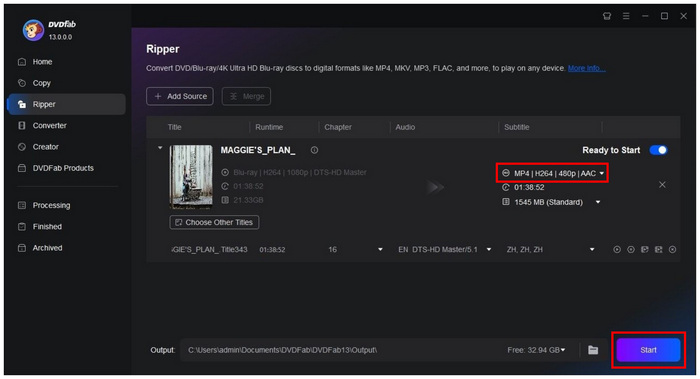
Step 1. Open DVDFab Blu-ray Ripper and select the Ripper tab. Then, select Add Source to load your Blu-ray media.
Step 2. With the Blu-ray media loaded, set the Output to MP4. Then select Start to begin ripping the Blu-ray content.
Step 3. Wait for the Blu-ray ripping process to finish.
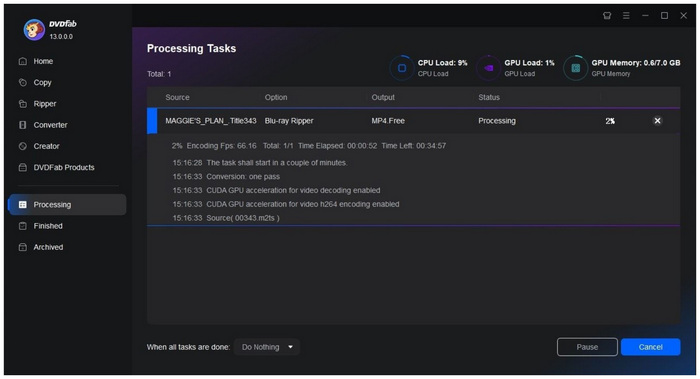
Among the options on this list, DVDFab Blu-ray Ripper is the premium choice for physical media to digital conversion.
The Verdict for Blu-ray Ripping
With the three Blu-ray ripper methods reviewed, we can conclude that each has its own niche. If you want something quick and easy to use, select Blu-ray Master Free Blu-ray Ripper. For advanced users who want to tinker with video frames and codecs, HandBrake is the way. Finally, for large collections, the premium DVDFab is optimal.
To learn more about the differences and strengths of each program, make sure to read our comparison table below.
| Blu-ray Ripper | Ease of Use | Best Used For | Pricing | Video Quality Retention |
| Blu-ray Master Free Blu-ray Ripper | Very Easy | Users who prefer a fast and straightforward solution. | Free | 1:1 Retention |
| HandBrake | Hard | Advanced users who want total control for editing advanced video settings. | Free | Adjustable Quality |
| DVDFab Blu-ray Ripper | Easy | Fast batch conversion. | $69.99 – $99.99 | 1:1 Retention |
FAQs About Ripping Blu-ray to MP4 Format
-
Is it legal to rip a Blu-ray disc that I own for personal use?
Yes, it is. You can rip Blu-ray media for personal use. However, you have to ensure that the ripped media will not be reproduced and sold, as this will be a form of piracy.
-
Why isn't my computer recognising my external Blu-ray drive?
Your external driver may have setup requirements. Make sure to check the user manual of your driver. To avoid such a process, make sure to use plug-and-play drivers.
-
How long does it typically take to convert a full-length Blu-ray movie to MP4?
It depends on the software and hardware that you will use. For GPU-accelerated software, the average is 10-40 minutes. For generic programs, 1 hour is usually the standard.
-
Will ripping a Blu-ray to MP4 lose the 5.1 surround sound or Dolby Atmos tracks?
It depends on what software you will use. Some programs, such as Blu-ray Master Free Blu-ray Ripper, can preserve audio quality. Meanwhile, basic programs such as MakeMKV and HandBrake usually cannot preserve such features.
-
Why is the ripped MP4 file size still so large, and how can I shrink it without losing quality?
You can use video compression programs. Among the options on this list, HandBrake is a good choice. It is also equipped with advanced features to provide quality adjustments.
Conclusion
Now that we have discussed the value of digitising Blu-ray media files, we hope this article has helped you decide which method is the best for ripping Blu-ray to MP4. These options will also protect your investment in physical media, since converted digital files will be free from scratches and more accessible. To start using the best option on the market, make sure to select Blu-ray Master Free DVD Ripper.
More from Blu-ray Master
Rip Blu-ray to Digital
