

Aug 28, 2026Posted by Kevin Miller to Rip Blu-ray
Quick Summary: BDMV to MKV at a Glance
Converting a BDMV folder to MKV is the best way to back up your Blu-rays without losing original video or surround audio quality. Here is the fast breakdown:
Best Overall (1:1 Lossless): MakeMKV
Best for File Export and Quick Edits: Blu-ray Master Free Blu-ray Ripper
Best for File Compression: HandBrake
Double-click a BDMV folder, and you want to play it on your computer. However, the media player won't open it. Because TV OSs, mobile devices, and home media servers don't natively support raw Blu-ray directory trees, playing these files usually turns into an error-riddled headache.
The fastest solution is to remux the BDMV folder into a single MKV file. This process can preserve your raw video, original Dolby Atmos audio, and surround tracks, then repack them into a universally compatible container. Read this guide to learn 3 detailed ways to convert BDMV to MKV and then play them properly.

- What is the BDMV File
- Way 1. Copy BDMV to MKV with MakeMKV
- Way 2. Convert BDMV to MKV with Blu-ray Free Blu-ray Ripper
- Way 3. Convert BDMV to MKV with HandBrake
- FAQs about BDMV to MKV
To find easy and reliable ways to convert BDMV to MKV, we conducted a rigorous test on a Windows 11 PC (Intel Core i7-13700K, 32GB RAM) that was equipped with an NVMe SSD to ensure disk write speeds wouldn't bottleneck the process. The test source is a 42.5 GB commercial Blu-ray BDMV folder (1080p resolution, equipped with AACS encryption, DTS-HD Master Audio, and multiple PGS subtitle tracks).
We clocked the total conversion time, monitored CPU/GPU usage, tested their ability to bypass DRM protections natively, and ran the final MKV files through MediaInfo to verify true 1:1 audio and video passthrough.
| Tool | Speed | Quality Loss | Decryption Support | Best For |
| MakeMKV | Ultra-fast (10 mins) | 0% (Lossless Remux) |  | 1:1 Raw Backup |
| Blu-ray Master | Fast | Optional (HD/4K) | | Flexible format conversion |
| HandBrake | Slow (1-2 hrs) | Lossy (Re-encoded) |  | Reducing file size |
What is the BDMV File
A BDMV folder isn't just a single file—it's the complete directory structure copied directly from a Blu-ray disc.
- The Misconception: You might see files named index.bdmv or MovieObject.bdmv and think BDMV contains no actual video. Those specific .bdmv files are just navigation indexes and metadata (telling the player how to load menus and chapters).
- Where the Video Actually Lives: The real heavy lifters—your raw 1080p or 4K HDR video streams, Dolby Atmos, and DTS-HD Master Audio tracks—are stored inside the BDMV/STREAM subfolder as massive .m2ts files.
Because this multi-layered folder structure confuses standard media players like Apple TV, Plex, or Smart TVs, repacking these raw .m2ts streams into a single, clean .mkv container is the ultimate fix for seamless playback.
Many users think turning a BDMV folder into an MKV involves the 'converting' or 'encoding' process, but that’s a misconception:
Converting BDMV to MKV via tools like MakeMKV isn't traditional video conversion—it’s Container Swapping (often called Remuxing).
Think of .m2ts and .mkv as two different storage boxes. The video (H.264/HEVC) and audio (TrueHD/DTS-HD) inside are the actual contents. Container swapping simply takes the untouched, original content out of the complex .m2ts folder system and puts it cleanly into a universal .mkv box.
Because the underlying video and audio data remain 100% untouched, container swapping happens in a flash (usually under 10 minutes) with zero loss in visual or audio quality.
Way 1. Copy BDMV to MKV with MakeMKV
MakeMKV is a dedicated Blu-ray disc/folder to MKV conversion software for PC and Mac. It allows you to convert BDMV files to MKV format without re-encoding. In addition, the software offers a lossless conversion process, ensuring you get the same quality as the source.
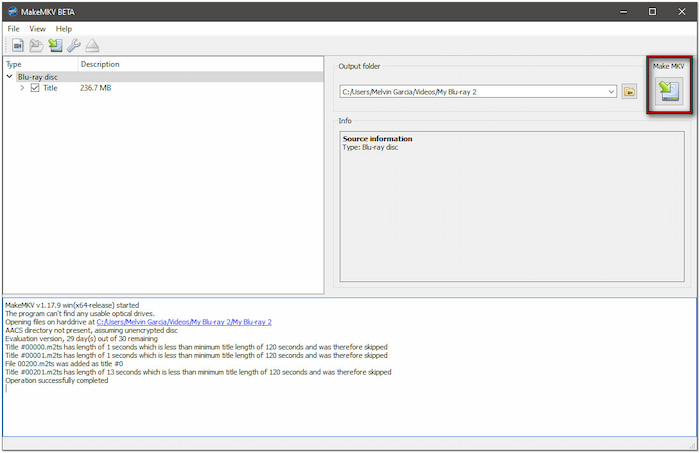
Step 1.Run MakeMKV, click File and select Open Files to access your local files. Navigate to the BDMV Folder and select the index.bdmv inside the BDMV directory. The software will scan the imported folder and display all the available titles.

Step 2.If multiple titles are available, toggle all the titles you want to convert to MKV. Uncheck any unnecessary titles, such as opening credits, trailers, recaps, etc. Double-click each title to select your preferred audio tracks (only applicable for titles with multiple tracks).
Step 3.In the Output Folder section, click the Folder button to choose a folder where to save the MKV. Next, click the Make MKV button to extract the contents into an MKV container. Please note that this is a lossless process, meaning the quality is identical to the original.
Note: This process just copies the BDMV data without re-encoding, so it performs at a fast copying speed, about 5 to 15 minutes, depending on your drive's read/write speeds.
Since the exported MKV file has not been compressed, its size is typically roughly the same as that of the original BDMV source file.
Tips
MakeMKV is free while in beta. You can go to the official MakeMKV forum to grab the latest free beta key. If you plan to use it over the long term, consider purchasing it.
That’s how to convert BDMV to MKV with MakeMKV! This software delivered the most hassle-free experience for converting BDMV folders. However, there’s a catch: MakeMKV lacks the flexibility of other video types; only MKV file format.
Way 2. Convert BDMV to MKV with Blu-ray Free Blu-ray Ripper
Blu-ray Master Free Blu-ray Ripper is a highly efficient software that can rip a BDMV folder to MKV. It lets you extract video, audio, and subtitles from the BDMV file without quality loss. You can convert the extracted content to MKV and other 500+ digital formats by then. Best of all, it offers multiple profiles of different quality, including HD, 3D, and 4K.
Furthermore, Blu-ray Master free Blu-ray ripper provides profile settings to customize the output. Options are video/audio encoder, bitrate, frame rate, sample rate, resolution, channels, etc. It also comes with various editing tools for customizing the video before conversion. Plus, it allows you to view applied changes/edits in real-time without waiting for the entire process to finish.
Here's how to convert BDMV to MKV:
Step 1. Start by downloading Blu-ray Master Free Blu-ray ripper for free. Install the BDMV ripping software and wait for the installation process to complete. Once the installation is finished, launch the Blu-ray Master Free Blu-ray Ripper on your computer.
Free Download
For Windows
Secure Download
Free Download
for macOS
Secure Download
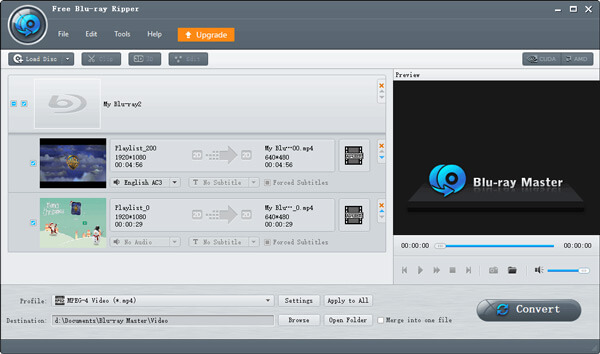
Step 2.Click the drop-down menu of the Load Blu-ray button in the upper-left navigation pane. Select Load Blu-ray Folder to add the entire BDMV Folder saved on a local drive. The software will then scan and display all available titles from the BDMV folder.
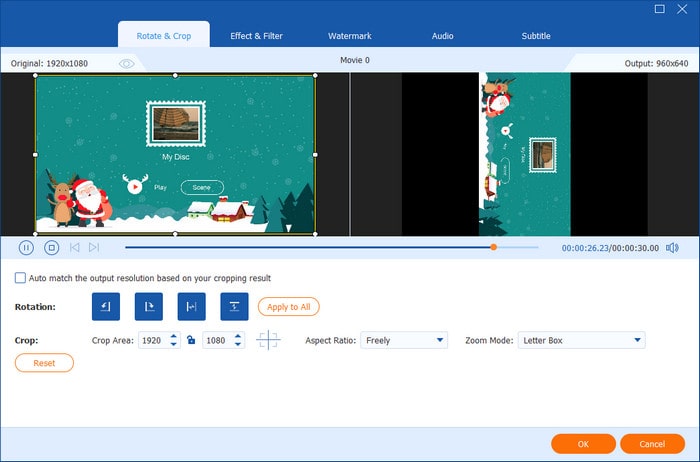
Step 3. Optionally, you can use the tools to customize your video before converting:
- Rotate and Crop: Rotate and crop videos to remove unnecessary outer edges like black bars.
- Effect and Filter: Apply effects and filters to add charm to your videos.
- Crop: Remove unnecessary outer edges, such as black bars.
- Watermark: Insert a custom text or image watermark.
- Audio: Increase the volume to 200% to boost low audio levels.
- Subtitle: Adjust subtitle status and add external subtitles.
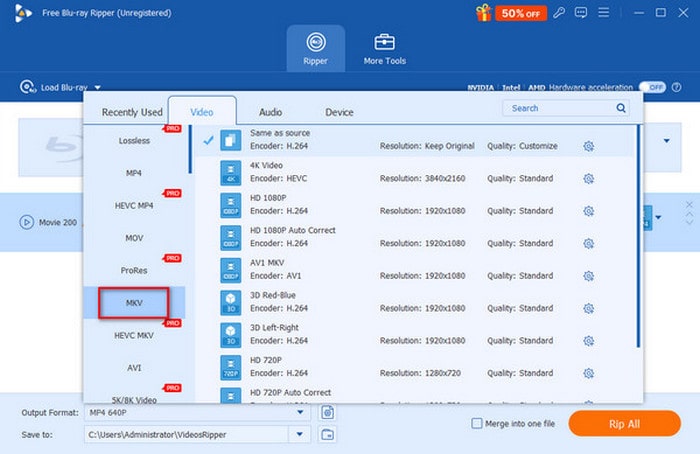
Step 4.Click the Output Format field and move to the Video category. Select the MKV format and the Same as source profile. If needed, click the gear button to configure profile settings like encoder, bitrate, resolution, etc.
Note: The free version would limit you to choosing the high-resolution profile.
Step 5.Proceed to the destination field and click the folder button to select a destination path. Now, click the Rip All button to rip the BDMV folder and transform it into MKV format.

Blu-ray Master Free Blu-ray Ripper provides a convenient solution to convert BDMV to MKV for free. The whole process was smooth, and I appreciate the fast conversion speed. It took me less than 30 minutes to rip a full-length BDMV Folder. However, one limitation I found was that 3D and 4K output formats require an upgrade. Still, it delivered the HD MKV Video Format perfectly without any watermarks.
Way 3. Convert BDMV to MKV with HandBrake
HandBrake is a media transcoder that can rip BDMV to MKV on Mac and Windows. It provides extensive customization options to configure video quality, select audio tracks, and add subtitles. Additionally, it offers several preset profiles for quick conversion and advanced settings for high-quality rips. But here’s the deal: HandBrake cannot rip encrypted BDMV alone.
Step 1.Open HandBrake on your Mac, select the Folder (Batch) option and locate the BDMV Folder in your files. Upon loading it, HandBrake will scan the folder and list the available titles. Click the Title pulldown menu to select the title you want to convert to MKV.
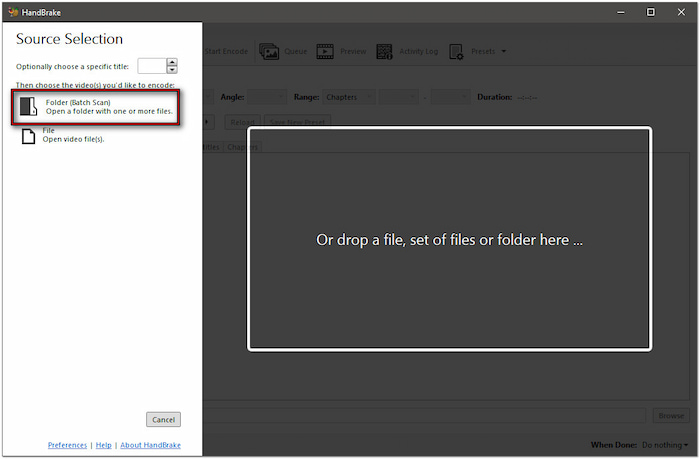
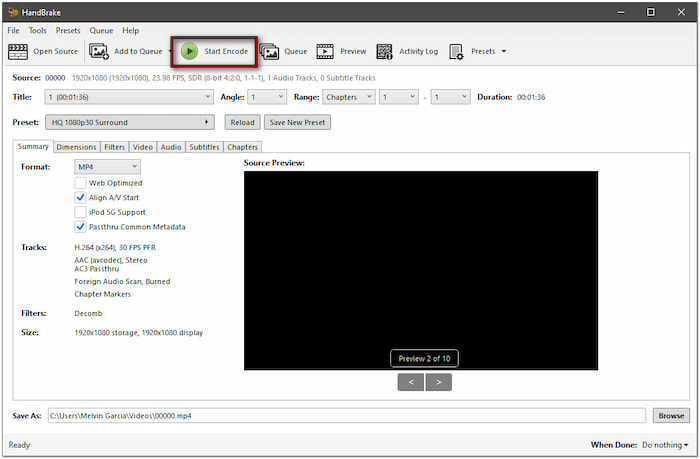
Step 2.In the Summary tab, select MKV from the Format pulldown menu. Then, configure the necessary output settings by clicking the designated tabs: Video, Audio, Subtitles, etc. Select the HQ 1080p30 surround preset on the top menu for high-quality output.

Step 3.Click Browse next to the Save As field to specify the destination of the converted BDMV File. Now, proceed to the upper section of the interface and click the Start Encode button. HandBrake will start to convert the Blu-ray folder to MKV format afterward. Remember, the duration process may take longer depending on the set video quality.
HandBrake is another free option to convert BDMV to MKV on Mac and Windows systems. This software impressed me with the customization options, allowing me to adjust various settings. However, it is inconvenient since it cannot decrypt protected BDMV Folders.
FAQs about BDMV to MKV
-
How can I convert a BDMV folder to MKV without losing Dolby Atmos and DTS-HD audio?
MakeMKV is your choice. It can remux BDMV folder, copying the exact original audio and video streams directly into an MKV container without re-encoding.
-
Why does HandBrake give me a 'No valid source found' error when I try to load a BDMV folder?
HandBrake cannot handle the Blu-ray copy protections on a BDMV folder. Moreover, if any files are missing, it cannot read the .m2ts stream files.
-
Is MakeMKV completely free for converting Blu-ray BDMV files to MKV on Mac?
The beta version allows you to convert Blu-ray BDMV folders to MKV. You can visit the official MakeMKV forum to get a free monthly beta registration key.
-
What is the difference between remuxing a BDMV folder and encoding it with HandBrake?
Remuxing is to directly extract the video/audio tracks without quality loss, which is fast and would output a large file. Encoding would compress video data and the exported file size would be significantly reduced, which also takes a long time.
-
How long should it take to turn a 40GB BDMV folder into an MKV file?
If you use MakeMKV to remux, it takes about 10 minutes. If you re-encode the folder, it takes approximately 45 minutes to several hours, depending on your CPU/GPU hardware.
-
Can I play a BDMV folder directly on Plex, or do I have to convert it to MKV first?
No. Plex cannot play BDMV folders and ISO image files. You need to convert it to MKV or MP4 so that Plex can recognize and stream it.
Wrapping up
BDMV to MKV conversion is essential for making Blu-ray content more accessible and playable across devices. Choosing which way depends on your primary goal. MakeMKV can 1: 1 copy the BDMV information and output a large file. Blu-ray Master Free Blu-ray Ripper offers extensive output options and editing features. HandBrake is good for converting homemade BDMV and compressing it to a proper size.
More from Blu-ray Master
Rip Blu-ray to Digital
Rip Blu-rays to any video and audio formats of different parameters for free in minutes.
100% Secure. No virus
