

Jun 05, 2026Posted by Kevin Miller to Rip Blu-ray
Quick Verdict:
MakeMKV (and HandBrake): Best for people who want to 1:1 copy the Blu-ray to digital formats.
Blu-ray Master Free Blu-ray Ripper: Best for budget-conscious users who need a straightforward and free tool for Blu-ray ripping.
Blu-ray Master Blu-ray Ripper: Best for beginners who want an easy-to-use and powerful tool to rip Blu-ray.
Blu-ray to digital services: Best for people who need to convert Blu-rays occasionally.
It's a common headache for movie collectors: physical discs offer unmatched video and audio quality, but they lack the flexibility of digital streaming. With the development of streaming media, people are increasingly troubled by this issue. How to solve this problem? Convert Blu-ray to digital formats. Nowadays, advanced Blu-ray rippers can preserve the full content of Blu-ray movies, delivering the original video and audio quality. Moreover, this method can help protect your physical discs from potential stains and scratches. In this guide, we will share 6 ways to back up your Blu-ray movies with ease.

- Part 1. How We Test and Pick the Suitable Blu-ray Ripper
- Part 2. Transfer Blu-ray Discs to Digital Through MakeMKV
- Part 3. Turn Blu-ray to Digital Files by Blu-ray Master Free Blu-ray Ripper
- Part 4. Convert Blu-ray to Digital with Blu-ray Master Picked Blu-ray Ripper
- Part 5. How to Get a Digital Copy from Blu-ray via Services
- Part 6. FAQs About Blu-ray to Digital Conversion
Important Legal Notice:
Bypassing digital rights management (DRM) on commercial Blu-rays is legally restricted. Creating a digital copy strictly as a personal backup of a disc you legally own generally falls into a gray area of fair use, provided you do not distribute, share, or sell the content. Please ensure you comply with the local copyright laws in your country before proceeding.
Part 1. How We Test and Pick the Suitable Blu-ray Ripper
To pick the reliable and powerful Blu-ray rippers, we conducted hands-on testing using a standardized hardware and software environment. Every tool featured in this guide was rigorously evaluated for ripping speed, output quality, and stability.
Our Test Environment:
- Operating Systems: macOS Sonoma (14.5) / Windows 11 Pro (23H2)
- Hardware: MacBook Pro (M3 Pro, 16GB RAM) / Custom PC (Intel i7-13700K, RTX 4070, 32GB RAM)
- Optical Drive: LG WP50NB40 External Blu-ray Drive (Flashed with UHD-friendly firmware)
- Test Discs: Iron Man (Standard 1080p Blu-ray) and Spider-Man: Into the Spider-Verse (4K UHD Blu-ray)
What We Tested For:
- Decryption Capability: Can the tool successfully bypass standard AACS and BD+ protections?
- Video & Audio Fidelity: Does the final digital file suffer from visual artifacts or compressed audio dropouts?
- Efficiency: The total time elapsed to generate a ready-to-watch digital copy.
Part 2. Transfer Blu-ray Discs to Digital Through MakeMKV
MakeMKV is another Blu-ray-to-digital converter that can make digital copies of your Blu-ray. However, it only specializes in converting Blu-ray to MKV files output. When loading the Blu-ray, MakeMKV would filter out the titles that are no longer than 120 seconds. Additionally, MakeMKV helps remove some disc protections. You can activate this feature with one click.
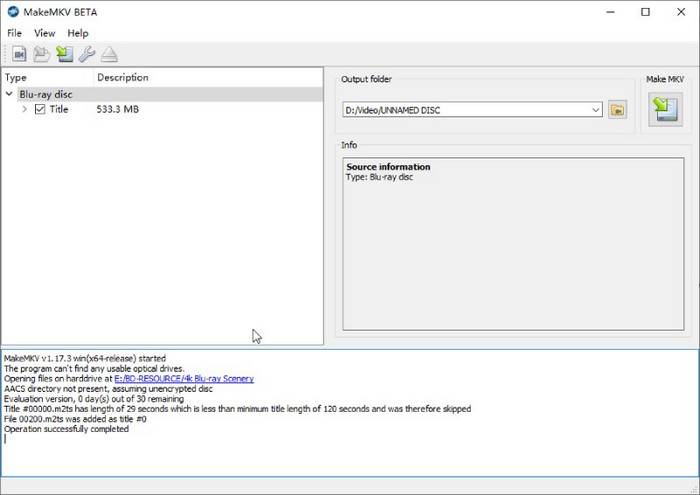
Step 1. Install this converter from official website. After installation, insert your disc into the drive and launch MakeMKV on your computer. The software will load your Blu-ray disc and analyze your titles. You can see the source information on the right.
Note: After the Blu-ray disc titles are listed, you can check or uncheck them to maintain the titles you want to rip to MKV.
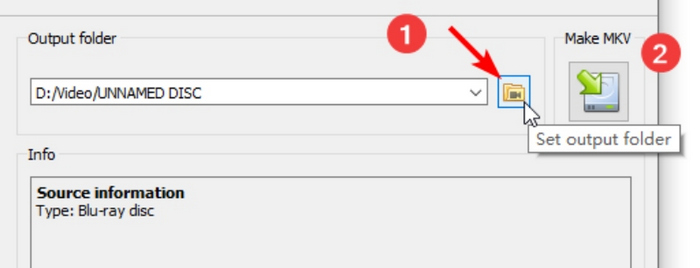
Step 2. Click the Set output folder button to set up a folder for output storage. Next, click the Make MKV button nearby to start ripping your Blu-ray video and get a digital copy in MKV format.
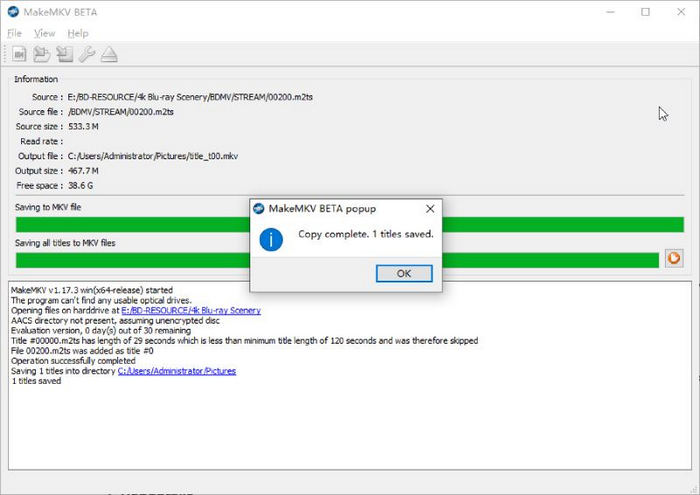
Step 3. A pop-up will remind you of the process after ripping ends. Click the OK button to confirm, and you can find your output video in the folder you just set.
After converting Blu-ray to MKV, many people are aware that in some cases, the large MKV files occupy too much storage space. So, now, you need HandBrake to convert MKV files, as well as to reduce the file sizes. It is a free, open-source tool to easily convert MKV files to MP4, MOV or WebM format. Now, read on to know how to do it in detail.
Step 4. Import the ripped MKV files to HandBrake by clicking the Open Source option.

Step 5. Under the Summary section, choose MP4 as the target format in the Format drop-down list. If you need, you can adjust the encoder, resolution, and other settings to optimize the video quality.
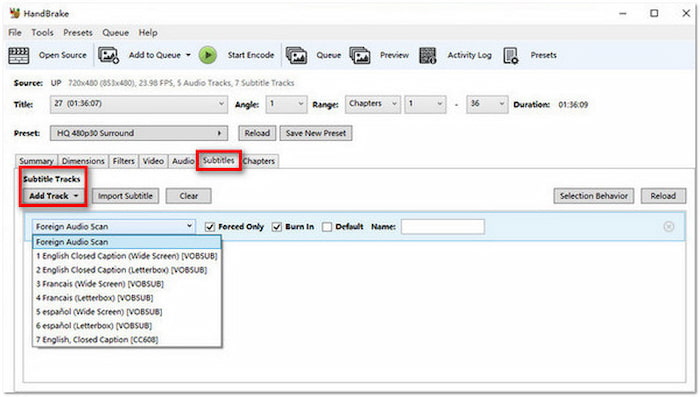
Step 6. Lastly, remember to set the download folder at the bottom. Then, click Start Encode in the top menu bar to begin the conversion.
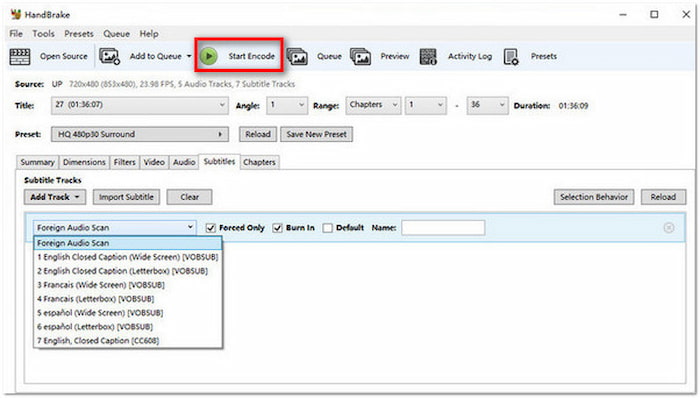
With MakeMKV and HandBrake, you can easily convert Blu-rays to digital for free. The limitation is that they both offer only a limited set of output formats to choose from. If you are not satisfied with this and want a direct solution, the following options may help.
Part 3. Turn Blu-ray to Digital Files by Blu-ray Master Free Blu-ray Ripper
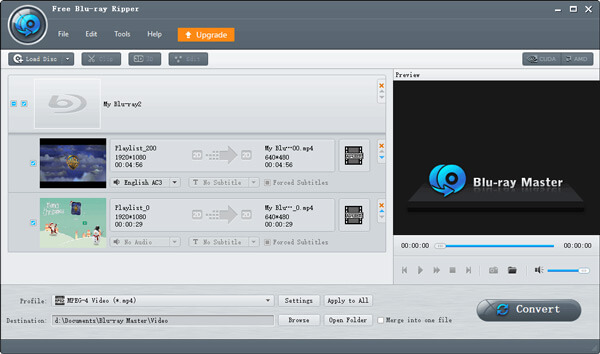
Free Blu-ray Ripper is the other excellent Blu-ray to digital converter. This free professional ripper can also convert your disc to various common-used videos, including 4K UHD, and 1080p HD videos. Multiple output settings help you customize frame rate, resolution, audio channels, audio bitrate, and more. Moreover, it has Clip, 3D, and Edit functions to adjust the Blu-ray to digital copies' effects, and you can see the videos in the right Preview section.
- Rip Blu-ray to digital videos, like MP4, MKV, MOV, AVI, WMV, etc.
- Multiple output settings to customize the video.
- Compatible with almost all portable devices.
- 3D settings to add Anaglyph 3D or split screen effect.
- Rip 4K Blu-ray and export various 4K profiles.
Free Download
For Windows
Secure Download
Free Download
for macOS
Secure Download
Here is the guide of converting Blu-ray to digital.
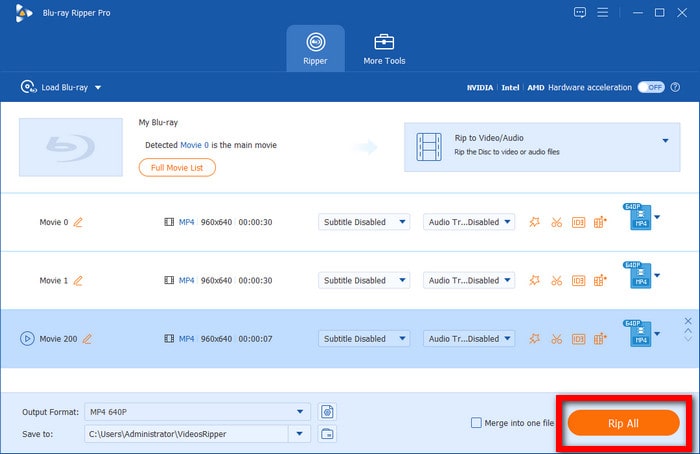
Step 1. Click the above link for the free download. Connect the Blu-ray drive to your computer and insert your disc into it. Launch the Blu-ray Master Free Blu-ray Ripper to load the disc by clicking the Load Blu-ray option. Choose from Load Blu-ray Disc, Load Blu-ray ISO, and Load Blu-ray Folder depending on the situation.
Step 2. Select a digital format as the output by clicking Output Formats from the bottom bar. MP4 is one of the most popular choices. You can enter the format you want in the search bar to locate it.
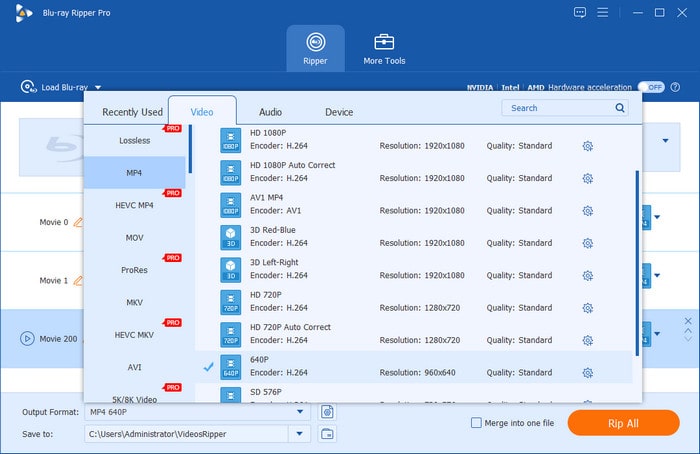
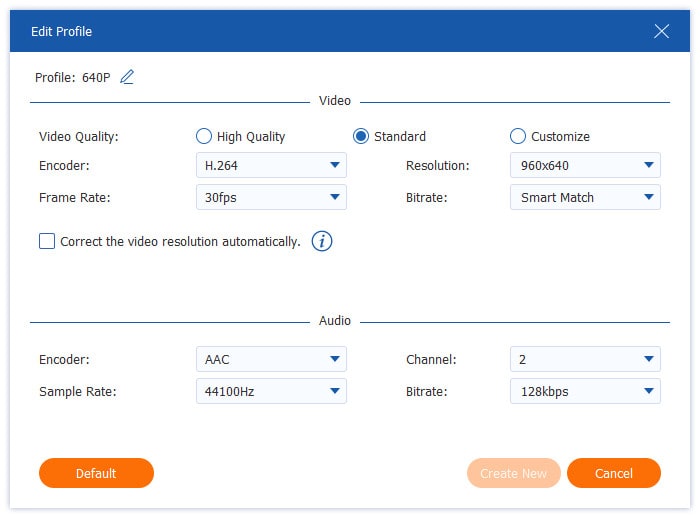
If you need, you can click the gear icon to open the 'Edit Profile' window for adjusting the parameters, including encoder, resolution, bitrate, and others.
Step 3. You can check your target effect in the Edit window, which can be accessed by clicking the magic wand or scissors icons.
Choose the download folder via the Save to option. When all is done, click Rip All to start Blu-ray ripping.
Part 4. Convert Blu-ray to Digital with Blu-ray Master Picked Blu-ray Ripper
This Blu-ray Ripper picked by Blu-ray Master is a Blu-ray ripping software excelling in converting any 2D/3D Blu-rays to digital formats. It can export videos into formats like MP4, AVI, WMV, FLV, MOV, etc. Or if you want to play your Blu-ray on devices like iPhone, iPad, iPod, and Android devices like Samsung Galaxy series, you can easily do the proper setting on it. Users can get a digital copy of their Blu-ray disc without quality loss in just a few seconds.
- Support ripping Blu-ray movies to any common or uncommon formats.
- Support exporting movies with original quality.
- Support merging multiple Blu-ray tiles/chapters into one.
- Support multiple editing functions on screen size, picture effect, audio volume, etc.
- Support convenient batch conversion.
Free Download
For Windows
Secure Download
Free Download
for macOS
Secure Download
Here are the steps to convert Blu-ray to digital.
Step 1. Download Blu-ray Ripper for free from the above links. Install and launch it. After connecting the Blu-ray drive to your computer, insert your disc into it. The software will automatically load it. Or you can click Load Blu-ray in the center.
Note: After loading the Blu-ray disc, you can choose from Main Title or Full Title List.
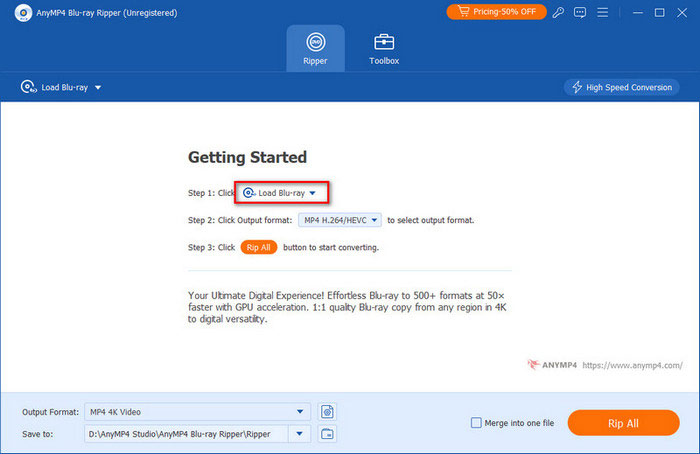
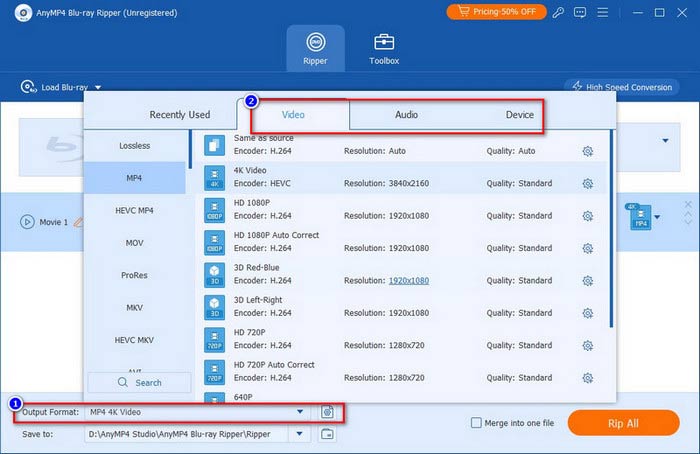
Step 2. Choose a digital format from the Output Format at the bottom left corner. You can choose MP4, which is a commonly used video format. Or if you have a certain device for playback, click Device to choose related output.
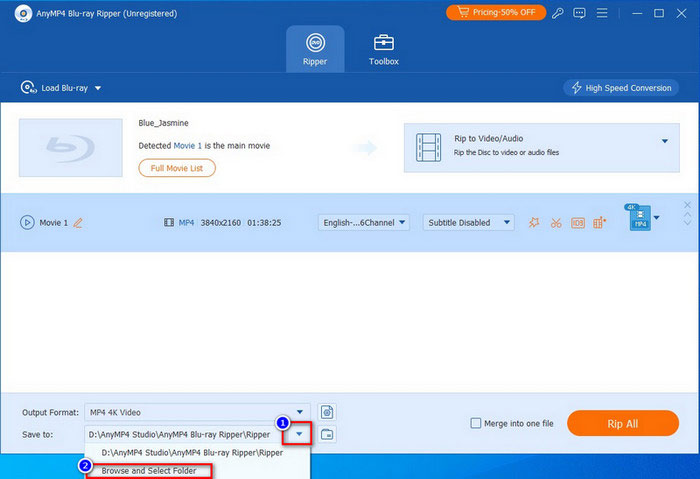
Step 3. Afterward, select a folder to save your digital copies by clicking the down arrow of Save to. Finally, click the Rip All button to convert your Blu-ray disc to digital.
Note: Before Blu-ray to digital conversion, you can click the provided editing icons to adjust video effects, like subtitles, watermark, etc.
Part 5. How to Get a Digital Copy from Blu-ray via Services
Besides the converters in the last part, you can also try some online services.
Use VUDU to redeem Blu-ray disc
Vudu was a digital video store and streaming service in America. It serves in America and Mexico. This company offers transactional video-on-demand rentals, digital purchases of films, and integration with digital locker services for streaming digital copies.
Nowadays, Vudu is officially rebranded as Fandango at Home. Furthermore, due to licensing changes, the Disc to Digital catalog is highly restricted. Major studios like Disney (including Marvel and Star Wars) do not participate. The service currently supports only eligible older titles from specific studios, such as Warner Bros., Sony Pictures, Paramount, and Lionsgate.
Here are simple steps to convert Blu-ray to digital on Vudu.
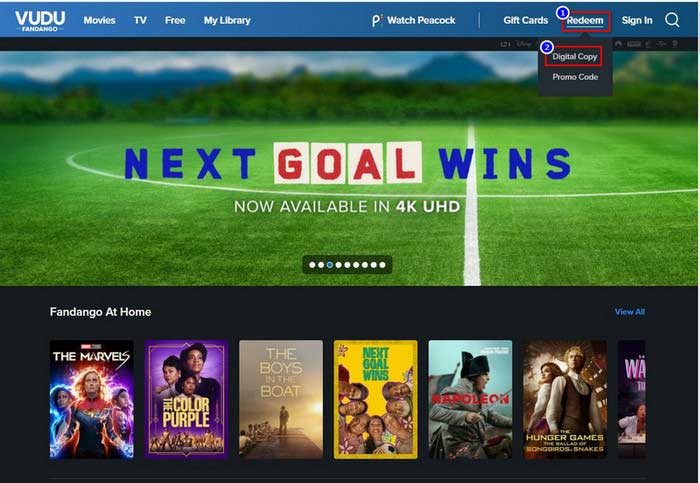
Step 1. Create an account on Vudu with your email at first. Then, find Redeem in the top bar of official site. Click Digital Copy.
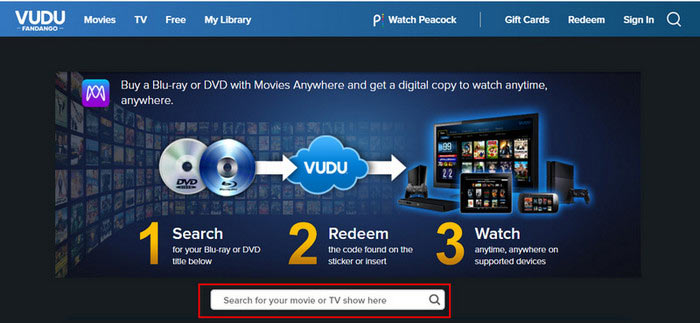
Step 2. Input the movie name that you want to convert into the search engine.
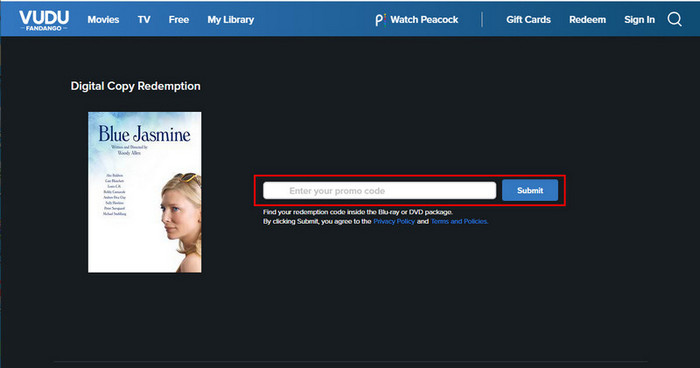
Step 3. When website finds your movie, input the redemption code of your purchased Blu-ray disc. You can find it inside the case or on the case sticker. Then, the redeeming will soon begin.
Digitize Blu-ray disc via Movies Anywhere
This is a cloud-based streaming platform for watching films. No matter the movie you purchased from iTunes, Vudu, Google Play, etc., users can acquire digital copies from their purchased discs. It offers easy and better watching experience.
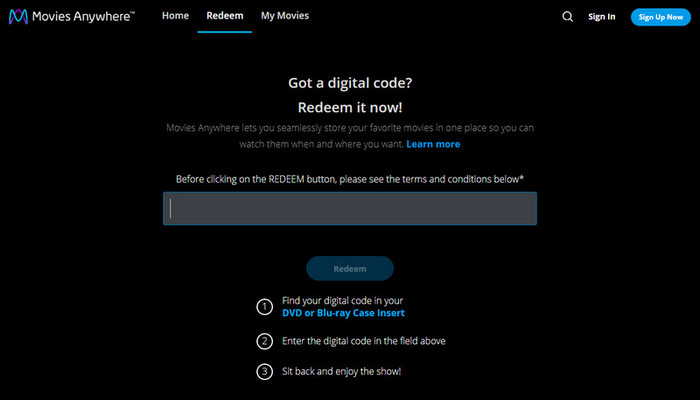
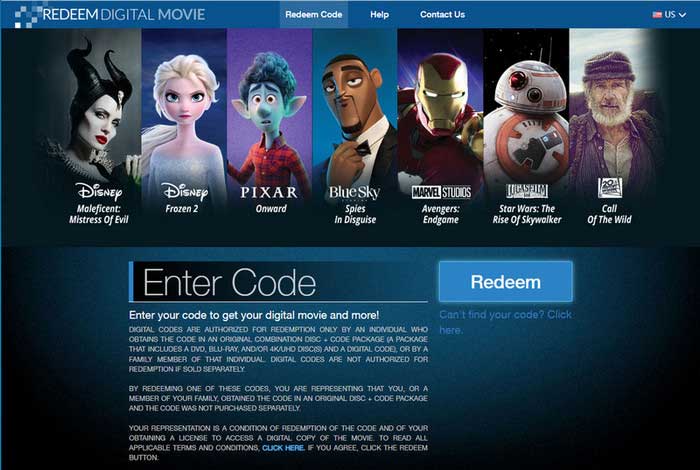
Redeem Digital Movie
This is a targeted website to digitize Blu-ray movies. You can directly input the redemption code on the interface. It supports converting individual-purchased Blu-ray disc codes of an original combination code and code package.
Part 6. FAQs About Blu-ray to Digital Conversion
-
Can you transfer Blu-ray to computer?
The answer is Yes. All you need is a Blu-ray optical drive and ripping software. Insert your disc into the drive after connecting drive to your computer. Then, follow the instructions of the software, the Blu-ray movie will soon be transferred to your computer.
-
Can you download digital copy of Blu-ray?
Some Blu-ray discs contain a digital copy code. With this, you can download a digital copy via digital platforms (Apple TV app) or website services, such as VUDU, Movies Anywhere, and iTunes.
-
Is it illegal to rip Blu-ray?
It depends on your purpose and area. In countries like the US, it’s legal to rip Blu-ray for personal use instead of distributing it.
-
Does anyone still use Blu-ray?
Yes, there are a lot of people still buying Blu-ray discs today. Blu-ray disc guarantees the best picture and sound quality. Most importantly, it ensures lifelong playback no matter how streaming service changes.
-
What is the absolute best free software to rip Blu-ray movies to my hard drive without quality loss?
MakeMKV and HandBrake are the best choices for you to convert Blu-rays to digital in a totally free way. MakeMKV can efficiently decrypt and rip Blu-rays while maintaining the original quality. HandBrake performs well in compressing and converting MKV to other compatible formats without noticeable quality loss in visual quality.
-
Can HandBrake decrypt and convert copy-protected Blu-rays, or do I need another tool first?
No, HandBrake is unable to handle copy-protected Blu-rays. You can try other Blu-ray rippers with advanced decryption ability, like DVDFab Blu-ray Ripper, Blu-ray Master Free Blu-ray Ripper, etc.
-
How can I digitize my 4K UHD Blu-ray collection? Do I need a specific type of optical drive?
Many Blu-ray ripping tools can digitize 4K UHD Blu-ray movies, like MakeMKV. To rip 4K Blu-ray movies, you need what the community calls a "UHD-Friendly" optical drive (common models include certain LG or ASUS drives).
-
MakeMKV vs HandBrake: Which one should I use to convert my Blu-rays to MP4 for Plex?
You need to use them at the same time. MakeMKV is good for Blu-ray decryption, and HandBrake can convert and compress large MKV files to MP4s without losing much quality.
-
How much storage space does a single ripped Blu-ray movie take on average? Should I use MP4 or MKV?
A standard 1080p Blu-ray takes up 30-50GB. A 4K UHD Blu-ray takes up 50-100GB+. MKV format retains all the information of the Blu-ray, and you can choose it if you want a 1:1 copy. Otherwise, MP4 is better.
Wrapping up
Thank you for making it to the end of this article. We listed various methods for you to convert Blu-ray to digital. If you want to convert your Blu-ray disc to different kinds of formats, you can’t miss the Blu-ray Ripper and Free Blu-ray Ripper we mentioned. MakeMKV is only for you to acquire MKV copies. Additionally, if you just want a digital copy of only one purchased Blu-ray disc, sites like Vudu or Movies Anywhere can give you a hand. But we suggest that a powerful ripper can give you a long-term disc management guarantee.
More from Blu-ray Master
Rip Blu-ray to Digital
Rip Blu-rays to any video and audio formats of different parameters for free in minutes.
100% Secure. No virus
