

Jun 01, 2026Posted by Kevin Miller to Rip Blu-ray
Have you ever been amazed by the super-audio effects in Blu-ray movies? For many people, ripping Blu-ray audio is an ideal way to enjoy beautiful music. To maintain studio-grade sound, you need to use professional Blu-ray audio extractors. Read on to learn the 3 effective ways to extract Blu-ray audio losslessly into high-resolution formats, like FLAC, ALAC, and others.

- Part 1. How We Test Blu-ray Audio Extractors
- Way 1. Extract Blu-ray Audio from Blu-ray Disc with Blu-ray Master Free Blu-ray Ripper
- Way 2. Extract Blu-ray Audio from Blu-ray Disc with DVDFab Blu-ray Ripper
- Way 3. How to Extract Blu-ray Audio Using Free/Open-Source Tool – MKVToolNix
- Part 5. Tips to Choose the Desired Format for Blu-ray Audio
- Part 6. FAQs of Extracting Audio from Blu-ray
| Feature / Criteria | Method 1: Blu-ray Master Free Ripper | Method 2: DVDFab Blu-ray Ripper | Method 3: MakeMKV + MKVToolNix |
| Price & License | Free | Paid Commercial | 100% Free |
| Supported Audio Formats | MP3, AAC, FLAC, WAV, OGG, DTS (Standard) | MP3, M4A, WAV, AAC, FLAC, DTS-HD, Dolby TrueHD | Raw Bitstreams (.thd, .dts, .mka, .pcm) & untouched original tracks |
| Decryption Capabilities | Handles basic AACS & standard commercial copy protection | Advanced updates for AACS, BD+, BD-J, RC, Country Code) | Excellent (Decryption via MakeMKV) |
| Extraction Speed | Fast | Ultra-Fast | Lightning-Fast |
| Audio Re-encoding | Compresses/Converts audio to target formats | Converts or pass-through to high-res formats | Zero re-encoding (Guarantees 100% bit-perfect extraction) |
| Best For | Casual users looking for quick MP3/FLAC conversions | Users who want an all-in-one, automated commercial solution | Audiophiles seeking maximum audio fidelity and raw surround streams |
Part 1. How We Test Blu-ray Audio Extractors
To ensure our recommendations are reliable, objective, and practical for everyday users, we subject each Blu-ray audio extractor to rigorous testing. We don't rely solely on marketing specs; we test the software in real-world environments with professional audiophile-grade gear.
Our Test Tracks & Source Material
We select a diverse range of physical Blu-ray discs to challenge the software’s decryption capabilities and audio extraction accuracy:
- Live Concert Blu-rays: Used to test multi-channel LPCM and DTS-HD Master Audio extraction (e.g., tracking the separation of crowd noise and live instruments).
- Cinematic Blockbusters: Used to verify high-bitrate Dolby TrueHD and Dolby Atmos streams, ensuring object-based audio data remains intact.
- Legacy Discs: Used to check how older AACS encryption layers and regional codes are handled.
Our Test Environment & Equipment
All tests are performed across multiple operating systems (Windows 11 and macOS Sequoia) using an internal LG WH16NS40 Blu-ray drive (flashed with LibreDrive firmware for unrestricted reading).
For critical listening and quality verification, our hardware pipeline includes:
- DAC/Amp: Topping DX3 Pro+ / Schiit Magni
- Headphones: Sennheiser HD600 (for neutral frequency response tracking)
- Monitors: KRK Rokit 5 G4 (to check spatial imaging on multi-channel downmixes)
When extracting Blu-ray audio, the right output format is also important, as it determines where and how you can enjoy your music. Use this quick buying guide to match your target format with your listening habits.
- FLAC: Best for audiophiles who want maximum quality without bloated file sizes.
- Pure DTS / Dolby: Best for home theater enthusiasts and media server archivers (Plex/Infuse).
- WAV: Best for audio editing, mixing, or burning backup audio CDs.
- MP3: Best for maximum portability, old car stereos, and saving storage space.
Way 1. Extract Blu-ray Audio from Blu-ray Disc with Blu-ray Master Free Blu-ray Ripper
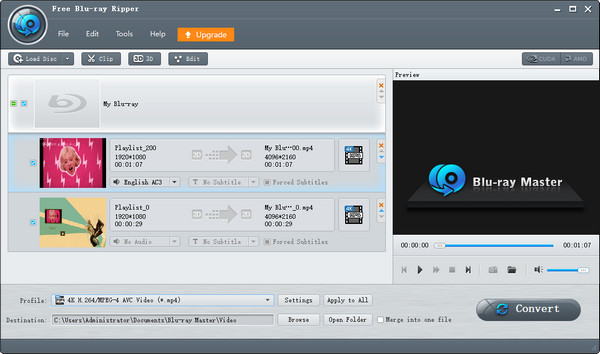
When you need to extract the high quality Blu-ray audio from the Blu-ray disc, you should better use the original audio codec, such as the Dolby Digital or DTS audio files. Blu-ray Master Free Blu-ray Ripper is the desired Blu-ray audio extractor that can rip the audio files from Blu-ray disc for free. It provides DTS, MP3, OGG, and other output audio formats. No matter homemade Blu-rays or commercial Blu-rays, it can handle copy protection to extract high-quality audios. Moreover, you can tweak the different parameters to customize the audio files.
- Convert Blu-ray audio discs to DTS, Dolby audio files, MP3 and more.
- Rip the audio from Blu-ray to iPhone, Android, and other portable devices.
- Tweak the different parameters for the audio codec for the desired output.
- Advanced hardware acceleration to convert Blu-ray audio with fast speed.
Free Download
For Windows
Secure Download
Free Download
for macOS
Secure Download
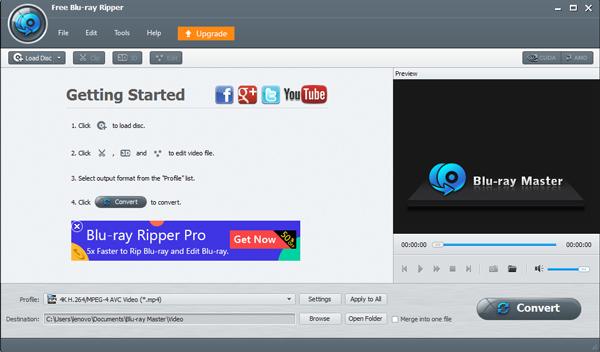
Now, follow us to see how to rip Blu-ray audio with this powerful tool.
Step 1. Insert the Blu-ray to your computer
Note: Remember to clean your Blu-ray discs regularly, which helps prevent the buildup of substances that could potentially damage the disc's surface over time.
Step 2. Choose the Blu-ray audio lists
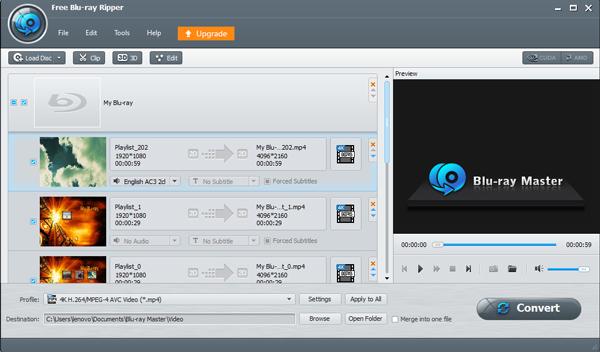
When you find all the Blu-ray files within the user interface, you can choose the desired Blu-ray audio from the list. Moreover, if there are different audio tracks for the audio files, you can click the Audio Track to select the desired one from the drop down list.
Step 3. Clip the files into different parts
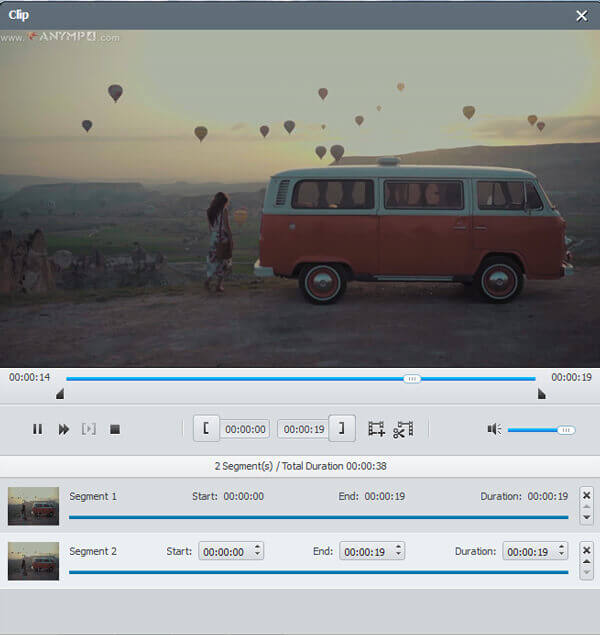
In order to take full advantage of these files, you have to clip the files into different parts. Just use the built-in media player to enjoy the music or audio files and trim the file with the starting point and end point. Click the New clip option to get the desired files.
Step 4. Select the desired output format
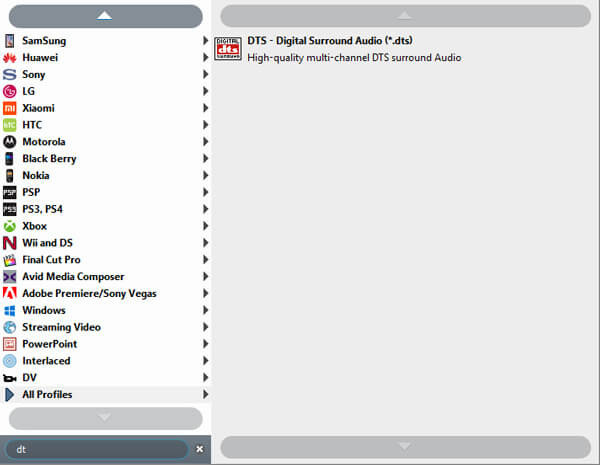
If you just need to enjoy the Blu-ray movies to computer as backup, you can click the Profile menu and choose the DTS as the output format. Of course, you can also go to the Settings option to adjust audio codec, sample rate, audio bitrate and more.
Note: It provides multiple audio output formats, like MP3, FLAC, OGG, etc. If you have special needs, you can search in the search bar.
Step 5. Convert and rip Blu-ray audio
After that, you can choose the destination folder for the output audio file. Click the Convert button to extract the desired audio files from the Blu-ray Audio. You can click the Open Folder button to listen to the audio files from your Blu-ray disc.
Way 2. Extract Blu-ray Audio from Blu-ray Disc with DVDFab Blu-ray Ripper
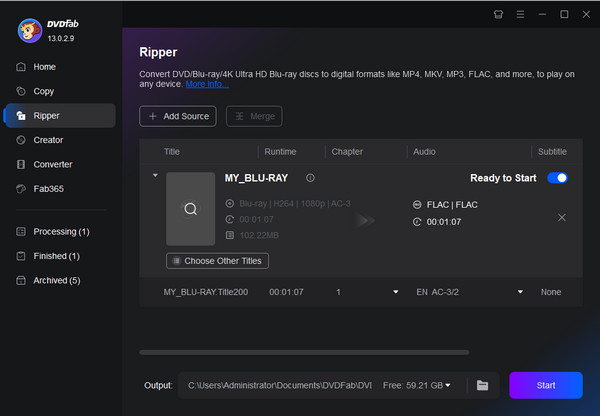
DVDFab Blu-ray Ripper is also a good choice for extracting high-quality Blu-ray audio. It can efficiently convert Blu-rays to multiple audio formats, like MP3, AAC, AC3, FLAC, etc., which can meet your different needs. It can remove most copy protection to extract Blu-ray audios, including AACS, BD+, BD-J, RC, Country Code, etc. Moreover, it utilizes many acceleration technologies, such as Multi-core CPU, NVIDIA CUDA, AMD, and IQS, which can efficiently work to convert Blu-rays.
Here is a clear guide to rip Blu-ray audio.
Step 1. Download and install DVDFab Blu-ray Ripper on your computer. Then, open the software.
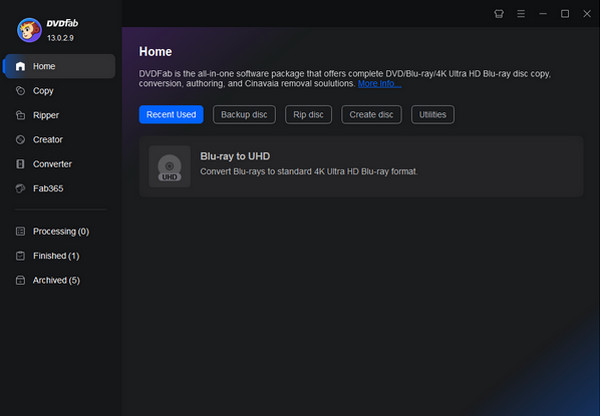
Step 2. Choose the Ripper section and click the Add Source button to load the Blu-rays you want to convert.
Note: It allows you to load more than one Blu-ray file.
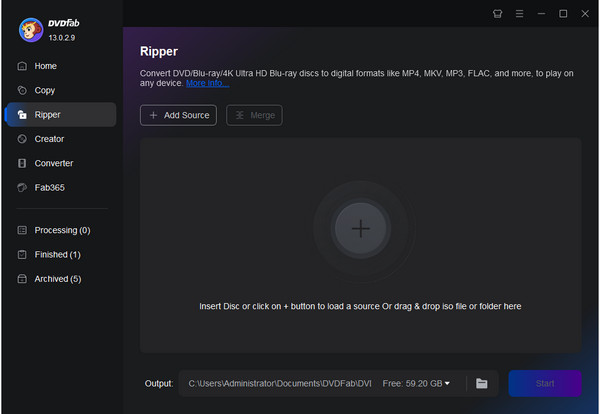
Step 3. The default output format is MP4, a commonly used video format. To rip audio from Blu-ray, you can choose MP4 > Choose Other Profile > Audio to select FLAC as the output audio format.
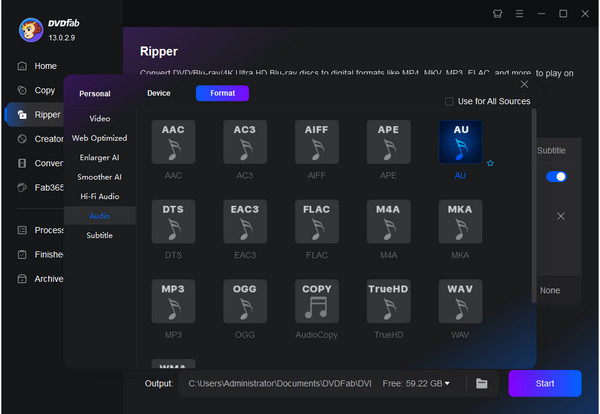
Step 4. Select the folder icon to set the download folder, and then click Start to begin the Blu-ray conversion process.
Note: You can also choose titles and audio tracks you want to convert.
Way 3. How to Extract Blu-ray Audio Using Free/Open-Source Tool – MKVToolNix
MKVToolNix is a free, open-source tool that can extract lossless audio from Blu-ray movies. Unlike other tools for re-encoding Blu-rays, this robust tool can demux (separate) the raw, untouched audio streams—such as Dolby TrueHD, DTS-HD Master Audio, or uncompressed LPCM—directly from the Blu-ray structure. One shortcoming is that MKVToolNix cannot read encrypted Blu-ray discs directly; you need to use MakeMKV to rip Blu-rays to MKV files in advance.
Follow us to see how to use this Blu-ray audio extractor to get hi-fi audio files.
Step 1. Use MakeMKV to rip Blu-ray to MKV. Then, load the MKV files to MKVToolNix.
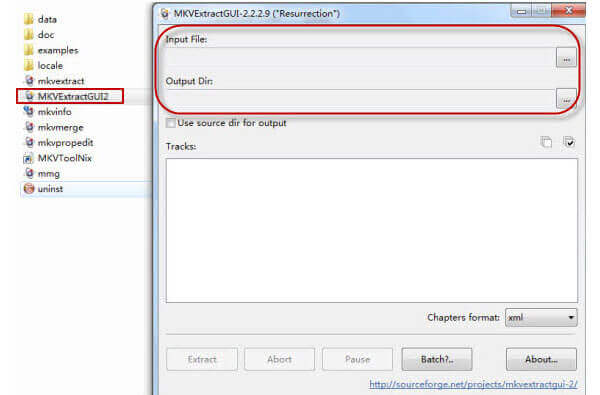
Step 2. Click the Add source files option at the bottom to import the ripped MKV files.
Tips
You can also drag MKV files directly into the interface to load them.
Step 3. Once the file is loaded, look at the Tracks, chapters, and tags section below. Here, you will see a detailed list of all multiplexed streams in the file: Video, Audio, Subtitles, and Chapters.
Uncheck video and subtitle tracks, and select the specific audio tracks you want to maintain.
Step 4. To save audio as FLAC and other native audio formats, go to the Output file field and click the folder icon to choose the destination folder. Next, you can manually change the file extension in the output name, or use an extension plugin like gMKVExtractGUI alongside MKVToolNix for one-click raw extraction.
Part 5. Tips to Choose the Desired Format for Blu-ray Audio
In order to preserve the best Blu-ray high definition audio, what should be the best audio format you should choose? Of course, preserve the original audio file is the best choice to get the high quality audio files. But you might not able to use the files to other devices. Here are four choices you can choose as the Blu-ray audio output.
Convert Blu-ray Audio to DTS
DTS is also known as the DTS 5.1 or DTS Surround, which is the desired audio format for home theater. It is limited to a maximum of six audio channels for its compresses the audio to make the footprint smaller. When you need to use the Blu-ray audio extractor to get the original audio files, DTS is the choice with the best audio quality.
Convert Blu-ray Audio to Dolby
Just as DTS, if you want to preserve the original audio file of the Blu-ray disc, you can choose the Dolby files as the output formats. Moreover, the Dolby audio files can also be a nice choice if you need to playback the Blu-ray audio files on your Apple TV and more other related device.
Convert Blu-ray Audio to MP3
MP3 is one of the most frequently used audio formats, which can be used for most of the devices. If you have to use the Blu-ray audio files to multiple devices, MP3 is the most suitable choice instead of the one with the best audio quality. You can adjust the different parameters, such as MP3 320 quality for the output audio. (Check free MP3 music player here)
Part 6. FAQs of Extracting Audio from Blu-ray
-
Can I extract audio from Blu-ray ISO file?
Yes, you can. For extracting the audio from Blu-ray ISO file, you will need the Free Blu-ray Ripper. It is the free Blu-ray ripping software to extract the original audio file and convert them to MP3, FLAC, AIFF, OGG, WMA, WAV, etc.
-
How to convert Blu-ray audio to FLAC?
FLAC is the optimal lossless audio format that offers true CD quality. It can compress an audio file down to around half of its original size, which has a similar working algorithm as the ZIP files. When you rip Blu-ray audio to FLAC, you can use the audio files with most of the Apple devices, such as iPhone, iPad and more. What you need to do is to select FLAC in the drop-down list of Profile by following part 2.
-
How do I rip audio tracks from a DVD?
Like extracting audio from Blu-ray, you will need Free DVD Ripper to rip audio from DVD. Step 1. Click Load Disc to import the DVD files. Step 2. Select the audio file from Profile drop-down list. Step 3. Click Convert to rip audio from a DVD.
-
How can I import Blu-ray audio to iTunes?
iTunes cannot import Blu-ray disc directly. For adding Blu-ray audio into iTunes, you should convert Blu-ray to iTunes supported audio formats (MP3, AAC, AIFF, WAV, Audible .aa files, M4A and M4P). Then get Free Blu-ray Ripper to convert Blu-ray to audio easily.
-
How to rip Blu-ray to MKV?
For ripping Blu-ray to MKV, Free Blu-ray Ripper can help you exactly. It is the free Blu-ray ripper to extract MKV, MP4, MOV, etc., from Blu-ray. Step 1. Click Load Disc to import the Blu-ray disc. Step 2. Select MKV from the drop-down list of Profile. Step 3. Click Convert to start to rip Blu-ray to MKV. You can check this post to get the detailed guide: How to convert Blu-ray to MKV.
Wrapping up
How to extract the Blu-ray audio files from Blu-ray discs? This article actually provides a practical guide. Blu-ray Master Free Blu-ray Ripper is free to use, and you can download it first to try it!
More from Blu-ray Master
Rip Blu-ray to Digital
Rip Blu-rays to any video and audio formats of different parameters for free in minutes.
100% Secure. No virus
