

Oct 08, 2026Posted by Kevin Miller to Rip Blu-ray
Quick Selection Guide:
If you want zero-cost, lossless multi-channel sound (5.1/7.1) extraction from Blu-rays, MakeMKV + VLC is unbeatable, though it takes two short steps. If you want a free and simple one-click audio extraction process, Blu-ray Master Free Blu-ray Ripper offers a flexible choice. For a commercial solution with full GPU acceleration, DVDFab performed the fastest among all paid options.
Blu-ray discs contain select high-quality, high-resolution audio content. However, playing these discs outside of a home theatre system may present several inconveniences. Whether you wish to listen to live concert albums on a traditional Hi-Fi system, edit audio tracks in a Digital Audio Workstation (DAW), or simply preserve the original uncompressed PCM audio quality without sacrificing sound quality, converting Blu-ray audio to WAV format is the ideal solution.
Unlike MP3s that drop fine sonic details or FLAC files that sometimes run into hardware compatibility issues, uncompressed WAV files deliver bit-for-bit accuracy and plug-and-play ease across almost any device. In this guide, we will walk you through 4 lossless and practical ways to extract audio from Blu-ray to WAV—including a 100% free, open-source method.
- Way 1. Free Way to Extract WAV Audio from Blu-ray: MakeMKV + VLC
- Way 2. Convert Blu-ray Audio to WAV with Blu-ray Master Free Blu-ray Ripper
- Way 3. Convert Blu-ray Audio to WAV with DVDFab Blu-ray Ripper
- Way 4. Convert Blu-ray Audio to WAV with Leawo Blu-ray Ripper
- FAQs on How to Rip Blu-ray to WAV
To give you an honest performance comparison, we conducted a real-world test using a commercial 25 GB Blu-ray Concert Disc featuring a DTS-HD Master Audio 5.1 track (24-bit/48kHz).
Test PC Specifications: Windows 11 Home, Intel Core i7-13700K CPU, 32GB RAM, Nvidia RTX 4070, 512GB NVMe SSD.
| Method / Software | Conversion Time (25GB Disc) | Average CPU Usage | Preserves 5.1/7.1 Surround | AACS/BD+ Protection Support | Overall Verdict |
| MakeMKV + VLC | ~8 minutes (2-step process) | ~15% | Yes (Bit-for-bit LPCM) | Auto-Updated | Best Overall (100% Free) |
| Blu-ray Master Free Blu-ray Ripper | ~10 minutes | ~49% | Stereo Only (Free version) | GoodDecryption | Quick & Simple for Beginners |
| DVDFab Blu-ray Ripper | ~9 minutes | ~52% (GPU accelerated) | Yes (Multi-channel) | Excellent (Latest Discs) | Fastest Commercial Choice |
| Leawo Blu-ray Ripper | ~11 minutes | ~45% | Yes (Customizable) | Good Decryption Support | User-Friendly All-in-One |
Way 1. Free Way to Extract WAV Audio from Blu-ray: MakeMKV + VLC
WAV is not just a standard audio format—it is essentially a RIFF container wrapping raw, uncompressed LPCM (Linear Pulse Code Modulation) audio data. When you rip a Blu-ray track to WAV, you are extracting the pristine, bit-for-bit LPCM stream straight from the disc into a universally accessible file structure without adding any lossy compression.
Here is the first recommended way to transfer Blu-ray to WAV.
To convert Blu-ray to WAV, you need to bypass the Blu-ray copy protections. MakeMKV is undoubtedly the best tool for free decryption of Blu-ray copy protections. With this tool, you can easily select the audio tracks you want to extract and convert Blu-rays to MKV files. Then, use VLC to convert MKV to WAV. Now, let's see how to use them to extract Blu-ray audio to WAV.
Step 1.Download and install MakeMKV and VLC on your computer. Insert the Blu-ray disc you want to rip into the optical drive. Launch MakeMKV and load the Blu-ray.

Step 2.MakeMKV will fully scan and list the Blu-ray information. Select the audio tracks you want to maintain. Go to the Output folder to set a download folder for you to quickly locate, and click Make MKV to start the decryption.

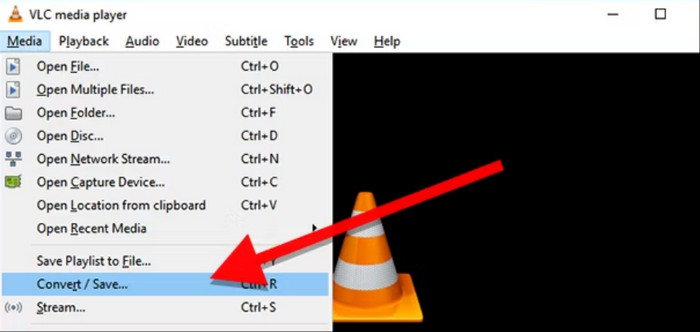
Step 3.Open VLC and click Media > Convert/Save to open its convert window.
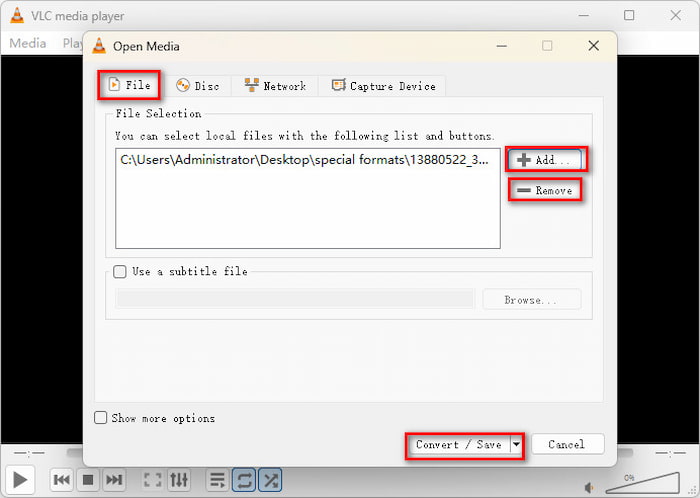
Step 4.Under the File section, click Add and Remove to manage the MKV files. Then, click the bottom Convert/Save button to proceed.
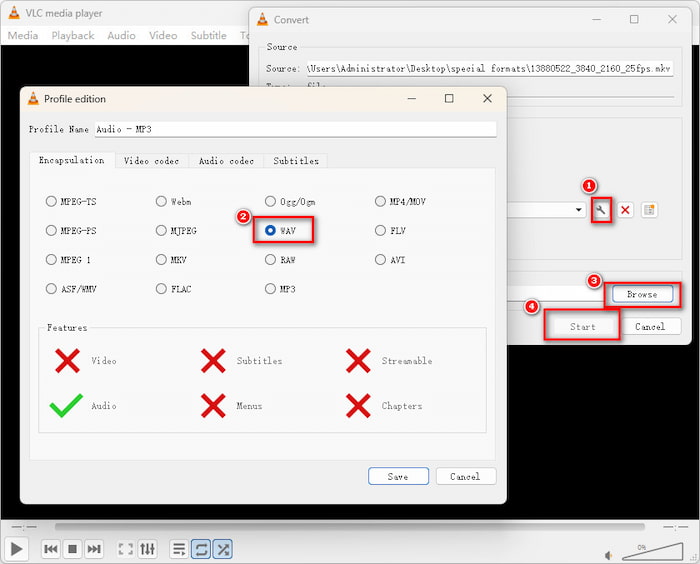
Step 5.Lastly, click the wrench button to select WAV as the output format and click Save to preserve the adjustment. Then, click Browse to set a download folder and click Start to convert MKV to WAV.
The steps are easy and intuitive. If you have installed MakeMKV and VLC on your computer, these two tools are your best choices. If you think the process is a little complex, the following three ways give you one-click solutions.
Way 2. Convert Blu-ray Audio to WAV with Blu-ray Master Free Blu-ray Ripper
Blu-ray Master Free Blu-ray Ripper is a great program for converting your collection of Blu-ray to WAV profiles. You can convert not just your Blu-ray discs but Blu-ray folders and ISO files. It is very easy to use, which makes it ideal for first-time users. It provides personal settings to adjust WAV parameters, so it can fit your different needs. At its right area, you can see the video effects with the Preview function. Read this simple guide we have for you in using this tool for converting Blu-ray to WAV efficiently.
Free Download
For Windows
Secure Download
Free Download
for macOS
Secure Download
Step 1.Download Blu-ray Master Free Blu-ray Ripper on your device via the above buttons or from its official website. Proceed to install it, and make sure to follow the instructions carefully. Quickly open the tool after the installation finishes. Insert the Blu-ray disc you will extract on your PC, then click Load Blu-ray > Load Blu-ray Disc to import the file.
Step 2.After adding the file, you can manually select the audio track you want to extract. Then, click the Output Format button on the bottom interface to see the audio and video formats available. Select the Audio tab, then choose WAV, Lossless Quality as the output profile.
Note: The easy way to locate the WAV choice is to enter WAV in the search bar.
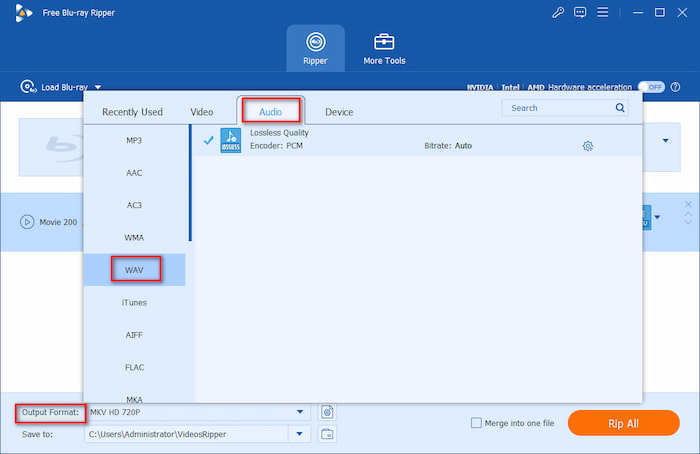
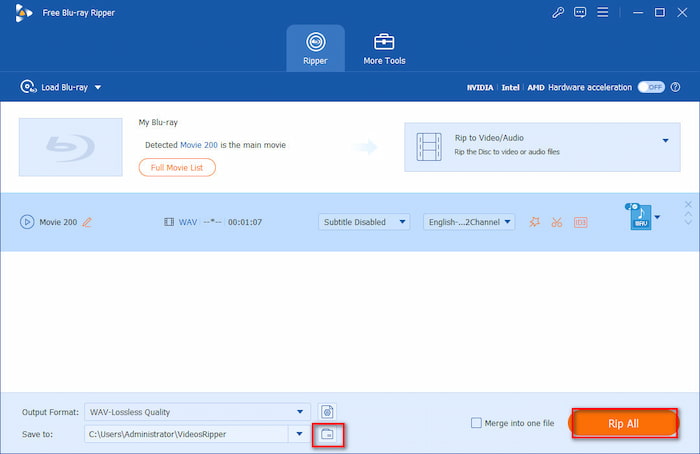
Step 3.After that, click the folder button to set a download folder for your exported WAV files. Lastly, click Rip All to start the WAV audio extraction from Blu-ray.
Quick Guide: Blu-ray Audio Parameters
• Sample Rate (48kHz vs. 96kHz): Most Blu-ray movies use 48kHz, while rare Hi-Res concerts use 96kHz. Match your output to the source disc—upsampling 48kHz to 96kHz only wastes disk space without improving sound.
• Bit Depth (16-bit vs. 24-bit): Always choose 24-bit. Blu-ray natively uses 24-bit audio to capture full dynamic range. Dropping to 16-bit compresses the audio down to standard CD quality.
Rule of Thumb: Set your tool to 24-bit / Match Source Sample Rate for true studio lossless WAV quality.
This robust tool has powerful decryption ability to handle various Blu-ray copy protections, so you can get multiple excellent audio files to enjoy on any device. It is easy to use, so even beginners can use it in a simple workflow. However, the features of the free version are limited. If your Blu-ray has a 5.1 or 7.1 surround track, double-check the audio preview to make sure it doesn't get automatically downmixed to 2-channel stereo.
Way 3. Convert Blu-ray Audio to WAV with DVDFab Blu-ray Ripper
DVDFab Blu-ray Ripper is one of the best choices for converting your Blu-ray videos to WAV audio format. This tool is a premium program for Mac and Windows that allows you to extract Blu-ray discs, folders, and ISO files to WAV. It has the decryption ability to remove Blu-ray protection to rip Blu-ray to WAV. This program is safe to use and ideal for beginners. Follow the simple tutorial we created for you below to use this Blu-ray audio conversion program.
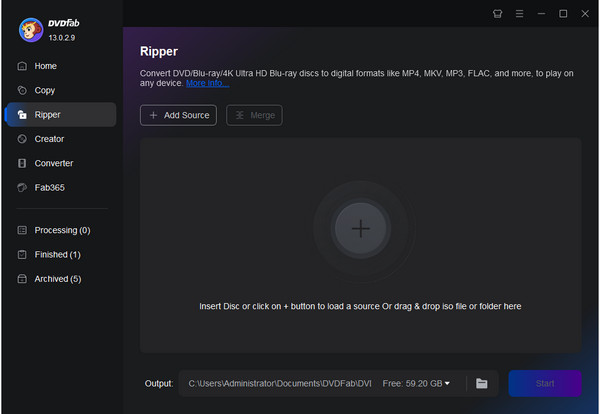
Step 1. Download and install DVDFab Ripper on your desktop. Insert a Blu-ray disc of your choice that you want to extract audio. Open the program, choose the Ripper area, and then click +Add Source to import the Blu-ray file into the desktop app.
Step 2. Click Choose Other Profile on the profile selection box, which will direct you to the Profile library. Choose the Format tab, then click the Hi-Fi Audio and select the WAV format.
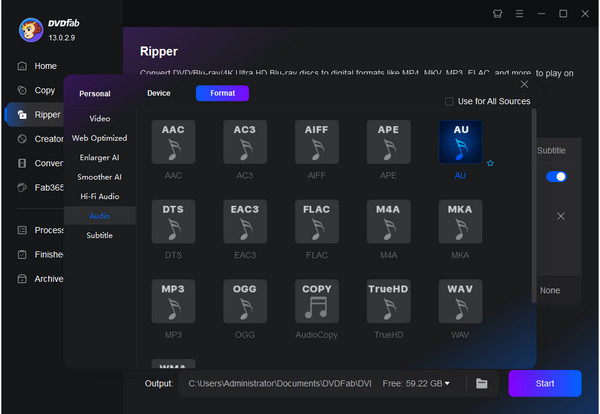
Step 3. Pick your desired output location on where to save the audio file, then tap the green Start button to begin ripping and converting your Blu-ray. Wait for a few minutes for the process to finish. Exit the program after you are done using it.
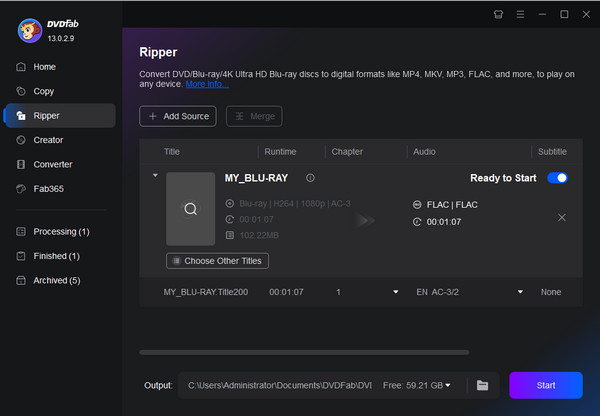
DVDFab excels at removing complex AACS and BD+ protections automatically. However, uncompressed WAV files can take up several gigabytes per track. Make sure your destination drive has at least 10–15 GB of free space before starting a full-disc audio rip.
Way 4. Convert Blu-ray Audio to WAV with Leawo Blu-ray Ripper
Another good program for converting your Blu-ray video to WAV is the Leawo Blu-ray Ripper. This tool is a well-known audio and video ripping, converting, and editing program. It can extract audio from your Blu-ray discs, folders, and ISO files and convert audio to WAV format with ease. If you are not satisfied with the provided WAV profile, you are allowed to customize the parameters to meet your needs, including Bitrate, Sample Rate, and Channel. It is simple to use and completely safe to run on your computer. Follow the quick guide to using this tool for extracting audio of your Blu-ray and convert to various formats.
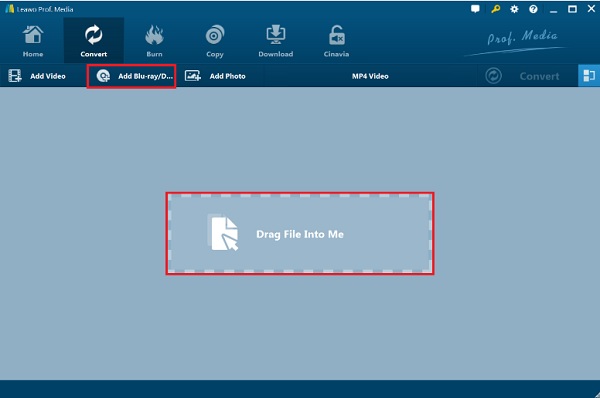
Step 1. Download the program Leawo Blu-ray Ripper on your PC. Install it, then run the program. Load the Blu-ray disc on your computer that you want to extract. Click Add Blu-ray to import the Blu-ray files into the program.
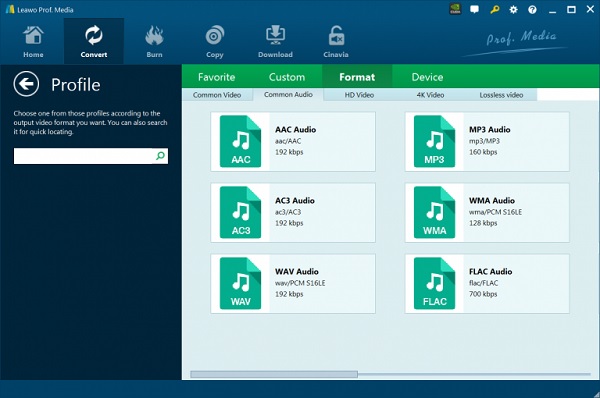
Step 2. Click the drop-down box of Output Profile, then click Change to launch the interface window for audio and video formats. Tap Common Audio, and then select WAV audio format.
Note: To customize the parameters, you can click Output Profile > Change to enter the interface.
Step 3. Click the green Convert button to open the sidebar where you see the option of the output folder. Select Agree and click Convert at the bottom to start Blu-ray conversion. You also can use this tool as a Blu-ray to AVI converter.
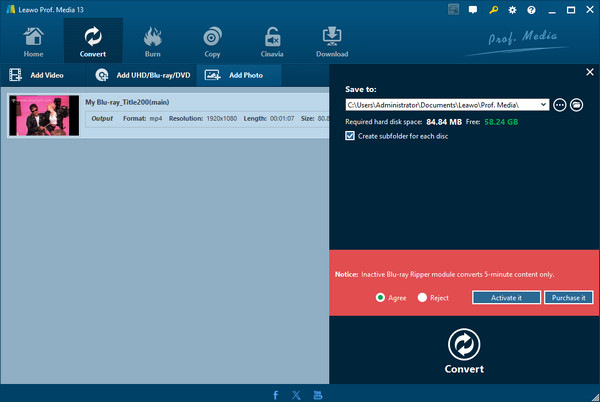
When adjusting parameters in this tool, always set the Sample Rate to Match Source (usually 48kHz for movies) and select 24-bit for Bitrate/Depth. Raising the sample rate higher than the original disc won't boost audio quality, but it will significantly inflate your output file size.
FAQs on How to Rip Blu-ray to WAV
-
What is the WAV audio format?
WAV stands for Waveform Audio File Format, which IBM and Microsoft developed. It is a lossless audio format and is usually an uncompressed file that results in amazing and clear sound effects.
-
What is the disadvantage of WAV over MP3?
The disadvantage of the WAV format over MP3 is that it consumes more data on your storage, and most apps and platforms do not support it compared to MP3.
-
Can you edit a WAV audio file?
Yes. You can edit your WAV files by trimming their length, adjusting their volume, adding effects, and other edits. It is an advantage of WAV files as they are easier to edit compared to compressed files.
-
How do I extract raw 24-bit/96kHz PCM audio from a Blu-ray disc without quality loss?
Use MakeMKV to decrypt and 1:1 copy the Blu-ray movies, including the raw 24-bit/96kHz PCM audio, to the MKV format. Then, use gMKVExtractGUI or FFmpeg to extract the raw audio stream directly to an uncompressed WAV file.
-
What is the best free alternative to DVDFab for converting Blu-ray audio to WAV on Windows 11?
The MakeMKV and VLC combination allows you to freely convert Blu-ray audio to WAV.
-
Can WAV format preserve 5.1 surround sound when ripping a Blu-ray concert disc?
Yes. WAV format supports multi-channel audio, including 5.1 and 7.1 uncompressed LPCM channels.
-
Why should I choose WAV over FLAC when ripping audio from a Blu-ray movie?
Because WAV has better compatibility and it requires zero processing power to play it.
-
How to remove AACS copy protection to rip audio from a commercial Blu-ray disc?
MakeMKV is a popular tool to handle Blu-ray copy protections, including AACS, BD+, and others.
-
Is there a way to extract audio tracks from Blu-ray ISO files to WAV using MakeMKV and HandBrake?
MakeMKV can rip Blu-ray to MKV in lossless quality. But HandBrake fails to convert MKV to WAV. You can try VLC and FFmpeg to convert MKV to WAV.
Wrapping up
Converting Blu-ray to WAV is very easy as long as you use the right program. A powerful program simplifies the process of ripping and converting any Blu-ray files. Today, we introduce you to the 4 powerful ways to extract Blu-ray audio to WAV. Blu-ray Master Free Blu-ray Ripper is considered the best one. It is simple and capable of extracting your favorite Blu-ray audio and converting it to WAV for high-quality audio for free. You can download and try it now.
More Reading
Rip Blu-ray to Digital
Rip Blu-rays to any video and audio formats of different parameters for free in minutes.
100% Secure. No virus
