

Mar 05, 2026Posted by Kevin Miller to Play Blu-ray
We are all different in our own ways. Many may want to watch their favorite Blu-rays on a big screen, but there are still who lavish watching on their computer screen. On the other hand, some just do not have a choice because they lack a standalone Blu-ray player, and as part of being resourceful, they will get a way through what they have, which is their computer. Regardless of your reason, if you want to play Blu-ray on PC, then you must familiarize yourself with the best ways presented in this post.
- Part 1. Preparations for Playing Blu-ray on PC and Mac
- Way 1. Play Blu-ray on PC and Mac with Blu-ray Master Free Blu-ray Player
- Way 2. Play Blu-ray on PC and Mac with VLC Media Player
- Way 3. Play Blu-ray on PC and Mac with CyberLink PowerDVD 20 Ultra
- Way 4. Play Blu-ray on PC and Mac with PlayerFab Player 6
- Way 5. Play Blu-ray on PC and Mac with VideoByte Blu-ray Player
- Part 6. FAQs of Playing Blu-rays on Mac and Windows PC
Part 1. Preparations for Playing Blu-ray on PC and Mac
For Windows
Unlike the 'plug-and-play' simplicity of past decades, playing Blu-ray on a modern Windows PC requires navigating specific hardware standards and power requirements.
1. The Ultra HD (UHD) 4K 'Intel Trap'
If you are planning to play 4K UHD Blu-rays (not just standard 1080p), you must be aware of the Intel SGX (Software Guard Extensions) issue.
- The Problem: Intel removed SGX support starting with 11th Gen (Rocket Lake) and newer CPUs (including 12th, 13th, and 14th Gen).
- The Solution: If you have a modern PC, don't waste money on a '4K UHD' drive expecting it to play original 4K discs via official software like PowerDVD—it likely won't work. Instead, look for 'UHD-Friendly' drives (like certain LG or ASUS models) which, when paired with the right software, can read 4K data without requiring Intel SGX.
2. Internal vs. External Drives
- For Desktops: An internal SATA Blu-ray drive is always superior. It offers the most stable power supply and highest data transfer speeds, minimizing 'stuttering' during high-bitrate action scenes.
- For Laptops: Ensure your laptop's USB port is at least USB 3.0 (Blue port). Older USB 2.0 ports often lack the bandwidth and power to stream 50GB+ Blu-ray data smoothly, leading to lag or software crashes.
3. Solving the 'Not Enough Power' Issue on PCs
Windows laptops often throttle power to USB ports to save battery. If your external drive is recognized but fails to read the disc:
- The Double-USB Cable: Many drives come with a 'USB Y-Cable.' Plug both connectors into your PC—one for data, the other for supplementary power.
- Desktop Rear Ports: If you are using a desktop PC, plug the external drive into the motherboard ports (on the back of the tower) rather than the front panel ports. Front ports use internal extension cables that often cause signal degradation and power loss.
4. GPU & Monitor Requirements (HDCP 2.2)
Your PC's graphics card and monitor must be 'friends.'
- HDCP Compliance: To play Blu-ray, your GPU and Monitor must support HDCP (High-bandwidth Digital Content Protection).
- The Cable Matters: Always use a DisplayPort or HDMI cable. VGA and some DVI connections are analog or lack HDCP, which will result in a black screen or a 'Security Environment Error' from your playback software.
For Mac
Modern MacBooks and iMacs powered by Apple Silicon (M1, M2, M3, and M4 chips) provide stunning displays for Blu-ray movies, but their lack of USB-A ports and high power sensitivity can make hardware setup tricky. To ensure a smooth experience, follow these specific hardware guidelines:
1. Solving the USB-C Connectivity Gap
Since current MacBooks only feature Thunderbolt (USB-C) ports, you cannot plug traditional Blu-ray drives directly into your machine. You have two reliable options:
- The Native Route: Purchase a drive with a Native USB-C connector (e.g., Pioneer BDR-XD08UMB-S). This eliminates the need for adapters and ensures the most stable data transfer.
- The Adapter Route: If you already have a USB-A drive, use a high-quality USB-C to USB-A adapter.
Expert Tip: Avoid passive, ultra-cheap adapters found in multi-packs. For high-bandwidth tasks like Blu-ray playback, we recommend using the Apple USB-C to USB Adapter or a reputable brand like Syntech or Anker to prevent signal dropping mid-movie.
2. The 'Power Trap': Why Your Drive Might Not Spin
External Blu-ray drives draw significantly more power than standard DVD drives. Apple Silicon Macs are known for strict power management, which often leads to the dreaded 'clicking' sound (where the drive tries to spin but fails).
- Avoid Unpowered Hubs: Do NOT connect your drive to a small, unpowered USB-C travel hub. These hubs often split power between multiple ports, leaving the drive underpowered.
- Use a Powered Hub or Y-Cable: If your drive won't mount, use a USB-C Powered Hub (one that plugs into a wall outlet) or a USB Power Enhancer 'Y-Cable'. The Y-cable draws power from two ports simultaneously to provide the necessary voltage for the laser and motor.
3. Silicon Compatibility Check
Good news: Most external Blu-ray drives are 'plug-and-play' at the hardware level with Apple Silicon. macOS will recognize the drive as a 'Mass Storage Device' immediately. However, remember that recognition does not mean playback. While the hardware works on an M3 Max, you still require specialized M-series optimized software (like VideoByte or VLC with Apple Silicon builds) to decode the video data on the disc.
Way 1. Play Blu-ray on PC and Mac with Blu-ray Master Free Blu-ray Player
Platforms: Windows 11/10/8.1/7; Mac OS X 10.9 and later
After completing the preparations before playing Blu-ray movies, let’s see how to play Blu-rays on PC and Mac. Blu-ray Master Free Blu-ray Player is what it takes to be trusted in playing your Blu-ray on your computer. It is the ace of Blu-ray Master when it comes to seeking a theater-like Blu-ray playback, whether on Windows or Mac. This player has always been recognized because of its good attributes and features to lavish when you want to watch Blu-ray. To enumerate, it supports playback for all types of Blu-rays, including the ISO and folder, and with support for different formats on DVDs, HD even 4K videos in various formats as well. Furthermore, it graciously gives you advanced technologies to provide you the cinematic displays and DTS or Dolby Digital for excellent sound. Anyone can play Blu-ray on a Laptop with this player effortlessly.
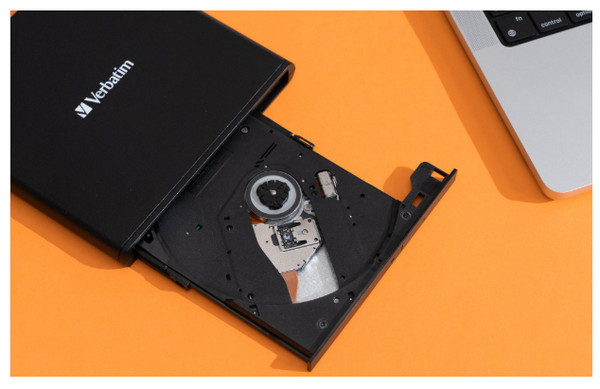
Step 1. Prepare an external Blu-ray optical drive, and connect it to your computer.
Step 2. Click the Free Download button below to download and install this player on your Windows or Mac computers.
Free Download
For Windows
Secure Download
Free Download
for macOS
Secure Download
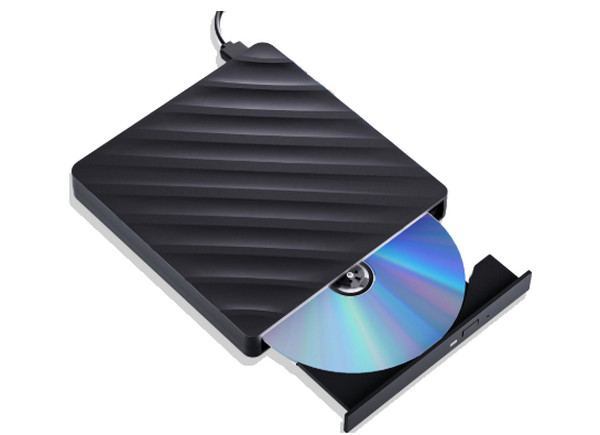
Step 3. Locate the disc tray, and insert one Blu-ray disc into the drive. Make sure that the readable side of the disc-typically the glossy side-is pointing down and into the tray.
Step 4. Launch the Blu-ray player, and click Open Disc to load the Blu-ray. You can use the provided settings to facilitate your watching, like Snapshot.
Note: You can load and watch one Blu-ray each time.

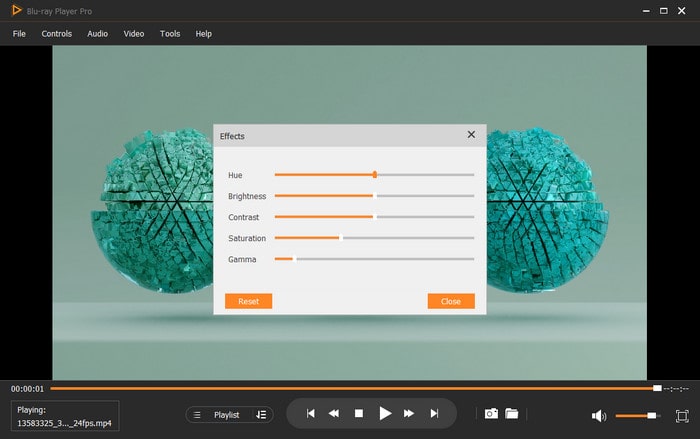
Step 5. Control the various playback settings to improve your watching experience. You can skip the unwanted titles, adjust brightness, choose audio tracks, etc.
Pros
- Region-free to play any Blu-ray movie with ease.
- Adopts GPU acceleration to deliver a seamless Blu-ray playback performance.
- Various playback settings for optimize viewing experience.
Cons
- Some advanced features are locked in the free version.
- It takes long time to load large Blu-ray movies.
Way 2. Play Blu-ray on PC and Mac with VLC Media Player
All Windows OS, Mac OS X 10.7.5 or later, iOS 9.0 or later, Android 2.2/4.2 or later.
Blu-rays, DVDs, CDs, and various digital formats.
4K
Blu-rays, DVDs, CDs, and various digital formats.
Can’t play Blu-ray on Windows Media Player? Here is a workable solution for you. You can use the VLC Media Player to play your Blu-ray on Windows 10 and on Mac, the VLC. Yes, with the required library and codec, you can playback Blu-rays and DVDs on PC and Mac with this media player as long as the discs are not encrypted. For some legality and AACS reasons, VLC cannot open protected Blu-rays; however, it gets the seamless playback you desire for the decrypted Blu-rays. Nevertheless, below are the example steps to follow and play Blu-ray on PC with the VLC player.
Pros
- You can use your laptop to play Blu-ray for free using VLC.
- Acquirable on nearly all platforms.
- With customization options.
Cons
- With a complex setup to play Blu-ray.
- It has limited Blu-ray customizations.
Now, let's see the detailed steps of playing Blu-rays on PC and Mac.
Step 1.Access the VLC
Download and install VLC from its official website. Then, launch the software on your computer.
Step 2.Import and Play Blu-ray Movies
Insert a Blu-ray disc into the optical drive. Click Media > Open File to open the Blu-ray ISO files, Open Folder to import the BDMV folder, or Open Disc to load the Blu-ray disc.

Step 3.Control Blu-ray Playback
After loading the Blu-ray movie, the tool would play it automatically. You can use various settings to control the playback.

Way 3. Play Blu-ray on PC and Mac with CyberLink PowerDVD
Windows 10/8.1/7 with Service Pack 1.
Blu-rays, DVDs, and VCDs.
4K
360-degree feature to provide an immersive experience.
CyberLink PowerDVD 20 Ultra is a multimedia and Blu-ray player software designed by CyberLink Corporation. It is developed to give you a seamless media viewing experience on your computer. Furthermore, this PowerDVD 20 Ultra is the premium version of CyberLink suits, which offers advanced capabilities and features far beyond its standard versions. Regarding Blu-rays, PowerDVD 20 Ultra has the capability to handle Blu-ray discs, in addition to its support for 2D and 3D content. Also, it can play Blu-ray folders, ISO files, and commercial Blu-rays saved on your computer. Unfortunately, since CyberLink hasn’t launched a Mac version player, you can’t play Blu-ray on Mac with it.
Pros
- It has a superior playback display.
- It can play encrypted Blu-rays.
- It has streaming features.
Cons
- It slows down the computer system.
- Its pop-up menus and dialogs need to be refined.
To know how to use PowerDVD to play Blu-rays on PC and Mac, this step-by-step guide helps you!
Step 1.Download the Software
Access its official website to download and install it on your computer. Then, open it directly.
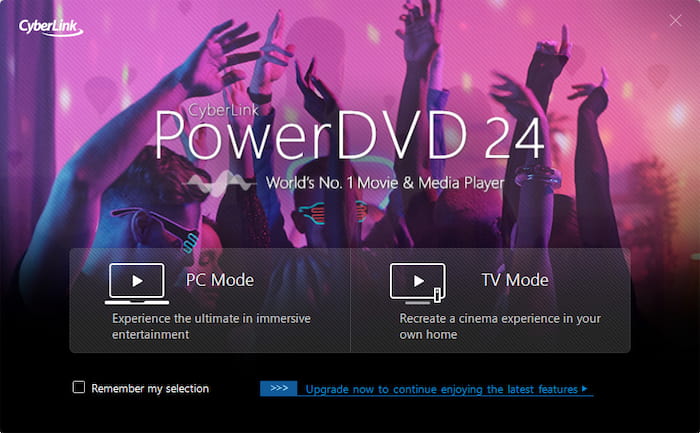
Step 2.Choose the Correct Mode
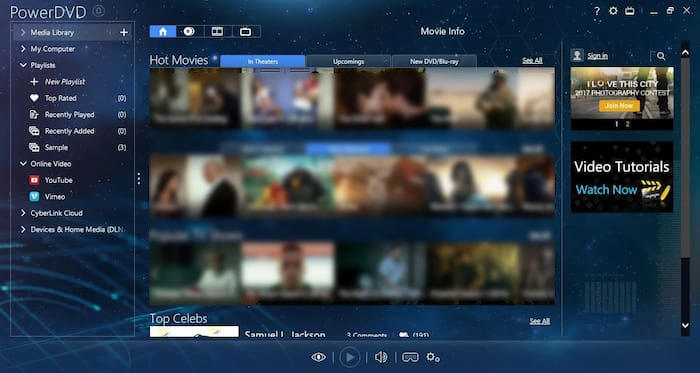
Go to the PC Mode (default) and select the Movies tab on the left sidebar.
Step 3.Play Blu-ray Movies
Click Play. For enhanced visuals, click the TrueTheater icon in the control bar to enable 'Smart Color' and 'HDR Enhancement.'
Way 4. Play Blu-ray on PC and Mac with PlayerFab Player 6
Windows 11/10/8.1/8/7, macOS 10.10 – 13.
Blu-rays, DVDs, and video and audio formats.
4K
Advanced Settings: PC mode and TV mode to meet different watching needs.
Using this PlayerFab Player 6, you can playback your Blu-ray movies in 4K quality. Furthermore, it enables you to indulge even your DVDs, ISO files, folders, high-quality digital videos tag, and menus. Also, it supports all types of 3D movies you have saved on your device and plays them back without any hassle. Plus, the player has a well-organized library system. With this library, you can easily find your movies and TV shows. Besides, you can effortlessly play Blu-ray on Windows 10 or 11 or MacBook right from where you’ve left.
Pros
- It is a versatile player.
- With a smooth performance in playing Blu-rays.
- It comes with streaming features.
Cons
- It can be heavy on your system.
- It has a poor interface design.
To know how to use PowerDVD to play Blu-rays on PC and Mac, this step-by-step guide helps you!
Step 1.Get the Software
Access the DVDFab official website to get PlayerFab on your computer. Launch the software.

Step 2.Insert and Play Blu-ray
Insert a Blu-ray disc into the optical drive. Under the Library section, choose the Disc option and select the inserted Blu-ray disc to play it.
Step 3.Control Blu-ray Playback
Watch the Blu-ray movie on it and use the various settings to control the playback.

Way 5. Play Blu-ray on PC and Mac with VideoByte Blu-ray Player
Windows 10/8/7/Vista/XP (SP2 or later), Mac OS X 10.9 or above.
Blu-rays, video, and audio formats.
HD and 4K
Bypass region codes to play Blu-rays.
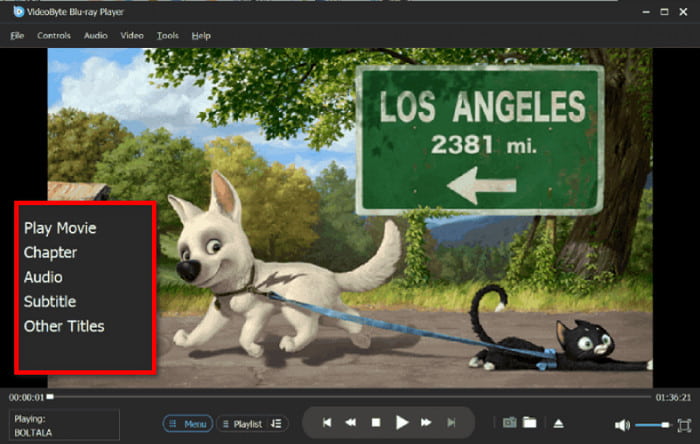
VideoByte Blu-ray Player is another player that offers outstanding image and sound quality. Its support for media formats is broad, which also includes Blu-rays, DVDs, and other 4K videos. Moreover, this player comes with advanced technology for decoding, making you play Blu-ray on PC with a smooth and quick process. Thus, you will get a more stable Blu-ray playback experience.
Pros
- It supports a wide variety of media formats.
- It is simple and easy to use.
- It offers different customization options.
Cons
- You will need to purchase it to enjoy its features.
Now, follow us to see the full guide on using it to play Blu-rays on PC and Mac.
Step 1.Open the Tool
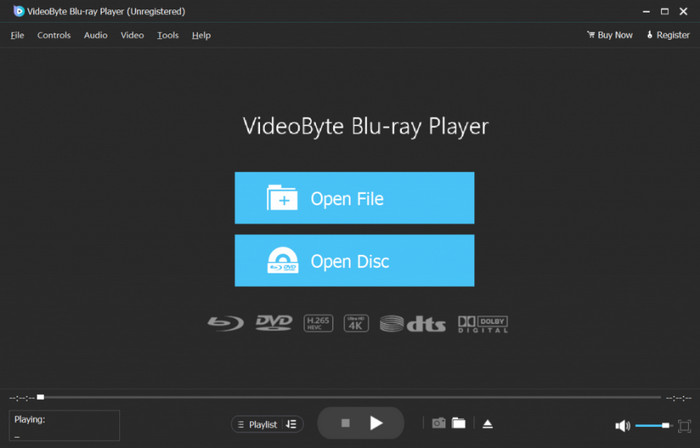
Download and install VideoByte Blu-ray Player on your computer. Then, open it and click the central Open Disc button to import the Blu-ray disc.
Step 2.Load and Watch Blu-ray
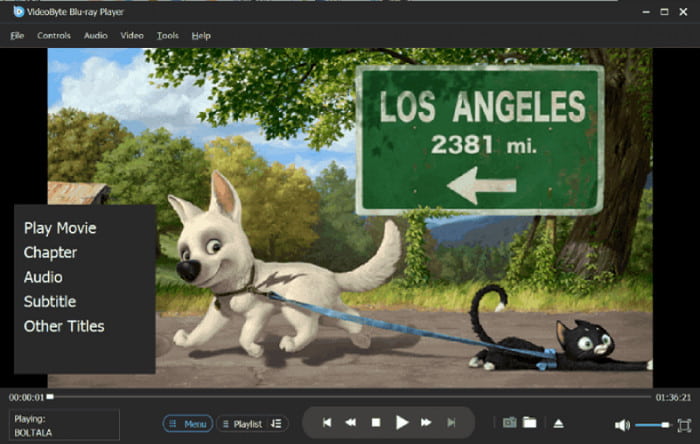
It takes some time to scan and load the full information of the inserted Blu-ray movie. Wait patient and it will play the movie properly.
Step 3.Control and Manage Blu-ray Playback
This Blu-ray player has many settings for you to control and manage video playback, and you can explore them to improve your experience.
Part 7. FAQs of Playing Blu-rays on Mac and Windows PC
-
Can I play Blu rays on Windows 11 for free using VLC?
Partly. VLC can play unencrypted Blu rays for free. For commercial encrypted discs, you must add AACS libraries and key files manually, and even then, not all discs will work.
-
What is the best external Blu ray drive for MacBook Pro M3?
Look for a USB C–compatible external Blu ray drive that supports macOS without extra drivers. Models from LG, Pioneer, and Archgon are commonly recommended because they work reliably with Apple Silicon Macs.
-
Why won't my Mac recognize my external Blu ray player?
Common causes include insufficient power, incompatible USB hubs, missing macOS support for the drive’s chipset, or using a cable that doesn’t support data. Plugging the drive directly into the Mac and using a powered hub often fixes it.
-
Does Windows Media Player support Blu ray playback in 2025?
No. Windows Media Player still does not support Blu ray playback. You need third party software to play Blu ray discs on Windows 11.
Wrapping up
You can now be confident to play Blu-ray on PC and Mac with these powerful Blu-ray players presented in this post. You do not need to go the extra mile to play your favorite Blu-rays on your smaller screen. You are good to go if you have the best player, like the Blu-ray Master Free Blu-ray Player and the others.
More from Blu-ray Master
Play Common Videos

Easily play Blu-rays, DVDs, and various video/audio formats with rich playback features.
100% Secure. No virus
