

Aug 19, 2025Posted by Selena Thomas to Play Video
Windows Media Player, with its straightforward interface, has been the standard media playback tool for Windows users for decades. But as video formats have evolved, a frustrating issue that many users have faced is that Windows Media Player is unable to play MKV files directly. The MKV (Matroska Video) format has become the standard for HD movies, TV shows, and internet videos since it can contain multiple audio tracks, subtitles, and high-definition video quality in a single file.
Therefore, why can't Windows Media Player handle the MKV format? And how can we fix this problem? This post will analyze the best ways to support the MKV codec for Windows Media Player, regardless of whether you're running Windows 11 or a previous version. Let's start exploring right now!

- Part 1. MKV Codec for Windows Media Player
- Part 2. Codec Packs for Older Windows
- Part 3. Microsoft Store Video Extensions for Windows 10/11
- Part 4. Windows Media Player Alternative to Play MKV with Ease
- Part 5. FAQs
Part 1. MKV Codec for Windows Media Player: What is it
As an open container format, MKV (Matroska Video) functions similarly to a potent multimedia storage device. In addition to preserving outstanding compression efficiency, it can package and save HD videos, multi-channel audio, and subtitles in multiple languages. MKV is the recommended format for 4K films and high-definition television shows because of these benefits.
However, Windows Media Player was initially designed primarily to work with Microsoft's proprietary codecs, such as WMV. Since MKV uses open-source standards and involves complex patent licensing issues, Microsoft chose not to include support for this format. In addition, the core architecture of Windows Media Player is still stuck in the DirectShow framework era, lacking the ability to parse modern container formats.

Next, we will provide detailed solutions on how to make the MKV format compatible with Windows Media Player.
Part 2. Codec Packs for Older Windows
Installing a third-party codec pack is the easiest way for people who are still using Windows 7/8 or earlier versions to play MKV files. We will offer a thorough examination of these three tried-and-true codec solutions, covering everything from technical concepts to actual uses.
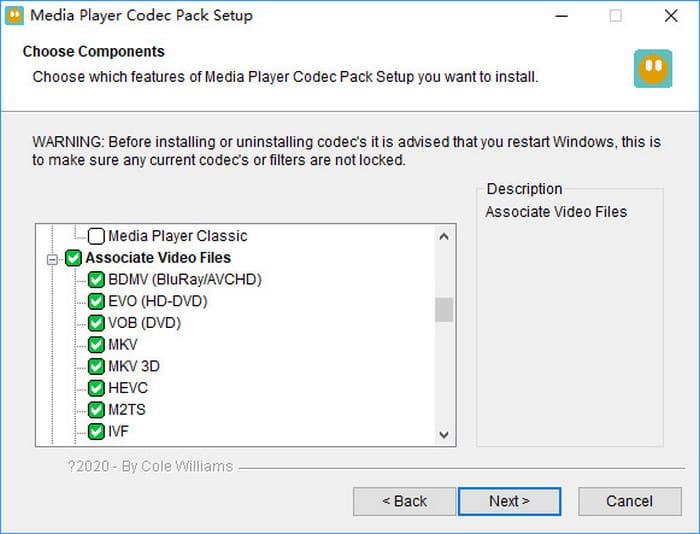
Media Player Codec Pack
Media Player Codec Pack is a lightweight MKV codec pack for Windows Media Player, designed to enable older systems (such as Windows 7/8) to smoothly play modern video formats like MKV, FLV, and MOV.
Pros
- No advertisements, no browser plugins, and no bundled third-party software.
- It is compatible with Windows 11, 10, 8.1, 8.0, 7, Vista, XP, Server 2022/2019/2016, etc.
- It covers a variety of MKV video compression formats, such as x264, x265, H.265, and HEVC.
Cons
- Unable to decode 4K videos, high bitrate files may stutter.
- Only basic decoding support is provided, without renderer optimization (such as madVR).
Installation Steps:
Step 1.Open the official website of Media Player Codec Pack, and click the Download button to download the software.
Note: There are three versions of this software: standard, plus, and lite. You can download different versions based on your needs.
Step 2.After downloading it, install the installation package on your computer.
Step 3.In the Windows settings, choose the System button to make Windows Media Player the default program used to open video files.
K-Lite Codec Pack
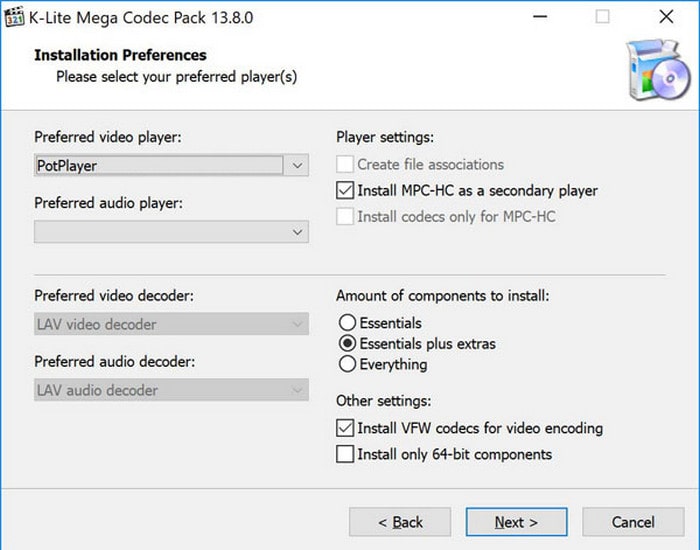
K-Lite Codec Pack is one of the most popular and feature-rich Windows Media Player codec packs available for Windows, which was created to offer full video/audio decoding. Installing this codec pack will enable you to play various video formats, including MKV, AVI, and M2TS.
Pros
- It offers four different versions to choose from: Basic, Standard, Full, and Mega.
- It is capable of playing 4K/8K, HDR10, and Dolby Vision UHD content.
- It supports WASAPI audio exclusive mode, which can reduce latency and improve sound quality.
Cons
- Some versions are quite large: the installation package of the Mega version exceeds 100MB.
- Conflicts with the decoders of some professional software, such as Adobe Premiere.
Installation Steps:
Step 1.Visit the official website of K-Lite Codec Pack, and click the Download button to download it.
Note: There are four versions to choose from: Basic (basic decoding), Standard (daily usage), Full (advanced function), and Mega (professional needs). And we recommend the standard version.
Step 2.Install it, and choose the supported formats, such as MKV, MP4, and AVI.
Step 3.After that, click the Finish button to finish the installation process.
Shark007 Codecs
Shark007 Codecs is an advanced Windows Media Player codec pack for the MKV format of Windows 7/8/10/11/, which is designed to provide seamless 4K/HDR, MKV, and HEVC support for Windows Media Player. In contrast to conventional codecs, it places greater emphasis on system integration and contemporary video technologies (such as HDR tone mapping and Dolby Atmos audio).
Pros
- It can smoothly support popular formats like MKV and WebM while also optimizing the built-in Windows player.
- Equipped with a professional HDR processing engine, it achieves precise color mapping from HDR to SDR.
- It supports Dolby Digital+ and DTS passthrough output, which provides an immersive audio experience.
Cons
- Windows 7 users need to use the old version of Shark007 Codecs.
- It will turn off security features during installation, which may cause security risks.
- To utilize advanced features, users must manually configure them as they are disabled by default.
Installation Steps:
Step 1.Visit the official website of Shark007 Codecs, then click the Download button to download it for your Windows Media Player.
Step 2.After that, click the Install button to get the codecs following the onscreen instructions.
Step 3.Afterward, the system will prompt you to make settings. Please click the Recommended Settings option.
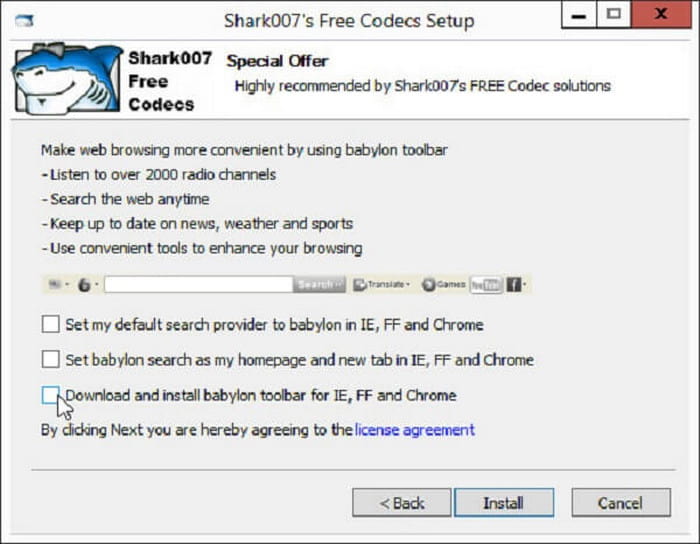
After completing the above process of running the Windows Media Player codec on the system, the codec will be successfully installed on the system. Now, you can use Windows Media Player to play MKV files without any issues.
Part 3. Microsoft Store Video Extensions for Windows 10/11
Although third-party codec packs can provide the MKV format support for older versions of Windows, for users of Windows 10/11, the Microsoft Store video extensions provide a safer and more stable option. Let's take a detailed look at these video extensions.
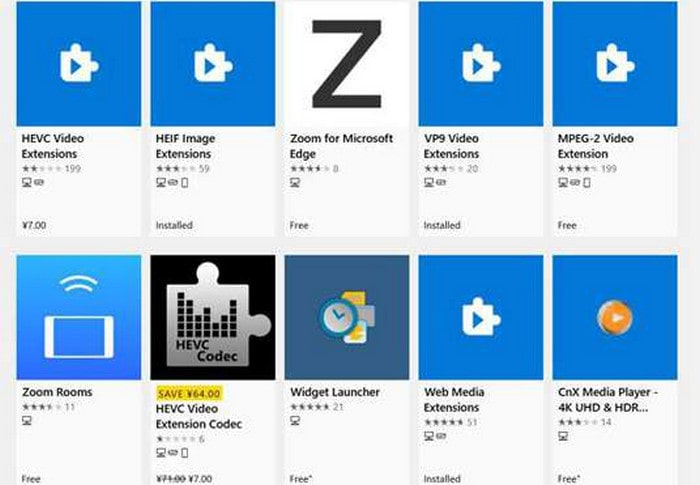
Microsoft officially offers a series of video extensions through the Microsoft Store, allowing users to play MKV format in the Windows Media Player for Windows 10/11. Compared to third-party codec packs, it is easier to install and use, with better system compatibility and security.
Pros
- It comes from Microsoft and won't interfere with system stability or compatibility.
- It supports the latest video technologies, including 4K HDR10 and Dolby Vision.
- Modular design allows for on-demand purchasing, with no ads or bundling.
Cons
- If you have other codec packs installed, there could be conflicts between them.
- It is not free, and you need to pay $0.99 for the MKV codec pack.
Part 4. Windows Media Player Alternative to Play MKV with Ease
If you wish to avoid the complicated steps of codec installation, a third-party free player is undoubtedly the most convenient solution. Among numerous options, Blu-ray Master Free Blu-ray Player is the best choice for playing MKV. It stands out with its lightweight design and excellent compatibility (Windows 7/8/10/11 and Mac OS 10.9+). It supports a variety video and audio formats including MKV. In addition, it does not only support playing high-quality MKV videos up to 1080p/4K, but also offer more powerful playback control and video quality optimization features. What’s more importantly, it is free to download.
Here are its simple steps to play MKV files.
Step 1.Download Blu-ray Master Free Blu-ray Player from the website, and install it following the onscreen instructions.
Free Download
For Windows
Secure Download
Free Download
for macOS
Secure Download
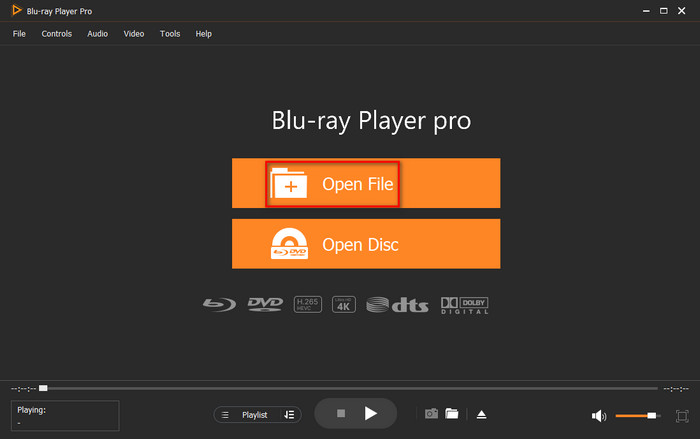
Step 2.Click the Open File button to upload the MKV video file you want to play, and then the software will play it automatically.
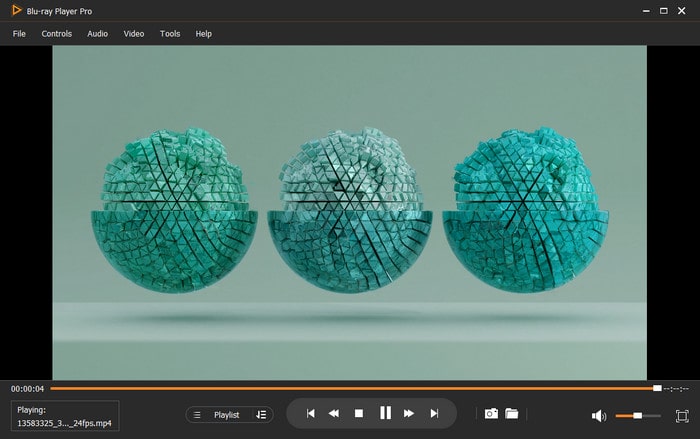
Step 3.Click the triangular button (or use the spacebar) to play or pause the playback. Also, you can click the quick access buttons to fast forward and rewind the video.
Part 5. FAQs
-
Can Windows Media Player play MKV files natively without any extra codecs?
You need to install the appropriate codec to play the MKV file. Windows Media Player won't play it because it doesn't come with this codec by default.
-
What's the recommended way to get WMP to play all MKV files?
Install the K-Lite Codec Pack or Shark007 Codecs, and they will automatically add MKV support to WMP. After installation, restart your computer, and WMP will be able to play most MKV files directly.
-
Is there an easier way to play MKV files without dealing with codecs for WMP?
Yes, you can use some Windows Media Player alternatives, such as Blu-ray Master Free Blu-ray Player directly. Any MKV file may be played using this player's built-in decoders, so you can avoid the codec configuration stages entirely and just download the file.
Conclusion
Throughout this tutorial, we offer several solutions to play the MKV codec for Windows Media Player smoothly. For users who use older Windows, it is recommended to install codec packs to expand format support. And Windows 10/11 users can directly obtain the Video Extensions through the Microsoft Store. We strongly advise using the Blu-ray Master Free Blu-ray Player if you wish to avoid complicated codec configurations. This software has an integrated universal decoding engine that supports MKV playback flawlessly. Start your journey toward an audio-visual experience by visiting the official website right now to download it for free!
More from Blu-ray Master
Best Video Player

Easily play Blu-rays, DVDs, and various video/audio formats with rich playback features.
100% Secure. No virus
