

Aug 19, 2025Posted by Selena Thomas to Play Video
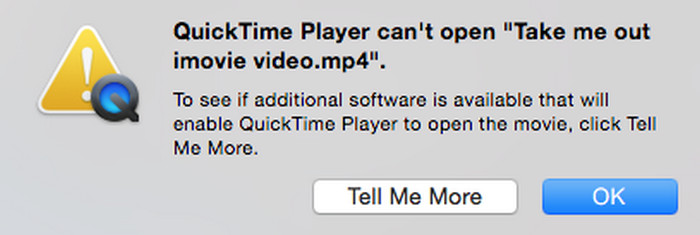
QuickTime Player is a popular multimedia tool developed by Apple Inc. that is often used to play video and audio files. However, many users encounter problems when trying to open MP4 files with QuickTime Player. The system displays error messages such as ‘QuickTime Player can’t open MP4’ or ‘Cannot open this document.’ If you are facing this issue, don't worry. This guide will explain the possible causes in detail and provide effective solutions to help you play MP4 files smoothly.

- Part 1. QuickTime Player Can't Open MP4: What are the Reasons
- Part 2. Convert MP4 to QuickTime Compatible Formats
- Part 3. Update QuickTime Player
- Part 4. Play MP4 Files with QuickTime Player Alternative
- Part 5. FAQs
Part 1. QuickTime Player Can't Open MP4: What are the Reasons
There are various possible reasons why QuickTime Player cannot open MP4 files. Here are some of the most common reasons:
Codec Incompatibility
MP4 is a container format that can use different codecs to compress video and audio. QuickTime Player primarily supports H.264 and MPEG-4 video codecs. If your MP4 file uses an unsupported codec (such as H.265/HEVC, VP9, or AV1), QuickTime will not be able to play it.
Outdated QuickTime Player
Another important reason is the outdated version of QuickTime Player. It is particularly noteworthy that the Windows version of QuickTime stopped being updated many years ago, with the final version remaining at 7.7.9, which means it cannot support many new video encoding formats. As for the Mac version, although it is still being updated, if you are using an older version of QuickTime Player for Mac, it will also lack the necessary decoder components, making it impossible to play video files encoded with the new format.
System Conflicts
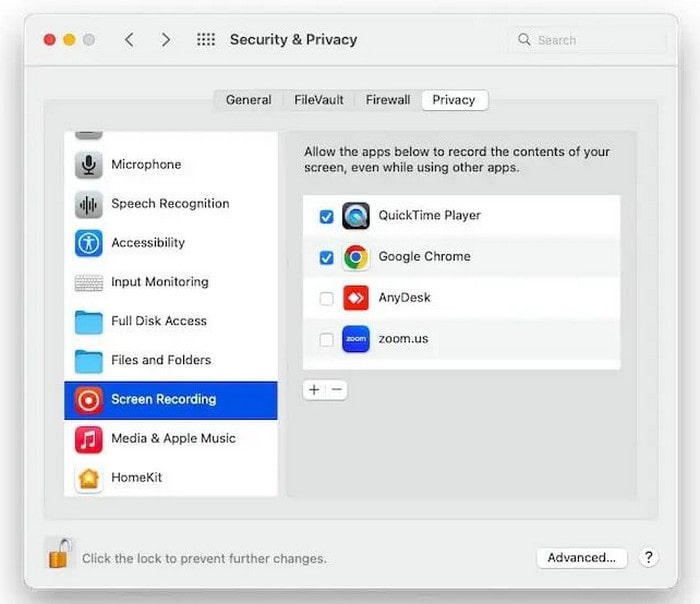
System environment conflicts are also one of the common causes of this problem. When multiple media players are installed on a computer, their respective decoders may conflict with each other and affect the normal operation of QuickTime Player. In addition, permission settings issues that prevent the player from using the decoder normally will result in MP4 files not opening. These issues can usually be resolved by reinstalling the decoder or adjusting the system settings.
Part 2. Convert MP4 to QuickTime Compatible Formats
When QuickTime is unable to play MP4 files, the most direct solution is to convert the video to a format supported by QuickTime Player. It natively supports MOV, M4V, and MP4 files encoded with H.264, which offer the best compatibility and playback experience.
For users who want to convert formats, Blu-ray Master Video Converter Ultimate can provide an excellent solution. It is a professional and easy-to-use video conversion tool that supports converting MP4 files to MOV, M4V, or MP4 files encoded with H.264. Besides, it allows for mutual conversion between over 1,000 video formats, which is particularly suitable for solving QuickTime Player’s compatibility issues. Its unique hardware acceleration technology can greatly improve conversion speed while maintaining the original video quality. In addition, it supports processing high-quality videos, including 4K, 5K, and 8K.
The conversion steps are very simple:
Step 1.Download the software from the official website, then install it following the onscreen instructions. After that, run it.
Free Download
For Windows
Secure Download
Free Download
for macOS
Secure Download
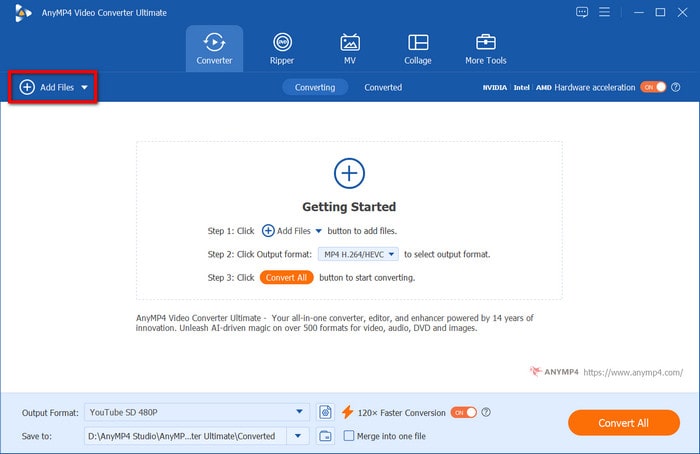
After that, navigate to the Converter tab and click the Add Files button at the top-left corner to upload the MP4 file that needs to be converted for QuickTime.
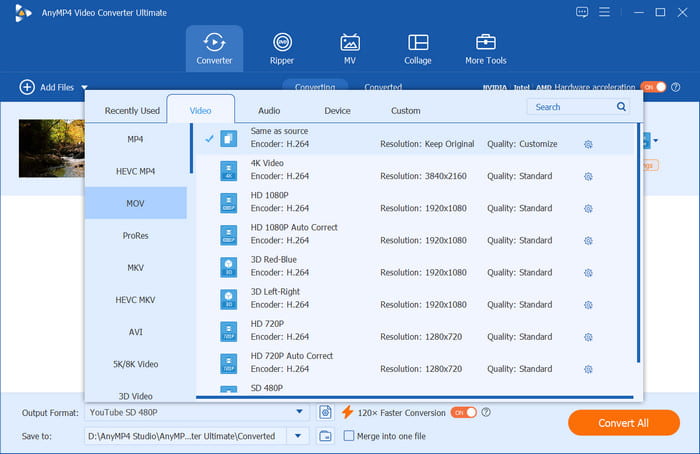
Step 2.Click the Output Format button at the bottom left corner to select the video format you want to convert, such as MOV and M4V. All QuickTime Player’s supported formats are included here. And, once clicked a certain digital format its relevant encoder will be showed below.
Step 3.Click the Convert All button to start the conversion. After a few seconds, the conversion will be finished. And you can click the Converted tab to find the converted video file.
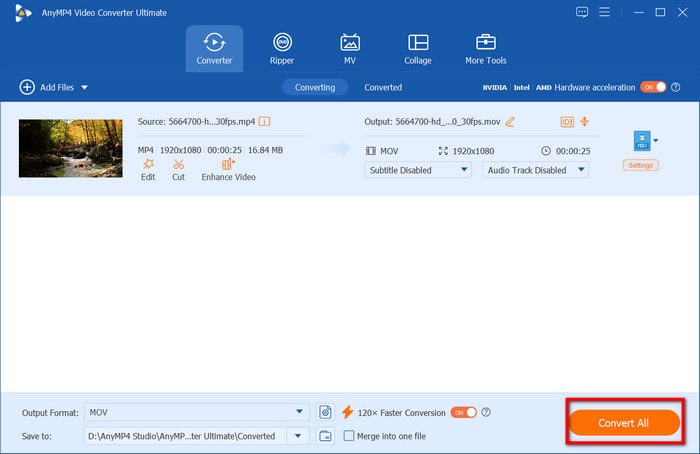
Once the conversion is complete, you can use QuickTime Player to play the converted video file smoothly. The entire process usually only takes a few minutes, which depends on the length of the original video and your computer configuration.
Part 3. Update QuickTime Player
If converting MP4 video formats seems too complicated for you, updating QuickTime Player may be a simpler solution. Keeping the player updated to the latest version often can solve most format compatibility issues, especially for Mac users.
Since QuickTime Player is a built-in Apple application, it cannot be updated independently. You can update QuickTime Player through system updates to add support for new encoding formats. Follow these steps to check and update QuickTime Player for Mac:
Step 1.Click on the Apple menu in the upper left corner of the screen and select Settings.
Step 2.Then, click the General button and select the Soft Update.
Step 3.After that, the system will automatically check for available updates. If you see QuickTime Player-related updates, click the Update Now button.

However, Windows users are unable to get updates through official channels because Apple has stopped supporting QuickTime for Windows, with the most recent version being 7.7.9. Therefore, we recommend Windows users consider other alternative playback solutions.
Part 4. Play MP4 Files with QuickTime Player Alternative
If all the above methods cannot solve the problem, then switching to a more comprehensive third-party player may be the best option. Blu-ray Master Free Blu-ray Player is undoubtedly the best alternative to play MP4 files.
It is compatible with Windows 7/8/10/11 and Mac OS 12 and above, which perfectly makes up for the shortcomings that the Windows version of QuickTime Player stopped updating. And it is capable of playing a wide range of video and audio formats, including MP4, MOV, M4V, MKV and AVI. Besides, it supports playing MP4 videos that use various codecs, such as H.264, H.265, MPEG-4, AV1, etc. In addition, the high-quality videos up to 4K are permitted. Moreover, the playlist feature allows you to manage your MP4 files’ playback.
Then, how to play MP4 video files with Blu-ray Master Free Blu-ray Player? Here are its simple steps.
Step 1.Download the latest version from the official website and install it.
Free Download
For Windows
Secure Download
Free Download
for macOS
Secure Download
Step 2.Open the software, then click the Add File button to upload your MP4 file you want to play.
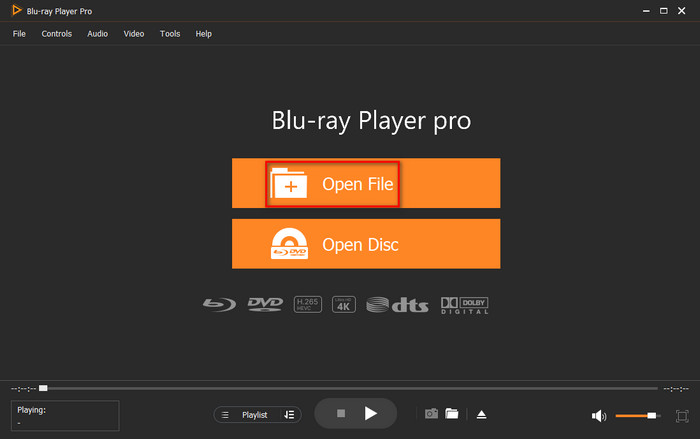
Step 3.Use the spacebar or click the triangular button to play the video, and you can pause the playback in the same way.
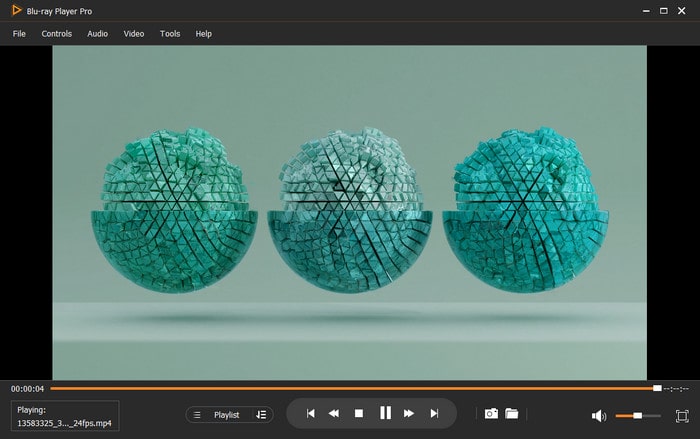
Tips: The buttons next to the triangular button allow you to fast forward and rewind the video. Also, you can right-click to change the aspect ratio, title, chapter, audio track, subtitle track, etc.
Part 5. FAQs
-
I thought QuickTime Player supports MP4. Why is it giving me trouble?
Although QuickTime supports standard MP4, it is limited to MP4 files encoded with H.264 and MPEG-4. Newer encodings (such as H.265) and specially packaged MP4 files will result in playback failure.
-
What are the main reasons QuickTime Player can't open my MP4 file?
There are three main reasons: the video uses an incompatible encoding format, the QuickTime Player version is outdated (especially the Windows version, which has been discontinued), or the system decoder component is damaged.
-
What's the easiest solution if QuickTime Player can't open an MP4?
The simplest solution is to use a professional conversion tool to convert MP4 to another video format, which QuickTime Player natively supports, or use the best alternatives to QuickTime for Mac and Windows, such as Blu-ray Master Free Blu-ray Player.
Conclusion
Overall, when QuickTime Player cannot open MP4 files, you can solve the problem in three ways: format conversion, software updates, or using an alternative player. Whether you convert MP4 videos to compatible formats, update your QuickTime Player version, or choose the more comprehensive Blu-ray Master Free Blu-ray Player, you can effectively solve the MP4 playback problems.
More from Blu-ray Master
QuickTime Playback

Easily play Blu-rays, DVDs, and various video/audio formats with rich playback features.
100% Secure. No virus
