

Nov 24, 2025Posted by Kevin Miller to Play Video
Perhaps you have some HD movies encoded in MKV format that you are trying to play on your regular media player, but you can’t due to incompatibility. So, how can we distinguish the MKV among the hundreds of digital file formats on the market today? This article shares some knowledge about this Matroska video format that you should know. In addition, we have included the ways to play and convert such a file, to add to your convenience in working on it. Thus, without any further adieu, let’s get this getting-to-know post by looking at the content below.

- Part 1. What Precisely Is an MKV File
- Part 2. MKV VS. MP4 VS. MOV VS. HEVC/H.264
- Part 3. Top-rated Programs for Playing MKV Files
- Part 4. How to Convert MKV File to Other Formats
- Part 5. FAQs About MKV
Part 1. What Precisely Is an MKV File
What is an MKV file? It is a video open standard format developed in 2002 by Steve Lhomme and Lasse Kärkkäinen. It is also known as Matroska, which means the wooden Matryoshka or Russian doll because the MKV format/container can keep multiple media types inside, just like this doll. Furthermore, this container stores different files while these files use different types of encoding. For instance, in one Matroska file, there can be an H.265 or H.264 video with MP3, AAC, OGG, or any other audio format, together with a couple of SRTs for the subtitles files.
Features
• Simultaneously hold countless number videos, audio, metadata description, subtitle tracks, and chapter points.
• A whole movie may come with several audio and subtitle tracks within a single file.
• The error recovery feature can works with and for corrupted files.
Part 2. MKV VS. MP4 VS. MOV VS. HEVC/H.264
To help you differentiate the MKV files from the other popular formats and containers, a table below is prepared to show differences in MKV vs MP4 vs MOV vs HEVC vs H.264.
| Aspect | MKV | MP4 | MOV | H.265 | H.264 |
| File Full Name | Matroska | MPEG-4 | Quicktime | HEVC | AVC |
| Media Type | Container | Container | Container | Video Codec | Video Codec |
| Resolution | 480p to 8K | 480p to 8K | 480p to 8K | 480p to 8K | 480p to 8K |
| Size | High standard | Low Standard | Lower standard than MKV | Low standard | High standard than H.265 |
| Supported Devices | Laptops, smartphones, tablets. | Smartphones, tablets, smart TVs, game consoles. | iPhones, iPads, Apple TVs. | Smartphones, tablets, smart TVs, computers, streaming devices. | Game consoles, smartphones, laptops, computers, media players. |
| Pros | Supports multiple audio tracks, subtitles, and metadata. | Universally supported across devices, browsers, and platforms. | Excellent for professional editing in Apple ecosystems. | Ideal for modern high-resolution content. | Extremely widespread support (hardware, software, browsers). |
| Cons | Larger file sizes that are different for streaming. | Less flexible than MKV (limited subtitle/audio track support). | Less universal than MP4. | Not universally supported on older devices or browsers. | Larger file sizes than H.265 for the same quality. |
Part 3. Top-rated Programs for Playing MKV Files
Free Blu-ray Player of Blu-ray Master
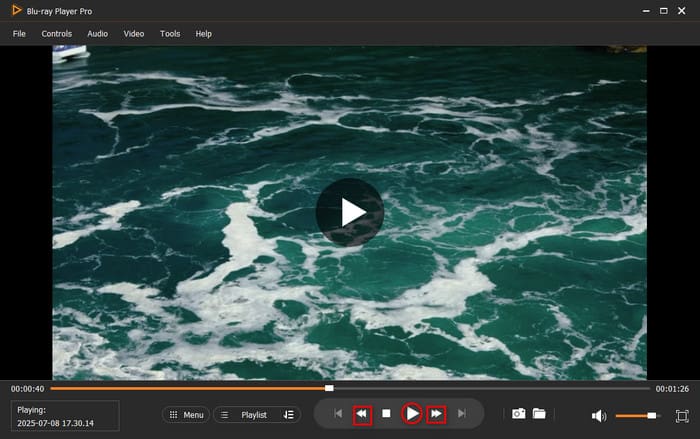
If you are looking for a multipurpose player for your MKV files, workable on Windows and Mac, then this Free Blu-ray Player by Blu-ray Master is a perfect choice. It not only can play any Blu-ray Disc, Blu-ray ISO files, and Blu-ray folder, with zero standstill, but also play DVDs and various video and audio files with a seamless high quality. Besides, this amazing Blu-ray player software program has the perfect ability to playback any HD videos with up to 1080p and 4K quality. With rich adjust settings, you can enjoy the super viewing experience.
Free Download
For Windows
Secure Download
Free Download
for macOS
Secure Download
VLC Media Player
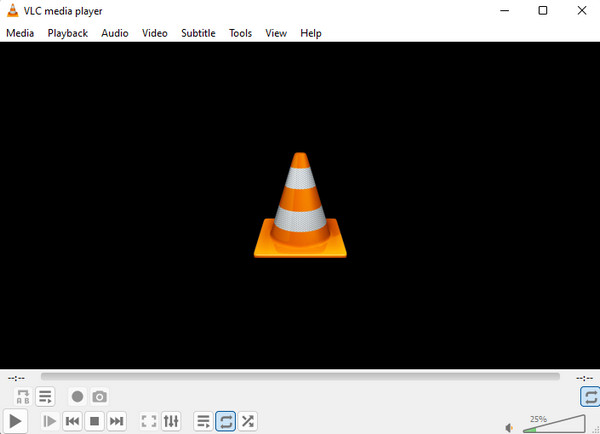
Here’s the VLC Media Player, one of the most popular media players on various platforms. It can be your open-source and free .mkv file player software for Windows, Mac, Linux, iPhone, and Android. However, there will be times when you, as its user, cannot use it to play a Matroska file with an H.265 codec. Because of this, you will need to install the related codec for VLC, or perhaps you can convert H.265 to other codecs, for example, MKV to WAV, to play files in Matroska with this VLC media player.
GOM Player
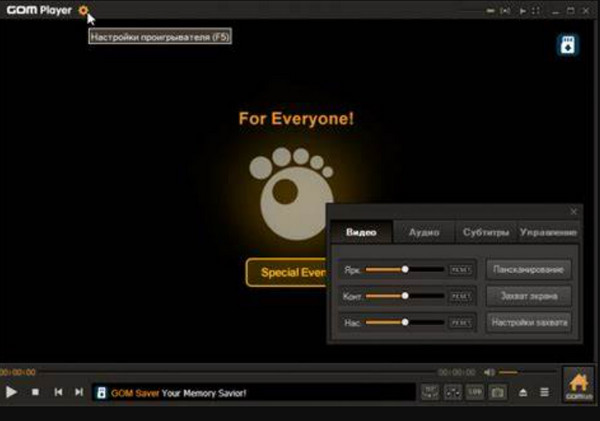
Another free media player is this GOM Player. With this program, you can play both the commonly downloaded and some damaged .mkv file types of video. Unlike the VLC, you won’t need to acquire a repair pack or extra codec to play the subject videos. However, this GOM Player doesn’t support MKV videos encoded as V9.
RealPlayer
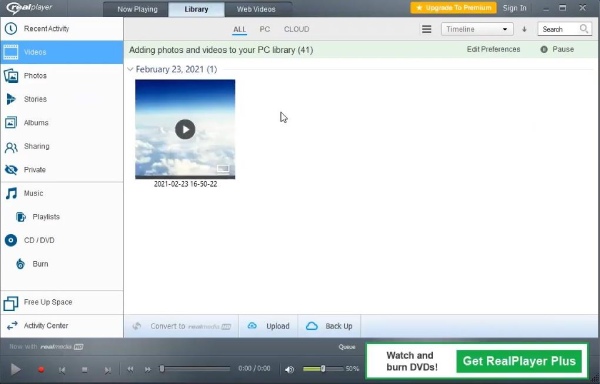
This RealPlayer, just like the others, offers a free player of all types of media versions for Windows, Android, and iOS platforms. That being said, you will get to play Matroska on iPhone, iPad, PC, and other devices seamlessly using this RealPlayer. Furthermore, this Realplayer can help you discover some people or celebrities as it provides a face identification feature. However, the updated version of this player is not as good as its previous versions.
PotPlayer
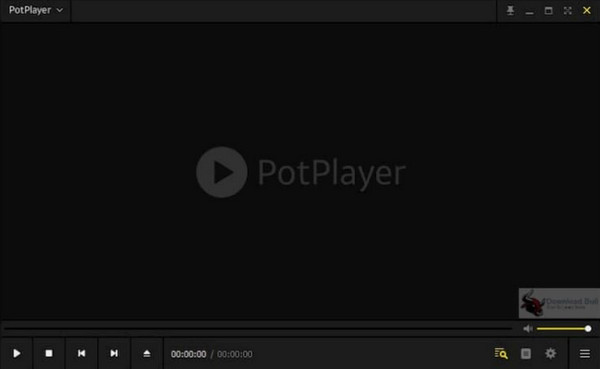
Lastly, we have this PotPlayer. Similar to the first player on the list, this PotPlayer has outstanding GPU hardware acceleration decoding, which is why its users hardly reported video crashing problems. This is why you can have a smooth .mkv playback with Nvidia CUDA, DXVA, and many of its technology features. However, please note that PotPlayer has a setup process that can be too complex for beginners, for it has an advanced setting that only professional users can navigate.
Part 4. How to Convert MKV File to Other Formats
After learning what format MKV is, we cannot help but provide you with the best converter to convert such a file. As mentioned previously, some players cannot play Matroska files unless they are converted to other encoding. For this reason, which lets you convert such files, we highly encourage you to use this Video Converter Ultimate by the Blu-ray Master. It is an amazing media file converter that supports more than 500 media file types, making you turn your Martoksa files into any format you want, like MP4, AVI, WMV, MOV, WebM, FLV, and many more. In addition, it supports various types of HD videos like 480p, 720p, 1080p, 4K, 5K, and up to 8K!
Moreover, you can guarantee an ultrafast conversion process, as this Video Converter Ultimate supports advanced acceleration technologies that provide up to 70x faster speed. Another thing that will leave you so in love with this converter is its Toolbox menu. Technically, it has every editing tool you need, such as a video enhancer, rotator, cropper, merger, watermark editor, effect adjuster, and many more. Now, since you know what is an .mkv file, let's try to convert it with this Video Converter Ultimate.
Step 1.Download and install the Converter
The first thing you must do is to install the Video Converter Ultimate as you click the Download buttons given below.
Free Download
For Windows
Secure Download
Free Download
for macOS
Secure Download
Step 2.Add the Raw MKV Files
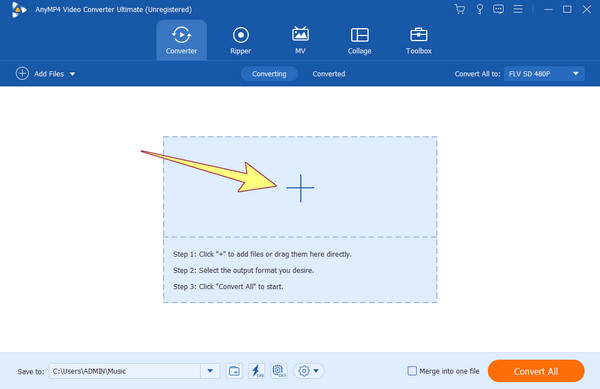
Open the software program and begin to add your raw MKV videos by clicking the Add button at the center of the interface. Note that you can also add one or group files freely for simultaneous conversion.
Step 3.Select the Output Format
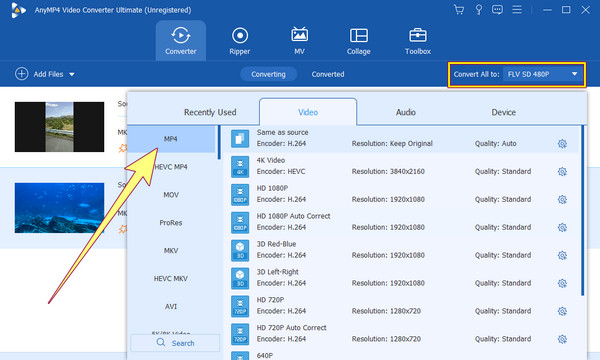
Once performed, go to the Convert All To section and click the Arrow drop-down button to prompt a new window. On the new window, select your target output format, then select a video codec to use to proceed.
Step 4.Initiate the Conversion Process
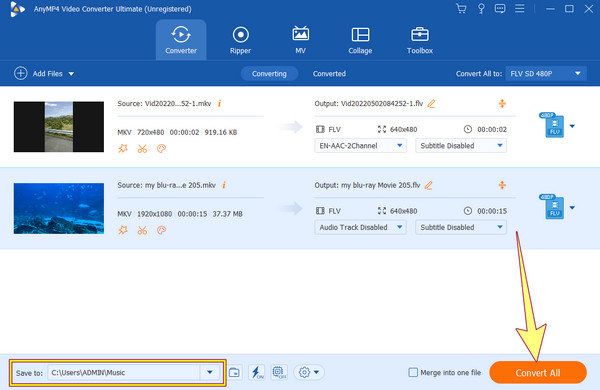
After that, you will be brought back to the main interface. Now, click the Convert All button at the interface's bottom part. Wait until the tool finishes the conversion process; upon completion, you may check the converted files in the local storage seen in the Save To section.
If you have other devices and fail to play the MKV successfully on them, below are more tips about MKV and how to utilize the Video Converter Ultimate to solve the MKV incompatibility issues.
Part 5. FAQs About MKV
-
Is MKV better than MP4?
MKV and MP4 have their own purposes and strengths. MKV supports various video, audio, and subtitle tracks and is more flexible. MP4, on the other hand, is widely used and is highly compatible.
-
Is MKV lossless?
MKV does not determine losslessness and compression. It may contain lossy or lossless video.
-
Is MKV a good video format?
Yes, MKV is a good video format for certain use cases, especially when you need flexibility and support for multiple codecs and tracks.
-
Is MKV compressed?
Yes, MKV files contain compressed video and audio. The level of compression depends on the specific video codec used.
-
Is the MKV file safe?
MKV files are safe to use. However, it's important to be cautious and only download or open MKV files from trusted sources to avoid security risks.
-
Is MKV smaller than MP4?
It depends. File size can vary on several factors, including video codec, compression settings, and video content.
-
Does Premiere Pro support MKV?
Yes, Adobe Premiere Pro supports MKV files, but it's recommended to use universal formats like MP4 or MOV for editing to avoid compatibility issues. If you only have MKV videos, it’s suggested to use Video Converter Ultimat to change your MKV videos to MOV or MP4.
Wrapping up
MKV file is a versatile and most used multimedia container format in digital media. Its capability to diverse audio, video, and subtitle streams within a single file and its support for numerous codecs distinguishes MKV in the multimedia landscape. MKV’s flexibility and compatibility ensure its enduring relevance in audiovisual media storage and distribution. While MKV is an excellent choice for certain purposes, its compatibility issues with some devices and software may pose challenges in specific situations. You can use Blu-ray Master Free Blu-ray Player for MKV playback, or Video Converter Ultimate to transform your MKV to another format losslessly.
More from Blu-ray Master
Play Common Videos

Easily play Blu-rays, DVDs, and various video/audio formats with rich playback features.
100% Secure. No virus
