

Nov 03, 2025Posted by Kevin Miller to Rip DVD
Watching movies on DVD is one of our favorite ways to pass the time at home. DVDs can be viewed on television or a computer. Even though it’s hard to picture life without streaming services, many people still prefer to view movies from their DVD library. With that being said, this post provides the best options you can follow to connect the Roku TV and DVD player with simple steps. Read until the end and learn the ways to connect a DVD player to the Roku TV quickly and easily.
- Part 1. How to Connect DVD Player to Roku TV with HDMI Cable
- Part 2. How to Connect DVD Player to Roku TV with AV Cable (without HDMI)
- Part 3. Troubleshooting on Hooking Up DVD Player to Roku TV
- Part 4. How to Play DVDs on Roku TV Via USB Drive
- Part 5. FAQs on How to Connect DVD Player to Roku TV
Part 1. How to Connect DVD Player to Roku TV with HDMI Cable
A Roku TV can be connected to a DVD player with or without HDMI cables. However, the HDMI connection method can provide higher image and sound quality, so it is advised to utilize it if your device is compatible with HDMI. Read the steps below on how to connect a DVD player to a Roku TV with an HDMI cable:
Use Cases
• High quality: Best video and audio from DVDs.
• Simple setup: One cable, plug-and-play.
• Modern compatibility: Works with most TVs and sound systems.
Step 1. First, switch off your Roku TV and DVD player then unplug their power cords.
Step 2. Connect the other end of your HDMI cable to one of the 3 HDMI jacks in the back or side of your Roku TV. After that, connect the other side to the HDMI OUT jack on your DVD player.
Step 3. Once done, plug the power cords of your Roku TV and DVD player, then switch them on. On the Home screen, select between HDMI 1, HDMI 2, or HDMI 3 input on which you have inserted the jack on your Roku TV.
Step 4. Lastly, try to insert a DVD into the DVD player. This is to test if you can now play and watch DVDs on Roku TV through the DVD player and if they are now successfully connected.
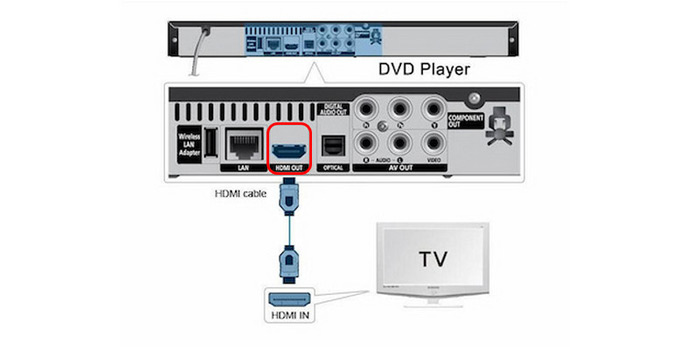
In all, you know the clear steps to hook up DVD players to the Roku TV with HDMI cables. This method can be used on most modern devices that only require you to connect several cables.
Part 2. How to Connect DVD Player to Roku TV with AV Cable (without HDMI)
Suppose your DVD player doesn’t come with a HDMI cable. But you don’t have to worry because there’s still a way to connect your DVD player to Roku TV. You can do it by connecting them using the AV cable instead of HDMI. Read the steps below on how to connect the DVD player to Roku TV without HDMI:
Use Cases
- Legacy support: Great for older DVD players.
- Budget-friendly: Cheap cables and converters.
- Preserve memories: Play vintage or homemade discs.
Step 1. Switch off first the Roku TV and DVD player and unplug their power cords.
Step 2. Using an AV cable, connect it to the AV IN jacks (Video/L/R or yellow/white/red ports) of the Roku TV AND the other side to the AV OUT on the DVD player. Every jack has a color indicator to know which jack should be inserted there.
Step 3. The yellow plug is for video, while the white and red plugs are for audio. Make sure that the plugs are inserted into the right terminal to ensure that your DVD will successfully play. Otherwise, your DVD won’t play properly, as it will play with sound but with no pictures.
Step 4. Once done, on the Home screen, select the AV tile. Try to insert a DVD so you can test both the picture and the audio.
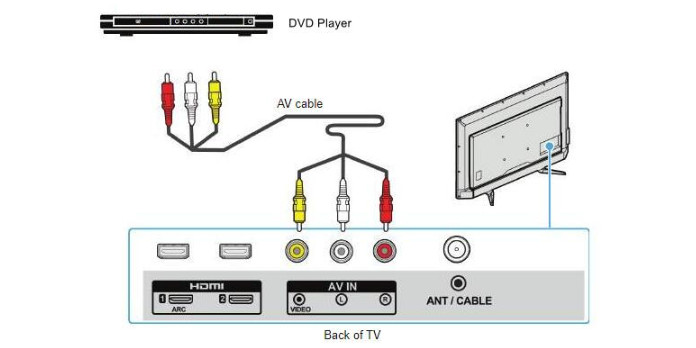
The A/V cable connection is a little complex compared to the HDMI cables. If you are still using your old DVD players, this method is suitable for you. It is also budget-free for most people.
Part 3. Troubleshooting on Hooking Up DVD Player to Roku TV
1. Check Your Connection Type
HDMI: Secure the cable, try other ports, and test with another device to rule out faults.AV: Match colors correctly, use a converter if needed, and ensure it’s powered.
2. Select the Correct Input Source
Choose the right input on your Roku TV and label it for quick access.
3. Power Cycle Devices
Restarting both devices can often fix temporary connection glitches.
4. Check for Compatibility Issues
Not all DVD players work with Roku TVs - test on another TV or verify converter support.
5. Update Roku TV Software
Keeping your Roku TV updated ensures better device recognition and performance.
6. Try an Alternative Method
Rip DVDs to digital files and play them via USB if physical connections fail.
7. Community Help
Forums and support threads offer proven fixes—don’t hesitate to reach out or ask for help.
Part 4. How to Play DVDs on Roku TV Via USB Drive
Some Roku devices have a USB port where you can place an external USB drive to play media files (photos, music, and videos) that are stored locally. By attaching multiple USB drives to a USB hub, you can connect multiple USB drives to your Roku device. Roku Ultra and Roku Streambar are some of the Roku devices that have a USB port. They can support local playback via USB and can play videos with up to 4K UHD resolution on compatible TVs.
To save a media file on your USB drive, you may convert it first to more widely-used and compatible digital formats. For this, you will need a comprehensive tool that can rip any DVD and convert it to a popular format. Free DVD Ripper, recommended by Blu-ray Master, can rip any DVD to a more compatible MP4, MOV, MKV, AVI, and other 500 formats in 5 minutes. It can rip DVDs 50× faster compared to other tools, making it the fastest DVD ripper. Moreover, this extensive tool is available for download on Windows and Mac. Read the steps below on how to rip a DVD into the digital format you can store on your USB drive:
Step 1. First, download and install the comprehensive DVD Ripper on your computer. Before launching the program, make sure that you put the DVD on the optical drive first.
Free Download
For Windows
Secure Download
Free Download
for macOS
Secure Download
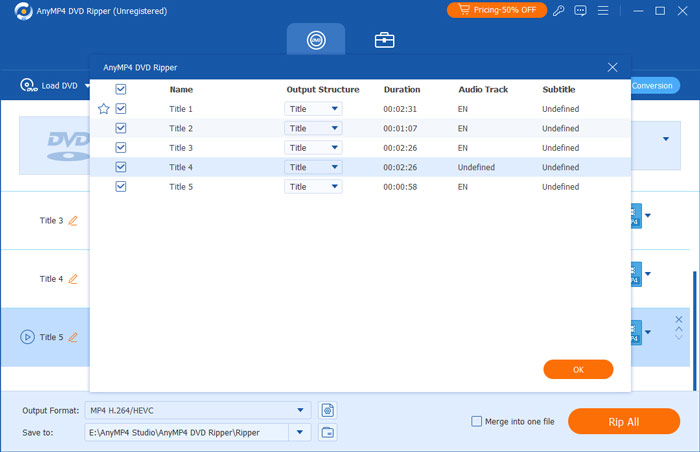
Step 2. Once done, launch the program. On the Ripper tab, press the Load DVD dropdown button to load the titles you want to back up in digital format. After that, wait until the program analyzes the disc. Next, select the Full Title List and then click OK.
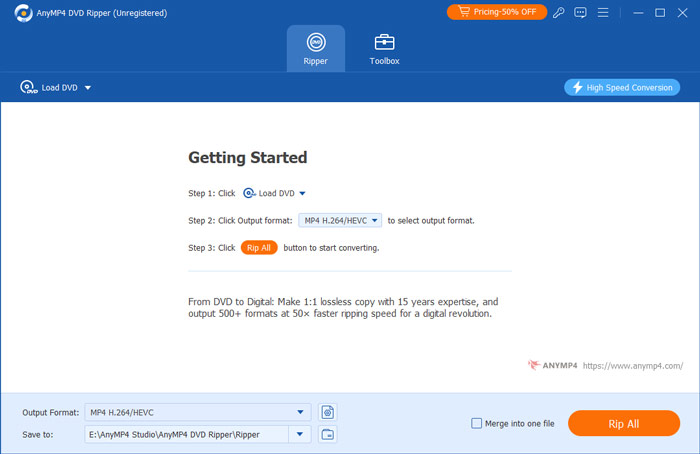
Step 3. To validate all the titles, tick the Full Movie List. Select all the titles you want to back up by clicking the box of each title. After you select all the titles, tick the Rip All button and select your desired output that is compatible with your Roku TV.
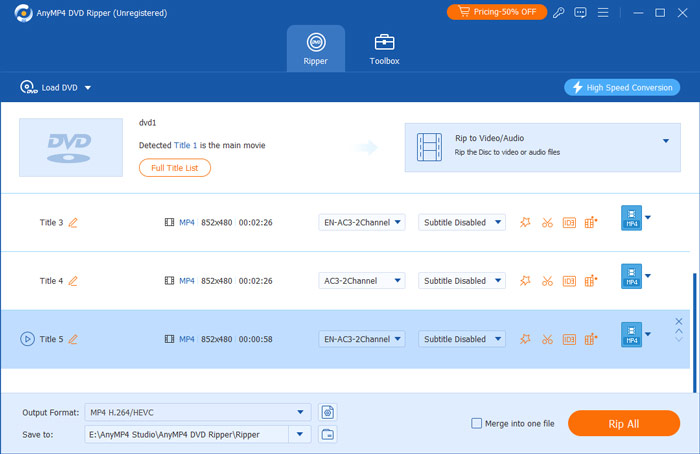
Step 4. Once done, select a destination for your output by ticking the Save to option. You may create a new folder that you will transfer to your USB drive. After that, click the Rip All button to begin the ripping process and wait for it to finish.
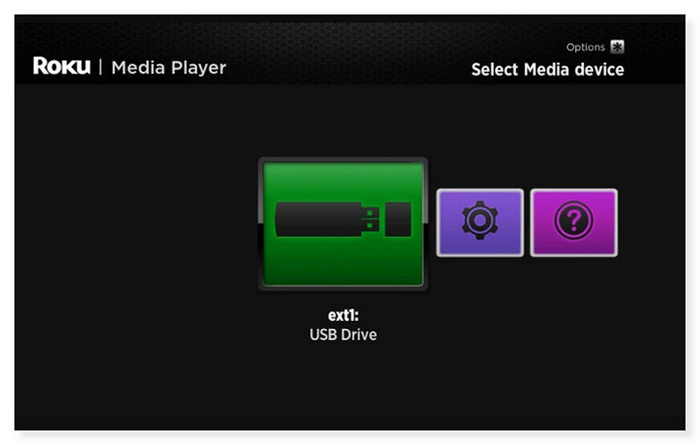
Step 5. Once done, eject the USB drive from your desktop and insert it into the USB port of your Roku device. On the Home screen, if you are in Roku Media Player, when the USB device is inserted, a USB Drive icon should show up in the media device selection screen. Select it and open the video you want to watch on your Roku TV.
This way is convenient for people who want to enjoy high-quality DVDs on the big screen of Roku TV. With this software, you can back up your DVDs to digital in a safe way. By clicking several steps, you can convert DVDs to various video and audio formats without losing quality. However, it is a paid software that you need to buy it to enjoy the full features.
Part 5. FAQs on How to Connect DVD Player to Roku TV
-
Can you run Roku through a DVD player?
No, you cannot run Roku through a DVD player. A Roku is a streaming device that you can connect to your TV’s HDMI port to stream media from different online services. Furthermore, a DVD player is designed to play DVDs and cannot run a Roku or act as a streaming device. If you want to use a Roku, you must connect it straight to your TV.
-
Can Roku remote control a DVD player?
Unfortunately, no. Only the TV is controlled via the Roku TV remote. You can only adjust the volume when a DVD is playing using the remote. However, you may use a universal remote that is compatible with both Roku TV and DVD player or you can use the remote that came with your DVD player.
-
Why won't my Roku TV play USB movies?
It might be because the Roku TV does not support the USB drive filesystem format. USB drives can be formatted with various file systems. FAT16, FAT32, NTFS, EXT2, EXT3, and HFS+ file systems are supported by Roku players on USB sticks. ExFAT is a pre-formatted file system that is not supported on many modern USB sticks. Place the USB drive into a USB port on your computer that is available if you are unsure of the file system being utilized.
Wrapping up
Now you know how to hook up a DVD player to Roku TV using the above methods. If unfortunately, they still don’t work or you don’t want to go to the hassle of connecting your DVD player to Roku, you may opt to rip your DVD into digital format. Blu-ray Master Free DVD Ripper is the best DVD ripper you can use. Any DVD, regardless of region codes, disc types (DVD±R or DVD±RW), or system standards (UDF, ISO 9660, NTSC, or PAL), can be easily ripped using this DVD-to-digital converter. So you don’t have to worry anymore if you can still watch your favorite movies even without a DVD player.
More from Blu-ray Master
Play DVD Movies
Fast and free ripping software to decrypt all DVDs to digital easily on your computer.
100% Secure. No virus
