

Sep 23, 2026Posted by Kevin Miller to Rip DVD
Quick Summary:
1. Why it fails: iMovie doesn’t support direct DVD discs or encrypted VOB files.
2. Solution: Rip DVD to MP4 (H.264) or MOV using a ripper.
3. Best tools: HandBrake (Free, for homemade/unprotected DVDs) or Blu-ray Master Free DVD Ripper for Mac (For commercial encrypted DVDs).
4. Import: Open iMovie > File > Import Media > Drag to Timeline.
Editing physical optical discs in modern NLE software like iMovie requires digital conversion. Because Apple’s editor cannot natively read encrypted VOB files from discs, you must rip and convert them into an edit-ready format like MP4 or MOV. Converting your discs protects aging media from physical damage while unlocking full creative control over your video footage. Read this article to learn how to import DVD into iMovie for editing.
- Why You Can’t Drag and Drop DVDs Directly into iMovie
- Procedure 1. Rip DVDs to iMovie-supported Digital Formats
- Procedure 2. Import and Edit the Converted DVD Clips in iMovie
- Troubleshooting Common Import Errors
- FAQs
Part 1. Why You Can't Drag and Drop DVDs Directly into iMovie
Have you ever considered importing DVD files into iMovie for simple editing? Modern editing software will immediately block or ignore these media files. This is not due to a malfunction with your Mac computer itself. This is because the video content stored on commercial DVDs is stored as encrypted VOB (Video Object) files, which are protected by DRM technologies such as the Content Scramble System (CSS) to prevent unauthorized copying. Since iMovie is designed primarily for importing unencrypted video files (e.g., MP4 or MOV) rather than handling the complex encrypted structure of DVD menus, you must first convert the content from your DVD into a readable digital format.
DVD Source vs. iMovie Native Formats
To rip DVDs to digital for editing, there will be differences. The comparison table below highlights the core technical differences between original DVD structures and the formats iMovie prefers:
| Feature / Specification | Original DVD Format | iMovie Native Editing Format |
| File Container | VOB (Video Object) inside VIDEO_TS | .MP4, .MOV, .M4V |
| Video Codec | MPEG-2 or MPEG-1 | H.264, HEVC (H.265), Apple ProRes |
| Audio Codec | AC-3 (Dolby Digital), Linear PCM | AAC, AIFF, WAV |
| Copy Protection (DRM) | Encrypted (CSS, Disney 99-title, Sony ARccOS) | None (Unencrypted editing media) |
| iMovie Compatibility | Unsupported (Triggers import errors or black screens) | Fully Supported (Smooth playback & timeline editing) |
Procedure 1. Rip DVDs to iMovie-supported Digital Formats
Way 1. Blu-ray Master Free DVD Ripper for Mac
Blu-ray Master Free DVD Ripper for Mac is a solid DVD-ripping app for Mac. It offers a streamlined out-of-the-box solution. It bypasses complex CSS encryption and 99-title copy protections, converting your physical DVDs directly into edit-ready formats (like MP4 or MOV) fully compatible with iMovie—all without quality degradation. You can also customize the output encoder, resolution, bitrate, and other parameters.
Key Features:
- Decrypts both homemade and commercial DVDs on Mac and Windows.
- Converts optical media into iMovie-native profiles (H.264 MP4, MOV, M4V).
- Built-in hardware acceleration speeds up the extraction process.
- Basic video trimming tools to clip unwanted scenes before editing.
Free Download
For Windows
Secure Download
Free Download
for macOS
Secure Download
While HandBrake can rip DVDs, it is still insufficient for a high-quality conversion. So, we encourage you to use Blu-ray Master Free DVD Ripper as it has the power to rip homemade and commercial DVDs on Windows and Mac.
This DVD to iMovie converter consists of advanced technology to extract content from physical DVD discs without lowering the quality. Of course, it converts the videos into other containers, allowing you to change them to VOB, MKV, MP4, and so on, which can be imported into iMovie. Although you can add DVDs to iMovie for video editing, you might as well use the DVD Ripper’s built-in video editor to add text, cut unwanted parts, and further enhance the overall visual. Download this Free DVD Ripper to start with the fastest ripping process.
- A DVD to iMovie converter and ripper on Windows and Mac.
- Convert videos to be compatible with OS like Apple, Android, etc.
- Support a wide range of output video/audio formats and codecs.
- User-friendly interface and effective functionality.
Free Download
For Windows
Secure Download
Free Download
for macOS
Secure Download
Step 1.Click the Download button to get it on your Mac computer. Open it and you can see an easy guide on its interface.

Step 2.Click the Load DVD option and choose one from its drop-down options: Load DVD Disc, Load DVD Folder, and Load DVD ISO. Then, it will automatically analyze your DVD file, and you need to choose Main Title or Full Title List in the pop-up window.
Note: If you are not satisfied with your ripping mode, you can also change it later.

Step 3.Move to Output Format, and select one output profile from the provided presets. Here, we choose the MP4 Same as source option.

Note: You can click the gear button to set the frame rate to 30 fps, which can avoid image and audio being out of sync in iMovie.
Step 4.Lastly, click the folder icon on the bottom to set a download folder and select Rip All to start your ripping process. After the process is done, you can transfer the ripped DVD videos to iMovie and edit them.

If you want an easy solution, Blu-ray Master Free DVD Ripper is one of the best choices. It can automatically detect the main movie titles and quickly convert DVDs to iMovie-compatible MP4 files within minutes. Download it on your Mac and try it.
Way 2. HandBrake
HandBrake remains one of the most popular free, open-source video converters on macOS. If you don’t have high requirements for DVD conversion, you can simply complete the ripping process within several clicks. It provides MP4, MKV, MOV, and WebM output formats, and you can further adjust video parameters.
However, if you insert a commercial movie DVD, HandBrake by default will throw a 'No valid source found' error or fail to load titles. This happens because HandBrake removed native DVD decryption capabilities years ago. To read protected commercial discs on modern macOS versions (macOS Sonoma, Sequoia, or later), HandBrake needs help from an open-source decryption library called libdvdcss. Installing this library via Homebrew allows HandBrake to bypass basic Content Scramble System (CSS) encryption seamlessly.
Now, let's see the complete DVD ripping process.
Step 1.On your Mac computer, press Cmd + Space to launch Spotlight, type Terminal, and hit Enter. Copy and paste the following command to Terminal and press Enter:
/bin/bash -c ‘$(curl –fsSL https://raw.githubusercontent.com/Homebrew/install/HEAD/install.sh)’
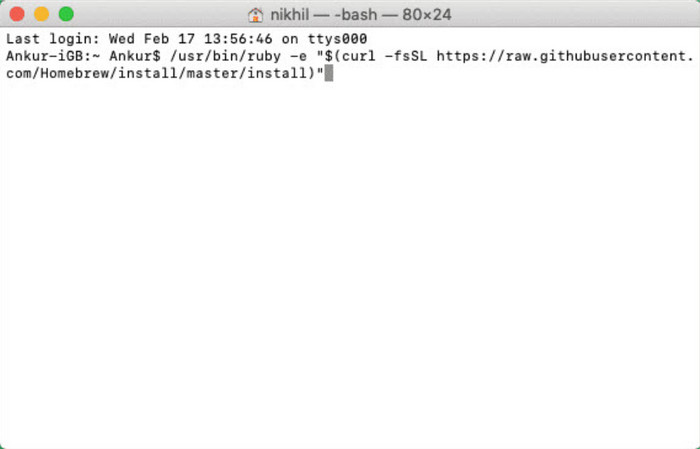
Step 2.Once Homebrew finishes setting up, paste this command to install the libdvdcss library: brew install libdvdcss. After that, restart HandBrake so it can automatically detect the newly installed library.
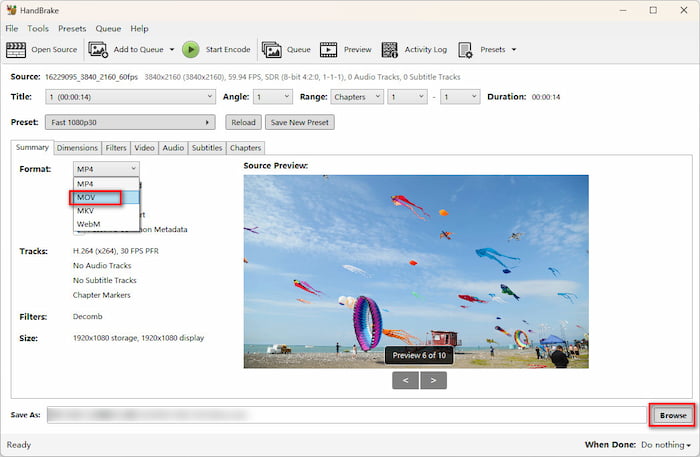
Step 3.On HandBrake, select the inserted DVD disc to load it. Under the Summary section, choose MOV as the output format. Then, click the bottom Browse button to set a download folder.
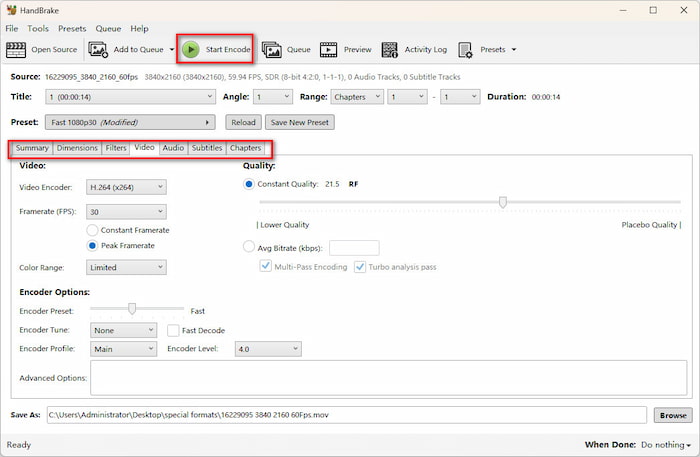
Step 4.Configure various settings if you needs. Then, click Start Encode to start the conversion process.
Installing libdvdcss on HandBrake can handle most DVD discs. If you encounter complex commercial DVDs, like Disney 99-title discs, it fails to process them. If you prefer to skip Terminal commands and complex library setups, a dedicated ripper like Blu-ray Master Free DVD Ripper handles decryption out of the box without any third-party terminal tweaks.
Procedure 2. Import and Edit the Converted DVD Clips in iMovie
Once you have done the DVD ripping, it is time to import them to the iMovie app and edit them:
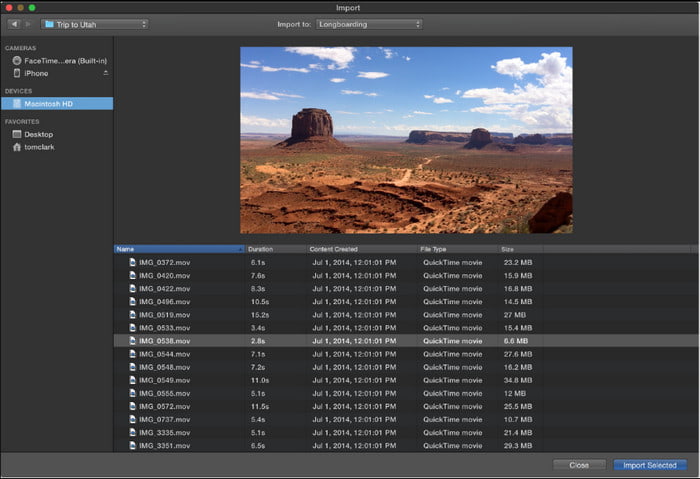
Step 1.Open iMovie on your computer and navigate to the My Media panel from the sidebar. Click the Import Media button, or simply press Cmd + I, and pick the ripped DVD files from your local folder.
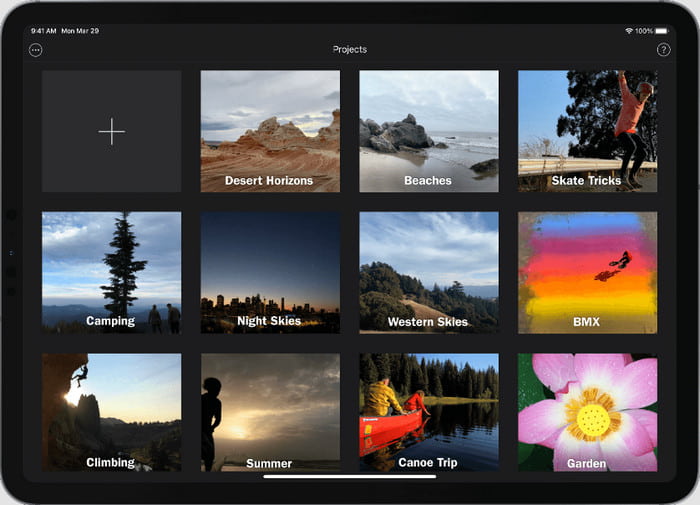
Step 2.Once the videos are loaded in the window, drag and drop one to the timeline at the bottom part of the interface. Proceed to edit the clips, such as cutting, trimming, adding effects, etc.
Step 3.Click the Play button to see a preview of the edited video. Then, when you're finished, click the Share button in the top-right corner, choose File, set your preferred resolution and quality, and export the video from iMovie.
Importing converted DVD clips into iMovie is seamless once your files are in the right format. By keeping your original ripped files organized on your Mac's drive and utilizing standard editing shortcuts like Cmd + I and Cmd + B, you can easily archive, chop up, and transform old optical disc media into modern, shareable video projects.
Part 4. Troubleshooting Common Import Errors
- Error: Audio/Video Out of Sync: If there is a synchronization discrepancy between the audio and video tracks in iMovie, please check your conversion settings. Ensure that your output profile uses a Constant Frame Rate (CFR) (e.g., 29.97 fps or 30 fps), rather than a Variable Frame Rate (VFR).
- Error: iMovie Shows a Black Screen with Audio Only: This happens when the container format is .mp4, but the underlying video codec is unsupported (such as MPEG-2 or DivX). Re-encode the video using the H.264 or ProRes codec.
- Error: Disc Drive Ejects Automatically or Fails to Read: Ensure your external optical drive receives sufficient power directly from a primary USB port. Clean any debris from the laser lens and inspect the disc surface for scuffs.
Part 5. FAQs
-
Can I import VOB files directly into iMovie without converting?
No, you can't. Commercial or multiplexed VOB files will trigger timeline errors, audio dropouts, or failure to load in iMovie.
-
What is the best video format for editing DVD footage in iMovie?
MP4 and MOV are the best choices for quick editing and playback on Mac computers.
-
Is it legal to rip a commercial DVD for personal editing on Mac?
Generally, DVD backups for personal use are under Fair Use principles. Don't distribute, sell, or share your backups.
-
How to fix audio out-of-sync issues when importing ripped DVD videos into iMovie?
The default VFR settings of ripping tools would cause this problem. You can manually set the frame rate to Constant, like 29.97 fps or 30 fps.
-
Do I need an external DVD drive to import DVDs into a modern MacBook Air/Pro?
Yes. Modern MacBooks don't have built-in optical drives. You need to use an external DVD drive connected to a USB-C adapter to read physical DVDs.
-
How can I extract just a short video clip from a DVD to use in my iMovie project?
Use a DVD ripper to convert DVDs to digital files, and then use iMovie to trim and extract the video clips you want.
-
Why does my converted DVD video look blurry or pixelated in iMovie, and how to fix it?
DVDs are interlaced (480i/50i), which creates comb lines and motion blur. Turn on the Deinterlace (or Decomb) filter in your conversion software before exporting.
Conclusion
Now, you have learned the complete process to import DVDs into iMovie for editing: Use a DVD ripping tool to convert DVDs to iMovie-specific formats and then import the ripped MP4 files to iMovie for editing. In addition, with the helpful tips and troubleshooting, you can easily edit DVDs in iMovie. Have a try!
