

Oct 13, 2026Posted by Kevin Miller to Rip DVD
Quick Summary
To start learning to upload DVD media on YouTube, you have to prepare for three different phases.
Phase 1: Prepare your external DVD driver and the DVD you want to upload.
Phase 2: Use Blu-ray Master Free DVD Ripper to rip the DVD media with lossless quality.
Phase 3: Adjust the video’s resolution, aspect ratio, and bitrate to optimize it for YouTube before uploading.
DVDs remain the top option for storing physical media, thanks to their reliability as an offline storage medium and protection against potential digital corruption. Unfortunately, they remain vulnerable to damage, as optical discs naturally oxidize and are prone to scratches. In this article, we will provide a quick solution to this issue and a detailed guide to uploading DVDs to YouTube. We will use YouTube as a cloud-based digital preservation strategy to ensure you have digital backup copies of your DVD media that can outlive the limitations of physical hardware.

- Part 1. Why Direct DVD Uploads Fail (And How to Fix It)
- Phase 1. Preparing Your Hardware and Disc for Optimal Ripping
- Phase 2. Ripping the DVD with Blu-ray Master Free DVD Ripper (Best Overall)
- Phase 3. Formatting and Uploading Your Converted Video to YouTube
- Part 5. FAQs About Uploading DVD Videos to YouTube
Part 1. Why Direct DVD Uploads Fail (And How to Fix It)
The Format Incompatibility Barrier (MPEG-2 vs. MP4/MOV)
The most apparent reason a direct DVD-to-YouTube upload fails is formatting issues. Simply put, DVD media are not saved in a digital video format that YouTube supports and recommends for uploads. To start uploading DVDs to YouTube, you have to rip the DVD media first and save it in a digital format.
The Copy Protection Hurdle (CSS, Region Codes, and DRM)
Another problem that will pose a hurdle is copy protection. This issue is on the side of the DVD ripper you will use since most modern DVDs have copy protection. As such, make sure the program you use for ripping has a capable DVD decoder that can bypass copy protections such as CSS, region codes, and other basic DRMs.
Phase 1. Preparing Your Hardware and Disc for Optimal Ripping
The first step when preparing to upload DVD media to YouTube is to get the right hardware to load the DVD into your computer. This is vital since opening the DVD in your computer is required to rip its content.
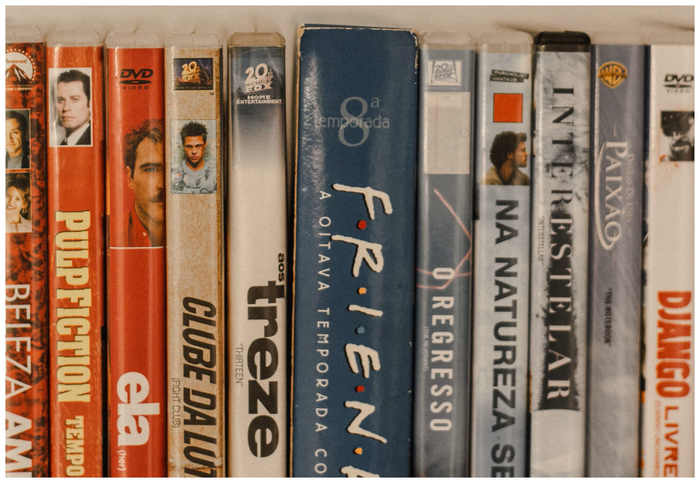
Step 1.Get the DVD you want to rip and make sure that it has no physical damage and the data is intact.
Step 2.Buy an external DVD drive with a USB-C connection to ensure it uses a modern connection and offers faster speeds and higher power delivery.
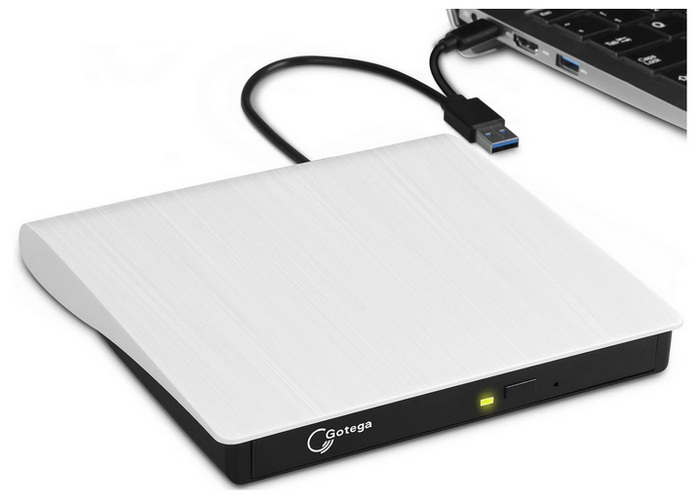
Connect your external drive to your computer and then load the DVD you want to rip. To check if the DVD is loaded correctly, open your File Manager and go to This PC to see whether the DVD drive is being recognized.
Pro Tip:
Always clean your DVD surface gently from the center outward using a microfiber cloth, and plug external USB DVD drives directly into rear motherboard ports (or use a Y-cable/powered USB hub) to prevent mid-rip read errors caused by voltage drops.
Phase 2. Ripping the DVD with Blu-ray Master Free DVD Ripper (Best Overall)
Once your DVD is loaded onto your computer via the external drive, the next step is to use a powerful DVD ripper that preserves DVD quality. In this case, we highly suggest using Blu-ray Master Free DVD Ripper.
For general DVD ripping or creating a digital backup of your DVD collection, Blu-ray Master’s software is a great choice, with a clean interface that makes it accessible to beginners.
However, what sets it apart is the tool’s capability to bypass copy protection via advanced decryption features.
DVD ripping in the program is supported by its rapid conversion speed and 1:1 lossless output, ensuring full DVD quality is preserved. Unfortunately, the free version lacks batch editing features, and a paid upgrade is required to maximize GPU acceleration.
To learn how to use Blu-ray Master Free DVD Ripper for DVD to digital video conversion, make sure to read our tutorial below.
You may download it using the link below.
Free Download
For Windows
Secure Download
Free Download
for macOS
Secure Download
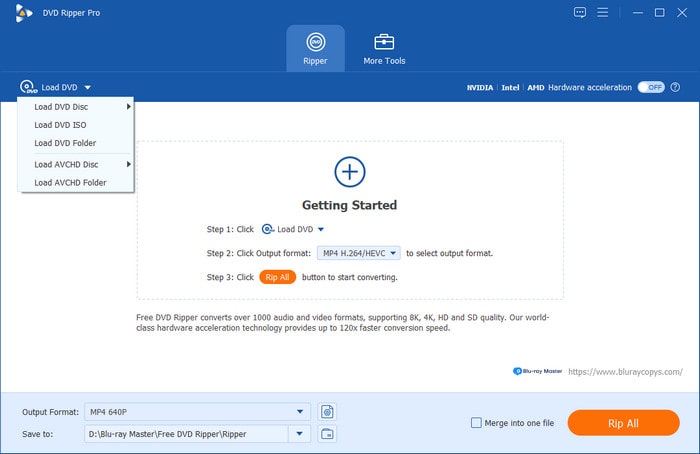
Step 3.Open Blu-ray Master Free DVD Ripper and select Load DVD, then click on Load DVD Disc. In the menu that opens, choose the Main Title option to rip only the main video from the DVD.
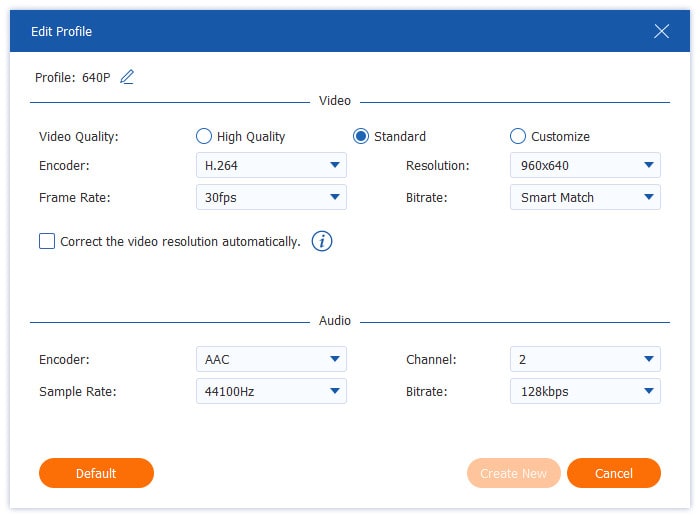
Step 4.Next, with the video now loaded, select Output Format and choose MP4 to optimize it for YouTube.
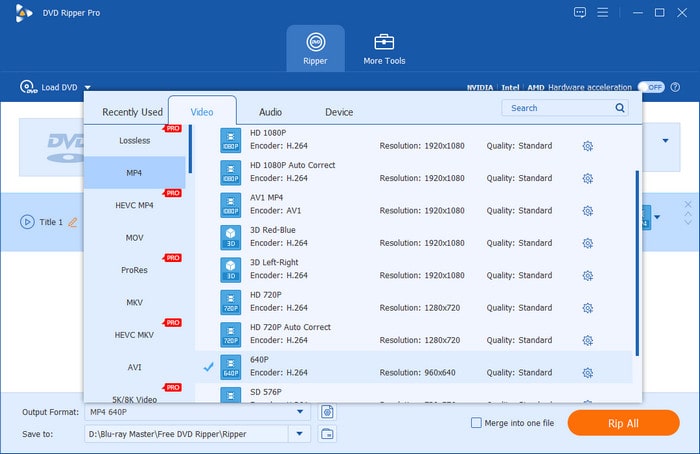
To adjust the resolution, aspect ratio, bitrate, and other advanced elements. Select the Gear icon beside the Output Profile you selected. To learn the best YouTube settings, please refer to the steps in Phase 3 below.
Step 5.Finally, with the Output Format now set, you will be redirected back to the Ripper menu. There, select Rip All to begin converting the DVD media to the YouTube-compatible MP4 format.
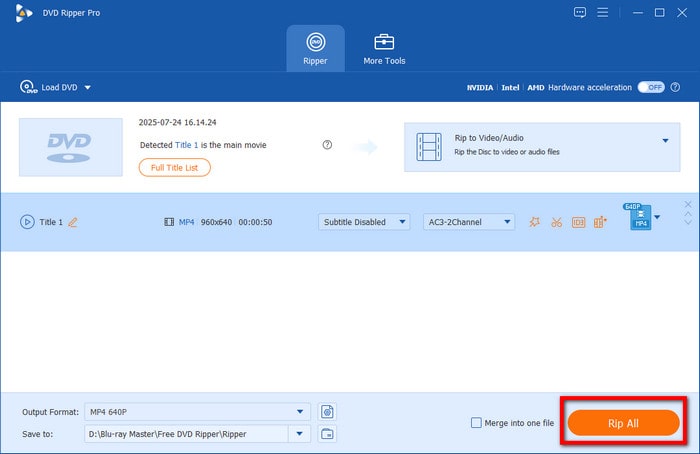
After the process, you have now ripped your DVD to MP4 format. You can now proceed to upload the DVD to YouTube. These will be the next steps in the 3rd phase of our tutorial.
Phase 3. Formatting and Uploading Your Converted Video to YouTube
Now that your DVD video has been ripped to a digital format, we can proceed with uploading it to YouTube. We will start by selecting the optimal resolution, aspect ratio, and bitrate.
Step 6.When uploading videos to YouTube, the ideal resolution is 1920x1080 with a 16:9 aspect ratio. To ensure good audio quality, use a bitrate between 128 and 320 kbps.
Step 7.Finally, to start uploading your DVD video, go to YouTube and click Create to proceed to YouTube Studio. Follow YouTube’s upload steps to back up your DVD collection.
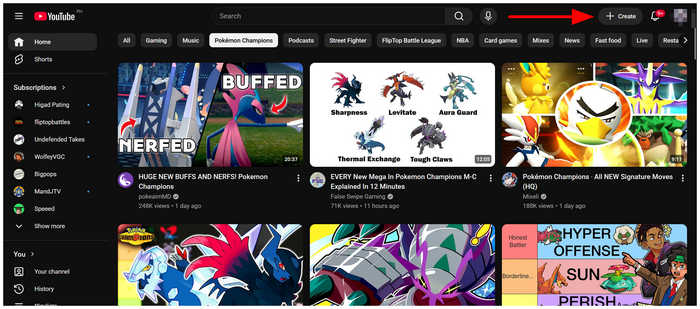
With the final steps for uploading now discussed, we hope we have answered your questions about uploading a DVD to YouTube.
Part 5. FAQs About Uploading DVD Videos to YouTube
-
Can I upload a commercial copyrighted movie DVD directly to YouTube without getting a copyright strike?
No, you cannot. YouTube will flag DVD content as copyrighted. As such, avoid uploading the latest DVD releases on the platform.
-
What is the best video format and resolution for YouTube uploads to prevent quality loss?
The ideal format for YouTube videos is MP4. To ensure high quality, use a resolution of 1920x1080. The combination of these settings will minimize quality loss.
-
How do I bypass region code restrictions when ripping an international DVD?
You have to use a DVD ripper that can bypass the DVD region code. A good example is Blu-ray Master Free DVD Ripper. It has built-in protection bypass for user practicality.
-
Why does my ripped DVD file have no audio or choppy playback during the YouTube upload preview?
Fear not, since your video does not have the problem. Poor video quality in YouTube previews is common. This is because the site still processes your video’s resolution.
-
How long does it take to rip a full-length 90-minute DVD using hardware acceleration?
For a high-performance ripper with acceleration, expect an average speed of 10-15 minutes. This is fast enough for basic video ripping. However, stronger hardware may clock faster speeds.
Conclusion
With a detailed guide to uploading DVDs to YouTube, we hope you can now create digital backups of your physical DVD media more easily. To start, make sure your DVD has no severe physical damage, and get a modern external DVD player compatible with your computer. Finally, start ripping DVD content with a reliable ripper tool such as Blu-ray Master Free DVD Ripper.
