

Nov 03, 2025Posted by Kevin Miller to Rip DVD
When it comes to feature-rich tools, VLC is undoubtedly one of the best. Not only as a media player that can stream a wide range of media files, but it is also an outstanding video editor with a lot of perks. But have you tried using VLC to rip DVDs? Surprisingly, you can also do this with the media player, and we will walk you through it in detail. Providing you with the steps, this post opens up the possible pros and cons of VLC regarding DVD ripping.
- Part 1. Can You Rip DVDs with VLC title
- Part 2. Rip a DVD in VLC on Windows
- Part 3. Rip a DVD in VLC on Mac
- Part 4. Troubleshooting VLC Ripping DVD
- Part 5. Rip DVD in VLC Alternative
- Part 6. FAQs about Ripping DVDs with VLC
Part 1. Can You Rip DVDs with VLC
We have mentioned that VLC can rip DVDs freely, and it is a wonderful thing since the media player is available on popular operating systems, such as Windows, Mac, and Linux. However, some things need to be mentioned before you jump right on using the method. First, VLC does not support ripping copy-protected discs, like Disney movies and such. It is only effective for homemade ones if you want to digitize your discs and export them to other devices. Another problem is its lack of features in terms of editing. Yes, it has editing features, but VLC does not have the proper settings for advanced output customization. Still, it is a better solution, especially if you are only looking for free DVD ripping on your computer.
Part 2. Rip a DVD in VLC on Windows
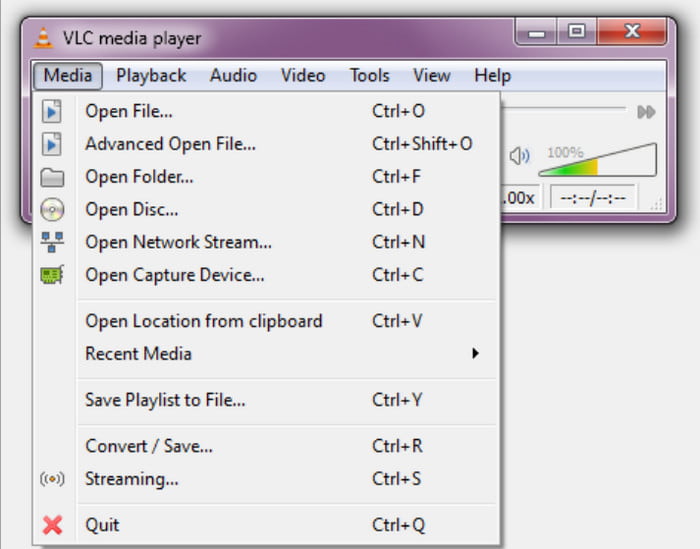
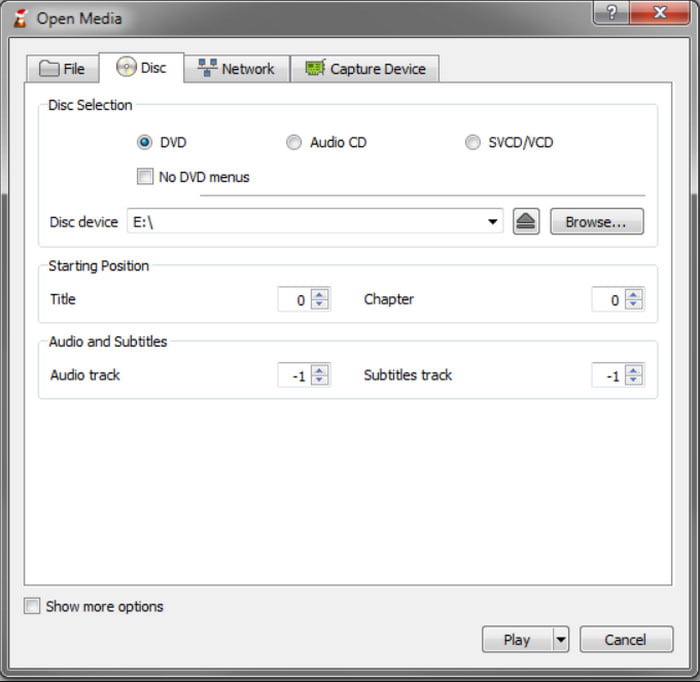
Step 1.Launch the media player and insert the DVD into the disc compartment. Navigate to the Media menu at the top left corner and choose the Convert/Save option. From the Open Media window, access the Disc tab. Pick the DVD option from the Disc Selection dropdown list.
Step 2.If the disc has multiple titles and bonus features, go to the Disc Selection menu and choose the titles you want to include. Then, go to the Audio Track menu and select audio tracks other than the default one.
Step 3.The next step is to pick the desired output format from the Profile menu. A common format to choose is Video-H.264 + MP3 (MP4). Select a destination folder on your computer, and then click the Start button to start ripping. Wait patiently as VLC processes the videos.
And there you have it! Ripping DVDs with VLC Media Player is simple, and you only need to do a few things to get it done. Unfortunately, it only has shortcomings in terms of output customization, so it might limit your ability to achieve your video preferences.
Can VLC play Blu-rays? Check the answer here.
Part 3. Rip a DVD in VLC on Mac
The ripping steps of VLC on Mac are similar to Windows. Read on to know the detailed information.
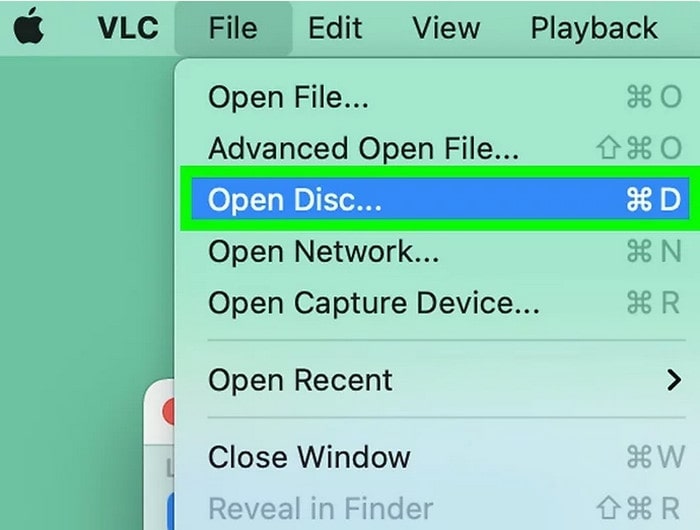
Step 1.Download and install VLC on your Mac computer. Insert the DVD disc into the optical drive. Launch the software and choose File > Open Disc options.
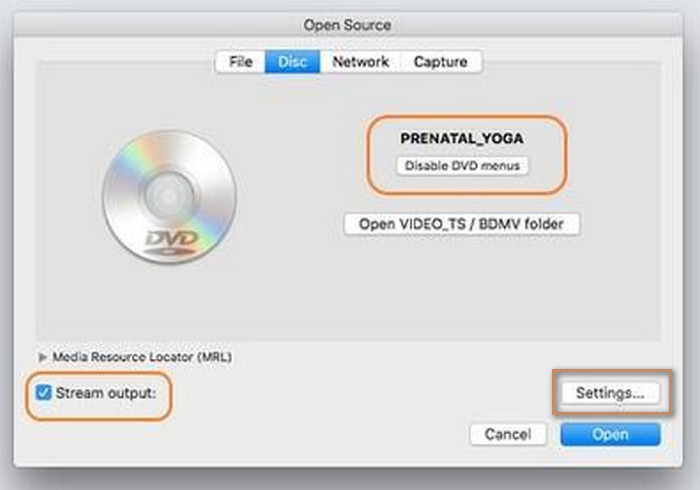
Step 2.A window showing your disc details will appear. Select the option 'Disable DVD Menus', and then tick the Stream output button in the lower-left corner. Click Settings in the bottom right corner to proceed.
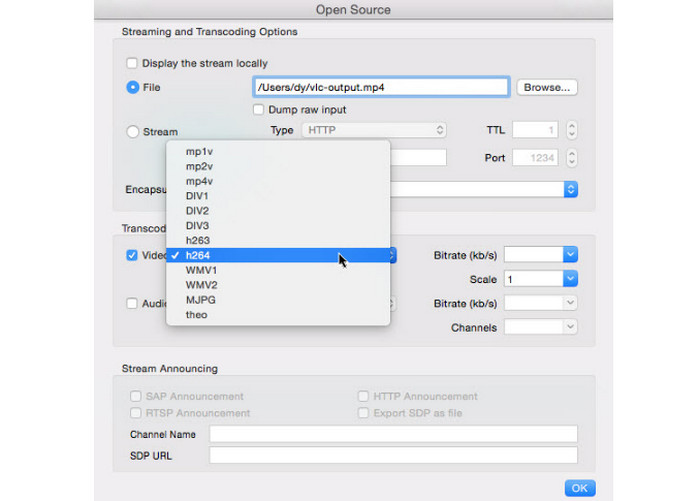
Step 3.In the newly-opened output setting window. Click the 'Browse' button to choose the destination folder of the ripped DVD videos on your Mac.
Next, click the Encapsulation Method option to choose MPEG 4 from its drop-down list. You can also choose the Video option as h264. Adjust the needed video and audio settings and click OK to save them.
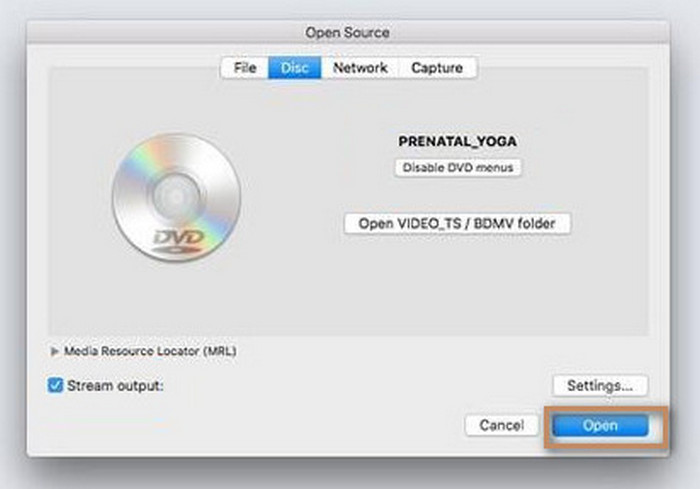
Step 4.Lastly, click Open to begin the DVD ripping process.
Part 4. Troubleshooting VLC Ripping DVD
VLC might be a perfect all-in-one media player, but it is inevitable to run into errors when ripping DVDs. However, this part lists the possible reasons why VLC is not ripping and solutions that can potentially fix the problem.
VLC Won’t Rip a DVD
If VLC is not copying the DVD, try reinstalling or updating the media player. Also, make sure that the disc you use is not copy-protected.
Rip Corrupted DVD
The disc may be corrupted, causing an interruption in ripping. Try ripping another disc to check if the original one is corrupted.
No Subtitles
If the ripped video does not have subtitles, the possible error might be in the incorrect settings. When customizing the output, go to the Disc tab and look for the subtitle option. Tick the checkbox to include it when ripping.
DVD Won't Load
When you cannot import the content from the DVD to VLC, you might need to adjust the settings or deinterlacing. To do this, go to the Tools menu and select the Preferences option. Click the Show Settings, then All. Go through the Video menu, on the Filters option, then to Deinterlace. Under that, pick Yadif mode. Restart the media player and retry opening the DVD on it.
Part 5. Rip DVD in VLC Alternative
Let’s assume that VLC cannot convert DVD to MP4 or is not working properly on your end. We recommend Free DVD Ripper as an excellent alternative for DVD ripping on Windows and Mac. Designed with full intent to help you convert any type of DVD to popular formats, such as MP4, MP3, MOV, WAV, and so on. It is also great with setting customization, prepared with presets with formats, FPS, and devices, and also custom parameters to manually adjust the output. The best part of this alternative is its amazing design to help beginners and pros to operate the software without complicated setup easily. So, Free DVD Ripper is the best choice as a VLC alternative with a higher effectiveness for a high-quality ripped video.
- Rip and convert copy-protected and homemade DVDs.
- Include all important content data like the DVD menu, title, subtitle, etc.
- No limit to DVD ripping, including file size and number of titles.
- Super-fast speed and promising output result.
Free Download
For Windows
Secure Download
Free Download
for macOS
Secure Download
Step 1.Download Free DVD Ripper by clicking the Free Download button. Once installed, launch the software and insert the disc into the optical drive. Click the Load Disc button and choose the title you want to rip from the disc.
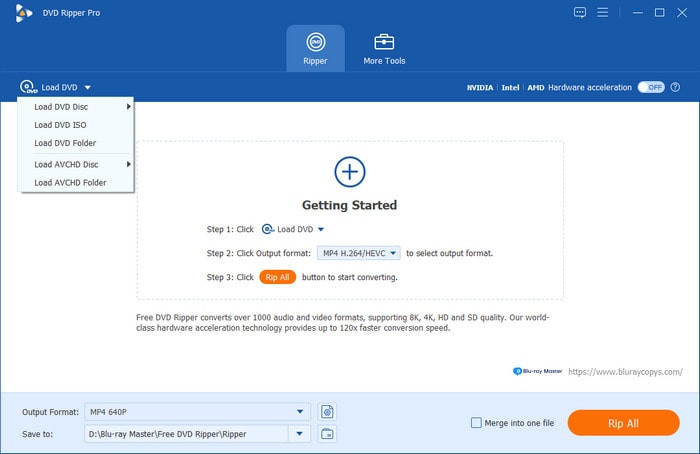
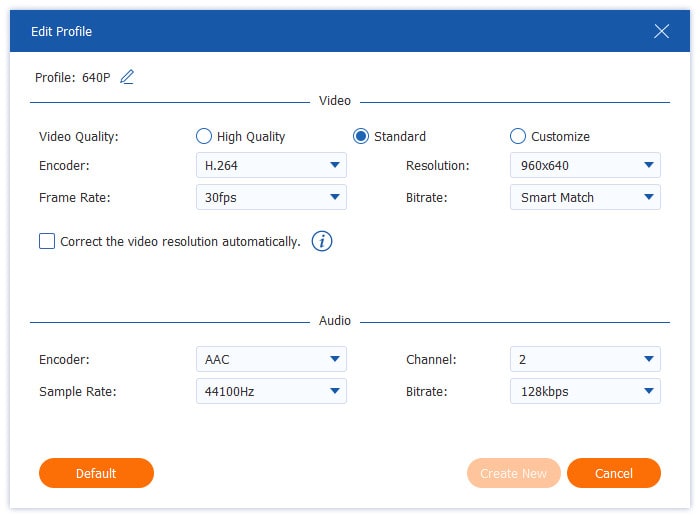
Step 2.Open the Output Format menu on the bottom. Here, all presets are shown with formats, devices, resolutions, etc. Choose one, then proceed to the settings that you can access via the gear icon. You can pick your preferred video encoder, resolution, bitrate, and other settings. Then, click the Create New button to save the new settings.
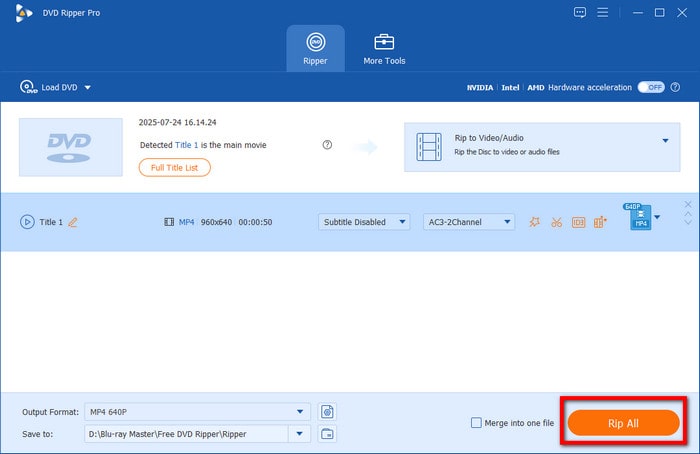
Step 3.Click the Save to option to choose the folder where you want to save the ripped videos. Finally, click the Rip All button to start ripping, then wait patiently until done.
When you see the process with Free DVD Ripper, it is almost as easy as extracting DVDs with VLC. But with this alternative, you can do much more with settings customizations to preserve or enhance the video quality. Moreover, it is also free and available for Windows 11/10/8/7 and Mac OS.
| Free DVD Ripper | VS | VLC Media Player |
| Free | Price | Free |
| DVD 5, DVD 9, DVD ROM, DVD-/+ R, DVD-/+RW, etc | Supported DVD Types | DVD ROM, DVD 5, DVD 9 |
| FLV, MOV, MKV, HEVC, MP4, MPEG, WMV, WMA, etc. | Supported Output Formats | MPEG, AVI, FLV, MP4, MKV, VOB, etc. |
| 4K | Highest Resolution Available | 720p |
| Windows, Mac | Supported Platforms | Windows, Mac, Linux |
| Super-fast speed | Speed | Slow to average |
| Regularly | Updates | Sometimes |
Part 6. FAQs about Ripping DVDs with VLC
-
What is the fastest way to rip a DVD?
Although VLC has a way to rip DVDs, we suggest that you look for a tool that is dedicated to DVD ripping, like Bluray Master’s Free DVD Ripper. This will likely save you more time because the software is designed with faster processing speed, edits the output settings, and can even rip copy-protected discs.
-
Is there a truly free DVD ripper?
Yes. Aside from VLC Media Player and Free DVD Ripper, there are more free DVD ripper tools you can find on the internet. Depending on how the programs are being updated, ripping abilities and results can vary in speed and output.
-
How do I rip a DVD chapter in VLC?
Unfortunately, one of VLC's shortcomings is its inability to rip a chapter on a DVD. Thus, the media player cannot rip a single chapter on a DVD title. Consider looking for an alternative that has this option.
-
How do I use the DVD menu in VLC?
VLC does not operate like a regular DVD player, but one way to do so is by clicking any part of the screen to reveal the DVD menu. You can also interact with the menu when you insert the disc and VLC will show a dialog box with the titles, chapters, and others.
Wrapping up
You have discovered how to use VLC to rip DVDs for free. The media player is surprisingly excellent for simpler DVD ripping, and you can even play the ripped videos directly. However, since its purpose is mainly for playback, VLC lacks almost everything for DVD ripping. So, we suggested to you Free DVD Ripper by Blu-ray Master to efficiently extract content from any type of DVD. You can free download it from the official website, and experience the boundless and quickest DVD ripping on Windows or Mac.
More from Blu-ray Master
VLC Solutions
Fast and free ripping software to decrypt all DVDs to digital easily on your computer.
100% Secure. No virus
