

Jun 25, 2025Posted by Kevin Miller to Play Blu-ray
The PlayStation 5, also known as PS5, is Sony's latest-generation gaming console. It can feature ultra-fast SSD loading, ray tracing, and support for 4K resolution. Aside from gaming, the PS5 is designed to be a comprehensive entertainment hub. It lets users to stream movies, play music, and even watch physical discs. But does PS5 play 4K Blu-ray movies? In this article, we will examine whether the PS5 can play 4K Blu-ray videos, including the necessary preparations. Additionally, we will provide you with another alternative program that you can rely on for playing 4K content effectively. For more insights on the topic, please see this post.

- Part 1. Can PS5 Play 4K Blu-ray
- Part 2. How to Play 4K Blu-ray on PS5
- Part 3. Simple Alternative Way to Watch 4K Blu-ray on PS5
Part 1. Can PS5 Play 4K Blu-ray
Can PS5 play 4K Blu-ray? Well, the answer is yes. The standard PlayStation 5 is capable of playing 4K Ultra HD Blu-ray discs. This feature is only available on the standard model with a disc drive. It only means that if you have the PS5 Digital Edition, you can't play any 4K Blu-ray content since it doesn't have a disc drive.
Now, if you want to know more about what Blu-ray types and digital formats it supports, see all the details below.
Supported Blu-ray and Disc Types
Ultra HD Blu-ray
Does PS5 play UHD Blu-ray? Absolutely, yes. The PlayStation 5 standard edition is capable of supporting Ultra HD Blu-ray, known as 4K Blu-ray disc. These discs can provide a resolution of up to 3840 × 2160 and support HDR10. It is for enhanced color depth and contrast. The only drawback here is that it can't support Dolby Vision. Additionally, the UHD Blu-ray can store up to 100GB of data on a triple-layer disc, making it more capable.
Standard Blu-ray Disc
Aside from that, the PS5 can also support Standard Blu-ray discs. It can provide up to 1080p Full HD resolution. Additionally, both single-layer and dual-layer Blu-ray discs are compatible with the system, making it ideal for playing most high-definition physical media released before the Ultra HD era.
Standard DVDs
The PS5 can also support Standard DVDs. This type of disc can deliver a standard definition, known as SD video, at 480p. It can even allow viewers to play older movie collections or legacy content without encountering any issues.
Supported Digital Media Formats
Aside from Blu-ray and Disc types, PS5 can also handle various digital media formats. In terms of videos, it can play MP4, MKV, and WEBM. It also supports various codecs, including H.264/AVC, H.265/HEVC (for 4K video), and VP9. When it comes to audio, it can support AAC, MP4, PCM, and Dolby Digital. So, if your PS5 supports the format, you can play them smoothly and effectively.
Part 2. How to Play 4K Blu-ray on PS5
Are you looking for the best way to learn how to play 4K Blu-ray on PS5? In that case, you must read this part right away. However, before that, we will first provide you with all the necessary preparations so that you can proceed smoothly through the process.
2.1 Preparation for Playing Blu-ray on PS5
To play 4K Ultra HD Blu-ray discs on the standard PlayStation 5, you need to prepare certain software and settings for optimal playback quality.
First, ensure that the PS5 Media Player software is completely installed. The console will prompt you to download this the first time you insert a Blu-ray disc. If not, you can manually download it from the PlayStation Store. This app is essential for disc playback, including 4K UHD Blu-rays.
Next, check your display and HDMI setup. You will also need a 4K TV or monitor that supports HDCP 2.2 and HDR10 to fully access the 4K and HDR features. Utilize the HDMI 2.1 cable that came with the PS5 and ensure it is connected to a compatible HDMI port on your TV, often labeled as 'HDCP 2.2' or '4K 60Hz.'
You can also follow/check the simple steps below to configure settings.
Step 1.Proceed to the Settings section and navigate to the Screen and Video > Video Output.
Step 2. Then, you can now set the following:
• HDR: Set this option to 'On When Supported.'
• Resolution: Set the resolution to 4K (2160p).
• 4K Video Transfer Rate: Leave this option on the 'Automatic' option.
• Deep Color Output: Set this setting to the 'Automatic' option.
Note: Always ensure that your PS5 system software is up to date. Firmware updates can enhance disc compatibility and playback performance.
2.2 How to Play 4K Blu-ray on PS5
As we have discussed, the PS5 is capable of providing effective 4K Blu-ray playback. The process is also comprehensive, provided that you have already set everything up, especially the specific settings. To begin learning the process of playing 4K Blu-ray, follow the procedure below.
Step 1.The first step is to open your PS5. Then, hit the Cogwheel beside the search bar on the top-right corner of the interface.

Step 2.After that, scroll down until you find the Screen and Video section. Click it and choose the 4K resolution on the Video output option.

Step 3.You can now adjust all the necessary parameters according to your preferences. You can modify all the video output information freely.
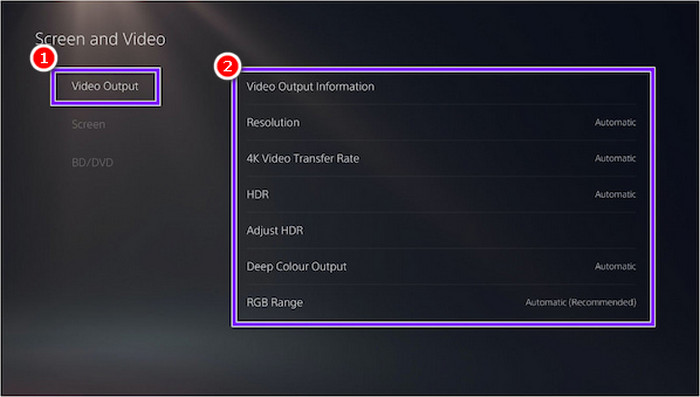
You can adjust the following:
• Resolution.
• 4K Video Transfer Rate.
• HDR.
• Deep Color Output.
• RGB Range.
Step 4.For the final process, ensure that the HDR section is set to Always On mode. Once done, you can start playing the Blu-ray movies.

With this process, you can now play your Blu-ray on your PS5 effectively. However, you must ensure that you have set up everything for a smoother video playback.
Part 3. Simple Alternative Way to Watch 4K Blu-ray on PS5
Are you still looking for the best alternative to watch 4K Blu-ray on PS5? If so, we recommend operating Blu-ray Master Free Blu-ray Ripper. It is an excellent Blu-ray converting program with a user-friendly layout. With this software, you don't have to worry about the region code of your Blu-rays. You can rip your Blu-ray to various formats that can be played on your PS5. It can even support hundreds of video output formats, including MP4, MOV, MKV, and many more. What makes it special is that it can also support numerous Blu-ray disc formats, including BD-XL, BD-R, BD-5, BD-9, BD-25, BD-50, and BD-RE.
Furthermore, the software is not just an exceptional Blu-ray ripper. It can even offer additional features to enhance your enjoyment, especially when improving your videos. Using this program, you can crop videos, trim, cut, add filters, adjust brightness, contrast, saturation, insert a watermark, and more. Lastly, when it comes to accessibility, you can rely on this tool. You can access the ripper on various platforms, such as Windows 10, 8, and 11. You can also install it on macOS 10.12 and later. With that, if you need the best alternative to play and watch 4K Blu-rays on PS5, there is no doubt that Blu-ray Master Free Blu-ray Ripper is the best option to choose.
Start ripping your Blu-ray by following the simple instructions below.
Step 1.First and foremost, you have to download Blu-ray Master Free Blu-ray Ripper on your computer. You can use either Windows or Mac operating systems. Then, proceed with the installation process to initiate the main procedure.
Free Download
For Windows
Secure Download
Free Download
for macOS
Secure Download
Step 2.From the main interface, navigate to the Load Disc option to add the Blu-ray file you want to rip. Ensure that your Blu-ray is already inserted into your computer.

Step 3.For the next step, navigate to the bottom interface and select the Profile section. Once done, you can now select your preferred output format that your PS5 supports.

Step 4.Finally, to start the converting/ripping process, click the Convert button below. After a few seconds, you can already get the result you want.

After that, you can already play and watch your ripped 4K Blu-ray on your PS5 and other multimedia players.
After using the software, we can tell that it is an exceptional Blu-ray ripper. With its simplicity, you can easily get the result you need after the procedure. The best part here is that it can handle a wide range of output formats. It is also suitable for both Mac and Windows, making it more convenient for users. With that, we can conclude that Blu-ray Master Free Blu-ray Ripper is among the best rippers you can access to get the task done.
Conclusion
Does PS5 play 4K Blu-ray? The answer is yes. You can play Ultra HD Blu-rays on PS5 effectively. This post also provides the methods you can follow, along with the necessary preparations to complete the task. Additionally, if you're seeking the best alternative for watching your 4K Blu-ray on PS5 and other multimedia players, we recommend using Blu-ray Master Free Blu-ray Ripper. This software is ideal for ripping and converting Blu-ray discs to a more suitable format, making it a powerful tool.
More from Blu-ray Master
Best Video Player

Easily play Blu-rays, DVDs, and various video/audio formats with rich playback features.
100% Secure. No virus
