

Dec 05, 2025Posted by Kevin Miller to Play Video
Is it possible to play AVI on iPhone or Android devices? When you have some downloaded AVI files for your smartphone, you might not able to play the AVI files, especially the large ones. What should you do? Of course, you can convert and compress the AVI to the compatible formats. Besides, there are some AVI players for iPhone and Android. Just learn more details about the 7 best ways and choose the desired one accordingly.
- Part 1. How to Convert AVI for Playing on iPhone
- Part 2. Top 5 AVI Players for iPhone and Android
- Part 3. FAQs about Playing AVI on iPhone/Android
| Product | Best for |
| Blu-ray Master Video Converter Ultimate | Best for powerful offline AVI conversion with advanced editing and high-quality output. |
| Blu-ray Master Free Online Video Converter | Best for quick, browser-based AVI conversions without installing software. |
| VLC | Best for stable, ad-free AVI playback with broad format support on both Android and iOS. |
| KMPlayer | Best for feature-rich AVI playback with advanced filters and UHD/3D support. |
| PlayerXtreme Media Player | Best for AVI playback integrated with cloud and DLNA/UPnP streaming on iOS devices. |
| 8Player | Best for AVI playback integrated with cloud and DLNA/UPnP streaming on iOS devices. |
| nPlayer Lite | Best for AVI playback with strong network streaming features and intuitive gesture-based controls. |
Part 1. How to Convert AVI for Playing on iPhone
Method 1. The Ultimate Way to Convert AVI for Playing on iPhone
When you have some large AVI files, the compatibility is not the only problem, you have to convert and compress the AVI file to play on your iPhone. Video Converter Ultimate is a versatile way to convert AVI to iPhone, iPad, and Android devices. Moreover, you can trim the videos, select the subtitles, and even apply the watermark for the AVI files.
- Convert AVI files to the preset of iPhone, iPad and Android devices.
- Shrink the AVI files without different ways for both iOS and Android.
- Offer a wide range of video editing tools, like trim, crop, rotate, etc.
- Provide 4 different video enhancing methods to the AVIs files.
Free Download
For Windows
Secure Download
Free Download
for macOS
Secure Download
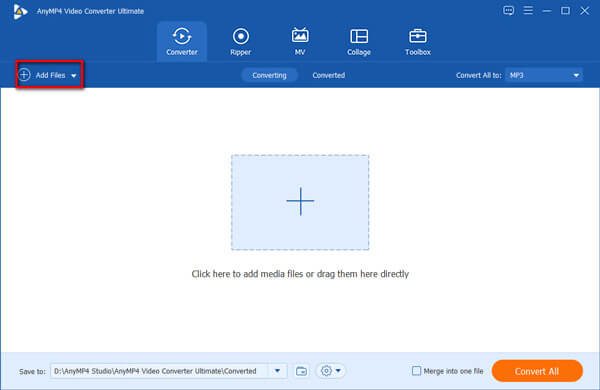
Step 1.Launch Video Converter Ultimate after you have installed the program on your computer. Then go to the Converter menu and click the Add Files tab to add AVI files to the converter.
Step 2.Click the Convert All to menu to open the format setting dialog. Go to the Device tab on the dialog, select the iPhone tab and choose your iPhone or Android model.
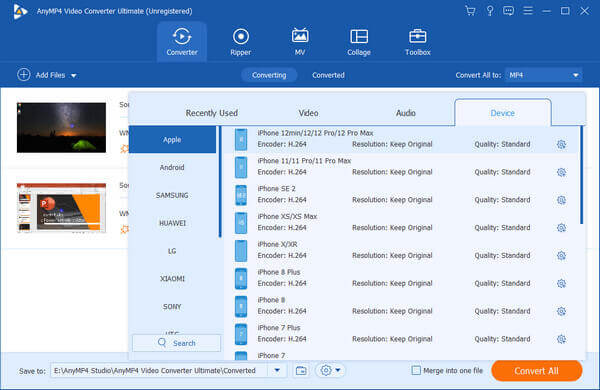
Note: When you need to compress the AVI file, you can adjust the frame rate, bitrate, and more others. Moreover, there is a Compress function within the Toolbox menu.
Step 3.Go to the bottom area and select a specific folder to save the output by hitting the Folder icon. Click on the Convert All button to begin converting AVI to iPhone. Then you can transfer the output files to your iPhone.
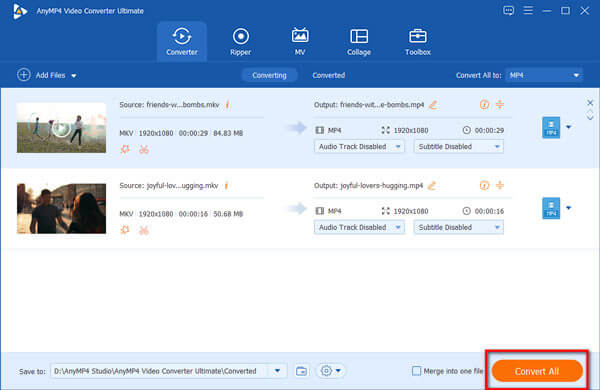
You can use this professional video converter to turn AVI files to MP4, MKV, MOV, and many other formats that are compatible with iPhone, iPad, and Android. The settings are intuitive, and you can set the output parameters, like encoder, resolution, etc. Moreover, it provides multiple video editing tools within the software, which you can use for video optimization. It is a paid software that offers a free trial. You can have a try!
Method 2. How to Convert AVI for iPhone Online
Free Online Video Converter is a web-based AVI to iPhone converter that enables you to convert any video and audio for free without any limitation. When you just need to convert the files online for free in a batch process, it should be one of your best choices.
- Free to use without any limitation or registration.
- Support all popular video formats including AVI.
- Convert multiple AVI files within a batch process.
- Change AVI to MP4, MOV and other file formats.
Step 1.Head to the online video converter in your browser. Click the Launch Free Converter button to add the AVI files.
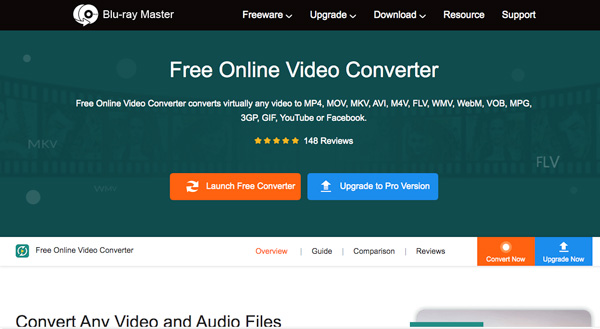
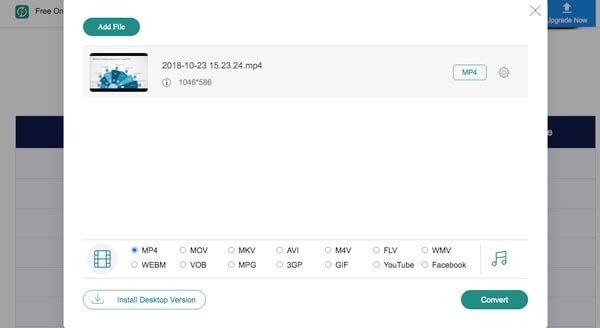
Step 2.Upload the AVI files that you want to watch on iPhone to the online converter. Then select MP4 or MOV at the bottom.
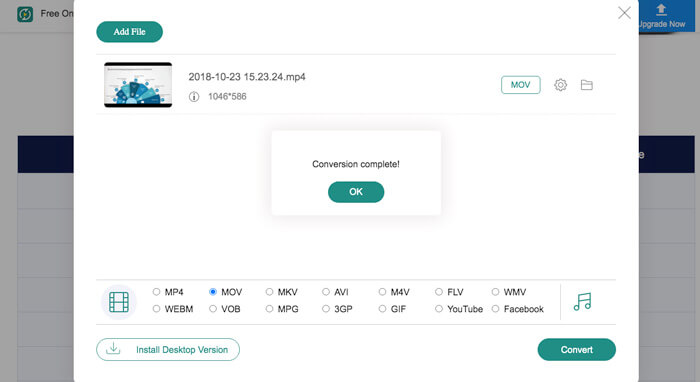
Step 3.Click the Convert button to initiate AVI to iPhone converting. Then, you can download the file or transfer to your mobile device.
This online tool provides an easy and direct way to convert AVI videos with several clicks. As a web-based tool, it provides great convenience for quick video conversion. On the other hand, it lacks advanced features to further adjust videos.
Part 2. Top 5 AVI Players for iPhone and Android
Top 1. VLC
VLC already rules desktops, and so VLC's iOS app doesn't disappoint at all. You can play videos of any formats without converting since it has integrated a large pack of codecs. You can also download external codec packs like Windows Media Player.
Pros
- Sync video files from Dropbox, Google Drive, etc.
- Support for advanced subtitles and audio tracks.
- Gesture control for volume and more.
- Network stream with HTTP, RTSP, RTMP, or MMS.
Cons
- Lack the basic video converting features.
- It is not stable to play AVI files on iPhone.
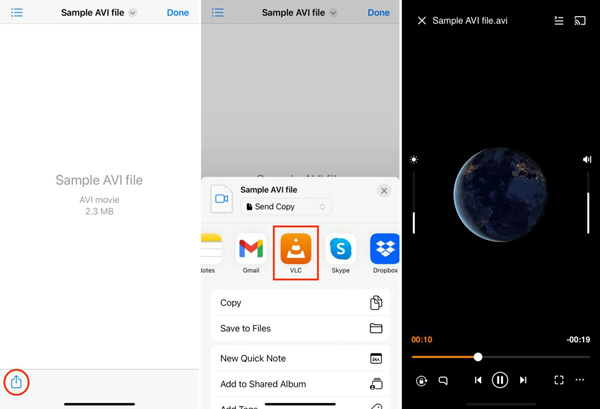
How to play AVI files with VLC on iPhone
Step 1.Download VLC on your iPhone or Android from the App Store or Google Play and open it.
Step 2.Find your AVI files and tap the Share button.
Step 3.Choose VLC, and your AVI file will start playing in VLC.
How to play AVI files with VLC Android
Step 1.Download and run VLC on your Android. Head to the top right of your screen and tap the three dots icon.
Step 2.To add your AVI file, choose Preferences, tap Directories, and select your AVI file.
Step 3.Tap the Home button and choose Video. You will find your AVI file and tap it. Now, you can enjoy your AVI video.
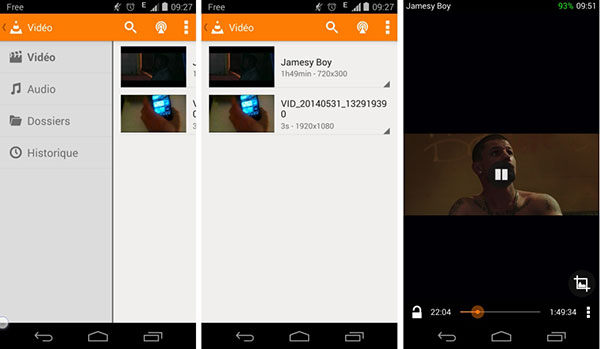
VLC is widely praised for its good compatibility with multiple devices. It can decode AVI files directly, which many default mobile players don't support. Besides the basic playback ability, this tool also offers subtitle support, playback speed control, and equalizer settings. Some people would think its interface design is dated, which does not hurt the essentials.
Top 2. KMPlayer
If you are looking forward to an AVI player on iPhone, then your search ends at KMPlayer. It supports 4K and HD videos. It support most the video files and can play videos from cloud storage and network services.
Pros
- Control volume and video playback with gestures.
- Support network services such as Google Drive, FTP, etc.
- Play 3D, 4K, and UHD videos.
- Compatible with a wide range of iPhone and iPad.
Cons
- It cannot create playlists for the video files.
- This iPhone AVI player is not available in some countries.
How to play AVI files with KMPlayer on iPhone/Android
Step 1.Download KMPlayer on your mobile phone and open it.
Step 2.Choose Files and tap the + button to add your AVI file to the playlist.
Step 3.Tap the AVI video, and it will start playing immediately.
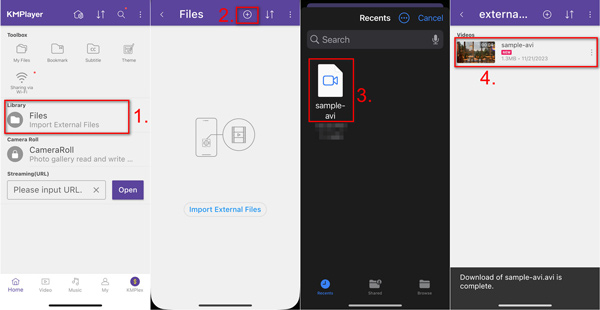
KMPlayer provides 4K and UHD AVI playback, making it ideal for high-resolution files. We find multiple advanced options, such as audio/video filters, playback speed control, and screen adjustment for a tailored experience. There are ads in the free version, which can be intrusive.
Top 3. PlayerXtreme Media Player
PlayerXtreme is a full-featured AVI player app for iPhone and Android. It supports almost all the formats in addition to AVI. It means you don't need to worry about compatibility issues and video formats.
Pros
- Support a lot of network devices.
- Cast videos through AirPlay and Google Chromecast.
- Search and control playback with gestures.
- Download subtitles from the Internet in real time.
Cons
- The full features are only available to pro version.
- It is only available to the latest devices.
How to play AVI files with PlayerXtreme Media Player on iPhone/Android
Step 1.Download PlayerXtreme Media Player and open it on your iPhone or Android.
Step 2.Find the AVI files in your folder and tap the Share button. Choose PlayerXtreme Media Player from the given apps.
Step 3.Select the Play option to playback the AVI video.
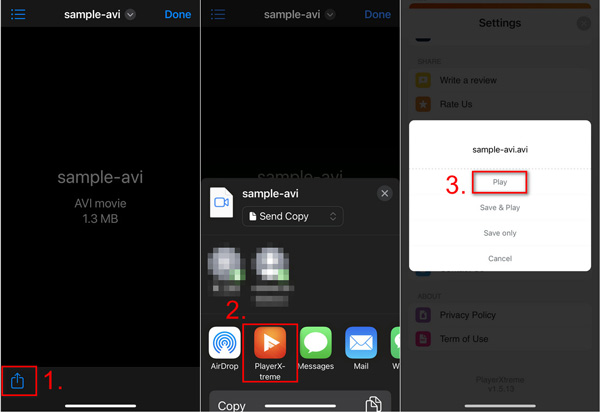
This tool works on iOS, Android, and other platforms, which you can use across platforms. Its design is simple, making it easier for casual users. There are also complaints that some people report crashes and playback glitches.
Top 4. 8Player
8Player is not just an AVI player for iPhone, but also a universal multimedia app. It can work as a DLNA/UPnP, SMB, FTP player and controller. The rich customization options deliver a great video experience.
Pros
- Play AVI videos on Chromecast devices and DLNA players.
- Create and edit video playlists according to your requirement.
- Remotely access DLNA /UPnP servers to playback AVI files.
- Include a neatly designed user interface.
Cons
- Cannot play 3D AVI videos with the media player.
- It is large and may slow down your devices.
How to play AVI files with 8Player on iPhone/Android
Step 1.Download 8Player from the App Store or Google Play and run it on your phone.
Step 2.Choose Videos and tap Files to select your AVI file.
Step 3.Tap Open on the top right, and it begins to play your AVI video.
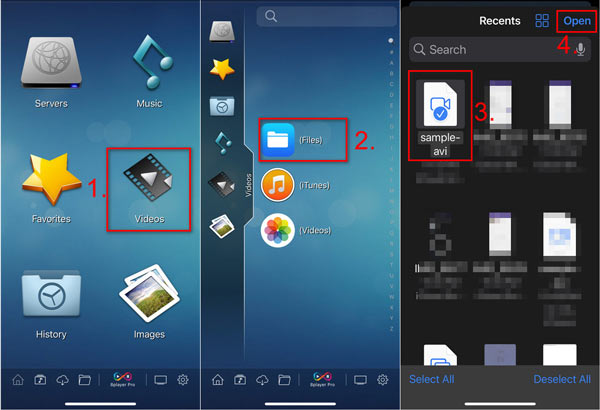
8Player is a strong option for AVI playback on mobile, especially for iOS users. It can connect to DLNA/UPnP, Dropbox, Google Drive, and OneDrive servers for cloud integration. With a playlist feature, you can easily manage your AVI files for playback. During the test process, we note occasional instability with large AVI files.
Top 5. nPlayer Lite
nPlayer is another free option to play AVI on iPhone and Android. It plays videos in almost all the formats and also allows you to stream contents from remote devices.
Pros
- Import videos and audio files from cloud services.
- Repeat playing a certain section of the AVI file.
- Support playback the 3D AVI videos.
Cons
- The video formats are limited to the lite version.
- It should be difficult to master the features for beginners.
How to play AVI files with nPlayer Lite on iPhone/Android
Step 1.Download and open nPlayer Lite on your cell phone.
Step 2.Locate your AVI file in your folder and tap the Share button.
Step 3.Tap the nPlayer icon and select Open. Your AVI video will start the playback in nPlayer Lite.
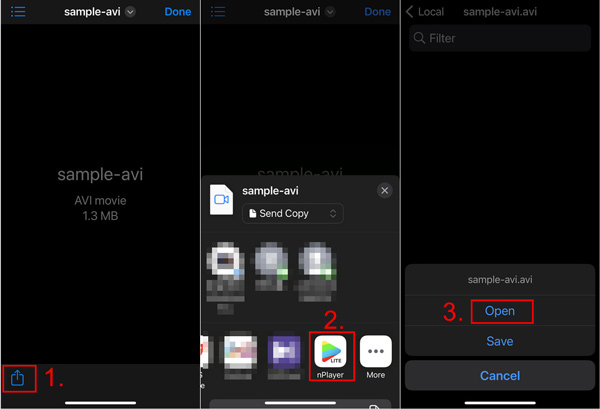
nPlayer Lite is a good AVI player on mobile, offering strong network features and intuitive controls. You can switch subtitles, adjust brightness, and customize subtitle appearance in it. However, the free edition includes advertisements, which can disrupt playback.
Part 3. FAQs about Playing AVI on iPhone/Android
-
What are the Compatible Formats of iPhone and Android?
iPhone supports H.264 and MPEG-4 video codecs with MP4, M4V, and MOV as the video formats. It also supports Motion JPEG in AVI file format. As for the Android phone, it also supports H.264, MPEG-4, as well as the 3GPP file formats. It means that you can play AVI on iPhone with the Motion JPEG codec.
-
Is There a Size Limitation for Playing AVI on iPhone?
There is no official declaration about the size limitation for the AVI videos. Usually it is not recommended to play an AVI on iPhone with more than 100 MB within 15 minutes in length. It takes a large resource to playback the large videos, especially for the old iPhone models.
-
Should I Choose VLC to Play AVI on iPhone?
No. AVI is non-standard to encode aspect ratio, which might lead to the failure for VLC to select the right aspect ratio when play AVI on iPhone. Unless your iPhone has a large capacity and enough storage space, you'd better re-encode AVI to iPhone or Android compatible formats. Or you can try some VLC alternatives.
Wrapping up
When you want to play AVI on iPhone, iPad, and Android, this is the ultimate guide you should take into consideration. Of course, you can simply pick an AVI player for AVI playback on mobiles. To convert, compress, and trim the AVI files for the iOS and Android devices, Blu-ray Master Video Converter Ultimate should be the best choice you should take into consideration.
More from Blu-ray Master
Play Common Videos
Easily play Blu-rays, DVDs, and various video/audio formats with rich playback features.
100% Secure. No virus
