

Aug 27, 2026Posted by Kevin Miller to Create Blu-ray
Quick Summary:
Physical media gives playback stability that streaming services simply cannot match. To burn videos to Blu-ray, Blu-ray Master DVD Creator offers flexible video editing tools and supports various input and output formats. Adobe Encore is good for professional-grade controls. MultiAVCHD is a free open-source alternative, alongside solid picks like Roxio Toast Pro for Mac users. Wondershare Blu-ray Creator enables beginners to create Blu-rays with an easy workflow.
Nowadays, many people are used to streaming videos that give you an easy and quick video-watching experience. However, at the same time, bitrates get throttled, digital licenses disappear overnight, and cloud storage terms change without warning. In this case, physical media is making a serious comeback. As technology develops, creating a Blu-ray is no longer a dead art; it is a premium crafting process for preserving digital memories and home films.
The key to creating a perfect Blu-ray is to find and use a reliable DVD authoring tool. In this guide, we will introduce you to the 5 best Blu-ray authoring software to burn various video files to Blu-ray discs, folders, and ISO image files.

Table of Contents
- Behind the Test Bench: Our Evaluation Framework
- Top 1. The Best Overall Value & Customization: Blu-ray Master DVD Creator
- Top 2. The Professional Industry Standard: Adobe Encore
- Top 3. The Budget Champion: MultiAVCHD
- Top 4. The Sleek Consumer Favorite: Wondershare Blu-ray Creator
- Top 5. The macOS Specialist: Roxio Toast Pro
- Deep Dive: What Actually Matters When Choosing a Blu-ray Creator
- Bonus: How to Avoid Turning Blank Discs into Coasters
- FAQs about Best Blu-ray Authoring Software
Behind the Test Bench: Our Evaluation Framework
To provide an honest, hands-on review, we put multiple DVD burning tools through a standardized testing process. Here are the specific test environment, evaluation aspects, and final Blu-ray authoring tool picks and comparison.
Testing Environment:
- Master Source File: 50GB 4K MKV master video with multi-channel audio.
- Hardware Drive: LG WH16NS40 internal Blu-ray burner.
- Blank Media: Verbatim BD-R (25GB) and BD-R DL (50GB) media.
Core Evaluation Metrics:
- Encoding Efficiency: Does the software preserve pristine source video, or does it compress files into blocky, low-quality artifacts?
- Menu Customization Flex: Does the software let you build a personalized, attractive menu layout with customized buttons, background audio, and text, or are you locked into outdated templates?
- Stability & Burning Success Rate: Does the software handle long re-encoding passes without freezing or turning expensive blank media into unusable 'coasters'?
Quick Comparison of 5 Blu-ray Authoring Software
| Software | Input Formats | Output Blu-ray Formats | Burning Speed | Advanced Menu & Encoding Settings | Best For |
| Blu-ray Master DVD Creator | MP4, MKV, AVI, MOV, M2TS, +500 | BD-25, BD-50, BDMV Folder, ISO Image | Fast (Hardware Accelerated) | High (Custom menus, subtitle/audio editing) | Overall Value & Usability |
| Adobe Encore | MOV, MP4, AVI, ProRes, Wave, AC3 | BD-25, BD-50, Flash, ISO | Moderate (CPU dependent) | Ultra-High (Scripting, multi-angle, pop-up menus) | Industrial & Studio Use |
| MultiAVCHD | MKV, MP4, TS, M2TS, AVI, MOV, AVCHD, BDMV, DVD | BD-25, BD-50, AVCHD, BDMV Folder, ISO Image | Slow to Moderate (No modern GPU acceleration) | High (Multi-page custom menus, fine audio/subtitle track controls, script tweaks) | Free, granular authoring for technical purists |
| Wondershare Blu-ray Creator | MP4, MOV, MKV, WebM, +150 | BD-25, BD-50, DVD, ISO | Fast | Basic (Preset templates, simple edits) | Casual Family Archivists |
| Roxio Toast Pro | ProRes, MOV, MP4, AVCHD, MKV | BD-25, BD-50, BDMV, ISO | Fast (Optimized for Apple Silicon) | Moderate (Custom layouts, disc encryption) | macOS Power Users |
Top 1. Top 1. The Best Overall Value & Customization: Blu-ray Master DVD Creator
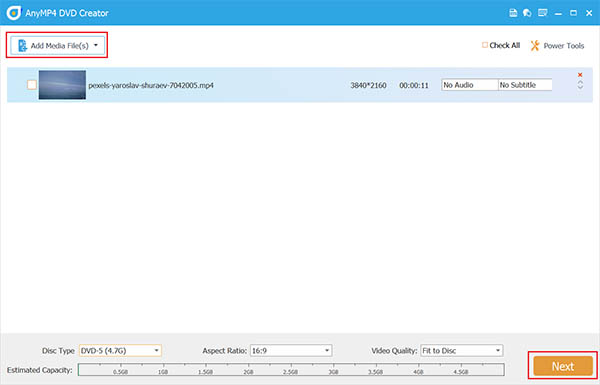
Blu-ray Master DVD Creator is a powerful DVD/Blu-ray burning software. Despite its name, it has both DVD Creator and Blu-ray Creator modes to meet your different creation needs. To author Blu-rays, it supports a wide range of video files, including MP4, MKV, MOV, and other video formats. You can choose to burn videos to BD-25 or BD-50. Moreover, it has various editing tools for you to optimize the video effects. With the real-time preview window, you can make the video look good.
Its built-in menu editor is outstanding, enabling you to upload custom background images, import personal background tracks, edit typography, and reposition selection buttons freely. This feature is flexible for you to personalize your Blu-rays.
Free Download
For Windows
Secure Download
Free Download
for macOS
Secure Download
Pros
- It allows for direct export to blank Blu-ray discs, BDMV folders, or ISO files.
- It delivers a fast processing speed utilizing hardware acceleration.
- It provides an intuitive interface that balances beginner ease with solid menu customization.
- It has various editing tools, such as adjusting audio tracks/subtitles, rotating, clipping, cropping, and others.
Cons
- It lacks ultra-complex, script-based conditional logic for multi-disc navigation.
- It is a paid tool that provides a limited free trial.
Top 2. The Professional Industry Standard: Adobe Encore
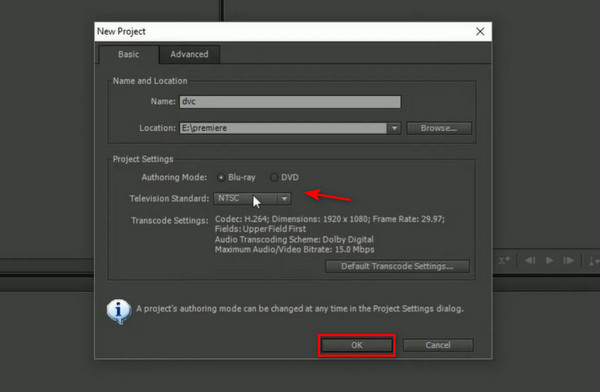
Though officially discontinued by Adobe, Adobe Encore remains a benchmark Blu-ray authoring tool for studio-grade, commercial-ready Blu-ray production and ultra-advanced authoring needs. It includes many advanced features like pop-up menus that overlay playing video, multi-angle audio switching, precise subtitle track layering, and native Dolby Digital or DTS audio pass-through. If you need complex menu routing, custom chapter playlists, or exact bitrate controls, Encore offers a level of depth that consumer software rarely matches.
Pros
- You can have complete control over menu assets, button states, and script logic.
- It has various settings for you to configure subtitle tracks, multi-audio selection, and motion menus.
- Native integration with Photoshop for layer-based menu design.
Cons
- This tool has not received updates or technical support since 2012.
- It requires a high technical learning curve to burn Blu-ray discs with it.
Top 3. The Budget Champion: MultiAVCHD
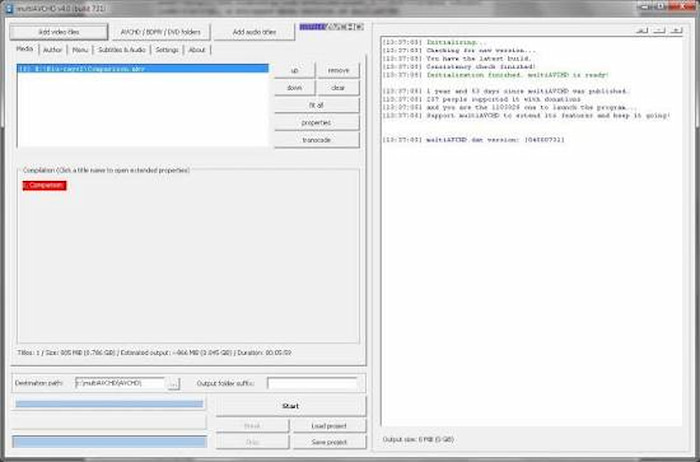
MultiAVCHD is an open-source tool for creating Blu-ray and AVCHD discs. You may have heard of it – this software is designed for users who wish to customise their disc structure extensively without purchasing commercial software. When burning Blu-ray discs, users can import various video formats (such as MP4, MKV, or TS files) and combine them into a single, fully playable Blu-ray disc. Although its interface is somewhat outdated, MultiAVCHD remains highly popular for its ability to generate custom top menus, opening menus, and interactive chapter menus; therefore, it is an extremely practical tool for experienced users who want to create physical media for standalone Blu-ray players or game consoles.
Pros
- It offers complex authoring capabilities without watermarks or subscription fees.
- This free Blu-ray authoring tool supports multi-page menus, custom background graphics, audio tracks, and chapter thumbnails.
- It handles a wide variety of video and audio formats, including multi-channel audio streams.
- It allows precise tweaking of output structures (BDMV, AVCHD, ISO) and stream properties.
Cons
- The software has not been updated in years, leading to potential stability issues on modern operating systems like Windows 11.
- Its interface is cluttered, unintuitive, and overwhelming for beginners.
- It lacks modern GPU hardware acceleration, making re-encoding and menu generation time-consuming.
Top 4. The Sleek Consumer Favorite: Wondershare Blu-ray Creator
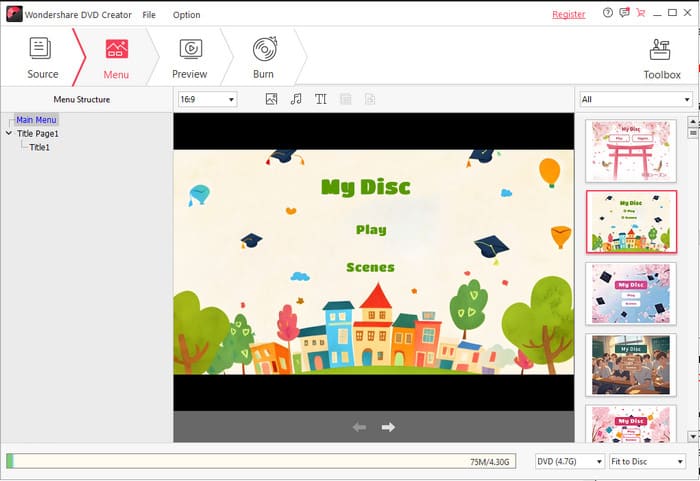
Designed specifically for casual creators, Wondershare Blu-ray Creator simplifies the path from raw digital video to a finished physical disc into a clean, straightforward workflow. This software centers on ease of use. With this, every user can create their own Blu-ray.
The software has a built-in editor that lets you crop, edit, or apply basic visual filters to video footage before burning it to a Blu-ray disc. Additionally, the software offers a variety of stylish templates – including themes for holidays, travel, and family events – making it easy to convert your mobile phone videos into CDs that make perfect gifts.
Pros
- Its user-friendly interface is easy to navigate, even for total beginners.
- It includes a basic video editing workspace for quick touch-ups.
- Most common video formats are supported for input, including MP4, MOV, MKV, AVI, WMV, etc.
- You can burn videos to BD-R/BD-RE media, including single-layer (BD-25), and dual-layer (BD-50).
Cons
- Its Blu-ray authoring feature is available only on Windows computers.
- Limited deep encoding configurations for bitrate or audio pass-through customization.
- Its free trial version would add big watermarks to the output.
Top 5. The macOS Specialist: Roxio Toast Pro
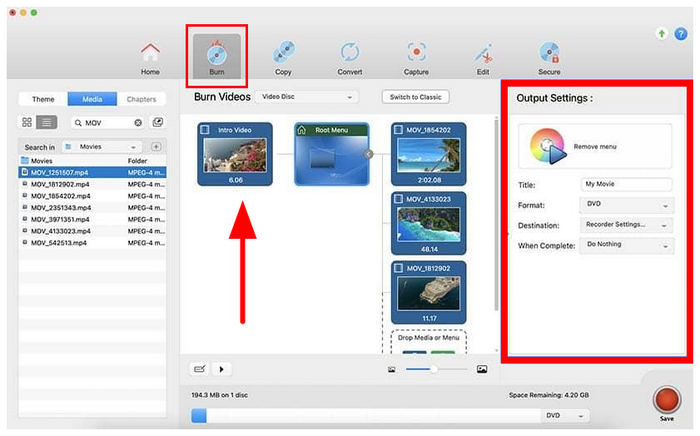
Mac users often struggle to find dedicated disc authoring software since Apple discontinued tools like iDVD. Roxio Toast Pro fills that gap natively on macOS. It is a dependable, all-in-one media utility that natively supports HD Blu-ray authoring. It takes advantage of modern Apple Silicon hardware (M-Series chips) to deliver fast encoding times. It handles high-quality Apple ProRes source files smoothly, supports custom menu layouts, and includes extra utility features like disc encryption and multi-drive burning for media production workflows.
Pros
- Excellent macOS integration and M-series processor optimization.
- It can handle high-res ProRes inputs cleanly.
- It features a menu template designer with over 100 presets, customizable layouts, motion backgrounds, sub-menus, and custom audio tracks.
Cons
- It delivers a higher price point compared to standard single-purpose burners.
- It is specifically designed for Mac users.
- It was reported to have occasional glitches on large projects.
Deep Dive: What Actually Matters When Choosing a Blu-ray Creator
When selecting software to convert MP4 to Blu-ray ISO or author physical discs, keep this checklist in mind:
- Input & Output Flexibility: Ensure the software reads modern H.264, H.265, and MKV sources, and outputs to BD-R, BD-RE, BDMV folders, and ISO images. Blu-ray Master DVD Creator excels in its wide input and output flexibility.
- Menu Design Freedom: Look for software that allows custom background images, scalable text, audio clips, and flexible button placement rather than locked, non-editable templates. All 5 tools include menu features, and Adobe Encore is the top 1 choice if you want to highly customize your menu.
- Encoding Control vs. Ease: Decide whether you prefer automated background transcoding (great for quick burns) or manual control over video bitrates, audio formats, and frame rates.
- Preview Features: A built-in virtual player lets you test interactive menus before burning, saving time and money. Each tool offers a preview feature for you to see and adjust the video effects before burning, though there are some differences in their functional implementation and level of sophistication.
Bonus: How to Avoid Turning Blank Discs into Coasters
Burning high-density Blu-ray discs requires precise operation. Here are some practical tips to help you achieve optimal stability during the burning process:
- Select high-quality storage media: Choose the appropriate disc type based on project requirements. Use BD-R for permanent, archival-level recording; use BD-RE for temporary testing or rewritable projects. Additionally, selecting storage media from a reliable brand is also important.
- Regularly update firmware: Ensure that your internal or external optical disk drive (ODD) runs the latest manufacturer firmware to maintain compatibility with new batches of blank storage media.
FAQs about Best Blu-ray Authoring Software
-
Can I burn a 4K UHD video onto a standard Blu-ray disc with menus?
Yes, but the software will transcode or downscale the video stream to fit standard Blu-ray specifications (1080p).
-
What is the difference between Blu-ray burning and Blu-ray authoring?
Blu-ray burning simply writes data files (like photos or loose MP4s) directly onto a disc like a flash drive. Blu-ray authoring converts video files into a compliant BDMV directory structure complete with interactive menus, chapter points, and stream navigation playable on standard home hardware.
-
Is there any completely free software to make a Blu-ray menu?
Yes. Tools like MultiAVCHD allow you to author basic to intermediate Blu-ray menus completely for free.
-
Do modern Blu-ray authoring tools support HDR10 or Dolby Vision?
Most consumer-grade content production tools encode videos into formats compliant with the Rec. 709 (SDR) standard, suitable for standard 1080p BD-R discs. To preserve complete HDR10 or Dolby Vision metadata, you need to purchase professional-grade 4K UHD authoring software.
-
Can I play a self-made Blu-ray disc on a PlayStation 5 or Xbox Series X?
Yes. As long as your authoring software outputs a standard, compliant BDMV file structure burned to a supported BD-R or BD-RE disc, mainstream game consoles with optical disc drives will play it like a commercial movie.
Conclusion
Physical media is a reliable and stable way to store your precious video files. Authoring your cinematic projects or family memories onto a physically burned, properly stored Blu-ray disc ensures your high-definition footage stays safe, independent, and accessible for decades. In this guide, we list the 5 best Blu-ray authoring software for Windows and Mac. Check the features of each tool and choose one to create your Blu-rays.
