

Oct 17, 2025Posted by Kevin Miller to Create Blu-ray
Blu-ray discs are the best optical disk storage format you can use to store videos and movies, which you can play using a Blu-ray player device. It is the best right now because you can store media files up to 50GB with video quality in 4K resolution. In addition, you can put a Blu-ray menu that will show the title, photo, or preview of the videos included on the disc. You can customize that menu screen using the free Blu-ray menu creators on the desktop. Learn their advantages and disadvantages, as well as their features. Continue reading below and see what's in store for you.
- Top 1. Blu-ray Master Blu-ray Creator
- Top 2. Wondershare DVD Creator
- Top 3. Express Burn
- Part 4. Bonus: How to Create a Blu-ray menu
- Part 5. FAQs about Blu-ray Menu Creator
| Features/Program | Blu-ray Master Blu-ray Creator | Wondershare DVD Creator | Express Burn |
| Platforms | Windows | Windows/Mac | Windows/Mac |
| Supported Video Formats | MP4, AVI, MKV, MOV, FLV, etc. | MKV, MOV, FLV, WMV, MTS, M2TS, and more | MP4, AVI, WMV, MKV, MOV, and others |
| Video Editing Tool |  | | |
| Blu-ray Menu Creator | | | |
| Disc Burning Speed | Lightning Fast | Fast | Fast |
| Pricing | $44.25 | $39.95 | $70 |
| Free to Download | Available | Available | Available |
| Menu Templates | | | Basic |
| Customization Settings | Add background music, images, and chapter navigation. | Customize background, buttons, text, music, and chapters. | Add custom images, align text, and edit the title/subtitle. |
Top 1. Blu-ray Master Blu-ray Creator
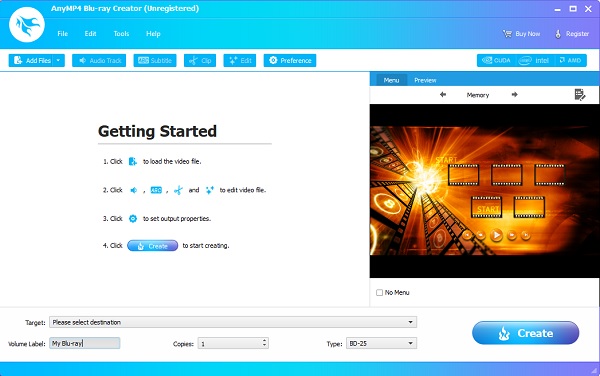
First on the Blu-ray menu creating program's list is Blu-ray Creator. It is one of the commendable programs right now. It is free to download, has a very stable and straightforward interface, and has a video editing tool. Also, you can use the pre-downloaded templates for your menu or create a personalized template. There are free template designs for Blu-ray menu making. You can change the menu background, menu frame, control buttons, and title fonts. And if you want to be more unique, use your own image and add background music. Furthermore, your videos are safe as they guarantee no quality loss during the process. This software is 100% safe to use on any Windows device.
Pros
- Allows users to burn videos in 4K resolution.
- Supports videos in various different formats (MP4, MOV, MKV, VOB, MPEG, etc.).
- Can convert videos to Blu-ray Folder and ISO file.
Cons
- Needs to buy the full version to unlock all features.
- No Mac version as of the moment.
Free Download
For Windows
Secure Download
Users Review
- Many people appreciate its intuitive interface and reliable menu customization features.
- Many users express their satisfaction with its menu customization features on background images, music, and chapter navigation.
- Some people report limitations in advanced editing features and occasional glitches during burning.
Top 2. Wondershare DVD Creator
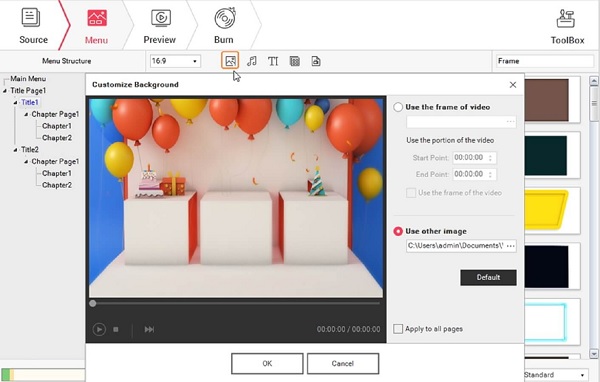
Next, We have Wondershare DVD Creator. Not only can it create DVDs, as the name implies, but it is also capable of burning videos to Blu-ray discs. This tool allows users to create their own menu templates from scratch or use the premade templates for free. You can modify the background, frame, control buttons, and fonts. What makes it unique is that it offers static and dynamic menu templates. Moreover, it has a basic editing function to edit your videos before you store them on the disc. You can run this Blu-ray menu creator program on Windows and Mac computers.
Pros
- Simple and easy to use.
- Burn images to DVD.
- Easy to create DVD/Blu-ray menu.
Cons
- Blu-ray output only on Windows.
- Occasional crash when under heavy process.
- Watermark is included in the trial version.
Users Review
- The software earns praise for its wide format support and customizable Blu-ray menu templates.
- Many users appreciate its built-in video editor for basic tasks like trimming, cropping, and adding effects.
- Some reviewers point out that Blu-ray output is only available on the Windows version.
Top 3. Express Burn
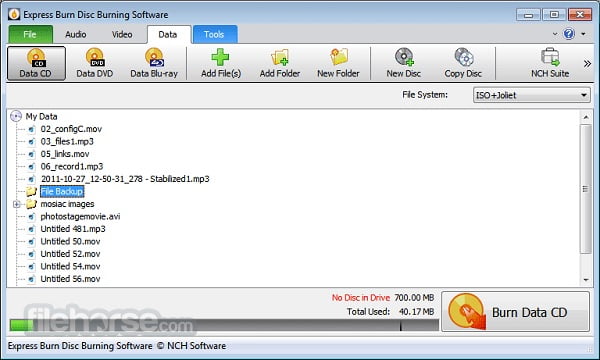
Last on this list of the free Blu-ray menu creators is Express Burn of NCH Software. This software is considered a simple yet powerful Blu-ray disc maker that can write, copy, and burn video, data, and audio. It has a user-friendly interface which is great for beginners. Moreover, you can customize your Blu-ray menu using 20+ template menu screens and buttons. If you want to give this Blu-ray disc as a present, you can import and use their own photos and include your preferred background theme as well. You can also put a title and subtitle to easily identify the video. This program can be used on both Windows and Mac.
Pros
- Can integrate with other apps.
- Fairly easy to use.
- Stable under stress loads.
Cons
- Expensive software.
- No built-in security feature.
- Cannot create MP3 DVDs.
Users Review
- This Blu-ray menu creator is praised for its drag-and-drop interface, fast burning process, and support for a wide range of formats.
- It’s especially popular among users who want a lightweight tool for quick disc creation.
- Some people reflect that the Blu-ray menu settings are too basic.
Part 4. Bonus: How to Create a Blu-ray menu
Create a special Blu-ray menu by following the guide we provided below using the recommended free Blu-ray menu creator we have today.
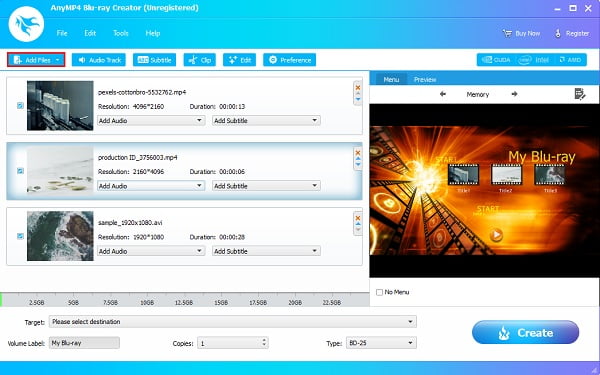
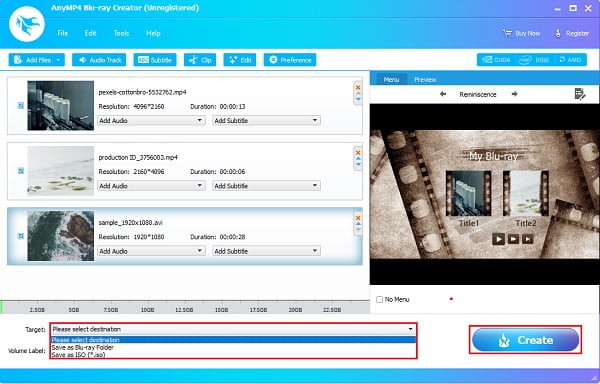
Step 1.Download and install Blu-ray Creator on your desktop. You can go to its website or tap the Free Download button in the previous section. After installing, open the program, insert a disc, and click the Add Files button to add a video to the desktop software.
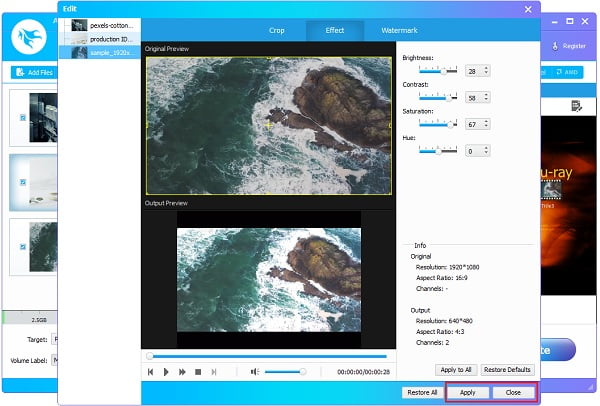
Step 2.After adding video or videos to the program, you can tap the Edit button to enhance your videos. Once you tap the said button, a window interface will pop up where the editing controls are located. You can crop and change the aspect ratio of the videos, adjust the effects, and add image or text watermarks. Tap Apply, then click Close.
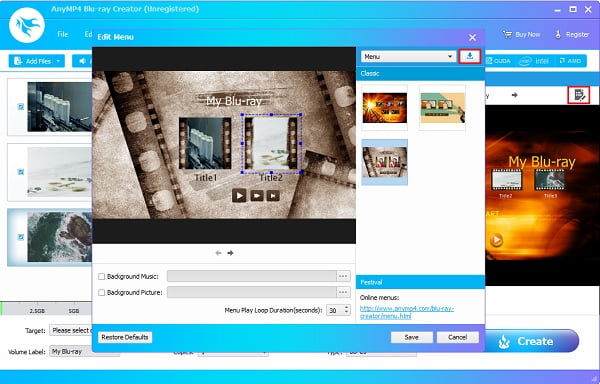
Step 3.Next is choosing the Blu-ray menu display. The menu templates can be found on the right side of the app's interface. Tap the Edit Menu icon to open the editing window. You can choose different types of menu, frame, button, and text font. And if you want more templates, click the Download icon to get more on the internet.
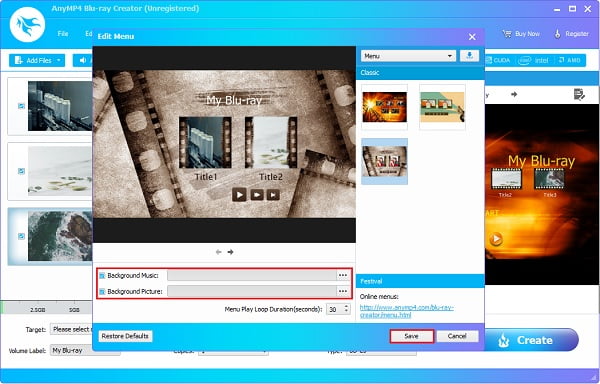
Step 4.Check the box near Background Music and Background Picture to import audio and a photo that you will use for your Blu-ray menu. You can then click Save to save the modifications.
Step 5.Finally, click Target to select a destination of the video. You can save it on the Blu-ray disc or create it as a Blu-ray Folder or ISO File so you can store it on your PC. Tap Create to start disc burning. The process lasts for a few minutes, so please wait for it to end before you exit the MP4 to Blu-ray burner.
Part 5. Bonus: FAQs about Blu-ray Menu Creator
-
What is the duration of the Blu-ray Menu?
The default time for the Blu-ray menu is 15 seconds. But some programs allow users to adjust the time up to 99 seconds.
-
How long will it take to burn a Blu-ray disc?
Depending on the length and resolution of the video, a 25GB video file will be done between 16-32 minutes at 4x-6x burning speed. A 50GB one will consume more than an hour of your time.
-
What devices can run a Blu-ray disc?
Blu-ray discs can only be played with specific Blu-ray drives and players. You cannot play them on a DVD or CD player. But some devices and consoles can play a Blu-ray disc, such as PCs, PlayStation, and Xbox.
Wrapping up
And that's it. You have been enlightened by the different free Blu-ray menu creator programs provided in this article. It is amusing to customize and design a Blu-ray menu using the right program. Blu-ray Creator is a highly recommended software with features for video editing, disc-burning, and blu-ray menu creation. What's more, it is highly customizable, has a user-friendly interface, and can be downloaded for free. This is a perfect tool for beginners and advanced users.
More from Blu-ray Master
