

Aug 19, 2025Posted by Kevin Miller to Create DVD
If you have many video files saved in MPEG format, one good way is to burn them to DVDs, which can create a physical disc that can be played on most standalone DVD players and older computers, and ensure broader compatibility and accessibility without the need for specific media software or digital streaming. This process converts the digital MPEG files into a standard DVD video format, making them universally playable. Now, follow us to see the detailed steps of how to burn MPEG to DVD in 3 easy ways.

- 1. What is MPEG & Why Burn It to DVD
- 2. How to Free Burn MPEG to DVD with DVD Creator
- 3. How to Free Burn MPEG to DVD with DVDStyler
- 4. How to Free Burn MPEG to DVD with BurnAware Free
- 5. Common Issues & Troubleshooting
- 6. FAQs
1. What is MPEG & Why Burn It to DVD
You may be familiar with MPEG, but if you are asked what it is, you don't know its clear situation. MPEG, or Moving Picture Experts Group, is a group that establishes guidelines for compressing audio and video. The most popular of the family of standards referred to by this name are MPEG-1, MPEG-2, and MPEG-4.
MPEG-1: The original MPEG-1 standard was created for VHS-quality video. Video CDs (VCDs) and MP3 music files are its most well-known applications.
MPEG-2: An improvement on MPEG-1, MPEG-2 is the standard used for digital television broadcasts, DVDs, and certain cable and satellite systems. Compared to MPEG-1, it provides higher quality, but the files are larger.
MPEG-4: For enhanced multimedia, mobile video, and web streaming, MPEG-4 is a more effective and flexible standard. Based on MPEG-4, formats like MP4 and codecs like H.264 offer high quality at significantly smaller file sizes than MPEG-2.
Why burn MPEG files to DVD? Here are some common reasons:
Universal Playback: You can use almost any standalone DVD player with a properly written DVD-Video disc. Burning MPEG to DVDs makes it possible to watch your films on a TV without requiring a computer, a particular media player, or an internet connection.
Archiving and Preservation: You can make a physical, enduring archive of your MPEG videos with DVDs. A well-maintained DVD offers a reliable backup compared to digital content that is susceptible to corruption or loss due to hard drive failure. Home videos, treasured recollections, and other significant content can be preserved in this way.
Gifting and Sharing: Video titles, chapters, and menus can be created with DVD authoring software. This makes it simple to arrange and browse through several MPEG files on a single disk, much like a commercial DVD movie.
2. How to Free Burn MPEG to DVD with DVD Creator
If you care more about the program's safety and want to make more professional-looking DVDs from MPEG videos, you can try the best DVD burner, Blu-ray Master DVD Creator. This powerful DVD creator is able to burn DVDs with videos in various formats, including MPEG profiles, and it is compatible with both Windows and Mac computers. What’s more, it has many advanced features to improve your burning of DVDs, like subtitle adjustment, editing tools, and menu templates.
Now, let's see how to use this powerful tool to burn MPEG to DVD.
Step 1. Click the Download button to download Blu-ray Master DVD Creator on your computer. Launch the software and choose DVD Disc in the pop-up window.
Free Download
For Windows
Secure Download
Free Download
for macOS
Secure Download
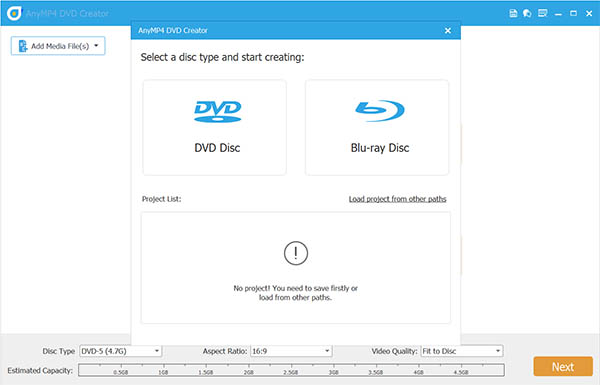
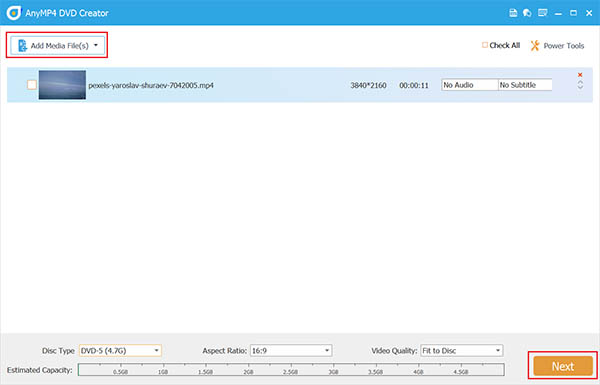
Step 2. Select Add Media File to import one or several MPEG files you want to burn. You can choose the subtitle and audio tracks to edit them. Then, click Next to continue.
Note: You can also choose Powerful Tools at the top right corner to use the various editing tools to adjust the video effects.
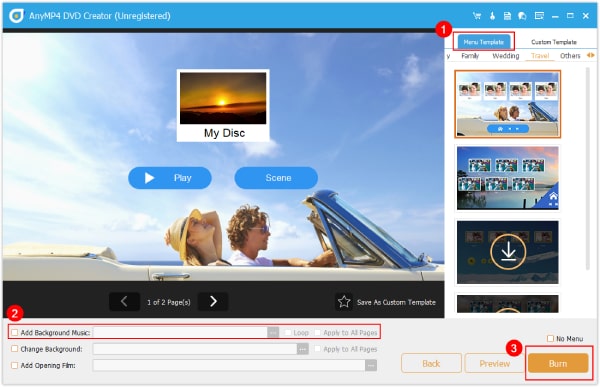
Step 3. It provides multiple menu templates for you to choose from, and you can also create a custom template. In addition, you can also select Add Background Music, Change Background, and Add Opening Film. To proceed, choose the Burn button.
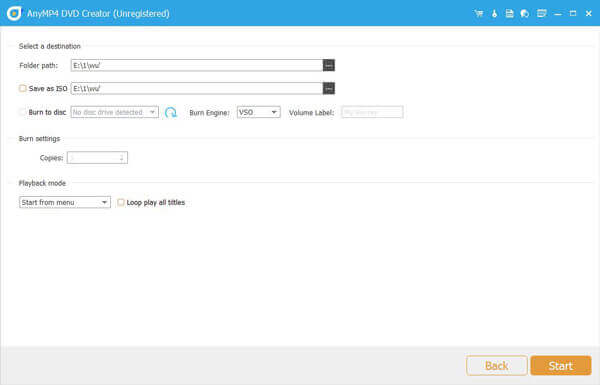
Step 4. Lastly, set the destination of the burned DVD, and click Start to begin the burning process.
Note: You can set the TV standard as NTSC or PAL to fit the standard of your area.
3. How to Free Burn MPEG to DVD with DVDStyler
DVD Styler is a cross-platform, free DVD maker for the creation of professional-looking DVDs. It is open-source software and is completely free. Whether you want to burn MPEG to DVD on a Mac, Windows, or Linux computer, this software can do you a favor. It supports input video and audio formats of MPEG, MPEG-2, MPEG-4, DivX, AVI, MOV, MP4, MP3, AC-3, OGG, WMV, and other file formats.
Here is a guide on using DVDStyler to burn DVDs.
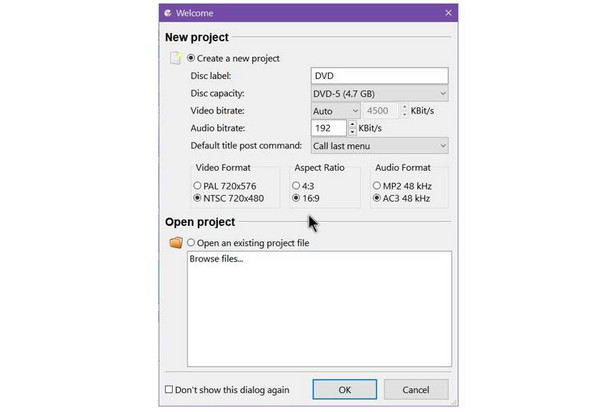
Step 1. Download and install DVDStyler from its official website. In the pop-up Welcome window, set the DVD parameters, like DVD Capacity, Video Format, etc. Then, click OK to go ahead.
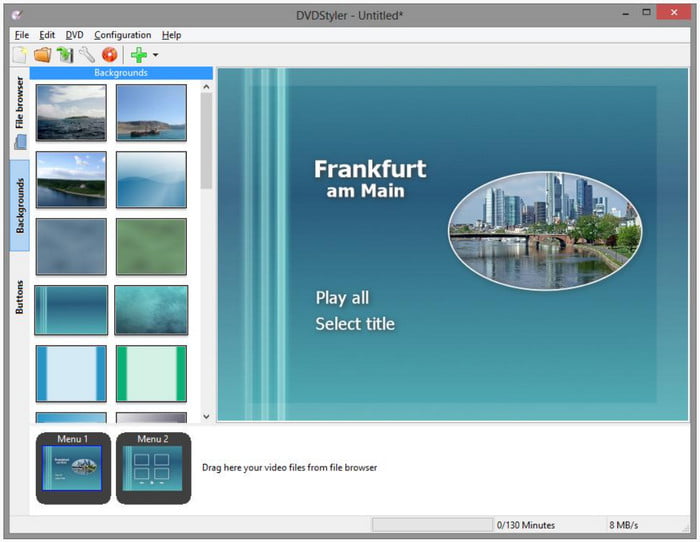
Step 2. Locate the video files in File Explorer, then drag & drop them onto the storyboard area. Alternatively, you can right-click on the storyboard, pick 'Add,' pick 'File, ' and open the MPEG video files.

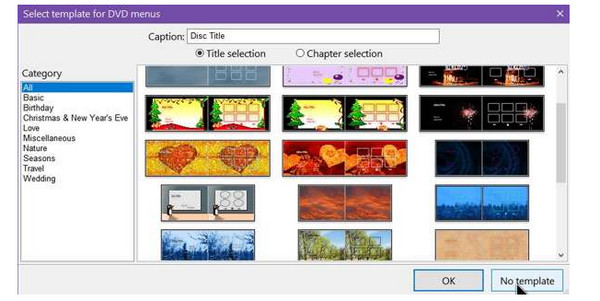
Step 3. You can choose a menu plate for your burned DVD. There are various topics for you to select.
Step 4. Select 'Burn DVD' from the 'File' menu. To start burning movies to a DVD right away, choose 'burn' and press the 'Start' button. You can use this tool to create ISO files and backup your videos in ISO format.
4. How to Free Burn MPEG to DVD with BurnAware Free
BurnAware is a full-featured and free burning program to create CDs, DVDs and Blu-rays of all types, including M-Disc. This free DVD burner supports popular input file types, including videos, pictures, music, documents, digital photos, etc. Home users can easily burn bootable discs, multisession discs, high-quality video DVDs, and audio CDs, make, copy, and burn disc images.
Step 1. Go to the BuenAware official website to download and install it on your computer. Then, open the software and choose Data Disc.
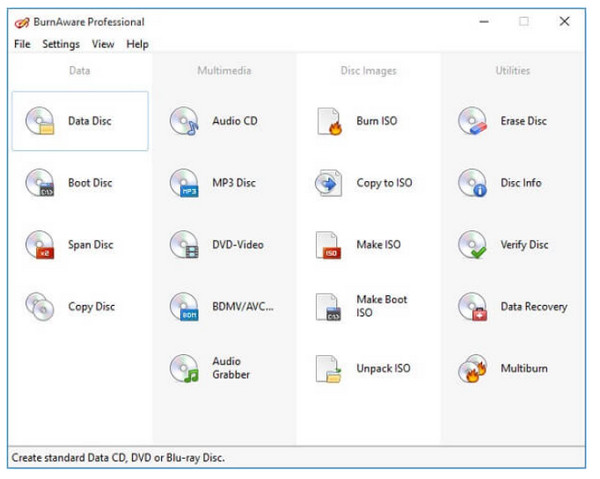
Step 2. Click the Add button at the top to import the MPEG files you want to burn.
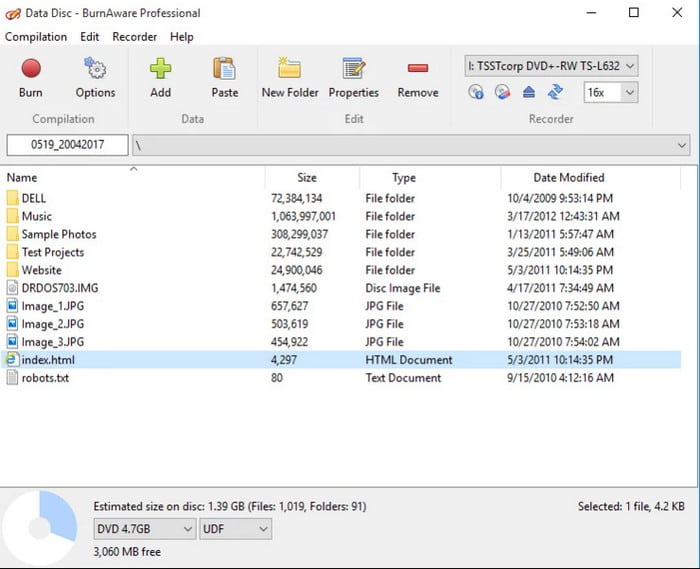
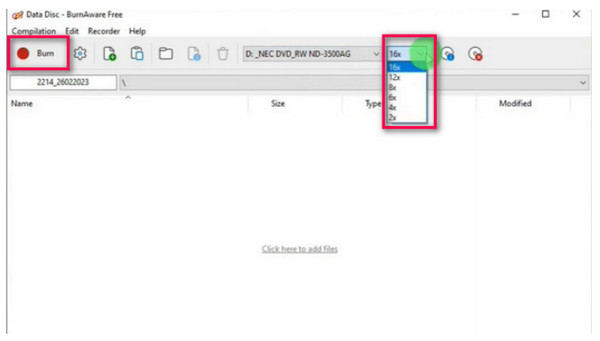
Step 3. Then, adjust the provided settings to optimize the burned DVD, and click the Burn button to create a DVD.
5. Common Issues & Troubleshooting
MPEG Not Recognized
A common issue is the burning software not recognizing your MPEG file. This usually happens because DVD players require a specific type of MPEG file. Use DVD authoring software that can convert your video file to a DVD-compliant MPEG-2 format. These programs handle the transcoding, menu creation, and file structure necessary to make a playable disc. If you're starting with an MPEG-2 file, you can try a program that doesn't re-encode to maintain quality.
Burn Fails or Playback Issues
If the burning process starts but fails, or the DVD burns successfully but has playback problems, the cause could be the disc, the hardware, or the burn speed.
Lower the burn speed: Always choose a slower burn speed, such as 4x or 8x. This gives the laser more time to accurately write data to the disc, resulting in a more reliable burn and better playback on other devices.
Try a different brand or type of disc: Experiment with different brands of blank DVDs and try both DVD-R and DVD+R to see what works best with your burner and player.
Clean your hardware: Use a lens cleaning disc to clean the laser in your DVD burner and playback device.
DVD Won’t Play on Home Player—Region/Code Solutions
If a successfully burned DVD may not play on a standalone DVD player, most often due to region coding or the video format standard.
Region Codes: To regulate distribution, DVDs are frequently region-locked. A DVD player from one region (for example, Region 1 in North America) cannot play a disc from another unless it is "region-free." Make sure your program produces a region-free CD if you're burning a personal film.
PAL vs. NTSC: PAL and NTSC are the two primary video formats. It won't play properly or at all if you burn a PAL disc on an NTSC player (or vice versa). You can select the appropriate format for your location using the majority of DVD creating software.
6. FAQs
-
What is the best format for burning videos to DVD?
The best format for burning videos to DVD is MPEG-2. This is the standard video codec used for all commercially produced and authored DVDs.
-
Can I convert MPEG-4 (H.264) files to DVD?
Yes, you can. You need to use DVD authoring software to convert your MPEG-4 (H.264) files into the required MPEG-2 format firstly.
-
How long does it typically take to burn an MPEG video to DVD?
The time it takes depends on the length of the video, your computer's processing speed, and the burn speed you select. A one-hour video on a modern computer with a medium burn speed might take about 30 to 60 minutes.
-
What's the difference between MPEG, MPG, MP4, and MOV?
Although they are all video file formats, MPEG, MPG, MP4, and MOV each reflect a distinct level of abstraction. While MP4 and MOV are particular container formats that use MPEG standards for encoding and can hold many forms of media data, MPEG is a family of standards for video and audio compression.
-
Will my burned DVD play on any standard DVD player?
Yes, a properly authored DVD should play on most standard DVD players
-
Can I burn multiple MPEG files onto one DVD?
Yes, you can. DVD authoring software allows you to add multiple video files to a single project.
Conclusion
Now, you have learned 3 effective ways for burning your MPEG files to DVDs with detailed steps. With this detailed guide, you can convert your MPEG files to DVDs for backup and archive. Among the three ways, Blu-ray Master DVD Creator is the most recommended for its advanced burning features and fast burning speed. If you have the demands of burning your MPEG files, try this powerful tool!
More from Blu-ray Master
Digital to DVD
