

Mar 10, 2026Posted by Kevin Miller to Play Blu-ray
Key Takeaways
Step 1. Insert a Blu-ray disc into the software and open the Blu-ray player software.
Step 2. Choose Open Disc to import the Blu-ray movie.
Step 3. Play and adjust playback settings to control your movie.
High-definition content continues to gain popularity, which is why Blu-rays remain a top choice for watching high-quality movies. However, playing Blu-rays on a Windows system isn't always as straightforward as inserting the disc. Unlike DVDs, Windows does not support Blu-ray playback due to some restrictions. This shortcoming has created a growing demand for third-party Blu-ray player software that can decode, bypass protection, and deliver high-quality video playback. To help users enjoy Blu-ray movies on their PCs, several playback solutions have been developed. In the following sections, we'll show you how to play Blu-ray on Windows using dedicated tools. We will provide step-by-step instructions and a comparison to help you choose the best Blu-ray playback software for your needs.

- Can I Play Blu-rays on Windows
- Way 1. Play Blu-ray on Windows PC with Rich Functions
- Way 2. Play Blu-ray on Windows PC for Free
- Way 3. Play Blu-ray on Windows PC with Easy Playback
- Troubleshooting of Playing Blu-rays on PC
- FAQ
| Blu-ray Playback Software | System Requirements | Price | Input Blu-ray Type | Video Quality | Other Settings | Blu-ray Copy Protection Support | Usability |
| Blu-ray Master Free Blu-ray Player | Windows 7, 8, 10, and 11 | Free | Blu-ray discs, ISO image files, BDMV folders, 3D Blu-rays, 4K Blu-rays, etc. | Up to 4K Ultra HD | Audio track, subtitles, screenshot, screen size, basic effects, etc. | Yes | Basic |
| VLC Media Player | Windows XP, 7, 8, 10, and 11 | Free | Blu-ray discs and ISO image files | Up to 4K | Subtitle sync, playback speed, video/audio filters, etc. | No | Advanced |
| CyberLink PowerDVD | Windows 10 and 11 | $99.99 | Blu-ray discs and ISO image files, and BDMV folders | Up to 4K Ultra HD | 3D support, media library, streaming, etc. | Yes | Easy |
Can I Play Blu-rays on Windows
Some people ask why Windows lacks native Blu-ray support. There are some reasons:
- Licensing Fees: To support Blu-ray, Microsoft would have to pay royalties (roughly $2–$5 per copy) to the Blu-ray Disc Association. Since most modern PCs don't even have disc drives, Microsoft refuses to pass this 'tax' onto every Windows user.
- The Streaming Shift: Microsoft prioritizes digital streaming (Netflix, etc.) over physical media. They view Blu-ray as a 'niche' hardware requirement better handled by third-party software like CyberLink or VLC.
To play Blu-ray movies, you can try the various Blu-ray player software, which all deliver excellent playback performance, like VLC, Blu-ray Master Free Blu-ray Player, PowerDVD, etc. Now, let's see the essential preparation to play Blu-rays on Windows:
The Hardware Chain
- BD Drive: You need a physical Blu-ray drive. For external units, Pioneer or LG is preferred. Generic/cheap drives often fail to read dual-layer discs.
- HDCP Compliance: Your Monitor and Cable (HDMI/DisplayPort) must support HDCP (copy protection). If you use a VGA adapter or an old monitor, the screen will stay black.
The 4K (UHD) 'Wall'
- Intel SGX Requirement: Official 4K playback requires Intel SGX, which Intel removed in 11th Gen CPUs and later.
- The Result: On modern PCs, 'official' 4K Blu-ray playback is technically impossible. Users now rely on 'UHD-friendly' drives to bypass this.
Way 1. Play Blu-ray on Windows PC with Rich Functions
Best for: Simple Blu-ray playback with rich functionalities.
Blu-ray Master prefers Free Blu-ray Player for its rich functionalities when it comes to Blu-ray playback on PC. It offers full compatibility and accessibility on Windows 11, 10, 8, and 7. This software can play Blu-ray discs, BDMV folders, ISO files, and local files smoothly. Additionally, it allows you to watch Blu-ray movies from Region A, B, and C without restrictions.
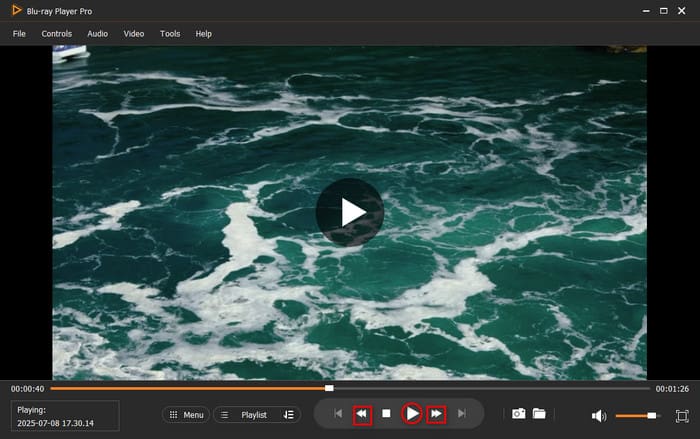
Moreover, you can create a playlist to organize and manage your Blu-ray playback. It also enables you to add audio tracks, adjust volume, add external subtitles, and even take screenshots. The smart playback controls offer easy content navigation, enabling you to play, pause, stop, fast-forward, and rewind Blu-ray content.
Here's how to play Blu-ray on PC:
Step 1.Start by downloading the Blu-ray Master Free Blu-ray Player for free. Install the Blu-ray playback software on your Windows and finish the installation process. Once completed, insert the Blu-ray disc into the Blu-ray drive and run the software.
Free Download
For Windows
Secure Download
Free Download
for macOS
Secure Download
Step 2.Click the Open Disc button to open the external drive and load the Blu-ray disc. The software will automatically scan and show the inserted Blu-ray disc.
If you have a BDMV folder or a Blu-ray ISO file saved on your local drive, use the Open File option instead. The Blu-ray playback software will then analyze the file and play it back automatically afterward.

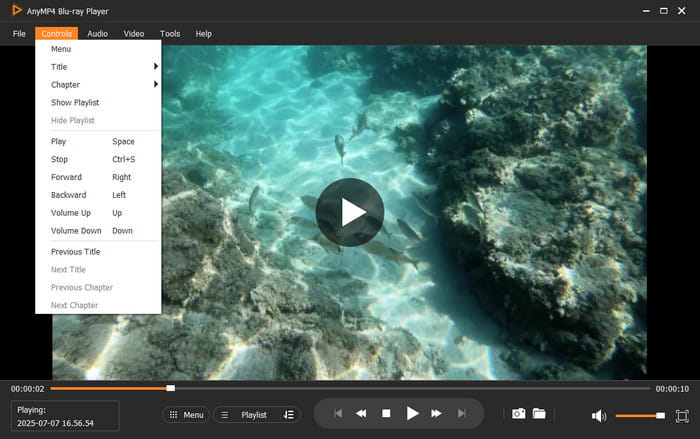
Step 3.Once the Blu-ray is loaded, you can see the Menu icon for you to quick locate the content. Optionally, navigate to the Control tab and click designated options to access other titles or chapters. After making your selections, use the smart controls to Play, Pause, Stop, Forward, and Backward. For additional settings and controls, you can apply the following:
Audio: Click the Audio tab to manage Audio Track, Stereo Mode, and Audio Device.
Video: Click the Video tab to select a video track, subtitle tracks, and set screen size.
Tools: Click the Tools tab to change language and adjust basic video effects.
Free Blu-ray Player, selected by Blu-ray Master, delivers a smooth and stable performance. Beyond Blu-rays, it supports other sources like media stream formats and various DVD types. This multimedia playback versatility enriches the Free Blu-ray Player's functionalities.
Way 2. Play Blu-ray on Windows PC for Free
Best for: Free Blu-ray playback for advanced users.
VLC Media Player is a leading media playback software known for its broad media support. In addition to local files, it can play homemade Blu-rays without any problem. However, for commercial Blu-rays, you need to use workarounds to play Blu-rays on Windows 10/11.
Step 1.Navigate to the Blu-ray support site and download the key database and AACS dynamic library. These files enable the media player to bypass standard protection on most Blu-ray discs. Before doing so, ensure your VLC is updated to the latest version (3.0.21).
Tips
Reddit users frequently warn that VLC is not 'plug-and-play' for Blu-ray due to:
• Manual Setup: You must manually create folders and download libaacs.dll and KeyDB.cfg. One wrong folder name and it fails.
• Expired Keys: The online KeyDB.cfg database is often outdated. If your disc is a new release, VLC likely won't have the key to decrypt it.
• Firmware Lock: Some drive updates can 'blacklist' your player, permanently breaking VLC's decryption ability.

Step 2.On your Local Disk (C:), create a new folder and name it aacs. Move the KEYDB.cfg file into that folder and paste the libaacs.dll file into the VLC installation directory. If your Windows is running 32bit VLC, the directory should be C:Program Files (x86)VideoLANVLC.

Step 3.After setting up everything, place the Blu-ray disc on your Blu-ray drive. Press the Ctrl + D keys to open the Blu-ray into the media player. If VLC detects it, you should now be able to play your Blu-ray movie. Use the playback controls to navigate through the content.

VLC Media Player can play Blu-ray discs on Windows 10/11 with a bit of extra setup. Although complicated, installing the essential files into the correct directories can make the Blu-ray playback doable. Remember, if a single file is misplaced, VLC won't play Blu-rays properly.
Way 3. Play Blu-ray on Windows PC with Easy Playback
Best for: High-end Blu-ray playback with easy navigation.
CyberLink PowerDVD is a modern and feature-rich media player software for Windows systems. It supports playback of Blu-rays, DVDs, 4K Ultra HD videos, music, and more. With it, you can organize your media, add thumbnails, create poster walls, and manage photos.
Here's how to play Blu-ray DVDs on a PC:
Step 1.Put the Blu-ray disc on your external Blu-ray drive and launch the software. Click the Open DVD/Blu-ray Folder button and locate the drive that contains your Blu-ray disc. Select the disc to start the playback. However, if PowerDVD is already open, your disc will automatically appear in the media library.

Step 2.To access extra or bonus Blu-ray disc content, you need to download the PowerDVD Remote app from your device's app store. This app enables you to conveniently control playback and navigate menus from your portable device.

PowerDVD is a reliable software to play Blu-ray on Windows 10/11. With just a few steps, you can enjoy high-quality Blu-ray movies with ease. However, you need to get the PowerDVD Remote app first to access the Blu-ray's extra and bonus content.
Troubleshooting of Playing Blu-rays on PC
There are instances where Blu-ray playback on PC does not go as smoothly as expected. Troubleshooting Blu-ray playback requires checking all the essential components: hardware, software, and the disc itself. By understanding and diagnosing these three main areas, you can efficiently pinpoint the cause of playback issues.
Hardware Problems
Hardware-related causes Blu-ray playback failure on Windows PCs. Blu-ray discs require a dedicated Blu-ray drive to read the high-density format of Blu-ray discs. Also, incompatible drivers for the Blu-ray drive prevent proper functioning. Ensure the external or internal Blu-ray drive is connected, powered on, and recognized by the system.
Software Problems
Software issues can prevent PCs from playing Blu-rays even when you have the proper hardware. To play Blu-rays, you must install third-party Blu-ray playback software. Make sure your playback software supports the disc's protection type. Missing or misconfigured codec files or libraries can also cause failures when trying to play protected discs.
Disc Problems
Issues with the Blu-ray disc itself can also hinder playback. The most straightforward problem is physical damage, which prevents the laser from reading it properly. Cleaning the disc gently with a soft microfiber cloth may help. Another potential issue is region coding; Blu-ray discs are encoded to only work in specific regions. If your Blu-ray player or software is set to a different region, the disc will not play. Lastly, disc format compatibility matters.
FAQ
-
Why won't my Windows 11 PC play the Blu ray disc I just inserted?
Windows 11 doesn’t include built in Blu ray playback support, so commercial discs won’t play unless you install third party Blu ray software.
-
How to get VLC to play encrypted Blu rays with AACS libraries?
VLC needs the AACS keys database and the libaacs library added manually. After installing those files, VLC can play some encrypted Blu rays, but not all.
-
Do I need a special hardware drive to watch 4K Blu ray on my laptop?
Yes. 4K UHD Blu ray requires a UHD compatible Blu ray drive, which is different from a standard Blu ray drive.
-
Is CyberLink PowerDVD worth it for Windows 11 in 2025?
If you want reliable, fully licensed Blu ray and UHD Blu ray playback on Windows 11, PowerDVD remains one of the most dependable paid options.
Conclusion
With the right Blu-ray playback software, you can effortlessly play Blu-rays on Windows. Whether you're using free tools like VLC or premium options like PowerDVD, there are several ways to enjoy your Blu-ray movies on your PC. Among these, Blu-ray Master Free Blu-ray Player stands out as a reliable and completely free solution for playing Blu-rays. It supports playback of Blu-ray discs, ISO image files, BDMV folders, and even Blu-rays from all regions. It also offers handy features to elevate and enhance your Blu-ray playback experience.
More from Blu-ray Master
Play Blu-ray Movies

Easily play Blu-rays, DVDs, and various video/audio formats with rich playback features.
100% Secure. No virus
