The most standard way to play Blu-ray movies is to use a Blu-ray player hardware compatible with the region-specific standards. However, nowadays, many consider this way a little troublesome. If you want to play Blu-rays on Windows computers, it is available, but you need to make some preparations.
When inserting a Blu-ray disc into your Windows computer, the system will likely display a silent notification or error message. Neither Windows 10 nor Windows 11 natively supports Blu-ray playback. Microsoft removed built-in DVD playback support years ago; furthermore, the Blu-ray format has never received native support due to its reliance on expensive proprietary codecs and licensing fees (e.g., AACS encryption).
This article introduces three optimal methods to help you overcome Windows system limitations and effortlessly enjoy your Blu-ray film collection.

How We Tested & Comparison
We tested these methods on both Windows 10 and Windows 11 PCs using standard commercial Blu-ray discs. We evaluated each option based on installation complexity, playback stability, and feature sets.
| Method | Ease of Use | Price | Best For | 4K Playback | Advanced Settings |
| Blu-ray Master | Excellent (Plug & Play) | Free | Beginners & Quick viewing | No (Requires Pro) | GPU acceleration for seamless video playback. |
| VLC Media Player | Complex (Manual Setup) | Free | Tech-savvy users | Limited/Unstable | Equalizer, Stereo Widener, Synchronization, and others for video/audio improvement. |
| MakeMKV (Ripping) | Moderate | Free (in Beta) | Digitizing for any device | Yes (With LibreDrive) | Title, audio tracks, and subtitle manually selection. |

Preparation
- A Blu-ray Drive: You must use an internal or external Blu-ray drive, as standard DVD drives cannot read Blu-ray discs.
- Third-Party Software: You need to install a dedicated player like Blu-ray Master or VLC, because Windows Media Player lacks native Blu-ray decoding licenses.
- An HDCP-Compliant Cable: You must connect your PC to your monitor using a digital cable like HDMI or DisplayPort to support mandatory copyright protection.
- A Compatible Display: You need a standard HD monitor for regular Blu-rays, or a dedicated 4K HDR display if you plan to watch Ultra HD discs.
- Decryption Files (For VLC Only): If you choose VLC, you must manually download and configure extra decryption keys to bypass the disc’s built-in AACS copy protection.
Method 1. Use a Dedicated Free Blu-ray Player (Recommended)
Verdict: The most efficient and user-friendly solution for anyone looking to play Blu-ray discs instantly without tedious configurations.
Firstly, we want to recommend the Blu-ray Master Free Blu-ray Player, a free and powerful media player. With an intuitive interface, you can easily load and play your Blu-ray discs, folders, and ISO files. It supports high-quality video and audio playback. Besides, it adopts GPU acceleration, giving you a seamless and immersive video-watching experience. Like many other players, it offers multiple settings to fully control Blu-ray playback, including playlist, screenshot, skip, and menu options. It is compatible with Windows 11/10 and earlier versions of Windows. You can click the download buttons below to try it.
Step 1.Click the above download buttons to download the Blu-ray Master Free Blu-ray Player on your Windows computer. You can also access its official website to know the tool more clearly.

Step 2.Click the Open Disc button and further choose the inserted Blu-ray disc to load it. If you want to play the BDMV folder, choose the Open Folder option. The software will automatically scan and show the inserted Blu-ray disc.
If you have a Blu-ray ISO file saved on your local drive, use the Open File option instead. The Blu-ray playback software will then analyze the file and play it back automatically afterward.

Step 3.Once the Blu-ray is loaded, you can click the Menu icon for you to quickly locate the content. Optionally, navigate to the Control tab and click designated options to access other titles or chapters. After making your selections, use the smart controls to Play, Pause, Stop, Forward, and Backward.
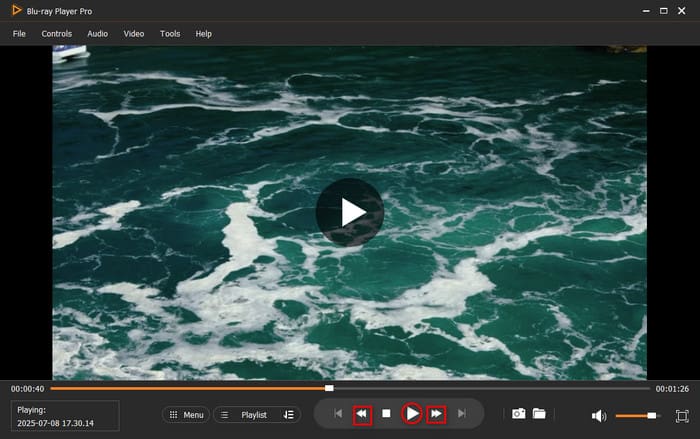
Overall, if you want a free and easy way to play Blu-ray movies, as well as advanced playback controls, it is a good choice. It can play region A, B, and C Blu-rays and Blu-rays with different copy protections with decryption technologies. The limitation is that it fails to play 4K and higher resolution videos.
Method 2. Use VLC Media Player (With Extra Setup)
Verdict: A highly customizable open-source option that works wonderfully if you don't mind spending time configuring hidden system files.
Some people may think that VLC is the best choice as it is a well-known free and open-source media player that is able to play almost all video and audio formats, including Blu-ray. Though it is an old Blu-ray player tool, it is also equipped with advanced settings for video improvement, like Equalizer, Stereo Widener, Synchronization, and others.
Step 1.Navigate to the Blu-ray support site and download the key database and AACS dynamic library. These files enable the media player to bypass standard protection on most Blu-ray discs. Before doing so, ensure your VLC is updated to the latest version (3.0.21).
Tips
Reddit users frequently warn that VLC is not 'plug-and-play' for Blu-ray due to:
• Manual Setup: You must manually create folders and download libaacs.dll and KeyDB.cfg. One wrong folder name and it fails.
• Expired Keys: The online KeyDB.cfg database is often outdated. If your disc is a new release, VLC likely won't have the key to decrypt it.
• Firmware Lock: Some drive updates can 'blacklist' your player, permanently breaking VLC's decryption ability.

Step 2.On your Local Disk (C:), create a new folder and name it aacs. Move the KEYDB.cfg file into that folder and paste the libaacs.dll file into the VLC installation directory. If your Windows is running 32bit VLC, the directory should be C:Program Files (x86)VideoLANVLC.

Step 3.After setting up everything, place the Blu-ray disc on your Blu-ray drive. Press the Ctrl + D keys to open the Blu-ray into the media player. If VLC detects it, you should now be able to play your Blu-ray movie. Use the playback controls to navigate through the content.

VLC Media Player can play Blu-ray discs on Windows 10/11 with a bit of extra setup. Although complicated, installing the essential files into the correct directories can make the Blu-ray playback doable. Remember, if a single file is misplaced, VLC won't play Blu-rays properly.
Method 3. Rip Blu-ray to Digital Formats (MP4/MKV) via MakeMKV
Verdict: The best long-term option for users looking to preserve their physical media collection and watch movies flexibly across all their digital devices.
Bonusly, besides the common Blu-ray players, we want to introduce you to a special way: use MakeMKV to rip Blu-rays to MKV and play MKV files on media players. This method is flexible, and MakeMKV can bypass complex Blu-ray copy protections while fully preserving the Blu-ray information in the MKV format. With a few clicks, you can back up your Blu-rays to digital formats and play them more conveniently.
So, how to use it to digitize a Blu-ray? Let's see the guide.
Step 1.Go to the MakeMKV official website. Download and install it on your Windows computer. Launch the software. Click the Source choice to load the Blu-ray.

Step 2.Once the Blu-ray is loaded, its full information will be displayed in the interface, allowing you to manually select the titles, audio tracks, and subtitles you want to keep.

Step 3.Lastly, set a destination via the Output folder option. Then, click the Make MKV button to start the ripping process.
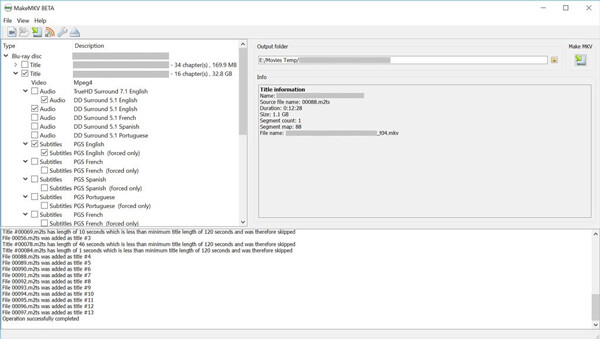
Once the above process is complete, you can open and play the ripped MKV videos on your standard media player. This approach takes time and upfront hard drive storage, but it completely removes physical playback restrictions and provides a permanently accessible digital file with no quality loss.
FAQs
-
Why can't Windows Media Player play Blu-ray discs?
Windows Media Player lacks the necessary decoding licenses and software keys required to decrypt and play commercial Blu-ray discs.
-
Do I need a special drive to watch Blu-ray on my laptop?
Yes, standard DVD drives cannot read Blu-ray discs. You must buy an external USB Blu-ray drive if your laptop doesn't have one.
-
Can Blu-ray Master Free Blu-ray Player play 4K UHD Blu-rays?
The free version usually supports standard 1080p Blu-rays; 4K UHD often requires the Pro version.
-
Is it legal to rip Blu-ray discs to my computer?
Ripping for personal backup is generally considered a grey area or legal in many regions, but distributing copyrighted content is strictly illegal.
-
Why did Microsoft remove native DVD and Blu-ray playback from Windows?
Given cost considerations, the elimination of physical optical drives from modern laptops, and the growing prevalence of streaming services, Microsoft began phasing out native codecs in Windows 8 to reduce costs.
-
Do I absolutely need a specific 4K Blu-ray drive to watch UHD discs on my PC?
Yes. Standard Blu-ray drives physically cannot read the high-density data structures or handle the advanced AACS 2.0 encryption used on 4K UHD discs. To watch or rip 4K discs, you explicitly need a UHD-compatible hardware drive.
Conclusion
To play Blu-rays on Windows 10/11, this guide provides 3 reliable methods from different perspectives. If you want a quick, seamless Blu-ray playback experience, Blu-ray Master Free Blu-ray Player is the best choice. If you've already installed VLC and don't mind the configuration hassle, you can choose it. For easy playback and Blu-ray backups, MakeMKV helps you.
Select the product rating:
Rating: 4.9 / 5 (based on 669 votes) 
Free Blu-ray Player
Easily play Blu-rays, DVDs, and various video/audio formats with rich playback features.
100% Secure. No virus


