

Nov 28, 2025Posted by Kevin Miller to Play Video
With Chromecast becoming popular, many are curious if their MKV files are compatible with it. Well, the compatibility of Chromecast with different file formats becomes a vital consideration. MKV, on the other hand, stands out for its ability to put high-quality video, audio, and subtitles all in one file. Hence, people often wonder if Chromecast can play MKV files smoothly. As we look into the topic, we’ll break down the details to know if Chromecast does support MKV.
- Part 1. Can Chromecast Play MKV
- Part 2. Cast MKV to Chromecast with VLC Media Player
- Part 3. Cast MKV to Chromecast with Google Chrome
- Part 4. Troubleshooting of Chromecast Does Not Play MKV
- Part 5. FAQs About Can Chromecast Play MKV
Part 1. Can Chromecast Play MKV
Yes, Chromecast does have the capability to play MKV files. But note that it comes with limitations. Chromecast has inherent support for certain container formats, and MKV isn’t natively one of them. MKV is a container format and Chromecast requires the video and audio inside to be in a compatible codec like H.264 or HEVC. Direct casting from some apps may fail due to unsupported codecs, high bitrates, or unsupported frame rates, so using apps like VLC or Plex, or converting the file beforehand, is often necessary. If the MKV file contains video and audio streams that Chromecast recognizes, it can play the content seamlessly.
Now, the following is a list of Chromecast-supported container formats:
- MP4
- WebM
- MPEG-4
- 3GPP
- OGG
- MP2T
- MP3
- WAV
Part 2. Cast MKV to Chromecast with VLC Media Player
VLC is a popular program that has amazing capabilities. In fact, it is one of the best free multimedia players that you can use. One of its commendable abilities is that it can cast MKV to Chromecast. But first, ensure that you have a VLC Media Player version 3.0 or later installed. This tool will allow you to seamlessly stream MKV content from their computer to the big screen. To do it, here’s how to cast MKV files to Chromecast with VLC:
Step 1.Begin by installing VLC Media Player on your computer. Afterward, check if the Chromecast and your computer are using the same Wi-Fi.
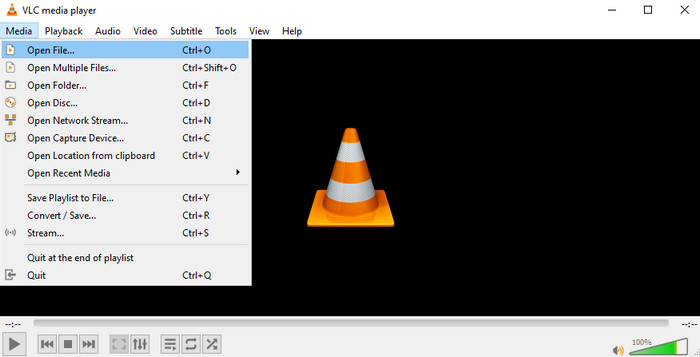
Step 2.Next up, launch the software and open the MKV file you want to watch. Go to Media and click Open to choose the MKV file.
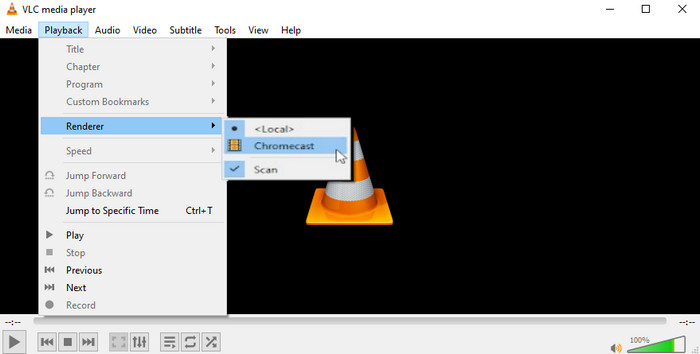
Step 3.Then, to choose Chromecast, head to the Playback option from the menu. Select Renderer from the drop-down menu. Now, select the name of your Chromecast.
Step 4.Finally, your MKV file should now start playing on your Chromecast-connected TV.
Casting MKV files to Chromecast with VLC Media Player is reliable, since VLC supports a wide range of codecs and can transcode unsupported formats. With this free and open-source tool, you can use the built-in 'Stream to Chromecast' feature with ease. Some issues like stuttering, audio mismatches, or heavy CPU usage are inevitable during the playback process.
Part 3. Cast MKV to Chromecast with Google Chrome
Google Chrome, a popular web browser, comes equipped with a built-in casting feature. It allows you to share content from computer to Chromecast-enabled devices. This technique is particularly convenient for those who prefer using their browser to initiate casting. Whether you're casting a specific tab or your entire desktop, the process is user-friendly. Learn how to cast MKV files to Chromecast using Google Chrome with the following steps.
Step 1.To start with, ensure you have installed the newest version of Google Chrome on your PC.
Step 2.Then, open Google Chrome and click on the three dots in the top-right corner to open the menu. Select Save and Share from the drop-down menu, and choose Cast.
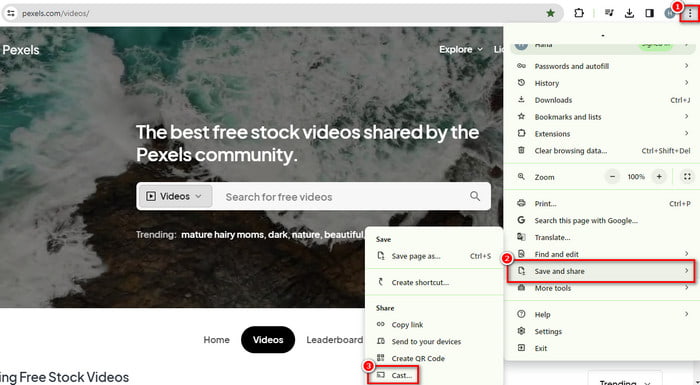
Step 3.A new window will appear. Click on the dropdown menu to pick your Chromecast device.
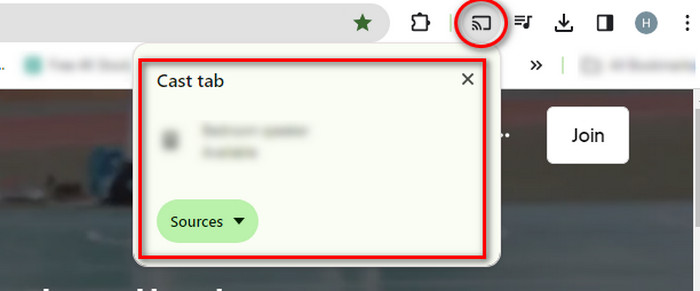
Step 4.Choose whether you want to cast a specific Chrome tab or your entire desktop. If you select a tab, open the MKV file in Chrome, and it should play on your Chromecast.
With Google Chrome, you can easily watch MKV files on Chromecast without installing extra apps. You can enjoy a big-screen watching experience. However, it is not seamless. It suffers from codec compatibility issues, potentially playback glitches, and sometimes requires conversions.
Part 4. Troubleshooting of Chromecast Does Not Play MKV
Solution 1. Convert MKV in H.264 Codec
Ensure that your MKV file is encoded with codecs supported by Chromecast. Chromecast supports H.264 video codec and AAC audio codec. While, MKV files with different codecs may not play on it. Thus, consider converting your MKV file to a compatible format using a video converter. One such tool that can help you is the Video Converter Ultimate from Blu-ray Master. It can be your best companion to convert MKV files to Chromecast compatible formats. It lets you convert MKV files to WebM, MP4, and other Chromecast supported formats. Also, it allows you to tweak video codec, audio codec, quality, frame rate, and so on. Merging MKV files, trimming videos, and adding effects are possible with it. Now, this is how you can convert MKV in H.264 codec.
Step 1.First off, download, install, and launch Video Converter Ultimate on your computer. On the top-menu, ensure to choose Converter from the main interface.
Free Download
For Windows
Secure Download
Free Download
for macOS
Secure Download
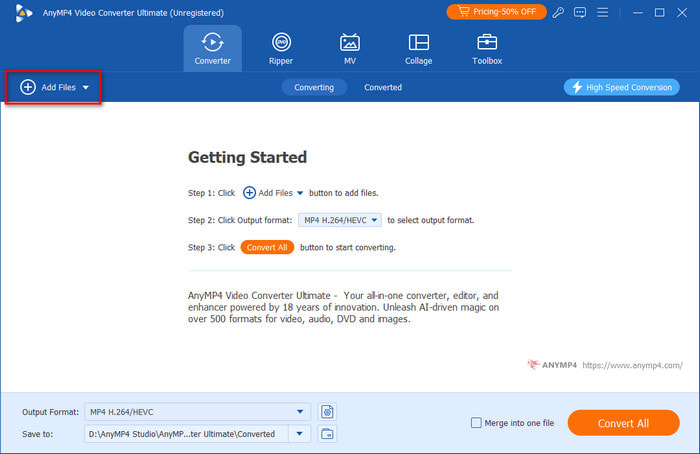
Step 2.Now, click the Add Files button to select and add the MKV file into the software. Alternatively, you can drag and drop the MKV file into the program.
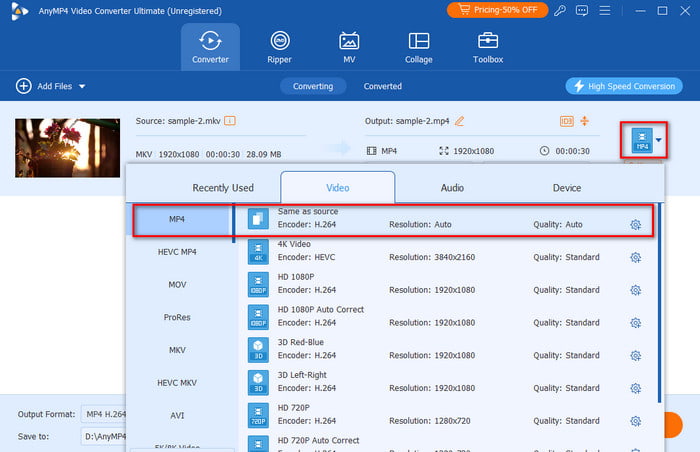
Step 3.Subsequently, click on the Format button on the right side of the tool’s interface. Then, you can choose the format MP4 or MKV and check their Encoder if they are in H.264.
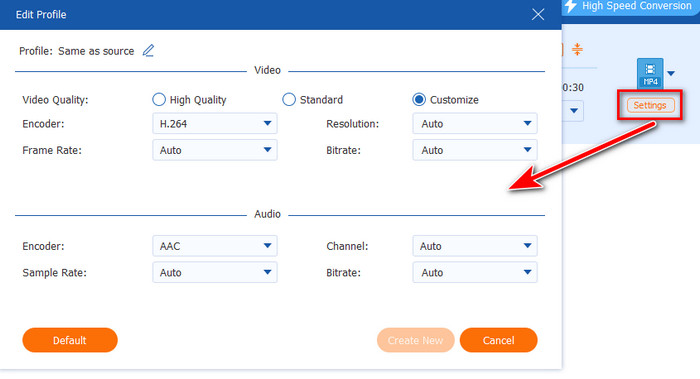
Step 4.Optionally, you can adjust the video’s frame rate, quality, resolution, etc., before converting.
Step 5.Last, but not least, click the Convert All button. Wait until your desired MKV files turn into a compatible format with Chromecast. Then, try to cast the converted MKV to the TV using Chromecast.
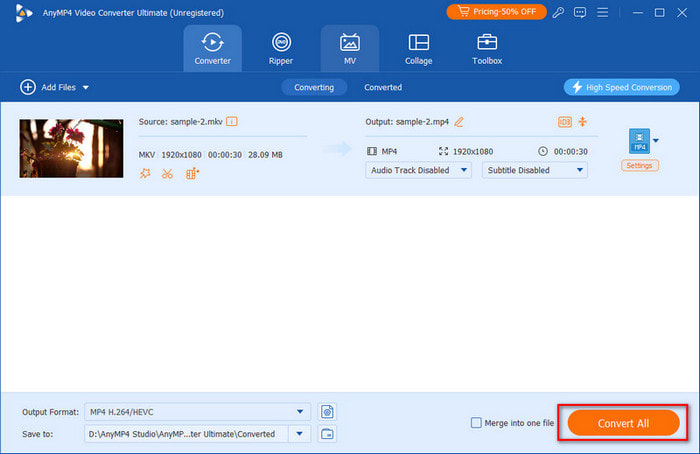
AnyMP4 Video Converter Ultimate is a good choice for converting MKV files to Chromecast-compatible formats like MP4 losslessly. Then, you can enjoy your media files on Chromecast. It is a versatile tool that you can apply to realize better video effects. Have a try!
Solution 2. Update Chromecast Firmware
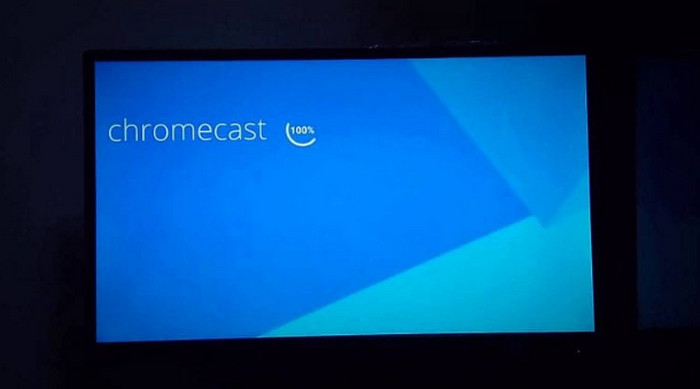
Ensure your Chromecast device is running the latest firmware. Sometimes, compatibility issues are addressed through firmware updates. Thus, see the latest updates in the Google Home app. If you don’t have it on your device, install it on the App Store (iOS) or Play Store (Android). Now, tap on the Devices to select the Chromecast device. Next, go to the Settings section. Scroll down until you see and tap the Reboot button. Finally, it will automatically perform a check for updates and download the necessary files. You can also check the progress on your TV screen.
Solution 3. Check Network Connection
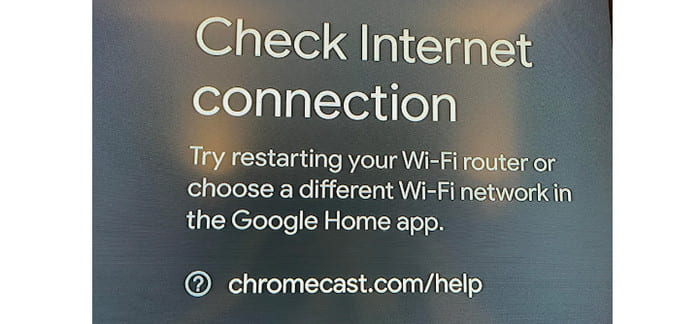
A stable and reliable network connection is vital for smooth streaming. Ensure your Chromecast device and the device casting the content are on the same network. Finally, consider restarting your router to solve issues on MKV not playing on Chromecast.
Solution 4. Clear Cache and Data
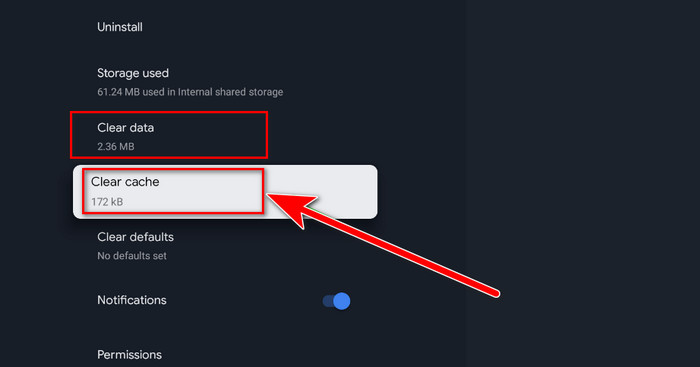
In the Google Home app or your casting app, clear the cache and data. Sometimes, accumulated data can cause playback issues. Thus, you might only need to clear them to resolve the problem.
Solution 5. Reboot Chromecast
Simply restarting your Chromecast can resolve minor glitches. Unplug the Chromecast, wait for a few seconds, and then plug it back in. At last, check if you can play your MKV file using Chromecast.
Solution 6. Try Another Casting Method
If using a casting app, try casting the entire screen instead of the specific application. Many users said that it can help overcome compatibility issues.
Part 5. FAQs About Can Chromecast Play MKV
-
Why does Chromecast have no MKV?
Chromecast may encounter issues with sound when playing MKV files due to incompatible audio codecs. MKV files often use various audio codecs. Now, if the one used is not supported by Chromecast, it can result in the absence of sound. To resolve this, consider converting the MKV file to a format with a compatible audio codec, such as MP3, before casting it to Chromecast. One such tool to try is Video Converter Ultimate to convert it.
-
Why won't VLC cast to Chromecast?
If VLC is having trouble casting to Chromecast, several factors could be at play. It could be because both VLC and Chromecast are outdated. Another thing, both devices might not be on the same network. It could also be some firewalls, or antivirus software might interfere with casting.
-
Can you cast any video format to Chromecast?
While Chromecast supports a variety of video formats, it may not play all formats. Chromecast has better compatibility with formats like MP4, WebM, etc., for they use H.264 video and AAC audio codecs. Thus, certain formats, like MKV, may require additional steps or conversions.
Wrapping up
In conclusion, we saw that Chromecast does not natively support MKV files. Yet, there are viable solutions and workarounds to enable playback of MKV content. Now, your question about whether Chromecast can play MKV has been answered. Plus, for compatibility issues, there’s one versatile solution that can help you. None other than the Blu-ray Master’s Video Converter Ultimate. It ensures that you can convert MKV files to Chromecast-friendly formats. Aside from that, it supports 500+ formats that you can convert into.
More from Blu-ray Master
Play Common Videos
Easily play Blu-rays, DVDs, and various video/audio formats with rich playback features.
100% Secure. No virus
