

Jun 13, 2025Posted by Kevin Miller to Play Video
A DAV format is a proprietary video format associated with digital video recorders (DVRs) or CCTV systems. Simply put, it is commonly used to store surveillance footage. These files are designed to efficiently capture security footage for monitoring and evidentiary purposes. However, accessing DAV files is not as simple as playing a standard media stream format. This post provides a comprehensive guide to playing and managing DAV files effectively. We will cover everything from choosing the right method to play DAV video file with player, conversion software, and troubleshooting tips. However, please note that DAV files primarily capture sensitive or event-based recordings. Understanding the context of the footage is crucial, as it determines how the file should be handled, shared, or stored.

- Part 1. What is the DAV File
- Part 2. Top 4 Methods to Play DAV Files
- Part 3. Troubleshooting Common DAV Playback Issues
- Part 4. Advanced Tips and Tricks for Working with DAV Files
Part 1. What is the DAV File
What is a DAV File?
A DAV file is a proprietary video format used by digital video recorders in CCTVs. These files are intended for storing footage recorded by CCTVs or security cameras. It utilizes the H.264 codec, which provides high compression while maintaining quality at lower bitrates. However, some manufacturers incorporate proprietary codecs to make these files harder to open. It also contains metadata, like timestamps, camera identifiers, motion events, and recording status.
What You Need to Know:
Given that DAV files originate from surveillance systems, they raise several security considerations. Here are some of the common security concerns:
- Compromised systems could produce falsified DAV files or leak footage.
- It contains sensitive or private footage, which requires secure handling and storage.
- There’s a risk of unauthorized access since they are exported for evidence or review.
Why Can’t My Regular Player Open It?
If you find standard media players can’t open DAV files, it’s due to codec compatibility and proprietary formatting. Standard media players use a universal codec, like H.264, to decode the media file. Although DAV files use a standard codec, they may contain proprietary containers that standard players don’t recognize.
Moreover, DAV files are proprietary formats developed by specific DVR manufacturers. These files are made for playback using the manufacturer’s own DAV file format player software. Due to this proprietary design, these files lack documentation and support from third-party developers. In many cases, users must convert the DAV to MP4 using a specialized converter.
Part 2. Top 4 Methods to Play DAV Files
Method 1: Dedicated DAV Player Software
2.1.1 Blu-ray Master Free Blu-ray Player

Blu-ray Master Free Blu-ray Player is a multiform media player software compatible with Windows and Mac. Beyond Blu-ray playback, it also operates as an efficient DAV video player. It supports over 500+ proprietary formats, media stream formats, and other media sources. This flexible media player can playback DAV files recorded by DSD316, DSD308, DSD304, etc. It can efficiently decode any proprietary codec and container formats used in DAV files.
Free Download
For Windows
Secure Download
Free Download
for macOS
Secure Download
2.1.2 Amcrest Smart Player
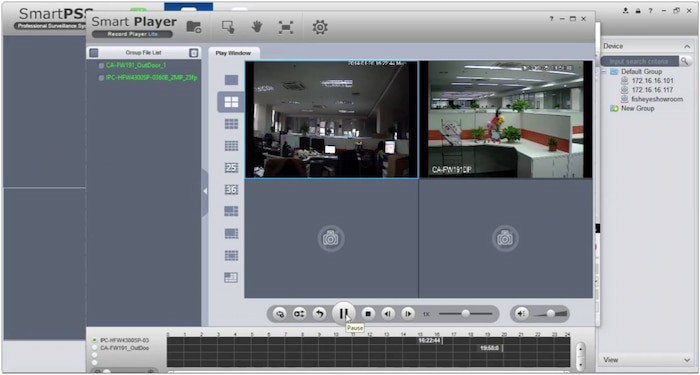
Amcrest Smart Player is among the best video players to play DAV files. It is developed by Amcrest Technologies, a reputable company specializing in surveillance systems and cameras. In addition to DAV playback, it features built-in media file conversion support, enabling you to convert DAV files to AVI format. However, this media player struggles to play large DAV files.
2.1.3 VLC Media Player

VLC Media Player is another software option for accessing DAV files. Although it does not support these files natively, you can use VLC as a DAV extension player . The VLC 3.0.17 version has added support for playing these files and for DTS-LBR. Now, a small heads-up: You need to make technical adjustments to make them playable.
Method 2: Using the Original DVR/NVR Software

Using the DAV file player bundled with your DVR/NVR system is the most compatible method. Certain manufacturers, such as Dahua Technology, provide proprietary video management software specifically designed to handle DAV files. This software includes full compatibility with proprietary docs, playback control tools, and integrated security features.
Method 3: Converting DAV Files to Common Formats
Another effective method to access DAVs is to convert them to a more compatible format. Video Converter Ultimate , preferred by Blu-ray Master, is a full-packed media conversion software. It allows you to convert DAV files to formats such as MP4, AVI, MOV, and over 500 others. It also provides options to adjust video/audio encoder, resolution, frame rate, bitrate, sample rate, etc. It allows you to play the footage on any standard media player software.
Free Download
For Windows
Secure Download
Free Download
for macOS
Secure Download
Step 1.Download the Video Converter Ultimate for free, recommended by Blu-ray Master. Install the media conversion software and complete the installation process. After installation, run the software and click + Add Files to import the DAV files.
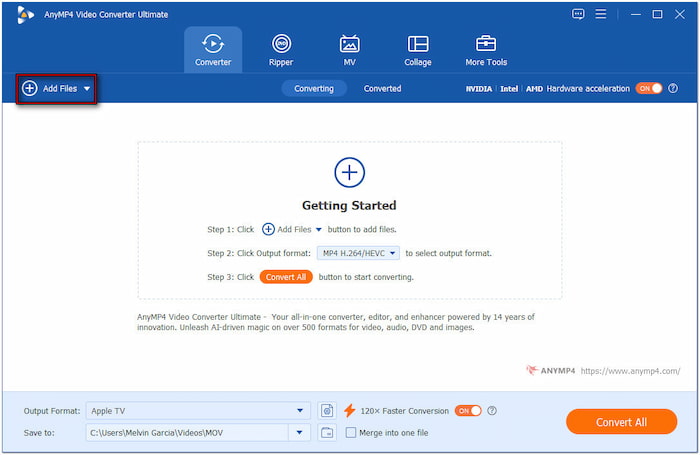
Step 2. Proceed to the Output Format field and select the Video category. In the left navigation, choose your preferred profile (MP4) and preset on the right navigation. To maintain video quality, select the Same as Source preset to avoid altering the frame rate.

Step 3.Proceed to the Save To field to specify the output directory. Activate the 120× Faster Conversion button to accelerate the conversion speed. Click Convert All to start the DAV-to-MP4 conversion based on your settings.

What You Need to Know:
Please be informed that conversion may result in some quality loss. This is particularly noticeable when aggressive compression settings are applied. It is best not to configure the output settings to maintain the original quality of the DAV file.
Method 4: Using Specific Codec Packs (Use with Caution)
Installing a codec pack may help your existing media player recognize and decode DAV files. Codec packs contain decoders for various formats and can expand playback capabilities. However, be cautious when installing such codec packs. It can lead to system instability, conflicts, or security risks if downloaded from unreliable sources.
Part 3. Troubleshooting Common DAV Playback Issues
Problem: “Cannot Open File” Error
The most frequent issue is the Cannot Open File error. It occurs when the media player doesn’t recognize the DAV format due to a missing codec. Use a dedicated DAV format player or the DVR’s original software to resolve the issue. If playback fails repeatedly, use a trusted converter to convert DAV files to a standard format.
Problem: Jerky or Choppy Playback
Jerky or choppy playback is another common issue when playing DAV files. Limited system resources, incompatible player settings, or inefficient rendering of high-resolution surveillance footage can cause it. To resolve this issue, close any unnecessary background applications to free up resources. Additionally, consider using a lighter-weight media player and adjust the player’s settings accordingly.
Problem: No Audio
In certain cases, DAV files will play the video component properly, but there’s no audio. This typically occurs due to missing audio codecs, player incompatibility, or issues with the audio track within the file. Try playing the DAV file using the DVR’s software or a specialized DAV player software. Also, make sure the correct output device is selected and that the volume isn’t muted.
Important Note: Verify the DAV file has audio. Some surveillance systems don’t record audio by default for privacy reasons. Use the original DVR system to check if the audio track is present.
What You Need to Know:
Before performing any troubleshooting, it is essential to verify the integrity of the DAV file to rule out potential corruption. A very small file size is a strong indicator of file corruption. If possible, play the file using the DVR or NVR that created it.
Part 4. Advanced Tips and Tricks for Working with DAV Files
Exporting Specific Clips
There are instances when you need to isolate a segment of interest for evidence without exporting the entire footage. Tools like the original DVR software include timeline-based scrubbing and clip-selection features. You can set a start and end time, preview the clip, and export it to a standard format.
Adding Watermarks or Annotations
Tools like Video Converter Ultimate, preferred by Blu-ray Master, offer the option to add watermarks. This feature is crucial for labeling evidence, protecting intellectual property, or providing context in investigations. It allows you to watermark your organization’s name or add important notes about events that occur during the video.
Understanding Timestamp Formats
DAV files often contain embedded timestamp metadata. However, timestamp formatting can vary across different manufacturers and systems. Timestamps can appear as overlaid text during playback or be embedded in the video for search or export functions. Therefore, it’s essential to verify that the displayed time matches the actual event time.
Wrapping up
DAV files may be uncommon, but they’re important, particularly for security, legal, and monitoring purposes. Without specialized software, you won’t be able to access them. Fortunately, there are several effective methods for playing and managing these files. To make working with DAV files easier, we recommend using DAV video player, and other methods. It can effortlessly play DAV files without any issues. If you need to convert DAV files, Video Converter Ultimate can help you do the job.
More from Blu-ray Master
Play Common Videos

Easily play Blu-rays, DVDs, and various video/audio formats with rich playback features.
100% Secure. No virus
